
-Three.js开发指南---用three.js创建你的第一个三维场景(第一章)
本章主要做了下面的工作
1 生成一个简单的场景,该场景的物体只有平面和坐标轴
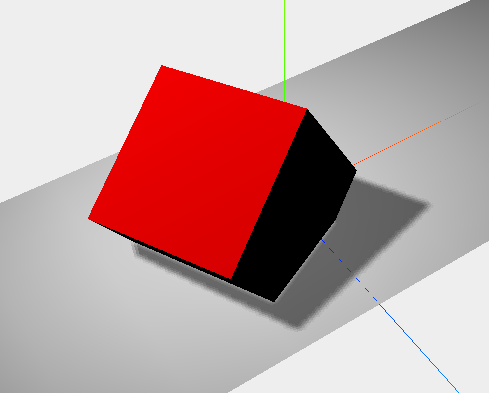
2 在第一个demo的基础上添加光源和方块物体,并生成阴影
3 在第二个demo的基础上,增加动画,使得方块进行旋转
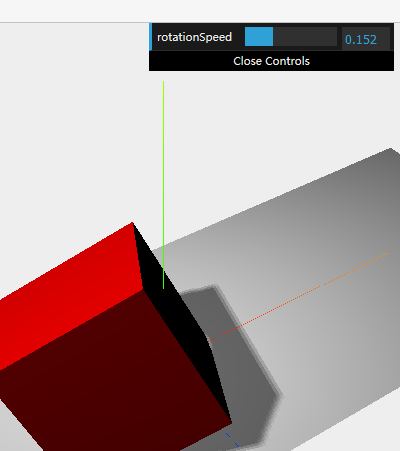
4 在第三个demo的基础上,增加图形操作界面,改变方块旋转的速度
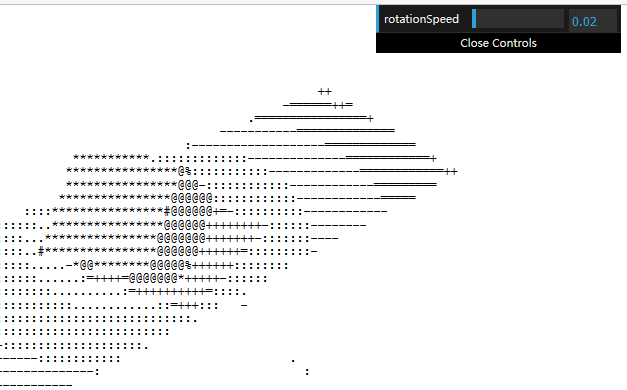
5 在第四个demo的基础上,我们使用ascII效果(这个没有做出来,不知道为什么asciieffect没有定义)
在下面的demo中,
1 生成了场景,相机,渲染器,几何体(平面),材质(几何体和材质进行组合,组成物体),坐标轴,
2 将相机,渲染器,物体都添加到场景中,
3 然后再对场景和相机进行渲染
<!DOCTYPE html>

<html>

<head>

    <title>1</title>

    <script type="text/javascript" src="three.js"></script>

    <style>

        body {

            /* set margin to 0 and overflow to hidden, to go fullscreen */

            margin: 0;

            overflow: hidden;

        }

    </style>

</head>

<body>

<!-- Div which will hold the Output -->

<div id="WebGL-output">

</div>

<!-- Javascript code that runs our Three.js examples -->

<script type="text/javascript">

   function init() {

        var scene=new THREE.Scene();//生成一个场景

        //生成一个相机

        var camera=new THREE.PerspectiveCamera(45,window.innerWidth/window.innerHeight,0.1,1000);//视场,长宽比,近面,远面

        camera.position.x=-20;

        camera.position.y=40;

        camera.position.z=30;

        camera.lookAt(scene.position);

        //生成一个渲染器

        var render=new THREE.WebGLRenderer();

        render.setClearColorHex(0xEEEEEE);

        render.setSize(window.innerWidth,window.innerHeight);

        //生成一个坐标轴,辅助线,坐标轴的参数

        var axes=new THREE.AxisHelper(20);

        //生成一个平面

        var planeGeometry=new THREE.PlaneGeometry(60,20,10,10);//注意参数

        //生成一个材质,设置材质的颜色,同时显示线框

        var planeMaterial=new THREE.MeshBasicMaterial({color:0xcccccc,wireframe:true});

        //生成一个网格,将平面和材质放在一个网格中,组合在一起,组成一个物体

        var plane=new THREE.Mesh(planeGeometry,planeMaterial);

        plane.rotation.x=-0.5*Math.PI;

        plane.position.x=15;

        plane.position.y=0;

        plane.position.z=0;

        //将相机,渲染器,坐标轴,平面都追加到场景中,然后对场景和相机进行渲染

        scene.add(camera);

        scene.add(render);

        scene.add(axes);

        scene.add(plane);

        render.render(scene,camera);

        document.getElementById("WebGL-output").append(render.domElement);

    };

    window.onload = init;

</script>

</body>

</html>
在下面的demo中,我们添加光源和设置物体阴影
1 three.js中有两种材质可以对光源产生反应,MeshLambertMaterial和MeshPhongMaterial,所以我们将上面demo中的MeshBasicMaterial替换为另外一个材质MeshLambertMaterial
2 我们设置点光源SpotLight
3 由于阴影需要大量的计算资源,所以three.js默认是不生成阴影的,需要进行设置
首先是渲染器,render.shadowMapEnabled=true
其次是允许物体投射阴影,cube.castShadow=true;
再其次是允许某些物体接受阴影,plane.receiveShadow=true
最后是光源也要投射阴影,spot.castShadow=true

<!DOCTYPE html>

<html>

<head>

    <title>1</title>

    <script type="text/javascript" src="three.js"></script>

    <style>

        body {

            /* set margin to 0 and overflow to hidden, to go fullscreen */

            margin: 0;

            overflow: hidden;

        }

    </style>

</head>

<body>

<!-- Div which will hold the Output -->

<div id="WebGL-output">

</div>

<!-- Javascript code that runs our Three.js examples -->

<script type="text/javascript">

   function init() {

        var scene=new THREE.Scene();//生成一个场景

        //生成一个相机

        var camera=new THREE.PerspectiveCamera(45,window.innerWidth/window.innerHeight,0.1,1000);//视场,长宽比,近面,远面

        camera.position.x=-20;

        camera.position.y=40;

        camera.position.z=30;

        camera.lookAt(scene.position);

        //生成一个渲染器

        var render=new THREE.WebGLRenderer();

        render.setClearColorHex(0xEEEEEE);

        render.setSize(window.innerWidth,window.innerHeight);

        render.shadowMapEnabled=true;//允许阴影映射,渲染阴影需要大量的资源,因此我们需要告诉渲染器我们需要阴影

        //生成一个坐标轴,辅助线

        var axes=new THREE.AxisHelper(20);

        //生成一个平面

        var planeGeometry=new THREE.PlaneGeometry(60,20,10,10);//平面

        //生成一个材质

        var planeMaterial=new THREE.MeshLambertMaterial({color:0xffffff});

        //生成一个网格,将平面和材质放在一个网格中,组合在一起,组成一个物体

        var plane=new THREE.Mesh(planeGeometry,planeMaterial);

        plane.rotation.x=-0.5*Math.PI;//将平面沿着x轴进行旋转

        plane.position.x=0;

        plane.position.y=0;

        plane.position.z=0;

        plane.receiveShadow=true;//平面进行接受阴影

        var cubeGeometry=new THREE.CubeGeometry(10,10,10);

        var planeMaterial1=new THREE.MeshLambertMaterial({color:0xff0000});

        var cube=new THREE.Mesh(cubeGeometry,planeMaterial1);

        //plane1.rotation.x=-0.5*Math.PI;//将平面沿着x轴进行旋转

        cube.position.x=-4;

        cube.position.y=3;

        cube.position.z=0;

        cube.castShadow=true;//需要阴影,方块进行投射阴影

        var spotLight=new THREE.SpotLight(0xffffff);

        spotLight.position.set(-40,60,-10);

        spotLight.castShadow=true;

        //将相机,渲染器,坐标轴,平面都追加到场景中,然后对场景和相机进行渲染

        scene.add(camera);

        scene.add(render);

        scene.add(axes);

        scene.add(plane);

        scene.add(cube);

        scene.add(spotLight);

        render.render(scene,camera);

        document.getElementById("WebGL-output").append(render.domElement);

    };

    window.onload = init;

</script>

</body>

</html>
在下面demo中,我们引入动画
让场景每隔一段时间进行一次渲染,setInterval方法会指定时间进行一次函数调用,
但是该方法并不考虑浏览器发生的事情,即使你正在浏览其他页面,该方法仍然会每隔固定的时间进行一次调用,
另外该方法并没有跟显示器的重新绘制同步,这将导致较高的cpu使用率
现在的浏览器有了requestAnimationFrame方法
<!DOCTYPE html>

<html>

<head>

    <title>1</title>

    <script type="text/javascript" src="three.js"></script>

    <style>

        body {

            /* set margin to 0 and overflow to hidden, to go fullscreen */

            margin: 0;

            overflow: hidden;

        }

    </style>

</head>

<body>

<!-- Div which will hold the Output -->

<div id="WebGL-output">

</div>

<!-- Javascript code that runs our Three.js examples -->

<script type="text/javascript">

   function init() {

        var scene=new THREE.Scene();//生成一个场景

        //生成一个相机

        var camera=new THREE.PerspectiveCamera(45,window.innerWidth/window.innerHeight,0.1,1000);//视场,长宽比,近面,远面

        camera.position.x=-20;

        camera.position.y=40;

        camera.position.z=30;

        camera.lookAt(scene.position);

        //生成一个渲染器

        var render=new THREE.WebGLRenderer();

        render.setClearColorHex(0xEEEEEE);

        render.setSize(window.innerWidth,window.innerHeight);

        render.shadowMapEnabled=true;//允许阴影映射,渲染阴影需要大量的资源,因此我们需要告诉渲染器我们需要阴影

        //生成一个坐标轴,辅助线

        var axes=new THREE.AxisHelper(20);

        //生成一个平面

        var planeGeometry=new THREE.PlaneGeometry(60,20,10,10);//平面

        //生成一个材质

        var planeMaterial=new THREE.MeshLambertMaterial({color:0xffffff});

        //生成一个网格,将平面和材质放在一个网格中,组合在一起,组成一个物体

        var plane=new THREE.Mesh(planeGeometry,planeMaterial);

        plane.rotation.x=-0.5*Math.PI;//将平面沿着x轴进行旋转

        plane.position.x=0;

        plane.position.y=0;

        plane.position.z=0;

        plane.receiveShadow=true;//平面进行接受阴影

        var cubeGeometry=new THREE.CubeGeometry(10,10,10);

        var planeMaterial1=new THREE.MeshLambertMaterial({color:0xff0000});

        var cube=new THREE.Mesh(cubeGeometry,planeMaterial1);

        //plane1.rotation.x=-0.5*Math.PI;//将平面沿着x轴进行旋转

        cube.position.x=-4;

        cube.position.y=3;

        cube.position.z=0;

        cube.castShadow=true;//需要阴影,方块进行投射阴影

        var spotLight=new THREE.SpotLight(0xffffff);

        spotLight.position.set(-40,60,-10);

        spotLight.castShadow=true;

        //将相机,渲染器,坐标轴,平面都追加到场景中,然后对场景和相机进行渲染

        scene.add(camera);

        scene.add(render);

        scene.add(axes);

        scene.add(plane);

        scene.add(cube);

        scene.add(spotLight);

        document.getElementById("WebGL-output").append(render.domElement);

         renderScene();

        function renderScene(){

            cube.rotation.x+=0.02;

            cube.rotation.y+=0.02;

            cube.rotation.z+=0.02;

            requestAnimationFrame(renderScene);

            render.render(scene,camera);

        }

    }

    window.onload = init;

</script>

</body>

</html>
我们使用google创建的dat.GUI库创建一个简单的界面,来控制方块旋转的速度
1 首先引入google的dat.gui.js文件
2 生成一个gui对象
3 定义一个js对象controls,然后再将controls对象传递给dat.gui对象
<!DOCTYPE html>

<html>

<head>

    <title>1</title>

    <script type="text/javascript" src="three.js"></script>

    <script type="text/javascript" src="dat.gui.js"></script>

    <style>

        body {

            /* set margin to 0 and overflow to hidden, to go fullscreen */

            margin: 0;

            overflow: hidden;

        }

    </style>

</head>

<body>

<!-- Div which will hold the Output -->

<div id="WebGL-output">

</div>

<!-- Javascript code that runs our Three.js examples -->

<script type="text/javascript">

   function init() {

        var scene=new THREE.Scene();//生成一个场景

        //生成一个相机

        var camera=new THREE.PerspectiveCamera(45,window.innerWidth/window.innerHeight,0.1,1000);//视场,长宽比,近面,远面

        camera.position.x=-20;

        camera.position.y=40;

        camera.position.z=30;

        camera.lookAt(scene.position);

        //生成一个渲染器

        var render=new THREE.WebGLRenderer();

        render.setClearColorHex(0xEEEEEE);

        render.setSize(window.innerWidth,window.innerHeight);

        render.shadowMapEnabled=true;//允许阴影映射,渲染阴影需要大量的资源,因此我们需要告诉渲染器我们需要阴影

        //生成一个坐标轴,辅助线

        var axes=new THREE.AxisHelper(20);

        //生成一个平面

        var planeGeometry=new THREE.PlaneGeometry(60,20,10,10);//平面

        //生成一个材质

        var planeMaterial=new THREE.MeshLambertMaterial({color:0xffffff});

        //生成一个网格,将平面和材质放在一个网格中,组合在一起,组成一个物体

        var plane=new THREE.Mesh(planeGeometry,planeMaterial);

        plane.rotation.x=-0.5*Math.PI;//将平面沿着x轴进行旋转

        plane.position.x=0;

        plane.position.y=0;

        plane.position.z=0;

        plane.receiveShadow=true;//平面进行接受阴影

        var cubeGeometry=new THREE.CubeGeometry(10,10,10);

        var planeMaterial1=new THREE.MeshLambertMaterial({color:0xff0000});

        var cube=new THREE.Mesh(cubeGeometry,planeMaterial1);

        //plane1.rotation.x=-0.5*Math.PI;//将平面沿着x轴进行旋转

        cube.position.x=-4;

        cube.position.y=3;

        cube.position.z=0;

        cube.castShadow=true;//需要阴影,方块进行投射阴影

        var spotLight=new THREE.SpotLight(0xffffff);

        spotLight.position.set(-40,60,-10);

        spotLight.castShadow=true;

        //将相机,渲染器,坐标轴,平面都追加到场景中,然后对场景和相机进行渲染

        scene.add(camera);

        scene.add(render);

        scene.add(axes);

        scene.add(plane);

        scene.add(cube);

        scene.add(spotLight);

        document.getElementById("WebGL-output").append(render.domElement);

        renderScene();

        function renderScene(){

            cube.rotation.x+=controls.rotationSpeed;

            cube.rotation.y+=controls.rotationSpeed;

            cube.rotation.z+=controls.rotationSpeed;

            requestAnimationFrame(renderScene);

            render.render(scene,camera);

        }

    }

    var controls=new function(){

            this.rotationSpeed=0.02;

    };

    var gui=new dat.GUI();

    gui.add(controls,"rotationSpeed",0,0.5);

    window.onload = init;

</script>

</body>

</html>
ASCII效果
1 引入AsciiEffect.js
2 生成一个ascii效果
3 页面追加的domElement由渲染器的domElement改成ascii效果的domelement
4 render的话就使用effect的render进行渲染
<!DOCTYPE html>

<html>

<head>

    <title>1</title>

    <script type="text/javascript" src="three.js"></script>

    <script type="text/javascript" src="dat.gui.js"></script>

    <script type="text/javascript" src="AsciiEffect.js"></script>

    <style>

        body {

            /* set margin to 0 and overflow to hidden, to go fullscreen */

            margin: 0;

            overflow: hidden;

        }

    </style>

</head>

<body>

<!-- Div which will hold the Output -->

<div id="WebGL-output">

</div>

<!-- Javascript code that runs our Three.js examples -->

<script type="text/javascript">

   function init() {

        var scene=new THREE.Scene();//生成一个场景

        //生成一个相机

        var camera=new THREE.PerspectiveCamera(45,window.innerWidth/window.innerHeight,0.1,1000);//视场,长宽比,近面,远面

        camera.position.x=-20;

        camera.position.y=40;

        camera.position.z=30;

        camera.lookAt(scene.position);

        //生成一个渲染器

        var render=new THREE.WebGLRenderer();

        render.setClearColorHex(0xEEEEEE);

        render.setSize(window.innerWidth,window.innerHeight);

        render.shadowMapEnabled=true;//允许阴影映射,渲染阴影需要大量的资源,因此我们需要告诉渲染器我们需要阴影

        //生成一个坐标轴,辅助线

        var axes=new THREE.AxisHelper(20);

        //生成一个平面

        var planeGeometry=new THREE.PlaneGeometry(60,20,10,10);//平面

        //生成一个材质

        var planeMaterial=new THREE.MeshLambertMaterial({color:0xffffff});

        //生成一个网格,将平面和材质放在一个网格中,组合在一起,组成一个物体

        var plane=new THREE.Mesh(planeGeometry,planeMaterial);

        plane.rotation.x=-0.5*Math.PI;//将平面沿着x轴进行旋转

        plane.position.x=0;

        plane.position.y=0;

        plane.position.z=0;

        plane.receiveShadow=true;//平面进行接受阴影

        var cubeGeometry=new THREE.CubeGeometry(10,10,10);

        var planeMaterial1=new THREE.MeshLambertMaterial({color:0xff0000});

        var cube=new THREE.Mesh(cubeGeometry,planeMaterial1);

        //plane1.rotation.x=-0.5*Math.PI;//将平面沿着x轴进行旋转

        cube.position.x=-4;

        cube.position.y=3;

        cube.position.z=0;

        cube.castShadow=true;//需要阴影,方块进行投射阴影

        var spotLight=new THREE.SpotLight(0xffffff);

        spotLight.position.set(-40,60,-10);

        spotLight.castShadow=true;

        //将相机,渲染器,坐标轴,平面都追加到场景中,然后对场景和相机进行渲染

        scene.add(camera);

        scene.add(render);

        scene.add(axes);

        scene.add(plane);

        scene.add(cube);

        scene.add(spotLight);

        var effect=new THREE.AsciiEffect(render);

        effect.setSize(window.innerWidth,window.innerHeight);

        document.getElementById("WebGL-output").append(effect.domElement);

        renderScene();

        function renderScene(){

            cube.rotation.x+=controls.rotationSpeed;

            cube.rotation.y+=controls.rotationSpeed;

            cube.rotation.z+=controls.rotationSpeed;

            requestAnimationFrame(renderScene);

            effect.render(scene,camera);

        }

    }

    var controls=new function(){

            this.rotationSpeed=0.02;

    };

    var gui=new dat.GUI();

    gui.add(controls,"rotationSpeed",0,0.5);

    window.onload = init;

</script>

</body>

</html>
-Three.js开发指南---用three.js创建你的第一个三维场景(第一章)的更多相关文章
- Three.js开发指南---使用three.js的材质(第四章)
材质就像物体的皮肤,决定了几何体的外表,例如是否像草地/金属,是否透明,是否显示线框等 一 材质 THREE.js的材质分为多种,Three.js提供了一个材质基类THREE.Material, 该基 ...
- Three.js开发指南---使用three.js里的各种光源(第三章)
本章的主要内容 1 three.js有哪些可用的光源 2 什么时候用什么光源. 3 如何调整配置各种光源 4 如何创建镜头炫光 一 光源 光源大概有7种, 其中基础光源有4种 环境光(AmbientL ...
- Node.js开发指南中的例子(mysql版)
工作原因需要用到nodejs,于是找到了<node.js开发指南>这本书来看看,作者BYVoid 为清华大学计算机系的高材生,年纪竟比我还小一两岁,中华地广物博真是人才辈出,佩服. 言归正 ...
- 学习Nodejs:《Node.js开发指南》微博项目express2迁移至express4过程中填的坑
<Node.js开发指南>项目地址https://github.com/BYVoid/microblog好不容易找到的基础版教程,但书中是基于express2的,而现在用的是express ...
- KeyboardJS 开发指南 - 与 Three.js 配合使用的捕捉键盘组合键库
KeyboardJS 开发指南 - 与 Three.js 配合使用的捕捉键盘组合键库 太阳火神的漂亮人生 (http://blog.csdn.net/opengl_es) 本文遵循"署名-非 ...
- 《Three js开发指南》 PDF
电子版仅供预览及学习交流使用,下载后请24小时内删除,支持正版,喜欢的请购买正版书籍:<Three js开发指南> pdf下载地址:链接: https://pan.baidu.com/s/ ...
- 《node.js开发指南》partial is not defined的解决方案
由于ejs的升级,<node.js开发指南>中使用的 partial 函数已经摒弃,使用foreach,include代替 原来的代码是: <%- partial('listitem ...
- NODE.JS开发指南学习笔记
1.Node.js是什么 Node.js是一个让JS运行在服务器端的开发平台,它可以作为服务器向用户提供服务.Node.js中的javascript只是Core javascript,或者说是ECMA ...
- Node.js 开发指南
1.Node.js 简介 Node.js 其实就是借助谷歌的 V8 引擎,将桌面端的 js 带到了服务器端,它的出现我将其归结为两点: V8 引擎的出色: js 异步 io 与事件驱动给服务器带来极高 ...
随机推荐
- Math.abs(~2018),掌握规律即可!
Math.abs(~2018) 某前端群的入门问题长姿势了,一个简单的入门问题却引发了我的思考,深深的体会到自己在学习前端技术的同时忽略遗忘了一些计算机的基础知识. 对于 JS Math对象没什么可说 ...
- android SDK 更新问题解决
Android在win7更新SDK时出现问题: Download interrupted: hostname in certificate didn't match: <dl-ssl.goog ...
- Error running app: This version of Android Studio is incompatible with the Gradle Plugin used. Try disabling Instant Run.
转自:http://blog.csdn.net/qq_15807167/article/details/51984920 参考:http://stackoverflow.com/questions/3 ...
- IntelliJ IDEA注册码
1.打开IJ,help选项下的register 2. 选择Activation code 将注册码粘到内容框里,点击ok即可 43B4A73YYJ-eyJsaWNlbnNlSWQiOiI0M0I0QT ...
- 【Python】将4*4数组旋转90度新数组
需求:将一个4*4的数组90度旋转生成新的4*4数组 原来的4*4数组:[0, 1, 2, 3][0, 1, 2, 3][0, 1, 2, 3][0, 1, 2, 3]90度旋转后的4*4数组:[0, ...
- Centeros7 环境相关问题
服务处理命令 systemctl start mariadb #启动MariaDB systemctl stop mariadb #停止MariaDB systemctl restart mariad ...
- C# 文件选择对话框,Unity3d文件保存对话框
using OpenWinForm = System.Windows.Forms; 在unity3d中,使用FileDialog应该把System.Windows.Forms.dll拷贝到unity工 ...
- 第三章Git使用入门--读书笔记
“管理”一词,几乎在生活的方方面面都存在,而在Linux驱动开发中会涉及很多的源代码,对于数量繁多的源码,我们也应该有一个管理软件.Android和Linux内核及驱动开发的源代码基本都是由Git 来 ...
- 利用 iframe解决ajax的跨域问题
问题 1. form提交或a标签跳转方式提交不会引发跨域问题. 2. ajax出于安全问题就有了跨域问题,因为一次请求中既访问了外部域最后返回了自己的域. 3. 用iframe其实就是想仿照ajax的 ...
- cs231n笔记:最优化
本节是cs231学习笔记:最优化,并介绍了梯度下降方法,然后应用到逻辑回归中 引言 在上一节线性分类器中提到,分类方法主要有两部分组成:1.基于参数的评分函数.能够将样本映射到类别的分值.2.损失函数 ...