
AutoArchive settings explained
AutoArchive settings explained
AutoArchive helps manage the space in your mailbox or on the e-mail server that you are using by automatically moving items to an archive location. Depending on the options, AutoArchive completes one or both of the following actions:
Moves items from their original location, generally one of your active folders, to an archive folder.
Where do my items go?
The archive file is a type of Outlook Data File (.pst). The first time AutoArchive runs, the archive file is automatically created. Where the file is created depends on the operating system running on your computer.
Windows 7 C:\Users\YourUserName\Documents\Outlook Files\archive.pst
Windows Vista C:\Users\YourUserName\AppData\Local\Microsoft\Outlook\Archive.pst
Windows XP C:\Documents and Settings\YourUserName \Local Settings\Application Data\Microsoft\Outlook\Archive.pst
I can't find the folders listed in this article
Some of the folders might be hidden folders. To display hidden folders in Windows, do the following:
Click the Start button, and then click Control Panel.
Click Folder Options.
To locate Folder Options, in the search box at the top of window, type Folder Options. In Control Panel for Windows XP, type Folder Options in the Address box.
On the View tab, in the Advanced settings list, under Files and Folders, under Hidden files and folders, select Show hidden files, folders and drives.
Permanently deletes items that have passed their aging periods.
Note: If you choose to have items deleted, they are not archived. If you choose to have items archived, they cannot be deleted by an AutoArchive. Once items are archived, they can only be deleted manually.
For more information about the AutoArchive feature, see Use AutoArchive to back up or delete items.
Aging periods of Outlook items
Any Outlook item that has exceeded its aging period is included in the next AutoArchive, unless the item has been specifically marked to be excluded. The default aging period for each Outlook folder is as follows:
|
Folder |
Aging period |
|
Inbox and Drafts |
6 months |
|
Sent Items and Deleted Items |
2 months |
|
Outbox |
3 months |
|
Calendar |
6 months |
|
Tasks |
6 months |
|
Notes |
6 months |
|
Journal |
6 months |
Note: Folders that you create that contain the same type of items as the Inbox, Calendar, Tasks, Notes, or Journal have the same default, six-month aging period. For example, a mail folder that you create for status reports received from a co-worker or a contact folder you create for personal contacts.
Determine the age of an item
|
Item type |
When the aging period starts |
|
E-mail message |
The received date/time or when you last changed and saved the message, whichever is later. Marking a message as read or unread is an example of a message change. |
|
Calendar meeting, event, or appointment |
The date when you last changed and saved the item, whichever is later. Recurring items are not AutoArchived. |
|
Task |
The completion date or when you last changed and saved the task. Tasks that are not marked complete are not AutoArchived. Tasks assigned to other people are archived only if marked complete. |
|
Note |
When you last changed and saved the note. |
|
Journal entry |
The date the Journal entry was created or when you last changed and saved the entry. |
|
Contact |
Contacts are not archived by default. However, you can manually archive them. |
AutoArchive settings and options
See the following descriptions for the settings and options that you can apply when customizing AutoArchive.
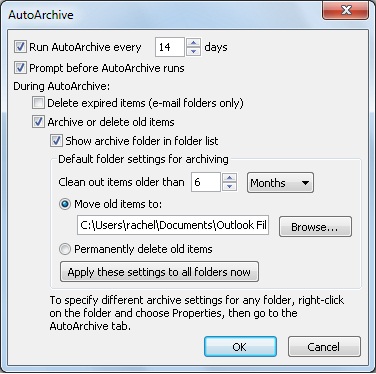
Run AutoArchive every n days Choose how often AutoArchive runs. Archiving many items at the same time might slow your computer's performance. Therefore, it is better to use AutoArchive more frequently to reduce the number of items processed.
To turn off the AutoArchive feature, clear the Run AutoArchive every n days check box.
Prompt before AutoArchive runs Choose whether you want a reminder message to appear before AutoArchive processes your Outlook items. When prompts appear, you can click No on the reminder message to cancel that AutoArchive session.
Delete expired items (e-mail folders only) This option is off by default. Select this check box to delete messages after their aging period has passed.
Archive or delete old items Choose this option if you want to set or change the settings that follow. If this check box is cleared, AutoArchive runs using default settings.
Show archive folder in folder list Select this check box to have the Archive folder listed with your other working folders in the Navigation Pane. If you do not use this option, you can still open your archive folder — click the File tab, then on the Open tab, click Open Outlook Data File.
Clean out items older than Specify the age at which you want items to be archived, in days, weeks, or months. You can configure a period of one day up to a maximum of 60 months.
Move old items to Select this check box to archive old items instead of automatically delete them. The default folder appears in the box. To use a different folder, enter the folder location in the box or click Browse. Selecting this option clears selection of the Permanently delete items option.
Permanently delete items This option deletes any expired items. They are not moved and no archive copy is kept. Selecting this option clears selection of the Move old items to option.
Apply these settings to all folders now This option applies the AutoArchive settings, including your changes, to all folders. To specify unique settings for one or more folders, do not choose this option. Instead, right-click the folder, click Properties and then go to the AutoArchive tab to change settings for each folder that you want to change.
原文地址:https://support.office.com/en-us/article/AutoArchive-settings-explained-444bd6aa-06d0-4d8f-9d84-903163439114?ui=en-US&rs=en-US&ad=US
AutoArchive settings explained的更多相关文章
- Some Useful Property Settings Explained Of Oracle Forms
In Oracle forms when we have two or more blocks and there is a requirement to join them or make a re ...
- SON-RPC for Java
JSON-RPC for Java https://github.com/briandilley/jsonrpc4j#json-rpc-for-java This project aims to pr ...
- (转)开源分布式搜索平台ELK(Elasticsearch+Logstash+Kibana)入门学习资源索引
Github, Soundcloud, FogCreek, Stackoverflow, Foursquare,等公司通过elasticsearch提供搜索或大规模日志分析可视化等服务.博主近4个月搜 ...
- 开源分布式搜索平台ELK(Elasticsearch+Logstash+Kibana)入门学习资源索引
from: http://www.w3c.com.cn/%E5%BC%80%E6%BA%90%E5%88%86%E5%B8%83%E5%BC%8F%E6%90%9C%E7%B4%A2%E5%B9%B ...
- [转]How to enable macros in Excel 2016, 2013, and 2010
本文转自:https://www.ablebits.com/office-addins-blog/2014/07/22/enable-macros-excel/#always-run-macros T ...
- 中文论文-LaTex模板
\documentclass[10pt,UTF8]{article} \usepackage{ctex} \usepackage{amssymb,amsmath,multicol,titlesec} ...
- HttpClient, HttpClientHandler, and WebRequestHandler Explained
原文地址 https://blogs.msdn.microsoft.com/henrikn/2012/08/07/httpclient-httpclienthandler-and-webrequest ...
- Android USB Connections Explained: MTP, PTP, and USB Mass Storage
Android USB Connections Explained: MTP, PTP, and USB Mass Storage Older Android devices support USB ...
- AMQP 0-9-1 Model Explained Why does the queue memory grow and shrink when publishing/consuming? AMQP和AMQP Protocol的是整体和部分的关系 RabbitMQ speaks multiple protocols.
AMQP 0-9-1 Model Explained — RabbitMQ http://next.rabbitmq.com/tutorials/amqp-concepts.html AMQP 0-9 ...
随机推荐
- Lintcode---线段树修改
对于一棵 最大线段树, 每个节点包含一个额外的 max 属性,用于存储该节点所代表区间的最大值. 设计一个 modify 的方法,接受三个参数 root. index 和 value.该方法将 roo ...
- SpringCloud系列十七:Hystrix的监控
1. 回顾 上文讲解了使用Hystrix为Feign添加回退,并通过Fallback Factory检查回退原因以及如何为Feign客户端禁用Hystrix. 2. Hystrix的监控 除实现容错外 ...
- [elk]kibana搜索绘图
kibana绘图 好些日志入库了需要分析. 1,首先分析top10 url的table和柱状分布 2,其次想着分析下404所占比例,以及404所对应的url table. 3,最后分析一下请求总数. ...
- 使用BleLib的轻松搞定Android低功耗蓝牙Ble 4.0开发具体解释
转载请注明来源: http://blog.csdn.net/kjunchen/article/details/50909410 使用BleLib的轻松搞定Android低功耗蓝牙Ble 4.0开发具体 ...
- linux之grub的使用
一.引言 昨天在家里在自己的电脑上安装CentOS7,一切都顺利,结果安装好重启,无法进入win7了,在grub的配置文件也添加了win7的条目,却提示 unkown command chainloa ...
- android camera之nv21旋转
这周做的一个android的camera开发,需要获取到视频帧数据,并且需要是nv21格式的byte数组,并且视频帧的图像需要是正方向的.和android相机打过交道的都清楚,android的came ...
- phpcms利用广告位实现轮播图调用
如果我们使用自带的广告轮播,那么就是失去原有的轮播样式,这里就教大家一种使用广告轮播,还能保留原有的轮播样式 1.需要找到广告位的模块位置 3 下载广告代码 https://files.cnblogs ...
- 将int型数字转换成6位字符串,不足的时候,前面补0
将int型数字转换成6位字符串,不足的时候,前面补0 方法一: int num = 123; num.ToString("000000"); 方法二: int num = 123; ...
- grep检索文本
grep [OPTIONS] PATTERN [FILE...] grep zifuchuan * 不行的话来一个: grep zifuchuan */* 不行的话再来一个: grep zifuc ...
- 【Raspberry pi】GPIO注意事项
1.GPIO编码的方法 第三列是树莓派板子上的自然编号(左边引脚为1-15,右边引脚为2-26),RPi.GPIO.setmode(GPIO.BOARD)采用这列编号 树莓派主芯片提供商Broadco ...