
vue2 实现可拖拽悬浮球
实现效果
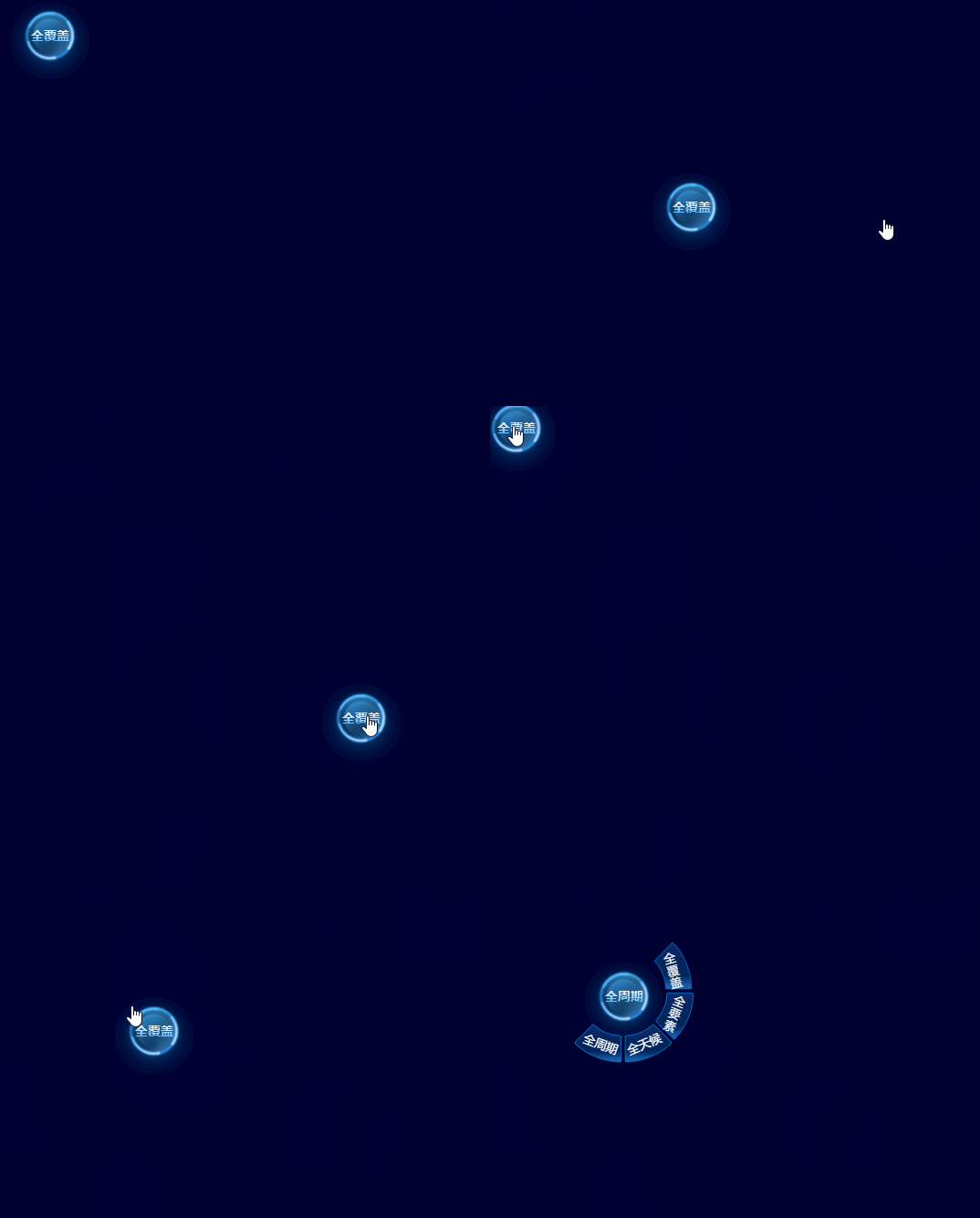
相关代码
点击查看代码
<template>

  <div class="float-box">

    <div

      class="button-box"

      @mousedown="mousedown"

      @mousemove="mousemove"

      @touchmove="mousemove"

      @mouseup="mouseup"

      @touchstart="mousedown"

      @touchend="mouseup"

      @click="onClick"

      ref="flbutton"

    >

      <span class="title">{{ title }}</span>

    </div>

    <div

      :style="{ left: left + 'px', top: top + 'px' }"

      v-if="menuFlag"

      :class="menuPosition === 'right' ? 'menu-item-right':'menu-item-left'"

    >

      <div :class="tabBackImg(index)" class="box-title-box-item" v-for="(item,index) in circleList"

           @click="circleClick(item,index)">

        <span :class="'text'+index">{{ item }}</span>

      </div>

    </div>

  </div>

</template>

<script>

export default {

  name: "FloatButton",

  props: {

    circleList: {

      type: Array,

      default: () => []

    },

  },

  data() {

    return {

      title: '',

      left: 0,

      top: 40,

      menuFlag: false,//菜单显隐

      mouseDownflag: false, // 鼠标点击状态

      position: {

        x: 0,

        y: 0,

      },

      nx: "",

      ny: "",

      dx: "",

      dy: "",

      xPum: "",

      yPum: "",

      movb: 1,//区分拖拽还是点击

      menuPosition: 'right',

    };

  },

  mounted() {

    this.left = this.$refs.flbutton.offsetLeft + 20;

    this.top = this.$refs.flbutton.offsetTop;

    this.title = this.circleList[0];

  },

  computed: {

    tabBackImg() {

      return (index) => {

        if (index === 0) {

          return 'tab-item-1'

        } else if (index === 1) {

          return 'tab-item-2'

        } else if (index === 2) {

          return 'tab-item-3'

        } else if (index === 3) {

          return 'tab-item-4'

        }

      }

    }

  },

  methods: {

    circleClick(item, index) {

      this.title = item

      this.$emit('circleClick', item, index)

    },

    //鼠标摁下

    mousedown() {

      this.mouseDownflag = true;

      /*此处判断pc 或移动端得到event 事件*/

      var touch;

      if (event.touches) {

        touch = event.touches[0];

      } else {

        touch = event;

      }

      //鼠标点击面向页面的x坐标y坐标

      this.position.x = touch.clientX;

      this.position.y = touch.clientY;

      //鼠标x坐标-拖拽按钮x坐标得到鼠标距离拖拽按钮的间距

      this.dx = this.$refs.flbutton.offsetLeft;

      //鼠标y坐标-拖拽按钮y坐标得到鼠标距离拖拽按钮的间距

      this.dy = this.$refs.flbutton.offsetTop;

    },

    //鼠标拖拽移动

    mousemove() {

      if (this.mouseDownflag) {

        this.movb = 2;

        this.menuFlag = false;

        /*此处判断得到event事件*/

        var touch;

        if (event.touches) {

          touch = event.touches[0];

        } else {

          touch = event;

        }

        //鼠标坐标-鼠标与拖拽按钮的间距坐标得到拖拽按钮的左上角x轴y轴坐标

        this.nx = touch.clientX - this.position.x;

        this.ny = touch.clientY - this.position.y;

        this.xPum = this.dx + this.nx;

        this.yPum = this.dy + this.ny;

        let width = window.innerWidth - this.$refs.flbutton.offsetWidth; //屏幕宽度减去自身控件宽度

        let height = window.innerHeight - this.$refs.flbutton.offsetHeight; //屏幕高度减去自身控件高度

        /* 此处判断

          拖拽按钮 如果超出屏幕宽高或者小于

          设置屏幕最大 x=全局容器x y=全局容器y

          否则 设置 为 x=0 y=0

        */

        this.xPum < 0 && (this.xPum = 0);

        this.yPum < 0 && (this.yPum = 0);

        this.xPum > width && (this.xPum = width);

        this.yPum > height && (this.yPum = height);

        if (this.xPum > 900) {

          this.menuPosition = 'left'

        } else {

          this.menuPosition = 'right'

        }

        // 计算后坐标  设置 按钮位置

        this.$refs.flbutton.style.left = this.xPum + "px";

        this.$refs.flbutton.style.top = this.yPum + "px";

        this.left = this.xPum + 20;

        this.top = this.yPum;

        //阻止页面的滑动默认事件

        document.addEventListener("touchmove", function () {

          event.preventDefault();

        }, false);

      }

    },

    //鼠标抬起

    mouseup() {

      this.mouseDownflag = false;

    },

    onClick() {

      if (this.movb === 2) {

        this.movb = 1;

      } else {

        this.menuFlag = !this.menuFlag;

      }

    },

  },

};

</script>

<style scoped lang="scss">

.float-box {

  position: relative;

  .button-box {

    width: 110px;

    height: 110px;

    position: fixed;

    top: 100px;

    left: 500px;

    touch-action: none;

    text-align: center;

    color: white;

    background-image: url("~@/assets/images/screen/float-button/button.png");

    background-repeat: no-repeat;

    background-size: 100% 100%;

    line-height: 100px;

    font-size: 14px;

    cursor: pointer;

    z-index: 99;

    .title {

      background: linear-gradient(rgba(255, 255, 255, 1) 25%, rgba(69, 177, 254, 1) 100%);;

      -webkit-background-clip: text;

      color: transparent;

      font-weight: bolder;

    }

  }

  .menu-item-left {

    position: absolute;

    z-index: 99;

    .box-title-box-item {

      color: #FFFFFF;

      cursor: pointer;

      font-size: 13px;

      cursor: pointer;

      display: flex;

      justify-content: center;

      align-items: center;

    }

    .tab-item-1 {

      height: 53px;

      width: 43px;

      position: absolute;

      top: -8px;

      left: -42px;

      background: url("~@/assets/images/screen/float-button/button-l1.png") no-repeat;

      background-size: 100% 100%;

      line-height: 43px;

      padding-top: 10px;

    }

    .tab-item-2 {

      height: 53px;

      width: 44px;

      background: url("~@/assets/images/screen/float-button/button-l2.png") no-repeat;

      background-size: 100% 100%;

      position: absolute;

      top: 46px;

      left: -42px;

      line-height: 43px;

    }

    .tab-item-3 {

      height: 43px;

      width: 53px;

      background: url("~@/assets/images/screen/float-button/button-r3.png") no-repeat;

      background-size: 100% 100%;

      position: absolute;

      top: 80px;

      left: 37px;

      line-height: 43px;

    }

    .tab-item-4 {

      height: 43px;

      width: 53px;

      background: url("~@/assets/images/screen/float-button/button-r4.png") no-repeat;

      background-size: 100% 100%;

      position: absolute;

      top: 80px;

      left: -17px;

      line-height: 40px;

    }

    .tab-item-1:hover, .tab-item-2:hover, .tab-item-3:hover, .tab-item-4:hover {

      transform: scale(1.2);

    }

    .text0, .text1, .text2, .text3 {

      display: inline-block;

    }

    .text0 {

      writing-mode: vertical-rl;

      letter-spacing: 1px;

      transform: rotate(17deg);

    }

    .text1 {

      writing-mode: vertical-rl;

      letter-spacing: 1px;

      transform: rotate(335deg);

    }

    .text2 {

      transform: rotate(340deg);

    }

    .text3 {

      transform: rotate(20deg);

    }

  }

  .menu-item-right {

    position: absolute;

    z-index: 99;

    .box-title-box-item {

      color: #FFFFFF;

      cursor: pointer;

      font-size: 13px;

      cursor: pointer;

      display: flex;

      justify-content: center;

      align-items: center;

    }

    .tab-item-1 {

      height: 53px;

      width: 43px;

      position: absolute;

      top: -10px;

      left: 67px;

      background: url("~@/assets/images/screen/float-button/button-r1.png") no-repeat;

      background-size: 100% 100%;

      line-height: 43px;

      padding-top: 10px;

    }

    .tab-item-2 {

      height: 53px;

      width: 43px;

      background: url("~@/assets/images/screen/float-button/button-r2.png") no-repeat;

      background-size: 100% 100%;

      position: absolute;

      top: 45px;

      left: 69px;

      line-height: 43px;

    }

    .tab-item-3 {

      height: 43px;

      width: 53px;

      background: url("~@/assets/images/screen/float-button/button-r3.png") no-repeat;

      background-size: 100% 100%;

      position: absolute;

      top: 80px;

      left: 35px;

      line-height: 43px;

    }

    .tab-item-4 {

      height: 43px;

      width: 53px;

      background: url("~@/assets/images/screen/float-button/button-r4.png") no-repeat;

      background-size: 100% 100%;

      position: absolute;

      top: 80px;

      left: -20px;

      line-height: 40px;

    }

    .tab-item-1:hover, .tab-item-2:hover, .tab-item-3:hover, .tab-item-4:hover {

      transform: scale(1.2);

    }

    .text0, .text1, .text2, .text3 {

      display: inline-block;

    }

    .text0 {

      writing-mode: vertical-rl;

      letter-spacing: 1px;

      transform: rotate(345deg);

    }

    .text1 {

      writing-mode: vertical-rl;

      letter-spacing: 1px;

      transform: rotate(21deg);

      margin-bottom: 5px;

    }

    .text2 {

      transform: rotate(337deg);

      margin-right: 10px;

    }

    .text3 {

      transform: rotate(20deg);

      margin-left: 5px;

    }

  }

}

</style>
vue2 实现可拖拽悬浮球的更多相关文章
- vue2+element表格拖拽
1.定义好拖拽元素 ref标识,以及 row-key="id" (row-key拖拽标识,拖拽后数据不会乱, id为tableDataNew数据对象id) 2.下载cnpm in ...
- js制作可拖拽可点击的悬浮球
兼容mouse事件和touch事件,支持IE9及其以上 效果展示:https://jsfiddle.net/shifeng/7xebf3u0/ // index.html <!DOCTYPE h ...
- [Winform]无边框窗口悬浮右下角并可以拖拽移动
摘要 简单实现了一个这样的功能,程序启动时,窗口悬固定在右下角,并可以通过鼠标拖拽移动. 核心代码块 无边框窗口并不出现在任务栏 //无边框 this.FormBorderStyle = System ...
- selenium中各个模块操作:下拉框、鼠标悬浮连贯、拼图拖拽操作、以及其他拖拽操作、连线操作
1.下拉框的修改操作 方法一:定位到元素后,通过select选择对应的值 方法二:通过两次点击的方法:没有select的value属性时,采用click两次的方法去选择: click第一次后,出现下拉 ...
- 微软出品自动化神器【Playwright+Java】系列(六) 之 字符输入、单元素键盘事件操作、上传文件、聚焦、拖拽、悬浮操作
前言: 今天一早起床,就一直太阳穴疼,吃了四片去痛片已经无效,真的是疼的直恶心. 如果说学习或者写文章,能够或者头疼的话,那我想说,我还能坚持一会..... 很久没更新这系列的文章了,那么我们将Pla ...
- vue2.0 不引用第三方包的情况下实现嵌套对象的拖拽排序功能
先上一张效果图,然后再上代码(由于只做效果,未做数据相关的处理:实际处理数据时不修改 dom 元素,只是利用 dom 元素传递数据,然后需改数据,靠数据驱动效果) <div :id=" ...
- vue2.0使用Sortable.js实现的拖拽功能
简介 在使用vue1.x之前的版本的时候,页面中的拖拽功能,我在项目中是直接用的jQuery ui中的sortable.js,只是在拖拽完成后,在update的回调函数中又重新排序了存放数据的数组.但 ...
- [vue2 + jointjs + svg-pan-zoom] 节点自动布局渲染 + 拖拽缩放
启动vue项目,执行以下命令安装dagre.graphlib.jointjs.svg-pan-zoom. npm install dagre graphlib jointjs svg-pan-zoom ...
- HTML5之拖拽(兼容IE和非IE)
前世:项目中需要拖动div,然后和某个div进行位置交换,这不是关键,关键是还要保存位置,然后在下次打开的时候按照保存的位置显示.还好本人功力深厚,一下子就想到了用localStorage来保存,事实 ...
- Android6.0 源码修改之 仿IOS添加全屏可拖拽浮窗返回按钮
前言 之前写过屏蔽系统导航栏功能的文章,具体可看Android6.0 源码修改之屏蔽导航栏虚拟按键(Home和RecentAPP)/动态显示和隐藏NavigationBar 在某些特殊定制的版本中要求 ...
随机推荐
- WPF 编写一个测试 WM_TOUCH 触摸消息延迟的应用
我听说在 Win10 到 Win11 的系统版本左右,微软加上了一大波触摸性能优化,准确来说是 HID 性能优化.我想测试一下在这些系统下,采用从 Windows 消息接收到 WM_TOUCH 触摸消 ...
- Linux 根文件系统的移植(从入门到精通)
一.简介 提到操作系统的安装,还得从大学的时候说起,刚入学的时,朋友的系统本崩了,跑去电脑城换个系统花了40大洋,震惊了贫穷的我.好像发现了商机,果断开始了折腾自己的电脑,然后用朋友的电脑进行测试,由 ...
- 【GUI软件】小红书详情数据批量采集,含笔记内容、转评赞藏等,支持多笔记同时采集!
目录 一.背景介绍 1.1 爬取目标 1.2 演示视频 1.3 软件说明 二.代码讲解 2.1 爬虫采集模块 2.2 软件界面模块 2.3 日志模块 三.获取源码及软件 一.背景介绍 1.1 爬取目标 ...
- Docker 必知必会----初识
什么是Docker?Docker 是一个开源的容器管理引擎.开发者可以通过Docker直接管理应用程序所需要的容器.它的logo如下: 为什么需要Docker使用Docker主要有两个原因,1.屏蔽不 ...
- 模型压缩与部署-书生浦语大模型实战营学习笔记5&大语言模型11
大语言模型-11.模型压缩与部署 书生浦语大模型实战营学习笔记4-模型压缩与部署 本文包括第二期实战营的第5课内容,介绍关于模型压缩的相关内容,主要包括.模型量化和模型部署的相关内容. 模型部署 定义 ...
- linux网络管理及常用网络工具详解
linux网络管理及常用网络工具详解 目录 linux网络管理及常用网络工具详解 1. linux网络管理 1.1 centos网卡命名规则 1.2 域名解析配置文件 1.3 ifconfig命令管理 ...
- ElasticSearch使用经验总结
ElasticSearch总结 1.ElasticSearch的查询原理 Elasticsearch底层使用的Lucene的倒排索引技术来实现比关系型数据库更快的过滤的.所以要想了解Es的擦查询原理, ...
- Django项目windows上开发,虚拟机上调通打包,生产环境解压即用
linux上部署Django项目 首先创建一个简易的Django项目 使用自动生成的这个数据库 压缩上传 解压运行,不可以 [root@mcw1 /opt/mcwtest]$ ls app01 db. ...
- 安卓开发封装处理Retrofit协程请求中的异常
上篇文章讲解了怎么使用Kotlin的协程配合Retrofit发起网络请求,使用也是非常方便,但是在处理请求异常还不是很人性化.这篇文章,我们将处理异常的代码进行封装,以便对异常情况返回给页面,提供更加 ...
- 卸载vsto插件的方法
现在发布博客园的博客已经可以直接在word上进行,word上的代码高亮插件也安装起了,不过,因为有源码的原因,我就对插件进行了更改,安装之后需要重新安装,有时候在再次安装得时候会提示已经安装过了,我就 ...