
python webdriver 登录163邮箱发邮件加附件, 外加数据和程序分离,配置文件的方式
配置文件:UiObjectMapSendMap.ini用来存放配置信息
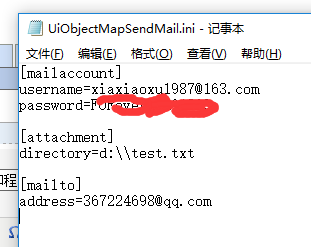
GetOptionSendMail.py 用来读取配信息
#encoding=utf-8
from selenium.webdriver.support.ui import WebDriverWait
import ConfigParser
import os
from selenium import webdriver
class GetOption(object):
def __init__(self):
# 获取存放页面元素定位表达方式及定位表达式的配置文件所在绝对路径
# os.path.abspath(__file__)表示获取当前文件所在路径目录
self.uiObjMapPath = os.path.dirname(os.path.abspath(__file__))\
+ "\\UiObjectMapSendMail.ini"
#print self.uiObjMapPath
def getOption(self,sectionName, optionName):
try:
# 创建一个读取配置文件的实例
cf = ConfigParser.ConfigParser()
# 将配置文件内容加载到内存
cf.read(self.uiObjMapPath)
# 根据section和option获取配置文件中的配置信息
section = cf.get(sectionName, optionName)
#print "section:",section
except Exception, e:
raise e
else:
# 当页面元素被找到后,将该页面元素对象返回给调用者
return section
if __name__ == '__main__':
getoption=GetOption()
print getoption.getOption("mailaccount","username")
test.py脚本文件,用webdriver进入邮箱发邮件的脚本
#encoding=utf-8
import unittest
import time
from GetOptionSendMail import GetOption
from selenium import webdriver
from selenium.webdriver import ActionChains
from selenium.webdriver.common.by import By
from selenium.webdriver.support.ui import WebDriverWait
from selenium.webdriver.support import expected_conditions as EC
from selenium.common.exceptions import TimeoutException, NoSuchElementException
import traceback
class Visit163ByFirefox(unittest.TestCase):
def setUp(self):
#启动IE浏览器
self.obj=GetOption()
self.driver=webdriver.Firefox(executable_path='d:\\geckodriver')
#self.driver = webdriver.Ie(executable_path = "e:\\IEDriverServer")
def test_HandleIFrame(self):
url = "https://mail.163.com/"
# 访问自动以测试网页
self.driver.get(url)
try:
username=self.obj.getOption("mailaccount","username")
print "username:",username
password=self.obj.getOption("mailaccount","password")
print "password:",password
attachname=self.obj.getOption("attachment","directory")
print "attachname:",attachname
mailtoaddress=self.obj.getOption("mailto","address")
print "mailtoaddress:",mailtoaddress
#显示等待
wait=WebDriverWait(self.driver,15,0.2)
#切换frame
self.driver.switch_to.frame(self.driver.find_element_by_xpath("//*[@id='x-URS-iframe']"))
#self.driver.switch_to.frame("x-URS-iframe")
#显示等待获取用户名输入框元素
name=wait.until(lambda x:x.find_element_by_xpath("//*[@class='j-inputtext dlemail']"))
name.send_keys(username)
#显示等待获取密码输入框元素
passwd=wait.until(lambda x:x.find_element_by_xpath("//*[@class='j-inputtext dlpwd']"))
passwd.send_keys(password)
#登录
login=wait.until(lambda x:x.find_element_by_id("dologin"))
login.click()
#切回到默认framae
self.driver.switch_to.default_content()
#获取写信按钮元素
iwrite=wait.until(lambda x:x.find_element_by_xpath("//li[@id='_mail_component_74_74']/*[@class='oz0']"))
iwrite.click()
#获取收件人输入框元素
receiver=wait.until(lambda x:x.find_element_by_xpath("//input[@class='nui-editableAddr-ipt'and @role='combobox']"))
#receiver.click()
receiver.send_keys(mailtoaddress)
#获取主题输入框元素
theme=wait.until(lambda x:x.find_element_by_xpath("//input[@class='nui-ipt-input' and @type='text' and @maxlength='256']"))
#theme.click()
theme.send_keys(u"这是夏晓旭的第一个自动化发邮件脚本!")
#发送附件,找添加附件的元素,直接send_keys("目录")就可以,不用点击操作
attach=wait.until(lambda x:x.find_element_by_xpath("//div[@class='by0']//input[@class='O0']"))
attach.send_keys(attachname)
#切到写信内容部分的frame
self.driver.switch_to.frame(self.driver.find_element_by_xpath("//*[@class='APP-editor-iframe']"))
#获取写信区域的元素
editBox = wait.until(lambda x:x.find_element_by_xpath("/html/body"))
editBox.click()
editBox.send_keys(u'这是夏晓旭的第一个自动化发邮件脚本!')
#切回到默认frame
self.driver.switch_to.default_content()
#获取发送按钮元素
send=wait.until(lambda x:x.find_element_by_xpath("//*[@class='jp0']//*[@role='button']//*[.='发送']"))
send.click()
except TimeoutException, e:
# 捕获TimeoutException异常
print traceback.print_exc()
except NoSuchElementException, e:
# 捕获NoSuchElementException异常
print traceback.print_exc()
except Exception, e:
# 捕获其他异常
print traceback.print_exc()
if __name__ == '__main__':
unittest.main()
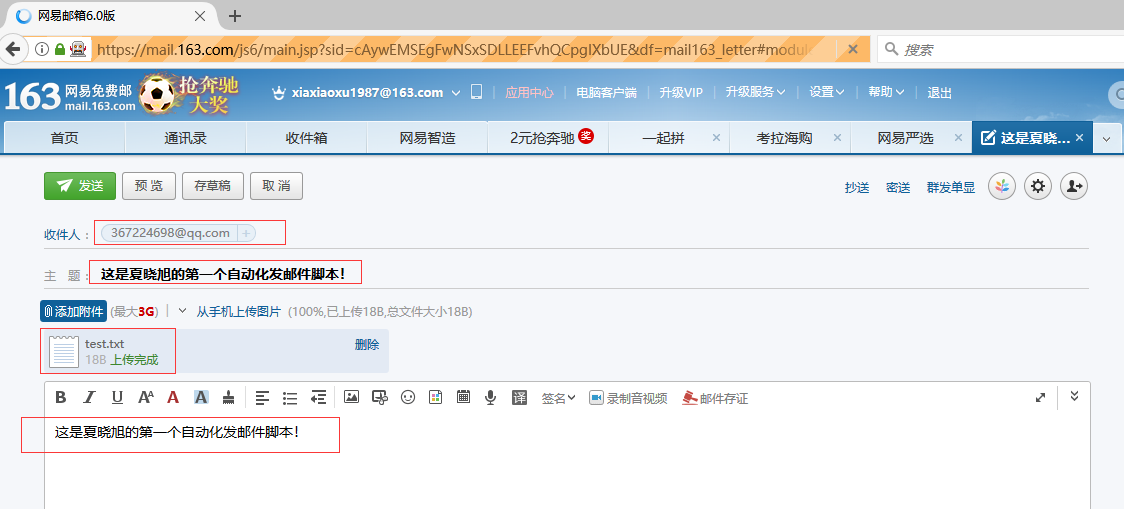
执行过程:找到各个元素,输入字符,添加附件
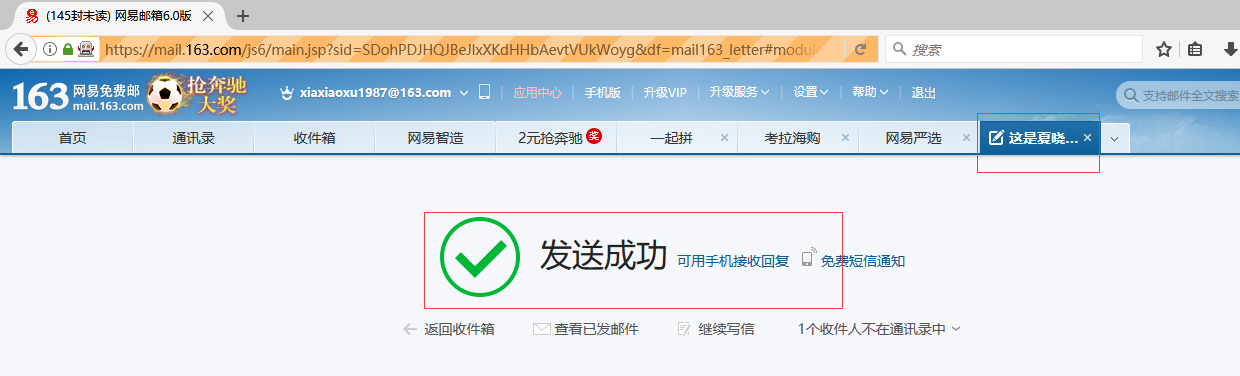
发送成功!
总结一下:
添加附件时,不是通过点击按钮,选择文件,而是找到添加附件按钮的元素,直接用send_keys("附件目录")这样来传就可以
读取配置文件的目的是实现程序和数据的分离,作用有两个:
一是方便维护所取的配置项,比如我可以把用户名和密码、邮箱地址在配置文件里随便改,程序不用动,直接去取你所配置的选项就可以了
二是可以给不懂代码逻辑的人员进行操作,不必要研究代码是怎么实现的,实现了程序和数据的隔离,方便使用
python webdriver 登录163邮箱发邮件加附件, 外加数据和程序分离,配置文件的方式的更多相关文章
- mailx加163邮箱发邮件
mailx加163邮箱发邮件 参考:https://www.cnblogs.com/myvic/p/9579954.html 配置 $ yum install mailx -y $ vim /etc/ ...
- python webdriver 登陆163邮箱给QQ邮箱发送一个邮件,显示等待
#encoding=utf-8 import unittest import time from selenium import webdriver from selenium.webdriver i ...
- 5、Selenium+Python自动登录163邮箱发送邮件
1.Selenium实现自动化,需要定位元素,以下查看163邮箱的登录元素 (1)登录(定位到登录框,登录框是一个iframe,如果没有定位到iframe,是无法定位到账号框与密码框) 定位到邮箱框( ...
- Python selenium登录163邮箱示例
思路:使用python自带的unittest单元测试框架测试163邮箱登录成功的case import unittestfrom selenium import webdriverimport tim ...
- python向多个邮箱发邮件--注意接收是垃圾邮件
群发邮件注意:三处标红的地方 # -*- coding: UTF-8 -*- import smtplib from email.mime.text import MIMEText from emai ...
- [Python爬虫] Selenium实现自动登录163邮箱和Locating Elements介绍
前三篇文章介绍了安装过程和通过Selenium实现访问Firefox浏览器并自动搜索"Eastmount"关键字及截图的功能.而这篇文章主要简单介绍如何实现自动登录163邮箱,同时 ...
- python selenium模拟登录163邮箱和QQ空间
最近在看python网络爬虫,于是我想自己写一个邮箱和QQ空间的自动登录的小程序, 下面以登录163邮箱和QQ空间和为例: 了解到在Web应用中经常会遇到frame/iframe 表单嵌套页面的应用, ...
- 【webdriver自动化】使用unittest实现自动登录163邮箱然后新建一个联系人
#练习:登录163邮箱然后新建一个联系人 import unittest import time from selenium import webdriver from selenium.webdri ...
- python+selenium实现163邮箱登陆—iframe动态ID定位 及常用定位方法
今天发现之前的登录163邮箱脚本定位不到iframe了,原因是iframe拼接了动态ID,修改后的脚本如下: from selenium import webdriver driver = webdr ...
随机推荐
- 格式化输出%s和%S的区别
使用s时,printf是针对单字节字符的字符串,而wprintf是针对宽字符的 使用S时,正好相反,printf针对宽字符 CString中的format与printf类似,在unicode字符集的工 ...
- Host ‘host_name’ is blocked
参考:http://web2.0coder.com/archives/163 之前服务器遇到了这个错误: Host ‘host_name‘ is blocked because of many con ...
- php和mySQL结合使用
首先,我建立了一个名为class的表,里面有cid,cname,cnum,我想用php代码来实现这一效果,步骤如下: 1.链接数据库 mysqli_set_charset($coon,"ut ...
- 《C++ Primer Plus》14.3 多重继承 学习笔记
多重继承(MI)描述的是有多个直接基类的类.与单继承一样,共有MI表示的也是is-a关系.例如,可以从Awiter类和Singer类派生出SingingWaiter类:class SingingWai ...
- js插件---->ueditor编辑器的使用
UEditor是由百度WEB前端研发部开发的所见即所得的开源富文本编辑器,具有轻量.可定制.用户体验优秀等特点.今天我们就开始学习一下.大致的效果图如下
- ubuntu 关闭显示器的命令
sleep 2s ; gnome-screensaver-command -a或sleep 2s ; xset dpms force off2秒后关闭显示器
- Egret打包App 修改App名称和图标 (Egret4.1.0)
图标替换位置在项目res下的drawable这些目录下,用新图标覆盖即可. 这里我用白色图片替换了白鹭默认的图片ic_launcher.png 修改App名字,在res->value->s ...
- Swift - 实现tableView单选系统样式
// 实现tableView单选 import UIKit class ViewController: UIViewController { var tableView: UITableView! o ...
- 微信小程序 --- 下拉刷新上拉加载
查看文档看到:page()函数注册页面的时候,有 onPullDownRefresh 监听用户下拉动作,onReachBottom 页面上拉触底事件的函数. 在小程序里,用户顶部下拉是默认禁止的,我们 ...
- 神奇的随机数rand()
随机数在统计理论中占有很重要的地位,很多应用都需要用到他,系统自带的rand()函数产生的是伪随机数,所以该如何真正的随机数呢? 1.c语言中的时间函数 关于c语言我查到的两个比较好的博文是:http ...