
简易的AutoPlayCarousel 轮播控件
原理是使用StackPanel 的margin属性的偏移来实现轮播的效果
废话不多说直接上代码
AutoPlayCarousel核心代码
[ContentProperty(nameof(Children))]

    [TemplatePart(Name = "PART_StackPanel", Type = typeof(StackPanel))]

    public class AutoPlayCarousel : Control

    {

        #region Identifier

        /// <summary>

        /// 视图区域

        /// </summary>

        private StackPanel _stkMain;

        /// <summary>

        ///

        /// </summary>

        private DispatcherTimer _dtAutoPlay;

        #endregion

        #region Constructor

        static AutoPlayCarousel()

        {

            DefaultStyleKeyProperty.OverrideMetadata(typeof(AutoPlayCarousel), new FrameworkPropertyMetadata(typeof(AutoPlayCarousel)));

        }

        public AutoPlayCarousel()

        {

            Loaded += AutoScrollCarousel_Loaded;

            SizeChanged += AutoScrollCarousel_SizeChanged;

        }

        #endregion

        #region RoutedEvent

        public static readonly RoutedEvent IndexChangedEvent = EventManager.RegisterRoutedEvent("IndexChanged", RoutingStrategy.Bubble, typeof(IndexChangedEventHandler), typeof(AutoPlayCarousel));

        public event IndexChangedEventHandler IndexChanged

        {

            add => AddHandler(IndexChangedEvent, value);

            remove => RemoveHandler(IndexChangedEvent, value);

        }

        void RaiseIndexChanged(int newValue)

        {

            var arg = new IndexChangedEventArgs(newValue, IndexChangedEvent);

            RaiseEvent(arg);

        }

        #endregion

        #region Property

        /// <summary>

        /// get the children collection.

        /// </summary>

        public ObservableCollection<FrameworkElement> Children

        {

            get => (ObservableCollection<FrameworkElement>)GetValue(ChildrenProperty);

            private set => SetValue(ChildrenProperty, value);

        }

        public static readonly DependencyProperty ChildrenProperty =

            DependencyProperty.Register("Children", typeof(ObservableCollection<FrameworkElement>), typeof(AutoPlayCarousel), new PropertyMetadata(new ObservableCollection<FrameworkElement>()));

        /// <summary>

        /// get or set orientation

        /// </summary>

        public Orientation Orientation

        {

            get => (Orientation)GetValue(OrientationProperty);

            set => SetValue(OrientationProperty, value);

        }

        public static readonly DependencyProperty OrientationProperty =

            DependencyProperty.Register("Orientation", typeof(Orientation), typeof(AutoPlayCarousel), new PropertyMetadata(Orientation.Horizontal));

        /// <summary>

        /// get or set index

        /// </summary>

        public int Index

        {

            get => (int)GetValue(IndexProperty);

            set => SetValue(IndexProperty, value);

        }

        public static readonly DependencyProperty IndexProperty =

            DependencyProperty.Register("Index", typeof(int), typeof(AutoPlayCarousel), new PropertyMetadata(0, OnIndexChanged));

        /// <summary>

        /// Gets or sets animation duration.

        /// </summary>

        public TimeSpan AnimateDuration

        {

            get => (TimeSpan)GetValue(AnimateDurationProperty);

            set => SetValue(AnimateDurationProperty, value);

        }

        public static readonly DependencyProperty AnimateDurationProperty =

            DependencyProperty.Register("AnimateDuration", typeof(TimeSpan), typeof(AutoPlayCarousel), new PropertyMetadata(TimeSpan.FromSeconds(0.5)));

        /// <summary>

        /// Gets or sets recyclable.

        /// </summary>

        public bool Recyclable

        {

            get => (bool)GetValue(RecyclableProperty);

            set => SetValue(RecyclableProperty, value);

        }

        public static readonly DependencyProperty RecyclableProperty =

            DependencyProperty.Register("Recyclable", typeof(bool), typeof(AutoPlayCarousel), new PropertyMetadata(false));

        public TimeSpan AutoPlayInterval

        {

            get => (TimeSpan)GetValue(AutoPlayIntervalProperty);

            set => SetValue(AutoPlayIntervalProperty, value);

        }

        public static readonly DependencyProperty AutoPlayIntervalProperty =

            DependencyProperty.Register("AutoPlayInterval", typeof(TimeSpan), typeof(AutoPlayCarousel), new PropertyMetadata(OnAutoPlayIntervalChanged));

        #endregion

        #region Event Handler

        public override void OnApplyTemplate()

        {

            base.OnApplyTemplate();

            _stkMain = GetTemplateChild("PART_StackPanel") as StackPanel;

        }

        private void AutoScrollCarousel_SizeChanged(object sender, SizeChangedEventArgs e)

        {

            foreach (FrameworkElement children in Children)

            {

                children.Width = ActualWidth;

                children.Height = ActualHeight;

            }

        }

        private void AutoScrollCarousel_Loaded(object sender, RoutedEventArgs e)

        {

            if (Children == null)

                return;

            Loaded -= AutoScrollCarousel_Loaded;

            foreach (FrameworkElement child in Children)

            {

                child.Width = ActualWidth;

                child.Height = ActualHeight;

            }

        }

        private static void OnAutoPlayIntervalChanged(DependencyObject d, DependencyPropertyChangedEventArgs e)

        {

            var autoScrollCarousel = d as AutoPlayCarousel;

            autoScrollCarousel?.RestartAutoPlayTimer();

        }

        private void DispatcherTimerAutoPlay_Tick(object sender, EventArgs e)

        {

            Index++;

        }

        private static void OnIndexChanged(DependencyObject d, DependencyPropertyChangedEventArgs e)

        {

            var autoScrollCarousel = d as AutoPlayCarousel;

            if (autoScrollCarousel == null || !autoScrollCarousel.IsLoaded)

                return;

            var targetIndex = 0;

            if (!autoScrollCarousel.Recyclable)

                targetIndex = autoScrollCarousel.Index > (autoScrollCarousel.Children.Count - 1) ? autoScrollCarousel.Children.Count - 1 : (autoScrollCarousel.Index < 0 ? 0 : autoScrollCarousel.Index);

            else

                targetIndex = autoScrollCarousel.Index > (autoScrollCarousel.Children.Count - 1) ? 0 : (autoScrollCarousel.Index < 0 ? autoScrollCarousel.Children.Count - 1 : autoScrollCarousel.Index);

            if (targetIndex != autoScrollCarousel.Index)

            {

                autoScrollCarousel.Index = targetIndex;

                return;

            }

            autoScrollCarousel.ResetAutoPlayTimer();

            if (autoScrollCarousel.Orientation == Orientation.Vertical)

            {

                autoScrollCarousel._stkMain.BeginAnimation(StackPanel.MarginProperty, new ThicknessAnimation()

                {

                    To = new Thickness(0, -1 * autoScrollCarousel.ActualHeight * autoScrollCarousel.Index, 0, 0),

                    Duration = autoScrollCarousel.AnimateDuration,

                    EasingFunction = new CubicEase() { EasingMode = EasingMode.EaseOut }

                });

            }

            else

            {

                autoScrollCarousel._stkMain.BeginAnimation(StackPanel.MarginProperty, new ThicknessAnimation()

                {

                    To = new Thickness(-1 * autoScrollCarousel.ActualWidth * autoScrollCarousel.Index, 0, 0, 0),

                    Duration = autoScrollCarousel.AnimateDuration,

                    EasingFunction = new CubicEase() { EasingMode = EasingMode.EaseOut }

                });

            }

            autoScrollCarousel.RaiseIndexChanged(targetIndex);

        }

        #endregion

        #region Function

        private void RestartAutoPlayTimer()

        {

            if (_dtAutoPlay != null)

            {

                _dtAutoPlay.Stop();

            }

            if (AutoPlayInterval.TotalSeconds != 0)

            {

                _dtAutoPlay = new DispatcherTimer()

                {

                    Interval = AutoPlayInterval,

                };

                _dtAutoPlay.Tick += DispatcherTimerAutoPlay_Tick;

                _dtAutoPlay.Start();

            }

        }

        private void ResetAutoPlayTimer()

        {

            if (_dtAutoPlay != null)

            {

                _dtAutoPlay.Stop();

                _dtAutoPlay.Start();

            }

        }

        #endregion

    }
一些辅助代码
public class IndexChangedEventArgs : RoutedEventArgs

    {

        public IndexChangedEventArgs(int currentIndex, RoutedEvent routedEvent) : base(routedEvent)

        {

            CurrentIndex = currentIndex;

        }

        public int CurrentIndex { get; set; }

    }

    public delegate void IndexChangedEventHandler(object sender, IndexChangedEventArgs e);
AutoPlayCarousel默认的样式
<sys:Double x:Key="DefaultFontSize">14</sys:Double>
<sys:Boolean x:Key="DefaultSnapsToDevicePixels">false</sys:Boolean>
<Style TargetType="{x:Type local:AutoPlayCarousel}">

        <Setter Property="SnapsToDevicePixels" Value="{StaticResource DefaultSnapsToDevicePixels}" />

        <Setter Property="FontSize" Value="{StaticResource DefaultFontSize}" />

        <Setter Property="Template">

            <Setter.Value>

                <ControlTemplate TargetType="{x:Type local:AutoPlayCarousel}">

                    <StackPanel x:Name="PART_StackPanel" Orientation="{TemplateBinding Orientation}">

                        <ItemsControl x:Name="PART_ItemsControl"   ItemsSource="{TemplateBinding Children}"

                                      VerticalAlignment="Stretch"

                                      HorizontalAlignment="Stretch">

                            <ItemsControl.ItemsPanel>

                                <ItemsPanelTemplate>

                                    <StackPanel Width="{TemplateBinding Width}" Height="{TemplateBinding Height}" Orientation="{Binding Orientation,RelativeSource={RelativeSource AncestorType=local:AutoPlayCarousel}}"/>

                                </ItemsPanelTemplate>

                            </ItemsControl.ItemsPanel>

                        </ItemsControl>

                    </StackPanel>

                </ControlTemplate>

            </Setter.Value>

        </Setter>

    </Style>
页面使用
<customControl:AutoPlayCarousel

            x:Name="Carousel"

            AutoPlayInterval="0:0:3"

            Recyclable="True"

            Height="1080">

            <Grid Background="Red" >

                <Grid HorizontalAlignment="Center" VerticalAlignment="Center" Height="500" Width="500" Background="Black">

                    <TextBlock Text="1" FontSize="20" Foreground="Wheat" HorizontalAlignment="Center" VerticalAlignment="Center"></TextBlock>

                </Grid>

            </Grid>

            <Grid Background="Green"  >

                <Grid HorizontalAlignment="Center" VerticalAlignment="Center" Height="500" Width="500" Background="Black">

                    <TextBlock Text="2" FontSize="20" Foreground="Wheat" HorizontalAlignment="Center" VerticalAlignment="Center"></TextBlock>

                </Grid>

            </Grid>

            <Grid Background="Yellow"  >

                <Grid HorizontalAlignment="Center" VerticalAlignment="Center" Height="500" Width="500" Background="Black">

                    <TextBlock Text="3" FontSize="20" Foreground="Wheat" HorizontalAlignment="Center" VerticalAlignment="Center"></TextBlock>

                </Grid>

            </Grid>

            <Grid Background="Blue"   >

                <Grid HorizontalAlignment="Center" VerticalAlignment="Center" Height="500" Width="500" Background="Black">

                    <TextBlock Text="4" FontSize="20" Foreground="Wheat" HorizontalAlignment="Center" VerticalAlignment="Center"></TextBlock>

                </Grid>

            </Grid>

        </customControl:AutoPlayCarousel>
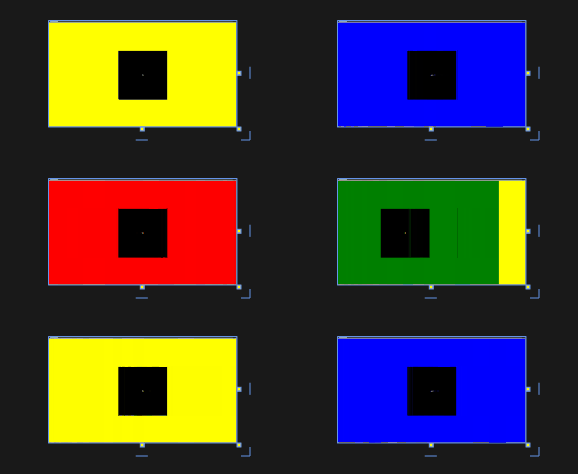
效果如下:
简易的AutoPlayCarousel 轮播控件的更多相关文章
- 简易的DragDropCarousel 拖拽轮播控件
上一篇文章有写到 自动轮播的控件 简易的AutoPlayCarousel 轮播控件 - 黄高林 - 博客园 (cnblogs.com) 本章是基于自动轮播的一种衍生,通过拖拽鼠标进切换 直接上代码 ...
- WPF 控件库——轮播控件
WPF 控件库系列博文地址: WPF 控件库——仿制Chrome的ColorPicker WPF 控件库——仿制Windows10的进度条 WPF 控件库——轮播控件 WPF 控件库——带有惯性的Sc ...
- 第四十六篇、UICollectionView广告轮播控件
这是利用人的视觉错觉来实现无限轮播,UICollectionView 有很好的重用机制,这只是部分核心代码,后期还要继续完善和代码重构. #import <UIKit/UIKit.h> # ...
- Android之仿京东淘宝的自动无限轮播控件
在App的开发中,很多的时候都需要实现类似京东淘宝一样的自动无限轮播的广告栏,所以就自己写了一个,下面是我自定义控件的思路和过程. 一.自定义控件属性 新建自定义控件SliderLayout继承于Re ...
- Android图片轮播控件
Android广告图片轮播控件,支持无限循环和多种主题,可以灵活设置轮播样式.动画.轮播和切换时间.位置.图片加载框架等! 使用步骤 Step 1.依赖banner Gradle dependenci ...
- jquery轮播控件
网上找了一个轮播控件,效果不错,而且很容易改,需要的同学去下载咯 地址是:http://download.csdn.net/detail/jine515073/7704143
- Android-----------广告图片轮播控件
Banner广告图片轮播控件,支持无限循环和多种主题,可以灵活设置轮播样式.动画.轮播和切换时间.位置.图片加载框架等! 很多Android APP中都有广告栏,我也用过很多次了,特来写一篇博文. 先 ...
- 一起写一个Android图片轮播控件
注:本文提到的Android轮播控件Demo地址: Android图片轮播控件 1. 轮播控件的组成部分 我们以知乎日报Android客户端的轮播控件为例,分析一下轮播控件的主要组成: 首先我们要有用 ...
- Android 开发最牛的图片轮播控件,基本什么都包含了。
Android图片轮播控件 源码下载地址: Android 图片轮播 现在的绝大数app都有banner界面,实现循环播放多个广告图片和手动滑动循环等功能.因为ViewPager并不支持循环翻页, ...
随机推荐
- JAVA用for循环打印*三角形
public class Sanjiaoxing { //本节为for循环的嵌套结构练习 public static void main(String[] args) { // TODO Auto-g ...
- Ubuntu远程桌面助手(URDC)
目前自动驾驶域控制器项目中使用了英伟达的Orin芯片+Ubuntu20.04系统.域控属于典型的Headless设备,开发调试时需要连接显示器(HDMI/DP).鼠标和键盘,或者使用NoMachine ...
- C语言 C++1X STL QT免费视频课程 QT5界面开发美化 式样表 QML
C/C++/QT界面开发界面美化视频课程系列 课程1 C语言 C++1X STL QT免费视频课程 QT5界面开发美化 式样表 QML 返回顶部 课程1 C语言 C++1X STL QT免费视 ...
- 经典漏洞-后台备份数据库getshell
由于接触安全时间不多,一些老的getshell方法不是很清楚.这次碰到了个老站,正好学习了一下. 首先这边是用户名可以猜测出来的,因为输入错误的用户名显示用户名不存在,如果存在的话会显示密码错误. 爆 ...
- weiphp 插件"通用表单"BUG修改
修改文件目录 在类FormsValueController 中添加函数 // 匹配函数 //$value:字符串 //$validate_rule:正则规则 // return true:比配成功,f ...
- 来用python自己做一个闹钟吧
闹钟 是一种具有可以在预先设定的时间被激活以响铃的功能的时钟,用于唤醒打工人们. 使用Python中的DateTime模块来创建闹钟,并用Python中的playsound库来播放闹钟声音.~~~## ...
- 高精度10m/30米NPP净初级生产力分布数据
数据下载链接:百度云下载链接 引言 第一性生产力是绿色植物呼吸后所剩下的单位面积单位时间内所固定的能量或所生产的有机物质,即是总第一性生产量减去植物呼吸作用所剩下的能量或有机物质.多种卫星遥感数据反 ...
- 文件的下载,HttpMessageConverter原理
HttpMessageConverter<T> 1) HttpMessageConverter<T> 是 Spring3.0 新添加的一个接口,负责将请求信息转换为一个对象(类 ...
- 泛型容器类和ArrayList操作
泛型 比如ArrayList<E> E就是泛型 在没有泛型之前,从集合读取到的每一个对象都必须进行转换,如果有人不小心插入了类型错误的对象,在运行时的转换处理就会出错 有了泛型之后,可以告 ...
- Ant Design Vue 走马灯实现单页多张图片轮播
最近的项目有个需求是,这种单页多图一次滚动一张图片的轮播效果,项目组件库是antd 然而用了antd的走马灯是这样子的 我们可以看到官网给的api是没有这种功能,百度上也多是在css上动刀,那样也就毕 ...