
ArcObjects SDK开发 022 开发框架搭建-FrameWorkUI包设计
1、CommandUIs部分
这部分主要是定义承载Command和Tool的具体UI。如下图所示。
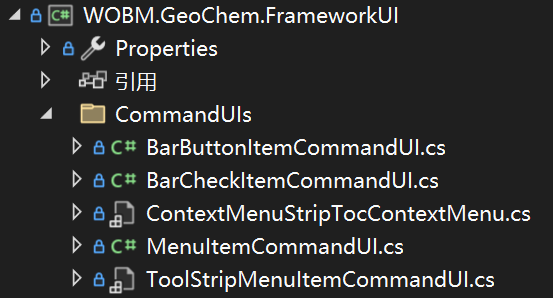
以CommandUI结尾的这几个类都是继承了Framework.Engine里面的ICommandUI接口,这样我们定义的Command和Tool就可以和这些UI绑定到一起了。
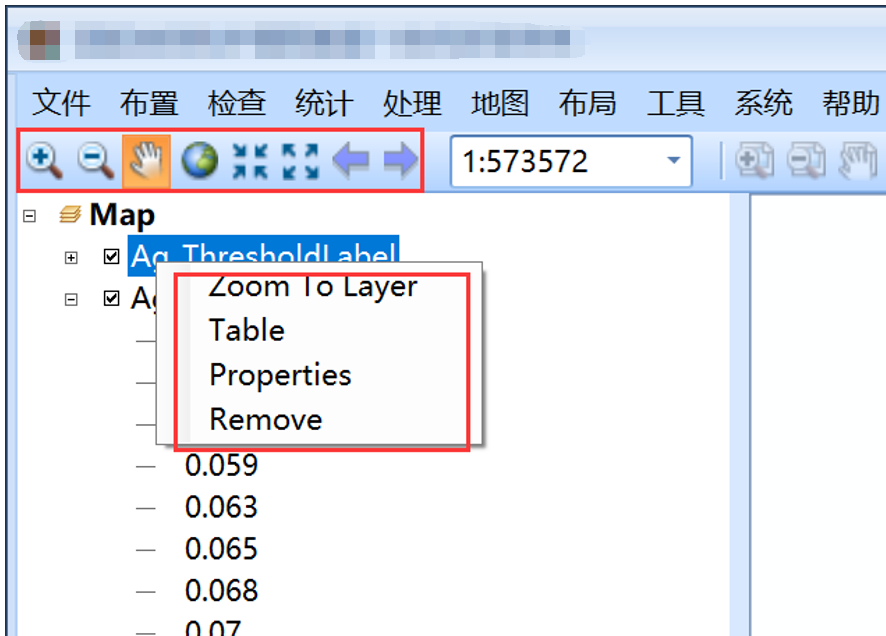
其中BarButtonItemCommandUI是DEV库中普通的按钮,BarCheckItemCommandUI是DEV库中由选中状态的按钮,MenuItemCommandUI是菜单按钮,一般右键菜单项会用这个UI,ToolStripMenuItemCommandUI是Winform下右键菜单项,在TocControl图层树中的右键菜单会采用这个按钮项。
2、Controls部分
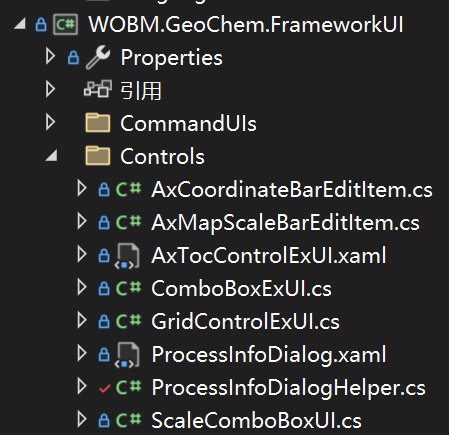
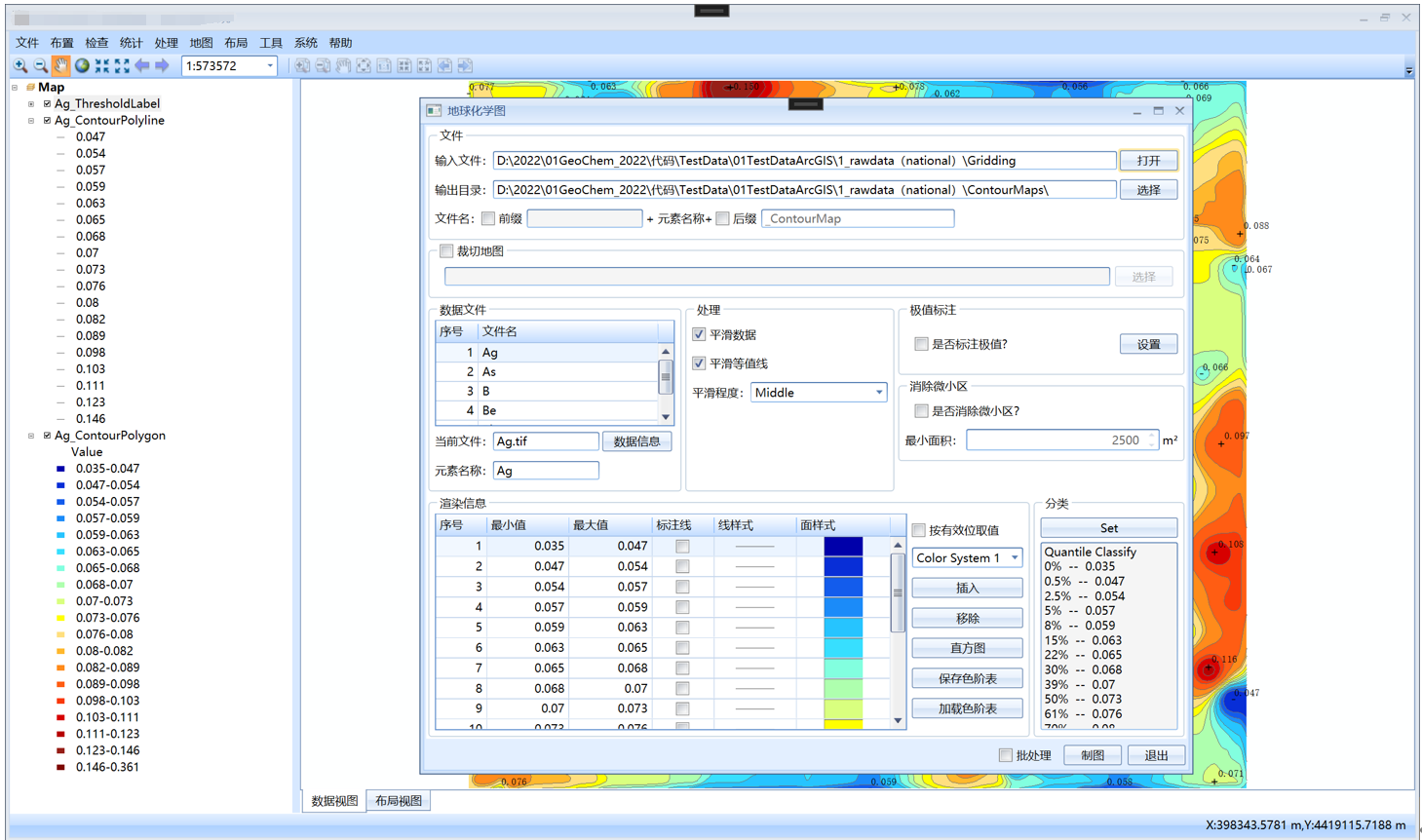
主要定义了常用的UI。如下图所示。
3、常用命令和工具
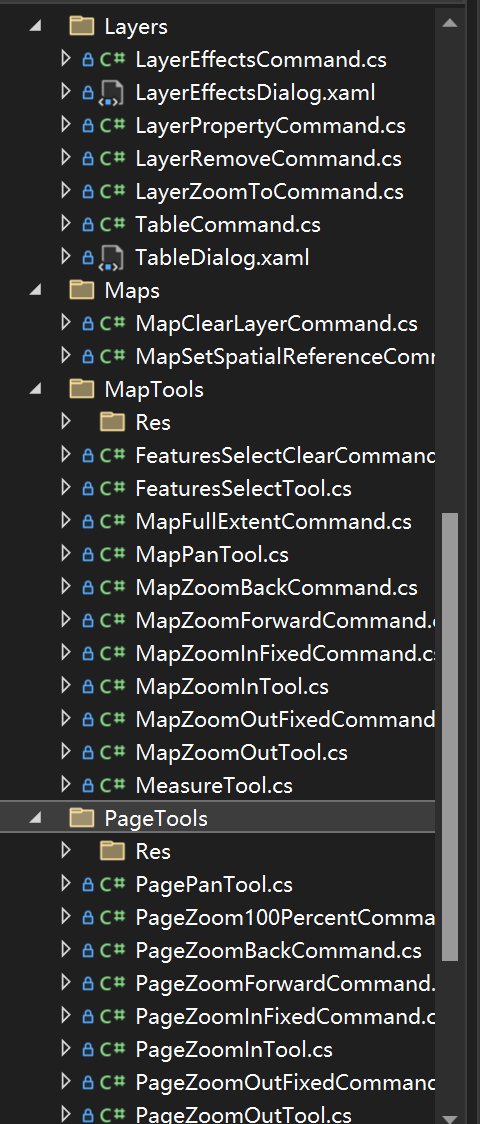
我们看下最常用的地图放大工具的定义。
public class MapZoomInTool : MapTool

{

    private readonly ESRI.ArcGIS.SystemUI.ITool _EsriTool = null;

    public MapZoomInTool(MapApplication pMapApplication)

        : base(pMapApplication)

    {

        this._EsriTool = new ControlsMapZoomInToolClass();

        this.SetIcon(CommandIconSize.IconSize16, "MapTools/Res/MapZoomIn16.png");

    }

    /// <summary>

    /// 激活执行的函数

    /// </summary>

    public override void OnActive()

    {

        base.OnActive();

        (this._EsriTool as ESRI.ArcGIS.SystemUI.ICommand).OnCreate(this.MapApplication.ActiveControl);

        this.MapApplication.ActiveControl.CurrentTool = this._EsriTool;

    }

    /// <summary>

    /// 工具失活执行的函数

    /// </summary>

    public override void OnDeActivate()

    {

        base.OnDeActivate();

        this.MapApplication.ActiveControl.CurrentTool = null;

    }

    /// <summary>

    /// 鼠标按下执行的函数

    /// </summary>

    /// <param name="button"></param>

    /// <param name="shift"></param>

    /// <param name="x"></param>

    /// <param name="y"></param>

    public override void OnMouseDown(int button, int shift, int x, int y)

    {

        if (button == 4)

        {

            this.MapApplication.AxControlPan();

        }

        base.OnMouseDown(button, shift, x, y);

    }

}
这就意味着,只要继承实现了MapApplication这个类,就可以直接使用该工具。例如我们的系统首页,定义了一个MapApplication实例,那么可以在此基础上初始化地图放大工具。
我们系统里面其他功能也要用这个工具的时候,也可以初始化一个MapApplication,或者实现一个继承MapApplication的类。例如系统中的出图模板设计功能。
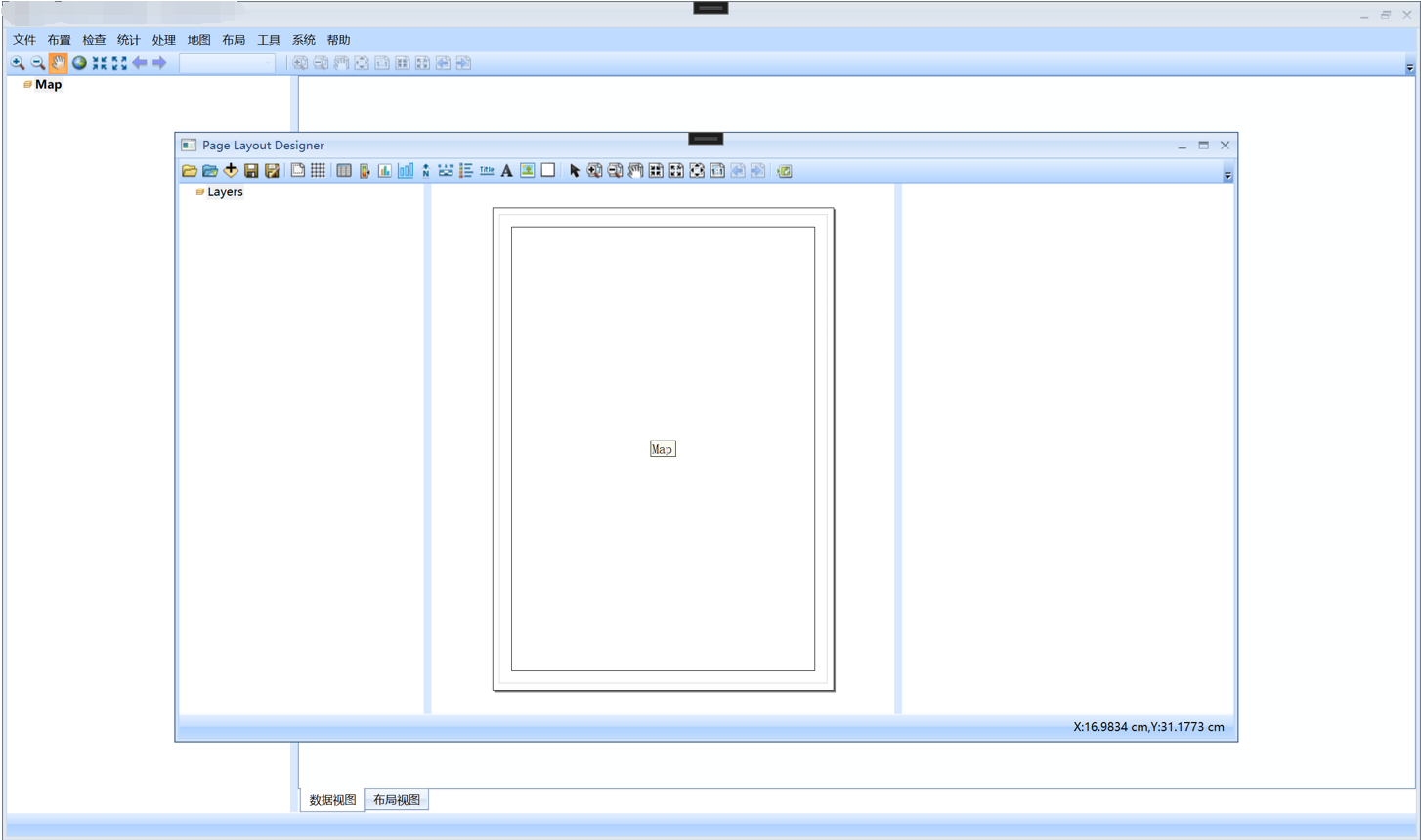
这个功能里面,我们继承MapApplication,定义了LayoutDesignApplication。如下图所示。
public class LayoutDesignApplication : MapApplication

{

    /// <summary>

    /// 版式设计主程序类

    /// </summary>

    /// <param name="pAxMapControl"></param>

    /// <param name="pAxPageLayoutControl"></param>

    public LayoutDesignApplication(AxMapControl pAxMapControl, AxPageLayoutControl pAxPageLayoutControl)

        : base(pAxMapControl, pAxPageLayoutControl)

    {

        this.LayoutDesign = new LayoutDesign();

    }

    /// <summary>

    /// 当前打开的 模板文件路径

    /// </summary>

    public string ShmFilePath { get; set; } = "";

    /// <summary>

    /// 版式设计对象

    /// </summary>

    public LayoutDesign LayoutDesign { get; private set; } = null;

    /// <summary>

    /// 当前打开地图的元数据

    /// </summary>

    public GeoChemMetaData GeoChemMetaData { get; private set; }

    /// <summary>

    /// 得到页面布局对象

    /// </summary>

    public IPageLayout PageLayout

    {

        get

        {

            return this.PageLayoutControl.PageLayout;

        }

    }

    /// <summary>

    /// 加载属性面板的UI

    /// </summary>

    public Border PropertyBorder { get; set; } = null;

}
添加工具的代码如下。
this.UI_Tool_Bar.Items.Add(new BarButtonItemCommandUI(new OpenMxdCommand(this._LayoutDesignAplication)));

this.UI_Tool_Bar.Items.Add(new BarButtonItemCommandUI(new OpenShmCommand(this._LayoutDesignAplication)));

this.UI_Tool_Bar.Items.Add(new BarButtonItemCommandUI(new AddDataCommand(this._LayoutDesignAplication)));

this.UI_Tool_Bar.Items.Add(new BarButtonItemCommandUI(new SaveShmCommand(this._LayoutDesignAplication)));

this.UI_Tool_Bar.Items.Add(new BarButtonItemCommandUI(new SaveAsShmCommand(this._LayoutDesignAplication)));

this.UI_Tool_Bar.Items.Add(new BarItemLinkSeparator());

this.UI_Tool_Bar.Items.Add(new BarButtonItemCommandUI(new MapFrameCommand(this._LayoutDesignAplication)));

this.UI_Tool_Bar.Items.Add(new BarButtonItemCommandUI(new MapGridCommand(this._LayoutDesignAplication)));

this.UI_Tool_Bar.Items.Add(new BarItemLinkSeparator());

this.UI_Tool_Bar.Items.Add(new BarButtonItemCommandUI(new ResTableCommand(this._LayoutDesignAplication)));

this.UI_Tool_Bar.Items.Add(new BarButtonItemCommandUI(new ClassTableCommand(this._LayoutDesignAplication)));

this.UI_Tool_Bar.Items.Add(new BarButtonItemCommandUI(new ClassHistogramCommand(this._LayoutDesignAplication)));

this.UI_Tool_Bar.Items.Add(new BarButtonItemCommandUI(new HistogramMapCommand(this._LayoutDesignAplication)));

this.UI_Tool_Bar.Items.Add(new BarButtonItemCommandUI(new NorthArrowCommand(this._LayoutDesignAplication)));

this.UI_Tool_Bar.Items.Add(new BarButtonItemCommandUI(new ScaleBarCommand(this._LayoutDesignAplication)));

this.UI_Tool_Bar.Items.Add(new BarButtonItemCommandUI(new LegendCommand(this._LayoutDesignAplication)));

this.UI_Tool_Bar.Items.Add(new BarButtonItemCommandUI(new TitleCommand(this._LayoutDesignAplication)));

this.UI_Tool_Bar.Items.Add(new BarButtonItemCommandUI(new PointTextTool(this._LayoutDesignAplication)));

this.UI_Tool_Bar.Items.Add(new BarButtonItemCommandUI(new PictureCommand(this._LayoutDesignAplication)));

this.UI_Tool_Bar.Items.Add(new BarButtonItemCommandUI(new NeatlineItemCommand(this._LayoutDesignAplication)));

this.UI_Tool_Bar.Items.Add(new BarItemLinkSeparator());

SelectTool myPLDSelectTool = new SelectTool(this._LayoutDesignAplication);

this.UI_Tool_Bar.Items.Add(new BarCheckItemCommandUI(myPLDSelectTool));

this._LayoutDesignAplication.SelectTool = myPLDSelectTool;

this.UI_Tool_Bar.Items.Add(new BarCheckItemCommandUI(new PageZoomInTool(this._LayoutDesignAplication)));

this.UI_Tool_Bar.Items.Add(new BarCheckItemCommandUI(new PageZoomOutTool(this._LayoutDesignAplication)));

this.UI_Tool_Bar.Items.Add(new BarCheckItemCommandUI(new PagePanTool(this._LayoutDesignAplication)));

this.UI_Tool_Bar.Items.Add(new BarButtonItemCommandUI(new PageZoomInFixedCommand(this._LayoutDesignAplication)));

this.UI_Tool_Bar.Items.Add(new BarButtonItemCommandUI(new PageZoomOutFixedCommand(this._LayoutDesignAplication)));

this.UI_Tool_Bar.Items.Add(new BarButtonItemCommandUI(new PageZoomWholePageCommand(this._LayoutDesignAplication)));

this.UI_Tool_Bar.Items.Add(new BarButtonItemCommandUI(new PageZoom100PercentCommand(this._LayoutDesignAplication)));

this.UI_Tool_Bar.Items.Add(new BarButtonItemCommandUI(new PageZoomBackCommand(this._LayoutDesignAplication)));

this.UI_Tool_Bar.Items.Add(new BarButtonItemCommandUI(new PageZoomForwardCommand(this._LayoutDesignAplication)));

this.UI_Tool_Bar.Items.Add(new BarItemLinkSeparator());

this.UI_Tool_Bar.Items.Add(new BarButtonItemCommandUI(new ViewExportPicCommand(this._LayoutDesignAplication)));
再例如,布点的这个模块。
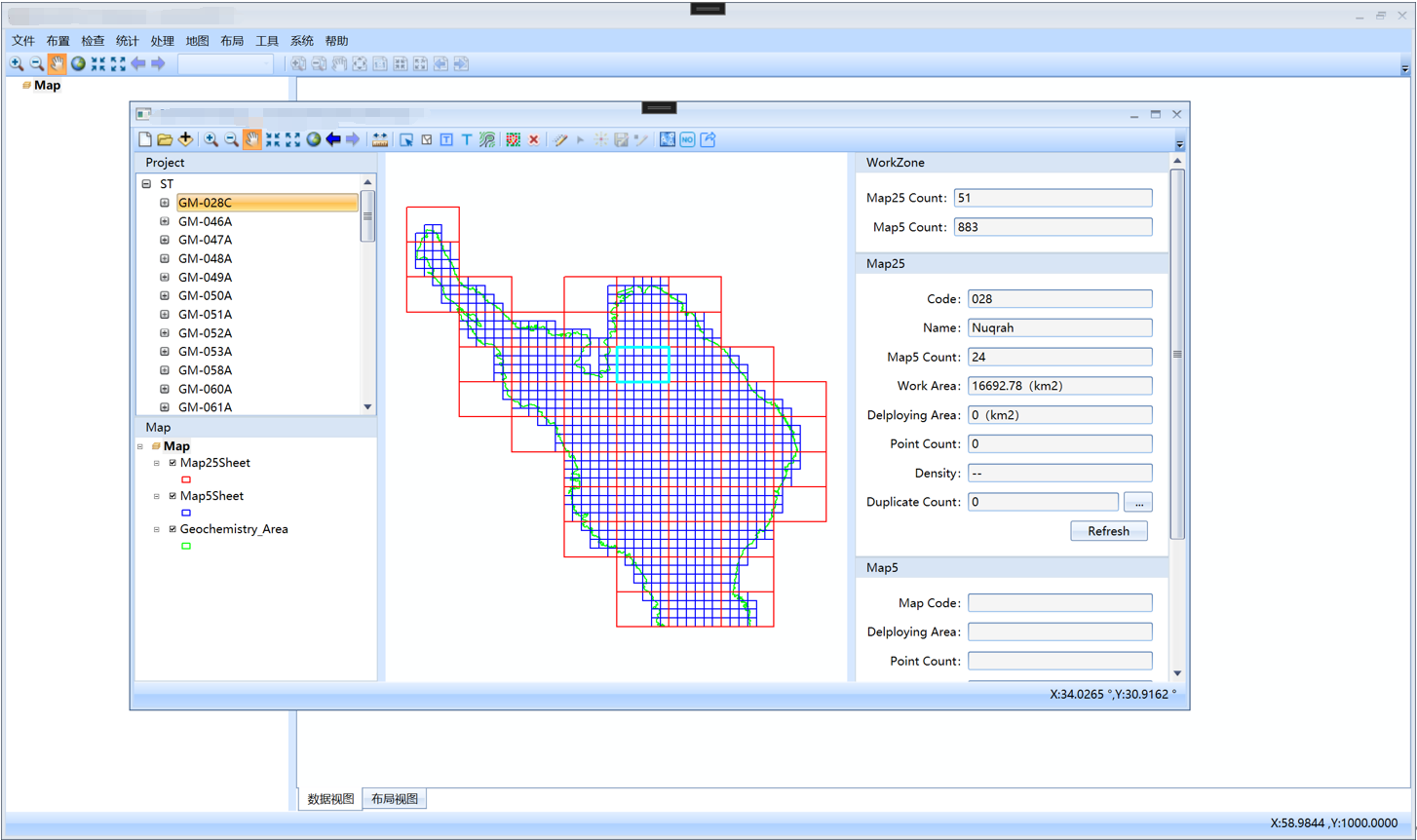
我们继承MapApplication定义了DeployApplication,如下图所示。
public class DeployApplication : MapApplication

{

    private Project _Project = null;

    private object _SelectObjectOnProjectTree = null;

    private IFeature _SelectPointFeature = null;

    /// <summary>

    /// 采样点布置主App

    /// </summary>

    /// <param name="pAxMapControl"></param>

    /// <param name="pAxPageLayoutControl"></param>

    public DeployApplication(AxMapControl pAxMapControl, AxPageLayoutControl pAxPageLayoutControl)

        : base(pAxMapControl, pAxPageLayoutControl)

    {

        this.EngineEditor = new EngineEditorClass();

    }

    /// <summary>

    /// ArcEngine编辑类

    /// </summary>

    public EngineEditorClass EngineEditor { get; private set; }

    /// <summary>

    /// 当前工程对象

    /// </summary>

    public Project Project

    {

        get

        {

            return this._Project;

        }

        set

        {

            this._Project = value;

            this.OnProjectChanged?.Invoke(this, new EventArgs());

        }

    }

    /// <summary>

    /// 得到或设置树上选择的对象

    /// </summary>

    public object SelectObjectOnWorkZoneTree

    {

        get { return this._SelectObjectOnProjectTree; }

        set

        {

            this._SelectObjectOnProjectTree = value;

            this.OnSelectObjectOnProjectTreeChanged?.Invoke(this, new EventArgs());

        }

    }

    /// <summary>

    /// 得到或设置当前选中的采样点要素

    /// </summary>

    public IFeature SelectPointFeature

    {

        get

        {

            return this._SelectPointFeature;

        }

        set

        {

            this._SelectPointFeature = value;

            this.OnSelectPointFeatureChanged?.Invoke(this, new EventArgs());

        }

    }

    /// <summary>

    /// 触发Map25Sheet信息变化事件

    /// </summary>

    public void FireMap25SheetInfoChangedEvent()

    {

        this.OnMap25SheetInfoChanged?.Invoke(this, new EventArgs());

    }

    /// <summary>

    /// 当工程发生变化触发的事件

    /// </summary>

    public event EventHandler<EventArgs> OnProjectChanged;

    /// <summary>

    /// 当在树上选中的对象发生变化触发的事件

    /// </summary>

    public event EventHandler<EventArgs> OnSelectObjectOnProjectTreeChanged;

    /// <summary>

    /// 当选择的采样点元素发生变化触发的事件

    /// </summary>

    public event EventHandler<EventArgs> OnSelectPointFeatureChanged;

    /// <summary>

    /// 当Map25Sheet的信息发生变化后触发的函数

    /// </summary>

    public event EventHandler<EventArgs> OnMap25SheetInfoChanged;

}
添加工具如下。
//初始化Application

this._DeployApplication = new DeployApplication(myAxMapControl, myAxPageLayoutControl);

this._DeployApplication.MainWindow = this;

this._DeployApplication.OnProjectChanged += Application_OnWorkZoneChanged;

this._DeployApplication.OnSelectObjectOnProjectTreeChanged += _Application_OnSelectObjectOnWorkZoneTreeChanged;

this._DeployApplication.OnSelectPointFeatureChanged += Application_OnSelectPointFeatureChanged;

this._DeployApplication.OnMap25SheetInfoChanged += Application_OnMap25SheetInfoChanged;

this.UI_Tool_Bar.Items.Add(new BarButtonItemCommandUI(new ProjectNewCommand(this._DeployApplication)));

ProjectOpenCommand myWorkZoneOpenCommand = new ProjectOpenCommand(this._DeployApplication);

this.UI_Tool_Bar.Items.Add(new BarButtonItemCommandUI(myWorkZoneOpenCommand));

this.UI_Tool_Bar.Items.Add(new BarButtonItemCommandUI(new FrameworkUI.Files.AddDataCommand(this._DeployApplication)));

this.UI_Tool_Bar.Items.Add(new BarItemLinkSeparator());

this.UI_Tool_Bar.Items.Add(new BarCheckItemCommandUI(new FrameworkUI.MapTools.MapZoomInTool(this._DeployApplication)));

this.UI_Tool_Bar.Items.Add(new BarCheckItemCommandUI(new FrameworkUI.MapTools.MapZoomOutTool(this._DeployApplication)));

FrameworkUI.MapTools.MapPanTool myMapPanTool = new FrameworkUI.MapTools.MapPanTool(this._DeployApplication);

this.UI_Tool_Bar.Items.Add(new BarCheckItemCommandUI(myMapPanTool));

this._DeployApplication.CrruteTool = myMapPanTool;

this.UI_Tool_Bar.Items.Add(new BarButtonItemCommandUI(new FrameworkUI.MapTools.MapZoomInFixedCommand(this._DeployApplication)));

this.UI_Tool_Bar.Items.Add(new BarButtonItemCommandUI(new FrameworkUI.MapTools.MapZoomOutFixedCommand(this._DeployApplication)));

this.UI_Tool_Bar.Items.Add(new BarButtonItemCommandUI(new FrameworkUI.MapTools.MapFullExtentCommand(this._DeployApplication)));

this.UI_Tool_Bar.Items.Add(new BarButtonItemCommandUI(new FrameworkUI.MapTools.MapZoomBackCommand(this._DeployApplication)));

this.UI_Tool_Bar.Items.Add(new BarButtonItemCommandUI(new FrameworkUI.MapTools.MapZoomForwardCommand(this._DeployApplication)));

this.UI_Tool_Bar.Items.Add(new BarItemLinkSeparator());

this.UI_Tool_Bar.Items.Add(new BarCheckItemCommandUI(new FrameworkUI.MapTools.MeasureTool(this._DeployApplication)));

this.UI_Tool_Bar.Items.Add(new BarItemLinkSeparator());

this.UI_Tool_Bar.Items.Add(new BarCheckItemCommandUI(new Map5SheetSelectTool(this._DeployApplication)));

this.UI_Tool_Bar.Items.Add(new BarCheckItemCommandUI(new FrameworkUI.MapTools.FeaturesClearSelectCommand(this._DeployApplication) { Caption = "Clear Select" }));

this.UI_Tool_Bar.Items.Add(new BarButtonItemCommandUI(new MapSheetLabelCommand(this._DeployApplication)));

this.UI_Tool_Bar.Items.Add(new BarButtonItemCommandUI(new SamplePointLabelCommand(this._DeployApplication)));

this.UI_Tool_Bar.Items.Add(new BarButtonItemCommandUI(new Map5TerrainViewCommand(this._DeployApplication)));

this.UI_Tool_Bar.Items.Add(new BarItemLinkSeparator());

this.UI_Tool_Bar.Items.Add(new BarButtonItemCommandUI(new Map25AutoPointCommand(this._DeployApplication)));

this.UI_Tool_Bar.Items.Add(new BarButtonItemCommandUI(new Map25ClearPointCommand(this._DeployApplication)));

this.UI_Tool_Bar.Items.Add(new BarItemLinkSeparator());

this.UI_Tool_Bar.Items.Add(new BarButtonItemCommandUI(new EditorStartCommand(this._DeployApplication)));

this.UI_Tool_Bar.Items.Add(new BarCheckItemCommandUI(new EditorEditTool(this._DeployApplication)));

this.UI_Tool_Bar.Items.Add(new BarCheckItemCommandUI(new EditorNewPointTool(this._DeployApplication)));

this.UI_Tool_Bar.Items.Add(new BarButtonItemCommandUI(new EditorSaveCommand(this._DeployApplication)));

this.UI_Tool_Bar.Items.Add(new BarButtonItemCommandUI(new EditorStopCommand(this._DeployApplication)));

this.UI_Tool_Bar.Items.Add(new BarItemLinkSeparator());

this.UI_Tool_Bar.Items.Add(new BarButtonItemCommandUI(new Map25LoadUnitCommand(this._DeployApplication)));

this.UI_Tool_Bar.Items.Add(new BarButtonItemCommandUI(new Map25EncodeCommand(this._DeployApplication)));

this.UI_Tool_Bar.Items.Add(new BarButtonItemCommandUI(new Map25ExportCommand(this._DeployApplication)));
ArcObjects SDK开发 022 开发框架搭建-FrameWorkUI包设计的更多相关文章
- TortoiseSVN安装以及淘宝 TAE SDK 开发环境的搭建
一.TortoiseSVN 的下载和安装 1.进入TortoiseSVN 官网下载地址http://tortoisesvn.net/downloads.html,根据自己的操作系统位数下载相应最新版本 ...
- esp8266 SDK开发之环境搭建
最近在弄这个WiFi模块,发现网上SDK开发方面的资料很少,发现了一套视频教程,不过主讲人的讲课方式实在受不了.对基于SDK开发感兴趣的同学可以通过本帖在Ubuntu系统上通过Eclipes搭建开发环 ...
- Spring MVC 学习笔记12 —— SpringMVC+Hibernate开发(1)依赖包搭建
Spring MVC 学习笔记12 -- SpringMVC+Hibernate开发(1)依赖包搭建 用Hibernate帮助建立SpringMVC与数据库之间的联系,通过配置DAO层,Service ...
- C# 快速开发框架搭建—开发工具介绍
C# 快速开发框架搭建—开发工具介绍 一.VS2013,SQL SERVER R22008 以上两种工具如有不会者自行百度学习下. 二.动软代码生成器 对于经典的三层架构框架来说,使用动软代码生成器会 ...
- Linux学习心得之 Linux下命令行Android开发环境的搭建
作者:枫雪庭 出处:http://www.cnblogs.com/FengXueTing-px/ 欢迎转载 Linux学习心得之 Linux下命令行Android开发环境的搭建 1. 前言2. Jav ...
- Java开发环境的搭建以及使用eclipse从头一步步创建java项目
一.java 开发环境的搭建 这里主要说的是在windows 环境下怎么配置环境. 1.首先安装JDK java的sdk简称JDK ,去其官方网站下载最近的JDK即可..http://www.orac ...
- Linux环境下Android开发环境的搭建
本文主要介绍在Ubuntu下Android开发环境的搭建,所使用的IDE为Eclipse(Android Studio同理,且可省去配置SDK以及安装adt插件的步骤). 1.安装JDK (1)JDK ...
- Cordova开发环境的搭建
Cordova开发环境的搭建 原文地址:http://imziv.com/blog/article/read.htm?id=66 Cordova为目前做混合式开发中比较受欢迎的一个解决方案了,并且拥有 ...
- windows Android开发环境快速搭建和部署
windows安装Android的开发环境相对来说比较简单,本文写给第一次想在自己Windows上建立Android开发环境的朋友们,为了确保大家能顺利完成开发环境的搭建,文章写的尽量详细,希望对初级 ...
- 【Android自学之旅】 Android开发环境的搭建
[Android自学之旅] Android开发环境的搭建 搭建参考教程: http://www.oracle.com/technetwork/java/javase/downloads/jdk7-do ...
随机推荐
- css事件穿透
代码: pointer-events: none; 解义:你可以看的到第一个元素,但是你看不到下面的元素着,点击第一个元素会穿透触发到第二个元素的元素
- POJ3342 Party at Hali-Bula(树形DP)
dp[u][0]表示不选u时在以u为根的子树中最大人数,dp[u][1]则是选了u后的最大人数: f[u][0]表示不选u时的唯一性,f[u][1]是选了u后的唯一性,值为1代表唯一,0代表不唯一. ...
- UVA12186 工人的请愿书 Another Crisis (树形DP)
dp[i]表示要让i向上级发请愿书,最少需要多少个工人递交请愿书,因为要取前T%最小的,所以还要将i的子节点排序(这里用vector实现),取前c个最小的作为dp[i]的值. 这里用dfs可以省去dp ...
- Kafka之配置信息
Kafka之配置信息 一.Broker配置信息 属性 默认值 描述 broker.id 必填参数,broker的唯一标识 log.dirs /tmp/kafka-logs Kafka数据存放的目录 ...
- wampServer配置WWW根目录遇到的坑
直接在官网下载之后开始安装,一切正常 打开使用,一切正常 设置WWW目录.坑了一波 按照的都是百度上的教程,设置httpd.conf 这里配置之后网页访问127.0.0.1 还是localhost都还 ...
- 同一台电脑安装两个不同版本的mysql。简单暴力有效
1.先找到mysql的安装地址.找到my.ini 2.修改端口号(mysql默认端口是3306)我这里修改为3307 3.打开服务.找到刚刚修改的mysql版本 4.重新启动该服务(我已经安装了mys ...
- 二进制安装JDK和Tomcat
Oracle JDK的二进制文件安装 https://www.oracle.com/java/technologies/java-se-glance.html #官网下载地址 [root@rocky8 ...
- 不用终端运行 Vue项目 基于Pycharm
不用终端运行 Vue项目 基于Pycharm 如下图展示 接下来 然后单击右上角运行 即可完成运行
- salesforce零基础学习(一百二十)快去迁移你的代码中的 Alert / Confirm 以及 Prompt吧
本篇参考: https://developer.salesforce.com/blogs/2022/01/preparing-your-components-for-the-removal-of-al ...
- CF452F等差子序列 & 线段树+hash查询区间是否为回文串
记录一下一个新学的线段树基础trick(真就小学生trick呗) 给你一个1到n的排列,你需要判断该排列内部是否存在一个3个元素的子序列(可以不连续),使得这个子序列是等差序列.\(n\) <= ...