
【TensorFlow】获取object detection API训练模型的输出坐标
如下图,谷歌开源的object detection API提供了五种网络结构的fine-tuning训练权重,方便我们针对目标检测的需求进行模型训练,本文详细介绍下导出训练模型后,如何获得目标检测框的坐标。如果对使用object detection API训练模型的过程不了解,可以参考博文:https://www.cnblogs.com/White-xzx/p/9503203.html

新建一个测试文件object_detection_test.py,该脚本读取我们已经训练好的模型文件和测试图片,进行测试,代码如下,
 import numpy as np

 import os

 import six.moves.urllib as urllib

 import sys

 import tarfile

 import tensorflow as tf

 import zipfile

 from collections import defaultdict

 from io import StringIO

 from matplotlib import pyplot as plt

 from PIL import Image

 ## This is needed to display the images.

 #%matplotlib inline

 # This is needed since the notebook is stored in the object_detection folder.

 sys.path.append("..")

 from utils import label_map_util

 from utils import visualization_utils as vis_util

 # What model to download.

 #MODEL_NAME = 'ssd_mobilenet_v1_coco_2017_11_17'

 #MODEL_FILE = MODEL_NAME + '.tar.gz'

 #DOWNLOAD_BASE = #'http://download.tensorflow.org/models/object_detection/'

 MODEL_NAME = 'data'  # 训练过程中保存模型文件的文件夹路径

 # Path to frozen detection graph. This is the actual model that is used for the object detection.

 PATH_TO_CKPT = MODEL_NAME + '/frozen_inference_graph.pb' # 训练完成导出的pb模型文件

 # List of the strings that is used to add correct label for each box.

 PATH_TO_LABELS = 'E:/TensorFlow/Box-object-detection/data/label_map.pbtxt' # label_map.pbtxt文件

 NUM_CLASSES = 2   # 类别总数

 #Load a (frozen) Tensorflow model into memory. 加载模型

 detection_graph = tf.Graph()

 with detection_graph.as_default():

   od_graph_def = tf.GraphDef()

   with tf.gfile.GFile(PATH_TO_CKPT, 'rb') as fid:

     serialized_graph = fid.read()

     od_graph_def.ParseFromString(serialized_graph)

     tf.import_graph_def(od_graph_def, name='')

 #Loading label map 加载label_map

 label_map = label_map_util.load_labelmap(PATH_TO_LABELS)

 categories = label_map_util.convert_label_map_to_categories(label_map, max_num_classes=NUM_CLASSES, use_display_name=True)

 category_index = label_map_util.create_category_index(categories)

 #Helper code

 def load_image_into_numpy_array(image):

   (im_width, im_height) = image.size

   return np.array(image.getdata()).reshape(

       (im_height, im_width, 3)).astype(np.uint8)

 # For the sake of simplicity we will use only 2 images:

 # image1.jpg

 # image2.jpg

 # If you want to test the code with your images, just add path to the images to the TEST_IMAGE_PATHS.

 PATH_TO_TEST_IMAGES_DIR = 'test_images'   # 测试图片的路径

 #TEST_IMAGE_PATHS = [ os.path.join(PATH_TO_TEST_IMAGES_DIR, 'image{}.jpg'.format(i)) for i in range(1, 3) ]

 TEST_IMAGE = sys.argv[1]

 print("the test image is:", TEST_IMAGE)

 # Size, in inches, of the output images.

 IMAGE_SIZE = (12, 8)

 with detection_graph.as_default():

   with tf.Session(graph=detection_graph) as sess:

     #for image_path in TEST_IMAGE_PATHS:

     image = Image.open(TEST_IMAGE)  # 打开图片

     # the array based representation of the image will be used later in order to prepare the

     # result image with boxes and labels on it.

     image_np = load_image_into_numpy_array(image)

     # Expand dimensions since the model expects images to have shape: [1, None, None, 3]

     image_np_expanded = np.expand_dims(image_np, axis=0)

     image_tensor = detection_graph.get_tensor_by_name('image_tensor:0')   # 获取图片张量

     # Each box represents a part of the image where a particular object was detected.

     boxes = detection_graph.get_tensor_by_name('detection_boxes:0')   # 获取检测框张量

     # Each score represent how level of confidence for each of the objects.

     # Score is shown on the result image, together with the class label.

     scores = detection_graph.get_tensor_by_name('detection_scores:0')   # 获取每个检测框的分数,即概率

     classes = detection_graph.get_tensor_by_name('detection_classes:0')  # 获取类别名称id,与label_map中的ID对应

     num_detections = detection_graph.get_tensor_by_name('num_detections:0')  # 获取检测总数

     # Actual detection.

     (boxes, scores, classes, num_detections) = sess.run(

         [boxes, scores, classes, num_detections],

         feed_dict={image_tensor: image_np_expanded})

     # Visualization of the results of a detection.结果可视化

     vis_util.visualize_boxes_and_labels_on_image_array(

         image_np,

         np.squeeze(boxes),

         np.squeeze(classes).astype(np.int32),

         np.squeeze(scores),

         category_index,

         use_normalized_coordinates=True,

         line_thickness=8)

     print(boxes) # 打印检测框坐标

     print(scores)   #打印每个检测框的概率

     print(classes)   # 打印检测框对应的类别

     print(category_index)  # 打印类别的索引,其是一个嵌套的字典

     final_score = np.squeeze(scores)

     count = 0

     for i in range(100):

         if scores is None or final_score[i] > 0.5: # 显示大于50%概率的检测框

             count = count + 1

     print("the count of objects is: ", count )

     plt.figure(figsize=IMAGE_SIZE)

     plt.imshow(image_np)

     plt.show()
打开cmd,输入如下命令,
python object_detection_test.py ./test_images/2.png
运行结果如下,

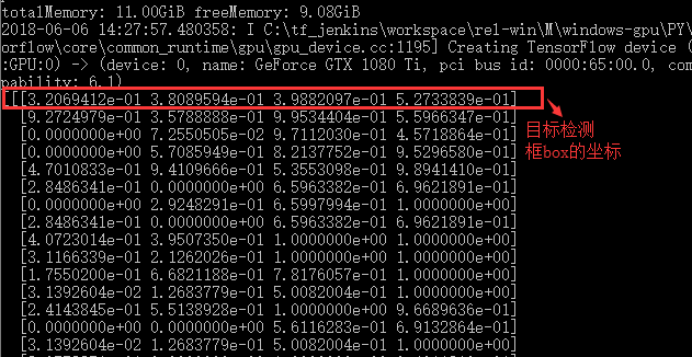
目标检测框box的坐标,此处的坐标是坐标除以相应图片的长宽所得到的小数,排列顺序为[ymin , xmin , ymax , xmax],即box检测框左上角和右下角的坐标,
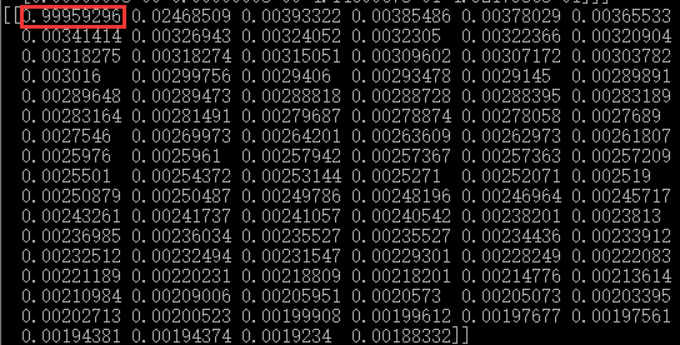
同时显示的是目标检测框box的概率:
Box的标签索引和每个索引所代表的标签,如第一个box的索引为1,1的标签名为“box”,即检测框里的是“箱子”

检测图:
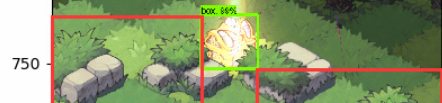
因为源码中将坐标与图片的长宽相除,所以显示的是小数,为了得到准确的坐标,只要乘上相应的长宽数值就可以得到坐标了,上图的检测图坐标由计算可得
[ymin , xmin , ymax , xmax] = [ 614.4 , 410.4 , 764.16 , 569.16 ],即在y轴的坐标和使用pyplot显示的坐标相近(图中红线标出)。
接下来,我们只要将上面的测试代码稍加修改即可得到我们想要的坐标,比如获得每个检测物体的中心坐标,代码如下:
 import numpy as np

 import os

 import six.moves.urllib as urllib

 import sys

 import tarfile

 import tensorflow as tf

 import zipfile

 import time

 from collections import defaultdict

 from io import StringIO

 from matplotlib import pyplot as plt

 #plt.switch_backend('Agg')

 from PIL import Image

 ## This is needed to display the images.

 #%matplotlib inline

 # This is needed since the notebook is stored in the object_detection folder.

 sys.path.append("..")

 from utils import label_map_util

 from utils import visualization_utils as vis_util

 # What model to download.

 #MODEL_NAME = 'ssd_mobilenet_v1_coco_2017_11_17'

 #MODEL_FILE = MODEL_NAME + '.tar.gz'

 #DOWNLOAD_BASE = #'http://download.tensorflow.org/models/object_detection/'

 MODEL_NAME = 'E:/Project/object-detection-Game-2018-5-31/data-20180607'  # model.ckpt路径,包括frozen_inference_graph.pb文件

 # Path to frozen detection graph. This is the actual model that is used for the object detection.

 PATH_TO_CKPT = MODEL_NAME + '/frozen_inference_graph.pb'

 # List of the strings that is used to add correct label for each box.

 PATH_TO_LABELS = MODEL_NAME+'/label_map.pbtxt'

 #E:/Project/object-detection-Game-2018-5-31

 NUM_CLASSES = 6

 start = time.time()

 #Load a (frozen) Tensorflow model into memory.

 detection_graph = tf.Graph()

 with detection_graph.as_default():

   od_graph_def = tf.GraphDef()

   #loading ckpt file to graph

   with tf.gfile.GFile(PATH_TO_CKPT, 'rb') as fid:

     serialized_graph = fid.read()

     od_graph_def.ParseFromString(serialized_graph)

     tf.import_graph_def(od_graph_def, name='')

 #Loading label map

 label_map = label_map_util.load_labelmap(PATH_TO_LABELS)

 categories = label_map_util.convert_label_map_to_categories(label_map, max_num_classes=NUM_CLASSES, use_display_name=True)

 category_index = label_map_util.create_category_index(categories)

 #Helper code

 def load_image_into_numpy_array(image):

   (im_width, im_height) = image.size

   return np.array(image.getdata()).reshape(

       (im_height, im_width, 3)).astype(np.uint8)

 # If you want to test the code with your images, just add path to the images to the TEST_IMAGE_PATHS.

 #PATH_TO_TEST_IMAGES_DIR = 'test_images'

 #TEST_IMAGE_PATHS = [ os.path.join(PATH_TO_TEST_IMAGES_DIR, 'image{}.jpg'.format(i)) for i in range(1, 3) ]

 TEST_IMAGE = sys.argv[1]

 print("the test image is:", TEST_IMAGE)

 # Size, in inches, of the output images.

 IMAGE_SIZE = (12, 8)

 with detection_graph.as_default():

   with tf.Session(graph=detection_graph) as sess:

     # Definite input and output Tensors for detection_graph

     image_tensor = detection_graph.get_tensor_by_name('image_tensor:0')

     # Each box represents a part of the image where a particular object was detected.

     detection_boxes = detection_graph.get_tensor_by_name('detection_boxes:0')

     # Each score represent how level of confidence for each of the objects.

     # Score is shown on the result image, together with the class label.

     detection_scores = detection_graph.get_tensor_by_name('detection_scores:0')

     detection_classes = detection_graph.get_tensor_by_name('detection_classes:0')

     num_detections = detection_graph.get_tensor_by_name('num_detections:0')

     #for image_path in TEST_IMAGE_PATHS:

     image = Image.open(TEST_IMAGE)

     # the array based representation of the image will be used later in order to prepare the

     # result image with boxes and labels on it.

     image_np = load_image_into_numpy_array(image)

     # Expand dimensions since the model expects images to have shape: [1, None, None, 3]

     image_np_expanded = np.expand_dims(image_np, axis=0)

     image_tensor = detection_graph.get_tensor_by_name('image_tensor:0')

     # Each box represents a part of the image where a particular object was detected.

     boxes = detection_graph.get_tensor_by_name('detection_boxes:0')

     # Each score represent how level of confidence for each of the objects.

     # Score is shown on the result image, together with the class label.

     scores = detection_graph.get_tensor_by_name('detection_scores:0')

     classes = detection_graph.get_tensor_by_name('detection_classes:0')

     num_detections = detection_graph.get_tensor_by_name('num_detections:0')

     # Actual detection.

     (boxes, scores, classes, num_detections) = sess.run(

         [boxes, scores, classes, num_detections],

         feed_dict={image_tensor: image_np_expanded})

     # Visualization of the results of a detection.

     vis_util.visualize_boxes_and_labels_on_image_array(

         image_np,

         np.squeeze(boxes),

         np.squeeze(classes).astype(np.int32),

         np.squeeze(scores),

         category_index,

         use_normalized_coordinates=True,

         line_thickness=8)

     #print(boxes)

     # for i in range(len(scores[0])):

     #     if scores[0][i]>0.5:

     #         print(scores[0][i])

     #print(scores)

     #print(classes)

     #print(category_index)

     final_score = np.squeeze(scores)

     count = 0

     for i in range(100):

         if scores is None or final_score[i] > 0.5:

             count = count + 1

     print()

     print("the count of objects is: ", count )

     (im_width, im_height) = image.size

     for i in range(count):

         #print(boxes[0][i])

         y_min = boxes[0][i][0]*im_height

         x_min = boxes[0][i][1]*im_width

         y_max = boxes[0][i][2]*im_height

         x_max = boxes[0][i][3]*im_width

         print("object{0}: {1}".format(i,category_index[classes[0][i]]['name']),

                          ',Center_X:',int((x_min+x_max)/2),',Center_Y:',int((y_min+y_max)/2))

         #print(x_min,y_min,x_max,y_max)

     end = time.time()

     seconds = end - start

     print("Time taken : {0} seconds".format(seconds))

     # plt.figure(figsize=IMAGE_SIZE)

     # plt.imshow(image_np)

     # plt.show()
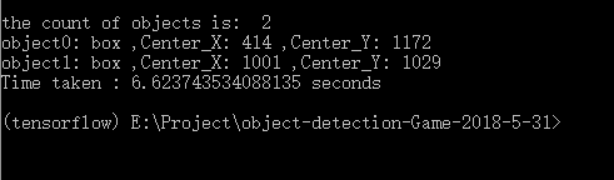
运行结果如下,
转载请注明出处:https://www.cnblogs.com/White-xzx/p/9508535.html
【TensorFlow】获取object detection API训练模型的输出坐标的更多相关文章
- 使用Tensorflow object detection API——训练模型(Window10系统)
[数据标注处理] 1.先将下载好的图片训练数据放在models-master/research/images文件夹下,并分别为训练数据和测试数据创建train.test两个文件夹.文件夹目录如下 2. ...
- Install Tensorflow object detection API in Anaconda (Windows)
This blog is to explain how to install Tensorflow object detection API in Anaconda in Windows 10 as ...
- 基于TensorFlow Object Detection API进行迁移学习训练自己的人脸检测模型(二)
前言 已完成数据预处理工作,具体参照: 基于TensorFlow Object Detection API进行迁移学习训练自己的人脸检测模型(一) 设置配置文件 新建目录face_faster_rcn ...
- TensorFlow object detection API
cloud执行:https://github.com/tensorflow/models/blob/master/research/object_detection/g3doc/running_pet ...
- Tensorflow object detection API 搭建属于自己的物体识别模型
一.下载Tensorflow object detection API工程源码 网址:https://github.com/tensorflow/models,可通过Git下载,打开Git Bash, ...
- TensorFlow object detection API应用
前一篇讲述了TensorFlow object detection API的安装与配置,现在我们尝试用这个API搭建自己的目标检测模型. 一.准备数据集 本篇旨在人脸识别,在百度图片上下载了120张张 ...
- TensorFlow object detection API应用--配置
目标检测在图形识别的基础上有了更进一步的应用,但是代码也更加繁琐,TensorFlow专门为此开设了一个object detection API,接下来看看怎么使用它. object detectio ...
- TensorFlow Object Detection API中的Faster R-CNN /SSD模型参数调整
关于TensorFlow Object Detection API配置,可以参考之前的文章https://becominghuman.ai/tensorflow-object-detection-ap ...
- 使用TensorFlow Object Detection API+Google ML Engine训练自己的手掌识别器
上次使用Google ML Engine跑了一下TensorFlow Object Detection API中的Quick Start(http://www.cnblogs.com/take-fet ...
随机推荐
- 51nod 1673 树有几多愁(链表维护树形DP+状压DP)
题意 lyk有一棵树,它想给这棵树重标号. 重标号后,这棵树的所有叶子节点的值为它到根的路径上的编号最小的点的编号. 这棵树的烦恼值为所有叶子节点的值的乘积. lyk想让这棵树的烦恼值最大,你只需输出 ...
- 【设计模式】—— 访问者模式Visitor
前言:[模式总览]——————————by xingoo 模式意图 对于某个对象或者一组对象,不同的访问者,产生的结果不同,执行操作也不同.此时,就是访问者模式的典型应用了. 应用场景 1 不同的子类 ...
- 【设计模式】—— 创建者模式Builder
前言:[模式总览]——————————by xingoo 模式意图 一个对象的创建十分复杂,为了区分构建过程和使用过程,因此分开.使用一个Director类进行对象的创建,Builder规定了这个创建 ...
- MongoDB-数据&权限管理(4)
数据备份与恢复 mongodump -h ip:port -d 数据库名称 -o 保存路径 # 备份 mongorestore -h ip:port -d 数据库名称 --dir 文件夹路径 # 恢复 ...
- Java 8新特性之Stream(八恶人-3)
“You John Ruth The Hangman” 绞刑者鲁斯·约翰 “When the Hangman catches you, you hang.”当被绞刑者抓住了,你肯定会被绞死 一.基本介 ...
- 【BZOJ1297】[SCOI2009]迷路(矩阵快速幂)
[BZOJ1297][SCOI2009]迷路(矩阵快速幂) 题面 BZOJ 洛谷 题解 因为边权最大为\(9\),所以记录往前记录\(9\)个单位时间前的.到达每个点的方案数就好了,那么矩阵大小就是\ ...
- POJ 3436 ACM Computer Factory (网络流,最大流)
POJ 3436 ACM Computer Factory (网络流,最大流) Description As you know, all the computers used for ACM cont ...
- Luogu2661 信息传递(图论)
Luogu2661 信息传递(图论) Description 有n个同学(编号为1到n)正在玩一个信息传递的游戏.在游戏里每人都有一个固定的信息传递对象,其中,编号为i的同学的信息传递对象是编号为Ti ...
- 【codevs1245】最小的 N 个和
题目大意:给定两个有 N 个数字的序列,从这两个序列中任取一个数相加,共有 \(N^2\) 个和,求这些和中最小的 N 个. 题解:由于数据量是 10W,必须减少每次选取的决策集合中元素的个数.可以发 ...
- C#代码连接Oracle数据库一段时间以后[connection lost contact]的问题
最近在使用C#代码连接Oracle数据库,分为两部分,WCF的客户端与服务端.程序启动与运行都没有问题,部署到服务器上后,运行也没有问题.但是第二天再访问的时候,就会抛出下边所示的异常.这是怎么回事? ...