
iOS: 工具栏控件UIToolBar和工具栏按钮控件UIBarButtonItem的使用
一、工具栏控件:UIToolBar:UIView


typedef NS_ENUM(NSInteger, UIBarStyle) {
UIBarStyleDefault = 0, //默认风格,蓝色文字
UIBarStyleBlack = 1, //黑色背景,褐色文字
UIBarStyleBlackOpaque = 1, // 纯黑色背景,白色文字
UIBarStyleBlackTranslucent = 2, // 透明黑色背景,白色文字
};
@property(nonatomic) UIBarStyle barStyle; //工具栏风格,默认为蓝色
@property(nonatomic,copy) NSArray *items; //工具栏中的按钮单元,UIBarButtonItem
@property(nonatomic,assign,getter=isTranslucent) BOOL translucent //是否透明
@property(nonatomic,retain) UIColor *tintColor; //按钮颜色
@property(nonatomic,retain) UIColor *barTintColor; //工具栏颜色
- (void)setItems:(NSArray *)items animated:(BOOL)animated;
※设置工具栏的背景图像
- (void)setBackgroundImage:(UIImage *)backgroundImage forToolbarPosition:(UIBarPosition)topOrBottom barMetrics:(UIBarMetrics)barMetrics;
※获取工具栏的背景图像
- (UIImage *)backgroundImageForToolbarPosition:(UIBarPosition)topOrBottom barMetrics:(UIBarMetrics)barMetrics;
※设置工具栏的阴影图像
- (void)setShadowImage:(UIImage *)shadowImage forToolbarPosition:(UIBarPosition)topOrBottom;
※获取工具栏的阴影图像
- (UIImage *)shadowImageForToolbarPosition:(UIBarPosition)topOrBottom ;
二、工具栏按钮控件:UIBarButtonItem:UIBarItem
属性:
@property(nonatomic) UIBarButtonItemStyle style; //风格
@property(nonatomic) CGFloat width; // 调节间距宽度
@property(nonatomic,copy) NSSet *possibleTitles; // 标题
@property(nonatomic,retain) UIView *customView; // 自定义视图
@property(nonatomic) SEL action; // 事件
@property(nonatomic,assign) id target; // 目标代理
typedef NS_ENUM(NSInteger, UIBarButtonItemStyle) {
UIBarButtonItemStylePlain, //普通风格
UIBarButtonItemStyleBordered, //有边界的风格
UIBarButtonItemStyleDone, //蓝色风格
};
系统自带的按钮:
typedef NS_ENUM(NSInteger, UIBarButtonSystemItem) {
UIBarButtonSystemItemDone, //确认按钮
UIBarButtonSystemItemCancel, //取消按钮
UIBarButtonSystemItemEdit, //编辑按钮
UIBarButtonSystemItemSave, // 保存按钮
UIBarButtonSystemItemAdd, //添加按钮
UIBarButtonSystemItemFlexibleSpace,//自动调节间距按钮
UIBarButtonSystemItemFixedSpace, //自定义调节间距按按钮
UIBarButtonSystemItemCompose,
UIBarButtonSystemItemReply,
UIBarButtonSystemItemAction,
UIBarButtonSystemItemOrganize,
UIBarButtonSystemItemBookmarks,
UIBarButtonSystemItemSearch,
UIBarButtonSystemItemRefresh,
UIBarButtonSystemItemStop,
UIBarButtonSystemItemCamera,
UIBarButtonSystemItemTrash,
UIBarButtonSystemItemPlay,
UIBarButtonSystemItemPause,
UIBarButtonSystemItemRewind,
UIBarButtonSystemItemFastForward,
UIBarButtonSystemItemUndo,
UIBarButtonSystemItemRedo,
UIBarButtonSystemItemPageCurl,
};
主要方法:
※用图像初始化
- (instancetype)initWithImage:(UIImage *)image style:(UIBarButtonItemStyle)style target:(id)target action:(SEL)action;
※图片(包括竖屏和横屏显示不同的图片)
- (instancetype)initWithImage:(UIImage *)image landscapeImagePhone:(UIImage *)landscapeImagePhone style:(UIBarButtonItemStyle)style target:(id)target action:(SEL)action;
※用字符串初始化
- (instancetype)initWithTitle:(NSString *)title style:(UIBarButtonItemStyle)style target:(id)target action:(SEL)action;
※用系统按钮初始化
- (instancetype)initWithBarButtonSystemItem:(UIBarButtonSystemItem)systemItem target:(id)target action:(SEL)action;
※用自定义图像初始化
- (instancetype)initWithCustomView:(UIView *)customView;
举例举例如下:
1.在工具栏中全部添加系统自带的按钮单元:
   //创建toolBal导航栏实例

    UIToolbar *toolbar = [[UIToolbar alloc]initWithFrame:CGRectMake(, -, , )];

    //设置toolBar风格

    toolbar.barStyle =  UIBarStyleBlack;

    //将该控件添加到视图中

    [self.view addSubview:toolbar];

    //创建控件上的按钮单元

    UIBarButtonItem *additem = [[UIBarButtonItem alloc]initWithBarButtonSystemItem:UIBarButtonSystemItemAdd target:self action:nil];

    UIBarButtonItem *edititem = [[UIBarButtonItem alloc]initWithBarButtonSystemItem:UIBarButtonSystemItemEdit target:self action:nil];

    UIBarButtonItem *titleitem = [[UIBarButtonItem alloc]initWithTitle:@"title" style:UIBarButtonItemStyleDone target:self action:nil];

    //创建灵活调节按钮单元,设置间隔

    UIBarButtonItem *flexibleitem = [[UIBarButtonItem alloc]initWithBarButtonSystemItem:(UIBarButtonSystemItemFlexibleSpace) target:self action:nil];

    //将按钮单元都添加到数组中

    NSArray *items = @[additem,flexibleitem,edititem,flexibleitem,titleitem];

    //设置导航栏上的按钮单元

    [toolbar setItems:items animated:YES];
演示结果如下:

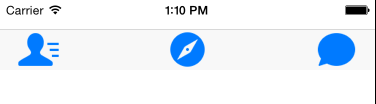
2.在工具栏上添加图像按钮
   //创建toolBal导航栏实例

    UIToolbar *toolbar = [[UIToolbar alloc]initWithFrame:CGRectMake(, , , )];

    //设置toolBar风格

    toolbar.barStyle =  UIBarStyleDefault;

    //将该控件添加到视图中

    [self.view addSubview:toolbar];

    //创建控件上的按钮单元

    UIBarButtonItem *imageitem1 = [[UIBarButtonItem alloc]initWithImage:[UIImage imageNamed:@"1.png"] style:UIBarButtonItemStylePlain target:self action:nil];

    UIBarButtonItem *imageitem2 = [[UIBarButtonItem alloc]initWithImage:[UIImage imageNamed:@"2.png"] style:UIBarButtonItemStylePlain target:self action:nil];

    UIBarButtonItem *imageitem3 = [[UIBarButtonItem alloc]initWithImage:[UIImage imageNamed:@"3.png"] style:UIBarButtonItemStylePlain target:self action:nil];

    //创建灵活调节按钮单元,设置间隔

    UIBarButtonItem *flexibleitem = [[UIBarButtonItem alloc]initWithBarButtonSystemItem:(UIBarButtonSystemItemFlexibleSpace) target:self action:nil];

    //将按钮单元都添加到数组中

    NSArray *items = @[imageitem1,flexibleitem,imageitem2,flexibleitem,imageitem3];

    //设置导航栏上的按钮单元

    [toolbar setItems:items animated:YES];
演示结果如下:
iOS: 工具栏控件UIToolBar和工具栏按钮控件UIBarButtonItem的使用的更多相关文章
- Delphi7 第三方控件1stClass4000的TfcImageBtn按钮控件动态加载jpg图片例子
Delphi7 第三方控件1stClass4000的TfcImageBtn按钮控件动态加载jpg图片例子 procedure TForm1.Button1Click(Sender: TObject); ...
- iOS 开发 中级:UIToolbar,UINavigationBar,UITabBar,UIBarButtonItem,UITabBarItem自定义方法总结
原文: http://blog.csdn.net/songrotek/article/details/8692866?utm_source=tuicool 对于UIToolbar,UINavigat ...
- Android控件之Button(按钮控件)和ImageButton(图片按钮控件)
一.Button和ImageButton特证: 1.共同特证: 都可以作为一个按钮产生点击事件 2.不同特证: Button有text的属性,ImageButton没有 ImageButton有src ...
- MFC编程入门之二十二(常用控件:按钮控件Button、Radio Button和Check Box)
本节继续讲解常用控件--按钮控件的使用. 按钮控件简介 按钮控件包括命令按钮(Button).单选按钮(Radio Button)和复选框(Check Box)等.命令按钮就是我们前面多次提到的侠义的 ...
- VS2010/MFC编程入门之二十二(常用控件:按钮控件Button、Radio Button和Check Box)
言归正传,鸡啄米上一节中讲了编辑框的用法,本节继续讲解常用控件--按钮控件的使用. 按钮控件简介 按钮控件包括命令按钮(Button).单选按钮(Radio Button)和复选框(Check Box ...
- [Xcode 实际操作]三、视图控制器-(9)在Storyboard中使用标签和按钮控件
目录:[Swift]Xcode实际操作 本文将演示标签和按钮在故事板中的应用. 在欢迎串口中,点击创建一个新的项目[Create a new Xcode project] [Single View A ...
- WindowsForm 公共控件 菜单和工具栏
公共控件 菜单栏 状态栏 布局 公共控件 textbox: text属性:用于获取或 ...
- FineUI第五天---按钮控件
按钮控件 <x:Button runat="server" ID="按下" Text="按下"></x:Button> ...
- IOS学习笔记(四)之UITextField和UITextView控件学习
IOS学习笔记(四)之UITextField和UITextView控件学习(博客地址:http://blog.csdn.net/developer_jiangqq) Author:hmjiangqq ...
随机推荐
- POJ 2492 A Bug's Life(带权并查集)
题目链接:http://poj.org/problem?id=2492 题目大意:有n只虫子,m对关系,m行每行有x y两个编号的虫子,告诉你每对x和y都为异性,先说的是对的,如果后面给出关系与前面的 ...
- redis之(一)redis的简单介绍
[一]:概念 --->Redis是一个开源的,高性能的,基于键值对的缓存与存储系统 --->Redis数据库中的多有数据都存储在内存中,由于内存的读写速度远快于硬盘,一秒读写超过10万键值 ...
- hdu 3078(LCA的在线算法)
Network Time Limit: 2000/1000 MS (Java/Others) Memory Limit: 65536/65536 K (Java/Others)Total Sub ...
- LoadRunner:关联HTTP请求
LoadRunner:关联HTTP请求 本例通过一个使用HTTP/HTML协议发送.获取服务器数据的vuser脚本,分析LoadRunner如何进行HTTP关联. 下面这个例子包括两个事务:上传数据到 ...
- "The /usr/local directory is not writable."解决方法
sudo chown -R $(whoami) /usr/local brew prune
- 【解决】win7 64 pip安装scrapy出错
问题一:microsoft visual c++ 9.0 is required 参考:http://www.cnblogs.com/ldm1989/p/4210743.html 问题二:ERROR: ...
- 洛谷P4145 上帝造题的七分钟2/花神游历各国 [树状数组,并查集]
题目传送门 题目背景 XLk觉得<上帝造题的七分钟>不太过瘾,于是有了第二部. 题目描述 "第一分钟,X说,要有数列,于是便给定了一个正整数数列. 第二分钟,L说,要能修改,于是 ...
- ARM开发板不工作的几个原因
刚焊了5块ARM(LPC2478)的开发板,上程序测试了一下,发现只有一个板子工作其他四个全部歇菜.努力地找了一会最终发现是板子的来个电阻焊翻了.因为是1206 的封装而且来个电阻在PCB上摆放的位置 ...
- 【webssh】shellinabox搭建
shellinabox搭建 centos环境安装命令 # yum install epel-release # yum install shellinabox 启动与关闭: service shell ...
- [Codeforces #174] Tutorial
Link: Codeforces #174 传送门 A: 求原根的个数,有一条性质是原根个数为$\phi(\phi(n))$,多了一个不会证的性质 如果要确定哪些是原根的话还是要枚举,不过对于每个数不 ...