
Blend 2015 教程 (三) 模板
前一篇讲述了一些基本样式的修改方法,并搭建了Style层的基本框架,本篇将进一步修改ListBox的样式。
1. 首先选中ListBox控件,在美工板导航栏中点击ListBox,选择 编辑其他模板-编辑项的布局-编辑副本,起名为PeopleListItemsPanelTemplate,选择该文档选项,点击确定,进入项布局编辑模式。
此时,美工板导航栏变为

2. 在文档大纲面板中选择VirtualizingStackPanel,右键点击,选择 更改布局类型-WrapPanel,点击返回上一层,退出项布局编辑模式。
3. 选择ListBox控件,在属性面板中,点击布局组的展开更多按钮,展开更多属性后,把ScrollViewer.HorizontalScrollBarVisibility改为Disabled。
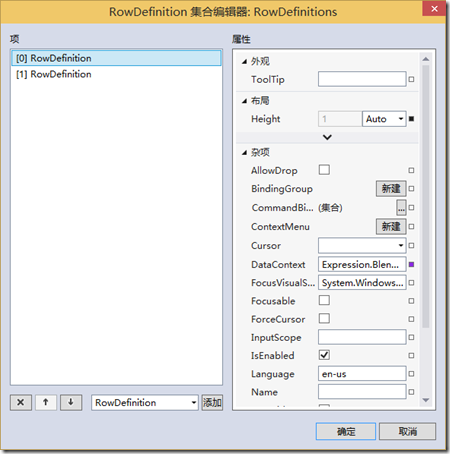
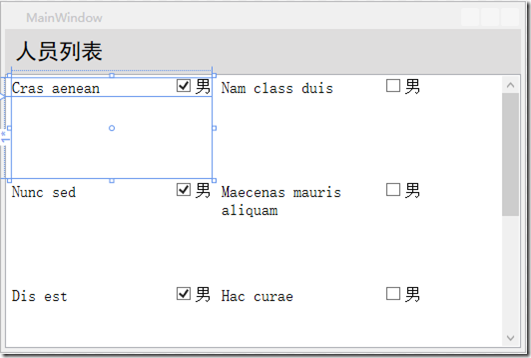
4. 选择ListBox控件,点击美工板导航栏中的ListBox,选择 编辑其他模板-编辑生成的项-编辑当前项。在文档大纲面板中选择Grid,在属性面板中把Width和Height改为200和100。在文档大纲面板中,在Grid上点击右键,选择 分组-Grid。可以看到树中变为两层Grid,选择外层Grid,在属性面板中,点击RowDefinitions属性的...按钮,在弹出的对话框中点击两次添加按钮,把Grid改为两行,把第一行的Height属性改为Auto,第二行的Height属性保留Star,如下图所示,
美工板如下图所示,
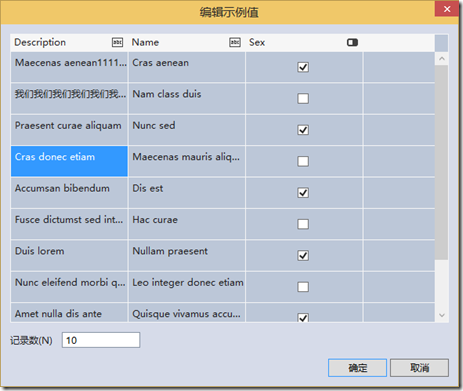
5. 在美工板中按T键,选择TextBlock工具,在Grid的第二行的位置上绘制一个TextBlock并重置其布局。在数据面板中,点击树中的Persons项的加号按钮,看到新添加了一个属性,起名为Description。在美工板中选择刚才添加的TextBlock,在属性面板中,点击Text属性的小方块,选择 创建数据绑定,选择Description属性。在数据面板中,点击Persons项的编辑示例值按钮,弹出如下对话框,把某些Description改长点。
6. 在文档大纲面板中,在内层Grid上右键点击,选择 分组-Border。在文档大纲面板中的Border上右键点击,选择 编辑样式-创建空样式,起名为SubtitleStyle。在属性面板中把背景色改为浅蓝色,Padding改为5,5,5,5。 在文档大纲面板中,点击返回上一层按钮,退出样式编辑模式。
7. 在美工板中选择第二行的TextBlock控件,修改Margin为5,5,5,5。在文档大纲面板中,点击返回上一层按钮,退出模板编辑模式。
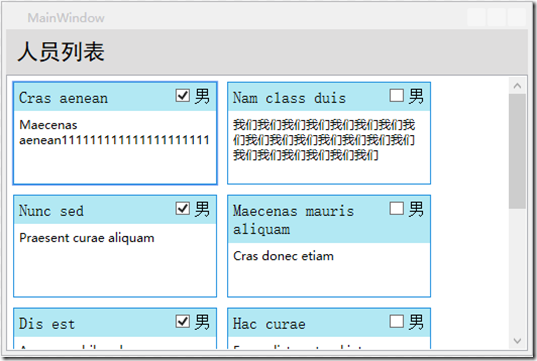
8. 在选择ListBox控件的条件下,点击美工板导航栏的ListBox,选择 编辑其他模板-编辑生成的项目容器-编辑副本,起名为PeopleListItemStyle,进入模板编辑模式。点击美工板导航栏中间的画板图标按钮,进入样式编辑模式,如下图。

在属性面板中把Padding修改为0,0,0,0。Margin修改为5,5,5,5。BorderBrush改为蓝色。效果如下图,
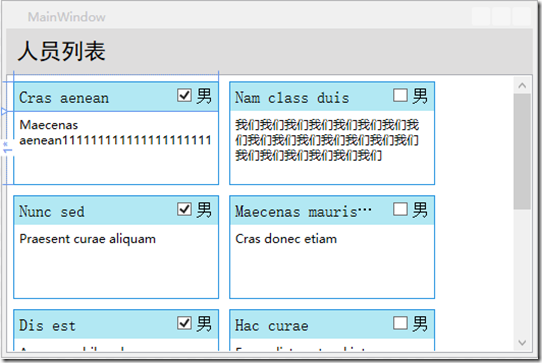
列表项的标题不应该有换行。点击美工板导航栏的ListBox部分,再点击一次,选择 编辑其他模板-编辑生成的项-编辑当前项。选择标题部分的TextBlock,在属性面板中把文本组展开,把TextWrapping属性改为NoWrap,把TextTrimming属性改为WordEllipsis。点击ToolTip属性的小方块,选择创建数据绑定,选择Name属性。效果如下图。
此时完整的代码如下,
<Window

        xmlns="http://schemas.microsoft.com/winfx/2006/xaml/presentation"

        xmlns:x="http://schemas.microsoft.com/winfx/2006/xaml"

        xmlns:d="http://schemas.microsoft.com/expression/blend/2008"

        xmlns:mc="http://schemas.openxmlformats.org/markup-compatibility/2006"

        xmlns:local="clr-namespace:BlendDemo"

        xmlns:System="clr-namespace:System;assembly=mscorlib" x:Class="BlendDemo.MainWindow"

        mc:Ignorable="d"

        Title="MainWindow" Height="350" Width="525" d:DataContext="{d:DesignData /SampleData/SampleDataSource/SampleDataSource.xaml}">

    <Window.Resources>

        <DataTemplate x:Key="PeopleListDataTemplate">

            <Grid Height="100" Width="200">

                <Grid.RowDefinitions>

                    <RowDefinition Height="Auto"/>

                    <RowDefinition/>

                </Grid.RowDefinitions>

                <Border Style="{DynamicResource SubtitleStyle}">

                    <Grid>

                        <Grid.ColumnDefinitions>

                            <ColumnDefinition Width="*"/>

                            <ColumnDefinition Width="Auto"/>

                        </Grid.ColumnDefinitions>

                        <TextBlock Height="Auto" TextWrapping="NoWrap" Text="{Binding Name}" Width="Auto" Style="{DynamicResource CoreTextStyle}" TextTrimming="WordEllipsis" ToolTip="{Binding Name}"/>

                        <CheckBox Content="男" Grid.Column="1" Height="Auto" Width="Auto" IsChecked="{Binding Sex}" Style="{DynamicResource CheckBoxBaseStyle}"/>

                    </Grid>

                </Border>

                <TextBlock Grid.Row="1" TextWrapping="Wrap" Text="{Binding Description}" Margin="5"/>

            </Grid>

        </DataTemplate>

        <Style x:Key="TitleStyle" TargetType="{x:Type Border}">

            <Setter Property="Padding" Value="10"/>

            <Setter Property="Background" Value="#FFDEDDDD"/>

        </Style>

        <ItemsPanelTemplate x:Key="PeopleListItemsPanelTemplate">

            <WrapPanel IsItemsHost="True"/>

        </ItemsPanelTemplate>

        <Style x:Key="SubtitleStyle" TargetType="{x:Type Border}">

            <Setter Property="Background" Value="#FFB2E8F3"/>

            <Setter Property="Padding" Value="5"/>

        </Style>

        <Style x:Key="FocusVisual">

            <Setter Property="Control.Template">

                <Setter.Value>

                    <ControlTemplate>

                        <Rectangle Margin="2" SnapsToDevicePixels="true" Stroke="{DynamicResource {x:Static SystemColors.ControlTextBrushKey}}" StrokeThickness="1" StrokeDashArray="1 2"/>

                    </ControlTemplate>

                </Setter.Value>

            </Setter>

        </Style>

        <SolidColorBrush x:Key="Item.MouseOver.Background" Color="#1F26A0DA"/>

        <SolidColorBrush x:Key="Item.MouseOver.Border" Color="#a826A0Da"/>

        <SolidColorBrush x:Key="Item.SelectedInactive.Background" Color="#3DDADADA"/>

        <SolidColorBrush x:Key="Item.SelectedInactive.Border" Color="#FFDADADA"/>

        <SolidColorBrush x:Key="Item.SelectedActive.Background" Color="#3D26A0DA"/>

        <SolidColorBrush x:Key="Item.SelectedActive.Border" Color="#FF26A0DA"/>

        <Style x:Key="PeopleListItemStyle" TargetType="{x:Type ListBoxItem}">

            <Setter Property="SnapsToDevicePixels" Value="True"/>

            <Setter Property="Padding" Value="0"/>

            <Setter Property="HorizontalContentAlignment" Value="{Binding HorizontalContentAlignment, RelativeSource={RelativeSource AncestorType={x:Type ItemsControl}}}"/>

            <Setter Property="VerticalContentAlignment" Value="{Binding VerticalContentAlignment, RelativeSource={RelativeSource AncestorType={x:Type ItemsControl}}}"/>

            <Setter Property="Background" Value="Transparent"/>

            <Setter Property="BorderBrush" Value="#FF2391DE"/>

            <Setter Property="BorderThickness" Value="1"/>

            <Setter Property="FocusVisualStyle" Value="{StaticResource FocusVisual}"/>

            <Setter Property="Template">

                <Setter.Value>

                    <ControlTemplate TargetType ="{x:Type ListBoxItem}">

                        <Border x:Name="Bd" BorderBrush="{TemplateBinding BorderBrush}" BorderThickness="{TemplateBinding BorderThickness}" Background="{TemplateBinding Background}" Padding="{TemplateBinding Padding}" SnapsToDevicePixels="true">

                            <ContentPresenter HorizontalAlignment="{TemplateBinding HorizontalContentAlignment}" SnapsToDevicePixels="{TemplateBinding SnapsToDevicePixels}" VerticalAlignment="{TemplateBinding VerticalContentAlignment}"/>

                        </Border>

                        <ControlTemplate.Triggers>

                            <MultiTrigger>

                                <MultiTrigger.Conditions>

                                    <Condition Property="IsMouseOver" Value="True"/>

                                </MultiTrigger.Conditions>

                                <Setter Property="Background" TargetName="Bd" Value="{StaticResource Item.MouseOver.Background}"/>

                                <Setter Property="BorderBrush" TargetName="Bd" Value="{StaticResource Item.MouseOver.Border}"/>

                            </MultiTrigger>

                            <MultiTrigger>

                                <MultiTrigger.Conditions>

                                    <Condition Property="Selector.IsSelectionActive" Value="False"/>

                                    <Condition Property="IsSelected" Value="True"/>

                                </MultiTrigger.Conditions>

                                <Setter Property="Background" TargetName="Bd" Value="{StaticResource Item.SelectedInactive.Background}"/>

                                <Setter Property="BorderBrush" TargetName="Bd" Value="{StaticResource Item.SelectedInactive.Border}"/>

                            </MultiTrigger>

                            <MultiTrigger>

                                <MultiTrigger.Conditions>

                                    <Condition Property="Selector.IsSelectionActive" Value="True"/>

                                    <Condition Property="IsSelected" Value="True"/>

                                </MultiTrigger.Conditions>

                                <Setter Property="Background" TargetName="Bd" Value="{StaticResource Item.SelectedActive.Background}"/>

                                <Setter Property="BorderBrush" TargetName="Bd" Value="{StaticResource Item.SelectedActive.Border}"/>

                            </MultiTrigger>

                            <Trigger Property="IsEnabled" Value="False">

                                <Setter Property="TextElement.Foreground" TargetName="Bd" Value="{DynamicResource {x:Static SystemColors.GrayTextBrushKey}}"/>

                            </Trigger>

                        </ControlTemplate.Triggers>

                    </ControlTemplate>

                </Setter.Value>

            </Setter>

            <Setter Property="Margin" Value="5"/>

        </Style>

    </Window.Resources>

    <Grid>

        <Grid.RowDefinitions>

            <RowDefinition Height="Auto"/>

            <RowDefinition/>

        </Grid.RowDefinitions>

        <Border Style="{DynamicResource TitleStyle}" >

            <TextBlock Text="人员列表" Style="{DynamicResource TitleTextStyle}"/>

        </Border>

        <ListBox Grid.Row="1" ItemsSource="{Binding Persons}" ItemTemplate="{DynamicResource PeopleListDataTemplate}" HorizontalContentAlignment="Stretch" ItemsPanel="{DynamicResource PeopleListItemsPanelTemplate}" ScrollViewer.HorizontalScrollBarVisibility="Disabled" ItemContainerStyle="{DynamicResource PeopleListItemStyle}"/>

    </Grid>

</Window>
9. 设计视图可以显示设计的效果,但观察动态效果较难。
解决方法是,在文档大纲面板中,退出样式或模板编辑模式,选择Window,在属性面板中找到DataContext属性,点击小方块,选择 本地资源-SampleDataSource。这时运行程序,可以看到效果。
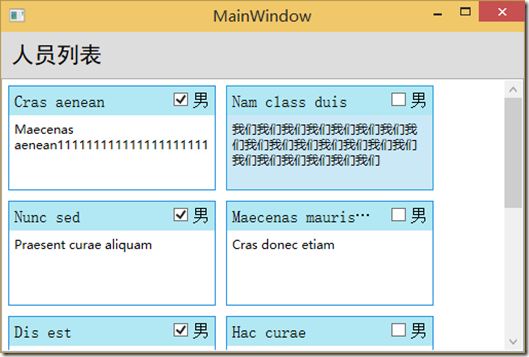
这时鼠标移动到ListBox中的项目上时,或点击选中时,是有交互效果的。
10. 如果不满意动态交互效果,可以到触发器面板中编辑。选中ListBox控件,点击美工板导航栏中的ListBox,选择 编辑其他模板-编辑生成的项目容器-编辑当前项,在触发器面板中选择第三项,如下图。
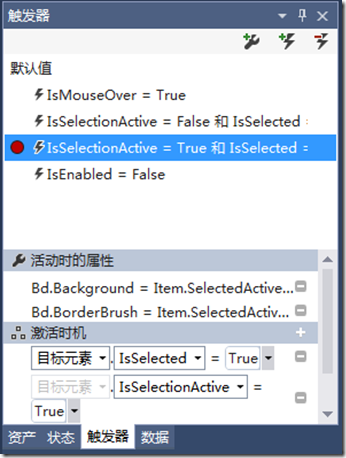
在属性面板中把Background改为其他颜色。修改的方法为,在属性面板中找到Background属性,此时小方块是绿色的,表面是引用的资源。点击小方块,选择编辑资源,在弹出的对话框中编辑新的颜色即可。
完成后别忘了重置Window的DataContext属性,为下一步后端开发人员开发留出余地。
下一篇将修改性别显示那一部分的样式,重点演示控件模板的修改方法,敬请关注。
Blend 2015 教程 (三) 模板的更多相关文章
- Blend 2015 教程 (四)控件模板
前一篇讲述了修改ListBox样式的方法,本篇将修改性别显示区域的样式. 1. 选择ListBox控件,编辑ItemTemplate的当前项,选择CheckBox控件,在美工板导航栏中点击CheckB ...
- Blend 2015 教程 (一) 基础
微软公司在Visual Studio 2015产品套件中作出了许多革命性的变更,包括.NET开源,.NET服务器端部分跨平台,推出向个人和小团队免费的社区版,移动应用开发部分跨平台支持,商店应用支持C ...
- Blend 2015 教程 (二) 样式
前一篇讲述了如何在新Blend中完成一个简单的带数据绑定的界面小例子,本篇将讲述一下,把View层和Style层分开,并搭建Style层框架的方法,并进行细节样式修改. 1. 在解决方案资源管理器面板 ...
- Blend 2015 教程 (五) 自定义状态
本篇再补充一块内容,就是自定义状态的介绍. 自定义状态用于封装用户控件在各种状态之间切换时的外观变化及其动画效果,方便调用.比如有个用户控件用于实现类似舞台幕布打开和关闭切换的效果,可以创建幕布关闭和 ...
- python Django教程 之模板渲染、循环、条件判断、常用的标签、过滤器
python3.5 manage.py runserver python Django教程 之模板渲染.循环.条件判断.常用的标签.过滤器 一.Django模板渲染模板 1. 创建一个 zqxt_tm ...
- CocoStudio教程三:认识并利用CocoStudio的果实 运行2.2.1版本
原文:CocoStudio教程三:认识并利用CocoStudio的果实 原文用的老版,用2.21搞起来好像有些问题,然后自己摸索了下,有的都是乱找的方法,只求能运行... 1,原文的CCJsonRea ...
- Laravel教程 三:视图变量传递和Blade
Laravel教程 三:视图变量传递和Blade 此文章为原创文章,未经同意,禁止转载. Blade 上一篇我们简单地说了Router,Views和Controllers的工作流程,这一次我就按照上一 ...
- RMAN详细教程(三):备份脚本的组件和注释
RMAN详细教程(一):基本命令代码 RMAN详细教程(二):备份.检查.维护.恢复 RMAN详细教程(三):备份脚本的组件和注释 RMAN详细教程(四):备份脚本实战操作 一.基本组件: 1.Ser ...
- Elasticsearch入门教程(三):Elasticsearch索引&映射
原文:Elasticsearch入门教程(三):Elasticsearch索引&映射 版权声明:本文为博主原创文章,遵循CC 4.0 BY-SA版权协议,转载请附上原文出处链接和本声明. 本文 ...
随机推荐
- AngularJs自定义指令详解(6) - controller、require
在前面文章中提到一旦声明了require,则链接函数具有第四个参数:controller. 可见require和controller是配合使用的. 在自定义指令中使用controller,目的往往是要 ...
- 配置tomcat解压版
配置Tomcat[解压版] 选择解压版的Tomcat的理由是可以让我们使用多个Tomcat,但是配置上就会出现一些问题,需要我们手动进行更改配置.我的Tomcat版本是:apache-tomcat-6 ...
- ATL 获取flash信息
// This goes past the ATL includes #import "C:/WINDOWS/system32/Macromed/Flash/Flash9e.ocx" ...
- 搭建maven环境
有两种方式可以配置maven的环境配置,本人推荐使用第二种,即使用本地的maven安装文件,个人感觉这样可以方便管理下载jar包的存放位置,错误信息的输出等,可以在dos窗口中可以清晰看到,虽然比较麻 ...
- Entity Framework 6, database-first with Oracle
Entity Framework 6, database-first with Oracle 转载自http://csharp.today/entity-framework-6-database-fi ...
- Runloop 深入理解(转)
RunLoop 是 iOS 和 OSX 开发中非常基础的一个概念,这篇文章将从 CFRunLoop 的源码入手,介绍 RunLoop 的概念以及底层实现原理.之后会介绍一下在 iOS 中,苹果是如何利 ...
- 4580: [Usaco2016 Open]248
Description Bessie likes downloading games to play on her cell phone, even though she does find the ...
- iOS基础之Xcode 8相关
1.屏蔽日志输出 2.注释相关 注释不能使用:命令运行: sudo /usr/libexec/xpccachectl VVDocument方式注释快捷键:option + command + /
- AOP实现原理
Spring 为解耦而生,其中AOP(面向切面编程)是很浓重的一笔. 本文来探讨一下AOP实现的原理. 一. 概述 代理模式是常用的java设计模式,他的特征是代理类与委托类有同样的接口,代理类主要负 ...
- 一台MySQL服务器启动多个端口
一台MySQL服务器启动多个端口 在测试Mysql多主一从服务器,即一个从服务器多端口同步不同主库.本文记录了开启不同端口的操作. 详细步骤: 1.首先要先把my.cnf配置文件复制一份,开几个端口要 ...