
在winform下实现左右布局多窗口界面的方法(一)
我这里说的多窗口是指一个父窗口包含多个子窗口,在winform中实现这种效果很简单,即将某个窗口的IsMdiContainer设为true,然后将其它子窗口的MdiParent设为其父窗口对象即可,这样就完成了一个多窗口界面,效果如下:
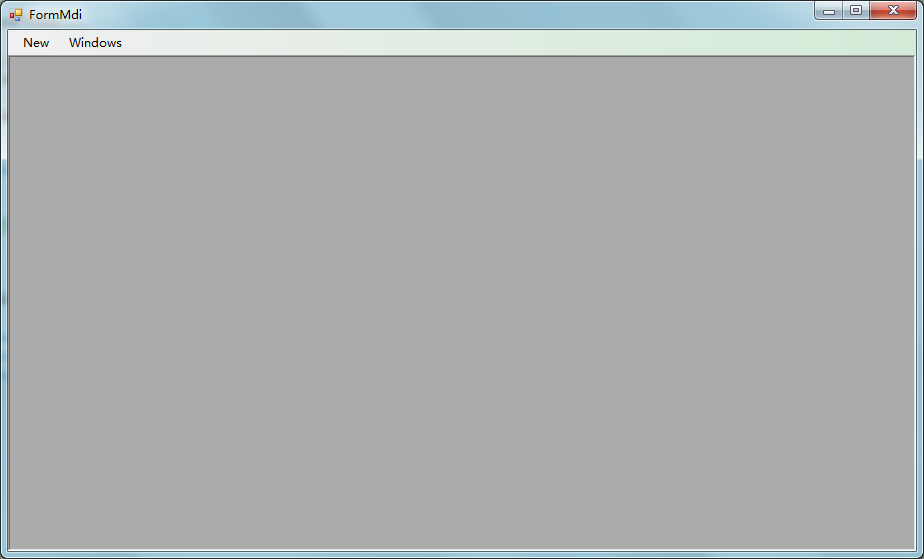
点击NEW新打开一个窗口,其效果如下:
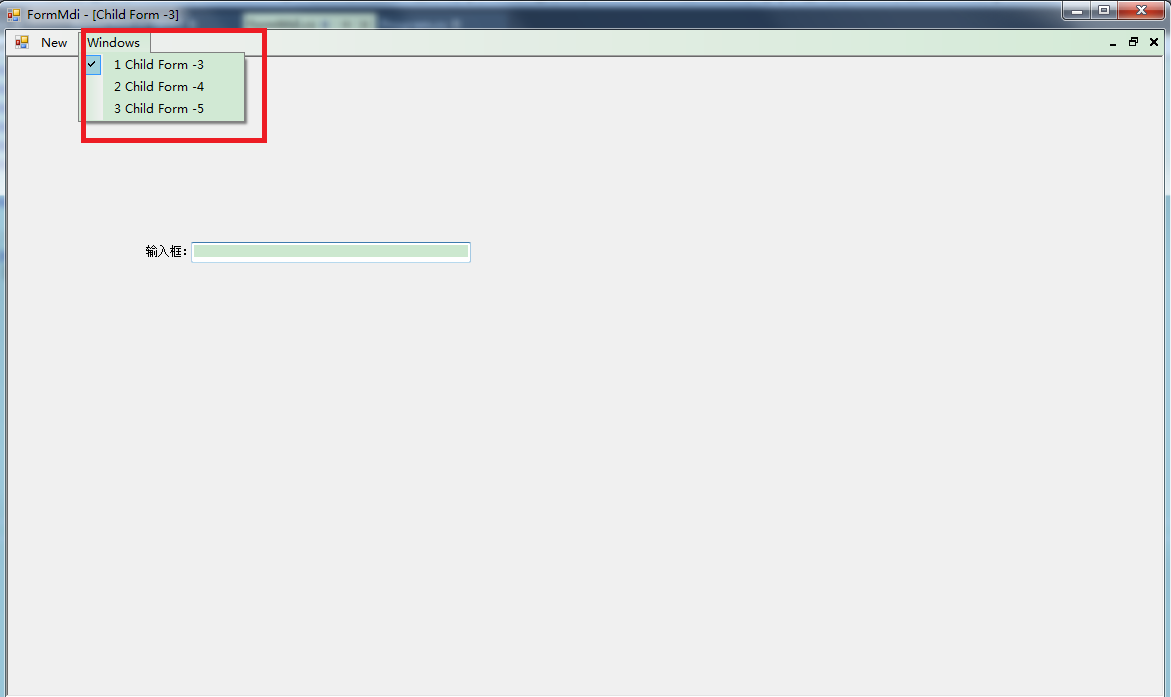
请看我上图红色标注的地方,Windows菜单项下面显示的是当前所有已打开的子窗口,点击某个菜单,即可快速切换到其它窗口,若关闭某个子窗口,与之相对应的菜单项也会自动被移除,实现这个功能也很简单,只需要将菜单的MdiWindowListItem属性设为需要显示活动窗口列表的菜单项即可,例如:上图中我想让Windows菜单显示所有打开的窗口列表,而Windows菜单的(name)属性是windowsToolStripMenuItem,所以只需要如下代码,就可以让Windows菜单显示打开的窗口列表。
this.menuStrip1.MdiWindowListItem = this.windowsToolStripMenuItem; //让windowsToolStripMenuItem菜单对象显示窗口列表
上述示例完整的实现代码如下:
public partial class FormMdi : Form

{

private int formCount = 0;

public FormMdi()

{

InitializeComponent();

this.menuStrip1.MdiWindowListItem = this.windowsToolStripMenuItem;

}

private void newToolStripMenuItem_Click(object sender, EventArgs e)

{

ShowChildForm<FormChild>();

}

private void ShowChildForm<TForm>() where TForm : Form, new()

{

TForm childForm = new TForm();

childForm.Name = "frm" + Guid.NewGuid().ToString("N");

childForm.Text = string.Format("Child Form -{0}", ++formCount);

childForm.MdiParent = this;

childForm.WindowState = FormWindowState.Maximized;

childForm.Show();

}

}
相信实现上面这部份功能一般用过winform的人都会操作,我这里就当是复习顺便给新手一个参考,同时也为下面要实现的左右布局功能做一个铺垫吧。
要实现左右布局,并且能够支持可动态调整左右占比的功能,非SplitContainer控件莫属了,如果不了解该控件用法请自行在网上查找相关资料,我这里就不作说明,如果要显示WINDOWS已打开的子窗口情况,同样也需要用到MenuStrip控件,
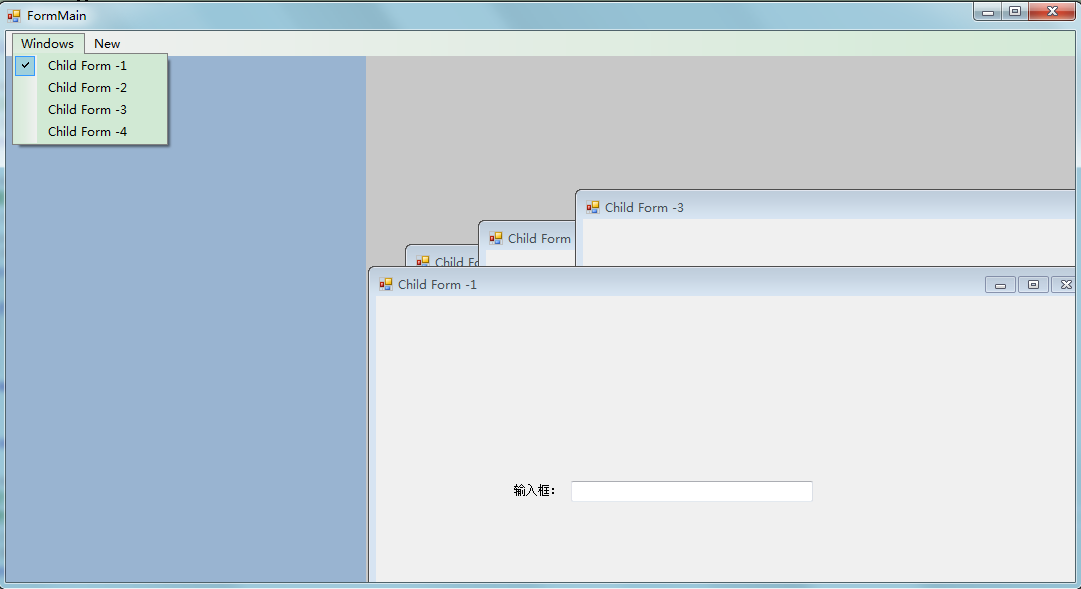
最终设计的主窗口(FormMain)效果如下:
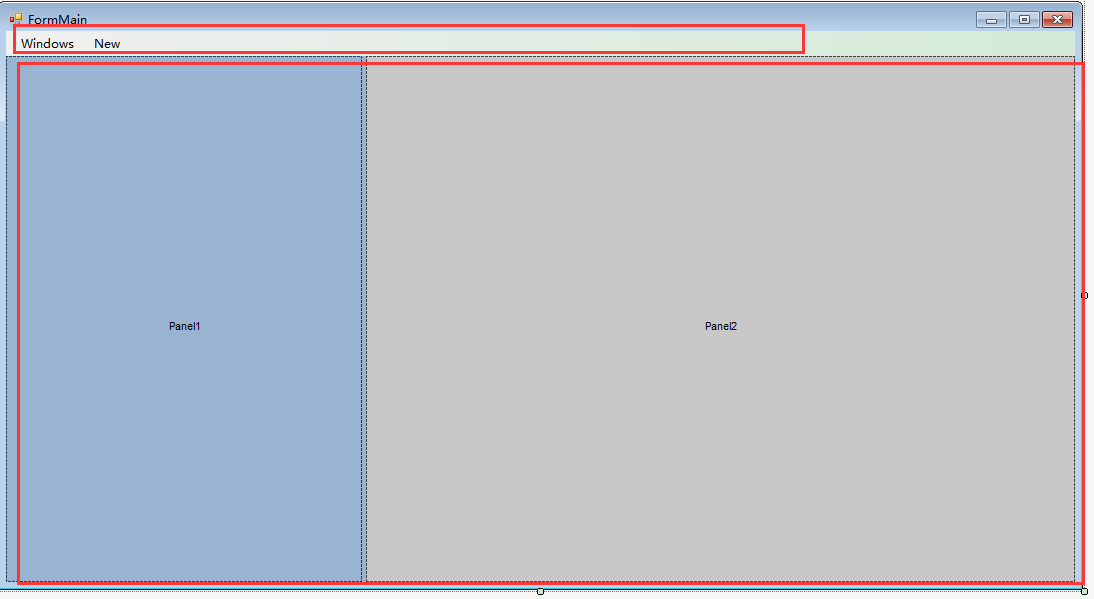
我这里因为只是演示,所以菜单控件上我只添加了两个菜单项,分别为:WINDOWS,用于显示WINDOWS已打开的子窗口列表,NEW,用于打开一个子窗口;SplitContainer控件全部采用默认的,没有放置任何控件在其中,如果用在正式系统中,一般左边Panel1中会放置一个树形菜单,右边Panel2中保持空即可,因为这个是用来作为子窗口的容器。
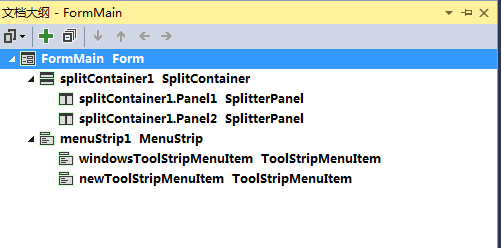
控件层次结构如下图示:
界面设计好了,下面就实现最重要的两个功能。
第一个功能:在右边Panel2中显示子窗口,实现代码如下:
public FormMain()

{

this.IsMdiContainer = true;

}

private void ShowChildForm<TForm>() where TForm : Form, new()

{

TForm childForm = new TForm();

childForm.Name = "frm" + Guid.NewGuid().ToString("N");

childForm.Text = string.Format("Child Form -{0}", ++formCount);

childForm.MdiParent = this;

childForm.Parent = splitContainer1.Panel2;

childForm.WindowState = FormWindowState.Maximized;

childForm.Show();

}
简要说明:
1.在窗口构造函数中动态的将IsMdiContainer设为true,当然也可以设计视图中设置;
2.编写一个显示写子窗口的方法,方法中需注意的地方:childForm.MdiParent = this;childForm.Parent = splitContainer1.Panel2,意思是:将当前窗口作为子窗口的父窗口,同时将Panel2指定为子窗口的父对象,这样就能实现子窗口在Panel2中打开了。
第二个功能:在WINDOWS菜单项下显示已打开的子窗口列表,这里实现就没有像文章一开始介绍的那样简单,使用那个方法是无效的,需要我们来自行实现,稍微有点复杂,但如果明白其实现原理,也就简单明白了。
实现思路:当childForm加载到Panel2时,会触发Panel2.ControlAdded事件,当childForm被关闭时,会触发Panel2.ControlRemoved事件,我们可以统一订阅这两个事件,当childForm加载时,那么就在WINDOWS菜单项下增加一个菜单项,反之则移除该菜单项,实现代码如下:
this.splitContainer1.Panel2.ControlAdded += Panel2_ControlChanged;

this.splitContainer1.Panel2.ControlRemoved += Panel2_ControlChanged;

void Panel2_ControlChanged(object sender, ControlEventArgs e)

{

var frm = e.Control as Form;

string menuName = "menu_" + frm.Name;

bool exists = this.splitContainer1.Panel2.Controls.Contains(frm);

if (exists)

{

var menuItem = GetMenuItem(menuName);

if (menuItem != null)

{

menuItem.Checked = true;

frm.BringToFront();

frm.Focus();

}

else

{

windowsToolStripMenuItem.DropDownItems.Add(new ToolStripMenuItem() { Text = frm.Text, Name = menuName, Tag = frm, Checked = true });

}

}

else

{

var menuItem = GetMenuItem(menuName);

if (menuItem != null)

{

windowsToolStripMenuItem.DropDownItems.Remove(menuItem);

menuItem.Dispose();

}

}

}

private ToolStripMenuItem GetMenuItem(string menuName)

{

var menuItems = windowsToolStripMenuItem.DropDownItems.Cast<ToolStripMenuItem>();

menuItems.ToList().ForEach(m => m.Checked = false);

return menuItems.Where(m => m.Name == menuName).SingleOrDefault();

}
同时为了实现点击WINDOWS菜单项的子菜单能够快速切换子窗口,需要订阅WINDOWS菜单项的DropDownItemClicked事件,当然也可以为新增的子菜单项订阅Click事件,实现代码如下:
windowsToolStripMenuItem.DropDownItemClicked += windowsToolStripMenuItem_DropDownItemClicked;

void windowsToolStripMenuItem_DropDownItemClicked(object sender, ToolStripItemClickedEventArgs e)

{

var menuItem = GetMenuItem(e.ClickedItem.Name);

menuItem.Checked = true;

var childForm = menuItem.Tag as Form;

childForm.BringToFront();

childForm.Focus();

}

private void CheckWindowsMenuItem(string menuName)

{

var menuItem = GetMenuItem(menuName);

if (menuItem != null)

{

menuItem.Checked = true;

}

}
这样就基本实现了在WINDOWS菜单项下显示已打开的子窗口列表,并点击指定的菜单项能够切换当前活动的子窗口,但仍有一个不足的地方,那就是,当直接点击子窗口来切换当前活动窗口时(说白了就是当点击某个子窗口标题栏,该窗口就显示在其它所有的子窗口最前面),WINDOWS菜单项下的子菜单勾选项没有同步更新,一开始想到的是用Activated事件来进行处理,结果经测试发现有效,该Activated事件在点击子窗口标题栏时并不会被触发,所以只能换种方法,经过多次测试,发现当窗口从后面切换到前面时(称为Z顺序改变),子窗口就会发生重绘,从而触发Paint方法,我们可以订阅该事件,并进行处理,实现代码如下:
private string currentChildFormName = null; //记录当前活动子窗口名称

childForm.Paint += (s, e) => {

var frm=s as Form;

if (!frm.Name.Equals(currentChildFormName) && this.splitContainer1.Panel2.Controls[0].Equals(frm)) //当容器中第一个控件就是当前的窗口,则表明该窗口处于所有窗口之上

{

CheckWindowsMenuItem("menu_" + frm.Name);

currentChildFormName = frm.Name;

}

};
最后贴出完整的实现代码:
using System;

using System.Collections.Generic;

using System.ComponentModel;

using System.Data;

using System.Drawing;

using System.Linq;

using System.Text;

using System.Threading.Tasks;

using System.Windows.Forms;

namespace WindowsFormsApplication1

{

public partial class FormMain : Form

{

private int formCount = 0;

private string currentChildFormName = null;

public FormMain()

{

InitializeComponent();

this.IsMdiContainer = true;

this.splitContainer1.Panel2.ControlAdded += Panel2_ControlChanged;

this.splitContainer1.Panel2.ControlRemoved += Panel2_ControlChanged;

windowsToolStripMenuItem.DropDownItemClicked += windowsToolStripMenuItem_DropDownItemClicked;

}

void windowsToolStripMenuItem_DropDownItemClicked(object sender, ToolStripItemClickedEventArgs e)

{

var menuItem = GetMenuItem(e.ClickedItem.Name);

menuItem.Checked = true;

var childForm = menuItem.Tag as Form;

childForm.BringToFront();

childForm.Focus();

}

private void FormMain_Load(object sender, EventArgs e)

{

ShowChildForm<FormChild>();

}

private void ShowChildForm<TForm>() where TForm : Form, new()

{

TForm childForm = new TForm();

childForm.Name = "frm" + Guid.NewGuid().ToString("N");

childForm.Text = string.Format("Child Form -{0}", ++formCount);

childForm.MdiParent = this;

childForm.Parent = splitContainer1.Panel2;

childForm.WindowState = FormWindowState.Maximized;

childForm.Paint += (s, e) => {

var frm=s as Form;

if (!frm.Name.Equals(currentChildFormName) && this.splitContainer1.Panel2.Controls[0].Equals(frm)) //当容器中第一个控件就是当前的窗口,则表明该窗口处于所有窗口之上

{

CheckWindowsMenuItem("menu_" + frm.Name);

currentChildFormName = frm.Name;

}

};

childForm.Show();

}

private void CheckWindowsMenuItem(string menuName)

{

var menuItem = GetMenuItem(menuName);

if (menuItem != null)

{

menuItem.Checked = true;

}

}

void Panel2_ControlChanged(object sender, ControlEventArgs e)

{

var frm = e.Control as Form;

string menuName = "menu_" + frm.Name;

bool exists = this.splitContainer1.Panel2.Controls.Contains(frm);

if (exists)

{

var menuItem = GetMenuItem(menuName);

if (menuItem != null)

{

menuItem.Checked = true;

frm.BringToFront();

frm.Focus();

}

else

{

windowsToolStripMenuItem.DropDownItems.Add(new ToolStripMenuItem() { Text = frm.Text, Name = menuName, Tag = frm, Checked = true });

}

}

else

{

var menuItem = GetMenuItem(menuName);

if (menuItem != null)

{

windowsToolStripMenuItem.DropDownItems.Remove(menuItem);

menuItem.Dispose();

}

}

}

private ToolStripMenuItem GetMenuItem(string menuName)

{

var menuItems = windowsToolStripMenuItem.DropDownItems.Cast<ToolStripMenuItem>();

menuItems.ToList().ForEach(m => m.Checked = false);

return menuItems.Where(m => m.Name == menuName).SingleOrDefault();

}

private void newToolStripMenuItem_Click(object sender, EventArgs e)

{

ShowChildForm<FormChild>();

}

}

}
以下是系统自动生成的代码:
namespace WindowsFormsApplication1

{

partial class FormMain

{

/// <summary>

/// 必需的设计器变量。

/// </summary>

private System.ComponentModel.IContainer components = null;

/// <summary>

/// 清理所有正在使用的资源。

/// </summary>

/// <param name="disposing">如果应释放托管资源,为 true;否则为 false。</param>

protected override void Dispose(bool disposing)

{

if (disposing && (components != null))

{

components.Dispose();

}

base.Dispose(disposing);

}

#region Windows 窗体设计器生成的代码

/// <summary>

/// 设计器支持所需的方法 - 不要

/// 使用代码编辑器修改此方法的内容。

/// </summary>

private void InitializeComponent()

{

this.menuStrip1 = new System.Windows.Forms.MenuStrip();

this.windowsToolStripMenuItem = new System.Windows.Forms.ToolStripMenuItem();

this.newToolStripMenuItem = new System.Windows.Forms.ToolStripMenuItem();

this.splitContainer1 = new System.Windows.Forms.SplitContainer();

this.menuStrip1.SuspendLayout();

((System.ComponentModel.ISupportInitialize)(this.splitContainer1)).BeginInit();

this.splitContainer1.SuspendLayout();

this.SuspendLayout();

//

// menuStrip1

//

this.menuStrip1.Items.AddRange(new System.Windows.Forms.ToolStripItem[] {

this.windowsToolStripMenuItem,

this.newToolStripMenuItem});

this.menuStrip1.Location = new System.Drawing.Point(0, 0);

this.menuStrip1.MdiWindowListItem = this.windowsToolStripMenuItem;

this.menuStrip1.Name = "menuStrip1";

this.menuStrip1.Size = new System.Drawing.Size(1069, 25);

this.menuStrip1.TabIndex = 1;

this.menuStrip1.Text = "menuStrip1";

//

// windowsToolStripMenuItem

//

this.windowsToolStripMenuItem.Name = "windowsToolStripMenuItem";

this.windowsToolStripMenuItem.Size = new System.Drawing.Size(73, 21);

this.windowsToolStripMenuItem.Text = "Windows";

this.windowsToolStripMenuItem.Click += new System.EventHandler(this.windowsToolStripMenuItem_Click);

//

// newToolStripMenuItem

//

this.newToolStripMenuItem.Name = "newToolStripMenuItem";

this.newToolStripMenuItem.Size = new System.Drawing.Size(46, 21);

this.newToolStripMenuItem.Text = "New";

this.newToolStripMenuItem.Click += new System.EventHandler(this.newToolStripMenuItem_Click);

//

// splitContainer1

//

this.splitContainer1.BackColor = System.Drawing.SystemColors.ActiveCaption;

this.splitContainer1.Dock = System.Windows.Forms.DockStyle.Fill;

this.splitContainer1.Location = new System.Drawing.Point(0, 25);

this.splitContainer1.Name = "splitContainer1";

//

// splitContainer1.Panel2

//

this.splitContainer1.Panel2.BackColor = System.Drawing.SystemColors.ScrollBar;

this.splitContainer1.Size = new System.Drawing.Size(1069, 526);

this.splitContainer1.SplitterDistance = 356;

this.splitContainer1.TabIndex = 2;

//

// FormMain

//

this.AutoScaleDimensions = new System.Drawing.SizeF(6F, 12F);

this.AutoScaleMode = System.Windows.Forms.AutoScaleMode.Font;

this.ClientSize = new System.Drawing.Size(1069, 551);

this.Controls.Add(this.splitContainer1);

this.Controls.Add(this.menuStrip1);

this.MainMenuStrip = this.menuStrip1;

this.Name = "FormMain";

this.Text = "FormMain";

this.Load += new System.EventHandler(this.FormMain_Load);

this.menuStrip1.ResumeLayout(false);

this.menuStrip1.PerformLayout();

((System.ComponentModel.ISupportInitialize)(this.splitContainer1)).EndInit();

this.splitContainer1.ResumeLayout(false);

this.ResumeLayout(false);

this.PerformLayout();

}

#endregion

private System.Windows.Forms.MenuStrip menuStrip1;

private System.Windows.Forms.ToolStripMenuItem windowsToolStripMenuItem;

private System.Windows.Forms.SplitContainer splitContainer1;

private System.Windows.Forms.ToolStripMenuItem newToolStripMenuItem;

}

}
以下是效果演示截图:
以上内容给大家分享了在winform下实现左右布局多窗口界面的方法,有什么更好的实现方法可以在下方评论,不足之处也欢迎指出,谢谢!下面将给大家介绍在winform下实现左右布局多窗口界面的方法(二)---- 之续篇,感兴趣的朋友继续关注。
出处:http://www.jb51.net/article/80194.htm
在winform下实现左右布局多窗口界面的方法(一)的更多相关文章
- 在winform下实现左右布局多窗口界面的方法(二)
这篇文章主要介绍了在winform下实现左右布局多窗口界面的方法之续篇 的相关资料,需要的朋友可以参考下 在上篇文章在winform下实现左右布局多窗口界面的方法(一)已经实现了左右布局多窗口界面,今 ...
- 分享在winform下实现左右布局多窗口界面-续篇
之前的这篇文章<分享在winform下实现左右布局多窗口界面>已经实现了左右布局多窗口界面,今天本来是研究基于winform的插件编程,没想到顺便又找到了另一种实现方案,这种实现方案更简单 ...
- 分享在winform下实现左右布局多窗口界面
在web页面上我们可以通过frameset,iframe嵌套框架很容易实现各种导航+内容的布局界面,而在winform.WPF中实现其实也很容易,我这里就分享一个:在winform下实现左右布局多窗口 ...
- Win10下PB停在欢迎窗口界面
问题:Win10下不能打开PB12.5,PB12.6,一直停在欢迎窗口界面. 解决方法:把服务"Touch Keyboard and Handwriting Panel Service&qu ...
- 分享在winform下实现模块化插件编程
其实很早之前我就已经了解了在winform下实现插件编程,原理很简单,主要实现思路就是:先定一个插件接口作为插件样式及功能的约定,然后具体的插件就去实现这个插件接口,最后宿主(应用程序本身)就利用反射 ...
- linux-shell-screen后台调用-后台运行脚本和命令-仿start命令-伪窗口界面
序 我比较熟练bat.cmd脚本.刚接触使用shell时,总会习惯想用windows窗口界面来套用shell脚本.于是找到screen后台命令,它可以交互shell脚本,保持后台运行.但是在批处理ba ...
- 用vsstudio 设计Winform 高分屏上布局错乱的问题
在使用win10高分辨率150%,200%系统进行winform开发时, 会有布局错乱的现象,比如之前定义的300px的宽度,往往被设置成600px (200%分辨率下). 这个问题vs2015的解决 ...
- Winform下CefSharp的引用、配置、实例与报错排除(源码)
Winform下CefSharp的引用.配置.实例与报错排除 本文详细介绍了CefSharp在vs2013..net4.0环境下,创建Winfrom项目.引用CefSharp的方法,演示了winfro ...
- 分享在winform下实现模块化插件编程-优化版
上一篇<分享在winform下实现模块化插件编程>已经实现了模块化编程,但我认为不够完美,存在以下几个问题: 1.IAppContext中的CreatePlugInForm方法只能依据完整 ...
随机推荐
- MATLAB画图设置长宽。并高清复制
- Raspberry Pi开发之旅-远程监控
1.安装辅助工具 1 2 sudo apt-get install libjpeg8-dev sudo apt-get install cmake 2.编辑源文件 1 2 sudo git clone ...
- BFC与边距重叠详解
1.什么是BFC? 在解释 BFC 是什么之前,需要先介绍 Box.Formatting Context的概念. Box: CSS布局的基本单位Box 是 CSS 布局的对象和基本单位, 直观点来说, ...
- gh-ost使用手册
gh-ost实战运用 一.安装步骤 1.环境 go版本:1.10.3 gh-ost版本:1.0.46 2.安装go语言 # 安装go依赖包 yum install bison ed gawk gcc ...
- 快乐学习 Ionic Framework+PhoneGap 手册1-2{介绍Header,Content,Footer的使用}
*先运行第一个简单的APP,介绍Header,Content,Footer的使用 {2.1}运行一个简单的APP,效果如下 {2.2}Header代码 <ion-header-bar class ...
- PreTranslateMessage作用和使用方法
PreTranslateMessage作用和使用方法 PreTranslateMessage是消息在送给TranslateMessage函数之前被调用的,绝大多数本窗口的消息都要通过这里,比较常用, ...
- jack server 常见错误解决方法【转】
本文转载自:https://blog.csdn.net/qq_27061049/article/details/70156200 jack 服务常见错误解决方法 当你编译Android时,你不需要修改 ...
- Go HelloWorld 网络版和并发版
网络版 package main import ( "net/http" "fmt" ) func main() { http.HandleFunc(" ...
- spark学习2-1(hive1.2安装)
由于前面安装版本过老,导致学习过程中出现了很多问题,今天安装了一个新一点的版本.安装结束启动时遇到一点问题,记录在这里. 第一步:hive-1.2安装 通过WinSCP将apache-hive-1.2 ...
- 内网批量测试登录机器工具,并且dir 目标机器c盘
// Ipc.cpp : 定义控制台应用程序的入口点. // #include "stdafx.h" #include <stdio.h> #include <w ...