
Shodan全世界在线设备搜索引擎
reproduction from https://danielmiessler.com/study/shodan/
What is Shodan?
Shodan is a search engine for finding specific devices, and device types, that exist online. The most popular searches are for things like webcam, linksys, cisco, netgear, SCADA, etc.
It works by scanning the entire Internet and parsing the banners that are returned by various devices. Using that information, Shodan can tell you things like what web server (and version) is most popular, or how many anonymous FTP servers exist in a particular location, and what make and model the device may be.
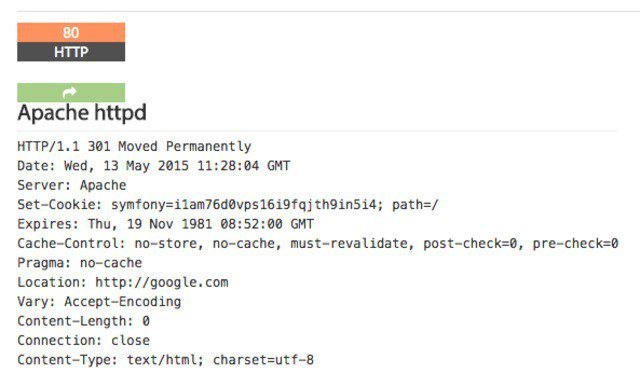
Shodan is of particular use for security research around the Internet of Things, since there will soon be billions of devices online that 1) have specific vulnerabilities that need to be fixed, and 2) can be identified quickly by their banner information.
Basic Usage
You start by navigating to the main page, and then entering into the search field, like you would any other search engine.
For this search, I looked for “VNC”.
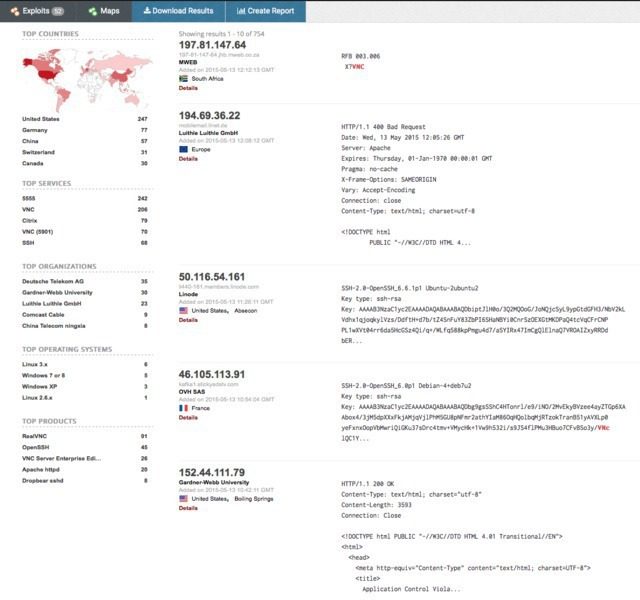
From there you can pivot to a few key areas in the results. Starting on the left sidebar, we see a good amount of summary data:
- Results map
- Top services (Ports)
- Top organizations (ISPs)
- Top operating systems
- Top products (Software name)
Then in the main section we get the full results list, including:
- IP address
- Hostname
- ISP
- When the entry was added to the database
- The country it’s located in
- The banner itself
Then, for even more information you can click details, which takes you into that host itself:
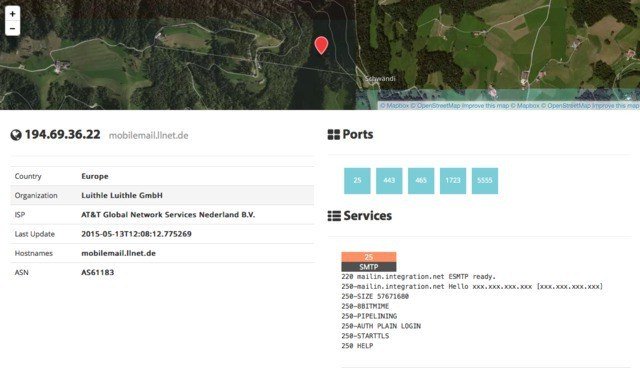
Here you see the data about the host on the left, the list of ports that were found at the top right, and then the individual port details and banners from each port as you go down the page. It’s a clean layout.
Using Filters
As with any search engine, Shodan works well with basic, single-term searches, but the real power comes with customized queries.
Here are the basic search filters you can use:
- city: find devices in a particular city
- country: find devices in a particular country
- geo: you can pass it coordinates
- hostname: find values that match the hostname
- net: search based on an IP or /x CIDR
- os: search based on operating system
- port: find particular ports that are open
- before/after: find results within a timeframe
search examples
Find Apache servers in San Francisco:
apache city:“San Francisco”
Find Nginx servers in Germany:
nginx country:“DE”
Find GWS (Google Web Server) servers:
“Server: gws” hostname:“google”
Find Cisco devices on a particular subnet:
cisco net:“216.219.143.0/24”
So you basically have some sort of base search term you’re looking for (shown in orange) and then you narrow down your search using the filters like we see above.
Use cases
You can use the “Explore” button on the main Shodan site to look at common searches and results, which are illuminating. You’ll find things like:
- Webcams
- SCADA
- Traffic lights
- Routers
- Default passwords
- Etc.
It’s interesting. It’s exciting. It’s frightening.
Combining filters
To combine filters, simply keep adding them on. You can also do this by clicking filters in the left sidebar for a given result set. So if you want to search for Nginx servers in San Francisco, that are running on port 8080, that are also running Tomcat, you could do the following:
Apache city:“San Francisco” port:“8080” product:“Apache Tomcat/Coyote JSP engine”
Advanced Usage
- Here are a few other cool things you can do with the service.
- Data Export: You can export your results in various formats using the top menu after you’ve performed a search.
- Browser Search: You can configure your browser to search Shodan when you search from the URL bar.
- Shodan Free Account: You should create and log in to your free account when you search, as the interface is pretty nerfed if you don’t, e.g. not being able to see host information, etc.
- Premium Accounts: A premium account is a one-time payment of $45 and it gives you increased access to the API. Full details and docs are available at https://developer.shodan.io.
Summary
I really love this project, and I hope this short introduction will get you using it as well.
Notes
- This resource is just an intro to what Shodan is and how to do the basics to what Shodan is and how to do the basics. You should also take a look at the help pages which are quite good.
- The project currently tests for around 200+ services.
- Shodan uses its own internally developed port scanner, not Nmap or Zmap.
- The system works off of banners, and banners can be modified, spoofed, and faked. What you see is what’s being presented, not necessarily what is real.
- You should also check out the blog at https://blog.shodan.io.
Shodan全世界在线设备搜索引擎的更多相关文章
- 预攻击 局域网 Windows 查看其它在线设备
环境:win10 首先我发现,一个常用的命令用不了,如图: net view 按理来说,按Enter键之后显示应该出局域网内所有正在运行的电脑:(截图来自百度) 那么我试一下另外一个办法: 首先ipc ...
- shodan 文档学习笔记
Table of Contents 1. Introduction 1.1. All About the Data 1.2. Data Collection 1.3. SSL in Depth 1.3 ...
- 黑暗世界的搜索引擎 https://fofa.so/ https://www.shodan.io https://www.zoomeye.org 查找设备漏洞
from:http://www.freebuf.com/sectool/121339.html 什么是 Shodan? 首先,Shodan 是一个搜索引擎,但它与 Google 这种搜索网址的搜索引擎 ...
- Shodan:黑客的物联网搜索引擎
记得看过一个电影.里面的科学家开发了一个超级系统,能够实时监控全部可用摄像头.让逃犯无处遁形. Shodan这个新型的搜索引擎可能会让这个想法变成现实. 和Google这些传统互联网信息搜索引擎不同. ...
- Shodan新手入坑指南
*本文原创作者:xiaix,本文属FreeBuf原创奖励计划,未经许可禁止转载 亲们~黑五 Shodan Membership 只要5刀,你剁手了没? 什么是 Shodan? 首先,Shodan 是一 ...
- 3. Shodan新手入坑指南
什么是 Shodan? 首先,Shodan 是一个搜索引擎,但它与 Google 这种搜索网址的搜索引擎不同,Shodan 是用来搜索网络空间中在线设备的,你可以通过 Shodan 搜索指定的设备,或 ...
- Kali中安装 Shodan
工具介绍 Shodan 是一个搜索引擎,但它与 Google 这种搜索网址的搜索引擎不同,Shodan 是用来搜索网络空间中在线设备的,你可以通过 Shodan 搜索指定的设备,或者搜索特定类型的设备 ...
- Shodan的使用
目录 Shodan Shodan工作原理 Shodan的使用 使用搜索过滤 Kali中安装 Shodan Kali中Shodan的使用 Shodan Shodan 是一个搜索引擎,但它与 Google ...
- Google Hacking 搜索引擎攻击与防范
Google Hacking,有时也会被称为 Google dorking,是一种利用谷歌搜索的高级使用方式进行信息收集的技术.这个概念最早在2000年由黑客 Johnny Long 提出并推广,一系 ...
随机推荐
- Spring 定时任务 注解版
Task类: ManageSql.Java对应代码: package com.axb.cheney.task; import java.sql.ResultSet; import java.sql.S ...
- spring AOP的基本概念
AOP的概念和使用原因 现实中有一些内容并不是面向对象(OOP)可以解决的,比如数据库事务,它对于企业级的Java EE应用而言是十分重要的,又如在电商网站购物需要经过交易系统.财务系统,对于交易系统 ...
- LeetCode_263. Ugly Number
263. Ugly Number Easy Write a program to check whether a given number is an ugly number. Ugly number ...
- [转]Ubuntu 上创建常用磁盘阵列
链接地址:https://www.jianshu.com/p/9a458510593a
- 随机图片大小在DIV中垂直居中对齐总结
老遇到这种样式 现在总结一下 <!DOCTYPE> <html> <head> <meta http-equiv="Content-Type&quo ...
- CentOS6安装MySQL开启远程登录
Centos6安装MySQL 检测下系统有没有自带的mysql:yum list installed | grep mysql 如果已经有的话执行命令 yum -y remove mysql-libs ...
- Java进阶教程:使用Lombok提升开发效率
Java进阶教程:使用Lombok提升开发效率 Lombok Lombok是一种Java™实用工具,可用来帮助开发人员消除Java的冗长代码,尤其是对于简单的Java对象(POJO).它通过注释实现这 ...
- 基于vue-cli、elementUI的Vue简单入门例子
vue-cli.elementUI的安装教程请看: https://www.cnblogs.com/joe235/p/12013818.html 把HelloWorld.vue文件修改为: <t ...
- 常见问题:MySQL/B+树
平衡二叉树 此前讲红黑树时也提到了平衡二叉树,红黑树和AVL树都是能保证树不退化的平衡二叉树,平衡二叉树采用二分思想组织数据,能大大提高单点查找数据的效率,其组装过程略. 作为对比,此处也列出平衡二叉 ...
- 【Gstreamer开发】TI嵌入式处理器GStreamer pipeline
Example GStreamer Pipelines From Texas Instruments Embedded Processors Wiki Jump to: navigation, sea ...