
centos搭建LAMP
实验环境:
[root@nmserver-7 html]# cat  /etc/redhat-release

CentOS release 7.3.1611 (AltArch)

[root@nmserver-7 html]# uname -a

Linux nmserver-7.test.com 3.10.0-514.el7.centos.plus.i686 #1 SMP Wed Jan 25 12:55:04 UTC 2017 i686 i686 i386 GNU/Linux
1、安装apache
1.1 安装apache
[root@nmserver-7 ~]# yum install httpd httpd-devel
1.2 启动apache服务
[root@nmserver-7 ~]# systemctl start httpd
1.3 设置httpd服务开机启动
[root@nmserver-7 ~]# systemctl enable  httpd

Created symlink from /etc/systemd/system/multi-user.target.wants/httpd.service to /usr/lib/systemd/system/httpd.service.
1.4 查看服务状态

[root@nmserver-7 ~]# systemctl status httpd

● httpd.service - The Apache HTTP Server

   Loaded: loaded (/usr/lib/systemd/system/httpd.service; enabled; vendor preset: disabled)

   Active: active (running) since 五 2017-07-21 17:21:37 CST; 6min ago

     Docs: man:httpd(8)

           man:apachectl(8)

 Main PID: 2449 (httpd)

   Status: "Total requests: 11; Current requests/sec: 0; Current traffic:   0 B/sec"

   CGroup: /system.slice/httpd.service

           ├─2449 /usr/sbin/httpd -DFOREGROUND

           ├─2450 /usr/sbin/httpd -DFOREGROUND

           ├─2451 /usr/sbin/httpd -DFOREGROUND

           ├─2452 /usr/sbin/httpd -DFOREGROUND

           ├─2453 /usr/sbin/httpd -DFOREGROUND

           ├─2454 /usr/sbin/httpd -DFOREGROUND

           ├─2493 /usr/sbin/httpd -DFOREGROUND

           ├─2494 /usr/sbin/httpd -DFOREGROUND

           └─2495 /usr/sbin/httpd -DFOREGROUND

7月 21 17:21:35 nmserver-7.test.com systemd[1]: Starting The Apache HTTP Server...

7月 21 17:21:36 nmserver-7.test.com httpd[2449]: AH00558: httpd: Could not reliably determine the server's fully q...ssage

7月 21 17:21:37 nmserver-7.test.com systemd[1]: Started The Apache HTTP Server.

Hint: Some lines were ellipsized, use -l to show in full.
1.5 防火墙设置开启80端口
[root@nmserver-7 ~]# firewall-cmd --permanent --zone=public  --add-service=http

success

[root@nmserver-7 ~]# firewall-cmd --permanent --zone=public  --add-service=https

success

[root@nmserver-7 ~]# firewall-cmd --reload

success
1.6确认80端口监听中
[root@nmserver-7 ~]# netstat -tulp

Active Internet connections (only servers)

Proto Recv-Q Send-Q Local Address           Foreign Address         State       PID/Program name

tcp        0      0 0.0.0.0:ssh             0.0.0.0:*               LISTEN      1084/sshd

tcp        0      0 localhost:smtp          0.0.0.0:*               LISTEN      1486/master

tcp6       0      0 [::]:ssh                [::]:*                  LISTEN      1084/sshd

tcp6       0      0 localhost:smtp          [::]:*                  LISTEN      1486/master

tcp6       0      0 [::]:http               [::]:*                  LISTEN      2449/httpd

udp        0      0 localhost:323           0.0.0.0:*                           592/chronyd

udp6       0      0 localhost:323           [::]:*                              592/chronyd
1.8 查服务器IP
[root@nmserver-7 ~]# ip addr

1: lo: <LOOPBACK,UP,LOWER_UP> mtu 65536 qdisc noqueue state UNKNOWN qlen 1

    link/loopback 00:00:00:00:00:00 brd 00:00:00:00:00:00

    inet 127.0.0.1/8 scope host lo

       valid_lft forever preferred_lft forever

    inet6 ::1/128 scope host

       valid_lft forever preferred_lft forever

2: ens33: <BROADCAST,MULTICAST,UP,LOWER_UP> mtu 1500 qdisc pfifo_fast state UP qlen 1000

    link/ether 00:0c:29:56:bc:cf brd ff:ff:ff:ff:ff:ff

    inet 192.168.8.9/24 brd 192.168.8.255 scope global ens33

       valid_lft forever preferred_lft forever

    inet6 fe80::20c:29ff:fe56:bccf/64 scope link

       valid_lft forever preferred_lft forever

3: bridge0: <NO-CARRIER,BROADCAST,MULTICAST,UP> mtu 1500 qdisc noqueue state DOWN qlen 1000

    link/ether ea:89:d5:c7:32:73 brd ff:ff:ff:ff:ff:ff
1.9 浏览器登陆
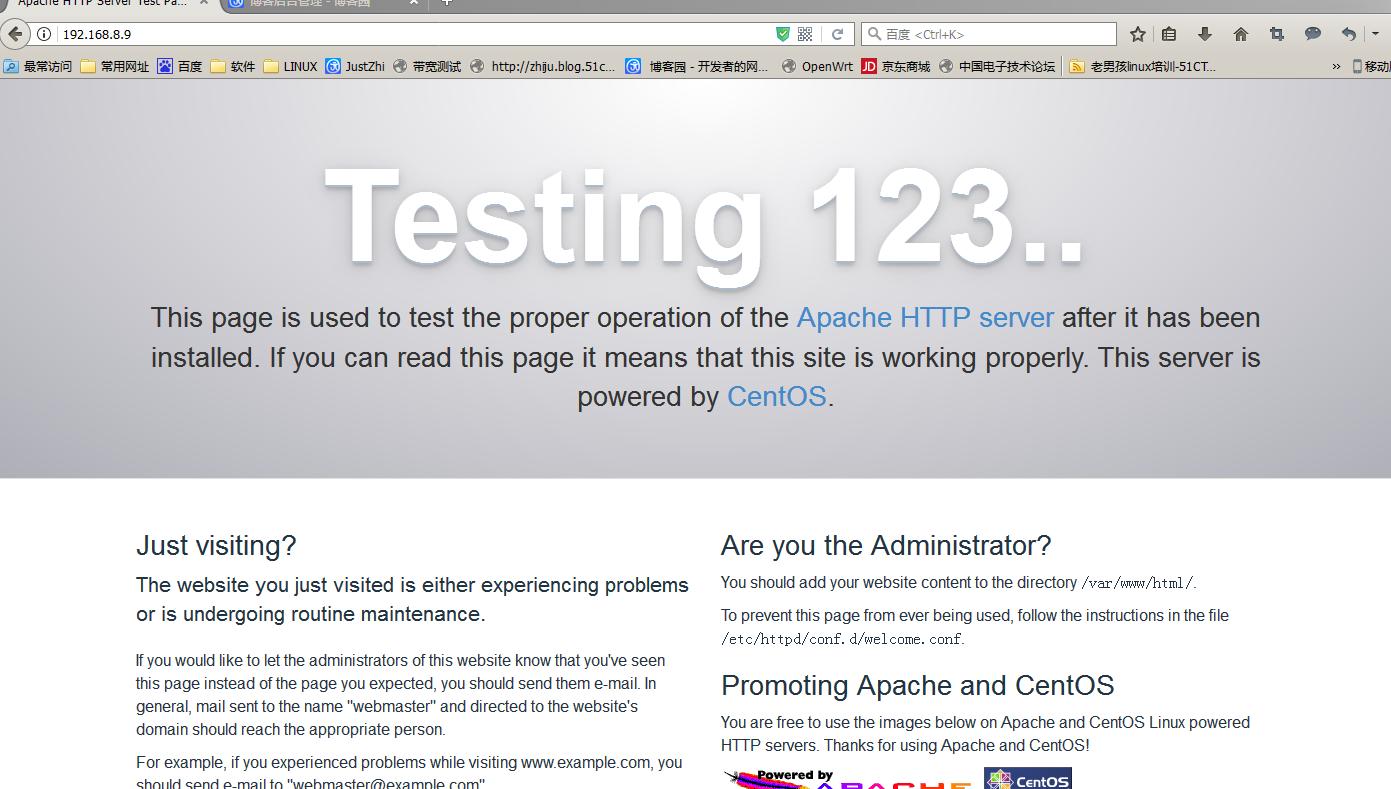
2、安装mysql
2.1安装mysql
[root@nmserver-7 ~]# yum install mariadb mariadb-server mariadb-libs mariadb-devel
root@nmserver-7 ~]# rpm -qa |grep maria

mariadb-libs-5.5.52-1.el7.i686

mariadb-5.5.52-1.el7.i686

mariadb-server-5.5.52-1.el7.i686

mariadb-devel-5.5.52-1.el7.i686
2.2 开启mysql服务,并设置开机启动,检查mysql状态
[root@nmserver-7 ~]# systemctl start  mariadb

[root@nmserver-7 ~]# systemctl enable  mariadb

Created symlink from /etc/systemd/system/multi-user.target.wants/mariadb.service to /usr/lib/systemd/system/mariadb.service.

[root@nmserver-7 ~]# systemctl status  mariadb

● mariadb.service - MariaDB database server

   Loaded: loaded (/usr/lib/systemd/system/mariadb.service; enabled; vendor preset: disabled)

   Active: active (running) since 六 2017-07-22 21:19:20 CST; 21s ago

 Main PID: 9603 (mysqld_safe)

   CGroup: /system.slice/mariadb.service

           ├─9603 /bin/sh /usr/bin/mysqld_safe --basedir=/usr

           └─9760 /usr/libexec/mysqld --basedir=/usr --datadir=/v...

7月 22 21:19:15 nmserver-7.test.com mariadb-prepare-db-dir[9524]: ...

7月 22 21:19:15 nmserver-7.test.com mariadb-prepare-db-dir[9524]: ...

7月 22 21:19:15 nmserver-7.test.com mariadb-prepare-db-dir[9524]: ...

7月 22 21:19:15 nmserver-7.test.com mariadb-prepare-db-dir[9524]: ...

7月 22 21:19:15 nmserver-7.test.com mariadb-prepare-db-dir[9524]: ...

7月 22 21:19:15 nmserver-7.test.com mariadb-prepare-db-dir[9524]: ...

7月 22 21:19:15 nmserver-7.test.com mariadb-prepare-db-dir[9524]: ...

7月 22 21:19:16 nmserver-7.test.com mysqld_safe[9603]: 170722 21...

7月 22 21:19:16 nmserver-7.test.com mysqld_safe[9603]: 170722 21...

7月 22 21:19:20 nmserver-7.test.com systemd[1]: Started MariaDB ...
[root@nmserver-7 ~]# netstat -tulp

Active Internet connections (only servers)

Proto Recv-Q Send-Q Local Address           Foreign Address         State       PID/Program name

tcp        0      0 0.0.0.0:ssh             0.0.0.0:*               LISTEN      1084/sshd

tcp        0      0 0.0.0.0:mysql           0.0.0.0:*               LISTEN      9760/mysqld

tcp6       0      0 [::]:ssh                [::]:*                  LISTEN      1084/sshd

tcp6       0      0 [::]:http               [::]:*                  LISTEN      2449/httpd

udp        0      0 localhost:323           0.0.0.0:*                           592/chronyd

udp6       0      0 localhost:323           [::]:*                              592/chronyd
2.3 数据库安全设置
[root@nmserver-7 ~]# mysql_secure_installation

NOTE: RUNNING ALL PARTS OF THIS SCRIPT IS RECOMMENDED FOR ALL MariaDB

      SERVERS IN PRODUCTION USE!  PLEASE READ EACH STEP CAREFULLY!

In order to log into MariaDB to secure it, we'll need the current

password for the root user.  If you've just installed MariaDB, and

you haven't set the root password yet, the password will be blank,

so you should just press enter here.

Enter current password for root (enter for none):

OK, successfully used password, moving on...

Setting the root password ensures that nobody can log into the MariaDB

root user without the proper authorisation.

Set root password? [Y/n] y

New password:

Re-enter new password:

Password updated successfully!

Reloading privilege tables..

 ... Success!

By default, a MariaDB installation has an anonymous user, allowing anyone

to log into MariaDB without having to have a user account created for

them.  This is intended only for testing, and to make the installation

go a bit smoother.  You should remove them before moving into a

production environment.

Remove anonymous users? [Y/n] y

 ... Success!

Normally, root should only be allowed to connect from 'localhost'.  This

ensures that someone cannot guess at the root password from the network.

Disallow root login remotely? [Y/n] n

 ... skipping.

By default, MariaDB comes with a database named 'test' that anyone can

access.  This is also intended only for testing, and should be removed

before moving into a production environment.

Remove test database and access to it? [Y/n] y

 - Dropping test database...

 ... Success!

 - Removing privileges on test database...

 ... Success!

Reloading the privilege tables will ensure that all changes made so far

will take effect immediately.

Reload privilege tables now? [Y/n] y

 ... Success!

Cleaning up...

All done!  If you've completed all of the above steps, your MariaDB

installation should now be secure.

Thanks for using MariaDB!
2.4 登陆数据库测试
[root@nmserver-7 ~]# mysql -uroot -p

Enter password:

Welcome to the MariaDB monitor.  Commands end with ; or \g.

Your MariaDB connection id is 11

Server version: 5.5.52-MariaDB MariaDB Server

Copyright (c) 2000, 2016, Oracle, MariaDB Corporation Ab and others.

Type 'help;' or '\h' for help. Type '\c' to clear the current input statement.

MariaDB [(none)]> show databases;

+--------------------+

| Database           |

+--------------------+

| information_schema |

| mysql              |

| performance_schema |

+--------------------+

3 rows in set (0.02 sec)

MariaDB [(none)]>
3、安装PHP
3.1 安装php
[root@nmserver-7 ~]# yum -y install php
[root@nmserver-7 ~]# rpm -ql php

/etc/httpd/conf.d/php.conf

/etc/httpd/conf.modules.d/10-php.conf

/usr/lib/httpd/modules/libphp5.so

/usr/share/httpd/icons/php.gif

/var/lib/php/session
3.2 将php与mysql关联起来
[root@nmserver-7 ~]# yum install php-mysql

[root@nmserver-7 ~]# rpm -ql php-mysql

/etc/php.d/mysql.ini

/etc/php.d/mysqli.ini

/etc/php.d/pdo_mysql.ini

/usr/lib/php/modules/mysql.so

/usr/lib/php/modules/mysqli.so

/usr/lib/php/modules/pdo_mysql.so
3.3 安装常用PHP模块
[root@nmserver-7 ~]# yum install -y php-gd php-ldap php-odbc php-pear php-xml php-xmlrpc php-mbstring php-snmp php-soap curl curl-devel php-bcmath
3.4 测试PHP
[root@nmserver-7 ~]# cd  /var/www/html/
[root@nmserver-7 html]# ls
[root@nmserver-7 html]# pwd
/var/www/html
[root@nmserver-7 html]# vi info.php

<?php
        phpinfo();
?>
~
~
~
~
~
~
~
~

:wq
3.5重启apache服务器
[root@nmserver-7 html]# systemctl restart http
3.6测试PHP
在自己电脑浏览器输入 192.168.8.9/info.php,你可以看到已经安装的模块;
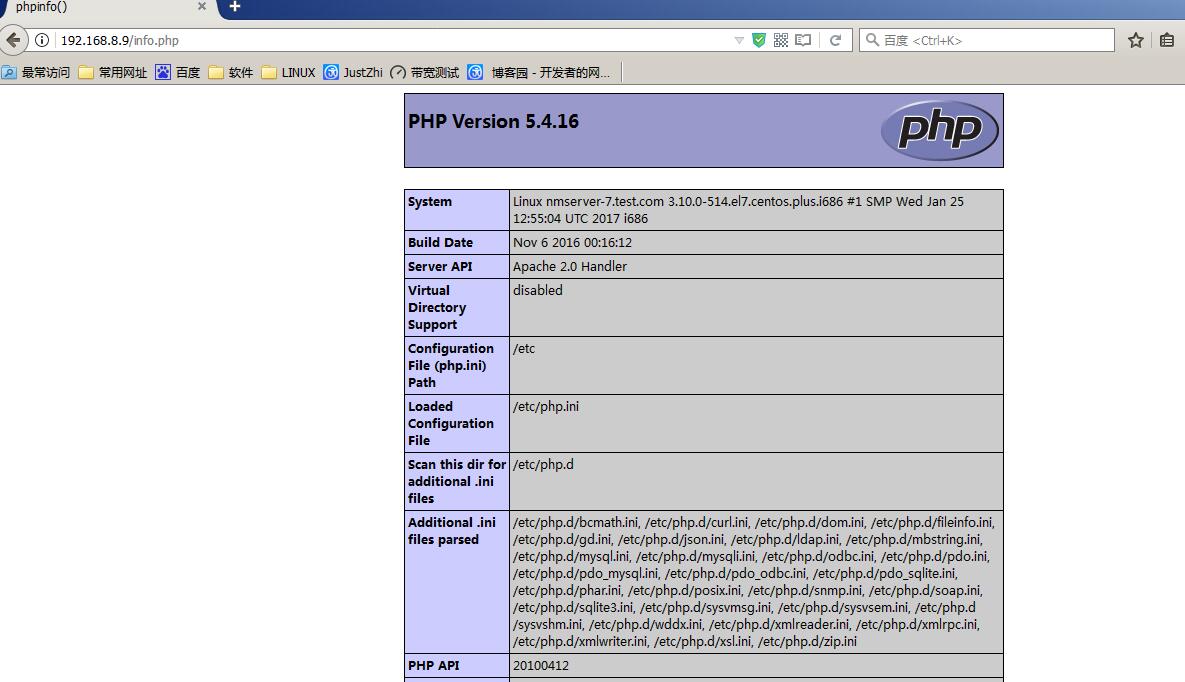
至此,CentOS7下LAMP环境搭建好了!下一步可以安装zabbix了!
centos搭建LAMP的更多相关文章
- Centos搭建 LAMP 服务器教程
搭建 LAMP 服务 搭建 MySQL 数据库 安装 MySQL 使用 yum 安装 MySQL: yum install mysql-server -y 安装完成后,启动 MySQL 服务: ser ...
- CentOS搭建LAMP环境
最近准备安装roundcube,需要先搭建一个 LAMP 运行环境,从网上搜索了一下,有不少资料.自己也按部就班安装了一遍,把过程整理了下来. LAMP 是Linux, Apache, MySQL, ...
- Centos 搭建LAMP环境
1.安装Apache yum install httpd 相关命令: systemctl start httpd.service #启动apache systemctl stop httpd.serv ...
- centos搭建lamp环境参考(根据腾讯云实验室)
1.安装MYSQL 使用 yum 安装 MySQL: yum install mysql-server -y 安装完成后,启动 MySQL 服务: service mysqld restart 设置 ...
- CentOS 搭建LNMP服务器和LAMP服务器
CentOS 搭建LNMP服务器 方法一:yum安装 1.更新YUM源 wget http://www.atomicorp.com/installers/atomic #下载atomic自动更新Y ...
- CentOS下搭建LAMP环境详解
前言:在这里将介绍如何在CentOS下搭建LAMP环境(全部使用源码编译安装),用于web服务器开发. •LAMP: Linux + Apache + PHP + Mysql. •系统: CentOS ...
- 转载自php100中文网 centos下lamp 环境搭建
学习PHP脚本编程语言之前,必须先搭建并熟悉开发环境,开发环境有很多种,例如LAMP.WAMP.MAMP等.这里我介绍一下LAMP环境的搭建,即Linux.Apache.MySQL.PHP环境. 一. ...
- CentOS 7 yum搭建 LAMP
CentOS 7 搭建LAMP环境 1. Apache 安装 Apache 的软件包名称叫做httpd,因此安装Apache,使用以下命令 [root@localhost ~]# yum -y ins ...
- CentOS 7搭建LAMP环境(一)
CentOS是Linux发行版之一,它是来自于Red Hat Enterprise Linux依照开放源代码规定释出的源代码所编译而成.由于出自同样的源代码,因此有些要求高度稳定性的服务器以CentO ...
随机推荐
- cha[] strrev(char[])
反转字符串 保留在原函数中
- beta week 2/2 Scrum立会报告+燃尽图 07
此作业要求参见https://edu.cnblogs.com/campus/nenu/2019fall/homework/9959 一.小组情况 组长:贺敬文组员:彭思雨 王志文 位军营 徐丽君队名: ...
- MySQL 主从复制 (CentOS 7)
1.主从复制原理 (1) 当master 服务器上的数据发生改变时,则将其改变写入二进制日志文件中: (2) slave服务器会在一定时间间隔内对 master 服务器上的二进制日志进行探测,探测其是 ...
- [String.Format(转换时间格式)]
string.Format("{0:d}", System.DateTime.Now); // 2017/6/2; string.Format("{0:D}" ...
- 图片加载框架之ImageLoader
Android开发中,多少会接触到异步加载图片,或者加载大量图片的问题,而加载图片我们常常会遇到许多的问题,比如说图片的错乱,OOM等问题,对于这些问题解决起来会比较吃力,比较著名的就是Univers ...
- Jmeter测试结果分析(下)
Jmeter测试结果分析(下) 前文再续,续接上一回.上一篇讲了如何利用Assertion将测试结果进行初步的筛选.那么,当我们拿到了测试结果之后,我们应该如何去看待它们呢?它们又是怎么来的呢? 一. ...
- Node、Document关系的探究
上图来自于<JavaScript权威指南(第六版)>P375 受到上图的启发,写了如下测试代码: var head = document.getElementsByTagName(&quo ...
- 有道自然语言翻译和文字识别OCR(图片文字识别)接口调用
官网 http://ai.youdao.com 文档地址 http://ai.youdao.com/docs/doc-ocr-api.s#p01 在Python中调用api. #/usr/bin/en ...
- js中的堆内存和栈内存
我们常常会听说什么栈内存.堆内存,那么他们到底有什么区别呢,在js中又是如何区分他们的呢,今天我们来看一下. 一.栈内存和堆内存的区分 一般来说,栈内存主要用于存储各种基本类型的变量,包括Boolea ...
- python数据存储--JSON
HTML正文存储为两种格式:JSON和CSV. 存储为JSON: 首先利用Requests访问http://seputu.com获取HTML文档: #!coding:utf-8 import requ ...