
Windows Server 2022 初始设置
添加本地用户
添加新的本地用户。
在CUI配置上,按如下方式设置。
- 使用管理员权限运行 PowerShell 并按如下方式进行配置。
Windows PowerShell

版权所由 (C) Microsoft Corporation。 保留所有权利。

安装最新的 PowerShell,了解新功能和改进!https://aka.ms/PSWindows

# 例如,添加 [NC086] 用户

# [P@ssw0rd01] ⇒您设置的密码(根据需要替换)

# [PasswordNeverExpires] ⇒设置密码永不过期(如果设置默认过期,则不指定此选项)

PS C:\Users\Administrator> New-LocalUser -Name "NC086" `

-FullName "NC086" `

-Description "此计算机的管理员" `

-Password (ConvertTo-SecureString -AsPlainText "P@ssw0rd01" -Force) `

-PasswordNeverExpires `

-AccountNeverExpires

Name        Enabled Description

----        ------- -----------

NC086       True    此计算机的管理员

# 如果向用户授予权限,请将其添加到 [管理员] 组

PS C:\Users\Administrator> Add-LocalGroupMember -Group "Administrators" -Member "NC086"

# 验证

PS C:\Users\Administrator> Get-LocalUser -Name NC086

Name        Enabled Description

----        ------- -----------

NC086       True    此计算机的管理员

PS C:\Users\Administrator> Get-LocalGroupMember -Group "Administrators"

ObjectClass Name                          PrincipalSource

----------- ----                          ---------------

User        WIN-PA24S3GQ6G3\Administrator Local

User        WIN-PA24S3GQ6G3\NC086         Local

# 如果删除用户,请执行如下操作

PS C:\Users\Administrator> Remove-LocalUser -Name "NC086"
在GUI配置上,按如下方式设置。
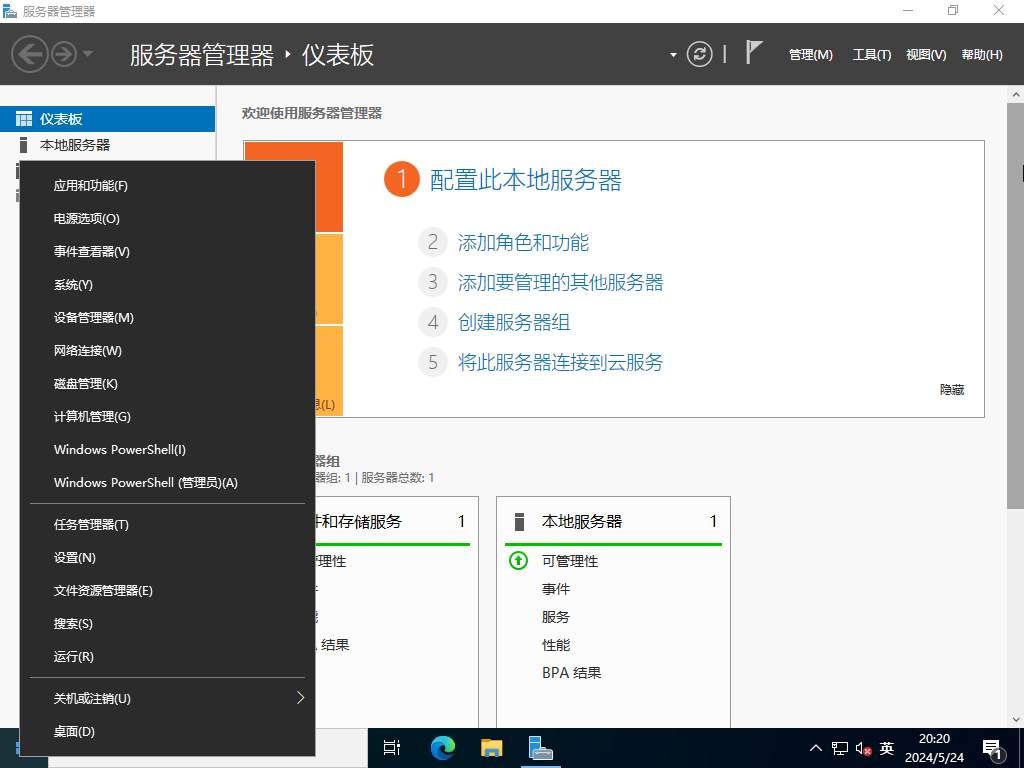
- 运行【服务器管理器】并打开【工具】【计算机管理】。
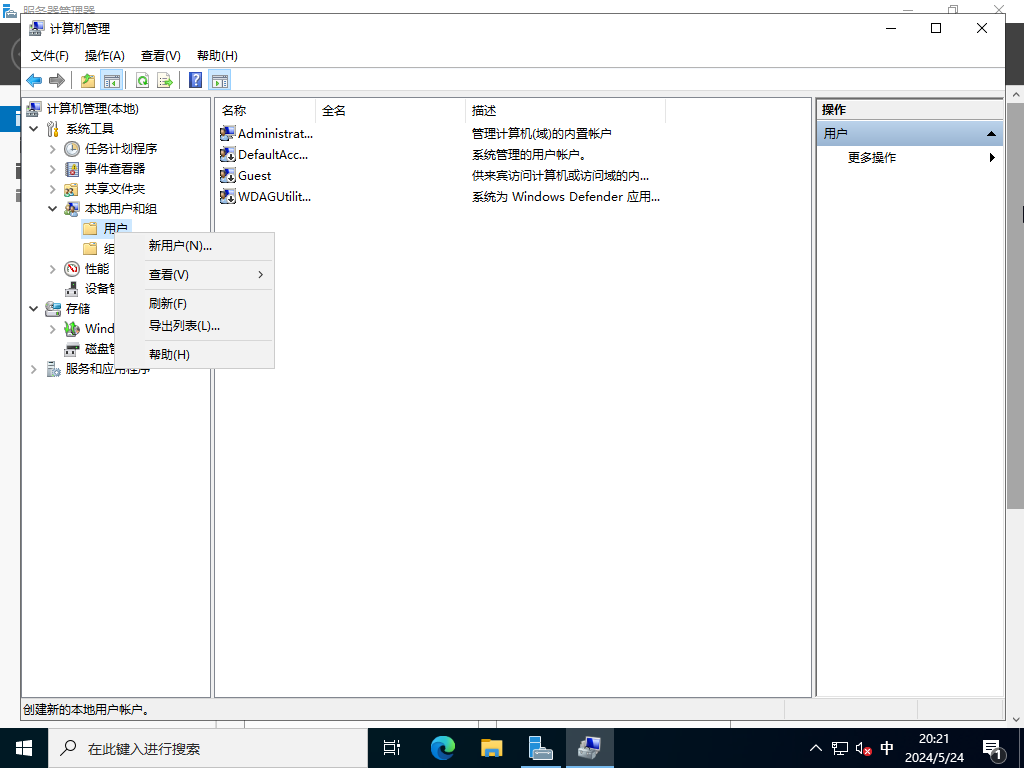
- 右键单击左侧窗格中【本地用户和组】下的【用户】,然后选择【新建用户】。
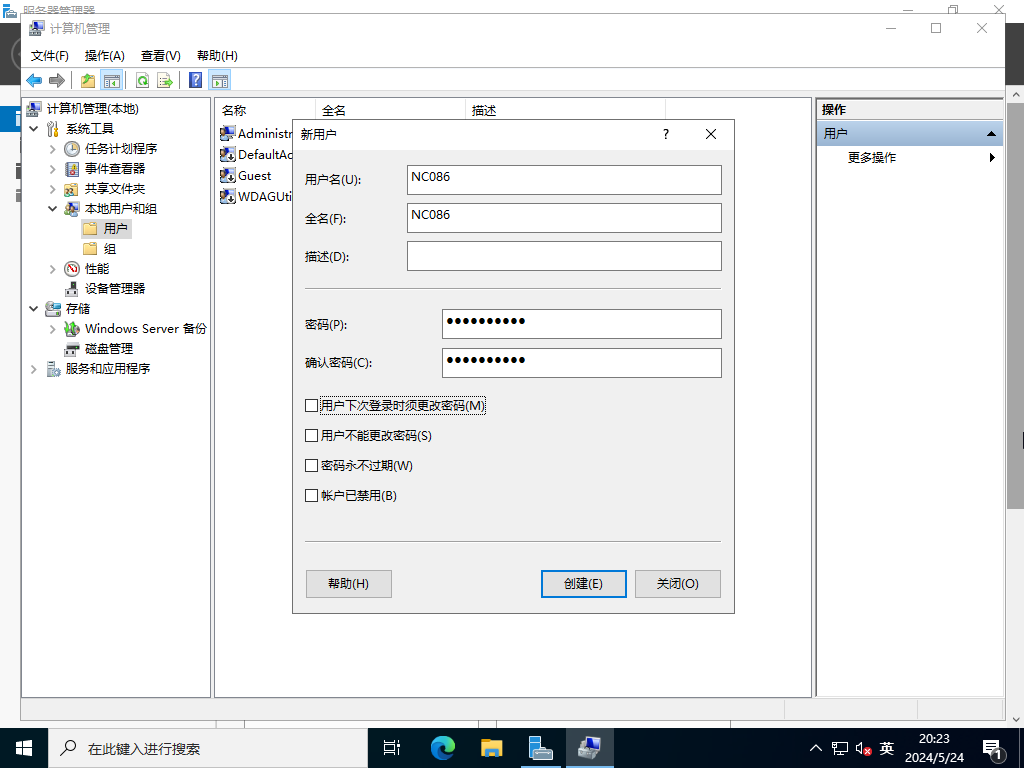
- 输入新用户的用户名和密码后,点击【创建】按钮。其他 intems 是可选设置的。
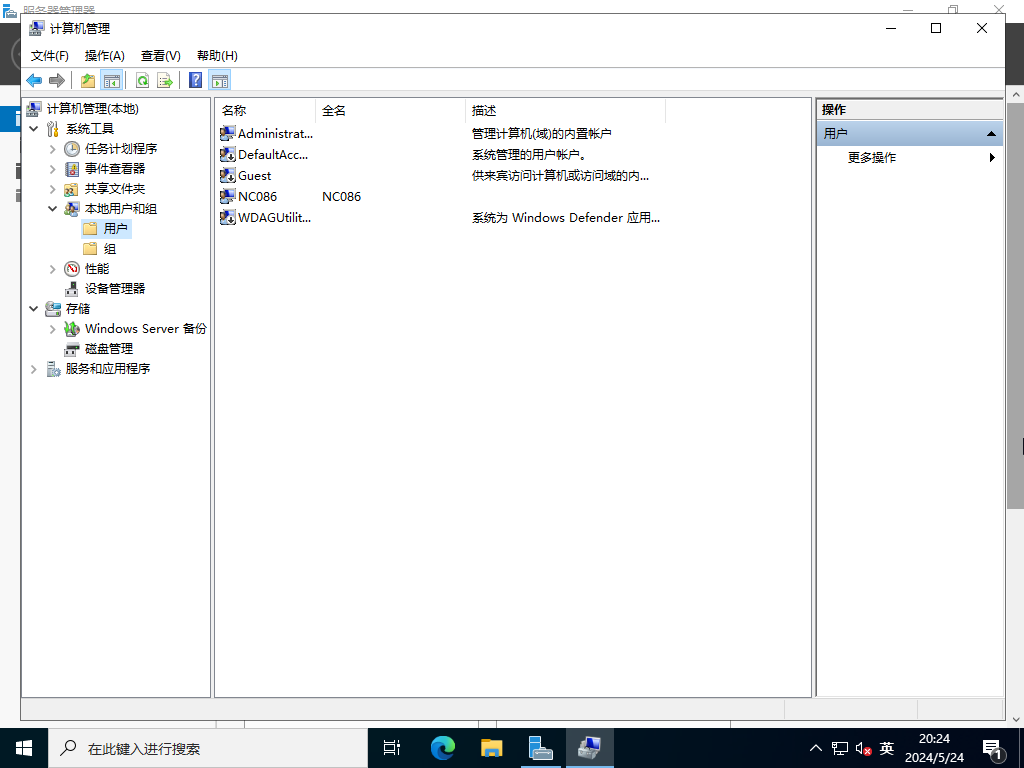
- 创建成功后,新用户将显示在列表中,如下所示。
- 如果要为新用户设置管理权限,请右键单击该用户并打开【属性】。
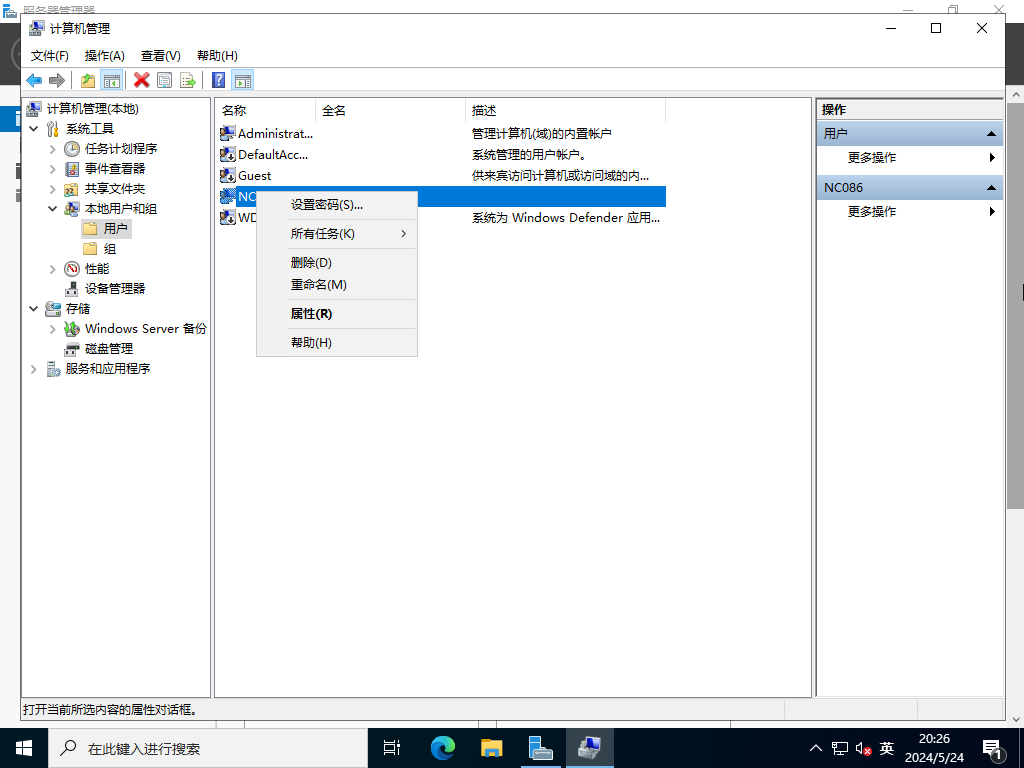
- 移至【成员】选项卡,然后单击【添加】按钮。
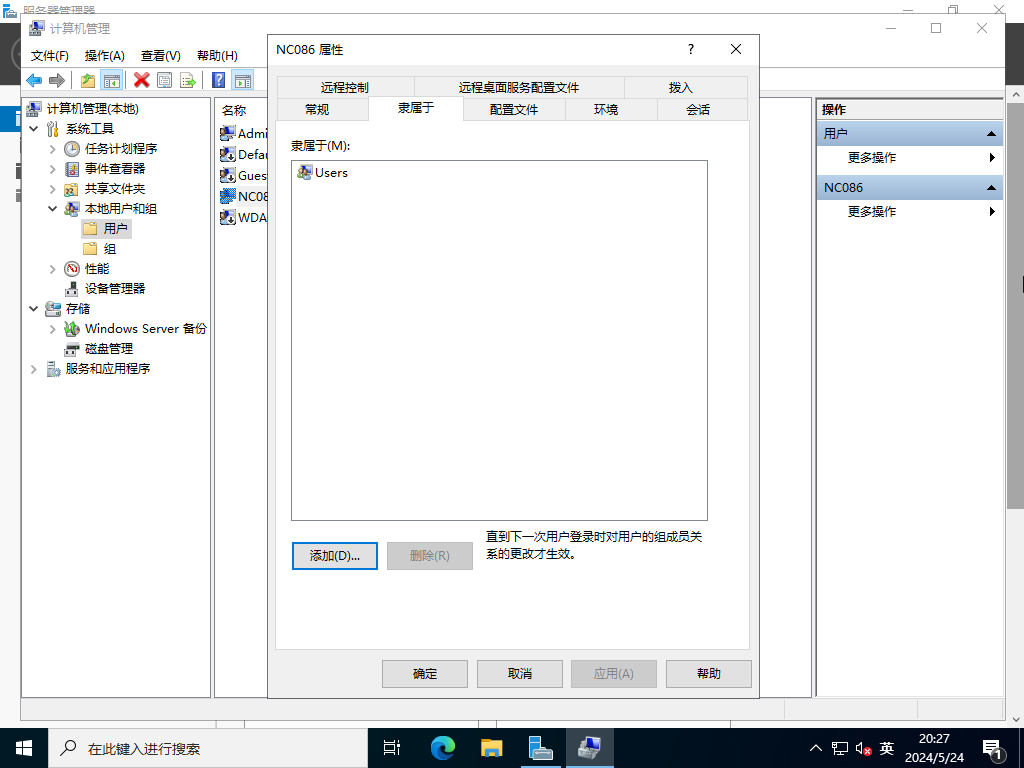
- 指定【管理员】组,如下所示。
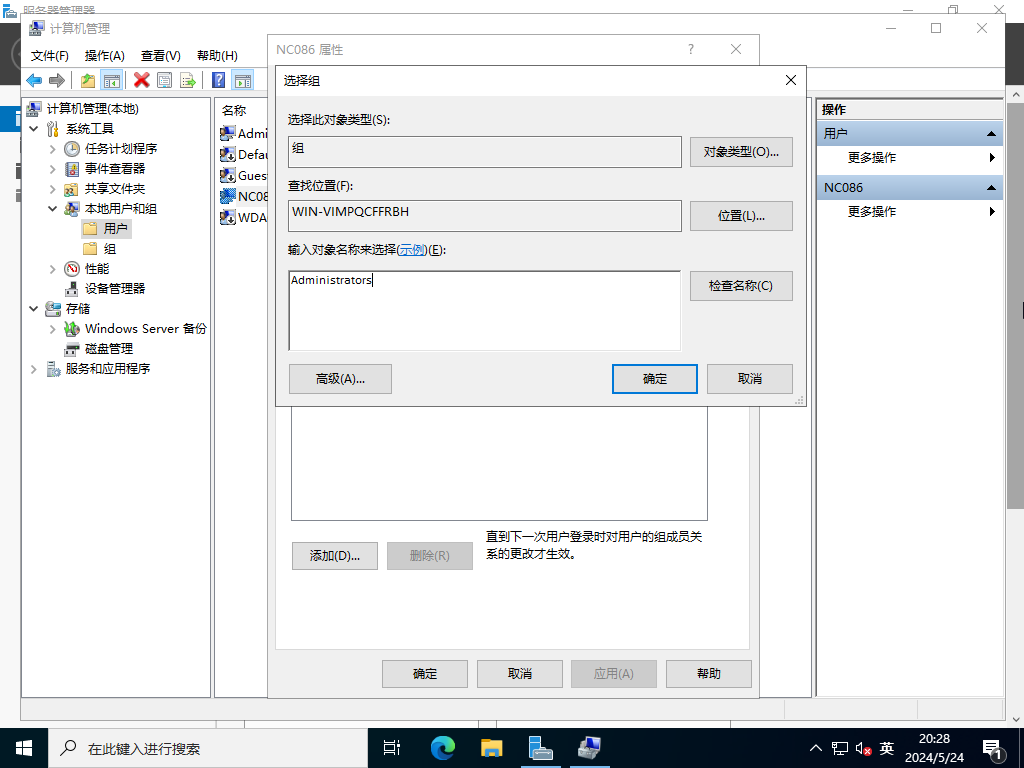
- 确保列表中添加了【管理员】组,然后单击【确定】按钮完成设置。
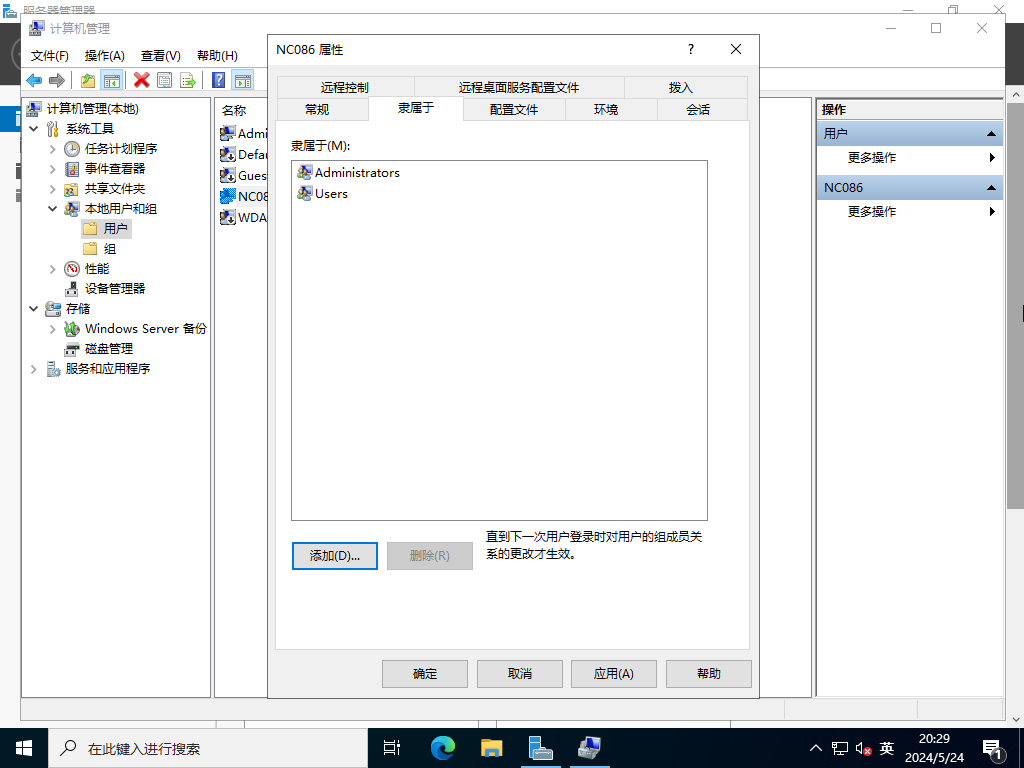
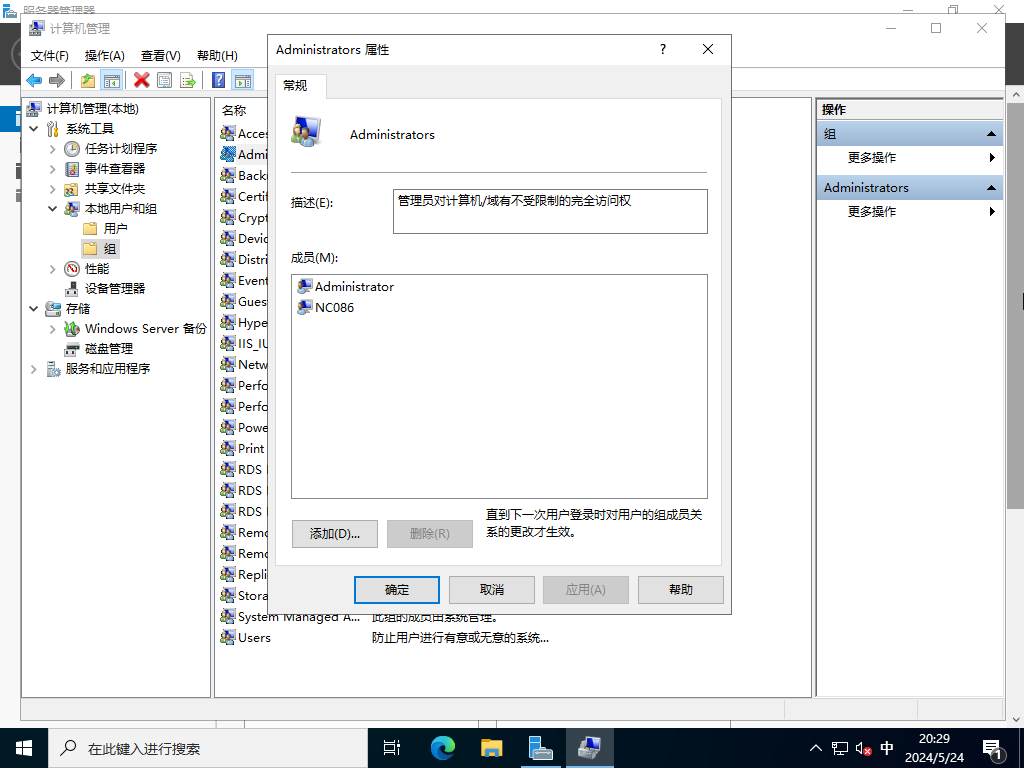
- 在【Administrators】组属性中,用户已添加。
更改管理员用户名
如果出于某些原因(如安全性)想要更改管理员账户名称,可以进行如下更改。
在CUI配置上,按如下方式设置。
Windows PowerShell

版权所由 (C) Microsoft Corporation。 保留所有权利。

安装最新的 PowerShell,了解新功能和改进!https://aka.ms/PSWindows

# 例如,将名称 [Administrator] 更改为 [NC086Admin]

PS C:\Users\Administrator> Rename-LocalUser -Name "Administrator" -NewName "NC086Admin"

PS C:\Users\Administrator> Get-LocalUser

# changed

Name               Enabled Description

----               ------- -----------

DefaultAccount     False   A user account managed by the system.

Guest              False   Built-in account for guest access to the computer/domain

NC086              True    此计算机的管理员

NC086Admin         True    Built-in account for administering the computer/domain

WDAGUtilityAccount False   A user account managed and used by the system for Windows Defender Application Guard scenarios.
在GUI配置上,按如下方式设置。
- 运行【服务器管理器】并打开【工具】【计算机管理】。
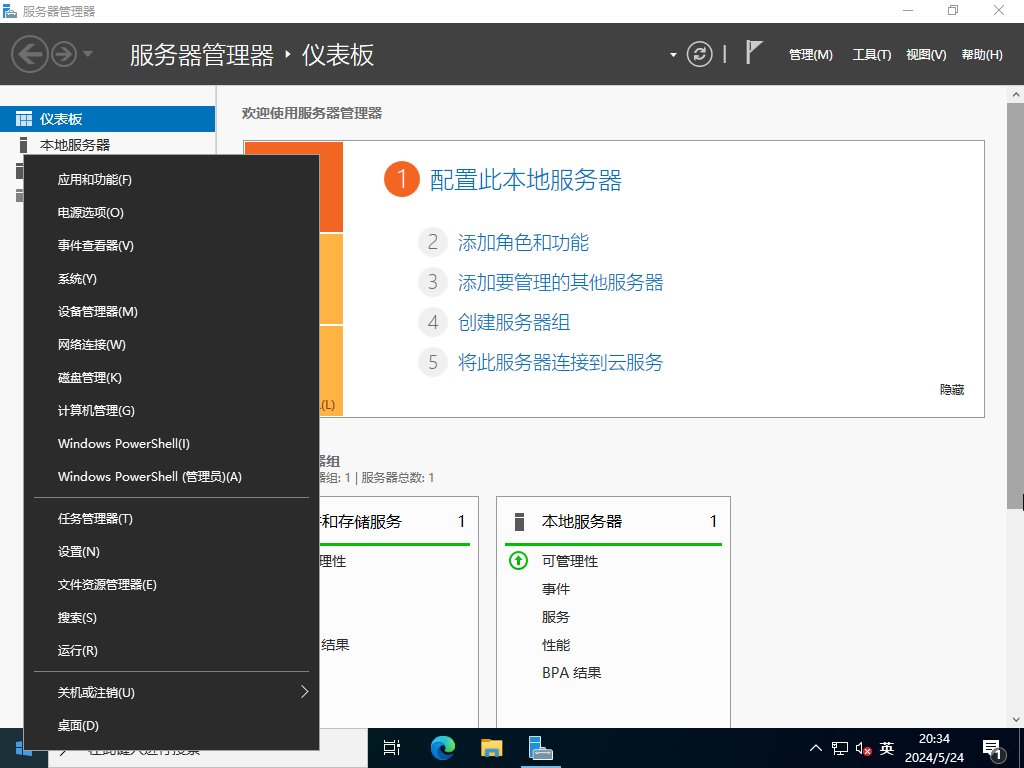
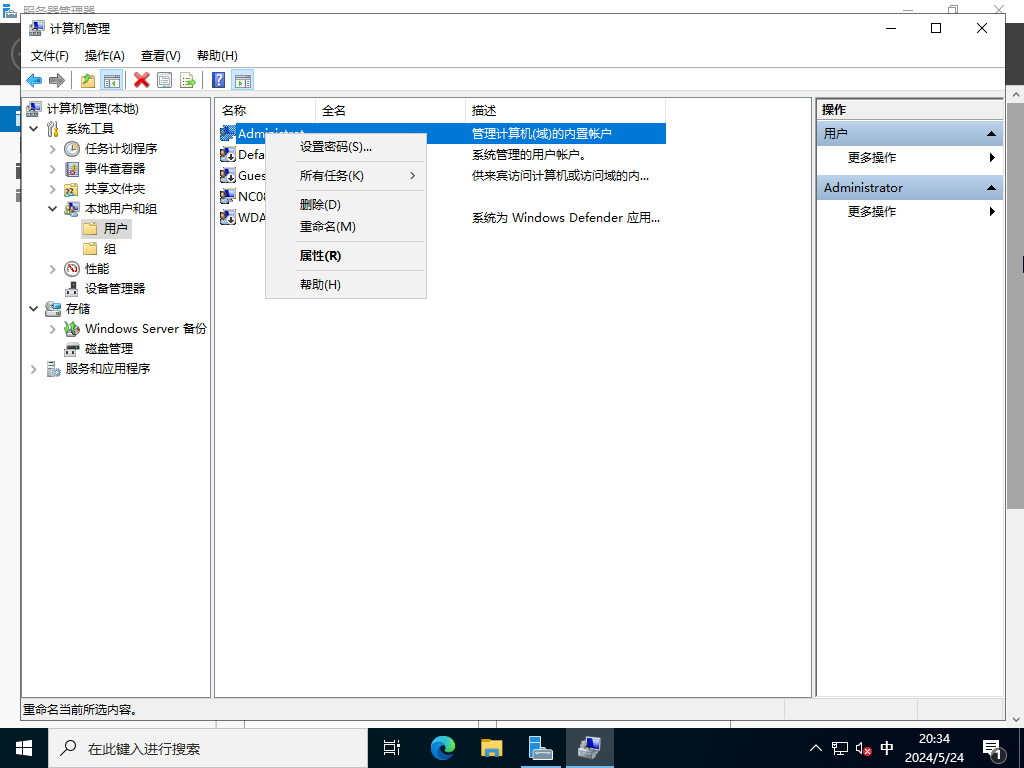
- 在左窗格中打开【本地用户和组】【用户】,然后右键单击【管理员】,然后在右窗格中选择【重命名】。然后,更改您喜欢的任何名称。
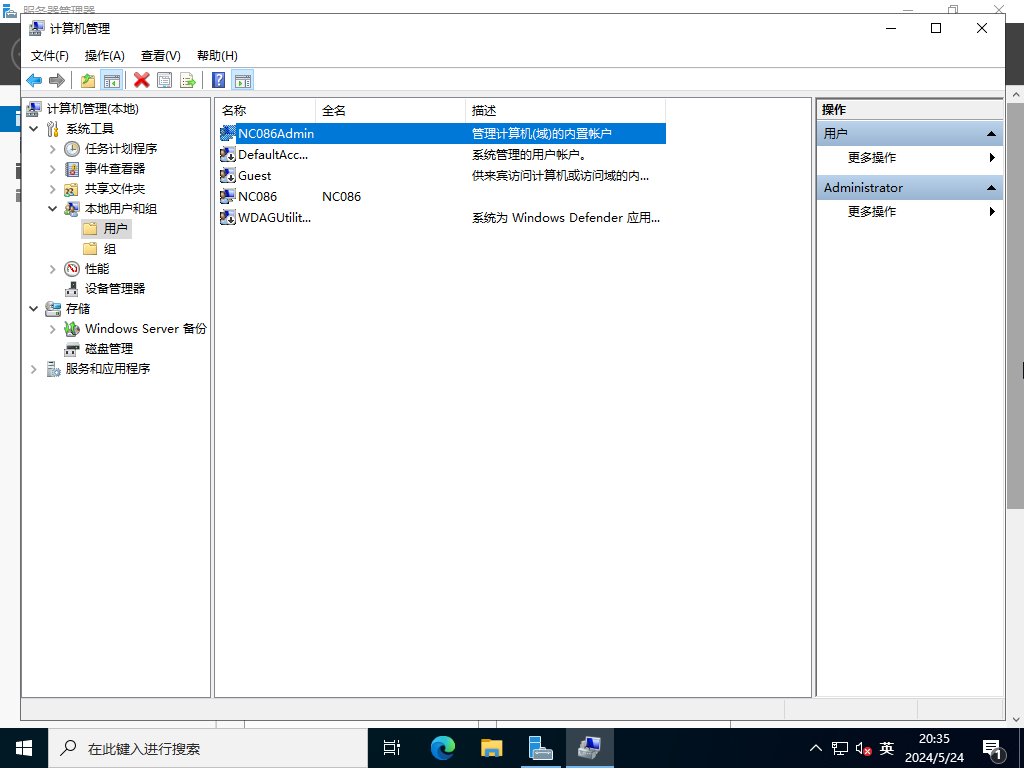
- 管理员名称刚刚更改。
设置计算机名称
默认情况下,计算机名称是自动分配的,因此请更改它。
在CUI配置上,按如下方式设置。
- 使用管理员权限运行 PowerShell 并按如下方式进行配置。
Windows PowerShell

版权所由 (C) Microsoft Corporation。 保留所有权利。

安装最新的 PowerShell,了解新功能和改进!https://aka.ms/PSWindows

# 例如,将“计算机名称”更改为 [NC086]

PS C:\Users\Administrator> Rename-Computer -NewName NC086 -Force -PassThru

HasSucceeded OldComputerName           NewComputerName

------------ ---------------           ---------------

True         WIN-VIMPQCFFRBH           NC086

WARNING: The changes will take effect after you restart the computer WIN-VIMPQCFFRBH.

# 例如,将主 DNS 后缀更改为 [ncncet.com]

PS C:\Users\Administrator> Set-ItemProperty "HKLM:\SYSTEM\CurrentControlSet\Services\Tcpip\Parameters\" –Name "NV Domain" –Value "ncncet.com" -PassThru

NV Domain    : ncncet.com

PSPath       : Microsoft.PowerShell.Core\Registry::HKEY_LOCAL_MACHINE\SYSTEM\CurrentControlSet\Services\Tcpip\Parameters\

PSParentPath : Microsoft.PowerShell.Core\Registry::HKEY_LOCAL_MACHINE\SYSTEM\CurrentControlSet\Services\Tcpip

PSChildName  : Parameters

PSDrive      : HKLM

PSProvider   : Microsoft.PowerShell.Core\Registry

# 重新启动计算机以应用更改

PS C:\Users\Administrator> Restart-Computer -Force

# 验证

PS C:\Users\Administrator> (ipconfig /all)[0..9]

Windows IP Configuration

   Host Name . . . . . . . . . . . . : NC086

   Primary Dns Suffix  . . . . . . . : ncncet.com

   Node Type . . . . . . . . . . . . : Hybrid

   IP Routing Enabled. . . . . . . . : No

   WINS Proxy Enabled. . . . . . . . : No

   DNS Suffix Search List. . . . . . : ncncet.com
在GUI配置上,按如下方式设置。
- 运行【服务器管理器】,在左侧窗格中选择【本地服务器】,然后单击右键窗格中的【计算机名称】部分。
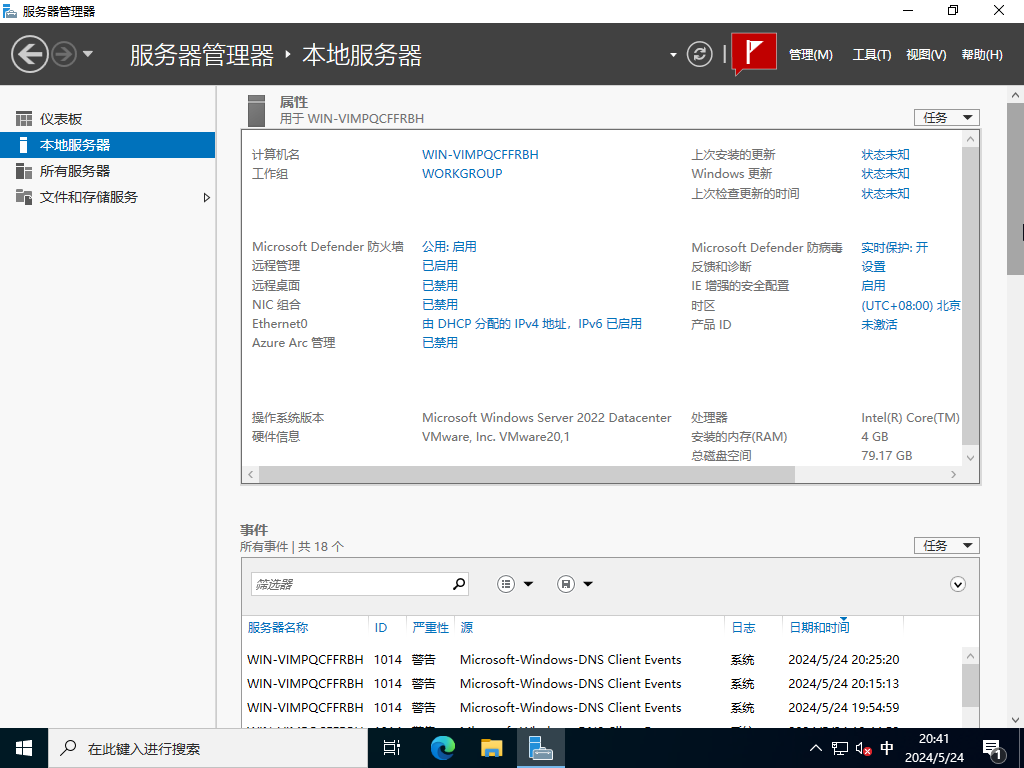
- 移至【计算机名称】选项卡,然后单击【更改】按钮。
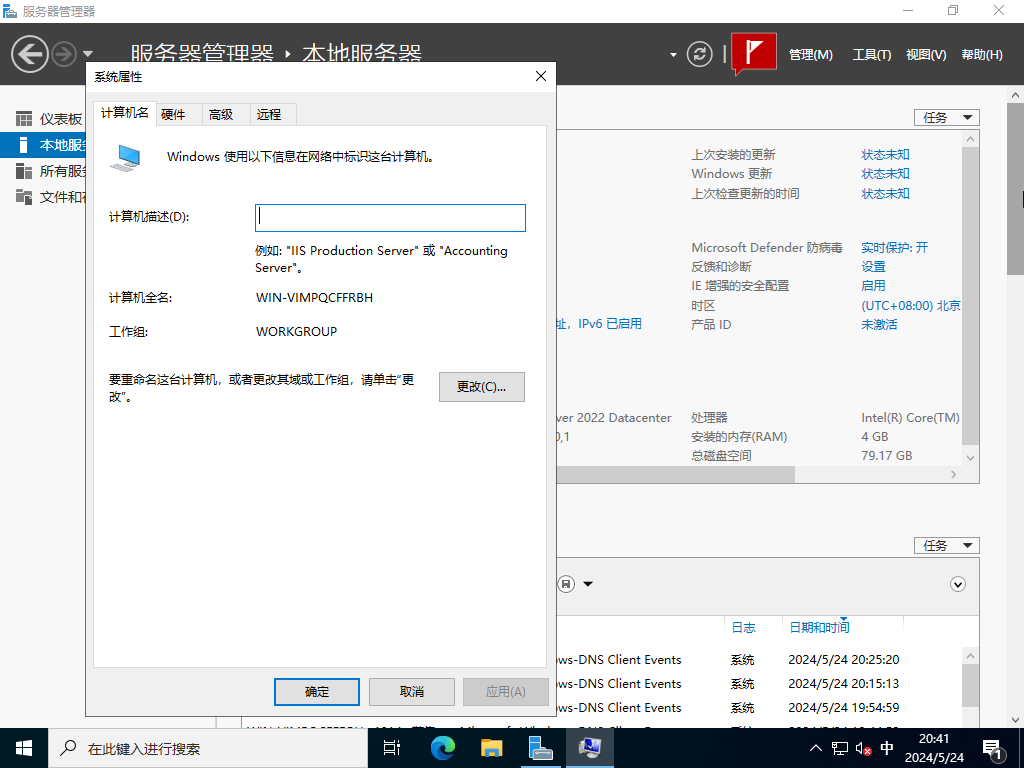
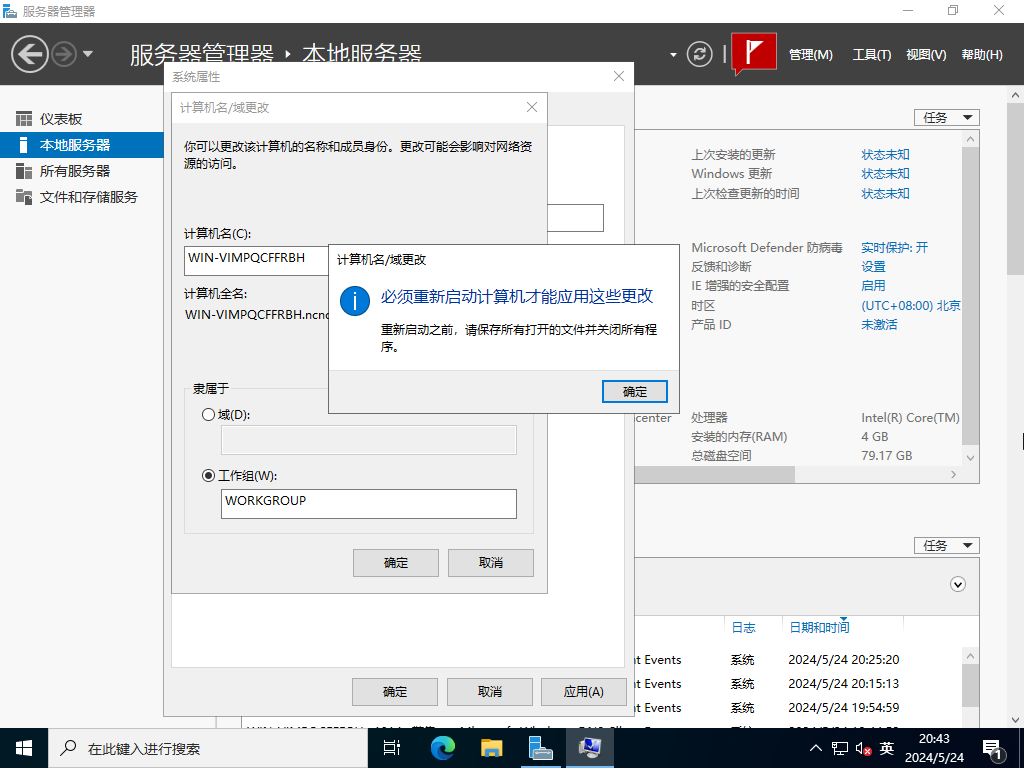
- 在【计算机名称】字段中输入您喜欢的任何计算机名称,然后单击【更多...】按钮。(:彩蛋
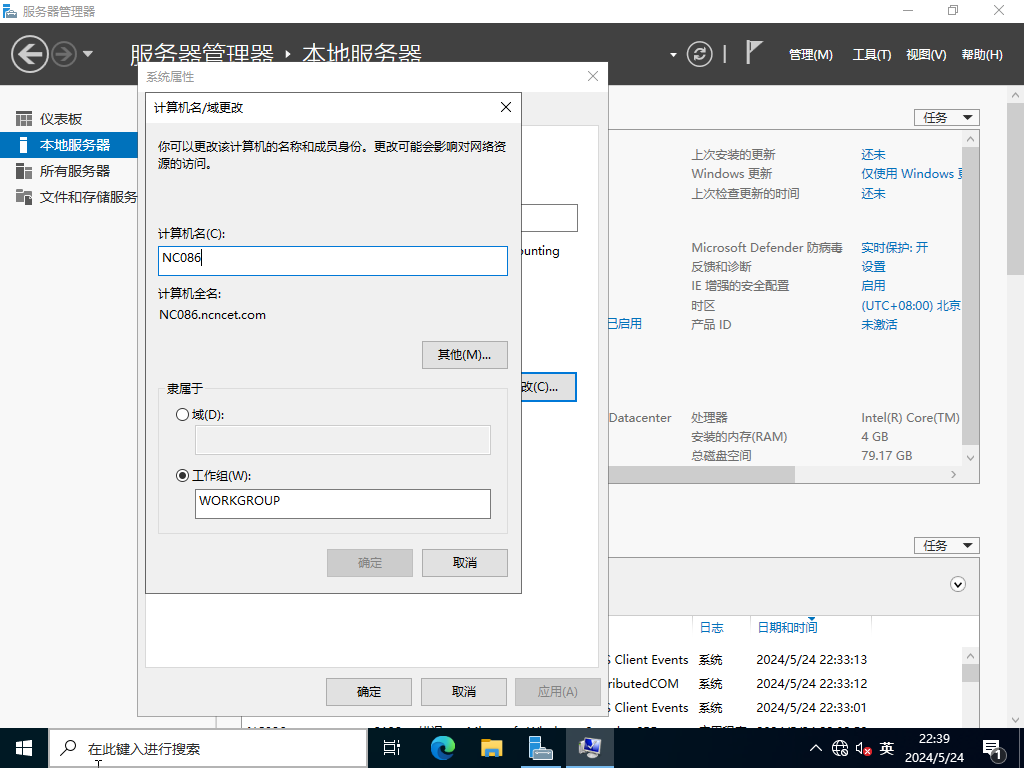
- 输入此计算机所在的域名。
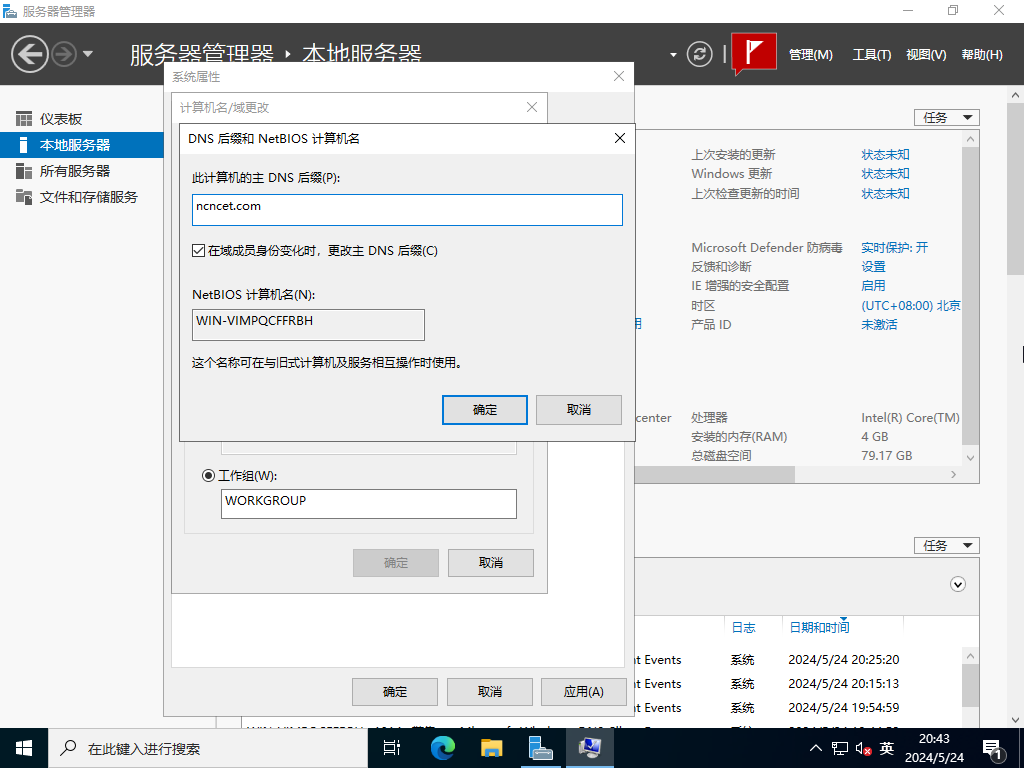
- 应用更改需要重新启动计算机。
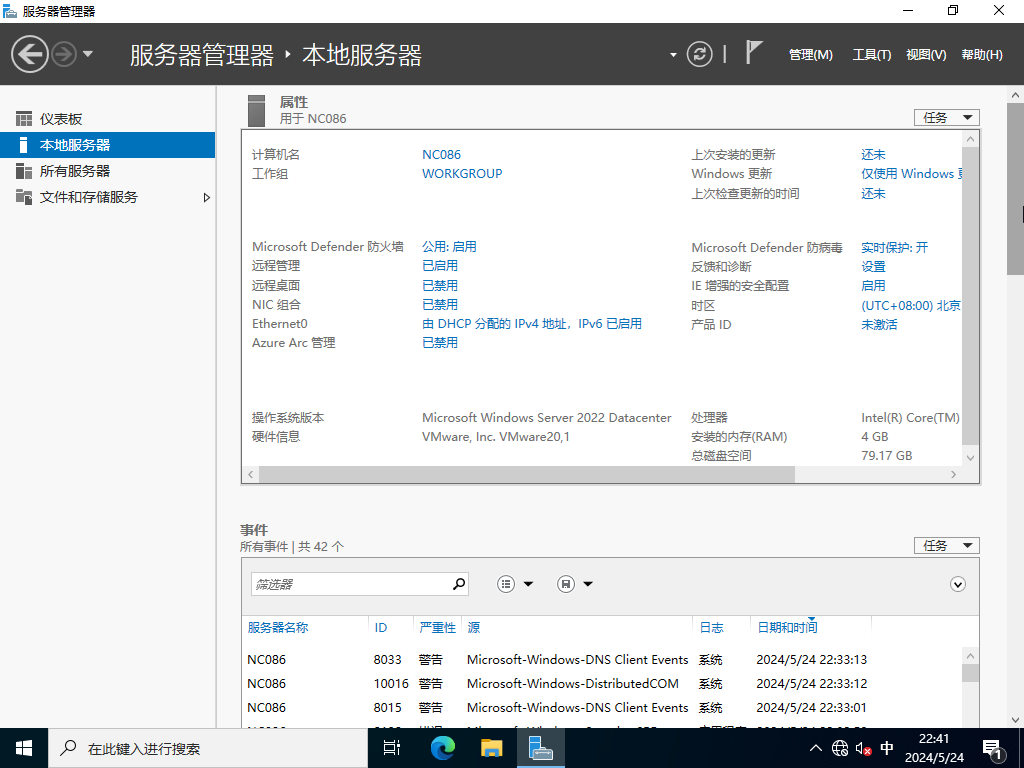
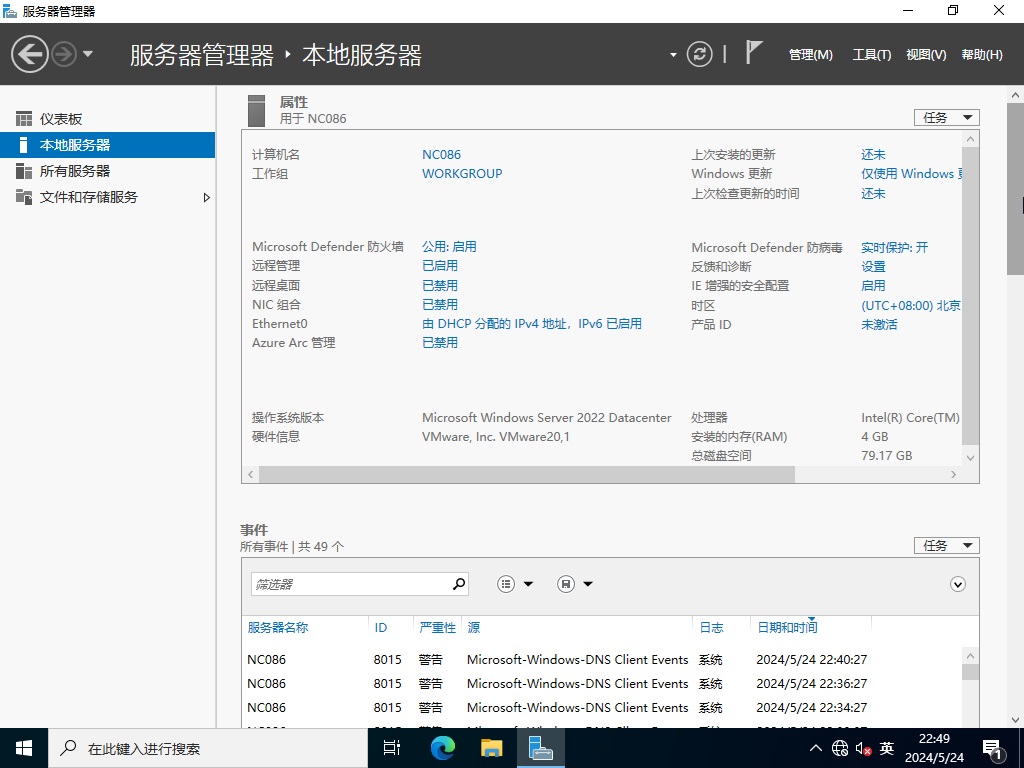
- 计算机名称已成功更改。
设置静态IP地址
默认情况下,IP地址由DHCP分配,因此请为服务器使用设置静态IP地址。此示例显示仅设置IPv4地址。
在CUI配置上,按如下方式设置。
- 使用管理员权限运行 PowerShell 并按如下方式进行配置。
Windows PowerShell

版权所由 (C) Microsoft Corporation。 保留所有权利。

安装最新的 PowerShell,了解新功能和改进!https://aka.ms/PSWindows

# display network interfaces

PS C:\Users\Administrator> Get-NetIPInterface -AddressFamily IPv4

ifIndex InterfaceAlias                  AddressFamily NlMtu(Bytes) InterfaceMetric Dhcp     ConnectionState PolicyStore

------- --------------                  ------------- ------------ --------------- ----     --------------- -----------

11      Ethernet0                       IPv4                  1500              25 Enabled  Connected       ActiveStore

1       Loopback Pseudo-Interface 1     IPv4            4294967295              75 Disabled Connected       ActiveStore

# set DHCP off(将 InterfaceIndex 编号替换为您自己的环境(上面的 ifIndex))

PS C:\Users\Administrator> Set-NetIPInterface -InterfaceIndex 6 -Dhcp Disabled

# 例如,设置 IP 地址 [192.168.200.101/24], gateway [192.168.200.1]

PS C:\Users\Administrator> New-NetIPAddress -InterfaceIndex 11 -AddressFamily IPv4 -IPAddress "192.168.200.101" -PrefixLength 24 -DefaultGateway "192.168.200.1"

IPAddress         : 192.168.200.101

InterfaceIndex    : 11

InterfaceAlias    : Ethernet0

AddressFamily     : IPv4

Type              : Unicast

PrefixLength      : 24

PrefixOrigin      : Manual

SuffixOrigin      : Manual

AddressState      : Preferred

ValidLifetime     : Infinite ([TimeSpan]::MaxValue)

PreferredLifetime : Infinite ([TimeSpan]::MaxValue)

SkipAsSource      : False

PolicyStore       : ActiveStore

# 例如,设置 DNS [192.168.200.1]

PS C:\Users\Administrator> Set-DnsClientServerAddress -InterfaceIndex 11 -ServerAddresses "192.168.200.101" -PassThru

InterfaceAlias               Interface Address ServerAddresses

                             Index     Family

--------------               --------- ------- ---------------

Ethernet0                           11 IPv4    {192.168.200.101}

Ethernet0                           11 IPv6    {}

# 确认设置

PS C:\Users\Administrator> ipconfig /all

Windows IP Configuration

   Host Name . . . . . . . . . . . . : NC086

   Primary Dns Suffix  . . . . . . . : ncncet.com

   Node Type . . . . . . . . . . . . : Hybrid

   IP Routing Enabled. . . . . . . . : No

   WINS Proxy Enabled. . . . . . . . : No

   DNS Suffix Search List. . . . . . : ncncet.com

Ethernet adapter Ethernet0:

   Connection-specific DNS Suffix  . :

   Description . . . . . . . . . . . : Intel(R) 82574L Gigabit Network Connection

   Physical Address. . . . . . . . . : 00-0C-29-D9-45-D3

   DHCP Enabled. . . . . . . . . . . : No

   Autoconfiguration Enabled . . . . : Yes

   Link-local IPv6 Address . . . . . : fe80::74:ecfd:e898:b756%7(Preferred)

   IPv4 Address. . . . . . . . . . . : 192.168.200.101(Preferred)

   Subnet Mask . . . . . . . . . . . : 255.255.255.0

   Default Gateway . . . . . . . . . : 192.168.200.1

   DHCPv6 IAID . . . . . . . . . . . : 100666409

   DHCPv6 Client DUID. . . . . . . . : 00-01-00-01-2D-E2-30-C2-00-0C-29-D9-45-D3

   DNS Servers . . . . . . . . . . . : 192.168.200.1

   NetBIOS over Tcpip. . . . . . . . : Enabled
在GUI配置上,按如下方式设置。
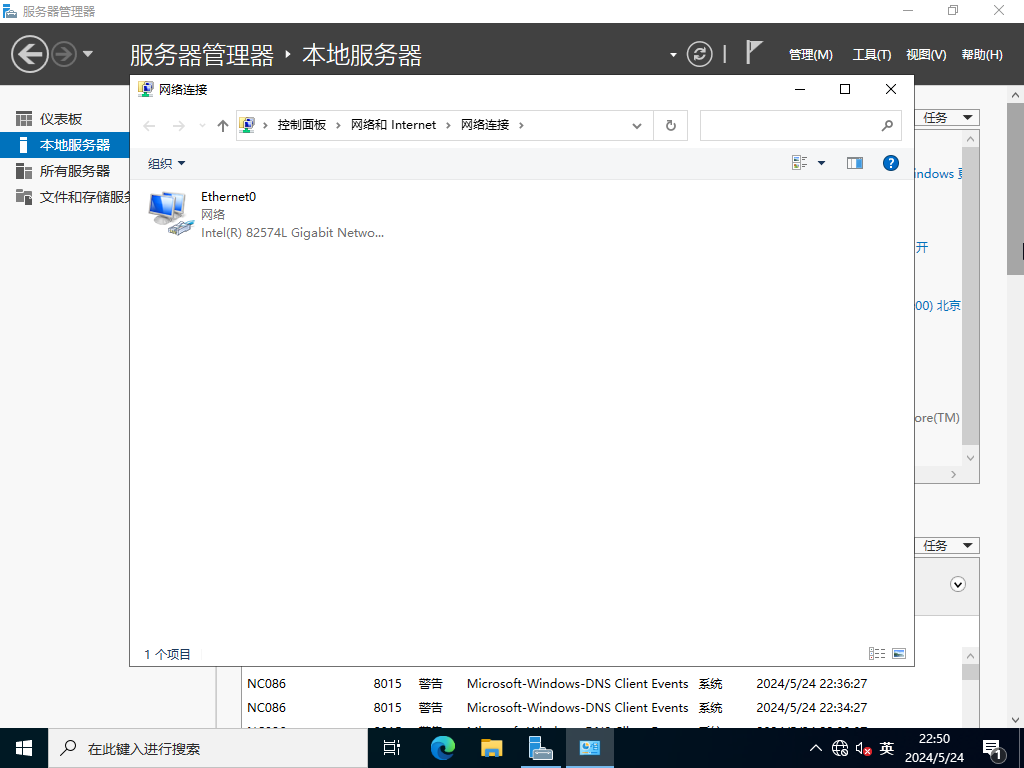
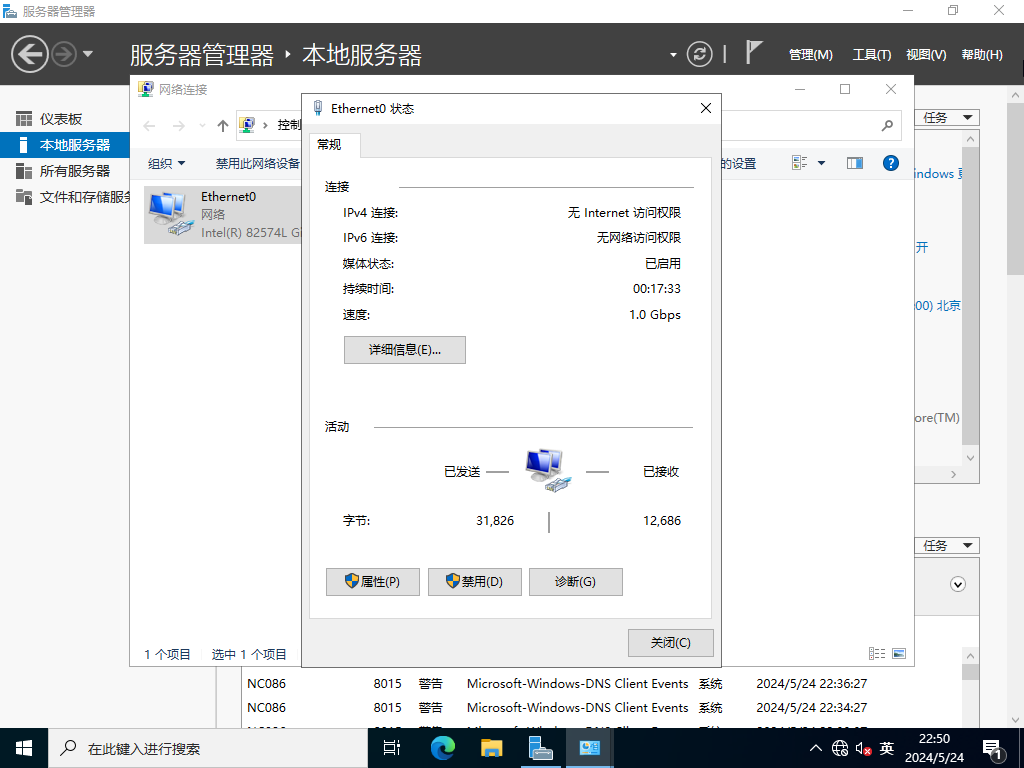
- 运行【服务器管理器】,在左侧窗格中选择【本地服务器】,然后单击右侧窗格中的【以太网】部分。
- 双击【以太网】图标。
- 点击【属性】按钮。
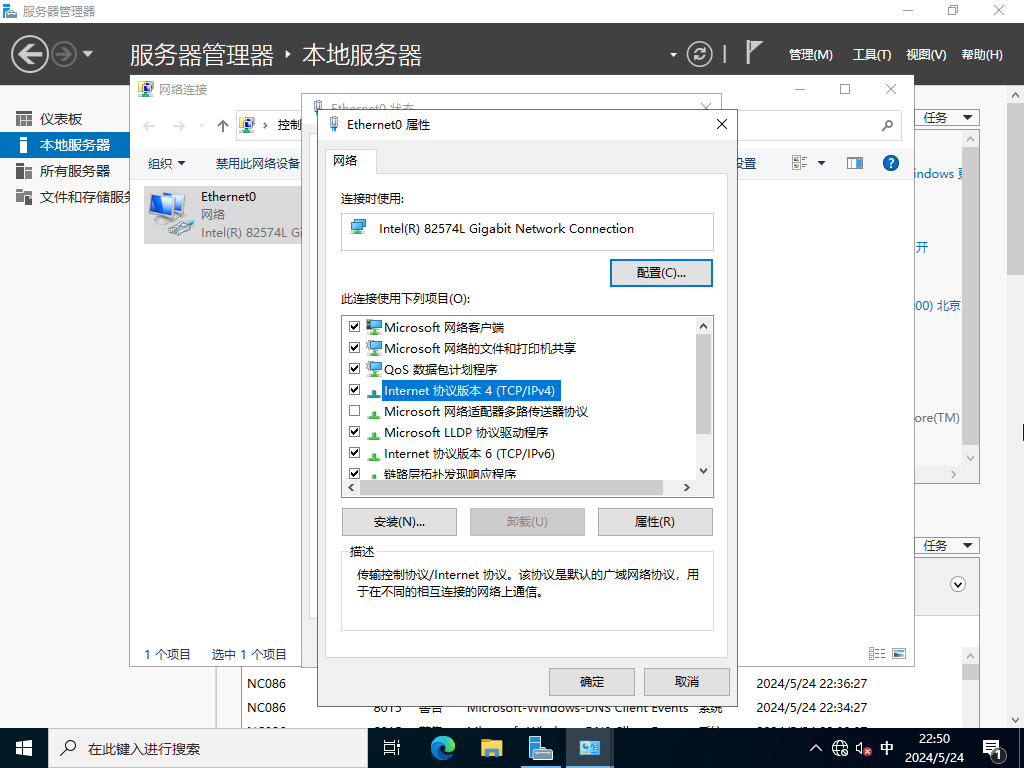
- 选择【互联网协议版本4】,然后单击【属性】按钮。
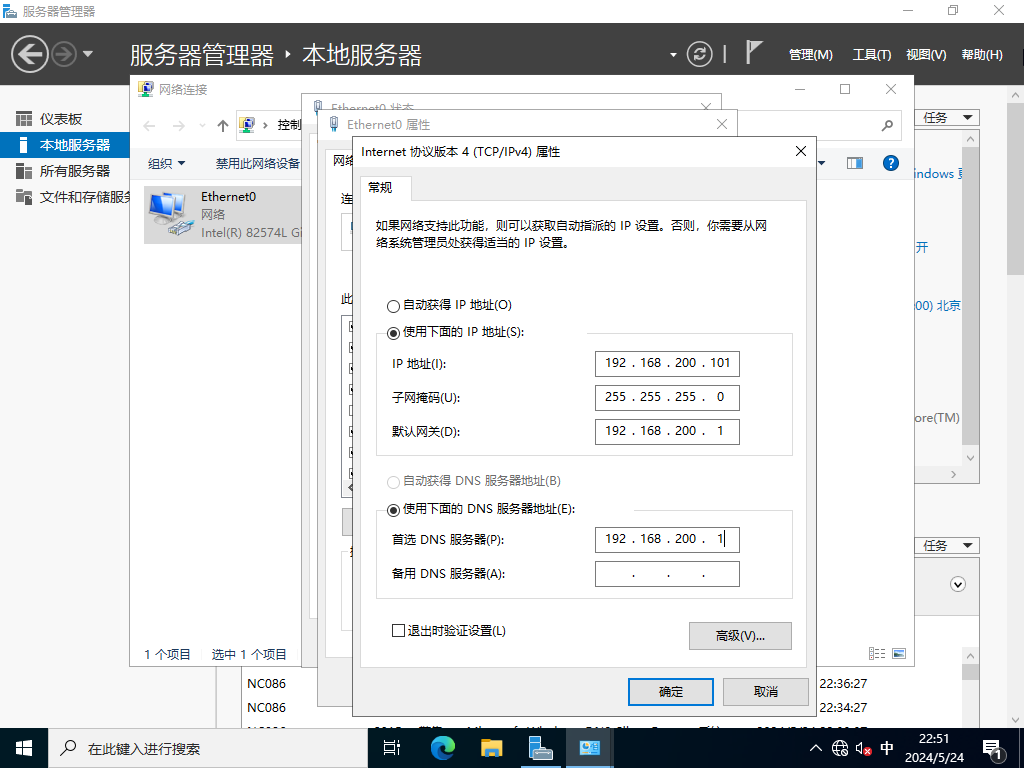
- 为本地网络设置静态IP地址和网关等。
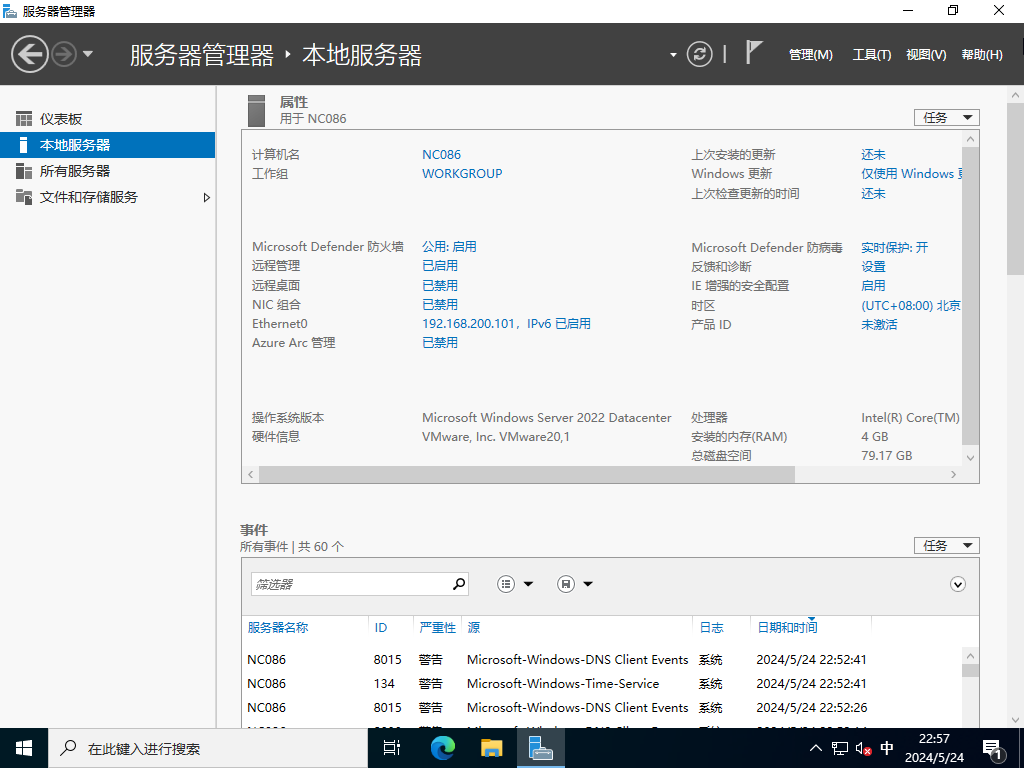
- 设置静态IP地址后,将在服务器上启用更改。(:彩蛋
Windows 更新
配置 Windows 更新。
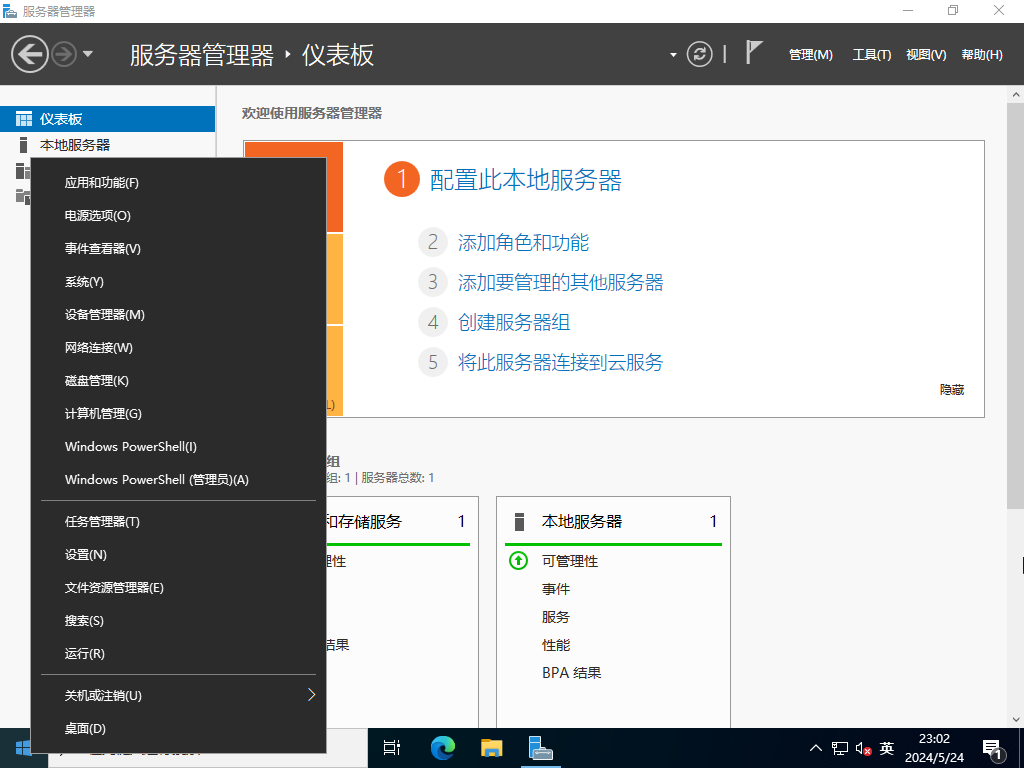
- 右键单击窗口开始图标,然后打开【运行】。
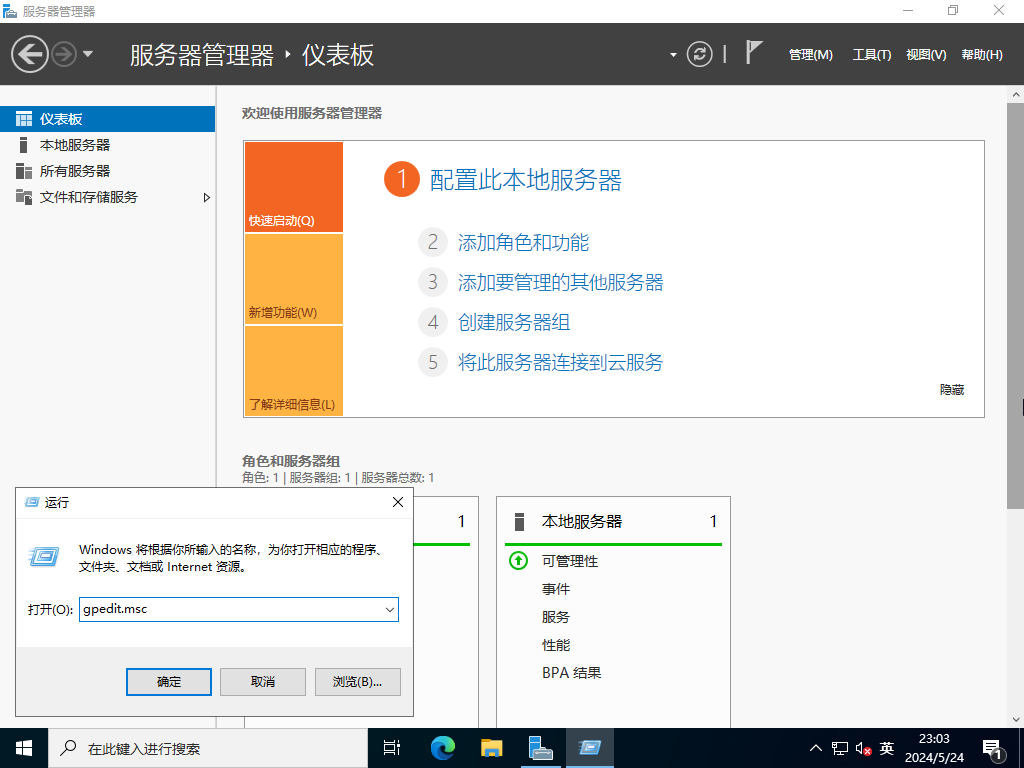
- 输入【gpedit.msc】和【OK】。
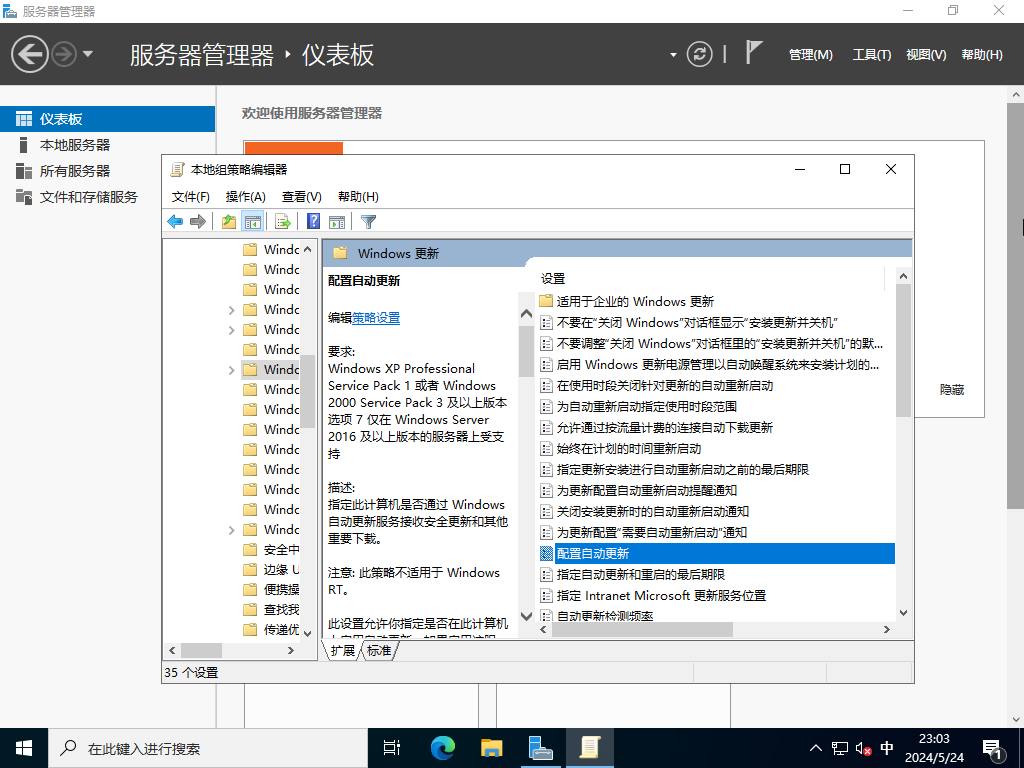
- 在左窗格中选择【计算机配置】【管理模板】【Windows组件】【Windows更新】,然后单击【配置自动更新】在右窗格中打开。
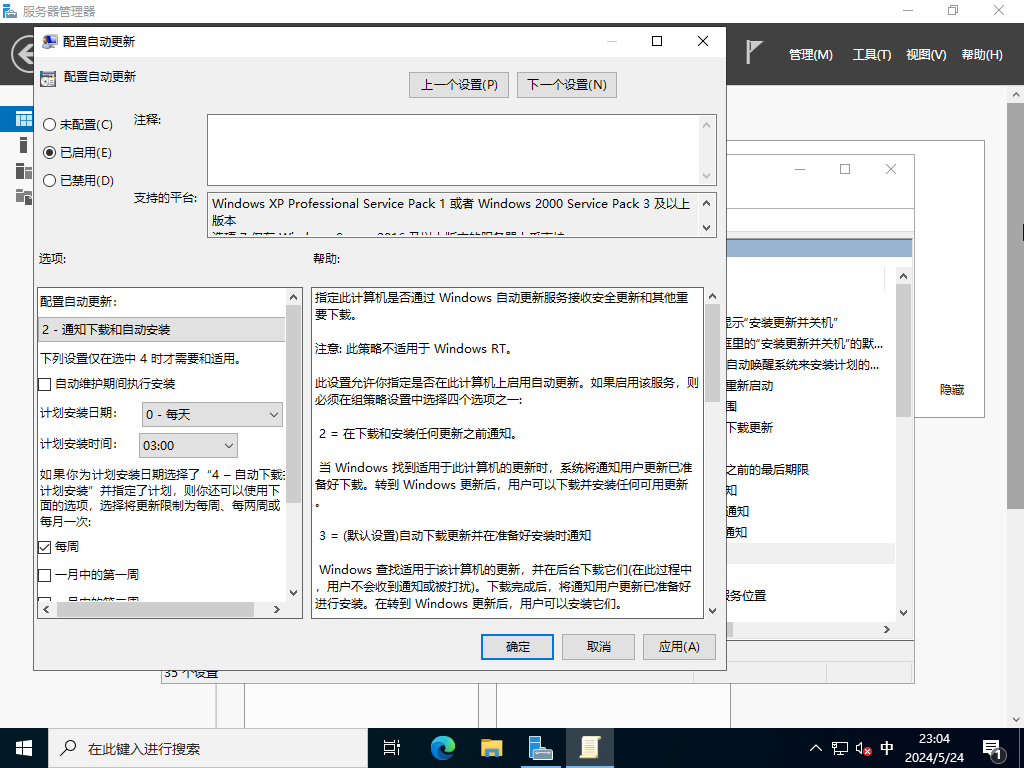
- 配置所需的 Windows 更新设置。
允许ICMP回显回复
Windows 防火墙的默认设置会阻止ICMP,因此服务器永远不会使用ping命令从其他主机进行回复。如果要允许ICMP,请按如下方式设置。
在CUI配置上,按如下方式设置。
- 使用管理员权限运行 PowerShell 并按如下方式进行配置。
Windows PowerShell

版权所由 (C) Microsoft Corporation。 保留所有权利。

安装最新的 PowerShell,了解新功能和改进!https://aka.ms/PSWindows

# 允许 ICMPv4

PS C:\Users\Administrator> New-NetFirewallRule `

-Name 'ICMPv4' `

-DisplayName 'ICMPv4' `

-Description 'Allow ICMPv4' `

-Profile Any `

-Direction Inbound `

-Action Allow `

-Protocol ICMPv4 `

-Program Any `

-LocalAddress Any `

-RemoteAddress Any

# 确认设置

PS C:\Users\Administrator> Get-NetFirewallRule | Where-Object Name -Like 'ICMPv4'

Name                          : ICMPv4

DisplayName                   : ICMPv4

Description                   : Allow ICMPv4

DisplayGroup                  :

Group                         :

Enabled                       : True

Profile                       : Any

Platform                      : {}

Direction                     : Inbound

Action                        : Allow

EdgeTraversalPolicy           : Block

LooseSourceMapping            : False

LocalOnlyMapping              : False

Owner                         :

PrimaryStatus                 : OK

Status                        : The rule was parsed successfully from the store. (65536)

EnforcementStatus             : NotApplicable

PolicyStoreSource             : PersistentStore

PolicyStoreSourceType         : Local

RemoteDynamicKeywordAddresses : {}
在GUI配置上,按如下方式设置。
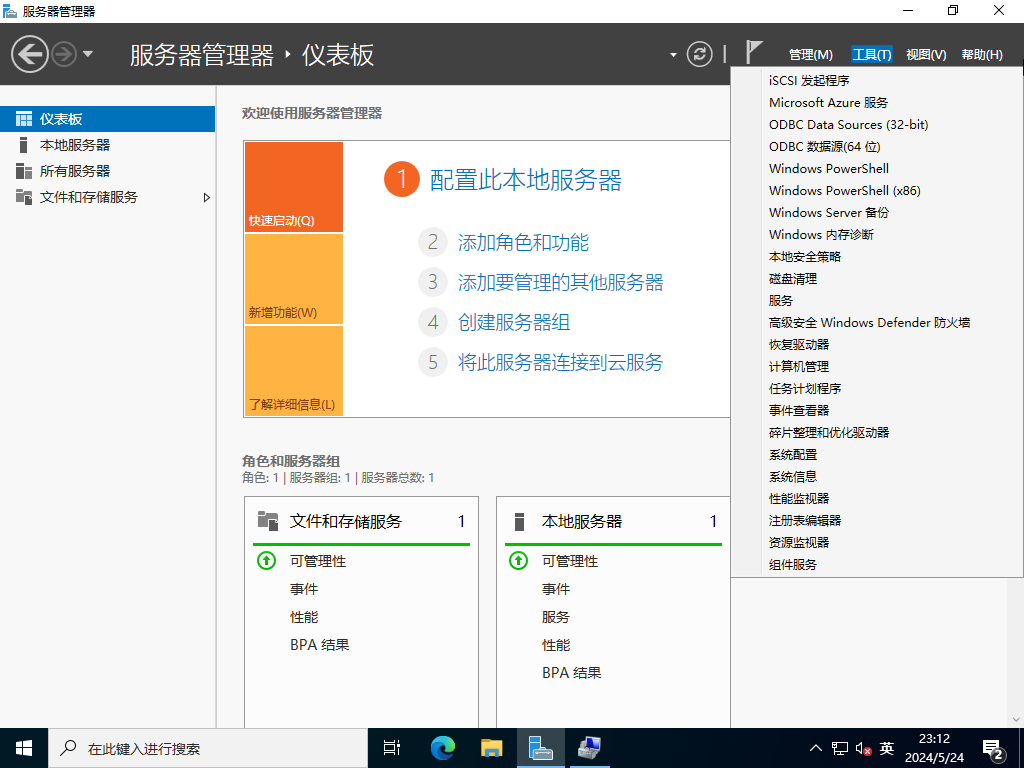
- 运行【服务器管理器】并打开【工具】【高级安全Windows Defender防火墙】。
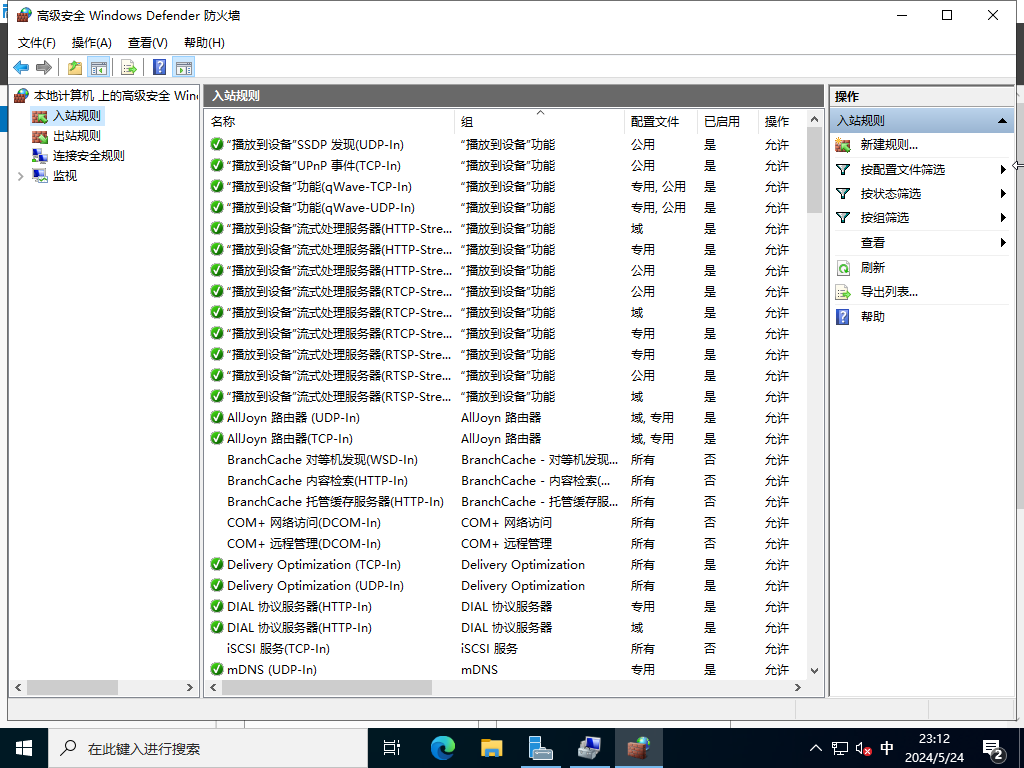
- 在左侧窗格中选择【入站规则】,然后单击右键窗格中的【新建规则】。
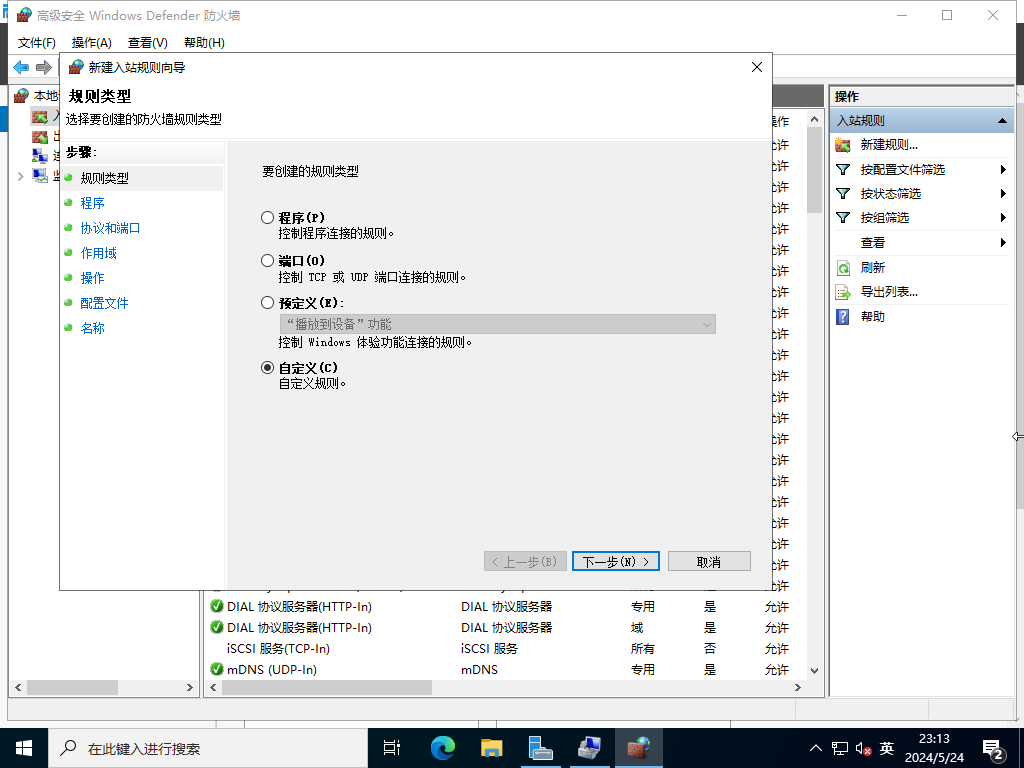
- 选择【自定义】。
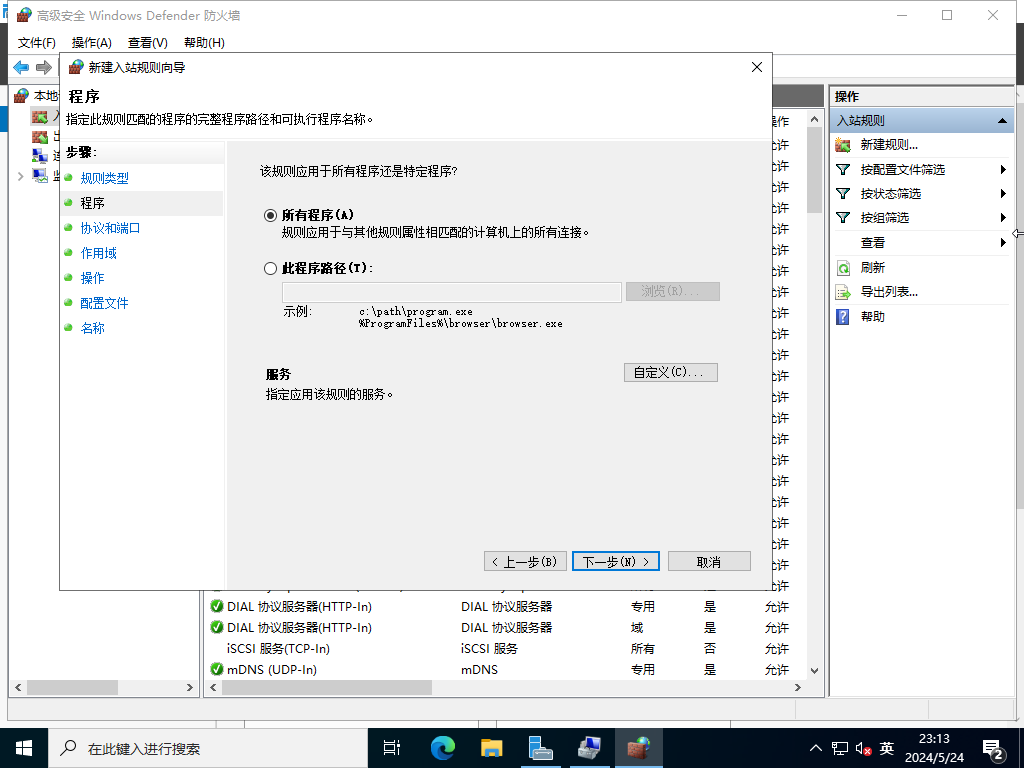
- 选择【所有程序】。
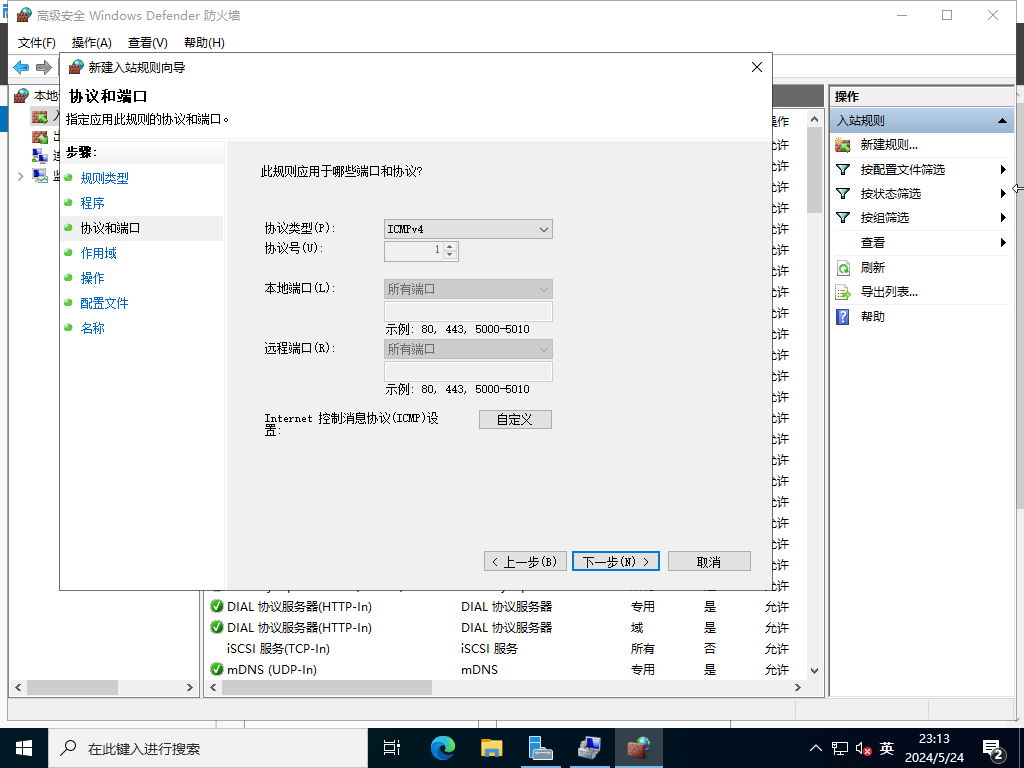
- 在【协议类型】上选择【ICMPv4】。
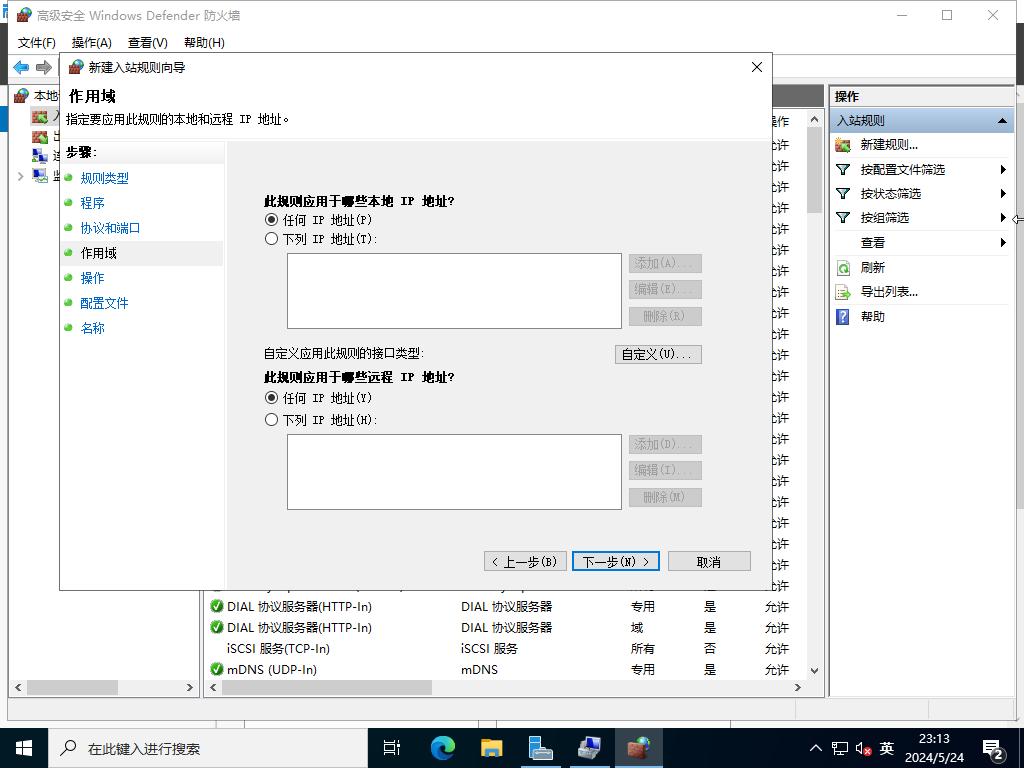
- 指定允许ICMP的网络范围。
- 选择【允许连接】。
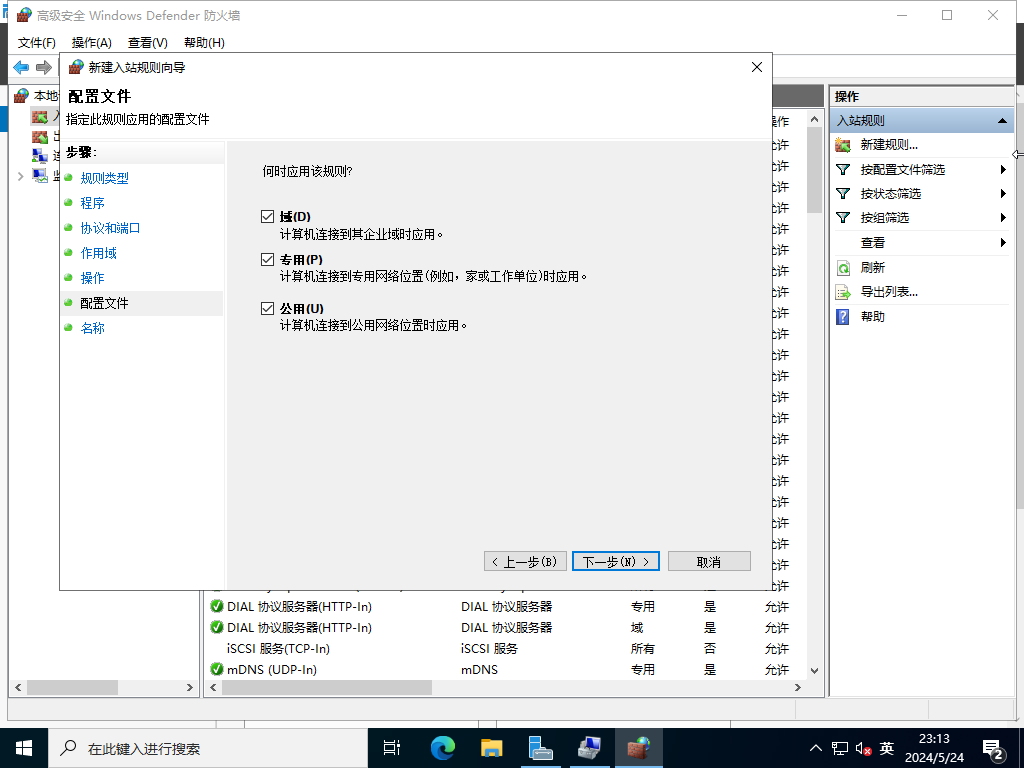
- 选择要允许ICMP的网络配置文件。
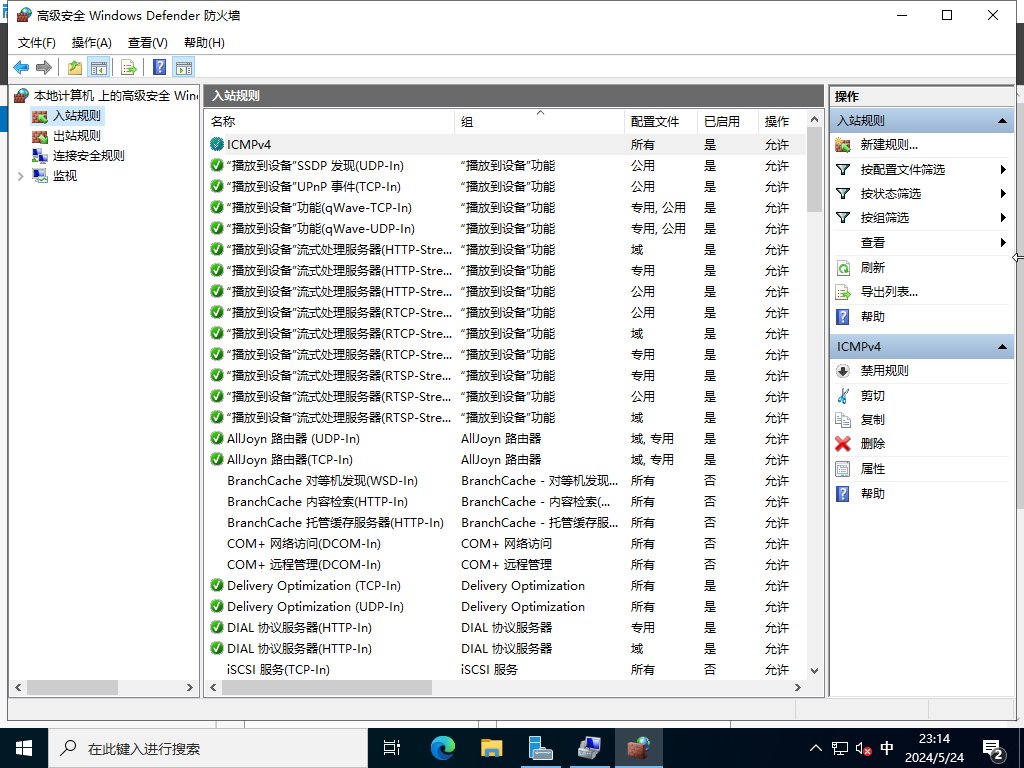
- 在【Nmae】字段中输入任何名称。没关系,您的服务器将回复来自其他主机的ping命令。
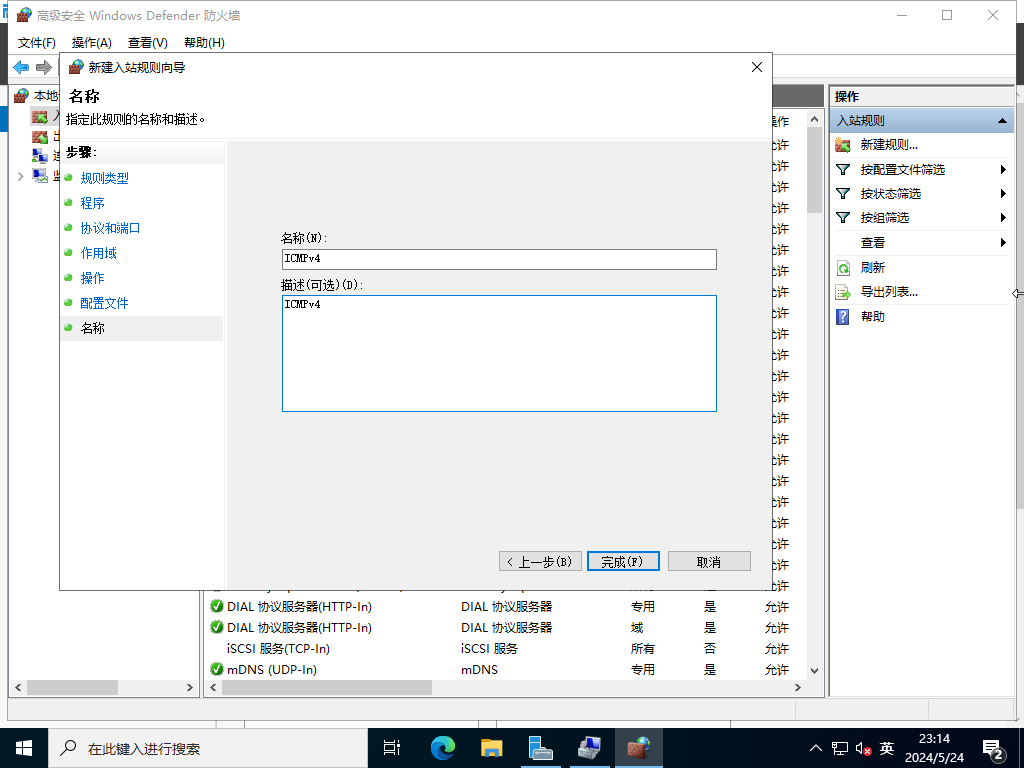
- 没关系,您的 Windows 服务器会回复来自其他计算机的ICMP请求。
(:彩蛋,也有可能是缺你一个评论或点赞哦
Windows Server 2022 初始设置的更多相关文章
- 设置Windows Server 2022、Win10、Win11自动登录的简单方法-OK
这里介绍自己从使用 Windows Server 2003 到 Windows Server 2022 一直都在使用的自动登录系统的方法,屡试不爽.网上讨论的方法太繁琐,所以共享出来,供大家参考.该方 ...
- Windows Server 2022 OVF(SLIC 2.6)
请访问原文链接:https://sysin.org/blog/windows-server-2022-ovf/,查看最新版.原创作品,转载请保留出处. 作者:gc(at)sysin.org,主页:ww ...
- 安装Windows Server 2022 - 初学者系列 - 学习者系列文章
这天要写一个关于系统部署的系列文章,涉及到Windows Server 2022操作系统的安装,所以就写了此文.Windows系列的操作系统安装,以前的博文中都有介绍,这里再次做一个安装描述吧.需要的 ...
- Windows Server 2008 MetaFile设置占用内存限制
最近遇到Windows Server 2008服务器内存持续飙升,48G内存用了99%,查看任务管理器的进程,也没发现具体哪个进程用的内存比较大? 于是,在网上找了了一个查看内存的工具RamMap,具 ...
- filebeat7.5.2 在 windows server 2008 R2 设置系统服务报错
今天在windows server 2008 R2 设置filebeat为系统服务报错(在 windows 10 .windows server 2012.windows server 2019下安装 ...
- Windows Server 2016域控制器升级到Windows Server 2022遇到的问题记录Fix error 0x800F081E – 0x20003
1. 非域控服务器升级 将两台Web服务器和数据库服务器(Windows Server 2016, 2019)成功升级至到Windows Server 2022,非常顺利,一次成功. 直接在Windo ...
- 在 Windows Vista、Windows 7 和 Windows Server 2008 上设置 SharePoint 2010 开发环境
适用范围: SharePoint Foundation 2010 | SharePoint Server 2010 本文内容 步骤 1:选择和预配置操作系统 步骤 2:安装 SharePoint 20 ...
- windows server 远程连接设置
1设置远程连接数修改 服务器安装了Windows Server 2008,现在要增加远程连接,开启服务器上的远程桌面连接,使用管理员账户远程登录.默认情况下Windows Server 2008允许一 ...
- Windows Server 2012 R2 设置
一.任务栏左下角启动服务器管理器,然后进行设置.1.登录不显示服务器管理器 2.本地服务器,看到右边的IE增强的安全配置,如图所示,关闭两项内容.这样就关闭了IE增强安全提示框. 3.“工具”菜单,启 ...
- Windows Server 2012 R2 设置 smtp 服务器
Windows Server 2012/2012 R2:安装和配置 SMTP 服务器 安装 SMTP 服务器 以下是安装 SMTP 服务器功能的步骤: 打开“服务器管理器”:单击键盘上的 Window ...
随机推荐
- DevEco Studio 3.1 Beta1版本发布——新增六大关键特性,开发更高效
智能代码编辑.端云一体化开发.低代码开发个性化-- 六大新增关键特性,开发更高效,体验更觉妙! 立即点击链接下载,做DevEco Studio 3.1 Beta1版本尝鲜者! 下载链接:HUAWE ...
- 树模型--ID3算法
基于信息增益(Information Gain)的ID3算法 ID3算法的核心是在数据集上应用信息增益准则来进行特征选择,以此递归的构建决策树,以信息熵和信息增益为衡量标准,从而实现对数据的归纳分类. ...
- mysql 必知必会整理—sql 排序与过滤[三]
前言 简单整理一下MySQL的排序与过滤. 正文 我们查询出来的结果有时候是希望进行排序的,比如说: select product_name from products order by prod_n ...
- redis 简单整理——Lua[十一]
前言 简单介绍一下Lua. 正文 为了保证多条命令组合的原子性,Redis提供了简单的事务功能以及集 成Lua脚本来解决这个问题. 前面提及到pipline,也提及到pipline 并不是原子性的,如 ...
- Thread.Suspend和Abort 的区别
理解: 在C#中,Thread.Suspend是一个方法,用于暂停当前线程的执行.它会导致线程停止执行并进入挂起状态,直到调用Thread.Resume方法才能继续执行. 然而,Thread.Susp ...
- 使用Elasticsearch做手机号和身份证号的模糊检索
使用Elasticsearch做手机号和身份证号的模糊检索 背景 客户想通过人名 四位数值 来检索人的信息 例如 张三 3421,例如需要检索包含张三和且手机号或者身份证里包含3421的数据 过程 e ...
- 探索Kimi智能助手:如何用超长文本解锁高效信息处理新境界
目前,Kimi备受瞩目,不仅在社交平台上引起了广泛关注,而且在解决我们的实际问题方面也显示出了巨大潜力.其支持超长文本的特性使得我们能够更加灵活地配置信息,避免了频繁与向量数据库进行交互以及编写提示词 ...
- 力扣434(java)-字符串中的单词个数(简单)
题目: 统计字符串中的单词个数,这里的单词指的是连续的不是空格的字符. 请注意,你可以假定字符串里不包括任何不可打印的字符. 示例: 输入: "Hello, my name is John& ...
- Spring RSocket:基于服务注册发现的 RSocket 负载均衡
简介: RSocket 作为通讯协议的后起之秀,核心是二进制异步化消息通讯,是否也能和 Spring Cloud 技术栈结合,实现服务注册发现.客户端负载均衡,从而更高效地实现面向服务的架构?这篇文章 ...
- ICBU可控文本生成技术详解
简介: 文本生成(Text Generation)是自然语言处理(Natural Language Processing,NLP)领域的一项重要且具有挑战的任务.顾名思义,文本生成任务的目的是生成近 ...