
linux CentOS 安装 nginx+tomcat+java+mysql运行环境
本文介绍了CentOS7 64 Java,Tomcat,MySQL,Maven热部署等服务器环境的搭建过程。
服务器:
已经将所需要的工具(Xshell,Xftp、FileZilla等sftp上传工具,jdk-8u101-linux-x64.tar.gz和apache-tomcat-9.0.0.M10.tar.gz)上传至百度云 http://pan.baidu.com/s/1qYRms8G
1、tomcat官网 https://tomcat.apache.org/ 下载
Java环境配置
环境准备
通过 uname -r 判断系统是多少位
- 64位 : 出现x86_64
- 32位 : 出现i686或i386
安装Java JDK8.0
- 建立Java目录,存放Java和Tomcat
- cd /usr/local/
- mkdir java
- cd java
- 使用FileZilla将下载好的jdk-8u101-linux-x64.tar.gz 和 apache-tomcat-9.0.0.M10.tar.gz上传至Java目录下(传送的国外服务器很慢,国内几乎是国外的十倍,但是也只有两三百KB,也可能是电脑问题)
- 将上传的jdk解压,然后重命名为jdk
- tar -zxv -f jdk-8u101-linux-x64.tar.gz
- mv jdk1.8.0_101 jdk
- cd jdk
- 配置环境变量Environment=JAVA_HOME=/usr/local/Java/jdk
- vim /etc/profile
打开之后按键盘(i)进入编辑模式,将下面的内容复制到底部
JAVA_HOME=/usr/local/java/jdk

PATH=$JAVA_HOME/bin:$PATH

CLASSPATH=$JAVA_HOME/jre/lib/ext:$JAVA_HOME/lib/tools.jar

export PATH JAVA_HOME CLASSPATH- 写完之后我们按键盘(ESC)按钮退出,然后按(:wq)保存并且关闭Vim。
- 使用
source /etc/profile命令使其立即生效 通过
java -version验证Java是否配置成功。
安装Tomcat9.0
- 在Java目录下解压上面一步已经上传上去的Tomcat9.0
- tar -zxv -f apache-tomcat-9.0.0.M10.tar.gz
- mv apache-tomcat-9.0.0.M10 tomcat
- cd tomcat
- 启动命令为 /usr/local/java/tomcat/bin/startup.sh
- 启动完成后还需开放8080端口(CentOS7这个版本的防火墙默认使用的是firewall,与之前的版本使用iptables不一样。 关于防火墙端口可以查看后面的参考文档)
- firewall-cmd --zone=public --add-port=8080/tcp --permanent
出现success表明添加成功 - 更新防火墙规则即可: firewall-cmd --reload
- 重启防火墙 systemctl restart firewalld.service
- firewall-cmd --zone=public --add-port=8080/tcp --permanent
- 然后再次在浏览器中输入http://ip:8080,如果看到tomcat系统界面,说明安装成功。
- Tomcat 8080 端口无法访问
- 查看8080端口被那个程序占用(应该是Java) netstat -anp 然后再杀死占用进程。
- 可能是你的服务器提供商有安全组来控制端口,你需要去提供商那里开启端口(PS:我的阿里云服务器就是必须要设置端口安全组才可以访问端口)
- 关闭命令为 /usr/local/Java/tomcat/bin/shutdown.sh
自启动:
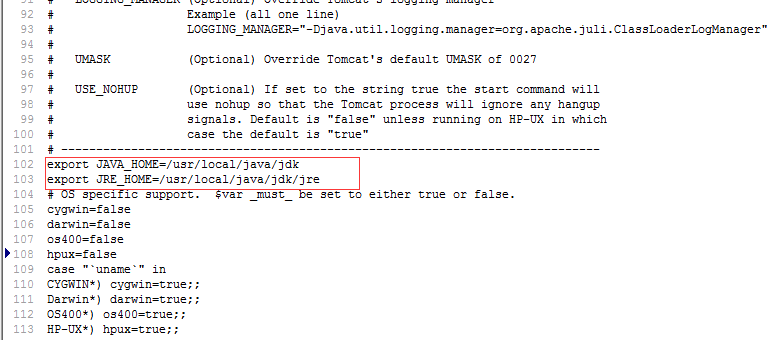
编辑文件 /usr/local/java/tomcat/bin/catalina.sh (根据你自己的jdk路径进行修改) 在文件的正文开头,即正式代码前,大概在99行添加如下代码
export JAVA_HOME=/usr/local/java/jdk

export JRE_HOME=/usr/local/java/jdk/jre
第一步:
vim /lib/systemd/system/tomcat.service
[Unit]

Description=tomcat

After=network.target

[Service]

Type=oneshot

ExecStart=/usr/local/java/tomcat/bin/startup.sh   //自已的tomcat目录

ExecStop=/usr/local/java/tomcat/bin/shutdown.sh

ExecReload=/bin/kill -s HUP $MAINPID

RemainAfterExit=yes

[Install]

WantedBy=multi-user.target
(2).设置权限
chmod tomcat.service
(3).启动关闭服务,设置开机启动
#启动服务

systemctl start tomcat.service

#关闭服务

systemctl stop tomcat.service

#开机启动

systemctl enable tomcat.service
MySQL
一、系统环境
yum update升级以后的系统版本为
[root@yl-web yl]# cat /etc/redhat-release

CentOS Linux release 7.1.1503 (Core)
一开始是通过这个命令来直接安装的:
 [root@yl-web yl]# yum install mysql

 [root@yl-web yl]# yum install mysql-server

 [root@yl-web yl]# yum install mysql-devel
安装mysql和mysql-devel都成功,但是安装mysql-server失败,如下:
[root@yl-web yl]# yum install mysql-server

Loaded plugins: fastestmirror

Loading mirror speeds from cached hostfile

 * base: mirrors.sina.cn

 * extras: mirrors.sina.cn

 * updates: mirrors.sina.cn

No package mysql-server available.

Error: Nothing to do
查资料发现是CentOS 7 版本将MySQL数据库软件从默认的程序列表中移除,用mariadb代替了。
有两种解决办法:
1、方法一:安装mariadb
MariaDB数据库管理系统是MySQL的一个分支,主要由开源社区在维护,采用GPL授权许可。开发这个分支的原因之一是:甲骨文公司收购了MySQL后,有将MySQL闭源的潜在风险,因此社区采用分支的方式来避开这个风险。MariaDB的目的是完全兼容MySQL,包括API和命令行,使之能轻松成为MySQL的代替品。
安装mariadb,大小59 M。
[root@yl-web yl]# yum install mariadb-server mariadb
mariadb数据库的相关命令是:
systemctl start mariadb #启动MariaDB
systemctl stop mariadb #停止MariaDB
systemctl restart mariadb #重启MariaDB
systemctl enable mariadb #设置开机启动
所以先启动数据库
[root@yl-web yl]# systemctl start mariadb
然后就可以正常使用mysql了

[root@yl-web yl]# mysql -u root -p

Enter password:

Welcome to the MariaDB monitor.  Commands end with ; or \g.

Your MariaDB connection id is 3

Server version: 5.5.41-MariaDB MariaDB Server

Copyright (c) 2000, 2014, Oracle, MariaDB Corporation Ab and others.

Type 'help;' or '\h' for help. Type '\c' to clear the current input statement.

MariaDB [(none)]> show databases;

+--------------------+

| Database           |

+--------------------+

| information_schema |

| mysql              |

| performance_schema |

| test               |

+--------------------+

4 rows in set (0.00 sec)

MariaDB [(none)]>
安装mariadb后显示的也是 MariaDB [(none)]> ,可能看起来有点不习惯。下面是第二种方法。
2、方法二:官网下载安装mysql-server
# wget http://dev.mysql.com/get/mysql-community-release-el7-5.noarch.rpm

# rpm -ivh mysql-community-release-el7-5.noarch.rpm

# yum install mysql-community-server
安装成功后重启mysql服务。
# service mysqld restart
初次安装mysql,root账户没有密码。
[root@yl-web yl]# mysql -u root

Welcome to the MySQL monitor.  Commands end with ; or \g.

Your MySQL connection id is 3

Server version: 5.6.26 MySQL Community Server (GPL)

Copyright (c) 2000, 2015, Oracle and/or its affiliates. All rights reserved.

Oracle is a registered trademark of Oracle Corporation and/or its

affiliates. Other names may be trademarks of their respective

owners.

Type 'help;' or '\h' for help. Type '\c' to clear the current input statement.

mysql> show databases;

+--------------------+

| Database           |

+--------------------+

| information_schema |

| mysql              |

| performance_schema |

| test               |

+--------------------+

4 rows in set (0.01 sec)

mysql>
设置密码
mysql> set password for 'root'@'localhost' =password('password');

Query OK, 0 rows affected (0.00 sec)

mysql>
不需要重启数据库即可生效。
在mysql安装过程中如下内容:
Installed:
  mysql-community-client.x86_64 0:5.6.26-2.el7                mysql-community-devel.x86_64 0:5.6.26-2.el7
  mysql-community-libs.x86_64 0:5.6.26-2.el7                  mysql-community-server.x86_64 0:5.6.26-2.el7

Dependency Installed:
  mysql-community-common.x86_64 0:5.6.26-2.el7

Replaced:
  mariadb.x86_64 1:5.5.41-2.el7_0          mariadb-devel.x86_64 1:5.5.41-2.el7_0   mariadb-libs.x86_64 1:5.5.41-2.el7_0
  mariadb-server.x86_64 1:5.5.41-2.el7_0
所以安装完以后mariadb自动就被替换了,将不再生效。
[root@yl-web yl]# rpm -qa |grep mariadb

[root@yl-web yl]#
三、配置mysql
1、编码
mysql配置文件为/etc/my.cnf
最后加上编码配置
[mysql]

default-character-set =utf8
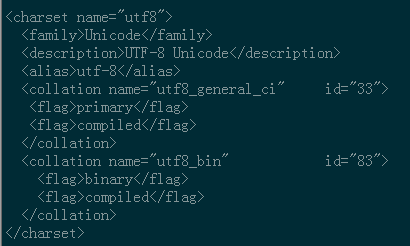
这里的字符编码必须和/usr/share/mysql/charsets/Index.xml中一致。
2、远程连接设置
把在所有数据库的所有表的所有权限赋值给位于所有IP地址的root用户。
mysql> grant all privileges on *.* to root@'%'identified by 'password';
如果是新用户而不是root,则要先新建用户
mysql>create user 'username'@'%' identified by 'password';
此时就可以进行远程连接了。
Maven 热部署
Maven 热部署可以通过一行命令部署到本地服务器,没有问题的话就一行命令部署到正式服务器。及其方便了开发和部署。因为我的Tomcat9遇到很多问题。
可以参考 maven自动部署到远程tomcat教程 进行部署和测试。
下面是我遇到的一个错误,因为没有配置IDEA的make 导致出错。
[ERROR] Failed to execute goal org.apache.tomcat.maven:tomcat7-maven-plugin:2.2:deploy (default-cli) on project liwenhao: Cannot invoke Tomcat manager: Connect

ion reset by peer: socket write error -> [Help 1]

[ERROR]

[ERROR] To see the full stack trace of the errors, re-run Maven with the -e switch.

[ERROR] Re-run Maven using the -X switch to enable full debug logging.

[ERROR]

[ERROR] For more information about the errors and possible solutions, please read the following articles:

[ERROR] [Help 1]
可以通过将make如下配置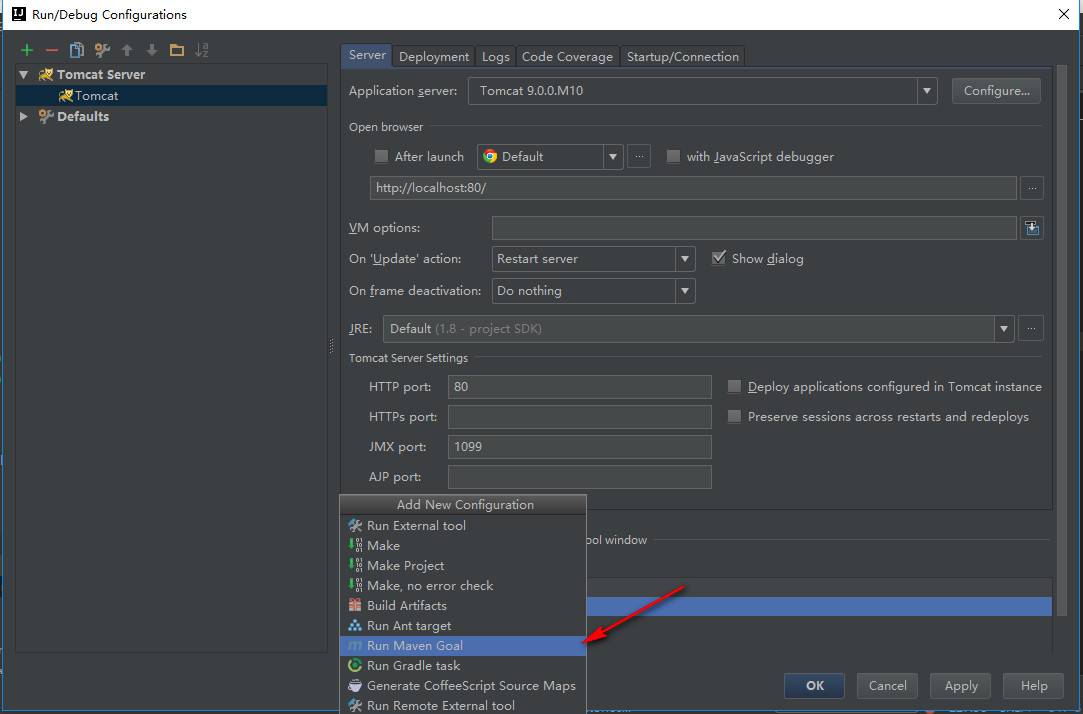
即可成功
war包部署在服务器乱码
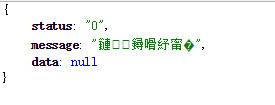
可以通过配置如下属性,解决中文war包服务器乱码。
<properties>

    <project.build.sourceEncoding>UTF-8</project.build.sourceEncoding>

    <project.reporting.outputEncoding>UTF-8</project.reporting.outputEncoding>

</properties>
配置完图。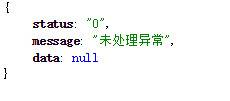
在我通过mvn tomcat7:deploy命令热部署时,会出现mysql无法连接的情况,后来在我重新进行热部署的时候,没有出现这个问题。
猜测
应该是我的配置文件的问题
参考文档
- centos 7 开放 80端口
- centos7 设置中文
- CentOS 7下彻底卸载MySQL数据库
- CentOS7 远程访问MySQL
- How To Install Apache Tomcat 8 on CentOS 7
linux CentOS 安装 nginx+tomcat+java+mysql运行环境的更多相关文章
- centos7最小版本安装nginx+tomcat+java+mysql运行环境
最近项目从windows搬到linux,由于项目组成员有限并且有其它紧急的任务需要处理,因而这个任务就落到我的头上了.下面记录下centos最小版本安装nginx+tomcat+mysql+java的 ...
- linux CentOS YUM 安装 nginx+tomcat+java+mysql运行环境
Java环境配置 1 安装JDK 查看CentOS自带JDK是否已安装 1 [root@test ~]# yum list installed |grep java 若有自带安装的JDK,应如下操作进 ...
- Linux基础--安装搭建tomcat+java+mysql
一.安装jdk 1.可选安装yum -y install lrzsz方便传文件.(yum -y意思是所有的都选yes) yum update -y 更新yum镜像 yum list lrzsz* 列 ...
- linux下搭建nginx+php(FastCGI)+mysql运行环境
一.安装环境 1.CentOS5.5 2.php5.4 3.MySQL5.5.19 二.安装程序依赖库和开发环境 为了省事把所需要的库文件全都安装上,可以使用rpm包安装,也可以用yum命令安装, 1 ...
- linux下安装jdk+tomcat+eclipse+mysql
我的环境:主机是win7的,虚拟机是VWare Workstation 6.0 ,linux系统为Red Hat Enterprise Linux 5 64位 各软件版本:jdk是jdk-6u ...
- [Linux] - CentOS 安装nginx
linux版本:CentOS 6.0+ 安装nginx方法: 1.下载nginx rpm包命令: wget http://nginx.org/packages/centos/6/noarch/RPMS ...
- [转]linux CentOS 安装 Nginx
网上找的教程,一路走下来的,原文如下: 一.安装nginx 1.在nginx官方网站下载一个包,下载地址是:http://nginx.org/en/download.html 2.Wi ...
- Linux上安装nginx+tomcat负载均衡
1.Ngnix Nginx (发音同 engine x)是一款轻量级的Web 服务器/反向代理服务器及电子邮件(IMAP/POP3)代理服务器,并在一个BSD-like 协议下发行. 其特点是占有内 ...
- linux CentOS 安装 nginx
官方网址:http://nginx.org/en/download.html 一.安装基础组件 yum install gcc-c++ yum install pcre yum install pcr ...
随机推荐
- java和数据库中日期类型的常见用法
(1)java中日期类型:Date.Timestamp(2)数据库中:Date.Timestamp(3)字符串和Date之间的格式化转换: SimpleDateFormat类方法: format ...
- php in_array() 循环大量数组时效率特别慢问题
in_array() 会循环数组内部元素逐个匹配,特别耗时,换成以下方式,效率大大提升
- LeetCode第十一题-可以装最多水的容器
Container With Most Water 问题简介:通过一个给定数组,找出最大的矩形面积 问题详解:给定一个数组,包含n个非负整数a1,a2,…,an,其中每个表示坐标(i,ai)处的点,绘 ...
- GPS车辆监控系统的启动方式
我们通常用到的GPS车辆监控系统都有哪些启动方式,又有什么区别呢?通常GPS车辆监控系统都有热启.冷启.温启的技术指标,现参考如下:GPS开机定位分为冷启动.温启动和热启动三种:一.冷启动:以下几种情 ...
- Node中包的加载机制
1.Node原生提供的核心模块:http.fs.os.path.url.querystring,Node在加载核心模块时,不需要传入路径,因为Node.js已经将核心模块的文件代码编译到了二进制的 ...
- sublime的Vue语法高亮插件安装
1.准备语法高亮插件vue-syntax-highlight. 下载地址: https://github.com/vuejs/vue-syntax-highlight 下载页面并下载: 解开压缩包vu ...
- springboot配置文件priperties大全
flyway.baseline-description 执行基线时标记已有Schema的描述. flyway.baseline-on-migrate 在没有元数据表的情况下,针对非空Schema执行迁 ...
- 02.Control
01.if ''' 제어문 = 조건문(if) + 반복문(while, for) 조건문 기본 형식1) python 블럭 if 조건식 : 실행문 실행문 cf) c언어 블럭 if 조건식 { ...
- pyqt pyside 设置窗口关闭时删除自身
pyqt pyside 设置窗口关闭时删除自身 self.setAttribute(QtCore.Qt.WA_DeleteOnClose)
- 根Activity启动过程
--摘自<Android进阶解密> 根Activity启动过程中会涉及4个进程,分别是Zygote进程.Launcher进程.AMS所在进程(SystemServer进程).应用程序进程, ...