
WPF---数据模板(一)
一、场景模拟
假设我们现在有如下需求:
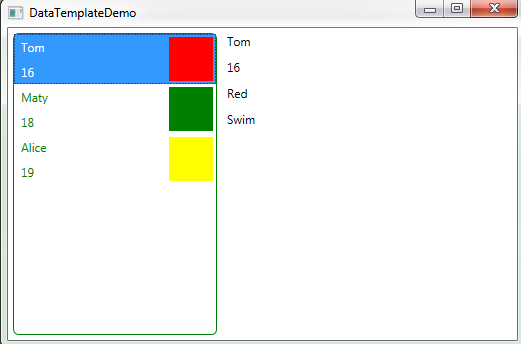
我们需要在ListBox中的每个Item中显示某个成员的姓名、年龄以及喜欢的颜色,点击Item的时候,会在右边显示详细信息,同时也想让ListBox的样式变得好看一些,比如带有绿色边框等。
为了实现以上需求,我们可以使用控件模板来修改ListBox的默认样式,使之变得生动有趣,使用数据模板来改变ListBoxItem的数据呈现形式。
二、Demo
为了改变ListBoxItem的外观,我们在资源里定义一个名字为listBoxItemTemplate的数据模板,模板中使用Binding将数据进行关联,然后为ListBox的ItemTemplate属性进行赋值。
当我们点击左面ListBoxItem的时候,为了能在右面显示详细信息,我们定义四个Label,绑定左侧选中的ListBoxItem。
为了绑定方便,我们为四个Label加个父容器StackPanel,并将它的DataContext属性绑定到选中的ListBoxItem上(四个Label的DataContext就会继承StackPanel的DataContext属性)。
具体代码以及运行截图参见以下:
 1 using System.Collections.ObjectModel;

 2 using System.Windows;

 3

 4 namespace DataTemplateDemo1

 5 {

 6     /// <summary>

 7     /// Interaction logic for MainWindow.xaml

 8     /// </summary>

 9

10     public partial class MainWindow : Window

11     {

12         private ObservableCollection<Student> observableCollection = new ObservableCollection<Student>();

13         public  ObservableCollection<Student> ObservableCollection

14         {

15             get { return observableCollection; }

16             set { observableCollection = value; }

17         }

18         public MainWindow()

19         {

20             InitializeComponent();

21             this.DataContext = this;

22             observableCollection.Add(new Student() {Name = "Tom", Age= 16, FavorColor="Red",Hobby="Swim" });

23             observableCollection.Add(new Student() { Name = "Maty", Age = 18, FavorColor = "Green" ,Hobby="Football"});

24             observableCollection.Add(new Student() { Name = "Alice", Age = 19, FavorColor = "Yellow" ,Hobby="Running"});

25         }

26     }

27

28     public class Student

29     {

30         public int Age { get; set; }

31         public string Name { get; set; }

32         public string FavorColor { get; set; }

33         public string Hobby { get; set; }

34     }

35

36 }
 1 <Window x:Class="DataTemplateDemo1.MainWindow"

 2         xmlns="http://schemas.microsoft.com/winfx/2006/xaml/presentation"

 3         xmlns:x="http://schemas.microsoft.com/winfx/2006/xaml"

 4         xmlns:d="http://schemas.microsoft.com/expression/blend/2008"

 5         xmlns:mc="http://schemas.openxmlformats.org/markup-compatibility/2006"

 6         xmlns:local="clr-namespace:DataTemplateDemo1"

 7         mc:Ignorable="d"

 8         Title="DataTemplateDemo" Height="350" Width="525">

 9     <Window.Resources>

10

11         <ControlTemplate x:Key="ListBoxControlTemplate" TargetType="ListBox">

12             <Grid>

13                 <Border BorderBrush="Green" BorderThickness="1" CornerRadius="5" >

14                     <Grid>

15                         <ItemsPresenter TextBlock.Foreground="Green"></ItemsPresenter>

16                     </Grid>

17                 </Border>

18             </Grid>

19         </ControlTemplate>

20

21         <DataTemplate x:Key="listBoxItemTemplate">

22             <Grid Height="50">

23                 <Grid.ColumnDefinitions>

24                     <ColumnDefinition Width="150"/>

25                     <ColumnDefinition Width="50"/>

26                 </Grid.ColumnDefinitions>

27                 <Grid.RowDefinitions>

28                     <RowDefinition/>

29                     <RowDefinition/>

30                 </Grid.RowDefinitions>

31                 <TextBlock  Name="textbox1" Text="{Binding Name}" Grid.Row="0" Margin="5"/>

32                 <TextBlock  Name="textbox2" Text="{Binding Age}" Grid.Row="1" Margin="5"/>

33                 <Rectangle Fill="{Binding FavorColor}" Grid.Column="1" Grid.Row="0" Grid.RowSpan="2" Margin="3"></Rectangle>

34

35             </Grid>

36         </DataTemplate>

37     </Window.Resources>

38     <Grid>

39         <StackPanel Orientation="Horizontal">

40

41             <ListBox Margin="5" Name="stuList"

42                  Template="{StaticResource ListBoxControlTemplate}"

43                  ItemsSource="{Binding ObservableCollection}"

44                  ItemTemplate="{StaticResource listBoxItemTemplate}">

45             </ListBox>

46             <StackPanel DataContext="{Binding Path=SelectedItem,ElementName=stuList}">

47                 <Label Content="{Binding Name}"></Label>

48                 <Label Content="{Binding Age}"></Label>

49                 <Label Content="{Binding FavorColor}"></Label>

50                 <Label Content="{Binding Hobby}"></Label>

51             </StackPanel>

52         </StackPanel>

53

54     </Grid>

55 </Window>
WPF---数据模板(一)的更多相关文章
- WPF数据模板和控件模板
WPF中有控件模板和数据模板,控件模板可以让我们自定义控件的外观,而数据模板定义了数据的显示方式,也就是数据对象的可视结构,但是这里有一个问题需要考虑,数据是如何显示出来的?虽然数据模板定义了数 ...
- WPF数据模板样式选择器
在使用数据模板样式选择器时,不能设置ItemContainerStyle的属性值,如果设置了该值,那么数据模板样式选择器会失去作用. 在使用数据模板样式选择器时,首先要创建数据模板样式选择器对象,此对 ...
- WPF数据模板(7)
数据模板常用在3种类型的控件, 下图形式: 1.Grid这种列表表格中修改Cell的数据格式, CellTemplate可以修改单元格的展示数据的方式. 2.针对列表类型的控件, 例如树形控件,下拉列 ...
- WPF数据模板中绑定事件不触发问题
今天比较闲,做一个练手的项目,结果在xaml中写了一个用户的数据模板后,在其中的某个Canvas上绑定了一个鼠标左击的事件,结果调试的时候,无论怎么点击都不跳到断点那里,百思不得其解. 之后尝试不绑定 ...
- WPF数据模板的数据触发器的使用
<Window x:Class="CollectionBinding.MainWindow" xmlns="http://schemas.micros ...
- WPF 数据模板使用值转换器
<Window x:Class="CollectionBinding.MainWindow" xmlns="http://schemas.micros ...
- WPF 数据模板DataType属性的使用,不用指定ItemTemplate
<Window x:Class="CollectionBinding.MainWindow" xmlns="http://schemas.micros ...
- WPF 数据模板的使用
<Window x:Class="CollectionBinding.MainWindow" xmlns="http://schemas.micros ...
- WPF的ComboBox 数据模板自定义
WPF的ComboBox 有些时候不能满足用户需求,需要对数据内容和样式进行自定义,下面就简要介绍一下用数据模板(DataTemplate)的方式对ComboBox 内容进行定制: 原型设计如下: 步 ...
- WPF中的数据模板(DataTemplate)(转)
原文地址 http://www.cnblogs.com/zhouyinhui/archive/2007/03/30/694388.html WPF中的数据模板(DataTemplate) ...
随机推荐
- DEV-C++ 5.11格式化源代码设置
下载STYLEAStyle_3.1_windows.zip解压缩,复制到C:\Program Files (x86)\Dev-Cpp\AStyle以管理员身份打开dev-c++软件"工具&q ...
- 手把手教你在Modelarts平台上进行视频推理
摘要:为了方便小伙伴们进行视频场景的AI应用开发,Modelarts推理平台将视频推理场景中一些通用的流程抽取出来预置在基础镜像中,小伙伴们只需要简单地编写预处理及后处理脚本,便可以像开发图片类型的A ...
- [刘阳Java]_InternalResourceViewResolver视图解析器_第6讲
SpringMVC在处理器方法中通常返回的是逻辑视图,如何定位到真正的页面,就需要通过视图解析器 InternalResourceViewResolver是SpringMVC中比较常用视图解析器. 网 ...
- Java集合中的可变参数
可变参数: 1.在JDK1.5之后,如果我们定义一个方法需要接收多个参数,并且多个参数类型一致,我们可以对其简化成如下格式: 修饰符 返回值类型 方法名(参数类型... 形参名){} 其实这个书写完全 ...
- Leetcode:169. 多数元素
Leetcode:169. 多数元素 传送门 思路 一开始想到的一个很简单的做法就是hash法,直接利用打表记录次数再输出结果. 而利用BM算法可以令算法复杂度同样也在\(O(n)\)的情况下,将空间 ...
- 【LeetCode】94. 二叉树的中序遍历
94. 二叉树的中序遍历 知识点:二叉树:递归:Morris遍历 题目描述 给定一个二叉树的根节点 root ,返回它的 中序 遍历. 示例 输入:root = [1,null,2,3] 输出:[1, ...
- odoo14在tree、kanban视图上添加dashboard
效果图: 实现代码:js:view的类型原来1个js给拆分成了4个: view, controller, renderer, model 1.view:AbstractView的子类,这是工厂类:类需 ...
- 【论文集合】机器翻译NMT中数据打分和数据选择的经典方法
根据Survey of Data-Selection Methods in Statistical Machine Translation的总结,MT中的数据选择分类图如下: 使用场景 数据使用的场景 ...
- 静态Web服务器(py版)
近来,对http协议进行了研究,闲来无事.自己使用python3写了个静态Web服务器,以下是代码: static_Web_sever.py ''' 思路:首先使用socket创建tcp服务器,照旧绑 ...
- vue keep-alive的实现原理和缓存策略
使用 <!-- 基本 --> <keep-alive> <component :is="view"></component> < ...