
C# Winform对文件夹的权限判断及处理
WindowsIdentity类可以获取当前执行者的身份信息
- /// <summary>
- /// 递归搜索文件方法
- /// </summary>
- /// <param name="path">搜索的目录</param>
- /// <param name="name">搜索的文件名</param>
- public void GetDir(string path,string name)
- {
- DirectoryInfo di = new DirectoryInfo(path);
- DirectorySecurity s = new DirectorySecurity(path, AccessControlSections.Access);
- //判断目录是否 可以访问
- if (!s.AreAccessRulesProtected)
- {
- foreach (DirectoryInfo d in di.GetDirectories())
- {
- foreach (FileInfo fi in di.GetFiles())
- {
- if (fi.Name.Contains(name))
- {
- txtInfo.AppendText("文件名:"+fi.Name + " 路径:" + fi.FullName + " \n");
- }
- }
- GetDir(d.FullName, name);
- }
- }
- }
对执行的程序设定执行身份权限
如果程序不是以管理员身份运行,操作本地文件会提示:System.UnauthorizedAccessException异常
Vista 和 Windows 7 操作系统为了加强安全,增加了 UAC(用户账户控制) 的机制,如果 UAC 被打开,用户即使是以管理员权限登录,其应用程序默认情况下也无法对系统目录,系统注册表等可能影响系统运行的设置进行写操作。这个机制大大增强了系统的安全性,但对应用程序开发者来说,我们不能强迫用户去关闭UAC,但有时我们开发的应用程序又需要以 Administrator 的方式运行,即 Win7 中 以 as administrator 方式运行,那么我们怎么来实现这样的功能呢?
我们在 win7 下运行一些安装程序时,会发现首先弹出一个对话框,让用户确认是否同意允许这个程序改变你的计算机配置,但我们编写的应用程序默认是不会弹出这个提示的,也无法以管理员权限运行。本文介绍了 C# 程序如何设置来提示用户以管理员权限运行。
首先在项目中增加一个 Application Manifest File
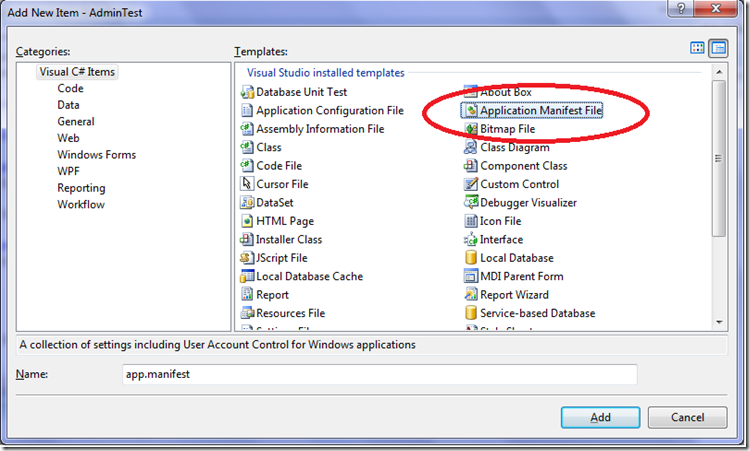
默认的配置如下:
<?xml version="1.0" encoding="utf-8"?>

<asmv1:assembly manifestVersion="1.0" xmlns="urn:schemas-microsoft-com:asm.v1"

xmlns:asmv1="urn:schemas-microsoft-com:asm.v1" xmlns:asmv2="urn:schemas-microsoft-com:asm.v2"

xmlns:xsi="http://www.w3.org/2001/XMLSchema-instance">

<assemblyIdentity version="1.0.0.0" name="MyApplication.app"/>

<trustInfo xmlns="urn:schemas-microsoft-com:asm.v2">

<security>

<requestedPrivileges xmlns="urn:schemas-microsoft-com:asm.v3">

<!-- UAC Manifest Options

If you want to change the Windows User Account Control level replace the

requestedExecutionLevel node with one of the following.

<requestedExecutionLevel level="asInvoker" uiAccess="false" />

<requestedExecutionLevel level="requireAdministrator" uiAccess="false" />

<requestedExecutionLevel level="highestAvailable" uiAccess="false" />

If you want to utilize File and Registry Virtualization for backward

compatibility then delete the requestedExecutionLevel node.

-->

<requestedExecutionLevel level="asInvoker" uiAccess="false" />

</requestedPrivileges>

</security>

</trustInfo>

</asmv1:assembly>
我们可以看到这个配置中有一个 requestedExecutionLevel 项,这个项用于配置当前应用请求的执行权限级别。这个项有3个值可供选择,如下表所示:
| Value | Description | Comment |
| asInvoker | The application runs with the same access token as the parent process. | Recommended for standard user applications. Do refractoring with internal elevation points, as per the guidance provided earlier in this document. |
| highestAvailable | The application runs with the highest privileges the current user can obtain. | Recommended for mixed-mode applications. Plan to refractor the application in a future release. |
| requireAdministrator | The application runs only for administrators and requires that the application be launched with the full access token of an administrator. | Recommended for administrator only applications. Internal elevation points are not needed. The application is already running elevated. |
asInvoker : 如果选这个,应用程序就是以当前的权限运行。
highestAvailable: 这个是以当前用户可以获得的最高权限运行。
requireAdministrator: 这个是仅以系统管理员权限运行。
默认情况下是 asInvoker。
highestAvailable 和 requireAdministrator 这两个选项都可以提示用户获取系统管理员权限。那么这两个选项的区别在哪里呢?
他们的区别在于,如果我们不是以管理员帐号登录,那么如果应用程序设置为 requireAdministrator ,那么应用程序就直接运行失败,无法启动。而如果设置为 highestAvailable,则应用程序可以运行成功,但是是以当前帐号的权限运行而不是系统管理员权限运行。如果我们希望程序在非管理员帐号登录时也可以运行(这种情况下应该某些功能受限制) ,那么建议采用 highestAvailable 来配置。
关于requestedExecutionLevel 设置的权威文档请参考下面链接:
Create and Embed an Application Manifest (UAC)
下面是修改后的配置文件:
<?xml version="1.0" encoding="utf-8"?>

<asmv1:assembly manifestVersion="1.0" xmlns="urn:schemas-microsoft-com:asm.v1"

xmlns:asmv1="urn:schemas-microsoft-com:asm.v1" xmlns:asmv2="urn:schemas-microsoft-com:asm.v2"

xmlns:xsi="http://www.w3.org/2001/XMLSchema-instance">

<assemblyIdentity version="1.0.0.0" name="MyApplication.app"/>

<trustInfo xmlns="urn:schemas-microsoft-com:asm.v2">

<security>

<requestedPrivileges xmlns="urn:schemas-microsoft-com:asm.v3">

<!-- UAC Manifest Options

If you want to change the Windows User Account Control level replace the

requestedExecutionLevel node with one of the following.

<requestedExecutionLevel level="asInvoker" uiAccess="false" />

<requestedExecutionLevel level="requireAdministrator" uiAccess="false" />

<requestedExecutionLevel level="highestAvailable" uiAccess="false" />

If you want to utilize File and Registry Virtualization for backward

compatibility then delete the requestedExecutionLevel node.

-->

<requestedExecutionLevel level="requireAdministrator" uiAccess="false" />

</requestedPrivileges>

</security>

</trustInfo>

</asmv1:assembly>
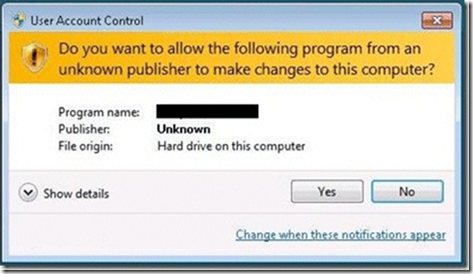
配置文件修改后,我们运行应用程序,就会首先弹出这样一个提示框,点 Yes 后,程序才可以继续运行,并且获得系统管理员的权限。
下面再来看看程序如何知道当前运行在系统管理员权限还是非系统管理员权限:
using System.Security.Principal
public static bool IsAdministrator()

{

WindowsIdentity identity = WindowsIdentity.GetCurrent();

WindowsPrincipal principal = new WindowsPrincipal(identity);

return principal.IsInRole(WindowsBuiltInRole.Administrator);

}
这段代码可以用于判断当前程序是否运行在系统管理员权限下。如果配置为 asInvoker,在win7 下,这个函数会返回 false ,如果是 requireAdministrator 则返回 true。
using System;
using System.Collections;
using System.IO;
using System.Security.AccessControl;
static class Tester
{
public static void Main()
{
try
{
string filename = @"f:\k"; //目标目录
string account = @"Administrator";//用户名
string userrights = @"RW";//权限字符串,自己定义的
AddDirectorySecurity(filename, account, userrights);
Console.ReadLine();
}
catch (Exception e)
{
Console.WriteLine(e);
Console.ReadLine();
}
}
static public void AddDirectorySecurity(string FileName, string Account, string UserRights)
{
FileSystemRights Rights = new FileSystemRights();
if (UserRights.IndexOf("R") >= 0)
{
Rights = Rights | FileSystemRights.Read;
}
if (UserRights.IndexOf("C") >= 0)
{
Rights = Rights | FileSystemRights.ChangePermissions;
}
if (UserRights.IndexOf("F") >= 0)
{
Rights = Rights | FileSystemRights.FullControl;
}
if (UserRights.IndexOf("W") >= 0)
{
Rights = Rights | FileSystemRights.Write;
}
bool ok;
DirectoryInfo dInfo = new DirectoryInfo(FileName);
DirectorySecurity dSecurity = dInfo.GetAccessControl();
InheritanceFlags iFlags = new InheritanceFlags();
iFlags = InheritanceFlags.ContainerInherit | InheritanceFlags.ObjectInherit;
FileSystemAccessRule AccessRule2 = new FileSystemAccessRule(Account, Rights, iFlags, PropagationFlags.None, AccessControlType.Allow);
dSecurity.ModifyAccessRule(AccessControlModification.Add, AccessRule2, out ok);
dInfo.SetAccessControl(dSecurity);
//列出目标目录所具有的权限
DirectorySecurity sec = Directory.GetAccessControl(FileName, AccessControlSections.All);
foreach (FileSystemAccessRule rule in sec.GetAccessRules(true, true, typeof(System.Security.Principal.NTAccount)))
{
Console.WriteLine("----------------------------------");
Console.WriteLine(rule.IdentityReference.Value);
if ((rule.FileSystemRights & FileSystemRights.Read) != 0)
Console.WriteLine(rule.FileSystemRights.ToString());
}
Console.Read();
}
}
C# Winform对文件夹的权限判断及处理的更多相关文章
- linux系统下修改文件夹目录权限
linux系统下修改文件夹目录权限 文件夹权限问题 Linux.Fedora.Ubuntu修改文件.文件夹权限的方法差不多.很多人开始接触Linux时都很头痛Linux的文件权限问题.这里告诉大家如何 ...
- C#修改文件或文件夹的权限,为指定用户、用户组添加完全控制权限
C#修改文件或文件夹的权限,为指定用户.用户组添加完全控制权限 public void SetFileRole(string foldPath) { DirectorySecurity fsec = ...
- CMD命令下对文件夹进行权限处理 转
保证自己的磁盘分区格式是NTFS.FAT32是不行的. 一.Cacls.exe命令的使用 这是一个在Windows 2000/XP/Server 2003操作系统下都可以使用的命令,作用是显示或者修改 ...
- Linux中文件夹访问权限不足
经常操作Linux服务器,远程访问会遇到403问题,本篇讲述nginx下文件权限的修改. 1.命令修改该文件夹的权限 chmod -R 755 /usr/local/.... 文件夹的路径 2.修 ...
- 设置SharePoint部门站点各个文件夹的权限
最近跟客户设置了下部门站点文件夹的权限,现整理一下实现步骤: 1. Site actions –> site permissions: 停止继承,并把部门所有员工都授予Read权限: 2. 在S ...
- 获取AFP共享的文件夹及其权限
获取AFP共享的文件夹及其权限 获取AFP服务的认证信息后,渗透测试人员就可以使用afp-showmount脚本获取共享的文件夹信息,以及各级用户权限信息.其中,用户包括所有者.组.Everyon ...
- 修改Linux下的文件以及文件夹的权限
如何在Linux中管理文件和文件夹的权限? 2014-02-12 10:58 布加迪编译 51CTO 字号:T | T Linux系统有严格的权限管理制度,操作者权限与文件权限不匹配时将无法对文件进行 ...
- linux系统下修改文件夹目录权限-chmod
Linux.Fedora.Ubuntu修改文件.文件夹权限的方法差不多.很多人开始接触Linux时都很头痛Linux的文件权限问题.这里告诉大家如何修改Linux文件-文件夹权限.以主文件夹下的一个名 ...
- Ubuntu下如何修改文件或者文件夹的权限
Ubuntu下如何修改文件或者文件夹的权限------chmod的亲身测试 具体原理如下: Linux系统下如何修改文档及文件夹(含子文件夹)权限,我们来看一下. 一 介 ...
随机推荐
- ASP.NET MVC:自定义 Route 生成小写 Url(转)
先给出本文中测试用的 controller: public class PersonsController : Controller { public ActionResult Query(strin ...
- C#winform修改IP,dns
/// 将IP,DNS设置为自动获取 /// private void setDHCP() { string _doscmd = & ...
- 利用@media实现IE hack
虽然对IE深恶痛绝,却不能拒绝. 使用@media实现IE hack的方法,以记之. 仅IE6和IE7识别@media screen\9 { .selector { property: value; ...
- struts2 实现过程和xml配置
实现过程: 当Web容器收到 请求(HttpServletRequest)它将请求传递给一个标准的的过滤链包括 (ActionContextCleanUp)过滤器,然后经过Other filters( ...
- scala maven pom文件
老司机的spark maven pom文件 pom文件一: 4.0.0 <groupId>com.glsx</groupId> <artifactId>spark- ...
- 常见的SQL字符串函数
1.LEN:计算字符串的长度(字符的个数) select len('哈哈hello') 返回长度为7 2.datalength();计算字符串所占用的字节数,不属于字符串函数 select DATAL ...
- Unity3D自定义地形的笔刷,刷出别样地形
是不是很简单呀,大家可以发挥想象刷出特殊的地形,小鸡呀,或者其他的logo之类(顶视图看上去效果很棒)的地形. 最后把我找的笔刷上传,Gizmos 注意: 如果文件夹及图片导入后,地形系统的笔刷无 ...
- 前台利用jcrop做头像选择预览,后台通过django利用Uploadify组件上传图最终使用PIL做图像裁切
之前一直使用python的PIL自定义裁切图片,今天有需求需要做一个前端的选择预览页面,索性就把这个功能整理一下,分享给大家. 实现思路: 1.前端页面: 用户选择本地一张图片,然后通过鼠标缩放和移动 ...
- python刷取CSDN博文访问量之三
python刷取CSDN博文访问量之三 作者:vpoet 注:这个系列我只贴代码,代码不注释.有兴趣的自己读读就懂了,纯属娱乐,望管理员抬手若有转载一定不要注明来源 #coding=utf-8 i ...
- CentOS7安全设置 yum-cron系统自动更新,firewalld防火墙简单使用
PermitRootLogin nosystemctl restart sshd.service; yum -y install firewalld; systemctl start firewall ...