
如何使用 Android Studio 的 git hub 功能
How to use GitHub with Android Studio
This article will explain how to use GitHub with Android Studio.
Firstly, let’s login to github.com and create a new repository. From the top right corner of the screen, click the +sign and select New repository.

Now complete the form to create a new repository called testproject. Leave the Initialize this repository with a README unticked.

Next, open Android Studio and create a new project. Call your new application TestProject. Click Next to continue.
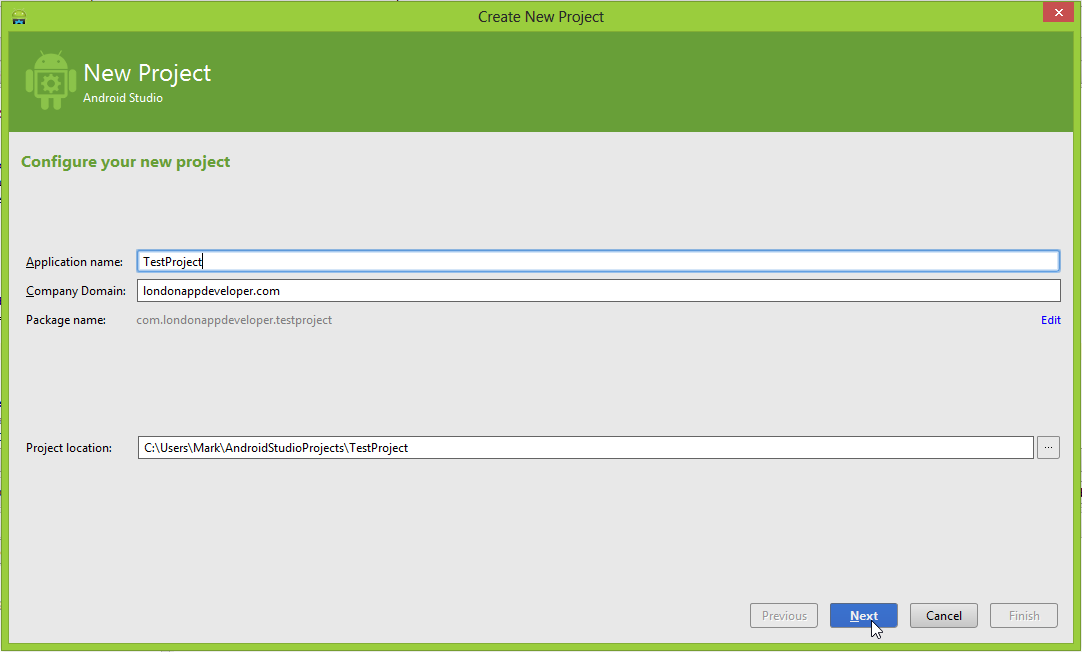
Leave the next page as default and click Next.

On the Add an activity to Mobile screen select Blank Activity and click Next.

In the next screen, leave the default activity name of MyActivity and click Finish.

Your new project will open in Android Studio. On the top menu, select VCS > Import into Version Control >Create Git Repository.

On the next screen, leave it all as default and click OK.

Now use Internet Explorer and navigate to the root of your projects folder. Right click and select Git Bash (If you do not see this option, then first install Git for Windows).
When the Git bash screen appears, type:
|
1
|
git remote add origin https://github.com/[username]/[project_name].git |
An example of a Git repository URL is: https://github.com/markwint/testproject.git

Then press enter. The GitHub remote will be added to your Git repository.
Next, jump back into Android Studio, right click your projects root directory and select Git > Add. This will add all your project files to your Git repository.

It will seem like nothing has happened, but trust me, the project files are added.
Now right click the project name again and this time select Git > Commit Directory.
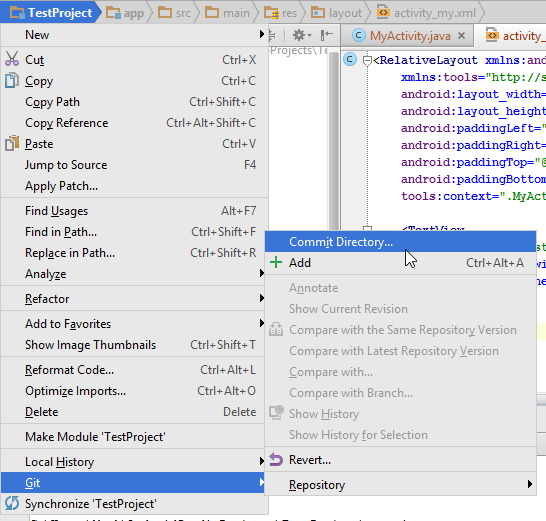
In the next screen, type a Commit Message and select Commit.

If a Code Analysis warning appears, click Commit. (Unless it’s a real project, in which case review and fix the issue before committing!)

Now, right click the project name, select Git > Repository > Push.

Check the box Push current branch to alternative branch and leave the branch name as master. Then select push.

Now enter your GitHub Login (email address) and Password. Then click OK.

If it’s all good, you will see this message.

Now your code is pushed to your GitHub repository. Don’t believe me? Logon and check for yourself.

Hope that was helpful.
- 顶
如何使用 Android Studio 的 git hub 功能的更多相关文章
- Android Studio配置Git及Git文件状态说明
Android Studio配置Git还是比较简单的,麻烦的是可能中间出现各种问题.如果你想了解或感兴趣,请往下看. 首先你得下载Git客户端,网址:http://git-scm.com/downlo ...
- 或许是介绍Android Studio使用Git最详细的文章
欢迎访问我的个人博客转发请注明出处:http://www.wensibo.top/2017/03/12/GitOnAS/ 前言 本文较长,图片很多很多,流量党慎入 使用Git已经有一段时间了,但是之前 ...
- Android Studio中Git和GitHub使用详解
一.Git和GitHub简述 1.Git 分布式版本控制系统,最先使用于Linux社区,是一个开源免费的版本控制系统,功能类似于SVN和CVS.Git与其他版本管理工具最大的区别点和优点就是分布式: ...
- Android studio使用git教程
①下载Git工具,配置到Android studio中 http://git-scm.com/downloads ------------------------------------------- ...
- Android studio配置Git
Android studio配置Git 1.下载window 版git并安装:下载地址 2.Android Studio设置git插件:File->Setting->Version Con ...
- Android Studio 通过 git update 或者 pull 的时候出错及解决办法
Android Studio 通过 git update 或者 pull 的时候出错,log 如下: Couldn't save uncommitted changes. Tried to save ...
- Win环境 Android Studio使用Git 教程 ( 一 )
一. 安装 下载安装完成Git后 进入命令行 输入命令git --version,如果能显示版本则说明安装成功,如果没有显示版本,需要配置环境变量: 在path中添加git的安装位置 二 . 配置信息 ...
- Android Studio的git功能的使用介绍
本文介绍Android Studio(下面简称AS)中git工具的一些简单使用.因为AS为git的使用提供了很多人性化的图形界面操作,在很大程度上可以增加开发效率.本文面向新手,题主自己也是新手一枚, ...
- Android Studio 2.2新功能预览
升级SDK可用Background 多加了个按钮,可用一边写代码一边下载SDK Instant Run 修改代码一秒启动 APK analyzer 分析任何的APK 查看APK下载包的大小,解压后的实 ...
随机推荐
- Java Eclipse常规设置
改变字体大小 eclipse英文版中如何去修改字体及方法?首先打开eclipse中,按下面的方法即可菜单项:window ->preferences -> general -> ap ...
- Android R.layout. 找不到已存在的布局文件
今天写新页面的时候,突然发现R.layout. 无法找到我已经写好的页面,于是顿时就不淡定了. 把R文件翻了一遍 发现也没有.... 然后我就看到了这个. android.R 原来是我错把Andr ...
- Android Fragment StartActivityForresult调用实例
fragment里面的onActivityResult 怎样才能被调用,很简单,就一句话, startActivityForResult(intent, getActivity().RESULT_FI ...
- 鼠标经过图片时变换的两种方法--css+div及javascript应用
javascript方式: 熟悉使用document.getElementById()取得节点对象 <!DOCTYPE html PUBLIC "-//W3C//DTD XHTM ...
- Scala数组操作实战详解
增删改查,要注意的是,Array数组是定长数组,ArrayBuffer数组才是变长数组. 其他集合也存在可变不可变.例如,List,Set,Map 多维数组定义方法与Java类似.
- c语言题目:找出一个二维数组的“鞍点”,即该位置上的元素在该行上最大,在该列上最小。也可能没有鞍点
//题目:找出一个二维数组的“鞍点”,即该位置上的元素在该行上最大,在该列上最小.也可能没有鞍点. // #include "stdio.h" #include <stdli ...
- 点语法、property、self注意
1.点语法(找出不合理的地方)#import <Foundation/Foundation.h>@interface Person : NSObject{ int _age;}- ( ...
- verilog 随笔
不是说你在代码里定义一个reg型变量,综合器就会综合处一个寄存器来,case必须在always块里,always里面的被赋值变量必须是reg型,这是语法的规定,只能遵守.写代码的时候不要加入触发器(不 ...
- Vim 缓冲区与窗口 操作
##############缓冲区 :e(:open) 打开新缓冲区 :ls (:buffers) 列出列表内所有缓冲区/bs /bv /be(BufExplore快捷键) :b 2(:buffer ...
- Python 正则表达式应用【转载】
将从正则表达式开始讲Python的标准库.正则表达式是文字处理中常用的工具,而且不需要额外的系统知识或经验.我们会把系统相关的包放在后面讲解. 正则表达式(regular expression)主要功 ...