
NET Framework项目移植到NET Core上遇到的一系列坑(2)
目录
- 获取请求的参数
- 获取完整的请求路径
- 获取域名
- 编码
- 文件上传的保存方法
- 获取物理路径
- 返回Json属性大小写问题
- webconfig的配置移植到appsettings.json
- 设置区域块MVC的路由器和访问区域块的视图
- NetCore访问静态资源文件
- MVC调用子页视图
- 过滤器
- 使用session和解决sessionID一直变化的问题
- MD5加密
- Path.Combine()
- DateTime
1.获取请求的参数
NET Framework版本:
 Request["xxx"];

 Request.Files[];
NET Core版本:
 Request.Form["xxx"];

 Request.Form.Files[];
2.获取完整的请求路径
NET Framework版本:
Request.RequestUri.ToString();
NET Core版本:
 //先添加引用

 using Microsoft.AspNetCore.Http.Extensions;

 //再调用

 Request.GetDisplayUrl();
3.获取域名
NET Framework版本:
HttpContext.Current.Request.Url.Authority
NET Core版本:
HttpContext.Request.Host.Value
4.编码
NET Framework版本:
 System.Web.HttpContext.Current.Server.UrlEncode("<li class=\"test\"></li>")

 "%3cli+class%3d%22test%22%3e%3c%2fli%3e"

 System.Web.HttpContext.Current.Server.UrlDecode("%3cli+class%3d%22test%22%3e%3c%2fli%3e")

 "<li class=\"test\"></li>"
NET Core版本:
 //两种方法,建议用System.Web.HttpUtility

 System.Web.HttpUtility.UrlEncode("<li class=\"test\"></li>");

 "%3cli+class%3d%22test%22%3e%3c%2fli%3e"

 System.Web.HttpUtility.UrlDecode("%3cli+class%3d%22test%22%3e%3c%2fli%3e");

 "<li class=\"test\"></li>"

 System.Net.WebUtility.UrlEncode("<li class=\"test\"></li>")

 "%3Cli+class%3D%22test%22%3E%3C%2Fli%3E"

 System.Net.WebUtility.UrlDecode("%3Cli+class%3D%22test%22%3E%3C%2Fli%3E")

 "<li class=\"test\"></li>"

 System.Net.WebUtility.UrlDecode("%3cli+class%3d%22test%22%3e%3c%2fli%3e")

 "<li class=\"test\"></li>"


5.文件上传的保存方法
NET Framework版本:
 var file = Request.Files[];

 //blockFullPath指保存的物理路径

 file.SaveAs(blockFullPath);
NET Core版本:
 var file = Request.Form.Files[];

 //blockFullPath指保存的物理路径

 using (FileStream fs = new FileStream(blockFullPath, FileMode.CreateNew))

 {

 file.CopyTo(fs);

 fs.Flush();

 }
6.获取物理路径
NET Framework版本:
 //作为一个全局变量获取物理路径的方法

 public string ffmpegPathc = System.Web.Hosting.HostingEnvironment.MapPath("~/Content/ffmpeg/ffmpeg.exe");

 //获取在控制器的构造函数里直接调用Server.MapPath

 ffmpegPathc = Server.MapPath("~/Content/ffmpeg/ffmpeg.exe");
NET Core版本:
 //从ASP.NET Core RC2开始,可以通过注入 IHostingEnvironment 服务对象来取得Web根目录和内容根目录的物理路径。代码如下:

 [Area("Admin")]

 public class FileUploadController : Controller

 {

 private readonly IHostingEnvironment _hostingEnvironment;

 public string ffmpegPathc = "";//System.Web.Hosting.HostingEnvironment.MapPath("~/Content/ffmpeg/ffmpeg.exe");

 public FileUploadController(IHostingEnvironment hostingEnvironment)

 {

 _hostingEnvironment = hostingEnvironment;

 ffmpegPathc = _hostingEnvironment.WebRootPath + "/Content/ffmpeg/ffmpeg.exe";

 }

 }
这样写每个控制器就都要写一个构造函数,很麻烦,所以可以把它抽离出来,写个公共类去调用。代码如下:
先自定义一个静态类:
 using Microsoft.AspNetCore.Hosting;

 using Microsoft.Extensions.DependencyInjection;

 using System;

 namespace GDSMPlateForm

 {

 public static class HttpHelper

 {

 public static IServiceProvider ServiceProvider { get; set; }

 public static string GetServerPath(string path)

 {

 return ServiceProvider.GetRequiredService<IHostingEnvironment>().WebRootPath + path;

 }

 }

 }
然后 在startup类下的Configure 方法下:
HttpHelper.ServiceProvider = app.ApplicationServices;
startup下的ConfigureServices放下注册方法(这一步必不可少,但是这里可以不写,因为IHostingEnvironment 是微软默认已经帮你注册了,如果是自己的服务,那么必须注册)。
services.AddSingleton<IHostingEnvironment, HostingEnvironment>();
最后获取物理路径就可以这样直接调用了:
public string ffmpegPathc = HttpHelper.GetServerPath("/Content/ffmpeg/ffmpeg.exe");
7.返回Json属性大小写问题
NET Core返回Json属性默认都会自动转为小写,但项目之前Json属性有些是大写的,所以需要配置成不转化为小写的形式。
Startup.cs的ConfigureServices方法下添加一行代码:
 //Startup需要添加引用

 using Newtonsoft.Json.Serialization;

 //返回Json属性默认大小写

 services.AddMvc().AddJsonOptions(o => { o.SerializerSettings.ContractResolver = new DefaultContractResolver(); });
8.webconfig的配置移植到appsettings.json
NET Framework版本:
直接可以读取webconfig配置文件:
string format = System.Configuration.ConfigurationManager.AppSettings["format"].ToString();
NET Core版本:
NET Core不再支持web.config,取而代之的是appsettings.json,所以需要把一些配置移植过去。
例如web.config下的一些配置
 <appSettings>

 <add key="ismdb" value="" />

 <add key="webpath" value="" />

 <add key="format" value="jpg,jpeg,png,gif,bmp,tif,svg/mp3,wav/mp4,avi,mpg,wmv,mkv,rmvb,mov,flv/zip/.ppt,.pptx" />

 <add key="imagesize" value="" />

 <!-- *  *  -->

 <add key="musicsize" value="" />

 <!-- *  *  -->

 <add key="mediasize" value="" />

 <!-- *  *  -->

 <add key="packagesize" value="" />

 <add key="pptsize" value="" />

 </appSettings>
移植到appsettings.json
 {

 "Logging": {

 "IncludeScopes": false,

 "LogLevel": {

 "Default": "Warning"

 }

 },

 "webpath": "",

 "format": "jpg,jpeg,png,gif,bmp,tif,svg/mp3,wav/mp4,avi,mpg,wmv,mkv,rmvb,mov,flv/zip/.ppt,.pptx",

 "imagesize": "",

 "musicsize": "",

 "mediasize": "",

 "packagesize": "",

 "pptsize": ""

 }
然后编写一个类去调用这个appsettings.json
 using Microsoft.Extensions.Configuration;

 using System.IO;

 namespace GDSMPlateForm

 {

 public class RConfigureManage

 {

 public static string GetConfigure(string key)

 {

 //添加 json 文件路径

 var builder = new ConfigurationBuilder().SetBasePath(Directory.GetCurrentDirectory()).AddJsonFile("appsettings.json");

 //创建配置根对象

 var configurationRoot = builder.Build();

 //取配置根下的 name 部分

 string secvalue = configurationRoot.GetSection(key).Value;

 return secvalue;

 }

 }

 }
调用的方式:
string format = RConfigureManage.GetConfigure("format");
9.设置区域块MVC的路由器和访问区域块的视图
NET Framework版本:
NET Framework新建一个区域会自带一个类设置路由器的,如图:
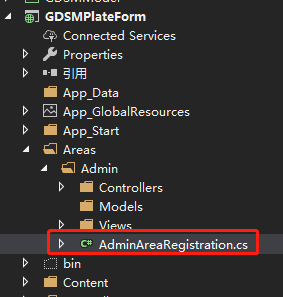
 using System.Web.Mvc;

 namespace GDSMPlateForm.Areas.Admin

 {

 public class AdminAreaRegistration : AreaRegistration

 {

 public override string AreaName

 {

 get

 {

 return "Admin";

 }

 }

 public override void RegisterArea(AreaRegistrationContext context)

 {

 context.MapRoute(

 "Admin_default",

 "Admin/{controller}/{action}/{id}",

 new { action = "Index", id = UrlParameter.Optional }

 );

 }

 }

 }
NET Core版本:
NET Core新建一个区域不会自带一个类用于设置路由器,所以需要在Startup类的Configure方法里多加一条路由器设置
 app.UseMvc(routes =>

 {

 routes.MapRoute(

 name: "areas",

 template: "{area:exists}/{controller=Home}/{action=Index}/{id?}"

 );

 });
然后需要在每个控制器下添加一个标签,指定该控制器属于哪个区域的,如图:

不加的话访问不到区域的视图,报404错误。
10.NetCore访问静态资源文件
NET Framework版本:
NET Framework可以在webconfig下配置这些静态资源文件
 <staticContent>

 <mimeMap fileExtension="." mimeType="image/svg+xml" />

 <mimeMap fileExtension=".properties" mimeType="application/octet-stream" />

 </staticContent>
NET Core版本:
NET Core并没有webconfig,所以需要在Startup类的Configure方法里自己配置。
NET Core项目默认的资源文件存在wwwroot下,可以通过app.UseStaticFiles方法自己定义资源文件的路径还有类型。
 ar provider = new FileExtensionContentTypeProvider();

 provider.Mappings[".properties"] = "application/octet-stream";

 app.UseStaticFiles(new StaticFileOptions

 {

 FileProvider = new PhysicalFileProvider(

 Path.Combine(Directory.GetCurrentDirectory(), "wwwroot", "Content")),

 RequestPath = "/Content",

 ContentTypeProvider = provider

 });
11.MVC调用子页视图
NET Framework版本:
@Html.Action("UserBackView", "UserManage")
NET Core版本:
NET Core不再支持Html.Action(),不过可以手动自己去实现它。
自定义一个静态类 HtmlHelperViewExtensions,命名空间设置为 Microsoft.AspNetCore.Mvc.Rendering。网上找的一个类,复制过来就行了,如下:
 using Microsoft.AspNetCore.Html;

 using Microsoft.AspNetCore.Http;

 using Microsoft.AspNetCore.Mvc.Infrastructure;

 using Microsoft.AspNetCore.Routing;

 using Microsoft.Extensions.DependencyInjection;

 using System;

 using System.IO;

 using System.Threading.Tasks;

 namespace Microsoft.AspNetCore.Mvc.Rendering

 {

 public static class HtmlHelperViewExtensions

 {

 public static IHtmlContent Action(this IHtmlHelper helper, string action, object parameters = null)

 {

 var controller = (string)helper.ViewContext.RouteData.Values["controller"];

 return Action(helper, action, controller, parameters);

 }

 public static IHtmlContent Action(this IHtmlHelper helper, string action, string controller, object parameters = null)

 {

 var area = (string)helper.ViewContext.RouteData.Values["area"];

 return Action(helper, action, controller, area, parameters);

 }

 public static IHtmlContent Action(this IHtmlHelper helper, string action, string controller, string area, object parameters = null)

 {

 if (action == null)

 throw new ArgumentNullException("action");

 if (controller == null)

 throw new ArgumentNullException("controller");

 var task = RenderActionAsync(helper, action, controller, area, parameters);

 return task.Result;

 }

 private static async Task<IHtmlContent> RenderActionAsync(this IHtmlHelper helper, string action, string controller, string area, object parameters = null)

 {

 // fetching required services for invocation

 var serviceProvider = helper.ViewContext.HttpContext.RequestServices;

 var actionContextAccessor = helper.ViewContext.HttpContext.RequestServices.GetRequiredService<IActionContextAccessor>();

 var httpContextAccessor = helper.ViewContext.HttpContext.RequestServices.GetRequiredService<IHttpContextAccessor>();

 var actionSelector = serviceProvider.GetRequiredService<IActionSelector>();

 // creating new action invocation context

 var routeData = new RouteData();

 foreach (var router in helper.ViewContext.RouteData.Routers)

 {

 routeData.PushState(router, null, null);

 }

 routeData.PushState(null, new RouteValueDictionary(new { controller = controller, action = action, area = area }), null);

 routeData.PushState(null, new RouteValueDictionary(parameters ?? new { }), null);

 //get the actiondescriptor

 RouteContext routeContext = new RouteContext(helper.ViewContext.HttpContext) { RouteData = routeData };

 var candidates = actionSelector.SelectCandidates(routeContext);

 var actionDescriptor = actionSelector.SelectBestCandidate(routeContext, candidates);

 var originalActionContext = actionContextAccessor.ActionContext;

 var originalhttpContext = httpContextAccessor.HttpContext;

 try

 {

 var newHttpContext = serviceProvider.GetRequiredService<IHttpContextFactory>().Create(helper.ViewContext.HttpContext.Features);

 if (newHttpContext.Items.ContainsKey(typeof(IUrlHelper)))

 {

 newHttpContext.Items.Remove(typeof(IUrlHelper));

 }

 newHttpContext.Response.Body = new MemoryStream();

 var actionContext = new ActionContext(newHttpContext, routeData, actionDescriptor);

 actionContextAccessor.ActionContext = actionContext;

 var invoker = serviceProvider.GetRequiredService<IActionInvokerFactory>().CreateInvoker(actionContext);

 await invoker.InvokeAsync();

 newHttpContext.Response.Body.Position = ;

 using (var reader = new StreamReader(newHttpContext.Response.Body))

 {

 return new HtmlString(reader.ReadToEnd());

 }

 }

 catch (Exception ex)

 {

 return new HtmlString(ex.Message);

 }

 finally

 {

 actionContextAccessor.ActionContext = originalActionContext;

 httpContextAccessor.HttpContext = originalhttpContext;

 if (helper.ViewContext.HttpContext.Items.ContainsKey(typeof(IUrlHelper)))

 {

 helper.ViewContext.HttpContext.Items.Remove(typeof(IUrlHelper));

 }

 }

 }

  } }
然后在Startup中的 ConfigureServices 方法添加:
 services.AddSingleton<IHttpContextAccessor, HttpContextAccessor();

 services.AddSingleton<IActionContextAccessor, ActionContextAccessor>();
这样就可以像NET Framework版本一样去调用子页面视图了:
@Html.Action("UserBackView", "UserManage")
12.过滤器
NET Framework版本
NET Framework版本上Global.asax中Application_Start方法可以做很多配置,过滤器也是其中一种。
 protected void Application_Start()

 {

 AreaRegistration.RegisterAllAreas();

 FilterConfig.RegisterGlobalFilters(GlobalFilters.Filters);//全局过滤器集合

 RouteConfig.RegisterRoutes(RouteTable.Routes);

 BundleConfig.RegisterBundles(BundleTable.Bundles);

 }

 public class FilterConfig

 {

 public static void RegisterGlobalFilters(GlobalFilterCollection filters)

 {

 filters.Add(new HandleErrorAttribute());

 filters.Add(new LoginCheckFilterAttribute() { IsCheck = true });//自定义一个过滤器

 }

 }

 //继承过滤器基类并重写方法

 public class LoginCheckFilterAttribute : ActionFilterAttribute

 {

 //表示是否检查

 public bool IsCheck { get; set; }

 //Action方法执行之前执行此方法

 public override void OnActionExecuting(ActionExecutingContext filterContext)

 {

 base.OnActionExecuting(filterContext);

 if (IsCheck)

 {

 //添加自己的逻辑

 }

 }

 }
NET Core版本:
NET Core不在支持Global.asax,很多配置写在Startup里。过滤器的添加方法如下:
 public void ConfigureServices(IServiceCollection services)

 {

 services.AddMvc(options =>

 {

 options.Filters.Add(typeof(AuthorizationFilters));// 自定义一个类AuthorizationFilters,添加身份验证过滤器

 });

 }

 /// <summary>

 /// 身份认证类继承IAuthorizationFilter接口

 /// </summary>

 public class AuthorizationFilters :IAuthorizationFilter

 {

 /// <summary>

 /// 请求验证,当前验证部分不要抛出异常,ExceptionFilter不会处理

 /// </summary>

 /// <param name="context">请求内容信息</param>

 public void OnAuthorization(AuthorizationFilterContext context)

 {

 //写自己的逻辑

 }

 }
13.使用session和解决sessionID一直变化的问题
NET Core版本:
在Startup类里添加session配置
 public void ConfigureServices(IServiceCollection services)

 {

 services.AddDistributedMemoryCache();

 services.AddSession(option =>

 { //设置session过期时间

 option.IOTimeout = TimeSpan.FromHours();

 option.IdleTimeout = TimeSpan.FromHours();

 });

 services.AddMvc();

 }

 public void Configure(IApplicationBuilder app, IHostingEnvironment env, IServiceProvider svp)

 {

 app.UseSession();//必须在app.UseMvc之前,否则报错

 app.UseMvc(routes =>

 {

 routes.MapRoute(

 name: "default",

 template: "{controller=Home}/{action=Index}/{id?}");

 });

 }
配置完成后session就可以使用了,不过当Session保存有值,id才不会改变,没有值每次刷新都会变,可以给在使用session时可以给session随便赋个值以保证sessionid不会一直变化。
 HttpContext.Session.Set("login", Encoding.UTF8.GetBytes("login"));

 string sessionid = HttpContext.Session.Id;
14.MD5加密
NET Framework版本:
 //参数str类型是string

 System.Web.Security.FormsAuthentication.HashPasswordForStoringInConfigFile(str, "MD5");
NET Core版本:用以下这个方法替换了
 /// <summary>

 /// 32位MD5加密

 /// </summary>

 /// <param name="input"></param>

 /// <returns></returns>

 private static string Md5Hash(string input)

 {

 MD5CryptoServiceProvider md5Hasher = new MD5CryptoServiceProvider();

 byte[] data = md5Hasher.ComputeHash(Encoding.Default.GetBytes(input));

 StringBuilder sBuilder = new StringBuilder();

 for (int i = ; i < data.Length; i++)

 {

 sBuilder.Append(data[i].ToString("x2"));

 }

 return sBuilder.ToString();

 }
15.Path.Combine()
该方法是路径拼接,在NET Framework版本和NET Core版本同样支持,不过用Path.Combine拼接出来的路径是这样的:xxxx\\xxxx,用的是“\\”,这种路径在Window系统上可以正常运行,但是在Linux上是无法定位到准确的路径的。Linux上的路径是这样的:xxxx/xxxx。所以当我们用Path.Combine这个方法时最好再配合一个替换方法:
Path.Combine(path1,path2).Replace("\\","/");
16.DateTime
  // 方法在不同平台返回的时间格式不一样,即使使用ToString("yyyy/MM/dd")希望转成'2019/04/18'这种格式,但在Centos7平台下它还是变成了‘2019-04-18’这样,可以考虑用Replace方法去替换。

   core 2.1 DateTime.Now.ToString()
原文地址:https://www.cnblogs.com/lonelyxmas/p/12001657.html
NET Framework项目移植到NET Core上遇到的一系列坑(2)的更多相关文章
- NET Framework项目移植到NET Core上遇到的一系列坑
原文:NET Framework项目移植到NET Core上遇到的一系列坑 版权声明:本文为博主原创文章,遵循CC 4.0 BY-SA版权协议,转载请附上原文出处链接和本声明. 本文链接:https: ...
- NET Framework项目移植到NET Core上踩的坑(1)
本文章向大家介绍NET Framework项目移植到NET Core上遇到的一系列坑,主要包括NET Framework项目移植到NET Core上遇到的一系列坑使用实例.应用技巧.基本知识点总结和需 ...
- 在Visual Studio中将现有.NET Framework项目迁移至.NET Core 1.1 Preview 1
1)下载安装包含 .NET Core 1.1 Preview 1 的 SDK:Windows x64 安装包(下载地址列表) 2)下载最新 VS 2015 NuGet 插件:https://dist. ...
- 如何移植.NET Framework项目至.NET Core?
公司的项目一直采用.NET框架来开发Web项目.目前基础类库均为.NET Framework 4.6.2版本.Caching, Logging,DependencyInjection,Configur ...
- 开源纯C#工控网关+组态软件(十)移植到.NET Core
一. 引子 写这个开源系列已经十来篇了.自从十年前注册博客园以来,关注了张善友.老赵.xiaotie.深蓝色右手等一众大牛,也围观了逗比的吉日嘎啦.精密顽石等形形色色的园友.然而整整十年一篇文章都 ...
- 通俗易懂,什么是.NET?什么是.NET Framework?什么是.NET Core? .Net Web开发技术栈
通俗易懂,什么是.NET?什么是.NET Framework?什么是.NET Core? 什么是.NET?什么是.NET Framework?本文将从上往下,循序渐进的介绍一系列相关.NET的概念 ...
- .NET项目迁移到.NET Core操作指南
为什么要从.NET迁移到.NET Core? .NET Core提供的特性 .NET Core性能提升 .NET如何迁移到.NET Core? 迁移工作量评估(API兼容性分析) 迁移方案制定 通过类 ...
- (转)项目迁移_.NET项目迁移到.NET Core操作指南
原文地址:https://www.cnblogs.com/heyuquan/p/dotnet-migration-to-dotnetcore.html 这篇文章,汇集了大量优秀作者写的关于" ...
- .Net Core上用于代替System.Drawing的类库
目前.Net Core上没有System.Drawing这个类库,想要在.Net Core上处理图片得另辟蹊径. 微软给出了将来取代System.Drawing的方案,偏向于使用一个单独的服务端进行各 ...
随机推荐
- 使用Redis实现延时任务(一)
使用Redis实现延时任务(一) 前提 最近在生产环境刚好遇到了延时任务的场景,调研了一下目前主流的方案,分析了一下优劣并且敲定了最终的方案.这篇文章记录了调研的过程,以及初步方案的实现. 候选方案对 ...
- Magicodes.IE之导入学生数据教程
基础教程之导入学生数据 说明 本教程主要说明如果使用Magicodes.IE.Excel完成学生数据的Excel导入. 要点 本教程使用Magicodes.IE.Excel来完成Excel数据导入 需 ...
- jquery对类的操作,添加,删除,点击添加,再点击删除
jquery对类的操作,添加(addClass),删除l类(remoceClass),点击添加,再点击删除(toggleClass)
- jquery怎么添加多个类名
<!DOCTYPE html> <html lang="en"> <head> <meta charset="UTF-8&quo ...
- PHP安装sodium加密扩展
1.为什么会用到sodium加密扩展? 最近在做微信服务商相关的开发,主要用的的接口为微信小微商户进件接口.在请求相关接口中,需要对一些敏感字段进行加密,加密过程见https://pay.weixin ...
- css关于控制div靠左或靠右的排版布局
关于控制div靠左或靠右的排版布局,我整理三种平时用到的css属性小知识(元素模块靠左或靠右排版): 1.float属性(float 属性定义元素在哪个方向浮动) 值:left(元素向左浮动).rig ...
- jsp实现增加数据功能
1. 环境的搭建 软件 数据库 sql myeclipse 8.0 tomcat 6.0 2. 安装完 myeclipse 配置下 部署tomcat 6.0 =1=> =2=> 新 ...
- 2019-2020-2 20199317《Linux内核原理与分析》第二周作业
第一章 计算机工作原理 1 存储程序计算机工作模型 存储程序计算机的主要思想是将程序存放在计算机存储器中,然后按存储器中的存储程序的首地址执行程序的第一条指令,以后就按照该程序中编写 ...
- PyCharm 2019.3激活破解教程(永久)
2019.12.02 jetbrains公司发布了Python的最强编辑器PyCharm 2019.3版本.本次大版本主要对Jupyter notebooks .MongoDB.Python3.8功能 ...
- Spring Boot SpringApplication启动类(一)
目录 目录 前言 1.起源 2.SpringApplication 准备阶段 2.1.推断 Web 应用类型 2.2.加载应用上下文初始器 ApplicationContextInitializer ...