
WPF中定义TabItem的可选区域(特别是当使用Label来呈现Header时)
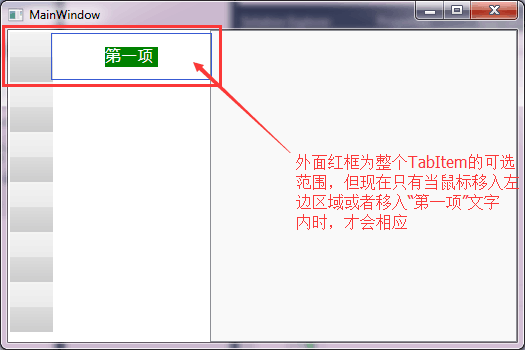
1. 如上图,所示,此时当鼠标移入蓝色框内除文字部分,整个TabItem是没反应的
经过查看代码可以看到:

将图标中的VerticalAlignment="Center"和HorizontalAlignment="Center"删掉后,就能达到如下效果:
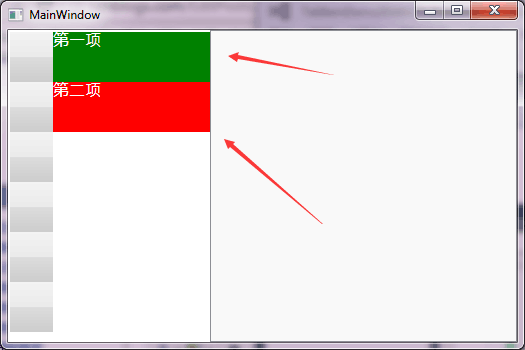
TabItem的可选区域明显恢复到正常情况。
完整的代码如下:
1. MainWindow.xaml
 <Window x:Class="TabItemDemo20160329.MainWindow"

         xmlns="http://schemas.microsoft.com/winfx/2006/xaml/presentation"

         xmlns:x="http://schemas.microsoft.com/winfx/2006/xaml"

         Title="MainWindow" Height="350" Width="525">

     <Grid>

         <TabControl TabStripPlacement="Left">

             <TabItem Header="第一项"></TabItem>

             <TabItem Header="第二项"></TabItem>

             <TabItem Header="第三项"></TabItem>

             <TabItem Header="第四项"></TabItem>

             <TabItem Header="第五项"></TabItem>

             <TabItem Header="第六项"></TabItem>

         </TabControl>

     </Grid>

 </Window>
2. MainWindow.xaml.cs ,该文件其实就是默认系统生成的
 using System;

 using System.Collections.Generic;

 using System.Linq;

 using System.Text;

 using System.Windows;

 using System.Windows.Controls;

 using System.Windows.Data;

 using System.Windows.Documents;

 using System.Windows.Input;

 using System.Windows.Media;

 using System.Windows.Media.Imaging;

 using System.Windows.Navigation;

 using System.Windows.Shapes;

 namespace TabItemDemo20160329

 {

     /// <summary>

     /// Interaction logic for MainWindow.xaml

     /// </summary>

     public partial class MainWindow : Window

     {

         public MainWindow()

         {

             InitializeComponent();

         }

     }

 }
3. TabItemStyle.xaml 样式文件:
 <ResourceDictionary xmlns="http://schemas.microsoft.com/winfx/2006/xaml/presentation"

                     xmlns:x="http://schemas.microsoft.com/winfx/2006/xaml">

     <Style TargetType="{x:Type TabItem}">

         <Setter Property="Width" Value="200"/>

         <Setter Property="Height" Value="50"/>

         <Setter Property="Cursor" Value="Hand"/>

         <Setter Property="Template">

             <Setter.Value>

                 <ControlTemplate TargetType="{x:Type TabItem}">

                     <Grid SnapsToDevicePixels="true" Background="{x:Null}" x:Name="tabItemGrid" Cursor="Hand">

                         <Grid>

                             <Grid.ColumnDefinitions>

                                 <ColumnDefinition Width="43*"/>

                                 <ColumnDefinition Width="157*"/>

                             </Grid.ColumnDefinitions>

                             <Border x:Name="border" BorderBrush="{x:Null}"   Background="{TemplateBinding Background}">

                                 <Border.RenderTransform>

                                     <TransformGroup>

                                         <ScaleTransform/>

                                         <SkewTransform/>

                                         <RotateTransform/>

                                         <TranslateTransform/>

                                     </TransformGroup>

                                 </Border.RenderTransform>

                             </Border>

                             <Label x:Name="lbl" Foreground="White"  Grid.Column="1" FontSize="16" FontFamily="Tomaha" Padding="0">

                                 <Label.Content>

                                     <TextBlock Margin="0,0,5,0" Text="{TemplateBinding Header}" TextWrapping="Wrap"/>

                                 </Label.Content>

                             </Label>

                             <!--<Label x:Name="lbl" Grid.Column="1" Content="{TemplateBinding Header}"/>-->

                         </Grid>

                     </Grid>

                     <ControlTemplate.Triggers>

                         <Trigger Property="IsMouseOver" Value="true">

                             <Setter TargetName="lbl" Property="Background" Value="Red"/>

                         </Trigger>

                         <Trigger Property="IsSelected" Value="true">

                             <Setter TargetName="lbl" Property="Background" Value="Green"/>

                         </Trigger>

                     </ControlTemplate.Triggers>

                 </ControlTemplate>

             </Setter.Value>

         </Setter>

     </Style>

 </ResourceDictionary>
4.App.xaml 配置文件,注意是将TabItem.xaml文件引入到App中:
 <Application x:Class="TabItemDemo20160329.App"

              xmlns="http://schemas.microsoft.com/winfx/2006/xaml/presentation"

              xmlns:x="http://schemas.microsoft.com/winfx/2006/xaml"

              StartupUri="MainWindow.xaml">

     <Application.Resources>

         <ResourceDictionary>

             <ResourceDictionary.MergedDictionaries>

                 <ResourceDictionary Source="TabItemStyle.xaml"/>

             </ResourceDictionary.MergedDictionaries>

         </ResourceDictionary>

     </Application.Resources>

 </Application>
WPF中定义TabItem的可选区域(特别是当使用Label来呈现Header时)的更多相关文章
- 如何在WPF中定义窗体模板
参考网址:https://www.cnblogs.com/chenxizhang/archive/2010/01/10/1643676.html可以在app.xaml中定义一个ControlTempl ...
- Windows Presentation Foundation(WPF)中的数据绑定(使用XmlDataProvider作控件绑定)
原文:Windows Presentation Foundation(WPF)中的数据绑定(使用XmlDataProvider作控件绑定) ------------------------------ ...
- WPF中TimeSpan的坑
记一次在WPF中,在将格式为“DD.HH:mm:ss”字符串转换成TimeSpan时遇到的坑 如果字符串为:DD.HH:mm:ss,转换结果正确.例如: var currentValue = &quo ...
- WPF 让普通 CLR 属性支持 XAML 绑定(非依赖属性),这样 MarkupExtension 中定义的属性也能使用绑定了
原文:WPF 让普通 CLR 属性支持 XAML 绑定(非依赖属性),这样 MarkupExtension 中定义的属性也能使用绑定了 版权声明:本作品采用知识共享署名-非商业性使用-相同方式共享 4 ...
- WPF中通过代码定义模板
WPF中可以再XAML中定义模板,也可以通过C#代码定义模板,通过代码可能更清楚的看清其逻辑,而且代码的好处就是可以随时动态的去操作,而在XAML中定义的一般都是静态的. //控件呈现的显示内容1(这 ...
- 【C#】WPF的xaml中定义的Trigger为什么有时候会不管用,如Border的MouseOver之类的
原文:[C#]WPF的xaml中定义的Trigger为什么有时候会不管用,如Border的MouseOver之类的 初学WPF,知道一些控件可以通过定义Style的Trigger改变要显示的样式,但是 ...
- JavaScript jQuery 中定义数组与操作及jquery数组操作
首先给大家介绍javascript jquery中定义数组与操作的相关知识,具体内容如下所示: 1.认识数组 数组就是某类数据的集合,数据类型可以是整型.字符串.甚至是对象Javascript不支持多 ...
- WPF中的数据绑定!!!
引用自:https://msdn.microsoft.com/zh-cn/magazine/cc163299.aspx 数据点: WPF 中的数据绑定 数据点 WPF 中的数据绑定 John Pap ...
- WPF中图形表示语法详解(Path之Data属性语法)ZZ
大可山 [MSN:a3news(AT)hotmail.com] http://www.zpxp.com 萝卜鼠在线图形图像处理 ------------------------------------ ...
随机推荐
- hdu 2190 悼念512汶川大地震遇难同胞——重建希望小学
题目 这道题拿到的时候拼凑了一会,感觉挺难的,然后博客说是:递推,我觉得递推其实就是找规律. 这是别人的思路:对于n米的长度,可以是由n-1长度加1而来,对于增加的1,只有三块1*1的砖一种铺法: 还 ...
- springmvc elf8848
刚开始觉得孔浩讲得好,之后觉得开涛讲得好,现在觉得elf8848讲得好.其实只是自己学习的各个阶段 孔浩:环境搭建,做了个基础的CRUD 开涛:讲了Controller(不该看),注解,数据绑定,请求 ...
- jquery添加select option两种代码思路比较
功能需求:在客户选择了check_in_date和check_out_date之后,将在check_in_date至check_out_date的promotions中自动添加符合条件的promoti ...
- Svn在eclipse中使用
首先下载SvnAdt,我这里有个中文版的. 下载地址是 http://dl.vmall.com/c0i19tiqbq 你在其它地方下载的文件的话,解压文件后,把fea ...
- ASP.Net C#---Excel导入导入后台方法
https://www.cnblogs.com/chendaye/p/10693983.html 这里写了Excel的导入导入方法, 后台我用的是MVC 以及 C#语句用来在后台做接受和输出数据 / ...
- Newtonsoft.Json日常用法
原文链接:https://www.cnblogs.com/ZengJiaLin/p/9578794.html
- Validation failed for one or more entities. See ‘EntityValidationErrors’ property for moredetails[转]
这里给大家介绍一个Exception类,让我们能够轻松的知道具体的哪一个字段出了什么问题. 那就是 System.Data.Entity.Validation.DbEntityValidationEx ...
- 《JavaScript模式》一书中提到的一些坑
1. 应当用数组字面量来创建数组,而不是用new Array() //反模式 var a = new Array('itsy', 'bitsy', 'spider'); //用字面量 var a = ...
- 用 python 修改文件中指定的行数
#! /bin/python filename='setup.ini' lines=[] with open(filename,'r') as f: lines=f.readlines() lines ...
- 聊聊jvm系列
http://blog.csdn.net/column/details/talk-about-jvm.html