
[转帖] IIS 与 HTTP/2 的介绍.
HTTP/2 on IIS
https://blogs.iis.net/davidso/http2
In October, we announced that IIS in the Windows 10 Technical Preview added support for HTTP/2. Windows 10 is now available, and HTTP/2 support is present in Windows 10 and the Server 2016 Technical Preview. HTTP/2 is a major upgrade after nearly two decades of HTTP/1.1 use and reduces the impact of latency and connection load on web servers.
What is HTTP/2?
HTTP/2 is a rework of how HTTP semantics flow over TCP connections. The major advance of HTTP/1.1 was the use of persistent connections to service multiple requests in a row. In HTTP/2, a persistent connection can be used to service multiple simultaneous requests. In the process, HTTP/2 introduces several additional features that improve the efficiency of HTTP over the network.
One connection for multiple requests
Every TCP connection requires a round trip to set up. If you’re using encryption, the TLS handshake takes another 1-2 round trips. All this happens before the first byte of the first response can be sent. By reusing an existing connection instead of setting up a new one, this overhead can be shared by many requests. HTTP/2 sharply reduces the need for a request to wait while a new connection is established, or wait for an existing connection to become idle. Because a single connection is multiplexed between many requests, the request can usually be sent immediately without waiting for other requests to finish.
Header compression with HPACK
HTTP has supported compression of data for ages. Headers, however, are sent as uncompressed text, with a lot of redundancy between requests. (Many of the longest headers are sent with exactly the same value on every request!) HTTP/2 introduces HPACK, a compression scheme for HTTP headers which reduces the redundancy between requests.
Compression helps multiplexing, because requests are smaller. This enables clients to make many requests in their first packets on a connection, while TCP flow control windows are still small.
Server push
Requests come in patterns. If a client asks for one resource, the server can often predict that it will need other resources referenced on the page. In HTTP/1.1, inlining was used to deliver these resources to clients as part of the first response. Inlining has its drawbacks – most notably, that the inlined resource can’t be cached for use on other pages where it might also be referenced.
HTTP/2 introduces the concept of “push” – the server responding to requests the client hasn’t made yet, but it predicts the client will. This allows servers to continue providing the latency benefits of inlining, but in a form that the client can cache and reuse on other pages.
How do I use HTTP/2?
You might be already! Since Almost all browsers already support HTTP/2 in their most current release, and current data shows that over 50% of users are on HTTP/2-capable browsers already.
On the server, IIS running on Windows 10 or previews of Server 2016 supports HTTP/2.
IIS currently supports HTTP/2 only over TLS. When making an HTTPS connection to a web server running IIS on Windows 10, HTTP/2 is used if the client and server both support it. In IIS, we’ve implemented HTTP/2 as transparently as possible – you shouldn’t need to change anything in your application for HTTP/2 to work. Certain HTTP/1.1 optimizations (domain sharding, inlining, etc.) are no longer recommended in HTTP/2, though, so you should plan to remove these in the future.
What about push?
Since Server Push is a new feature in HTTP/2, there are new APIs that you need to call to take advantage of it. When you call the PushPromise API in ASP.NET or the HttpDeclarePush API from an IIS native module, you provide the URL and optional request headers for the request you anticipate the client making. If push is supported by the underlying connection, two things happen:
- A PUSH_PROMISE is sent to the client, so the client can check whether the resource already exists in the cache
- A new request is added to the request queue for the pushed resource
If the underlying connection doesn’t support push (client disabled push, or HTTP/1.1 client), the call does nothing and returns success, so you can safely call the API without needing to worry about whether push is allowed.
IIS Settings
There are no new IIS configuration settings specific to HTTP/2.
In a previous Windows Server 2016 Tech Preview blog post, there was a mention of setting a ‘DuoEnabled’ registry key. This is no longer required. As mentioned above, provided the client and server configuration supports HTTP/2, then IIS will use HTTP/2 (or fallback to HTTP/1.1 if not possible).
Logging Protocol Version
IIS Logging has a field ‘Protocol version’ which is off by default. Enabling this field is useful if you want to track which requests are going via HTTP/2, HTTP/1.1 etc.
In Inetmgr UI, this can be found under the Logging feature, through ‘Select Fields’.
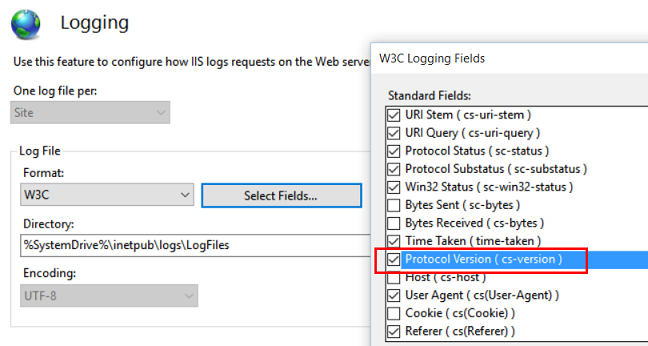
After making the changes, click on ‘Apply’ under the Actions pane on the far right.
Sample Log file output with Protocol Version field enabled:
#Software: Microsoft Internet Information Services 10.0

#Version: 1.0

#Date: 2015-08-13 18:46:11

#Fields: date time s-ip cs-method cs-uri-stem cs-uri-query s-port cs-username c-ip cs-version cs(User-Agent) cs(Referer) sc-status sc-substatus sc-win32-status time-taken

2015-08-13 18:46:11 ::1 GET / - 443 - ::1 HTTP/2.0 Mozilla/5.0+(Windows+NT+10.0;+WOW64;+Trident/7.0;+Touch;+rv:11.0)+like+Gecko - 200 0 0 391

2015-08-13 18:46:11 ::1 GET /iisstart.png - 443 - ::1 HTTP/2.0 Mozilla/5.0+(Windows+NT+10.0;+WOW64;+Trident/7.0;+Touch;+rv:11.0)+like+Gecko https://localhost/ 200 0 0 100
IIS with HTTP/2 Demo Walkthrough
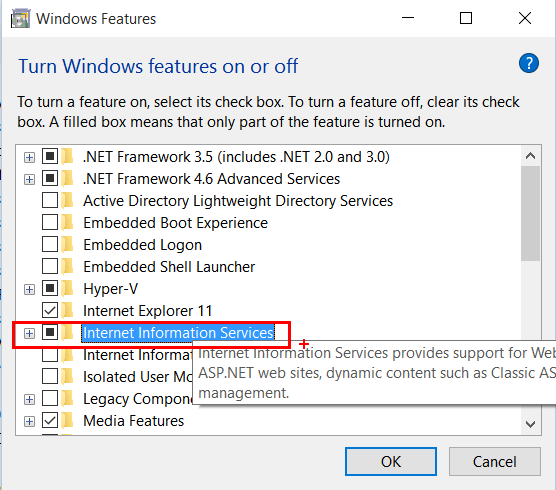
- If you are running Windows 10, this can be found via ‘Programs and Features’, then ‘Turn Windows features on or off’, then enabling ‘Internet Information Services’ checkbox. If you are running Windows Server 2016 Tech Preview, then launch Server Manager, then ‘Add roles and features’ on the dashboard and select ‘Web Server (IIS)’ from the list.
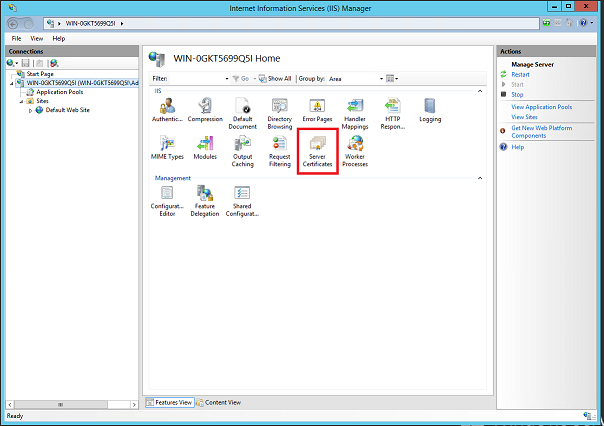
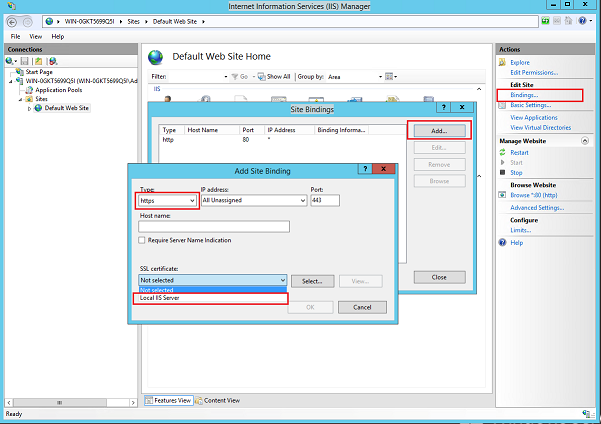
- After installation is complete, launch inetmgr.exe and create a self signed certificate by selecting the ‘Server Certificates’ option under the server’s Features View. Note that the use of a self signed certificate in this example is only for demo/testing purpose (not recommended for protecting your production sites).
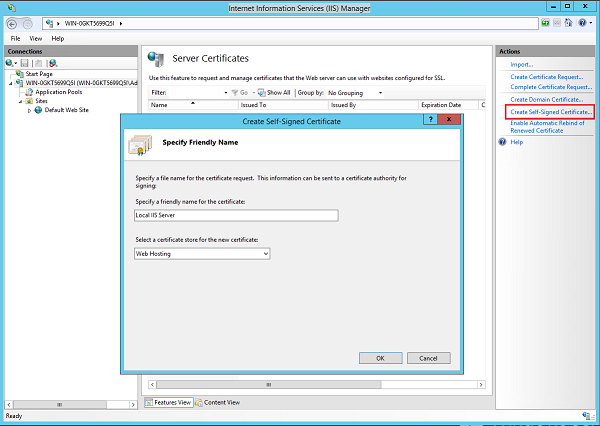
- Go to your Default Web Site and under Bindings, create a new TLS binding with the self signed certificate just created.
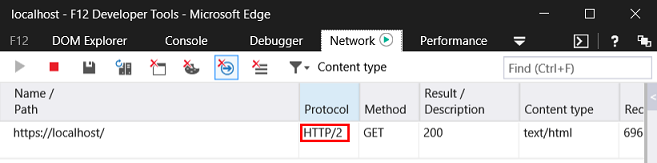
- Launch Edge browser (or IE) from your Windows 10 or Windows 2016 Tech Preview machine and hit F12 (or go to Settings and enable F12 Developer Tools) and switch to the Network tab. Browse to https://localhost and voila, you are on HTTP/2!
HTTP/2 Not Supported
In a few cases, HTTP/2 can’t be used in combination with other features. In these cases, Windows will fall back to HTTP/1.1 and continue the transaction. This may involve negotiating HTTP/1.1 during the handshake, or sending an error code to the client instructing it to retry over an HTTP/1.1 connection.
- Windows authentication (NTLM/Kerberos/Negotiate) is not supported with HTTP/2. In this case IIS will fall back to HTTP/1.1.
- Clear text – as mentioned above, IIS currently only supports HTTP/2 over TLS. Again, IIS will fall back to HTTP/1.1.
- Bandwidth throttling – IIS has a feature to limit bandwidth (in Inetmgr, select the site, ‘Limits’ under Configure of the Action pane). This applies to HTTP/1.1 but is not enforced for HTTP/2 (will proceed with no errors or bandwidth limiting).
For more information….
See the Build 2015 talk HTTP/2 in Windows 10: Browser, Apps, and Web Server for a more in-depth discussion of HTTP/2 and the client and server implementations in Windows.
Authors: Mike Bishop, David So
(With contributions from and acknowledgements to Rob Trace, Baris Caglar, Nazim Lala)
[转帖] IIS 与 HTTP/2 的介绍.的更多相关文章
- iis中MIME类型的介绍与使用
今天在服务器上碰到由.mp3格式转化生成的.m4r格式不能被浏览器访问(MP3与m4r在同个域名目录下eg:www.abc.com/1.m4r) 解决办法: 1.选中文件所在的站点: 2.找到MIME ...
- 【转帖】互联网加密及OpenSSL介绍和简单使用
转帖:https://mritd.me/2016/07/02/%E4%BA%92%E8%81%94%E7%BD%91%E5%8A%A0%E5%AF%86%E5%8F%8AOpenSSL%E4%BB%8 ...
- [转帖]Windows Server 2016各种版本介绍
Windows Server 2016各种版本介绍 http://www.5sharing.com/js/zx/872.html windows server的版本 时间:2018-10-06 10: ...
- [转帖]Nginx 的 TCP 负载均衡介绍
Nginx 的 TCP 负载均衡介绍 https://www.cnblogs.com/felixzh/ 前几天同事问 nginx的代理 当时以为只有http的 现在看起来还有tcp的可以使用tcp 代 ...
- [转帖]IIS内虚拟站点配置信息说明
web.config配置详细说明 https://www.cnblogs.com/zhangxiaolei521/p/5600607.html 原作者总结的很详细 但是没有完全的看完 自己对IIS 的 ...
- [转帖] IIS经典模式和集成模式的区别
在 IIS 7.0 中,应用程序池有两种运行模式:集成模式和经典模式. https://blog.csdn.net/hongwei_23/article/details/44300923 这里面添加一 ...
- [转帖]nvidia nvlink互联与nvswitch介绍
nvidia nvlink互联与nvswitch介绍 https://www.chiphell.com/thread-1851449-1-1.html 差不多在一个月前在年度gtc会议上,老黄公开了d ...
- [转帖]微服务框架Spring Cloud介绍 Part1: 使用事件和消息队列实现分布式事务
微服务框架Spring Cloud介绍 Part1: 使用事件和消息队列实现分布式事务 http://skaka.me/blog/2016/04/21/springcloud1/ APR 21ST, ...
- [转帖]UML类图新手入门级介绍
UML类图新手入门级介绍 2010-11-12 19:45:00 monkey_d_meng 阅读数 27230 收藏 文章标签: umlinterfaceclass编程扩展更多 分类专栏: 软件工 ...
随机推荐
- spring 各个版本的源码、jar包和源码jar包下载地址
spring各个版本的源码jar包.文档jar包和spring的jar包 http://maven.springframework.org/release/org/springframework/sp ...
- 微信小程序如何检测接收iBeacon信号
前话 微信小程序开发带着许多坑,最近就遇到了个需求,检测iBeacon来进行地点签到. (╯▔皿▔)╯ 微信小程序对于iBeacon的文档也写的十分精简,只简单介绍了每个接口的作用,这就导致我以为简单 ...
- SSIS 数据流优化
一,数据流设计优化 数据流有两个特性:流和在内存缓冲区中处理数据,根据数据流的这两个特性,对数据流进行优化. 1,流,同时对数据进行提取,转换和加载操作 流,就是在source提取数据时,转换组件处理 ...
- 微信小程序——手把手教你写一个微信小程序
前言 微信小程序年前的跳一跳确实是火了一把,然后呢一直没有时间去实践项目,一直想搞但是工作上不需要所以,嗯嗯嗯嗯嗯emmmmm..... 需求 小程序语音识别,全景图片观看,登录授权,获取个人基本信息 ...
- 更改VS Code界面为简体中文
.先看一下效果(请忽略我的颜色主题): 1. 点击侧边栏的“扩展”按钮,或者按下Ctrl+Shift+X,安装需要的语言包 2. 通过命令面板设置语言 点击“查看”——“命令面板”,或者快捷键Ctr ...
- linux镜像(持续更新)
Linux系统历史衍生图:https://upload.wikimedia.org/wikipedia/commons/1/1b/Linux_Distribution_Timeline.svg ubu ...
- iFIERO - (一) 宇宙大战 SPACE BATTLE — 场景SCENE、SpriteKit精灵、PARTICLE粒子及背景音乐
开始游戏教程前,首先介绍一下SpriteKit是什么?SpriteKit提供了一个图形渲染和动画的基础结构,你可以使用它让任意类型的纹理图片或者精灵动起来.SpriteKit使用渲染循环,利用图形硬件 ...
- Laya资源加载小记
Laya.Loader负责资源的加载逻辑,被LoaderManager管理. Laya支持多种类型资源加载,也支持自定义类型加载.不同类型的加载方式可能不同. Laya.Loader缓存已经被加载过得 ...
- Python3中isdigit(), isdecimal(), isnumeric()的区别和字符串的常用方法
# 全部小写 string.lower() # 全部大写 string.upper() # 是否全部小写 string.islower() # 是否全部大写 string.isupper() # 首字 ...
- appium 元素定位方法汇总
以上图为例,要定位到右下角的 我的 ,并点击 # appium的webdriver提供了11种元素定位方法,在selenium的基础上扩展了三个,可以在pycharm里面输入driver.find_e ...