
FolderSync :The various features and how to use them
Help


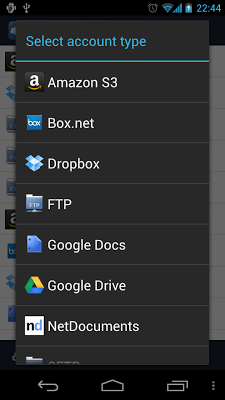
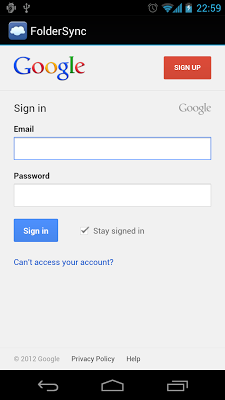
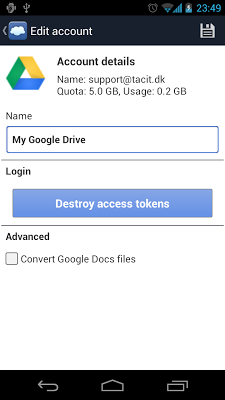
If you want to use Samba/Windows shares, FTP, SFTP or WebDAV, you have to set it up on a server or your home PC, or have access to an existing account. Explaining how setup this is not in the scope of this help text, but try using Google.
Create a folderpair
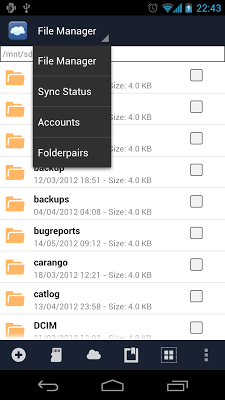
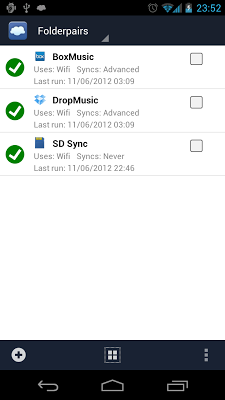
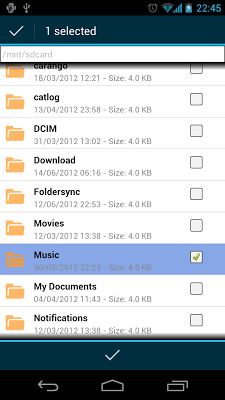
A FolderPair is a definition of a sync that you want this application to perform. A folderpair defines a sync between a local folder on your device and a remote folder for your chosen provider type. A sync can sync files to remote cloud storage, to your local storage or both ways. Select [Folderpairs] from the top drowdown menu.
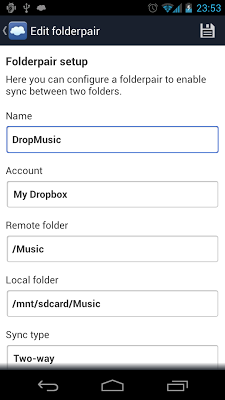
- General
- Name: Unique name of your choice.
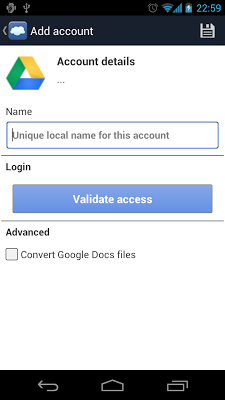
- Account: The account to sync to or from (must be configured first on account page).
- Remote folder: The remote folder to sync to or from. Can be selected after an account has been chosen.
- Local folder: The local folder on the device to sync to or from.
- Sync type: The type of sync - one-way to local or remote or two-way sync. Default: To local folder.
- Scheduling
- Use scheduled sync: Check this if you want to sync on a schedule (and not solely by manual start or Tasker).
- Sync interval: Choose how often you want to sync.
- Sync days: If sync interval is set to advanced, then this option is shown. Choose which days to sync.
- Sync times: If sync interval is set to advanced, then this option is shown. Choose which time of day to sync.
- Sync options
- Instant sync: Select this for instant sync on change. Only detects changes on local device. Use with care!
- Copy files to time-stamped folder: For one-way sync only. If enabled , this creates a time-stamped folder at target location, so all source files are synced every time into a new folder at target location.
- Exclude from force sync: Check this if this sync should be excluded from sync all action on sync status screen.
- Sync sub-folders: Check this if sub-folders are to be synced. Enabled by default.
- Sync hidden files: Check this if hidden files are to be synced. Enabled by default.
- Delete source files after sync: For one-way sync only. After syncing of files, the source files are deleted. Use with care! Disabled by default.
- Sync deletions: Check this if deletions are to be mirrored. Use with care! Disabled by default.
- Overwrite old files: Choose what to do if a file already exist at target. Default setting is to overwrite the old file, so the newest file is used.
- If conflicting modifications: Choose what to do if a conflicting modification is detected. A conflicting modification is one where both the source and target file has been changed since last recorded sync. Default is to skip file, which will result in sync warnings.
- Connection
- Use WiFi: Check this setting, if this Folderpair is allowed to sync on WiFi.
- Turn on WiFi for scheduled syncs: Check this if WiFi can be turned on for this sync.
- Allowed WiFi SSID's: Enter a list of allowed WiFi SSID's to sync on. If empty, all WiFi networks are allowed.
- Disallowed Wifi SSID's: Enter a list of disallowed WiFi SSID's.
- Use Edge/3G/4G: Check this setting, if this FolderPair is allowed to sync on mobile networks.
- Use other connections: Enable this if other connection types should be allowed (Bluetooth, USB, etc.).
- Sync when roaming: Enable this to allow sync while roaming on mobile networks (use with care).
- Notifications
- Show notification when syncing: Show persistent notification while syncing folderpair.
- Show notification on sync success: Show dismiss-able notification on sync success .
- Show notification when changes occur: Show dismiss-able notification if transfers/deletions happened.
- Show notification on sync error: Show dismiss-able notification if syncs fail for any reason.
- Advanced
- Only sync if charging: Check this setting if FolderPair should only sync when charging.
- Rescan media library: Check this if media library should be updated for deleted or added media files.
- Use MD5 checksums: Check this setting if MD5 checksum should be calculated for files. May decrease sync speed and use extra battery, but can also result in less download and upload traffic. Enabled by default.
- Use temp-file scheme: Check this setting, if you want to use temp-file scheme. Temp-file scheme means files are transferred using temporary name, and upon completion of transfer is renamed to the final filename. This may break the functionality of some cloud providers (proper revisions etc.). Enabled by default.
- Disable file-size check: Check this if transferred files should not be validated against source by comparing file-size. Some providers adds bytes to certain files when uploaded, so this setting can help in those cases.
Syncing
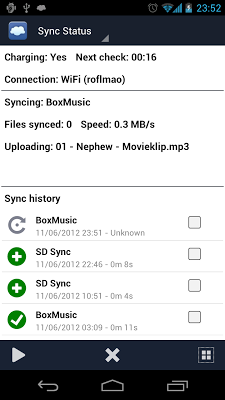
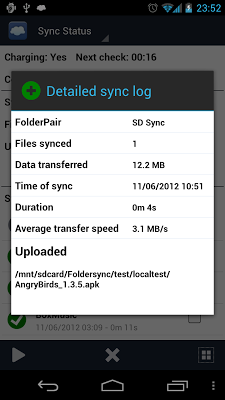
Syncing occurs according to the schedule you have defined for each folderpair. If a schedule is not defined the folderpair will only be synced if you manually initiate it. If no network connection is set to be allowed for a folderpair it will never sync, not even if you manually initiate it. This is to ensure you are not accidentally charged for expensive network traffic. Files are compared using their last modification date and optionally using MD5 hashes (for local files).
Two-way sync
Two-way sync copies files in both directions, overwriting older files if duplicate files are found. It will also detect cases where modifications have happened on both local and cloud storage. If this happens, the latest modified file will be used or the file will be skipped, according to what you specify in for the folderpair.
Mirroring of deletions
If the "Do not sync deletions" option is not enabled, deletions will also be synced, for all types of sync. FolderSync has an internal database of synced files. If a previously synced filed is deleted at either end, the deletion will also happen at the opposite end (if the file at the opposite end has not changed since last sync). Use this option only if you are sure what you are doing, and at your own risk!
Sync status
File manager
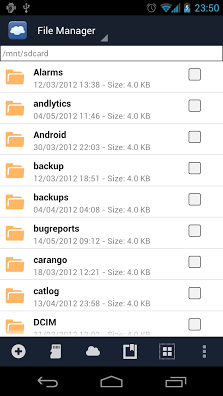
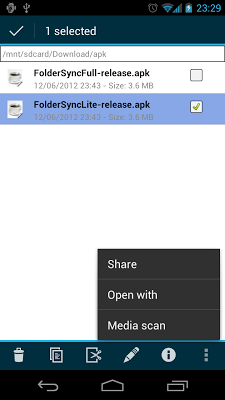
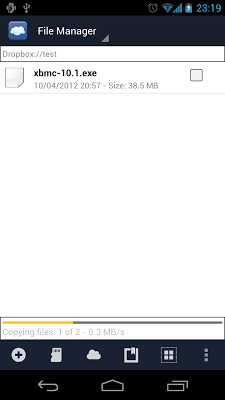
The file manager allows you to copy/move files to and from your accounts from the local sdcard, as well as move/copy files in a remote storage space. You can also rename files and folders and create new folders. Copying from one remote account to another is not supported, as this is not possible without using the local sdcard as a temporary storage space.
- Toogle view of hidden files
- Sort (with options to sort files on different criteria)
- Refresh (refreshes the files and folder view)
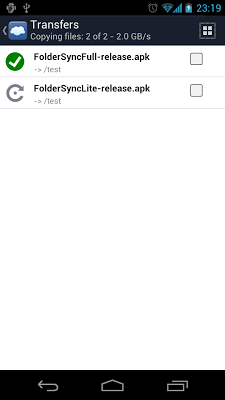
- Manage transfers (opens a window with transfers)
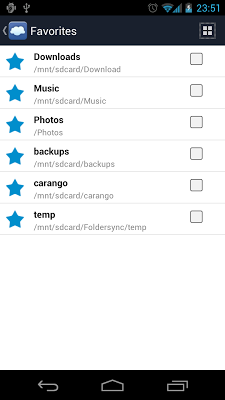
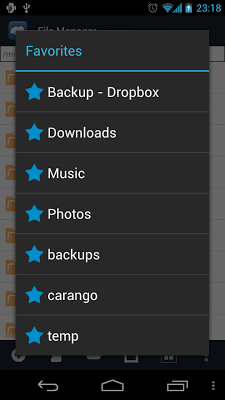
- Manage favorites
- Delete
- Copy
- Cut
- Rename (single selection only)
- Details
(single selection only) - Add favorite (single selection only)
- Media scan
- Delete
- Copy
- Cut
- Rename (single selection only)
- Details (single selection only)
- Share (single selection only)
- Open with
(single selection only) - Media scan

Settings
The settings panel allow you to backup/restore the underlying database. The backup is saved to the default folder /mnt/sdcard/Foldersync/backup/ (or another folder which you can select). You can also disable notifications, if you do not want to be bothered with these when syncs occur.

Amazon endpoint is only used in regards to creating a bucket in this application - all other operations are targeted to a specific bucket you specify, no matter with which endpoint it was created. Using Amazon S3 can incur costs on your part.
Dropbox has a 150 MB upload limitation - files over this size will probably not succeed in uploading.
FolderSync :The various features and how to use them的更多相关文章
- 论文笔记之: Hierarchical Convolutional Features for Visual Tracking
Hierarchical Convolutional Features for Visual Tracking ICCV 2015 摘要:跟卢湖川的那个文章一样,本文也是利用深度学习各个 layer ...
- 论文笔记之:Heterogeneous Image Features Integration via Multi-Modal Semi-Supervised Learning Model
Heterogeneous Image Features Integration via Multi-Modal Semi-Supervised Learning Model ICCV 2013 本文 ...
- OpenCV探索之路(二十八):Bag of Features(BoF)图像分类实践
在深度学习在图像识别任务上大放异彩之前,词袋模型Bag of Features一直是各类比赛的首选方法.首先我们先来回顾一下PASCAL VOC竞赛历年来的最好成绩来介绍物体分类算法的发展. 从上表我 ...
- 泡泡一分钟:Using Geometric Features to Represent Near-Contact Behavior in Robotic Grasping
张宁 Using Geometric Features to Represent Near-Contact Behavior in Robotic Grasping链接:https://pan.ba ...
- Computer Vision_33_SIFT:Distinctive Image Features from Scale-Invariant Keypoints——2004
此部分是计算机视觉部分,主要侧重在底层特征提取,视频分析,跟踪,目标检测和识别方面等方面.对于自己不太熟悉的领域比如摄像机标定和立体视觉,仅仅列出上google上引用次数比较多的文献.有一些刚刚出版的 ...
- Computer Vision_33_SIFT:Speeded-Up Robust Features (SURF)——2006
此部分是计算机视觉部分,主要侧重在底层特征提取,视频分析,跟踪,目标检测和识别方面等方面.对于自己不太熟悉的领域比如摄像机标定和立体视觉,仅仅列出上google上引用次数比较多的文献.有一些刚刚出版的 ...
- 论文笔记:Learning Region Features for Object Detection
中心思想 继Relation Network实现可学习的nms之后,MSRA的大佬们觉得目标检测器依然不够fully learnable,这篇文章类似之前的Deformable ROI Pooling ...
- MVC之前的那点事儿系列(2):HttpRuntime详解分析(上)
文章内容 从上章文章都知道,asp.net是运行在HttpRuntime里的,但是从CLR如何进入HttpRuntime的,可能大家都不太清晰.本章节就是通过深入分析.Net4的源码来展示其中的重要步 ...
- MATLAB 图像分类 Image Category Classification Using Bag of Features
使用MATLAB实现图像的识别,这是MATLAB官网上面的例子,学习一下. http://cn.mathworks.com/help/vision/examples/image-category-cl ...
随机推荐
- centos7 安装java和tomcat9
centos7 安装java 下载好java安装包后,首先是解压,然后配置环境变量. 在usr下新建Java文件夹,把java解压到Java文件夹中 新建文件夹 # mkdir /usr/Java 键 ...
- ZOJ 3537 Cake(凸包+区间DP)
题目链接:http://acm.zju.edu.cn/onlinejudge/showProblem.do?problemCode=3537 题目大意:给出一些点表示多边形顶点的位置,如果不是凸多边形 ...
- (二)Mybatis项目配置
第一节:environments Mybatis支持多个环境,可以任意配置 <environments default="development"> <envir ...
- js对象的属性:数据(data)属性和访问器(accessor)属性
此文为转载,原文: 深入理解对象的数据属性与访问器属性 创建对象的方式有两种:第一种,通过new操作符后面跟Object构造函数,第二种,对象字面量方式.如下 var person = new Obj ...
- .net/c#常用框架/中间件简介
任务调度 Quartz.NET:Quartz.NET是一个开源的作业调度框架,非常适合在平时的工作中,定时轮询数据库同步,定时邮件通知,定时处理数据等. Quartz.NET允 许开发人员根据时间间隔 ...
- SSIS 学习之旅 序章 和 简介
SSIS 学习之旅目录: 第一章: SSIS 学习之旅 第一个SSIS 示例(一) 第二章: SSIS 学习之旅 第一个SSIS 示例(二) 第三章: SSIS 学习之旅 数据同步 第四章: SSIS ...
- C++11线程池的实现
什么是线程池 处理大量并发任务,一个请求一个线程来处理请求任务,大量的线程创建和销毁将过多的消耗系统资源,还增加了线程上下文切换开销. 线程池通过在系统中预先创建一定数量的线程,当任务请求到来时从线程 ...
- Bad connection to FS. command aborted. exception: Call to chaoren/192.168.80.100:9000 failed on connection exception: java.net.ConnectException: Connection refused
Bad connection to FS. command aborted. exception: Call to chaoren/192.168.80.100:9000 failed on conn ...
- Bootstrap--响应式导航条布局
<!DOCTYPE html> <html> <head> <meta name="viewport" content="wid ...
- nodejs mongoose populate 多层模型
参考地址:http://ronaldroe.com/populating-multiple-fields-and-levels-with-mongoose/ 文字版本 Mongoose, the po ...