
【iOS UI】UINavigationController
1.1简介
UINavigationController可以翻译为导航控制器,在iOS里经常用到。
下面的图显示了导航控制器的流程。最左侧是根视图,当用户点击其中的General项时 ,General视图会滑入屏幕;当用户继续点击Auto-Lock项时,Auto-Lock视图将滑入屏幕。相应地,在对象管理上,导航控制器使用了导航堆栈。根视图控制器在堆栈最底层,接下来入栈的是General视图控制器和Auto-Lock视图控制器。可以调用pushViewControllerAnimated:方法将视图控制器推入栈顶,也可以调用popViewControllerAnimated:方法将视图控制器弹出堆栈。

1.2UINavigationController结构组成
看下图,UINavigationController有Navigation bar ,Navigation View ,Navigation toolbar等组成。

2.1
- 新建一个空项目UINavigationControllerDemo
- 新建一个UIViewController,并在UIViewController.xib中添加一个Button设置名字为Goto SecondView
- 打开AppDelegate.h,添加属性
#import <UIKit/UIKit.h>

@interface MLKAppDelegate : UIResponder <UIApplicationDelegate>

@property (strong, nonatomic) UIWindow *window;

@property (strong,nonatomic) UINavigationController *navController;

@end
AppDelegate.mdidFinishLaunchingWithOptions
- (BOOL)application:(UIApplication *)application didFinishLaunchingWithOptions:(NSDictionary *)launchOptions

{

    self.window = [[UIWindow alloc] initWithFrame:[[UIScreen mainScreen] bounds]];

    // Override point for customization after application launch.

    MLKRootViewController *rootController=[[MLKRootViewController alloc]init];

    rootController.title=@"Root View";

    self.navController=[[UINavigationController alloc]init];

    [self.navController pushViewController:rootController animated:YES];

    //

    [self.window addSubview:self.navController.view];

    //

    self.window.backgroundColor = [UIColor whiteColor];

    [self.window makeKeyAndVisible];

    return YES;

}
运行

2.2 添加UIBarButtonItem
bar ButtonItem分左右UIBarButtonItem。我们把左右的都添加上去。
在RootViewController.m中添加代码如下:
- (void)viewDidLoad

{

    [super viewDidLoad];

    // Do any additional setup after loading the view from its nib.

    //添加UIBarButtonItem

    UIBarButtonItem *leftButton=[[UIBarButtonItem alloc]initWithBarButtonSystemItem:UIBarButtonSystemItemAction target:self action:@selector(selectLeftAction:)];

    //

    self.navigationItem.leftBarButtonItem=leftButton;

    UIBarButtonItem *rightButton=[[UIBarButtonItem alloc]initWithBarButtonSystemItem:UIBarButtonSystemItemAction target:self action:@selector(selectRightAction:)];

    //

    self.navigationItem.rightBarButtonItem=rightButton;

}
UIBarButtonSystemItemAction的风格,这是系统自带的按钮风格,系统自带的按钮有下面这些

2.3响应UIBarButtonItem的点击事件
//响应UIBarButtonItem事件的实现

-(void)selectLeftAction:(id)sender{

    UIAlertView *alert=[[UIAlertView alloc] initWithTitle:@"提示" message:@"你点击了导航左按钮" delegate:self cancelButtonTitle:@"确定" otherButtonTitles:nil, nil];

    [alert show];

}

-(void)selectRightAction:(id)sender{

    UIAlertView *alert=[[UIAlertView alloc] initWithTitle:@"提示" message:@"你点击了导航右按钮" delegate:self cancelButtonTitle:@"确定" otherButtonTitles:nil, nil];

    [alert show];

}

3.1创建一个新的UIViewController SecondViewController
3.2为RootViewController的Button设置点击方法
-(void)goToSecondView:(id)sender{

    MLKSecondViewController *secondView=[[MLKSecondViewController alloc]init];

    [self.navigationController pushViewController:secondView animated:YES];

    secondView.title=@"Second View";

}
SecondViewController页面

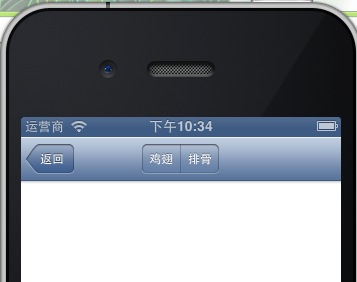
如何在导航栏中实现这种效果呢

这就是SegmentedControl
在SecondViewController.m的viewDidLoad添加如下代码
- (void)viewDidLoad

{

    [super viewDidLoad];

    // Do any additional setup after loading the view from its nib.

    NSArray *array = [NSArray arrayWithObjects:@"鸡翅",@"排骨", nil];

    UISegmentedControl *segmentedController = [[UISegmentedControl alloc] initWithItems:array];

    segmentedController.segmentedControlStyle = UISegmentedControlSegmentCenter;

    [segmentedController addTarget:self action:@selector(segmentAction:) forControlEvents:UIControlEventValueChanged];

    self.navigationItem.titleView = segmentedController;

}
设置点击事件
-(void)segmentAction:(id)sender

{

    switch ([sender selectedSegmentIndex]) {

        case :

        {

            UIAlertView *alter = [[UIAlertView alloc] initWithTitle:@"提示" message:@"你点击了鸡翅" delegate:self  cancelButtonTitle:@"确定" otherButtonTitles:nil, nil];

            [alter show];

        }

            break;

        case :

        {

            UIAlertView *alter = [[UIAlertView alloc] initWithTitle:@"提示" message:@"你点击了排骨" delegate:self  cancelButtonTitle:@"确定" otherButtonTitles:nil, nil];

            [alter show];

        }

            break;

        default:

            break;

    }

}

左上角的返回上级View的barButtonitem的名字是上级目录的Title,如果title或者适合做button的名字,怎么办呢?我们可以自己定义
在RootViewController viewDidLoad方法
    //自定义backBarButtonItem

    UIBarButtonItem *backButton = [[UIBarButtonItem alloc] initWithTitle:@"返回" style:UIBarButtonItemStyleDone target:nil action:nil];

    self.navigationItem.backBarButtonItem=backButton;
5.1显示ToolBar
在SecondViewController的viewDidLoad方法中添加下面的代码这样ToolBar就显示出来了
[self.navigationController setToolbarHidden:NO animated:YES];
在ToolBar上添加UIBarButtonItem
    UIBarButtonItem *one = [[UIBarButtonItem alloc] initWithBarButtonSystemItem:UIBarButtonSystemItemAdd target:nil action:nil];

    UIBarButtonItem *two = [[UIBarButtonItem alloc] initWithBarButtonSystemItem:UIBarButtonSystemItemBookmarks target:nil action:nil];

    UIBarButtonItem *three = [[UIBarButtonItem alloc] initWithBarButtonSystemItem:UIBarButtonSystemItemAction target:nil action:nil];

    UIBarButtonItem *four = [[UIBarButtonItem alloc] initWithBarButtonSystemItem:UIBarButtonSystemItemEdit target:nil action:nil];

    UIBarButtonItem *flexItem = [[UIBarButtonItem alloc] initWithBarButtonSystemItem:UIBarButtonSystemItemFlexibleSpace target:nil action:nil];

    [self setToolbarItems:[NSArray arrayWithObjects:flexItem, one, flexItem, two, flexItem, three, flexItem, four, flexItem, nil]];

注意:用 [self.navigationController.toolbar setItems:(NSArray *) animated:<#(BOOL)#>]这个方法添加item是不起效果的。下面我动态自己添加Toolbar时,这个才起效果。
5.2动态添加ToolBar
SecondViewController.h文件中添加属性
@property UIToolbar *toolBar;
   //先隐藏ToolBar

    [self.navigationController  setToolbarHidden:YES animated:YES];

    UIBarButtonItem *searchButton = [[UIBarButtonItem alloc] initWithBarButtonSystemItem:UIBarButtonSystemItemSearch target:self action:@selector(goToThirdView:)];

    self.toolBar = [[UIToolbar alloc] initWithFrame:CGRectMake(0.0, self.view.frame.size.height - _toolBar.frame.size.height - 44.0, self.view.frame.size.width, 44.0)];

    [_toolBar setBarStyle:UIBarStyleDefault];

    _toolBar.autoresizingMask = UIViewAutoresizingFlexibleTopMargin;

    [_toolBar setItems:[NSArray arrayWithObject:searchButton]];

    [self.view addSubview:_toolBar];
响应UIBarButtonItem的点击事件,跳转到第三个页面去
-(void)goToThirdView:(id)sender{

    MLKThirdViewController *thirdView=[[MLKThirdViewController alloc]init];

    [self.navigationController pushViewController:thirdView animated:YES];

    thirdView.title=@"Third View";

}
【iOS UI】UINavigationController的更多相关文章
- 【iOS系列】-UINavigationController的使用(Segue传递数据)
[iOS系列]-UINavigationController的使用 UINavigationController是以以栈(先进后出)的形式保存子控制器, 常用属性: UINavigationItem有 ...
- 【iOS系列】-xib封装使用
[iOS系列]-xib封装使用 Xib文件可以用来描述某一块局部的UI界面 Xib文件的加载 修改xib文件的大小size(Freeform) 第一: NSArray *objs = [[NSBund ...
- 【iOS系列】-iOS的多线程解析
[iOS系列]-iOS的多线程解析 iOS的多线程实现技术: 1:GCD -- Grand Central Dispatch 是基于C语言的底层API 用Block定义任务,使用起来非常灵活便捷 提供 ...
- 【转】【iOS开发】打开另一个APP(URL Scheme与openURL)
目标 平常我们做iOS开发,会经常遇到打开其他的APP的功能.本篇文章讲的就是打开别人的APP的一些知识.我们的目标是: 打开别人的APP 让别人打开我们的APP iOS9的适配问题 使用URL Sc ...
- 【iOS系列】-自定义Modar动画
[iOS系列]-自定义Modar动画.md 我们需要做的最终的modar动画的效果是这样的, 就是点击cell,cell发生位移,慢慢的到第二个界面上的.为了做出这样的动画效果,我们需要以下的知识. ...
- 【iOS系列】- iOS吸附效果的实现 之 UICollectionView的使用全解
[iOS系列]- iOS吸附效果的实现 之 UICollectionView的使用全解 UICollectionView可以做很多的布局,在iOS开发中较为重要,所以这里就以实例来讲解UICollec ...
- 【iOS系列】-A server with the specified hostname could not be found.问题解决
[iOS系列]-A server with the specified hostname could not be found.问题解决 Reveal 在iOS开发中可以方便查看界面的布局,较为方便的 ...
- 【iOS系列】-iOS查看沙盒文件图文教程(真机+模拟器)
[iOS系列]-iOS查看沙盒文件图文教程(真机+模拟器) 1:模拟器 1.1 方法1: 程序中打印一下的地址,能直接前往沙盒路径. NSString *path = [NSSearchPathFor ...
- 【iOS系列】-UIWebView加载网页禁止左右滑动
[iOS系列]-UIWebView加载网页禁止左右滑动 问题: 做项目时候,用UIWebView加载网页的时候,要求是和微信网页中打开的网页的效果一样,也即是只能上下滑动,不能左右滑动,也不能缩放. ...
随机推荐
- 3.WP8.1开发_为控件增加动画
示例: 把一个按钮的宽度从100变到500 根据WPF的经验,会把代码写成如下: <Grid> <Button x:Name="btn" Content=&quo ...
- 实验楼-4-Linux文件权限
$ ls -l /*查看文件权限*/ 每一行格式意思: <文件类型和权限 链接数 所有者 所在用户组 文件大小 上次修改时间 文件名> 文件类型和权限如下图: 解释: 软连接:类似于win ...
- 模块化规范Common.js,AMD,CMD
随着网站规模的不断扩大,嵌入网页中的javascript代码越来越大,开发过程中存在大量问题,如:协同开发,代码复用,大量文件引入,命名冲突,文件依赖. 模块化编程称为迫切的需求. 所谓的模块,就是实 ...
- Sublime Text前端开发环境配置
Sublime Text是前端开发不可不说的编辑器,本文以Sublime Text 3为例讲解一下如何搭建前端的开发环境. 下载Sublime Text 3 下载地址 #==> Sublime ...
- java开发中的链式思维 —— 设计一个链式过滤器
概述 最近在弄阿里云的sls日志服务,该服务提供了一个搜索接口,可根据各种运算.逻辑等表达式搜出想要的内容.具体语法可见https://help.aliyun.com/document_detail/ ...
- String 类的实现(5)String常用函数
2 #include<iostream> 3 #include<stdio.h> 4 #include<assert.h> 5 #include <iom ...
- 老李分享:jvm内存原型剖析
老李分享:jvm内存原型剖析 poptest是国内唯一一家培养测试开发工程师的培训机构,以学员能胜任自动化测试,性能测试,测试工具开发等工作为目标.如果对课程感兴趣,请大家咨询qq:9088214 ...
- POPTEST培训:web自动化测试之DOM
POPTEST培训:web自动化测试之DOM poptest是国内唯一一家培养测试开发工程师的培训机构,以学员能胜任自动化测试,性能测试,测试工具开发等工作为目标.如果对课程感兴趣,请大家咨询qq ...
- qt5的.ui文件在VS2010中无法编译问题
自己手动添加的.ui文件在VS中是无法右键编译的,也即是说,在用QT designer编辑过的.ui文件无法实时更新相应的ui_XX.h文件,造成调试结果无法显示编辑过的新界面. 解决办法: 右键.u ...
- VS Code 的常用快捷键
VS Code 的常用快捷键和插件 一.vs code 的常用快捷键 1.注释: a) 单行注释:[ctrl+k,ctrl+c] 或 ctrl+/ b) 取消单行注释:[ctrl+k,ctrl+u] ...