
简单的物流项目实战,WPF的MVVM设计模式(五)
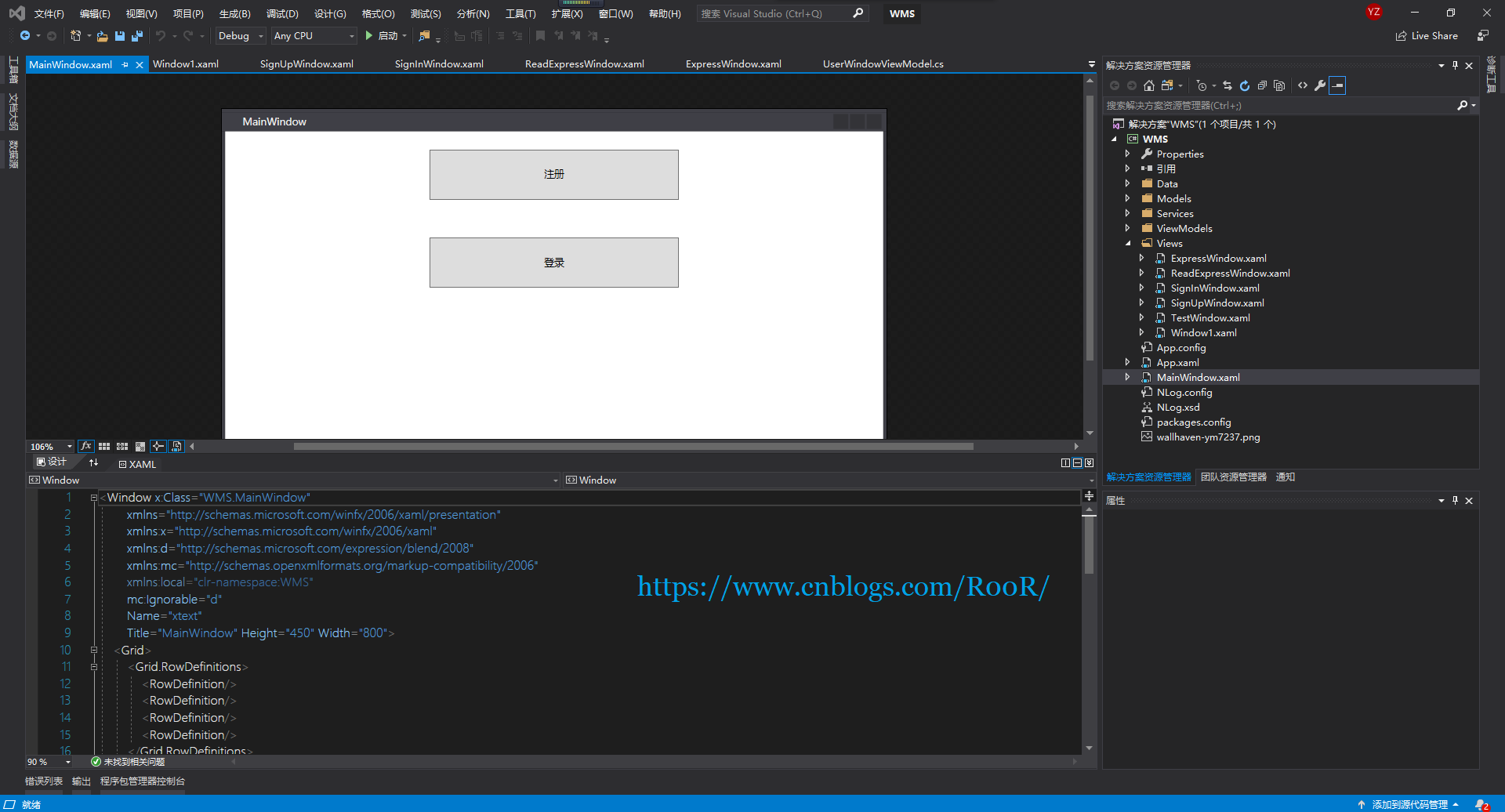
开始界面
    <Grid>

        <Grid.RowDefinitions>

            <RowDefinition/>

            <RowDefinition/>

            <RowDefinition/>

            <RowDefinition/>

        </Grid.RowDefinitions>

        <Button Grid.Row=""

                Content="注册"

                Height=""

                Width=""

                Name="SignUpButton"

                Click="SignUpButton_Click"

                />

        <Button Grid.Row=""

                Content="登录"

                Height=""

                Width=""

                Name="SignInButton"

                Click="SignInButton_Click"/>

        <!--<Button Grid.Row=""

                Content="下单"

                Height=""

                Width=""

                Name="DownButton"

                Click="DownButton_Click"/>

        <Button Grid.Row=""

                Content="查看"

                Height=""

                Width=""

                Name="ReadButton"

                Click="ReadButton_Click"/>-->

    </Grid>
注册界面
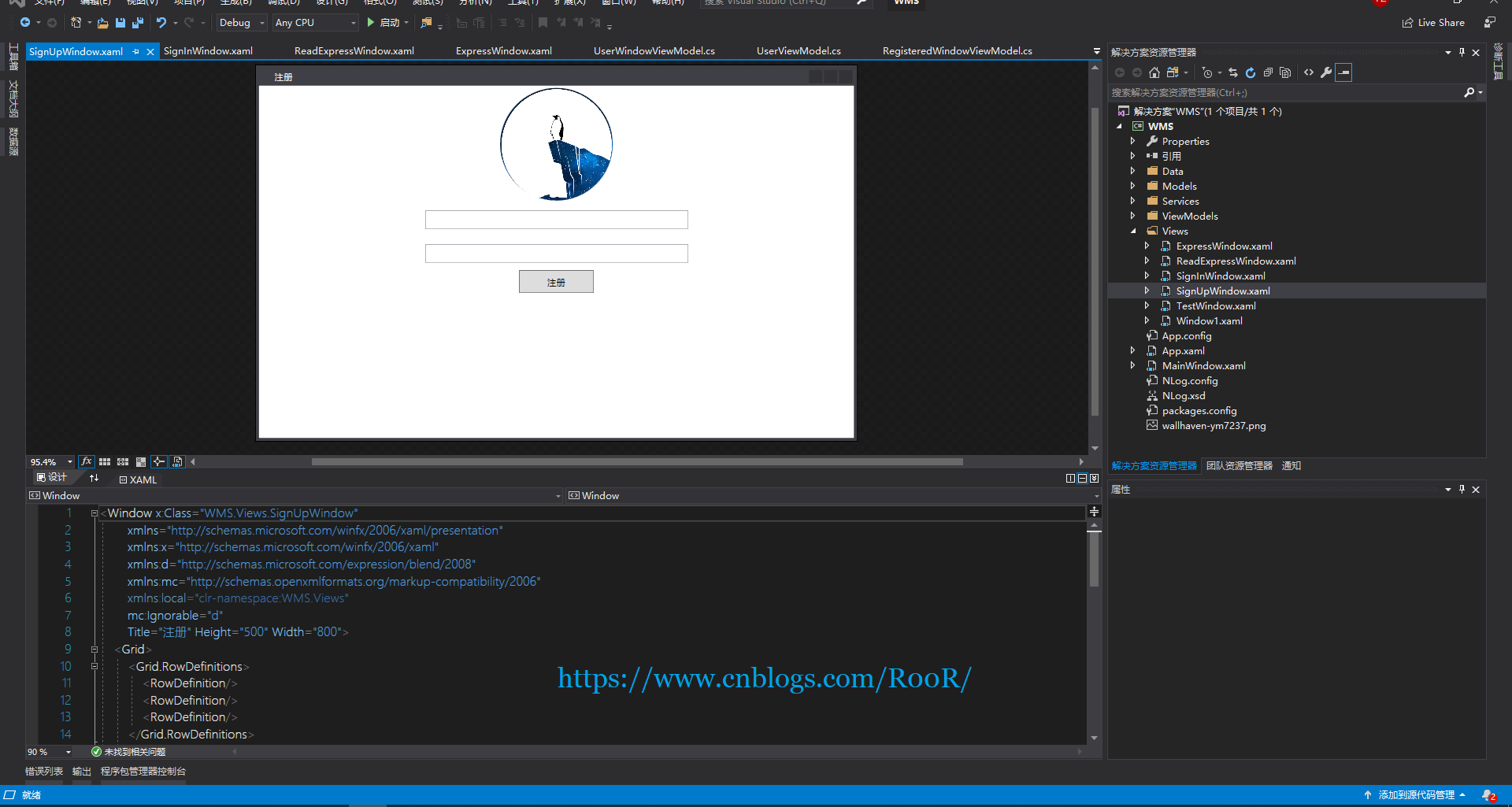
    <Grid>

        <Grid.RowDefinitions>

            <RowDefinition/>

            <RowDefinition/>

            <RowDefinition/>

        </Grid.RowDefinitions>

        <Ellipse Height="" Width="">

            <Ellipse.Fill>

                <ImageBrush ImageSource="F:\5\WMS\WMS\wallhaven-ym7237.png"/>

            </Ellipse.Fill>

        </Ellipse>

        <StackPanel Grid.Row="">

            <TextBox Name="UserAccount"

                     Text="{Binding UserAccount}"

                     Width=""

                     Height=""

                     Margin="0 10 0 10"/>

            <TextBox Name="Password"

                     Text="{Binding Password}"

                     Width=""

                     Height=""

                     Margin="0 10 0 10"/>

            <Button Name="SignUpButton" Command="{Binding InsertCommand}"

                    Width=""

                    Height=""

                    Content="注册"/>

        </StackPanel>

    </Grid>
登录界面
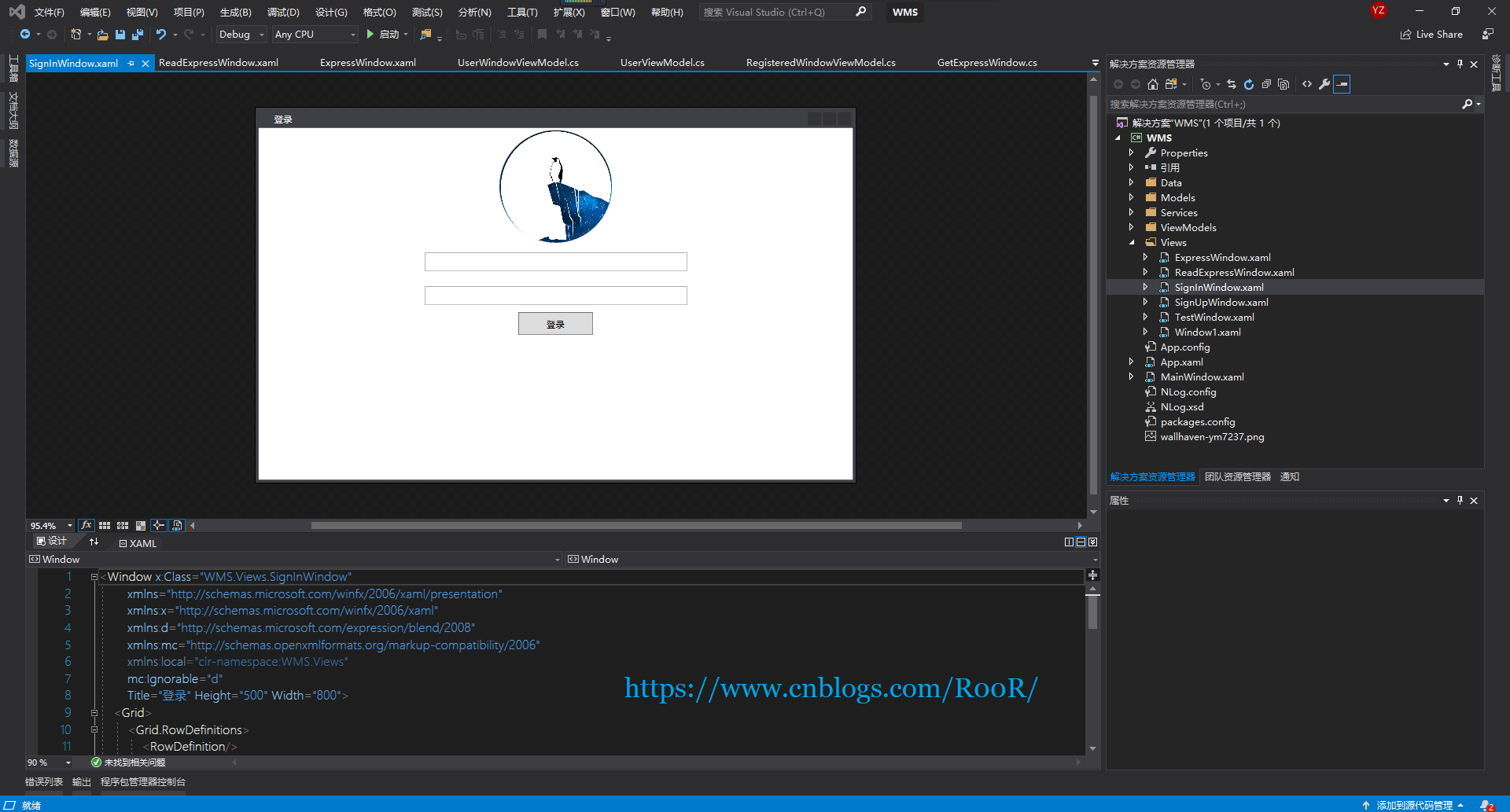
    <Grid>

        <Grid.RowDefinitions>

            <RowDefinition/>

            <RowDefinition/>

            <RowDefinition/>

        </Grid.RowDefinitions>

        <Ellipse Height="" Width="">

            <Ellipse.Fill>

                <ImageBrush ImageSource="F:\5\WMS\WMS\wallhaven-ym7237.png"/>

            </Ellipse.Fill>

        </Ellipse>

        <StackPanel Grid.Row="">

            <TextBox Name="UserAccount"

                     Text="{Binding Username}"

                     Width=""

                     Height=""

                     Margin="0 10 0 10"/>

            <TextBox Name="Password"

                     Text="{Binding Userpassword}"

                     Width=""

                     Height=""

                     Margin="0 10 0 10"/>

            <Button Name="SignUpButton" Command="{Binding GetCommand}"

                    Width=""

                    Height=""

                    Content="登录"/>

        </StackPanel>

    </Grid>
下单界面
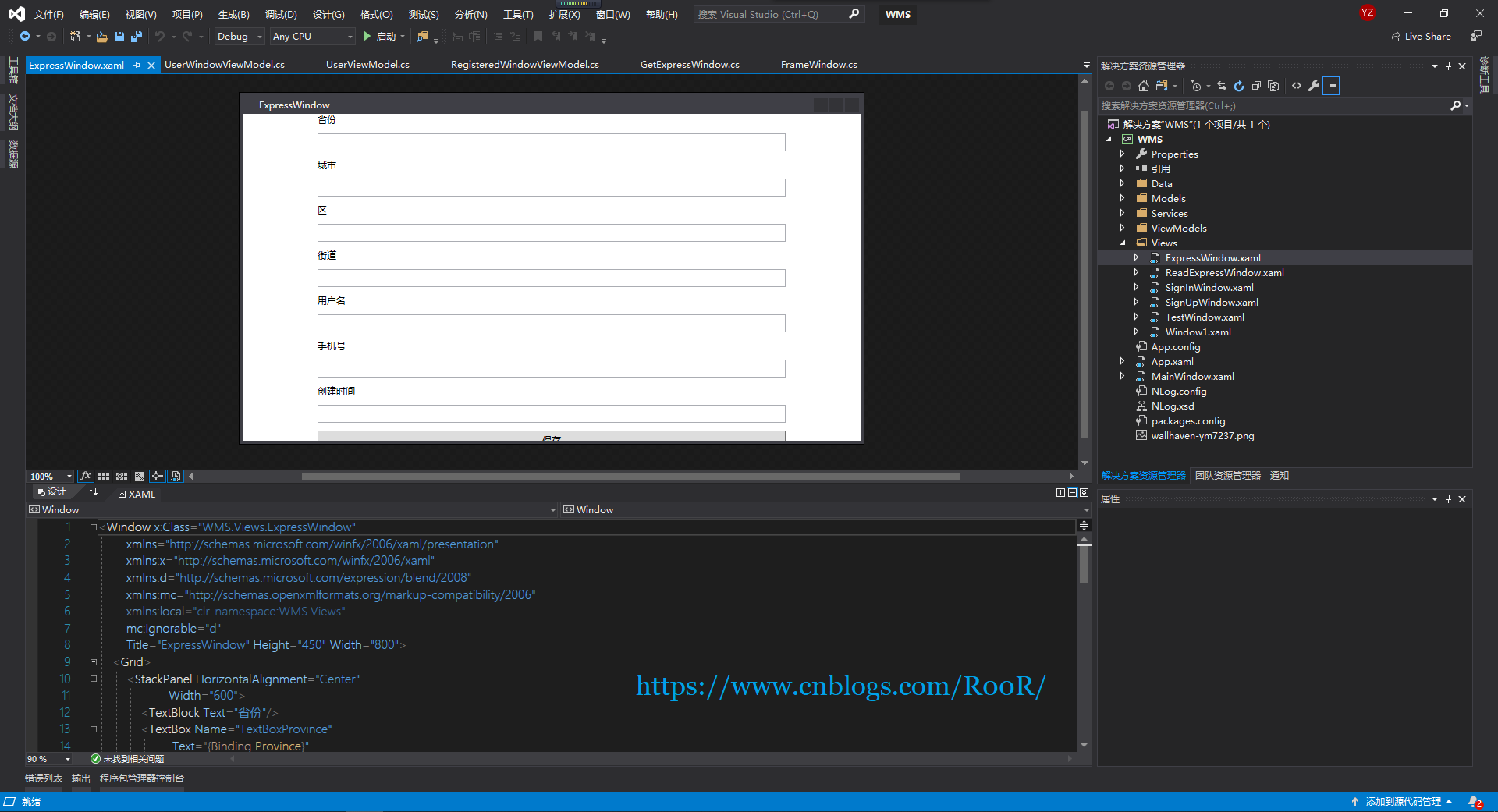
    <Grid>

        <StackPanel HorizontalAlignment="Center"

                    Width="">

            <TextBlock Text="省份"/>

            <TextBox Name="TextBoxProvince"

                     Text="{Binding Province}"

                     Margin="0 10 0 10"

                     Height=""/>

            <TextBlock Text="城市"/>

            <TextBox Name="TextBoxCity"

                     Text="{Binding City}"

                     Margin="0 10 0 10"

                     Height=""/>

            <TextBlock Text="区"/>

            <TextBox Name="TextBoxArea"

                     Text="{Binding Area}"

                     Margin="0 10 0 10"

                     Height=""/>

            <TextBlock Text="街道"/>

            <TextBox Name="TextBoxStreet"

                     Text="{Binding Street}"

                     Margin="0 10 0 10"

                     Height=""/>

            <TextBlock Text="用户名"/>

            <TextBox Name="TextBoxUserName"

                     Text="{Binding Username}"

                     Margin="0 10 0 10"

                     Height=""/>

            <TextBlock Text="手机号"/>

            <TextBox Name="TextBoxPhoneNumber"

                     Text="{Binding Phonenumber}"

                     Margin="0 10 0 10"

                     Height=""/>

            <TextBlock Text="创建时间"/>

            <TextBox Name="TextBoxCteateTime"

                     Text="{Binding Createtime}"

                     Margin="0 10 0 10"

                     Height=""/>

            <Button Content="保存"

                    Height=""

                    Command="{Binding CreateExpressCommand}"/>

        </StackPanel>

    </Grid>
查看下单信息
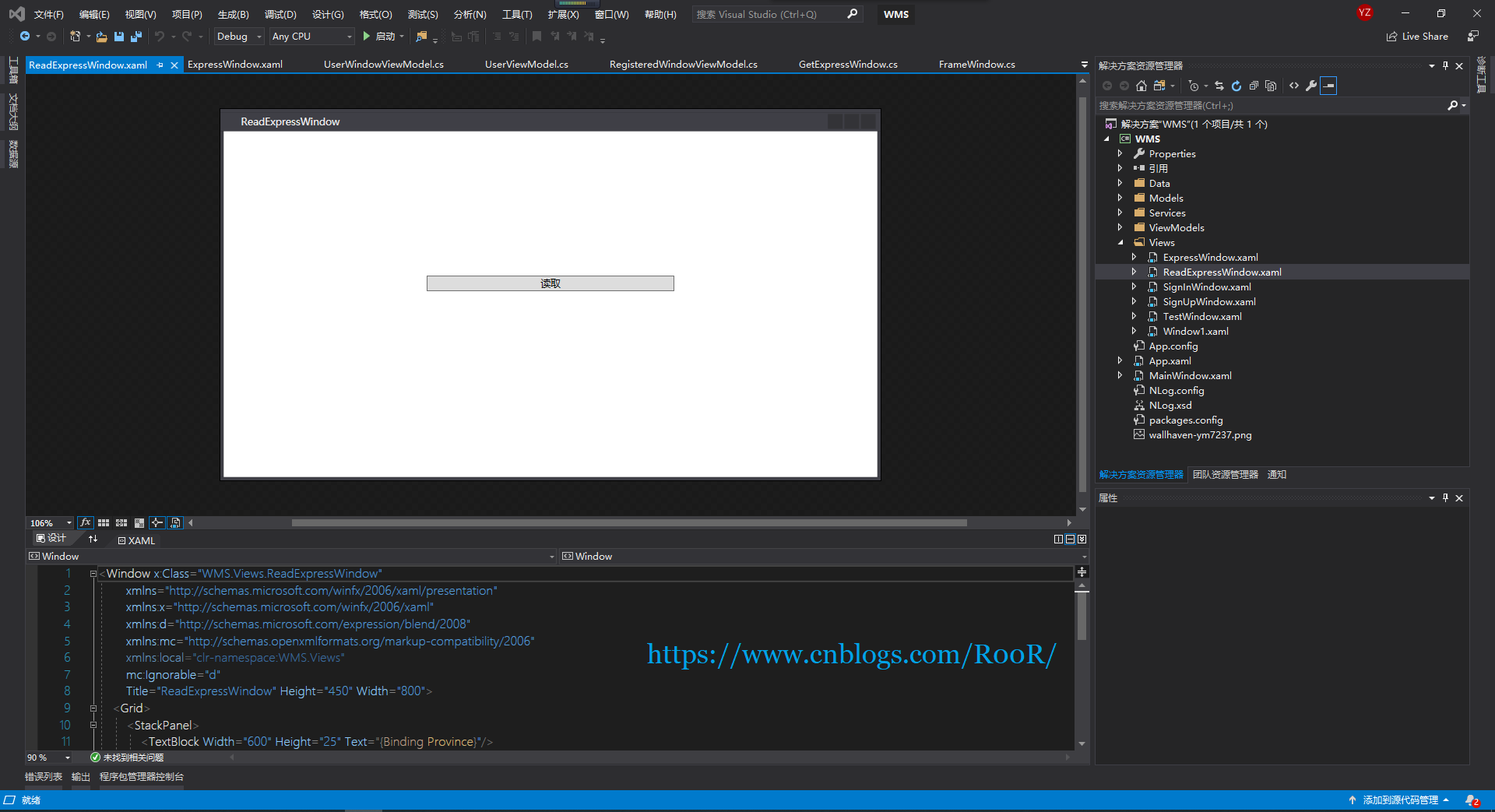
    <Grid>

        <StackPanel>

            <TextBlock Width="" Height="" Text="{Binding Province}"/>

            <TextBlock Width="" Height="" Text="{Binding City}"/>

            <TextBlock Width="" Height="" Text="{Binding Area}"/>

            <TextBlock Width="" Height="" Text="{Binding Street}"/>

            <TextBlock Width="" Height="" Text="{Binding Username}"/>

            <TextBlock Width="" Height="" Text="{Binding Phonenumber}"/>

            <TextBlock Width="" Height="" Text="{Binding Createtime}"/>

            <Button Content="读取" Command="{Binding GetExpressCommand}"

                    Width=""/>

        </StackPanel>

    </Grid>
实际上到这里就已经完了,但是每个页面的后台都有代码,还没有完,嘻嘻嘻


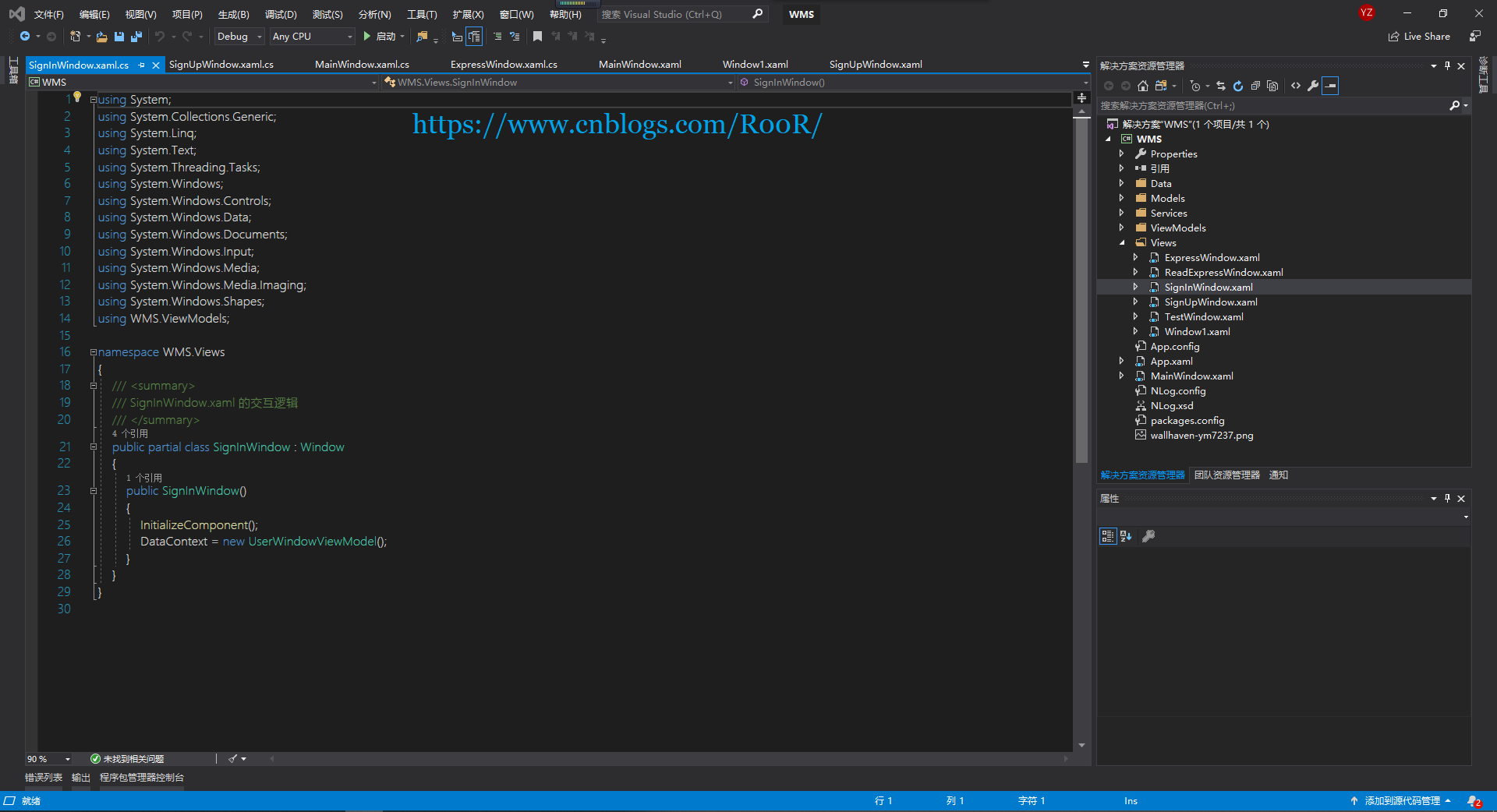
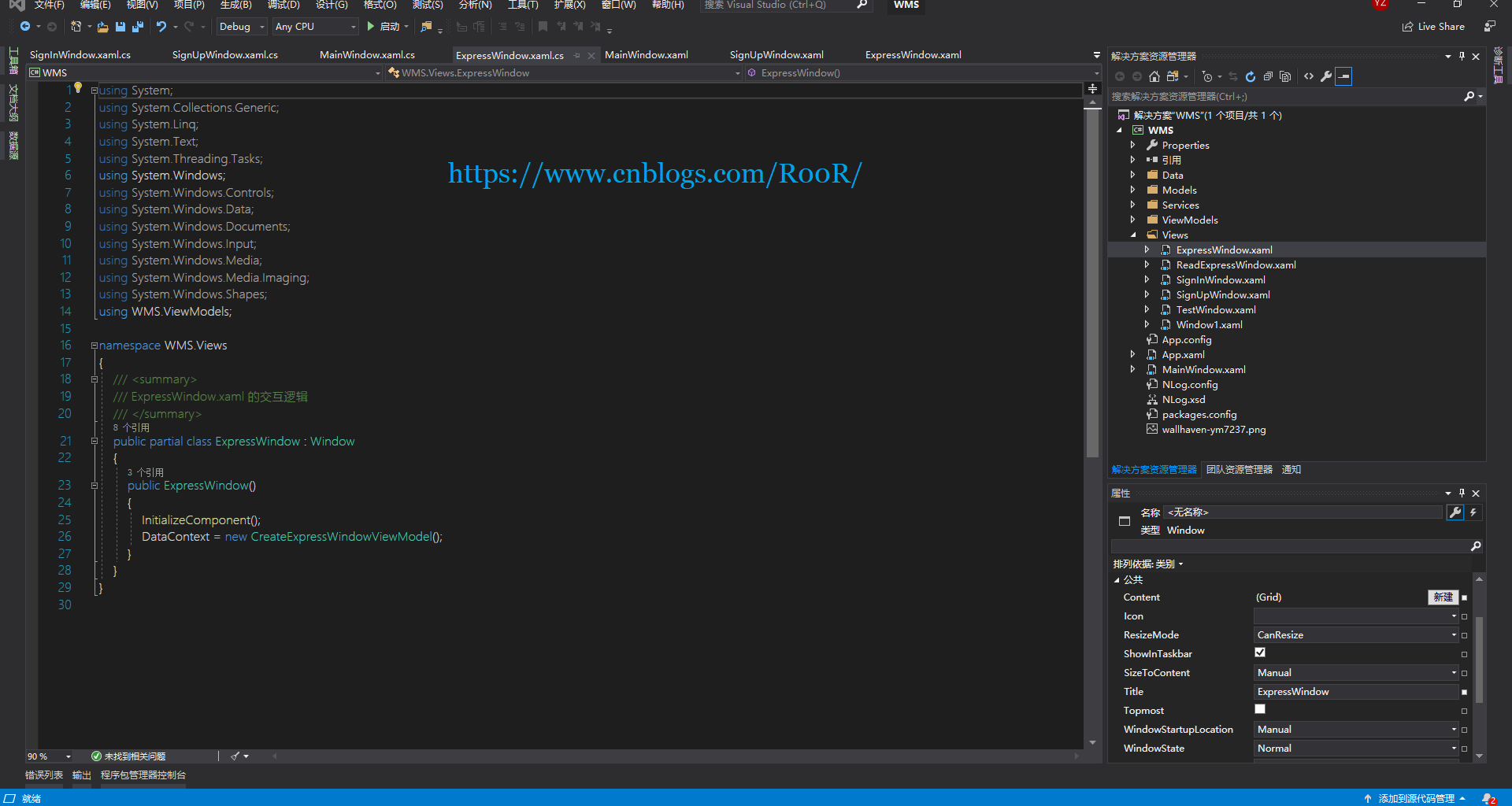
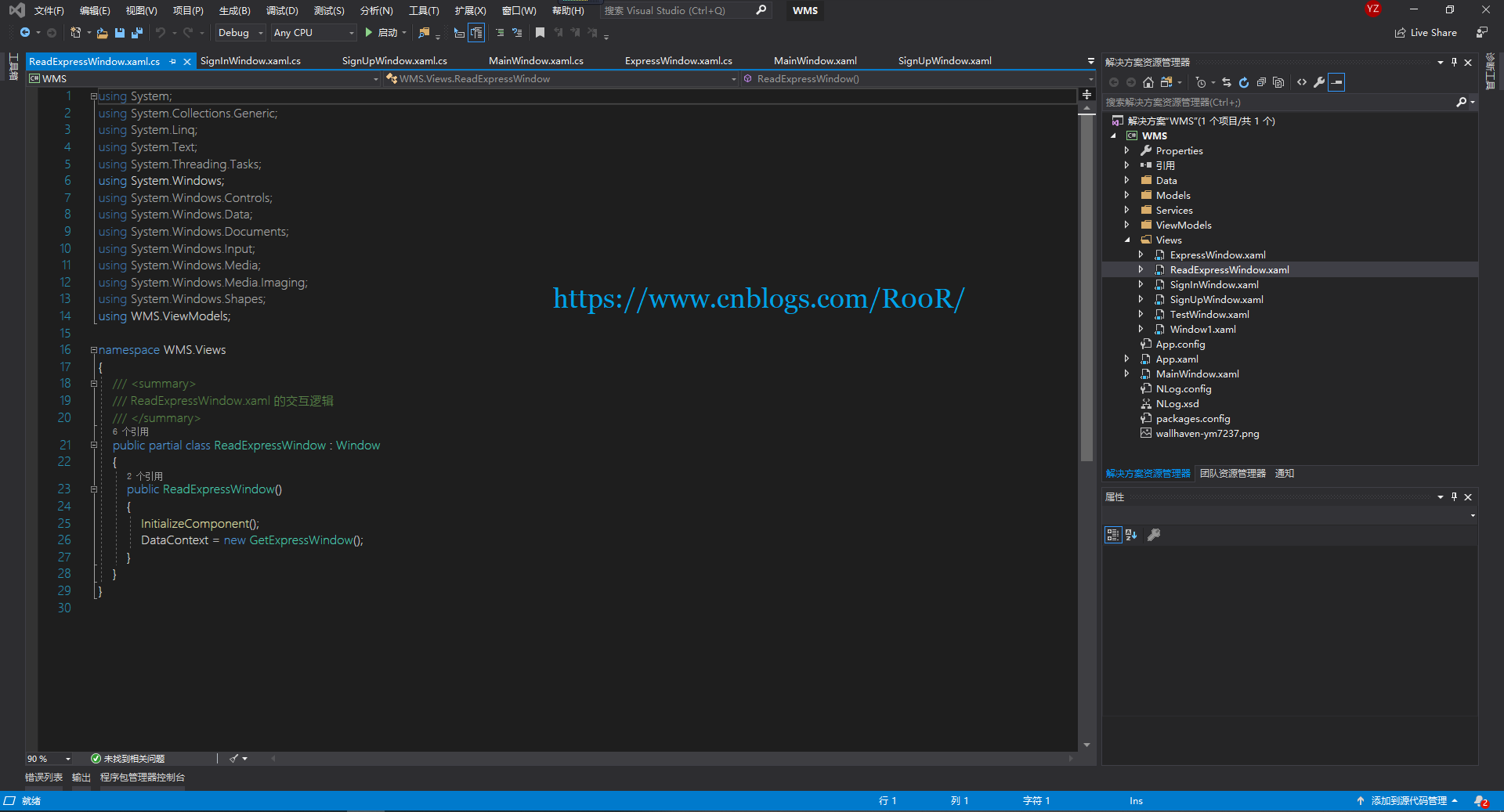
如下效果图

每个页面的后面都没有什么代码就一句代码作为Views和Models连接起来,达到了代码上的解耦,由于博主后面部分没有太多的讲解,时间真的太紧了,这两篇博客也是脱了好久,我猜这么菜的技术,应该没有人看吧,哈哈哈。不过没有什么所谓吧,如果觉得有用的话点个推荐吧,谢谢!
简单的物流项目实战,WPF的MVVM设计模式(五)的更多相关文章
- 简单的物流项目实战,WPF的MVVM设计模式(一)
新建一个WPF项目,命名为WMS 然后分别新建文件夹,Data,Models,Views,ViewModels,Services,如下图所示 然后通过NuGet安装连个Nuget包,分别为SQLite ...
- 简单的物流项目实战,WPF的MVVM设计模式(四)
接下来写ViewModels 创建运单的ViewModel类 public class CreateExpressWindowViewModel: NotificationObject { priva ...
- 简单的物流项目实战,WPF的MVVM设计模式(三)
往Services文件里面添加接口以及实现接口 IUserService接口 List<User> GetAllUser(); GetUserService类 ConnectToDatab ...
- 简单的物流项目实战,WPF的MVVM设计模式(二)
往Models文件添加一个类,ConnectObject /// <summary> /// 链接数据库字符串 /// </summary ...
- 使用MVVM设计模式构建WPF应用程序
使用MVVM设计模式构建WPF应用程序 本文是翻译大牛Josh Smith的文章,WPF Apps With The Model-View-ViewModel Design Pattern,译者水平有 ...
- WPF系列教程——(二)使用Prism实现MVVM设计模式 - 简书
原文:WPF系列教程--(二)使用Prism实现MVVM设计模式 - 简书 本文假设你已经知道MVVM设计模式是什么,所以直接进入正题,今天我们就用Prism来实现WPF的MVVM设计模式,百度上关于 ...
- 15套java架构师、集群、高可用、高可扩展、高性能、高并发、性能优化、Spring boot、Redis、ActiveMQ、Nginx、Mycat、Netty、Jvm大型分布式项目实战视频教程
* { font-family: "Microsoft YaHei" !important } h1 { color: #FF0 } 15套java架构师.集群.高可用.高可扩展. ...
- 15套java互联网架构师、高并发、集群、负载均衡、高可用、数据库设计、缓存、性能优化、大型分布式 项目实战视频教程
* { font-family: "Microsoft YaHei" !important } h1 { color: #FF0 } 15套java架构师.集群.高可用.高可扩 展 ...
- java架构师负载均衡、高并发、nginx优化、tomcat集群、异步性能优化、Dubbo分布式、Redis持久化、ActiveMQ中间件、Netty互联网、spring大型分布式项目实战视频教程百度网盘
15套Java架构师详情 * { font-family: "Microsoft YaHei" !important } h1 { background-color: #006; ...
随机推荐
- 树状数组(Binary Indexed Tree)
树状数组(Binary Indexed Tree,BIT) 是能够完成下述操作的数据结构. 给一个初始值全为 0 的数列 a1, a2, ..., an (1)给定 i,计算 a1+a2+...+ai ...
- sh_04_第1个函数改造
sh_04_第1个函数改造 name = "小明" # say_hello() # Python 解释器知道下方定义了一个函数 def say_hello(): "&qu ...
- SpringBoot整合Shiro实现权限控制,验证码
本文介绍 SpringBoot 整合 shiro,相对于 Spring Security 而言,shiro 更加简单,没有那么复杂. 目前我的需求是一个博客系统,有用户和管理员两种角色.一个用户可能有 ...
- EDM案例讲解:Mouth foods的EDM邮件营销
你可能没有听说过Mouth foods,它是一个美味产品的在线市场.作为一个日益增长的企业,他们知道电子邮件的重要性,因为在此之前他们通过电子邮件真正找到了企业品牌中的自我,这就是为什么他们认为电子邮 ...
- 大数据时代下EDM邮件营销的变革
根据研究,今年的EDM邮件营销的邮件发送量比去年增长了63%,许多方法可以为你收集用户数据,这些数据可以帮助企业改善自己在营销中的精准度,相关性和执行力. 最近的一项研究表明,中国800强企业当中超过 ...
- 阶段3 1.Mybatis_03.自定义Mybatis框架_2.自定义Mybatis的分析-创建代理对象的分析
如何创建代理对象,以及使用设计模式带来的优势 调用的组合关系 不关注的,执行JDBC那一套.第二个是解析XML,解析的技术有很多.
- lazarus 给应用程序创建 配置文件哈哈
lazarus 给应用程序创建 配置文件哈哈procedure TForm1.Button2Click(Sender: TObject);beginForceDirectoriesUTF8(GetAp ...
- Ubuntu新建用户以及安装pytorch
环境:Ubuntu18,Python3.6 首先登录服务器 ssh username@xx.xx.xx.xxx #登录一个已有的username 新建用户 sudo adduser username ...
- 使用 java.util.Properties 读取配置文件中的参数
配置文件格式 如下的配置参数格式都支持: Key = ValueKey = Key:ValueKey :Value 用法 getProperty方法的返回值是String类型. //读取配置文件 Fi ...
- ssh-config的使用
使用SSH的配置文件可以在很大程度上方便各种操作,特别适应于有多个SSH帐号.使用非标准端口或者写脚本等情况. man ssh_config 可以查看手册 如果之前是用密码方式来登录SSH,需要先改用 ...