
Docker 知识梳理及其安装使用
Docker 介绍
Docker 是一个强大的工具,用于高效开发、打包和部署应用程序。Docker 是一种容器管理服务。Docker 于 2013 年发布。它是开源的,可用于 Windows、macOS 和 Linux 等不同平台。Docker 正在快速交付、测试和部署代码。这样可以减少编写代码和在生产环境中运行代码之间的延迟。您可以创建称为容器的自包含环境。它可以在不同的平台上一致地运行。
Docker 是一组平台即服务 (PaaS) 产品,它使用操作系统级虚拟化以称为容器的包的形式交付软件。容器彼此隔离,并捆绑自己的软件、库和配置文件;他们可以通过定义明确的渠道相互通信。所有容器都由单个操作系统内核运行,因此使用的资源比虚拟机少。
Docker 是一个开源 容器化 平台,通过该平台,您可以将应用程序及其所有依赖项打包到一个称为容器的标准化单元中。容器重量轻,这使得它们具有可移植性,并且它们与底层基础设施和其他容器隔离。您可以在任何安装了 docker 的计算机上将 docker 镜像 作为 docker 容器运行,而无需依赖 操作系统。
为什么 Docker 很受欢迎?
Docker 因其对软件开发和部署的影响而广受欢迎。以下是 docker 流行的一些主要原因:
- 可移植性: Docker 有助于开发人员将其应用程序与所有依赖项打包到单个轻量级容器中。它有助于确保不同计算环境中的性能一致。
- 可重复性: 通过将应用程序及其依赖项封装在一个容器中,它可以确保软件设置在开发、测试和生产环境中保持一致。
- 效率: Docker 通过其基于容器的架构优化了资源利用率。它允许开发人员在单个主机系统上运行多个隔离的应用程序。
- 可扩展性: Docker 的可扩展性功能有助于开发人员在工作负载增加时更轻松地处理他们的应用程序。
Docker 的关键组件
以下是 Docker 的一些关键组件:
- Docker Engine: 它是 Docker 的核心部分,用于处理容器的创建和管理。
- Docker Image: 它是一个只读模板,用于创建容器,包含应用程序代码和依赖项。
- Docker Hub: 它是一个基于云的存储库,用于查找和共享容器映像。
- Dockerfile: 这是一个脚本,其中包含构建 docker 镜像的说明。
- Docker Registry :它是 docker 镜像的存储分发系统,您可以在其中以公共和私有模式存储镜像。
Docker 架构以及 Docker 的工作原理?
Docker 使用客户端-服务器架构。Docker 客户端与 docker 守护程序通信,这有助于构建、运行和分发 docker 容器。Docker 客户端与守护程序在同一系统上运行,或者我们可以远程将 Docker 客户端与 Docker 守护程序连接。在 UNIX 套接字或网络上的 REST API 的帮助下,docker 客户端和守护程序可以相互交互。

Docker Daemon
Docker 守护程序通过与其他守护程序通信来管理所有服务。它借助 Docker 的 API 请求管理 Docker 对象,例如映像、容器、网络和卷。
Docker Client
在 docker 客户端的帮助下,docker 用户可以与 docker 交互。docker 命令使用 Docker API。Docker 客户端可以与多个守护程序通信。当 docker 客户端在 docker 终端上运行任何 docker 命令时,终端会向守护进程发送指令。Docker 守护程序从命令形状和 REST API 请求内的 docker 客户端获取这些指令。
docker 客户端的主要目标是提供一种方法来指导从 docker 注册表中提取镜像并在 docker 主机上运行它们。客户端使用的常用命令是 docker build、docker pull 和 docker run。
Docker Host
Docker 主机是一种负责运行多个容器的机器。它包括 Docker 守护程序、映像、容器、网络和存储。
Docker Registry
所有 docker 镜像都存储在 docker 注册表中。有一个公共注册表,称为 docker hub,任何人都可以使用。我们也可以运行我们的私有注册表。在 docker run 或 docker pull 命令的帮助下,我们可以从配置的注册表中提取所需的镜像。在 docker push 命令的帮助下,镜像被推送到配置的注册表中。
Docker Objects
每当我们使用 docker 时,我们都会创建和使用镜像、容器、卷、网络和其他对象。现在,我们将讨论 docker 对象:-

Docker Images
镜像包含创建 Docker 容器的说明。它只是一个只读模板。它用于存储和交付应用程序。映像是 docker 体验的重要组成部分,因为它们以以前无法实现的任何方式支持开发人员之间的协作。
Docker Containers
容器是从 docker 镜像创建的,因为它们是现成的应用程序。在 Docker API 或 CLI 的帮助下,我们可以启动、停止、删除或移动容器。容器只能访问映像中定义的那些资源,除非在容器中构建映像期间定义了其他访问权限。
Docker Storage
我们可以将数据存储在容器的可写层中,但它需要一个存储驱动程序。存储驱动程序控制和管理 Docker 主机上的镜像和容器。
以下是 Docker 中常见的数据持久化方法:
- 数据卷(Volumes):数据卷是一种特殊的目录,可以绕过容器文件系统并将数据存储在宿主机上。数据卷可以被一个或多个容器共享,并且在容器之间持久存在。使用数据卷可以方便地备份、恢复和迁移数据。
- 绑定挂载(Bind Mounts):绑定挂载允许将宿主机上的文件或目录直接挂载到容器中。这样,容器可以访问宿主机文件系统中的数据,并且对数据的修改也会反映到宿主机上。
- 命名卷(Named Volumes):命名卷是一种具有名称的数据卷,可以在多个容器之间共享,并且可以方便地管理和使用。通过为卷指定名称,可以在创建容器时直接引用该名称,并且 Docker 会自动创建和管理卷。
- 数据卷容器(Data Volume Containers):数据卷容器是一种特殊类型的容器,用于存储和管理数据卷。其他容器可以通过 --volumes-from 选项挂载这些数据卷容器,从而实现数据的共享和持久化。
Docker 网络
Docker 网络为 Docker 容器提供完全隔离。这意味着用户可以将 docker 容器链接到多个网络。它需要的操作系统实例非常少来运行工作负载。
网络模式说明
| 网络模式 | 配置 | 说明 |
|---|---|---|
| bridge | --network=bridge | 为每个容器分配 IP 。并将容器连接到 docker0 虚拟网桥上,这种模式是默认模式 |
| host | --network=host | 容器不会创建自己的网卡,配置 IP 等,而是使用宿主机的 IP 和端口 |
| none | --network=none | 容器关闭网络功能,不进行任何网路设置 |
| container | --network=container | 容器不会创建自己的网卡和IP,而是和一个指定的容器共享 IP 和端口 |
| custom | --network=new_bridge | 为每个容器分配 IP 。并将容器连接到自定义的虚拟网桥上 |
Docker 安装方式
准备环境
系统要求:Docker 支持 64 位版本 CentOS 7/8,并且要求内核版本不低于 3.10。 CentOS 7 满足最低内核的要求,但由于内核版本比较低,部分功能(如 overlay2 存储层驱动)无法使用,并且部分功能可能不太稳定。
如需升级 Linux 内核参考《CentOS 7 内核升级最新记录(yum及编译)》
[root@localhost ~]# cat /etc/redhat-release

CentOS Linux release 7.9.2009 (Core)

[root@localhost ~]# uname -r

3.10.0-1160.el7.x86_64

[root@localhost ~]# setenforce 0

[root@localhost ~]# sed -i.bak '7s/enforcing/disabled/' /etc/selinux/config

[root@localhost ~]# swapoff -a

[root@localhost ~]# sed -ri.bak 's/.*swap.*/#&/' /etc/fstab

[root@localhost ~]# systemctl stop firewalld && systemctl disable firewalld

[root@localhost ~]# firewall-cmd --state

not running

# 更换阿里源

[root@localhost ~]# mv /etc/yum.repos.d/CentOS-Base.repo /etc/yum.repos.d/CentOS-Base.repo.backup

[root@localhost ~]# curl -o /etc/yum.repos.d/CentOS-Base.repo http://mirrors.aliyun.com/repo/Centos-7.repo

[root@localhost ~]# curl -o /etc/yum.repos.d/epel.repo http://mirrors.aliyun.com/repo/epel-7.repo
在线 YUM 安装
时间:2024-09
# 卸载旧版本

[root@localhost ~]# yum remove docker docker-client docker-client-latest docker-common docker-latest \

docker-latest-logrotate docker-logrotate docker-selinux docker-engine-selinux docker-engine

# 安装所需的软件包。yum-utils 提供了 yum-config-manager

[root@localhost ~]# yum install -y yum-utils

# 添加 yum 软件源(三选一)

[root@localhost ~]# yum-config-manager --add-repo https://mirrors.aliyun.com/docker-ce/linux/centos/docker-ce.repo  # 阿里源

yum-config-manager --add-repo https://mirrors.tuna.tsinghua.edu.cn/docker-ce/linux/centos/docker-ce.repo  # 清华大学源

yum-config-manager --add-repo https://download.docker.com/linux/centos/docker-ce.repo   # 官方源(较慢)

# 列出存储库中可用的版本。按版本号(从高到低)

[root@localhost ~]# yum list docker-ce --showduplicates | sort -r

 * updates: mirrors.aliyun.com

Loading mirror speeds from cached hostfile

Loaded plugins: fastestmirror

 * extras: mirrors.aliyun.com

docker-ce.x86_64            3:26.1.4-1.el7                      docker-ce-stable

docker-ce.x86_64            3:26.1.3-1.el7                      docker-ce-stable

docker-ce.x86_64            3:26.1.2-1.el7                      docker-ce-stable

docker-ce.x86_64            3:26.1.1-1.el7                      docker-ce-stable

docker-ce.x86_64            3:26.1.0-1.el7                      docker-ce-stable

docker-ce.x86_64            3:26.0.2-1.el7                      docker-ce-stable

docker-ce.x86_64            3:26.0.1-1.el7                      docker-ce-stable

docker-ce.x86_64            3:26.0.0-1.el7                      docker-ce-stable

docker-ce.x86_64            3:25.0.5-1.el7                      docker-ce-stable

docker-ce.x86_64            3:25.0.4-1.el7                      docker-ce-stable

docker-ce.x86_64            3:25.0.3-1.el7                      docker-ce-stable

docker-ce.x86_64            3:25.0.2-1.el7                      docker-ce-stable

docker-ce.x86_64            3:25.0.1-1.el7                      docker-ce-stable

docker-ce.x86_64            3:25.0.0-1.el7                      docker-ce-stable

docker-ce.x86_64            3:24.0.9-1.el7                      docker-ce-stable

docker-ce.x86_64            3:24.0.8-1.el7                      docker-ce-stable

# 安装最新版本

[root@localhost ~]# yum install docker-ce docker-ce-cli containerd.io

# 若选择版本安装 例如docker-ce-24.0.9

yum install docker-ce-<VERSION_STRING> docker-ce-cli-<VERSION_STRING> containerd.io

# 若选择测试版本的 Docker 请执行以下命令

yum-config-manager --enable docker-ce-test

# 验证

[root@localhost ~]# docker -v

Docker version 26.1.4, build 5650f9b

# 添加国内镜像加速(每次修改需重启 docker)

[root@localhost ~]# cat > /etc/docker/daemon.json <<EOF

{

    "registry-mirrors": [

        "https://mirror.baidubce.com",

        "https://mirror.ccs.tencentyun.com",

        "https://wxvmh7l6.mirror.aliyuncs.com",

        "https://hub.atomgit.com",

        "https://registry.docker-cn.com",

        "https://mirrors.tuna.tsinghua.edu.cn",

        "http://hub-mirror.c.163.com",

        "https://docker.mirrors.ustc.edu.cn"

    ]

}

EOF

# 启动

[root@localhost ~]# systemctl daemon-reload && systemctl start docker

# 测试 Docker 是否安装正确

[root@localhost ~]# docker run --rm hello-world

Unable to find image 'hello-world:latest' locally

latest: Pulling from library/hello-world

d195baed67eb: Pull complete

Digest: sha256:be06e3c4ce8780c0f87fbf66ec9b34623ba2fd14caa5559be5b593653821b814

Status: Downloaded newer image for hello-world:latest

Hello from Docker!

This message shows that your installation appears to be working correctly.

To generate this message, Docker took the following steps:

 1. The Docker client contacted the Docker daemon.

 2. The Docker daemon pulled the "hello-world" image from the Docker Hub.

    (amd64)

 3. The Docker daemon created a new container from that image which runs the

    executable that produces the output you are currently reading.

 4. The Docker daemon streamed that output to the Docker client, which sent it

    to your terminal.

To try something more ambitious, you can run an Ubuntu container with:

 $ docker run -it ubuntu bash

Share images, automate workflows, and more with a free Docker ID:

 https://hub.docker.com/

For more examples and ideas, visit:

 https://docs.docker.com/get-started/

若能正常输出以上信息,则说明安装成功。
二进制离线安装
时间:2024-09
下载 Docker 地址
- 阿里地址【https://mirrors.aliyun.com/docker-ce 】
- 清华大学地址【https://mirrors.tuna.tsinghua.edu.cn/docker-ce 】
- 官方地址【https://download.docker.com 】
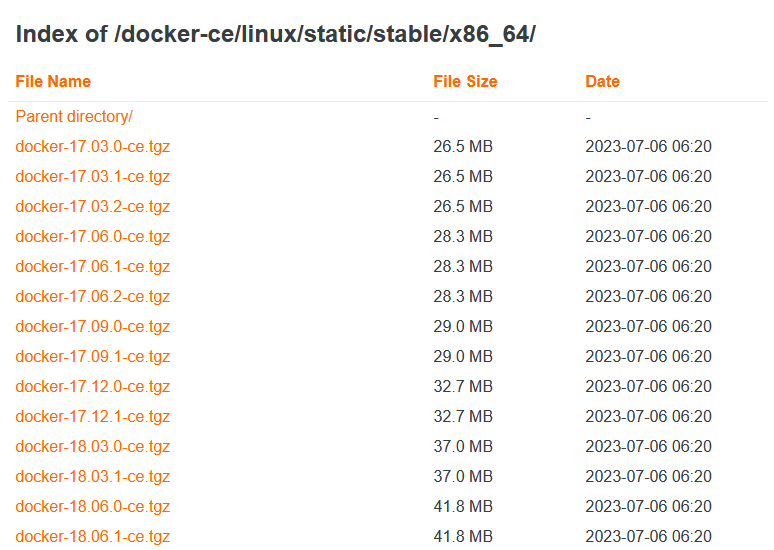
# 下载 Docker docker-23.0.6.tgz 为例 (当前最新版本 docker-27.2.0.tgz)

[root@localhost ~]# wget https://mirrors.aliyun.com/docker-ce/linux/static/stable/x86_64/docker-23.0.6.tgz

[root@localhost ~]# tar -xf docker-23.0.6.tgz

[root@localhost ~]# cp docker/* /usr/bin/

[root@localhost ~]# docker -v

Docker version 23.0.6, build ef23cbc

[root@localhost ~]# docker -h

# 将docker注册为 Systemd 的 service

[root@localhost ~]# cat > /etc/systemd/system/docker.service <<EOF

[Unit]

Description=Docker Application Container Engine

Documentation=https://docs.docker.com

After=network-online.target firewalld.service

Wants=network-online.target

[Service]

Type=notify

# the default is not to use systemd for cgroups because the delegate issues still

# exists and systemd currently does not support the cgroup feature set required

# for containers run by docker

ExecStart=/usr/bin/dockerd -H unix:///var/run/docker.sock --selinux-enabled=false --default-ulimit nofile=65536:65536

ExecReload=/bin/kill -s HUP $MAINPID

# Having non-zero Limit*s causes performance problems due to accounting overhead

# in the kernel. We recommend using cgroups to do container-local accounting.

LimitNOFILE=infinity

LimitNPROC=infinity

LimitCORE=infinity

# Uncomment TasksMax if your systemd version supports it.

# Only systemd 226 and above support this version.

#TasksMax=infinity

TimeoutStartSec=0

# set delegate yes so that systemd does not reset the cgroups of docker containers

Delegate=yes

# kill only the docker process, not all processes in the cgroup

KillMode=process

# restart the docker process if it exits prematurely

Restart=on-failure

StartLimitBurst=3

StartLimitInterval=60s

[Install]

WantedBy=multi-user.target

EOF

# 如果需要开启远程服务ExecStart属性修改为以下命令:

ExecStart=/usr/bin/dockerd -H tcp://0.0.0.0:2375 -H unix:///var/run/docker.sock --selinux-enabled=false --default-ulimit nofile=65536:65536

# -H tcp://0.0.0.0:2375 开启远程连接命令

# 添加文件可执行权限

[root@localhost ~]# chmod +x /etc/systemd/system/docker.service

# 添加国内镜像加速(每次修改需重启 docker)

[root@localhost ~]# mkdir /etc/docker

[root@localhost ~]# cat > /etc/docker/daemon.json <<EOF

{

    "registry-mirrors": [

        "https://mirror.baidubce.com",

        "https://mirror.ccs.tencentyun.com",

        "https://wxvmh7l6.mirror.aliyuncs.com",

        "https://hub.atomgit.com",

        "https://registry.docker-cn.com",

        "https://mirrors.tuna.tsinghua.edu.cn",

        "http://hub-mirror.c.163.com",

        "https://docker.mirrors.ustc.edu.cn"

    ]

}

EOF

# 启动

[root@localhost ~]# systemctl daemon-reload && systemctl start docker

# 测试 Docker 是否安装正确

[root@localhost ~]# docker run --rm hello-world

Unable to find image 'hello-world:latest' locally

latest: Pulling from library/hello-world

d195baed67eb: Pull complete

Digest: sha256:be06e3c4ce8780c0f87fbf66ec9b34623ba2fd14caa5559be5b593653821b814

Status: Downloaded newer image for hello-world:latest

Hello from Docker!

This message shows that your installation appears to be working correctly.

To generate this message, Docker took the following steps:

 1. The Docker client contacted the Docker daemon.

 2. The Docker daemon pulled the "hello-world" image from the Docker Hub.

    (amd64)

 3. The Docker daemon created a new container from that image which runs the

    executable that produces the output you are currently reading.

 4. The Docker daemon streamed that output to the Docker client, which sent it

    to your terminal.

To try something more ambitious, you can run an Ubuntu container with:

 $ docker run -it ubuntu bash

Share images, automate workflows, and more with a free Docker ID:

 https://hub.docker.com/

For more examples and ideas, visit:

 https://docs.docker.com/get-started/

若能正常输出以上信息,则说明安装成功。
Docker 常用命令

Docker 知识梳理及其安装使用的更多相关文章
- [SQL] SQL 基础知识梳理(一)- 数据库与 SQL
SQL 基础知识梳理(一)- 数据库与 SQL [博主]反骨仔 [原文地址]http://www.cnblogs.com/liqingwen/p/5902856.html 目录 What's 数据库 ...
- Linux基础知识梳理
Linux基础知识梳理 Linux内核最初只是由芬兰人林纳斯?托瓦兹(Linus Torvalds)在赫尔辛基大学上学时出于个人爱好而编写的.Linux是一套免费使用和自由传播的类Unix操作系统,是 ...
- Jmeter 接口测试知识梳理——持续集成篇
Jmeter 使用也有很长时间了,但是一直没有做一下知识梳理,近期会对公司同事做一下这方面的培训,借此机会,把使用过程中应用到的知识,或是遇到的问题,整理出来,方便大家学习! Jmeter + Ant ...
- Jmeter 接口测试知识梳理——环境搭建篇
Jmeter 使用也有很长时间了,但是一直没有做一下知识梳理,近期会对公司同事做一下这方面的培训,借此机会,把使用过程中应用到的知识,或是遇到的问题,整理出来,方便大家学习! 环境搭建篇 很多文章介绍 ...
- Babel7知识梳理
Babel7 知识梳理 对 Babel 的配置项的作用不那么了解,是否会影响日常开发呢?老实说,大多情况下没有特别大的影响(毕竟有搜索引擎). 不过呢,还是想更进一步了解下,于是最近认真阅读了 Bab ...
- MySQL 基础知识梳理
MySQL 的安装方式有多种,但是对于不同场景,会有最适合该场景的 MySQL 安装方式,下面就介绍一下 MySQL 常见的安装方法,包括 rpm 安装,yum 安装,通用二进制安装以及源码编译安装, ...
- Docker知识进阶与容器编排技术
目录 1 使用Dockerfile定制redis镜像 1.1 环境准备 1.2 编写Dockerfile文件 1.3 通过Dockerfile构建镜像 1.4 通过镜像运行容器 1.5 官方镜像替代我 ...
- [SQL] SQL 基础知识梳理(二) - 查询基础
SQL 基础知识梳理(二) - 查询基础 [博主]反骨仔 [原文]http://www.cnblogs.com/liqingwen/p/5904824.html 序 这是<SQL 基础知识梳理( ...
- [SQL] SQL 基础知识梳理(三) - 聚合和排序
SQL 基础知识梳理(三) - 聚合和排序 [博主]反骨仔 [原文]http://www.cnblogs.com/liqingwen/p/5926689.html 序 这是<SQL 基础知识梳理 ...
- [SQL] SQL 基础知识梳理(四) - 数据更新
SQL 基础知识梳理(四) - 数据更新 [博主]反骨仔 [原文]http://www.cnblogs.com/liqingwen/p/5929786.html 序 这是<SQL 基础知识梳理( ...
随机推荐
- move语义和完美转发
move语义 值类别(value category)如下: lvalue:左值,在内存中有地址,可被程序员访问,可以放在赋值运算符左侧,也可以放在赋值运算符右侧,常见的左值有普通变量.字符串字面值&q ...
- 内网穿透的高性能的反向代理应用FRP-自定义404错误页【实践可行版】
frp简介 frp 是一个专注于内网穿透的高性能的反向代理应用,支持 TCP.UDP.HTTP.HTTPS 等多种协议.可以将内网服务以安全.便捷的方式通过具有公网 IP 节点的中转暴露到公网. 为什 ...
- [Unity] Dreamteck Splines实现沿路径移动功能
Dreamteck Splines实现沿路径移动功能 最近有一个"让物体沿固定路径移动"的需求,因此接触到了Dreamteck Splines插件. Dreamteck Splin ...
- java面试一日一题:说下mysql中的binlog
问题:请讲下mysql中的binlog 分析:该问题主要考察对mysql中binlog的理解及使用场景? 回答要点: 主要从以下几点去考虑, 1.什么是binglog? 2.binlog的使用场景是什 ...
- python Selenium 不要混合隐式和显式等待
警告:不要混合隐式和显式等待.这样做可能会导致不可预测的等待时间.例如,设置10秒的隐式等待和15秒的显式等待可能会导致20秒后发生超时 Warning: Do not mix implicit an ...
- Mysql将查询出的数值转换为中文显示case..when..then
我们经常需要在数据库导出文件,可是导出某些字段时不是中文含义其它同事分不清.可以通过case..when..then根据一一对应的关系将值转成中文,再进行导出方便大家查阅. 1.正常sql未处理之前查 ...
- vue里使用px2rem
安装 yarn add postcss-px2rem 配置 在vue.config.js中添加以下配置 const px2rem = require('postcss-px2rem') module. ...
- 【Layui】07 徽章 Badge
文档地址: https://www.layui.com/demo/badge.html 圆点徽章: <span class="layui-badge-dot">< ...
- Git安装与windows终端配置Git-bash
Git概述 简介 Git是一个分布式版本控制工具,通常用来对软件开发过程中的源代码文件进行管理.通过Git仓库存储和管理这些文件,Git仓库分为两种: 本地仓库:开发人员自己电脑上的Git仓库 远程仓 ...
- npm WARN config global `--global`, `--local` are deprecated. Use `--location 的解决方法
1.背景 2.解决步骤 2.1.找到nodejs的安装路径 2.2.修改配置文件 将文件里的 prefix-g 改为 prefix --location=global 修改前: 修改后: 点击保存就解 ...