
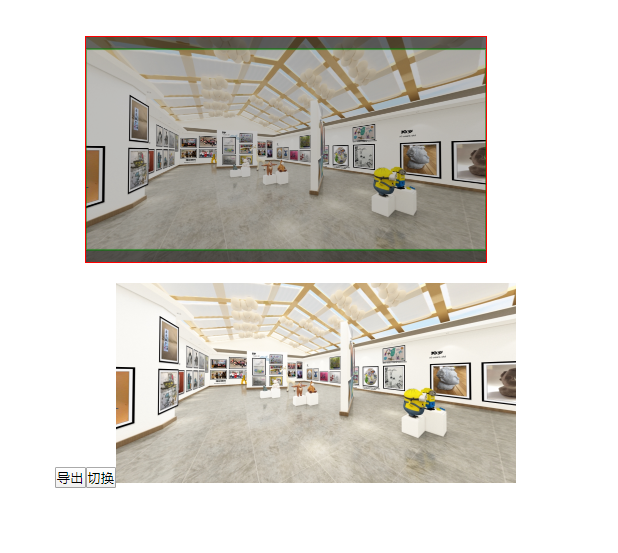
撸一个 vue 的截图组件,按比例截取
<template>

    <div class="clip-img" :style="imgStyle">

        <img :src="url" alt="" crossOrigin="anonymous" :style="imgStyle">

        <canvas ref="canvas" :style="imgStyle"  @mousedown="onmousedown" @mousemove="onmousemove"></canvas>

    </div>

</template>

<script>

export default {

    name:"clip-image",

    props:{

        max:{ // 缩放基准宽度或高度

            type:Number,

            default:400

        }

    },

    data(){

        return {

            img:null,

            url:null,

            imgInfo: null, // 压缩前的信息

            imgCInfo:null, // 压缩后的信息

            clipInfo:null, // 压缩前的信息

            clipCinfo:null, // 压缩后的信息

            ctx:null, // 画板

            pos:{x:0,y:0},

            lock: "", // 锁住一个方向

            boundary:null

        }

    },

    computed:{

        imgStyle(){

            let imgCInfo = this.imgCInfo;

            if(imgCInfo){

                return {

                    width: `${imgCInfo.w}px`,

                    height: `${imgCInfo.h}px`

                }

            }

            return {height:"0px",height:"0px",display:"none"};

        }

    },

    async mounted(){

        this.clear();

        this.ctx = this.$refs.canvas.getContext("2d");

        window.addEventListener("mouseup",this.onmouseup);

    },

    methods:{

        init(src,bound){

            this.setSrc(src)

            this.setClip(bound);

        },

        // 外部调用

        async setSrc(src){

            let img = await this.loadImage(src,{crossOrigin:"anonymous"});

            this.img = img;

            this.setImg(img);

        },

        clear(){

             let obj = {

                img:null,

                url:null,

                imgInfo: null, // 压缩前的信息

                imgCInfo:null, // 压缩后的信息

                clipInfo:null, // 压缩前的信息

                clipCinfo:null, // 压缩后的信息

                ctx:null, // 画板

                pos:{x:0,y:0},

                lock: "", // 锁住一个方向

                boundary:null

             }

             for(let i in obj){

                 this[i]  = obj[i];

             }

        },

        loadImage(url,attrs){

            this.url = url;

            let img = new Image();

            img.src = url;

            attrs = attrs || {};

            for(let i in attrs){

                img[i] = attrs[i];

            }

            return new Promise((resolve,reject)=>{

                img.onload = function(){

                    resolve(img);

                };

                img.onerror  = reject;

            });

        },

        setImg(img){

            this.img = img;

            this.imgInfo = {

                w:img.width,

                h:img.height

            };

            // 压缩图的比例

            let w,h,scale;

            if(img.width > img.height){

                w = this.max;

                scale = w/img.width;

                h = scale*img.height;

            }else{

                h = this.max;

                scale = (h/img.height);

                w = scale * img.width;

            }

            this.imgCInfo = {

                w,

                h,

                scale

            };

            let canvas =  this.$refs.canvas;

            canvas.width = w;

            canvas.height = h;

            this.setClip();

        },

        setClip(clipInfo){

            if(clipInfo){

                this.clipInfo = {

                    w:clipInfo.width,

                    h:clipInfo.height

                };

            }

            if(this.imgCInfo && this.clipInfo){

                this.compressClip(this.imgCInfo,this.clipInfo);

                this.fill();

            }

        },

        compressClip(imgCInfo,clipInfo){

            // 压缩缩放

            let w,h,scale;

            let imgR = imgCInfo.w/imgCInfo.h;

            let clipR = clipInfo.w / clipInfo.h;

            if(imgR > clipR){

                // 图片的宽度偏大

                h = imgCInfo.h;

                scale = h/clipInfo.h;

                w = scale * clipInfo.w;

                this.lock = "h";

            }else{

                // 图片的宽度偏小

                w = imgCInfo.w;

                scale = w/clipInfo.w;

                h = scale * clipInfo.h;

                this.lock = "w";

            }

            this.clipCinfo = {

                w,

                h,

                scale

            }

            this.boundary = {

                w:this.imgCInfo.w - this.clipCinfo.w,

                h:this.imgCInfo.h - this.clipCinfo.h

            };

            this.pos = {

                x:0,

                y:0

            };

        },

        onmouseup(){

            this.mouse = null;

        },

        onmousedown(e){

            this.mouse = {

                x:e.offsetX,

                y:e.offsetY

            }

        },

        onmousemove(e){

            if(this.mouse){

                let x = e.offsetX - this.mouse.x ;

                let y = e.offsetY - this.mouse.y;

                if(this.lock == "h"){

                    x = this.pos.x + x;

                    if(x < 0){

                        x = 0;

                    }else if(x > this.boundary.w){

                        x = this.boundary.w

                    }

                    this.pos.x = x;

                }else{

                    y = this.pos.y + y;

                    if(y < 0){

                        y = 0;

                    }else if(y > this.boundary.h){

                        y = this.boundary.h

                    }

                    this.pos.y = y;

                }

                this.mouse = {

                    x:e.offsetX,

                    y:e.offsetY

                }

                this.fill();

            }

        },

        fill(){

            let {w,h} =  this.clipCinfo;

            let {x,y} = this.pos;

            let clipctx = this.ctx;

            let imgCInfo = this.imgCInfo;

            clipctx.clearRect(0, 0, imgCInfo.w, imgCInfo.h);

            clipctx.beginPath();

            clipctx.fillStyle = 'rgba(0,0,0,0.6)';

            clipctx.strokeStyle = "green";

            //遮罩层

            clipctx.globalCompositeOperation = "source-over";

            clipctx.fillRect(0, 0, imgCInfo.w, imgCInfo.h);

            //画框

            clipctx.globalCompositeOperation = 'destination-out';

            clipctx.fillRect(x, y, w, h);

            //描边

            clipctx.globalCompositeOperation = "source-over";

            clipctx.moveTo(x, y);

            clipctx.lineTo(x + w, y);

            clipctx.lineTo(x + w, y + h);

            clipctx.lineTo(x, y + h);

            clipctx.lineTo(x, y);

            clipctx.stroke();

            clipctx.closePath();

        },

        exportBase(){

            // 导出图片 base64

            let pos = this.pos;

            let scale = this.imgCInfo.scale;

            let sx = pos.x / scale;

            let sy = pos.y / scale;

            let swidth = parseInt(this.clipCinfo.w / scale);

            let sheight = parseInt(this.clipCinfo.h / scale);

            let canvas = document.createElement("canvas");

            canvas.width = swidth;

            canvas.height = sheight;

            let ctx = canvas.getContext("2d");

            ctx.drawImage(this.img,sx,sy,this.imgInfo.w,this.imgInfo.h,0,0,this.imgInfo.w,this.imgInfo.h);

            return  canvas.toDataURL("image/png");

        },

        dataURLtoFile(b64Data,filename){

            filename = filename || "test.png";

            let mime = "image/png";

            var bstr = atob(b64Data.replace(/^data:image\/(png|jpeg|jpg);base64,/, ''));

            var n = bstr.length;

            var u8arr = new Uint8Array(n);

            while(n--){

                u8arr[n] = bstr.charCodeAt(n);

            }

            // 转换成file对象

            return new File([u8arr], filename, {type:mime});

            // 转换成成blob对象

            // return new Blob([u8arr],{type:mime});

            // return blob;

        }

    },

    destroyed(){

        window.removeEventListener("mouseup",this.onmouseup);

    }

}

</script>

<style lang="scss" scoped>

.clip-img{

    border: 1px solid red;

    margin:  20px auto;

    position: relative;

    height: 0;

    width: 0;

    overflow: hidden;

    canvas{

        position: absolute;

        left: 0;

        top: 0;

        z-index: 1;

        cursor: move;

    }

    img{

        position: relative;

        z-index: 0;

    }

}

</style>
使用:
<template>

    <div class="clip-img">

        <clipImage ref="clipImage"></clipImage>

        <button @click="getImg">导出</button> <button @click="slide">切换</button>

        <img :src="src" v-if="src" alt="" class="result">

    </div>

</template>

<script>

import clipImage from "@/components/clip-image.vue";

export default {

    name:"clip-image",

    data(){

        return {

            src:""

        }

    },

    components:{

        clipImage

    },

    mounted(){

        // setSrc

        this.$refs.clipImage.init("xxx",{width:400,height:200});

    },

    methods:{

        getImg(){

            this.src = this.$refs.clipImage.exportBase();

            console.log("截图成功")

        },

        slide(){

            this.$refs.clipImage.setSrc("xxx");

        }

    }

}

</script>

<style lang="scss" scoped>

.clip-img{

    .result{

        max-width: 400px;

    }

}

</style>
撸一个 vue 的截图组件,按比例截取的更多相关文章
- 手把手从零开始---封装一个vue视频播放器组件
现在,在网页上播放视频已经越来越流行,但是网上的资料鱼龙混杂,很难找到自己想要的,今天小编就自己的亲身开发体验,手把手从零开始---封装一个vue视频播放器组件. 作为一个老道的前端搬砖师,怎么可能会 ...
- 纯手工撸一个vue框架
前言 vue create 真的很方便,但是很多人欠缺的是手动撸一遍.有些人离开脚手架都不会开发了. Vue最简单的结构 步骤 搭建最基本的结构 打开空文件夹,通过 npm init 命令生成pack ...
- 从零开始徒手撸一个vue的toast弹窗组件
相信普通的vue组件大家都会写,定义 -> 引入 -> 注册 -> 使用,行云流水,一气呵成,但是如果我们今天是要自定义一个弹窗组件呢? 首先,我们来分析一下弹窗组件的特性(需求): ...
- VUE -- 如何快速的写出一个Vue的icon组件?
伴随着Vue的诞生,它似乎就被人寄予厚望,不仅仅是因为其轻量级的MVVM设计方式,而且其实现了组件化开发模式,所以越来越多的人会拿Vue和AngularJS.React Native做比较.具体关于它 ...
- 基于iview 封装一个vue 表格分页组件
iview 是一个支持中大型项目的后台管理系统ui组件库,相对于一个后台管理系统的表格来说分页十分常见的 iview是一个基于vue的ui组件库,其中的iview-admin是一个已经为我们搭好的后天 ...
- 手把手教你实现一个 Vue 进度条组件!
最近在个人的项目中,想对页面之间跳转的过程进行优化,想到了很多文档或 npm 等都用到的页面跳转进度条,于是便想自己去实现一个,特此记录. 来看下 npm 搜索组件时候的效果: so 下面咱们一起动手 ...
- 撸一个vue的双向绑定
1.前言 说起双向绑定可能大家都会说:Vue内部通过Object.defineProperty方法属性拦截的方式,把data对象里每个数据的读写转化成getter/setter,当数据变化时通知视图更 ...
- 一个vue的日历组件
说明: 1.基于element-ui开发的vue日历组件. 地址 更新: 1.增加value-format指定返回值的格式2.增加头部插槽自定义头部 <ele-calendar > < ...
- 来吧,自己动手撸一个分布式ID生成器组件
在经过了众多轮的面试之后,小林终于进入到了一家互联网公司的基础架构组,小林目前在公司有使用到架构组研究到分布式id生成器,前一阵子大概看了下其内部的实现,发现还是存在一些架构设计不合理之处.但是又由于 ...
随机推荐
- 巧用 CSS 实现酷炫的充电动画
循序渐进,看看只使用 CSS ,可以鼓捣出什么样的充电动画效果. 画个电池 当然,电池充电,首先得用 CSS 画一个电池,这个不难,随便整一个: 欧了,勉强就是它了.有了电池,那接下来直接充电吧.最最 ...
- Cesium 禁止相机进入地底下[转]
原文:https://blog.csdn.net/thor027/article/details/82455649 viewer.clock.onTick.addEventListener(funct ...
- useEffect 实现 componentWillUnmount生命周期函数(四)
在写React应用的时候,在组件中经常用到componentWillUnmount生命周期函数(组件将要被卸载时执行).比如我们的定时器要清空,避免发生内存泄漏;比如登录状态要取消掉,避免下次进入信息 ...
- 手写MyBatis ORM框架实践
一.实现手写Mybatis三个难点 1.接口既然不能被实例化?那么我们是怎么实现能够调用的? 2.参数如何和sql绑定 3.返回结果 下面是Mybatis接口 二.Demo实现 1.创建Maven工程 ...
- GB28181技术基础之3 - RTP
一. RTP协议 实时传输协议 RTP(Real-time Transport Protocol)是一个网络传输协议,它是由IETF的多媒体传输工作小组1996年在RFC 1889中公布的,后在RFC ...
- 到底啥是鸭子类型(duck typing)带简单例子
#百度百科鸭子类型定义 这是程序设计中的一种类型推断风格,这种风格适用于动态语言(比如PHP.Python.Ruby.Typescript.Perl.Objective-C.Lua.Julia.Jav ...
- 快速克隆网站利器-teleport ultra
快速克隆网站利器-teleport ultra 一.下载 二.操作步骤 第一步:打开这个软件 第二步点击file.下拉选择 New Project Wizred,弹出如下下拉框 这里我们使用第一个或者 ...
- 基于spark logicplan的表血缘关系解析实现
随着公司平台用户数量与表数量的不断增多,各种表之间的数据流向也变得更加复杂,特别是某个任务中会对源表读取并进行一系列复杂的变换后又生成新的数据表,因此需要一套表血缘关系解析机制能清晰地解析出每个任务所 ...
- Python3基础 def 函数要先定义再调用
Python : 3.7.3 OS : Ubuntu 18.04.2 LTS IDE : pycharm-community-2019.1.3 ...
- android 应用签名的作用
来源:https://www.jianshu.com/p/61206c96471a 1..应用程序升级:如果你希望用户无缝升级到新的版本,那么你必须用同一个证书进行签名.这是由于只有以同一个证书签名, ...