
ToastCustom【自定义显示风格的Toast】
版权声明:本文为HaiyuKing原创文章,转载请注明出处!
前言
基于系统Toast的自定义显示风格的Toast。
效果图

代码分析
- ToastCustom类基于系统Toast,不是继承Toast,只是通过toast.setView(view)方法引用自定义的显示风格布局文件,达到自定义显示风格的目的。
- 为了和Toast用法保持一致,ToastCustom类中也使用了makeText、show、setGravity、setText方法。方便在项目中直接替换Toast。
- 下面分析下ToastCustom类中的setText()方法
该方法用来修改显示的文本,刚开始的时候,我直接使用了toast.setText()方法进行修改文本:
  public void setText(CharSequence s){

     toast.setText(s);

  }
但是程序崩溃了。分析原因得知toast的setText方法是找到系统Toast的系统布局文件mNextView中的ID值为message的TextView控件,然后修改这个TextView控件的文本实现的。(下面是源码)
    /**

     * Update the text in a Toast that was previously created using one of the makeText() methods.

     * @param s The new text for the Toast.

     */

    public void setText(CharSequence s) {

        if (mNextView == null) {

            throw new RuntimeException("This Toast was not created with Toast.makeText()");

        }

        TextView tv = (TextView) mNextView.findViewById(com.android.internal.R.id.message);

        if (tv == null) {

            throw new RuntimeException("This Toast was not created with Toast.makeText()");

        }

        tv.setText(s);

    }
但是在ToastCustom类中我们已经修改了toast的布局文件引用,所以直接使用toast.setText()方法的时候,肯定找不到ID值为message的TextView控件。正确的代码如下:
    public void setText(CharSequence s){

        TextView tv = (TextView) toast.getView().findViewById(R.id.tv_toast);

        tv.setText(s);

    }
使用步骤
一、项目组织结构图
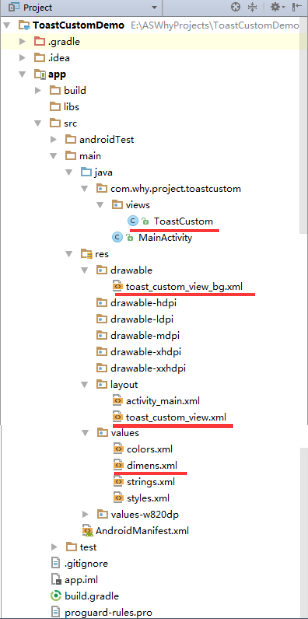
注意事项:
1、 导入类文件后需要change包名以及重新import R文件路径
2、 Values目录下的文件(strings.xml、dimens.xml、colors.xml等),如果项目中存在,则复制里面的内容,不要整个覆盖
二、导入步骤
将ToastCustom复制到项目中,并重新import R文件
package com.why.project.toastcustom.views;

import android.content.Context;

import android.view.LayoutInflater;

import android.view.View;

import android.widget.TextView;

import android.widget.Toast;

import com.why.project.toastcustom.R;

/**

 * Create By HaiyuKing

 * Used 自定义Toast显示风格,基于系统Toast【可以控制显示样式、位置,不可以控制显示时间、动画,不可触发】

 * 注意 Toast布局在源码中的布局是采用LinearLayout

 */

public class ToastCustom {

    private static ToastCustom toastCustom;

    private Toast toast;

    public static ToastCustom makeText(Context context, CharSequence text, int duration){

        LayoutInflater inflate = (LayoutInflater)context.getSystemService(Context.LAYOUT_INFLATER_SERVICE);

        View view = inflate.inflate(R.layout.toast_custom_view, null);

        TextView tv = (TextView)view.findViewById(R.id.tv_toast);

        tv.setText(text);

        if (toastCustom == null) {

            toastCustom = new ToastCustom();

        }

        toastCustom.toast = new Toast(context);

        toastCustom.toast.setView(view);

        toastCustom.toast.setDuration(duration);

        return toastCustom;

    }

    public static ToastCustom makeText(Context context, int resId, int duration){

        return ToastCustom.makeText(context,context.getResources().getString(resId),duration);

    }

    public void show(){

        toast.show();

    }

    /**

     * 1、gravity是输入Toast需要显示的位置,例如CENTER_VERTICAL(垂直居中)、CENTER_HORIZONTAL(水平居中)、TOP(顶部)等等。

     * 2、xOffset则是决定Toast在水平方向(x轴)的偏移量,偏移量单位为,大于0向右偏移,小于0向左偏移

     * 3、yOffset决定Toast在垂直方向(y轴)的偏移量,大于0向下偏移,小于0向上偏移,想设大值也没关系,反正Toast不会跑出屏幕。*/

    public void setGravity(int gravity, int xOffset, int yOffset) {

        toast.setGravity(gravity, xOffset, yOffset);

    }

    public void setText(CharSequence s){

        TextView tv = (TextView) toast.getView().findViewById(R.id.tv_toast);

        tv.setText(s);

    }

    public void setText(int resId){

        TextView tv = (TextView) toast.getView().findViewById(R.id.tv_toast);

        tv.setText(resId);

    }

}
ToastCustom.java
将toast_custom_view.xml文件复制到项目中
<?xml version="1.0" encoding="utf-8"?>

<!-- 自定义显示风格的Toast的布局文件 -->

<LinearLayout xmlns:android="http://schemas.android.com/apk/res/android"

    android:id="@+id/toast_custom_layout"

    android:layout_width="wrap_content"

    android:layout_height="wrap_content"

    android:background="@drawable/toast_custom_view_bg"

    android:orientation="vertical">

    <TextView

        android:id="@+id/tv_toast"

        android:layout_width="wrap_content"

        android:layout_height="wrap_content"

        android:paddingTop="@dimen/toast_custom_text_paddingTB"

        android:paddingBottom="@dimen/toast_custom_text_paddingTB"

        android:paddingLeft="@dimen/toast_custom_text_paddingLR"

        android:paddingRight="@dimen/toast_custom_text_paddingLR"

        android:text=""

        android:textColor="@android:color/white"

        android:textSize="@dimen/toast_custom_text_size"/>

</LinearLayout>
toast_custom_view.xml
将toast_custom_view_bg.xml文件复制到项目中
<?xml version="1.0" encoding="utf-8"?>

<!-- 自定义显示风格的Toast的布局文件的背景 -->

<shape xmlns:android="http://schemas.android.com/apk/res/android" android:shape="rectangle">

    <!-- 圆角 -->

    <corners android:radius="@dimen/toast_custom_view_bg_corners" />

    <!-- 描边 -->

    <stroke

        android:width="1dp"

        android:color="#666666" />

    <!-- 填充 -->

    <solid android:color="#666666" />

</shape>
toast_custom_view_bg.xml
在dimens.xml中添加以下颜色标记的代码
<resources>

    <!-- Default screen margins, per the Android Design guidelines. -->

    <dimen name="activity_horizontal_margin">16dp</dimen>

    <dimen name="activity_vertical_margin">16dp</dimen>

    <!-- **************自定义显示风格的Toast布局文件********************* -->

    <!-- 提示文字的大小 -->

    <dimen name="toast_custom_text_size">18sp</dimen>

    <!-- 提示文字的内边距(上下) -->

    <dimen name="toast_custom_text_paddingTB">10dp</dimen>

    <!-- 提示文字的内边距(左右) -->

    <dimen name="toast_custom_text_paddingLR">20dp</dimen>

    <!-- 背景的圆角 -->

    <dimen name="toast_custom_view_bg_corners">30dp</dimen>

</resources>
三、使用方法
ToastCustom toastCustom = ToastCustom.makeText(this,"自定义Toast显示风格",Toast.LENGTH_LONG);

toastCustom.show();
如果想要修改文本或者显示位置,参考下面的代码:
ToastCustom toastCustom = ToastCustom.makeText(this,"自定义Toast显示风格",Toast.LENGTH_LONG);

toastCustom.setText(R.string.app_name);

toastCustom.setGravity(Gravity.CENTER,0,0);

toastCustom.show();
混淆配置
无
参考资料
android 自定义Toast显示风格
http://blog.csdn.net/yongxinzhenxi/article/details/25069415
Android:谈一谈安卓应用中的Toast情节(基础)
http://www.cnblogs.com/net168/p/4041763.html
Android:剖析源码,随心所欲控制Toast显示
http://www.cnblogs.com/net168/p/4058193.html
项目demo下载地址
https://github.com/haiyuKing/ToastCustomDemo
ToastCustom【自定义显示风格的Toast】的更多相关文章
- ToastCustomUtil【简单的Toast封装类】【自定义Toast的显示风格】
版权声明:本文为HaiyuKing原创文章,转载请注明出处! 前言 ToastUtil + ToastCustom结合.主要解决低版本机型上系统toast显示不好看的问题. 效果图 代码分析 在Toa ...
- ToastUtil【简单的Toast封装类】【未自定义Toast的显示风格】
版权声明:本文为HaiyuKing原创文章,转载请注明出处! 前言 一个简单的Toast封装类. 效果图 API = 6.0 API = 4.4.2 代码分析 实现了不管我们触发多少次Toast调用, ...
- 几种不同风格的Toast
一般情况下,我们使用Toast默认的风格就行了,只是有些时候为了达到我们自己想要的效果需要自定义一下,包括自定义显示的位置,显示的内容以及完全自定义里面的布局,代码如下: activity: pack ...
- 自定义带动画的Toast
一.style样式: 1. // 移动和透明渐变结合的动画 <style name="anim_view"> <item name="@ ...
- Android特效专辑(三)——自定义不一样的Toast
Android特效专辑(三)--自定义不一样的Toast 大家都知道,Android的控件有时候很难满足我们的需求,所以我们需要自定义View.自定义的方式很多,有继承原生控件也有直接自定义View的 ...
- WPF自定义LED风格数字显示控件
原文:WPF自定义LED风格数字显示控件 版权声明:本文为博主原创文章,转载请注明作者和出处 https://blog.csdn.net/ZZZWWWPPP11199988899/article/de ...
- Siteserver-stl:searchOutput(搜索结果)自定义显示样式
stl:searchOutput 自定义显示样式 自定义搜索提交表单需要在<stl:searchOutput>中嵌入显示搜索结果的标签,必须包含的标签 有<stl:pageConte ...
- TreeView 自定义显示checkbox
本项目需要对TreeView进行定制,要求比较简单,主要要求如下: Winform中TreeView控件默认只支持所有级别的CheckBox显示或者不显示,不能控制制定Level的树节点显示 效果如下 ...
- SharePoint 2013 关于自定义显示列表表单的bug
1.在SharePoint 2013中,我们隐藏列表Dispform页面的ListFormWebPart部件,转而使用自定义显示列表表单进行展示,因为这样更容易定制我们需要的显示: 2.之后发现文件夹 ...
随机推荐
- main.go
package main import ( "flag" "fmt" "log" "os" ...
- mutex.go
package} } ) ].GetResponseRange().Kvs[].CreateRevision ) return nil } func (m *Mutex) IsOwner() ...
- mysql主从复制搭建
1.准备工作: 准备一台主服务器,我的IP地址为192.168.13.138,和一台从服务器:192.168.13.137,数据库版本一致,主从库都建好相应的库和表: 2.修改主从服务器的mysql配 ...
- bzoj 1592 dp
就是dp啊 f[i][j]表示到第i位,最后一位高度是j的最小花费 转移::f[i][j]=minn(f[i-1][k])+abs(a[i]-num[j]);(k<=j) #include< ...
- BZOJ_3438_小M的作物_最小割
BZOJ_3438_小M的作物_最小割 Description 小M在MC里开辟了两块巨大的耕地A和B(你可以认为容量是无穷),现在,小P有n中作物的种子,每种作物的种子 有1个(就是可以种一棵作物) ...
- 【Canal源码分析】parser工作过程
本文主要分析的部分是instance启动时,parser的一个启动和工作过程.主要关注的是AbstractEventParser的start()方法中的parseThread. 一.序列图 二.源码分 ...
- Spring Framework学习要点摘抄
以下摘自Spring Framework官方文档,版本Spring 4.3. <context:annotation-config/> implicitly registered post ...
- 一文带你超详细了解Cookie
cookie 简介 什么是 cookie cookie,有时我们也用其复数形式 cookies,是服务端保存在浏览器端的数据片段.以 key/value的形式进行保存.每次请求的时候,请求头会自动包含 ...
- 性能测试工具Locust的使用
一.写在前面 官网:https://www.locust.io/ 官方使用文档:https://docs.locust.io/en/latest/ 大并发量测试时,建议在linux系统下进行. 二.L ...
- 《k8s-1.13版本源码分析》-抢占调度
源码分析系列文章已经开源到github,地址如下: github:https://github.com/farmer-hutao/k8s-source-code-analysis gitbook:ht ...