
org.openqa.selenium.NoSuchElementException: no such element: Unable to locate element
org.openqa.selenium.NoSuchElementException: no such element: Unable to locate element(识别不到想要的元素)
想获取到收件箱中包含坚果云的字段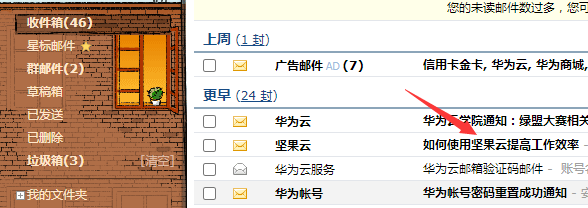
此处遇见的问题,网页中想要识别的元素在iframe框中,于是不能直接:
driver.findElement(By.id("img_out_995536807")).click();
需要先识别frame,然后再找元素:
driver.switchTo().frame("login_frame").findElement(By.id("img_out_995536807")).click();
package com.xp.climb.selenium;

import java.io.IOException;

import java.util.Set;

import java.util.concurrent.TimeUnit;

import org.jsoup.Connection.Response;

import org.jsoup.Jsoup;

import org.jsoup.nodes.Document;

import org.jsoup.nodes.Element;

import org.openqa.selenium.By;

import org.openqa.selenium.Cookie;

import org.openqa.selenium.WebElement;

import org.openqa.selenium.chrome.ChromeDriver;

import org.openqa.selenium.firefox.FirefoxDriver;

public class LoginRenren {

    public static void main(String[] args) throws IOException, InterruptedException {

        //geckodriver配置

        System.setProperty("webdriver.chrome.driver", "E:\\selenium\\chromedriver.exe");

        //声明使用的是谷歌浏览器

        ChromeDriver driver = new ChromeDriver();

        //使用谷歌浏览器打开QQ邮箱网页

        driver.get("https://mail.qq.com/");

        //元素定位,提交用户名以及密码

        driver.manage().timeouts().implicitlyWait(5,TimeUnit.SECONDS);

        driver.switchTo().frame("login_frame").findElement(By.id("img_out_995536807")).click();

//        driver.findElementByName("u").clear();  //清空后输入

//        driver.findElementByName("u").sendKeys("11");

//        driver.manage().timeouts().implicitlyWait(5, TimeUnit.SECONDS);

//        driver.findElementById("p").clear(); //清空后输入

//        driver.findElementById("p").sendKeys("11");

//        //元素定位,点击登陆按钮

//        driver.findElementById("login_button").click();

        Thread.sleep(10*1000);  //休息一段时间,使得网页充分加载。注意这里非常有必要

        Set<Cookie> cookies = driver.manage().getCookies();

        //获取登陆的cookies

        String cookieStr = "";

        for (Cookie cookie : cookies) {

            cookieStr += cookie.getName() + "=" + cookie.getValue() + "; ";

        }

        System.out.println(cookieStr);

        //基于Jsoup,使用cookies请求个人信息页面

        Response orderResp = Jsoup   //添加一些header信息

                .connect("https://mail.qq.com/cgi-bin/frame_html?sid=P5g0fdIbJnC1THcX&r=3955f00b3eaae54686461e267bbfc07f")

//                .header("Host", "www.renren.com")

                .header("Connection", "keep-alive")

                .header("Cache-Control", "max-age=0")

                .header("Accept", "text/html,application/xhtml+xml,application/xml;q=0.9,image/webp,*;q=0.8")

//                .header("Origin", "http://www.renren.com")

                .header("Referer", "https://mail.qq.com/")

                .userAgent("Mozilla/5.0 (Windows NT 10.0; Win64; x64; rv:56.0) Gecko/20100101 Firefox/56.0")

                .header("Content-Type", "application/x-www-form-urlencoded")

                .header("Accept-Encoding", "gzip, deflate, br")

                .header("Upgrade-Insecure-Requests", "1")

                .cookie("Cookie", cookieStr)

                .execute();

        //解析数据

        Document doc = orderResp.parse();

        System.out.println(doc);

        org.jsoup.select.Elements elements = doc.select("td[class=gt]")

                .select("div[class=tf no]");

        for (Element element : elements) {

            if (element.text().contains("坚果云")) {

                System.out.println(element.text());

            }

        }

        driver.quit();  // 关闭浏览器

    }

}
总结:
selenium webdriver定位不到元素的五种原因及解决办法
1.动态id定位不到元素
for example:
//WebElement xiexin_element = driver.findElement(By.id("_mail_component_82_82"));
WebElement xiexin_element = driver.findElement(By.xpath("//span[contains(.,'写 信')]"));
xiexin_element.click();
上面一段代码注释掉的部分为通过id定位element的,但是此id“_mail_component_82_82”后面的数字会随着你每次登陆而变化,此时就无法通过id准确定位到element。
所以推荐使用xpath的相对路径方法查找到该元素。
2.iframe原因定位不到元素
由于需要定位的元素在某一个frame里边,所以有时通过单独的id/name/xpath还是定位不到此元素
比如以下一段xml源文件:
<iframe id="left_frame" scrolling="auto" frameborder="0" src="index.php?m=Index&a=Menu" name="left_frame" noresize="noresize" style="height: 100%;visibility: inherit; width: 100%;z-index: 1">
<!DOCTYPE html PUBLIC "-//W3C//DTD HTML 4.01 Transitional//EN" "http://www.w3.org/TR/html4/loose.dtd">
<html>
<head>
<body class="menuBg">
<div id="menu_node_type_0">
<table width="193" cellspacing="0" cellpadding="0" border="0">
<tbody>
<tr>
<tr>
<td id="c_1">
<table class="menuSub" cellspacing="0" cellpadding="0" border="0" align="center">
<tbody>
<tr class="sub_menu">
<td>
<a href="index.php?m=Coupon&a=SearchCouponInfo" target="right_frame">密码重置</a>
</td>
</tr>
原本可以通过
WebElement element = driver.findElement(By.linkText("密码重置"));
来定位此元素,但是由于该元素在iframe id="left_frame"这个frame里边 所以需要先通过定位frame然后再定位frame里边的某一个元素的方法定位此元素
WebElement element =driver.switchTo().frame("left_frame").findElement(By.linkText("密码重置"));
3.不在同一个frame里边查找元素
大家可能会遇到页面左边一栏属于left_frame,右侧属于right_frame的情况,此时如果当前处在
left_frame,就无法通过id定位到right_frame的元素。此时需要通过以下语句切换到默认的content
driver.switchTo().defaultContent();
例如当前所在的frame为left_frame
WebElement xiaoshoumingxi_element = driver.switchTo().frame("left_frame").findElement(By.linkText("销售明细"));
xiaoshoumingxi_element.click();
需要切换到right_frame
driver.switchTo().defaultContent();
Select quanzhong_select2 = new Select(driver.switchTo().frame("right_frame").findElement(By.id("coupon_type_str")));
quanzhong_select2.selectByVisibleText("售后0小时");
4. xpath描述错误
这个是因为在描述路径的时候没有按照xpath的规则来写 造成找不到元素的情况出现
5.点击速度过快 页面没有加载出来就需要点击页面上的元素
这个需要增加一定等待时间,显示等待时间可以通过WebDriverWait 和util来实现
例如:
//用WebDriverWait和until实现显示等待 等待欢迎页的图片出现再进行其他操作
WebDriverWait wait = (new WebDriverWait(driver,10));
wait.until(new ExpectedCondition<Boolean>(){
public Boolean apply(WebDriver d){
boolean loadcomplete = d.switchTo().frame("right_frame").findElement(By.xpath("//center/div[@class='welco']/img")).isDisplayed();
return loadcomplete;
}
});
也可以自己预估时间通过Thread.sleep(5000);//等待5秒 这个是强制线程休息
6.firefox安全性强,不允许跨域调用出现报错
错误描述:uncaught exception: [Exception... "Component returned failure code: 0x80004005 (NS_ERROR_FAILURE) [nsIDOMNSHTMLDocument.execCommand]" nsresult: "0x80004005 (NS_ERROR_FAILURE)" location:
解决办法:
这是因为firefox安全性强,不允许跨域调用。
Firefox 要取消XMLHttpRequest的跨域限制的话,第一
是从 about:config 里设置 signed.applets.codebase_principal_support = true; (地址栏输入about:config 即可进行firefox设置)
第二就是在open的代码函数前加入类似如下的代码: try { netscape.security.PrivilegeManager.enablePrivilege("UniversalBrowserRead"); } catch (e) { alert("Permission UniversalBrowserRead denied."); }
最后看了乙醇的文章
import java.io.File;
importorg.openqa.selenium.By;
importorg.openqa.selenium.WebDriver;
importorg.openqa.selenium.chrome.ChromeDriver;
importorg.openqa.selenium.support.ui.ExpectedCondition;
importorg.openqa.selenium.support.ui.WebDriverWait;
public classButtonDropdown {
public static voidmain(String[] args) throws InterruptedException {
WebDriver dr = newChromeDriver();
File file = newFile("src/button_dropdown.html");
String filePath = "file:///" + file.getAbsolutePath();
System.out.printf("nowaccesss %s \n", filePath);
dr.get(filePath);
Thread.sleep(1000);
// 定位text是watir-webdriver的下拉菜单
// 首先显示下拉菜单
dr.findElement(By.linkText("Info")).click();
(newWebDriverWait(dr, 10)).until(new ExpectedCondition<Boolean>(){
public Booleanapply(WebDriver d){
returnd.findElement(By.className("dropdown-menu")).isDisplayed();
}
});
// 通过ul再层级定位
dr.findElement(By.className("dropdown-menu")).findElement(By.linkText("watir-webdriver")).click();
Thread.sleep(1000);
System.out.println("browser will be close");
dr.quit();
}
}
然后我自己定位的。
public XiaoyuanactivityPage zipaixiuye(){
driver.navigate().refresh();
luntan.click();
WebDriverWrapper.waitPageLoad(driver,3);
(new WebDriverWait(driver, 10)).until(newExpectedCondition<Boolean>() {
public Boolean apply(WebDriverdriver){
returndriver.findElement(By.className("TFB_sub_li")).isDisplayed();
}
});
driver.findElement(By.className("TFB_sub_li")).findElement(By.linkText("自拍秀")).click();
returnPageFactory.initElements(this.getDriver(),
XiaoyuanactivityPage.class);
}
org.openqa.selenium.NoSuchElementException: no such element: Unable to locate element的更多相关文章
- 元素无法定位问题 NoSuchElementException: Message: no such element: Unable to locate element 解决方法
定位网页上某个按钮时,总是报错元素定位不到,具体如下:NoSuchElementException: Message: no such element: Unable to locate elemen ...
- 关于xpath语句完全正确,但是页面报错: no such element: Unable to locate element: {"method":"xpath","selector":"xpath"}
之前使用selenium-webdriver来写UI的自动化脚本,发现有一个元素一直无法定位,查看其源码,如下 利用xpathChecker验证了xpath语句的是正确的,但是控制台一直报错: no ...
- 如果遇到找不到元素如何处理? Exception in thread "main" org.openqa.selenium.NoSuchElementException: no such element: Unable to locate element: {"method":"id","selector":"investmentframe"}
常见几种原因与应对,详细参见http://www.blogjava.net/qileilove/archive/2014/12/11/421309.html 1,动态ID无法找到,用xpath路径解决 ...
- 解决Selenium弹出新页面无法定位元素问题(Unable to locate element)
Python 2.7 IDE Pycharm 5.0.3 环境细节详见Python+Selenium+PIL+Tesseract真正自动识别验证码进行一键登录 对于同一页面无法定位元素问题请见姊妹篇解 ...
- Message:Unable to locate element 问题解决方法
Python断断续续学了有一段时间了,总感觉不找个小项目练练手心里没底,哪成想出门就遇到"拦路虎",一个脚本刚写完就运行报错,还好做足了心里准备,尝试自行解决. 或许网上有相关解决 ...
- org.openqa.selenium.NoSuchElementException:
http://www.blogjava.net/qileilove/archive/2014/12/11/421309.html selenium webdriver定位不到元素的五种原因及解决办法 ...
- Selenium定位不到指定元素原因之iframe(unable to locate element)
浏览过程中,图片中的内容可能太小,无法看清,可以>右键>在新标签中打开 Outline 项目原因,需要用selenium实现模拟登陆.模拟上传文件,自然就需要模拟点击[上传]按钮: 模拟点 ...
- selenium+python,解决selenium弹出新页面,无法定位元素的问题(报错:Unable to locate element:元素)
1.问题发生描述: 从一个页面进行点击等操作,页面跳转到第二个页面,对第二个页面中的元素,采取任何措施定位都报错,问题报错点如下: 2.出现问题的原因: 窗口句柄还停留在上一个页面,对于当前新弹出的页 ...
- Selenium2学习-038-firefox、webdriver版本不对称问题解决:org.openqa.selenium.firefox.NotConnectedException: Unable to connect to host 127.0.0.1 on port 7055
今天有个朋友在群里问,为何脚本运行不通过,其脚本操作步骤简单描述如下: 1.启动火狐浏览器 2.打开百度 3.查询框输入关键字 4.点击按钮[百度一下] 脚本挺简单的,其给出的应用报错信息如下所示: ...
随机推荐
- 【报错】org.springframework.beans.factory.BeanCreationException: Error creating bean with name 'webSocketHandlerMapping' defined in class path resource
环境:maven+eclipse+jdk1.8 [tomcat使用的是maven自带的插件,实质原因就是出在tomcat版本问题] 背景:在进行SSM集成WebSocket的时候,项目启动报org.s ...
- springboot添加操作
更多精彩关注微信公众号 Mybaits技术连接数据库 resources #update tomcat port server.port=8888 #config datasource(mysql) ...
- cetnos中nmap端口扫描工具的使用
1:安装: yum -y install nmap 2:使用方法: nmap -p 1-65535 1.1.1.1 #扫描1.1.1.1此IP地址的所有端口 nmap -p 80,443 1.1.1. ...
- lombok,Invalid byte tag in constant pool: 19
今天偶到一个奇怪的问题: 三台生产服务器部署同样的代码,同样的tomcat ,jdk等环境. 其中有一台服务器启动时报lombok-1.18.6.jar! Invalid byte tag in ...
- 【我给面试官画饼】Python自动化测试面试题精讲
那今天给家分享的是一个面试主题. 就比如说我们的自动化测试,自动化如何去应对面试官,和面试官去聊一聊自动化的心得,自动化你现在去面试的时候是一个非常重要的一个关键点,所以如果你在这方面有一定的心得.那 ...
- 【Redis破障之路】四:Jedis基本使用
在前面我们已经学习了Redis命令行客户端redis-cli的使用,接下来我们了解一下Redis基于Java编程语言的客户端. 在Java语言体系下,有三个常用的Redis客户端Jedis.Redis ...
- 不融资、不上市、不快马圈地…“佛系”ZOHO的中国生意经
来源:钛媒体 作者:秦聪慧 "技术比肩SAP.直追微软的这家25岁"非典型"国际大厂会继续佛系下去吗? ZOHO研发中心大楼 在中国,有家相对低调的"舶来&qu ...
- ES6学习-4 解构赋值(1)数组的解构赋值
解构赋值是ES6很大的一个提升,为我们带来了很多方便,但用不好,会使程序的可读性变差,所以用时要注意,尽量保持程序的易读性. 数组解构赋值 在JS没有支持解构赋值之前,我们声明几个变量并赋值通常都是像 ...
- VS·卸载进程卡死"正在配置您的系统,这可能需要一些时间"
阅文时长 | 0.34分钟 字数统计 | 596.8字符 主要内容 | 1.引言&背景 2.声明与参考资料 『VS·卸载进程卡死"正在配置您的系统,这可能需要一些时间"』 ...
- [c++] 子类构造函数中有默认参数
子类创建对象时调用父类的构造函数: 1 #include <iostream> 2 using namespace std; 3 class Base 4 { 5 public: 6 Ba ...