
记录--Vue开发历程---音乐播放器
这里给大家分享我在网上总结出来的一些知识,希望对大家有所帮助
一、audio标签的使用
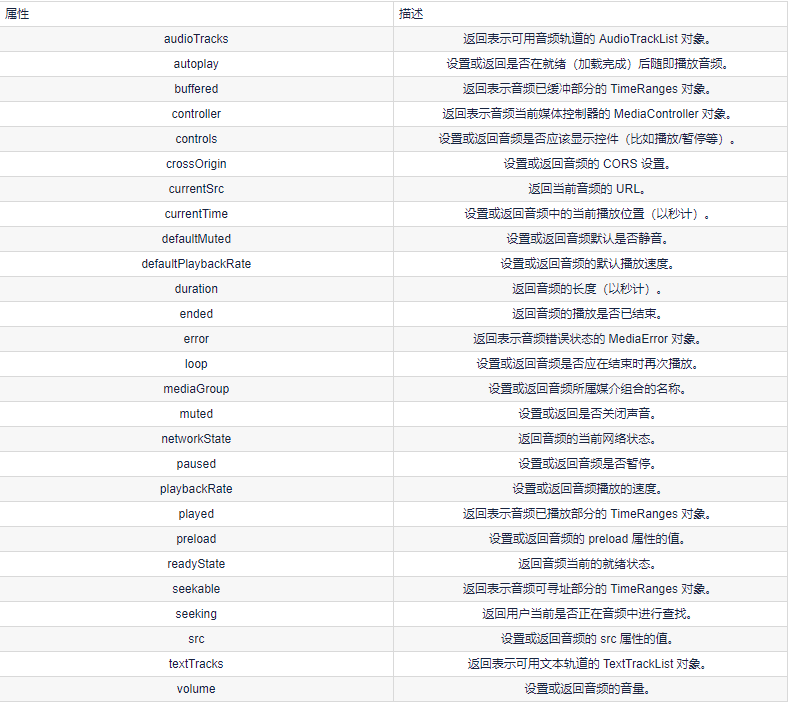
1、Audio 对象属性
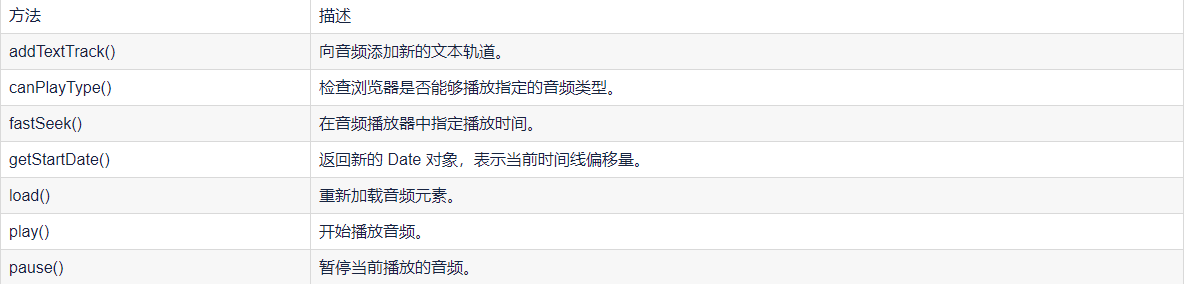
2、对象方法
二、效果
效果如下:

三、代码
代码如下: MusicPlayer.vue
<template>

    <div class="music">

        <!-- 占位 -->

        <div class="m_hold">

        </div>

        <div class="m_img">

            <img :src="this.$parent.songNames[this.$parent.index].png" width="90px" :class="this.$parent.isRun">

        </div>

        <!-- 歌曲信息 -->

        <div class="m_text">

            {{ this.$parent.songNames[this.$parent.index].name }}

            <div class="block" style="margin-top:5px">

                <el-slider :v-model="value1"></el-slider>

            </div>

        </div>

        <!-- 按钮 -->

        <div class="m_btn">

            <a href="#" class="m_prev" @click="playLastSong()"></a>

            <a href="#" class="m_play" @click="changeState()" v-show="this.$parent.isShow"></a>

            <a href="#" class="m_pause" @click="changeState()" v-show="!this.$parent.isShow"></a>

            <a href="#" class="m_next" @click="playNextSong()"></a>

        </div>

        <!-- 折叠功能 -->

        <div class="m_close" @click="changeCloseState()">

            <a href=""></a>

        </div>

    </div>

</template>

<script>

export default {

    name: 'MusicPlayer',

    data() {

        return {

            songName: '',

            value1:0

        }

    },

    methods: {

        changeState() {

            this.$emit("play")

        },

        changeCloseState() {

            this.$emit("hello");

        },

        playNextSong() {

            this.$emit("nextSongs");

            this.songName = this.$parent.songNames[this.$parent.index].name

        },

        playLastSong() {

            this.$emit("lastSongs");

            this.songName = this.$parent.songNames[this.$parent.index].name

        }

    },

    watch:

    {

    }, mounted() {

        this.songName = this.$parent.songNames[this.$parent.index].name

    }

}

</script>

<style scoped>

/* 关于播放器的样式 */

.music {

    width: 100%;

    height: 120px;

    background: black;

    /* 相对浏览器定位 */

    position: absolute;

    left: 0px;

    bottom: 100px;

    border-bottom: 50px;

    /* 透明度 */

    opacity: 0.8;

    /* 阴影值 */

    box-shadow: 10px 15px 15px 1px black

}

.music .m_hold {

    float: left;

    width: 90px;

    height: 90px;

}

/* 调整音乐盒图片 */

.music .m_img {

    margin-top: 15px;

    margin-left: 10px;

    margin-right: 10px;

    /* 左浮动 */

    float: left;

    width: 90px;

    height: 90px;

    border-radius: 50%;

    overflow: hidden;

}

/* 修改文字 */

.music .m_text {

    /* 左浮动 */

    float: left;

    color: white;

    font-size: 20px;

    /* 字体加粗 */

    font-weight: bold;

    margin-top: 25px;

    margin-left: 20px;

    margin-bottom: 10px;

    width: 25%;

}

/* 使得所有a标签一起移动 */

.music .m_btn {

    float: left;

    position: absolute;

    /* 绝对定位:防止歌曲名称过长,挤出div */

    left: 40%;

}

/* 修改a标签 */

.music .m_btn a {

    width: 32px;

    height: 32px;

    float: left;

    margin-top: 50px;

    margin-left: 20px;

    background: url(@/assets/player_bg.png);

}

.music .m_btn .m_prev {

    background-position: -69px 0px;

}

.music .m_btn .m_next {

    background-position: -150px 0px;

}

.music .m_btn .m_play {

    background-position: -107px -5px;

}

.music .m_btn .m_prev:hover {

    background-position: -69px -32px;

}

.music .m_btn .m_next:hover {

    background-position: -150px -32px;

}

.music .m_btn .m_play:hover {

    background-position: -107px -47px;

}

.music .m_btn .m_pause {

    background-position: -292px -94px;

}

.music .m_btn .m_pause:hover {

    background-position: -334px -94px;

}

/* 还有一个悬停 没写 */

/* 设置最右边的关闭样式 */

.music .m_close {

    float: right;

    background: white;

    cursor: pointer;

    width: 23px;

    height: 100px;

    margin-top: 10px;

    background: url(@/assets/player_bg.png);

}

/* 设置最右边的关闭样式 */

.music_hide {

    float: left;

    background: white;

    cursor: pointer;

    width: 23px;

    height: 100px;

    margin-top: 2px;

}

.go {

    animation: bounce-in 2s linear infinite;

}

.come {

    animation: none;

}

@keyframes bounce-in {

    from {

        transform: rotate(0deg);

    }

    to {

        transform: rotate(360deg);

    }

}

.open-enter-active {

    animation: slide-in linear 0.5s;

}

.open-leave-active {

    animation: slide-in reverse linear 0.5s;

}

@keyframes slide-in {

    from {

        transform: translateX(-100%);

    }

    to {

        transform: translateX(0%);

    }

}

</style>
HideMusic.vue
<template>

    <div class="music_hide" @click="changeCloseState()"><a href="#" class="m_open"></a></div>

</template>

<script>

export default {

    name:'HidePlayer',

    methods:{

        changeCloseState()

        {

            this.$emit("hello");

        }

    }

}

</script>

<style scoped>

.music_hide {

    float: left;

    background: url(@/assets/player_bg.png);

    cursor: pointer;

    width: 23px;

    height: 100px;

    margin-top: 10px;

    bottom: 100px;

    position: absolute;

    background-position-x: -45px;

}

</style>
MyPlayer.vue
<template>

    <div>

        <transition name="open" mode="out-in">

            <component v-bind:is="view" @hello="changeSlideState" @play="changePlayState" @lastSongs="lastSongs"

                @nextSongs="nextSongs"></component>

        </transition>

        <audio class="m_mp3" id="m_mp3" :src="this.songNames[this.index].Url" autoplay loop>

        </audio>

    </div>

</template>

<script>

import HidePlayer from '@/part/HidePlayer'

import MusicPlayer from '@/part/MusicPlayer'

export default {

    name: 'MyPlayer',

    data() {

        return {

            view: MusicPlayer,

            isClose: false,

            isShow: true,

            isRun: 'come',

            index: 0,

            songNum: 2,

            currentTime: '0:00',

            duration: '0:00',

            songNames: [

                {

                    id: 1,

                    name: '张韶涵-篇章',

                    Url: require('@/assets/张韶涵-篇章.mp3'),

                    png: require('@/assets/篇章.png'),

                },

                {

                    id: 2,

                    name: '爱就一个字 抒情版',

                    Url: require('@/assets/爱就一个字 抒情版.mp3'),

                    png: require('@/assets/爱就一个字.png'),

                },

                {

                    id: 3,

                    name: '最伟大的作品-周杰伦',

                    Url: require('@/assets/最伟大的作品-周杰伦.mp3'),

                    png: require('@/assets/周杰伦.jpg'),

                },

                {

                    id: 4,

                    name: '等你下课 (with 杨瑞代)-周杰伦',

                    Url: require('@/assets/等你下课 (with 杨瑞代)-周杰伦.mp3'),

                    png: require('@/assets/等你下课.png'),

                },

                {

                    id: 5,

                    name: '告白气球-周杰伦',

                    Url: require('@/assets/告白气球-周杰伦.mp3'),

                    png: require('@/assets/告白气球.png'),

                },

                {

                    id: 6,

                    name: '还在流浪-周杰伦',

                    Url: require('@/assets/还在流浪-周杰伦.mp3'),

                    png: require('@/assets/还在流浪.png'),

                },

            ]

        }

    },

    components: {

        HidePlayer,

        MusicPlayer

    },

    methods: {

        changeSlideState() {

            this.isClose = !this.isClose;

            if (this.isClose) {

                this.view = HidePlayer;

            } else {

                this.view = MusicPlayer;

            }

        },

        changePlayState() {

            if (!this.isShow) {

                this.isShow = true;

                this.isRun = "come";

                document.getElementById("m_mp3").pause();

            } else {

                this.isShow = false;

                this.isRun = "go";

                var my_mp3 = document.getElementById("m_mp3");

                my_mp3.play();

            }

        },

        nextSongs() {

            if (this.isShow) {

                this.isShow = false;

                this.isRun = "go";

            }

            this.index = (this.index + 1) % this.songNum;

        },

        lastSongs() {

            if (this.isShow) {

                this.isShow = false;

                this.isRun = "go";

            }

            if (this.index == 0) {

                this.index = this.songNum - 1;

            } else {

                this.index = this.index - 1;

            }

        }

    }, mounted() {

        this.songNum = this.songNames.length;

    }

}

</script>

<style scoped>

.open-enter-active {

    animation: slide-in linear 0.5s;

}

.open-leave-active {

    animation: slide-in reverse linear 0.5s;

}

@keyframes slide-in {

    from {

        transform: translateX(-100%);

    }

    to {

        transform: translateX(0%);

    }

}

</style>
四、难点解析
1、过渡动画的实现

参考了vue文档过渡&动画中多个组件的过渡(下面三份代码)
<transition name="component-fade" mode="out-in">

  <component v-bind:is="view"></component>

</transition>
new Vue({

  el: '#transition-components-demo',

  data: {

    view: 'v-a'

  },

  components: {

    'v-a': {

      template: '<div>Component A</div>'

    },

    'v-b': {

      template: '<div>Component B</div>'

    }

  }

})
.component-fade-enter-active, .component-fade-leave-active {

  transition: opacity .3s ease;

}

.component-fade-enter, .component-fade-leave-to

/* .component-fade-leave-active for below version 2.1.8 */ {

  opacity: 0;

}
因此分化出MusicPlayer.vue 和 HideMusic.vue,由此又产生了组件内通信的问题。
2、组件内通信
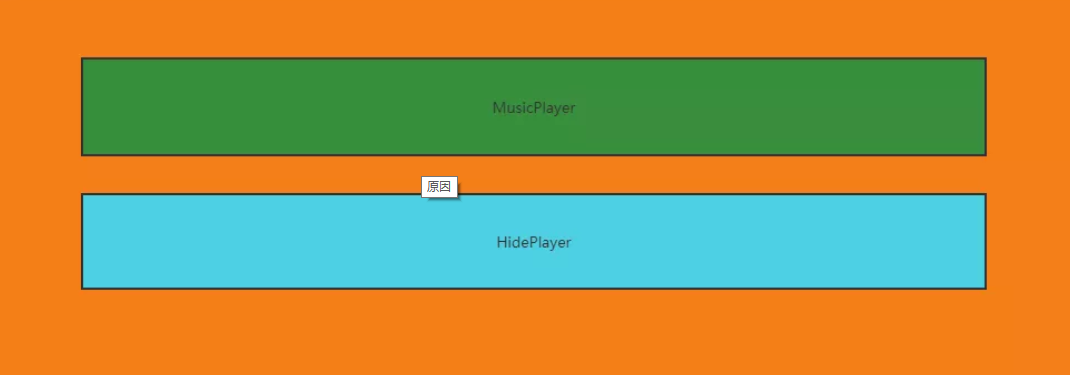
为什么会产生组件内的通信?原因在于:MusicPlayer组件和HidePlayer组件,只能有一个展示,但是在不展示的过程中,他的数据应该也是实时改变的。例如MusicPlayer组件上有播放按钮,如果不采用组件通信,那么MusicPlayer重新渲染的时候,播放按钮会回到最初的设定,是不符合逻辑的。所以需要采用组件内通信的方式。实现的方式也比较简单,子组件直接访问父组件的数据,子组件通过$emit调用父组件的方法,修改父组件的数据。
3、旋转动画的实现

首先,编写动画。
.go {

    animation: bounce-in 2s linear infinite;

}

.come {

    animation: none;

}

@keyframes bounce-in {

    from {

        transform: rotate(0deg);

    }

    to {

        transform: rotate(360deg);

    }

}
然后,动态绑定class,isRun两个值即为"go","come"。
<div class="m_img">

   <img :src="this.$parent.songNames[this.$parent.index].png" width="90px" :class="this.$parent.isRun">

</div>
本文转载于:
https://blog.51cto.com/u_15807146/5807883
如果对您有所帮助,欢迎您点个关注,我会定时更新技术文档,大家一起讨论学习,一起进步。

记录--Vue开发历程---音乐播放器的更多相关文章
- vue实现音乐播放器实战笔记
原文链接:https://blog.csdn.net/Forever201295/article/details/80266600 一.项目说明该播放器的是基于学习vue的实战练习,不用于其他途径.应 ...
- Vue中音乐播放器
一.安装依赖 yarn add vue-aplayer or` npm i vue-aplayer 二.使用 <template> <div class="vue_ap ...
- Vue实现音乐播放器(七):轮播图组件(二)
轮播图组件 <template> <div class="slider" ref="slider"> <div class=&qu ...
- Vue实现音乐播放器(六):jsonp的应用+抓取轮播图数据
用jsonp来获取数据 通过封装方法来获取 在src文件夹下的api文件夹里面去封装一些获取相关部分组件的数据的方法 在api文件夹下的recommend.js中 配置一下公共参数 请求的真实的u ...
- Vue实现音乐播放器(四):页面入口+header组件的编写
首先下载三个包 babel-runtime对es语法进行转义 fastclick解决移动端点击300毫秒延迟的问题 babel-polyfill对es6 api进行转义 下载了包之后要在main.js ...
- Vue实现音乐播放器(二)-Vue-cli脚手架安装
- 一个基于H5audio标签的vue音乐播放器
<!DOCTYPE html> <html lang="en"> <head> <meta charset="UTF-8&quo ...
- 02 Vue介绍与安装,指令系统 v-*、音乐播放器
VUE文档 https://cn.vuejs.org/v2/guide/ 1.vue的介绍 尤雨溪 1.vue的优点 2.vue的介绍 3.vue的安装 4.声明式渲染 <body> &l ...
- vue音乐播放器
利用vue写一个简单的音乐播放器,包括功能有歌曲搜索.歌曲播放.歌曲封面.歌曲评论.播放动画.mv播放六个功能. <template> <div class="wrap&q ...
- vue小练习--音乐播放器
1 首先建一个文件夹 放几首歌曲 2 看代码 1)基本版本 <!DOCTYPE html> <html lang="zh-CN"> <head> ...
随机推荐
- MAYSQL 2 DAY
目录 MySQL day02 1.关于查询结果集的去重? 2.连接查询 2.2.连接查询的分类? 2.4.怎么避免笛卡尔积现象?当然是加条件进行过滤. 2.5.内连接之等值连接:最大特点是:条件是等量 ...
- Laravel入坑指南(6)——Redis缓存
写在前面: Redis是常用nosql服务之一,在Redis官网上最新的稳定版本是6.0.6.这里不讨论Redis服务如何编译,如何使用.在Redis官网有很健全的文档. 这里要讨论的是无论在cent ...
- 探秘SuperCLUE-Safety:为中文大模型打造的多轮对抗安全新框架
探秘SuperCLUE-Safety:为中文大模型打造的多轮对抗安全新框架 进入2023年以来,ChatGPT的成功带动了国内大模型的快速发展,从通用大模型.垂直领域大模型到Agent智能体等多领域的 ...
- oracle exp/imp命令使用parfile实现参数文件调用
优先使用数据泵(expdp/impdp)方式,更高效,问题少. 关于exp/imp工具的使用请参考我的另一篇文章: https://blog.csdn.net/IndexMan/article/det ...
- Java I/O 教程(一) 介绍
Java I/O (Input and Output) 用于处理输入和输出 Java利用流的手段来加快I/O操作.java.io包中包含了各种支持输入输出操作的类.参考下图: 我们可以利用java i ...
- 《系列二》-- 3、FactoryBean 的使用
目录 FactoryBean 解决的问题 FactoryBean 接口初识 改造结果 最后的补充 回顾下 FactoryBean 的应用 factory-method 和 factory-bean 的 ...
- 《深入理解Java虚拟机》(六) 调优策略 -- 笔记
目录 一.操作文档类功能,大量大对象直接进入老年代 问题现象 解决方法 通过单一Java虚拟机管理大量的内存 同一台服务器上部署若干Java虚拟机 二.异步请求大量累积 三.排查问题 排查问题: 可能 ...
- 学习go语言编程之常量
什么在常量 在Golang中,常量是指在编译期就已知且不可改变的值. 字面常量 在程序中硬编码的常量值被称为字面常量,如: -12 // 整数类型常量 3.1415926 // 浮点类型常量 3.2+ ...
- 硬件开发笔记(八): 硬件开发基本流程,制作一个USB转RS232的模块(七):创建基础DIP元器件(晶振)封装并关联原理图元器件
前言 有了原理图,可以设计硬件PCB,在设计PCB之间还有一个协同优先动作,就是映射封装,原理图库的元器件我们是自己设计的.为了更好的表述封装设计过程,本文描述了创建晶振封装(DIP),将原理图的 ...
- Java //9*9乘法表 乘法口诀
1 //9*9乘法表 2 3 for(int i =1;i<10;i++) 4 { 5 for(int j = 1;j <=i;j++) 6 { 7 System.out.print(i+ ...