
How To Manage StartUp Applications In Ubuntu
Ever felt the need to control startup applications in Ubuntu? You should, if you feel that your Ubuntu system is very slow at the boot time.
Every time you boot in to an operating system, a number of applications start automatically. These are called ‘startup applications’ or ‘start up programs’. Over the time, when you have plenty of application installed in your system, you’ll find that there are too many of these ‘startup applications’ which start at the boot time automatically, eats up the system resource and slows down the system. This might result in a sluggish Ubuntu experience, which I think, you don’t want at all.
A way to make Ubuntu faster is to control startup applications. Ubuntu provides you GUI tools that you can use to find out the startup programs, disable them entirely or delay their execution so that you won’t have each application trying to run at the same time.
In this post we shall see how to control startup applications, how to run an application at startup and how to find hidden startup applications in Ubuntu. The instructions provided here are applicable to all Ubuntu versions such as Ubuntu 12.04, Ubuntu 14.04 and Ubuntu 15.04.
Manage startup applications in Ubuntu
By default, Ubuntu provides Startup Applications utility that you could use. No need of installation. Just go in Unity Dash and look for startup applications.
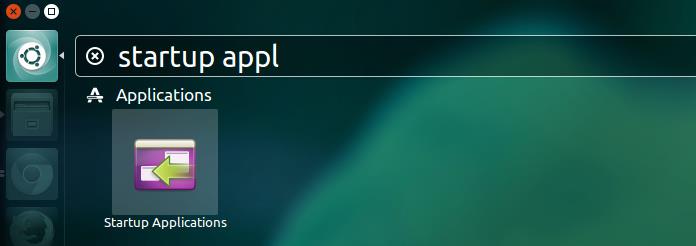
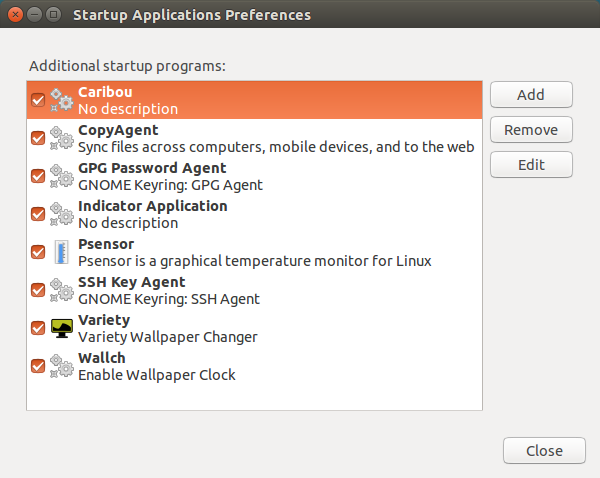
Click on it to start. Here is what my startup applications look like:
Remove startup applications in Ubuntu
Now it is up to you what you find useless. For me Caribou, on screen keyboard program, is not of any use at the startup. I would prefer to remove it.
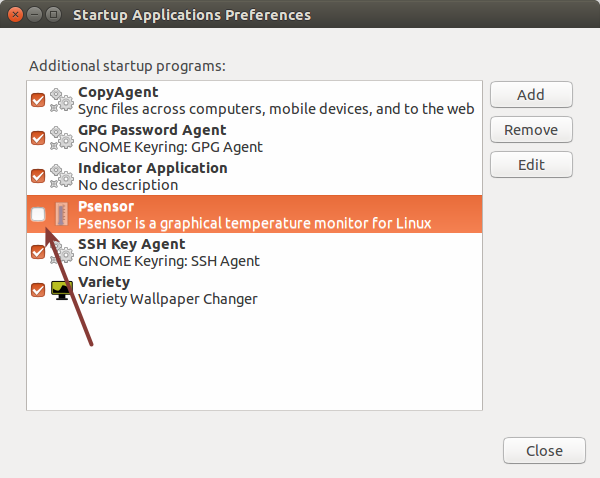
You can choose to either prevent it from starting up at boot time but keeping it in the startup applications list for future reactivation. Click on close to save your preference.
To remove a program from startup applications list, select it and click on Remove from the right window pane.
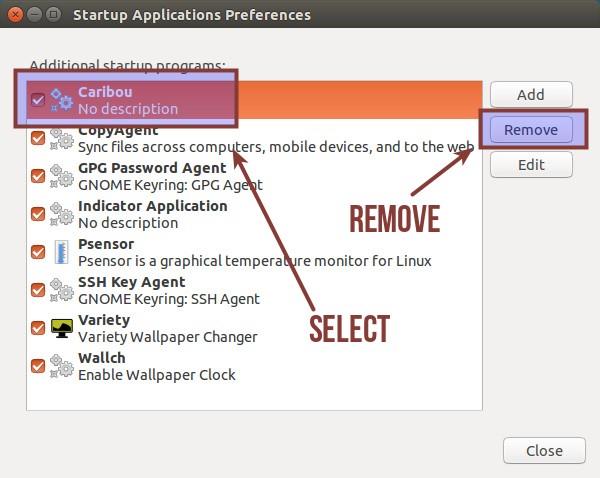
Note that, this will NOT uninstall the program. Just that the program will not start automatically at each boot. You can do it with all the programs that you don’t like.
Delay the start up programs
What if you do not want to remove programs at the start up but you are worried about system performance at the boot time. What you can do is to add a delay in various programs so that not all the programs will be starting at the same time.
Select a program and click Edit.
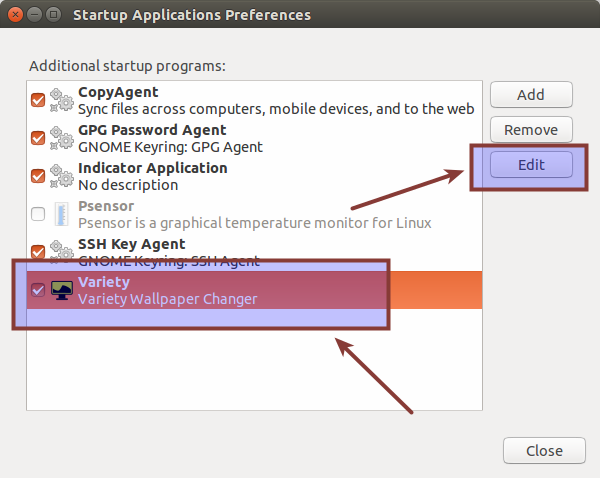
This will show the command that runs this particular program.
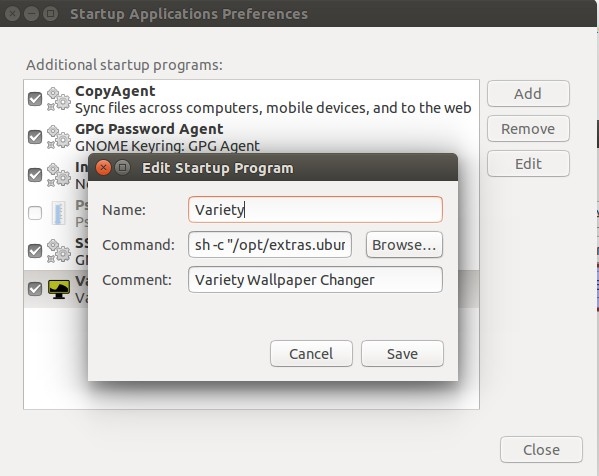
All you need to do is to add sleep XX; before the command. It will add a delay of XX seconds before running the actual commands to run the applications. For example if I want Variety wallpaper management application for 2 minutes, I’ll add sleep 120; before the command like this:
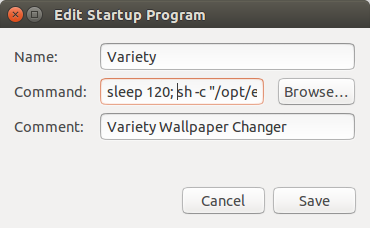
Save it and close it. You’ll see the impact at the next boot.
Add a program in the startup applications
This could be tricky for beginners. You see, things are in commands at the bottom of everything in Linux. We just saw in the previous section that these startup programs are just some commands being run at each boot. If you want to add a new program in the startup, you’ll need to know the command that runs the application.
Step 1: How to find the command to run an application?
Go in the Unity Dash and search for Main Menu:
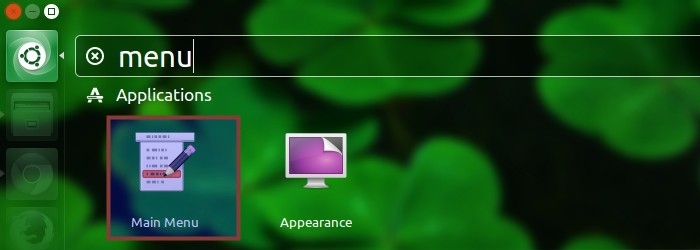
This contains all the program that you have installed in various categories. In old Ubuntu days, you would see similar menu for selecting and running applications.
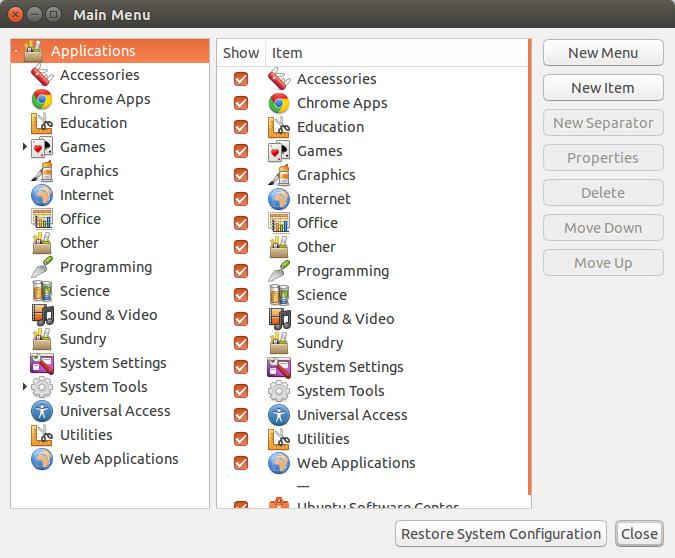
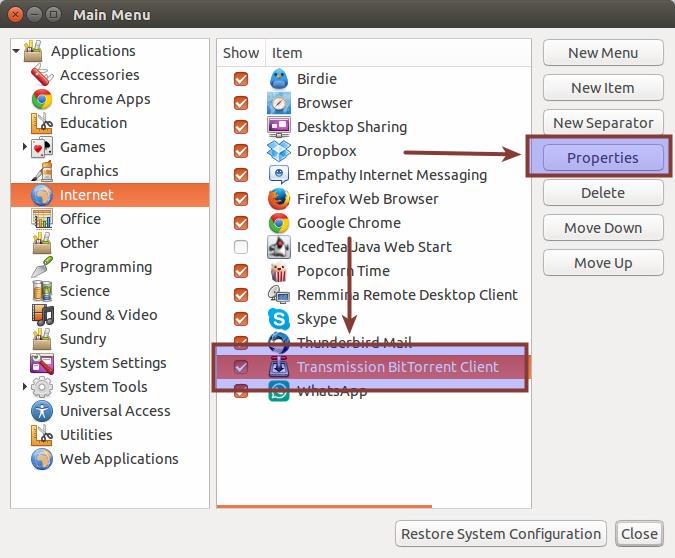
Just look for your application under various categories and click on the Properties tab to see the command that runs this application. For example, I want to run Transmission Torrent client on start up.
This will give me the command that runs Transmission:
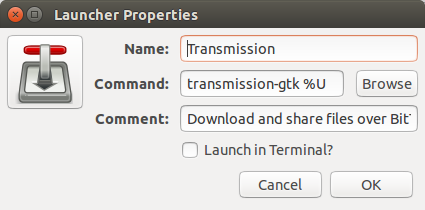
Now I’ll use the same information to add Transmission in startup applications.
Step 2: Adding programs in startup
Go again in Startup Applications and click on Add. This will ask you enter a name, command and description. The command is the most important of all. You can use whatever name and description you want. Use the command you got from previous step and click on Add.
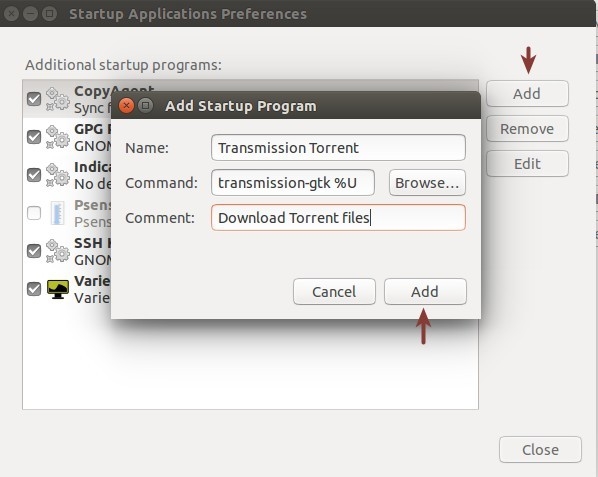
That’s it. You’ll see it in the next boot up, running automatically. This is all you can do with startup applications in Ubuntu.
So, far we have discussed about applications that are visible in startup but there are many more services, daemons and programs that are not visible to Startup applications. In next section, we shall see how to see hidden startup programs in Ubuntu.
See hidden startup program in Ubuntu
To see what are the services running at startup, open a terminal and use the following command:
sudo sed -i 's/NoDisplay=true/NoDisplay=false/g' /etc/xdg/autostart/*.desktopThis is just a quick find and replace command that changes the NoDisplay=false with NoDisplay=true in all the programs that are in autostart. Once you do this, open Startup Applications again and now you shall see many more programs here:
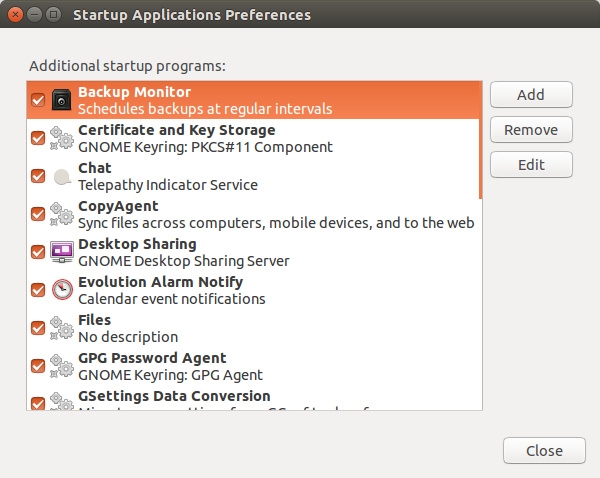
You can manage these startup applications the same way which were described earlier. I hope this tutorial helped you to control startup program in Ubuntu. Any questions or suggestions are always welcomed.
How To Manage StartUp Applications In Ubuntu的更多相关文章
- 【linux基础】如何开机自启动某个程序-linux工具-ubuntu
前言 实际使用中应用程序或者服务需要开机自启动,而不是人为手动开启运行,那么,该如何做呢,本文对此进行介绍. 操作过程 1. 确定系统的桌面环境: 具体可参考here; 2. 如何自启动: 博主ubu ...
- [django] Deploy Django Applications Using uWSGI and Nginx on Ubuntu 14.04
关键点1:chmod-socket=666 (mysite_uwsgi.ini) 关键点2 : 工程目录和虚拟环境目录搞清楚 几个参考: http://uwsgi-docs.readthedocs.i ...
- Ubuntu添加开机自动启动程序方法
1. 开机启动时自动运行程序 Linux加载后, 它将初始化硬件和设备驱动, 然后运行第一个进程init.init根据配置 文件继续引导过程,启动其它进程.通常情况下,修改放置在 / ...
- Ubuntu 12.04 改造指南
文章转自:http://www.lupaworld.com/article-217719-1.html 升级12.04已经有一段时间了.作为一个从08年就开始用Ubuntu的老用户,我觉得作为一个LT ...
- iLinuxBot: Designing Botnets to Manage Linux Clients
转:http://www.linuxforu.com/2012/05/ilinuxbot-designing-botnets-to-manage-linux-clients/ By Nishant S ...
- [转]Ubuntu 12.04 安装屏保
From:http://www.howtogeek.com/114027/how-to-add-screensavers-to-ubuntu-12.04/ How to Add Screensaver ...
- 【转】Ubuntu乱码解决方案(全)
转自:http://www.cnblogs.com/end/archive/2011/04/19/2021507.html ubuntu下中文乱码解决方案(全) 1.ibus输入法 Ubuntu 系统 ...
- 六招让你的Ubuntu马上提速
Chris Hoffman Ubuntu的启动速度非常快,按了开机键之后很快就进入桌面.但我们仍然可以充分利用内存,通过多种方法让开机速度更快.某些方法真的可以提速,对于旧电脑的效果尤其明显. 选用轻 ...
- Ubuntu 18.04 上设置桌面程序开机自启动
需求 在新安装的 Ubuntu 18.04 系统上,将有些不可描述的程序开机之后自动启动 Startup Applications Preferences 打开 Startup Application ...
随机推荐
- windows jenkins 卸载
如果下载的是war包,先在任务管理器上停止jenkins的服务,再删除jenkins整个文件
- github常用项目汇总
1.smartTable(智能表格) android自动生成表格框架 使用方法:在github中搜索smartTable 进入项目后,查看开源项目的介绍和使用方法即可.
- apache 子域名自动与子域名同名的目录绑定
假设有域名domain.com,已经泛解析子域名*.domain.com到该主机的ip,web根目录为/var/www/,在访问a.domain.com时,能自动绑定/var/www/a/目录,访问b ...
- JMeter知识点整理
- vue-cli3 chainWebpack配置,去除打包后文件的预加载prefetch/preload(已解决)
//细节配置修改 chainWebpack: config => { console.log(config,'chainWebpack') // 移除 prefetch 插件 config.pl ...
- Tomcat *的下载(绿色版和安装版都适用)
不多说,直接干货! 1.先下载tomcat,到http://tomcat.apache.org/ 2.注意:下载可以下载zip格式或exe格式的,其中zip格式的只要解压缩再配置下环境变量就可以使用了 ...
- .net core 多平台部署
首先下载地址 https://dotnet.microsoft.com/download 下载.net core 和 .net core runtime 然后安装他们 控制台运行项目: 找到你的工 ...
- Oracle 12c JDBC 连接
import java.sql.Connection; import java.sql.DriverManager; import java.sql.PreparedStatement; import ...
- 大数据sql引擎
Hive:把sql解析后用MapReduce跑 SparkSQL:把sql解析后用Spark跑,比hive快点 Phoenix:一个绕过了MapReduce运行在HBase上的SQL框架 Drill/ ...
- 举一反三 willDisplayCell在UICollectionView中的一些应用
一.UICollectionViewCell动画 上一篇博客写仿58同城实现UITableViewCell动画,同样UiCollectionView中也能用,上一个是从右到左的动画还比较好弄, 但如果 ...