
Jump Server在docker中安装部署
安装部署:
1.准备机器:
官方环境要求:

硬件配置: 2个CPU核心, 4G 内存, 50G 硬盘(最低)

操作系统: Linux 发行版 x86_64

Python = 3.6.x

Mysql Server ≥ 5.6

Mariadb Server ≥ 5.5.56

Redis
1 安装机器:ubuntu18.04.3

2 Jump Server:10.0.0.70 2C-4G
3 Mysql/redis :10.0.0.71 1C-1G
4两台机器都需要安装docker,安装docker步骤省略阿里云镜像站可以下载
10.0.0.71mysql机器配置

#下载redis和mysql

root@ubuntu1804:~# apt install lrzsz

root@ubuntu1804:~# docker pull mysql:5.6.47

root@ubuntu1804:~# docker pull redis

#mysql.cnf配置文件:

#将容器中的Mysql配置文件在宿主机上通过-v挂载容器中。

root@ubuntu1804:~# mkdir /etc/mysql/mysql.conf.d -p

root@ubuntu1804:~# cd /etc/mysql/mysql.conf.d/

root@ubuntu1804:/etc/mysql/mysql.conf.d# vim mysqld.cnf

#把容器的mysql配置文件复制下来

#Copyright (c) 2014, 2016, Oracle and/or its affiliates. All rights reserved.

#

# This program is free software; you can redistribute it and/or modify

# it under the terms of the GNU General Public License, version 2.0,

# as published by the Free Software Foundation.

#

# This program is also distributed with certain software (including

# but not limited to OpenSSL) that is licensed under separate terms,

# as designated in a particular file or component or in included license

# documentation.  The authors of MySQL hereby grant you an additional

# permission to link the program and your derivative works with the

# separately licensed software that they have included with MySQL.

#

# This program is distributed in the hope that it will be useful,

# but WITHOUT ANY WARRANTY; without even the implied warranty of

# MERCHANTABILITY or FITNESS FOR A PARTICULAR PURPOSE.  See the

# GNU General Public License, version 2.0, for more details.

#

# You should have received a copy of the GNU General Public License

# along with this program; if not, write to the Free Software

# Foundation, Inc., 51 Franklin St, Fifth Floor, Boston, MA  02110-1301 USA

#

# The MySQL  Server configuration file.

#

# For explanations see

# http://dev.mysql.com/doc/mysql/en/server-system-variables.html

[mysqld]

pid-file        = /var/run/mysqld/mysqld.pid

socket          = /var/run/mysqld/mysqld.sock

datadir         = /var/lib/mysql

#log-error      = /var/log/mysql/error.log

# Disabling symbolic-links is recommended to prevent assorted security risks

symbolic-links=0

character-set-server=utf8  这一行必须要加上

#mysql.cnf配置文件

root@ubuntu1804:/etc/mysql/mysql.conf.d# vim /etc/mysql/mysql.conf.d/mysql.cnf

[mysql]

default-character-set=utf8

#创建数据目录并且运行mysql容器

root@ubuntu1804:/etc/mysql/mysql.conf.d# mkdir /data/mysql -p

root@ubuntu1804:~# docker run -it -d  -p 3306:3306  -v /etc/mysql/mysql.conf.d/mysqld.cnf:/etc/mysql/mysql.conf.d/mysqld.cnf -v /etc/mysql/conf.d/mysql.cnf:/etc/mysql/conf.d/mysql.cnf -v /data/mysql:/var/lib/mysql  -e MYSQL_ROOT_PASSWORD="magedu.com" mysql:5.6.47
1.启动redis并暴露端口

root@ubuntu1804:~# docker run -it -d -p 6379:6379 redis
2.验证redis

root@ubuntu1804:~# apt install redis-server

root@ubuntu1804:~# redis-cli -h 10.0.0.71

10.0.0.71:6379> info

# Serve

#验证mysql

从10.0.0.70即jump server服务器访问数据库,验证数据库编码,验证字符集是否是utf-8

root@ubuntu1804:~# apt install mysql-client

root@ubuntu1804:~# mysql -uroot -pmagedu.com -h 10.0.0.71

mysql: [Warning] Using a password on the command line interface can be insecure.

mysql> show databases;

+--------------------+

| Database           |

+--------------------+

| information_schema |

| mysql              |

| performance_schema |

+--------------------+

3 rows in set (0.00 sec)

#验证数据库编码

mysql> show variables like "%character%";show variables like "%collation%";

+--------------------------+----------------------------+

| Variable_name            | Value                      |

+--------------------------+----------------------------+

| character_set_client     | utf8                       |

| character_set_connection | utf8                       |

| character_set_database   | utf8                       |

| character_set_filesystem | binary                     |

| character_set_results    | utf8                       |

| character_set_server     | utf8                       |

| character_set_system     | utf8                       |

| character_sets_dir       | /usr/share/mysql/charsets/ |

+--------------------------+----------------------------+

8 rows in set (0.00 sec)

+----------------------+-----------------+

| Variable_name        | Value           |

+----------------------+-----------------+

| collation_connection | utf8_general_ci |

| collation_database   | utf8_general_ci |

| collation_server     | utf8_general_ci |

+----------------------+-----------------+

3 rows in set (0.00 sec)

mysql> exit

Bye
创建Jump Server 数据库

mysql -uroot -pmagedu.com -h10.0.0.71

create database jumpserver default charset 'utf8';

grant all on jumpserver.* to 'jumpserver'@'%' identified by 'magedu.com';

#生成加密密钥

#生成随机加密密钥和初始化token。

root@ubuntu1804:~# if [ "$SECRET_KEY" = "" ]; then SECRET_KEY=`cat /dev/urandom | tr -dc A-Za-z0-9 | head -c 50`; echo "SECRET_KEY=$SECRET_KEY" >> ~/.bashrc; echo $SECRET_KEY; else echo $SECRET_KEY; fi

PGlVEfo5GdEF766FMNdByQiS3ELJD49HUK5iZ7QFg6CsZJlCLn

root@ubuntu1804:~# if [ "$BOOTSTRAP_TOKEN" = "" ]; then BOOTSTRAP_TOKEN=`cat /dev/urandom | tr -dc A-Za-z0-9 | head -c 16`; echo "BOOTSTRAP_TOKEN=$BOOTSTRAP_TOKEN" >> ~/.bashrc; echo $BOOTSTRAP_TOKEN; else echo $BOOTSTRAP_TOKEN; fi

N8LunBBco2OUfWBj

#验证数据库

root@ubuntu1804:~# mysql -ujumpserver -pmagedu.com -h10.0.0.71

mysql: [Warning] Using a password on the command line interface can be insecure.

#下载jumpserver镜像:不带版本号,默认下载最新版jumpserver

docker pull  jumpserver/jms_all:1.5.6

建jumpserver 容器

root@ubuntu1804:~# docker run --name all      -v /opt/jumpserver:/opt/jumpserver/data/media     -p 80:80     -p 2222:2222    -e SECRET_KEY=XHK7dhQ4nmEPqE0rqWupOm2FtYIEeD1DmU9EiNyfl3pypEtgjK     -e BOOTSTRAP_TOKEN=z7QorguuusCTGx0H     -e DB_HOST=10.0.0.71     -e DB_PORT=3306     -e DB_USER='jumpserver'     -e DB_PASSWORD="magedu.com"     -e DB_NAME=jumpserver     -e REDIS_HOST=10.0.0.71     -e REDIS_PORT=6379     -e REDIS_PASSWORD=     jumpserver/jms_all:1.5.6
#容器启动完成

SUCCESS

Tomcat started.

Jumpserver ALL 1.5.6

官网 http://www.jumpserver.org

文档 http://docs.jumpserver.org

有问题请参考 http://docs.jumpserver.org/zh/docs/faq.html

进入容器命令 docker exec -it jms_all /bin/bash

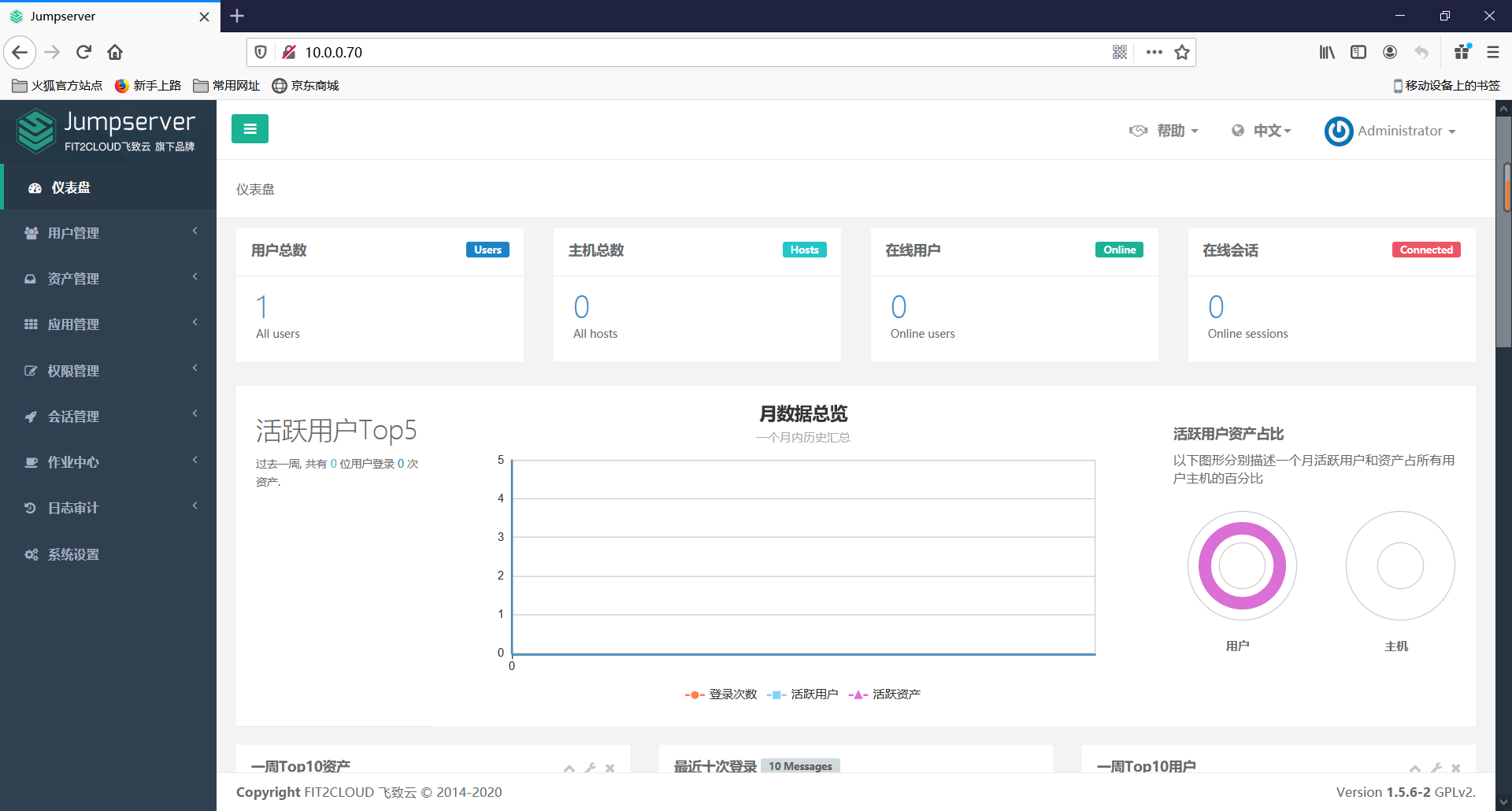
#jumps server 使用:

默认账户:admin

默认密码:admin
Jump Server在docker中安装部署的更多相关文章
- 在Docker中安装和部署MongoDB集群
此文已由作者袁欢授权网易云社区发布. 欢迎访问网易云社区,了解更多网易技术产品运营经验. 在Docker中安装mongodb 采用的mongodb镜像:https://registry.hub.doc ...
- docker微服务部署之:四、安装docker、docker中安装mysql和jdk1.8、手动构建镜像、部署项目
docker微服务部署之:三,搭建Zuul微服务项目 1.Centos7安装Docker 详见:Centos7安装Docker 2.Docker中安装jdk1.8 详见:使用Docker构建jdk1. ...
- Docker:安装部署RabbitMQ
前言 今天原本想讲解SpringBoot集成RabbitMQ的,临近开始写时才发现家里的电脑根本没有安装RabbitMQ呀.这下只好利用已有的阿里云服务器,直接Docker安装一下了,顺道记录下,算是 ...
- Ubuntu中安装部署Intel CS WebRTC
1环境要求 组件 版本要求 OS CentOS* 7.4, Ubuntu 14.04/16.04 LTS Node 8.11.* (推荐8.11.1) MongoDB 2.4.9 Boost 1.65 ...
- Linux或Docker里安装minio / Docker中安装h5ai
此文为单节点搭建操作 Linux中搭建minio 对象存储服务器 下载minio安装包 wget https://dl.minio.io/server/minio/release/linux-amd6 ...
- Azure DevOps Server 入门实践与安装部署
一,引言 最近一段时间,公司希望在自己的服务器上安装本地版的 Azure DevOps Service(Azure DevOps Server),用于项目内的测试,学习.本着学习的目的,我也就开始学习 ...
- 在docker中安装mysql
#!/bin/sh # 安装docker # 在docker中安装mysql # 解决了docker容器中无法输入中文的问题 ##########################安装docker # ...
- 在Docker中安装配置Oracle12c并实现数据持久化
在Docker中安装配置Oracle12c并实现数据持久化 选定镜像,并pull到系统中,一定要先配置加速,不然超级慢 eric@userver:~$ docker pull sath89/oracl ...
- 在Docker中安装.NET Core(使用命令行工具)
在Docker中安装.NET Core目前共有两种方法:1,使用命令行工具安装2,使用VS2017来安装 本文主要介绍使用命令行工具来安装: 1,安装Docker(如果本机已经有Docker环境,可以 ...
随机推荐
- 给jekyll博客添加天气插件
layout: post title: 给博客添加天气插件 date: 2020-04-26 author: Dapenson header-img: img/post-bg-debug.png ca ...
- Windows下使用poetry和pyproject.toml
0. 题引 为什么要使用poetry? 因为想使用pyproject.toml,并通过pyproject.toml进行依赖包管理,目前pip还不支持,所以poetry是首选 为什么要使用pyproje ...
- Spring 的循环依赖,源码详细分析 → 真的非要三级缓存吗
开心一刻 吃完晚饭,坐在院子里和父亲聊天 父亲:你有什么人生追求? 我:金钱和美女 父亲对着我的头就是一丁弓,说道:小小年纪,怎么这么庸俗,重说一次 我:事业与爱情 父亲赞赏的摸了我的头,说道:嗯嗯, ...
- shell编程基础一
1.定义变量 a=1 shell定义变量要注意等号前后不能有空格,不然会报错,请严格按照格式编写. 2.打印输出 echo 1 使用echo打印,后面留一个空格. 3.shell中通过 ${变量名} ...
- 【noi 2.5_8465】马走日(dfs)
最基本的dfs.这代码理应超时的,我也不知为何AC了......打表我都放弃了,因为最大的数据真的要跑很久...... 1 #include<cstdio> 2 #include<c ...
- Codeforces Round #296 (Div. 2B. Error Correct System
Ford Prefect got a job as a web developer for a small company that makes towels. His current work ta ...
- python 实现AES加密和解密
参考 https://blog.csdn.net/zhchs2012/article/details/79032656 AES加密算法是一种对称加密算法, 他有一个密匙, 即用来加密, 也用来解密 i ...
- Docker文件挂载总结
Docker容器启动的时候,如果要挂载宿主机的一个目录,可以用-v参数指定. 譬如我要启动一个centos容器,宿主机的/test目录挂载到容器的/soft目录,可通过以下方式指定: # docker ...
- Pyqt5使用
一.帮助文档 二.PyQt5库结构 三. 面向对象的编程模式 class Windows(QWidget): def __init__(self): #继承父类的QWidget的方法 super(). ...
- woj1013 Barcelet 字符串 woj1014 Doraemon's Flashlight 几何
title: woj1013 Barcelet 字符串 date: 2020-03-18 18:00:00 categories: acm tags: [acm,字符串,woj] 字符串,字典序. 1 ...