
Winform开发几个常用的开发经验及知识积累(一)
本人做Winform开发多年,孜孜不倦,略有小成,其中收集或者自己开发一些常用的东西,基本上在各个项目都能用到的一些开发经验及知识积累,现逐步介绍一些,以飨读者,共同进步。
1、窗口【×】关闭按钮变为最小化,并在托盘提示信息
一般有些管理系统,为了防止客户随意关闭程序或者基于其他原因,一般会把 窗口【×】关闭按钮变为最小化,如大家熟悉的飞信、MSN等等,但是有些不是很熟悉的客户,最小化到托盘的时候,却不知道程序到了那里去了,因此,最小化的时候,伴随一个气泡提示信息,显得有一定的必要,如下截图所示。
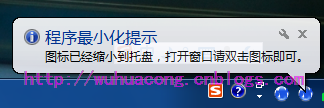
首先在主窗体的设计界面中添加一个NotifyIcon控件,然后实现相关的代码即可。
下面列出一些关键的代码出来,大家看了应该就知道如何实现了
private void notifyMenu_Show_Click(object sender, EventArgs e)

        {

            if (this.WindowState == FormWindowState.Minimized)

            {

                this.WindowState = FormWindowState.Maximized;

                this.Show();

                this.BringToFront();

                this.Activate();

                this.Focus();

            }

            else

            {

                this.WindowState = FormWindowState.Minimized;

                this.Hide();

            }

        }

       private void notifyMenu_Exit_Click(object sender, EventArgs e)

        {

            try

            {

                this.ShowInTaskbar = false;

                Portal.gc.Quit();

            }

            catch

            {

                // Nothing to do.

            }

        }

        private void notifyIcon1_MouseDoubleClick(object sender, MouseEventArgs e)

        {

            notifyMenu_Show_Click(sender, e);

        }

        private void MainForm_MaximizedBoundsChanged(object sender, EventArgs e)

        {

            this.Hide();

        }

        /// <summary>

        /// 缩小到托盘中,不退出

        /// </summary>

        private void MainForm_FormClosing(object sender, FormClosingEventArgs e)

        {

            //如果我们操作【×】按钮,那么不关闭程序而是缩小化到托盘,并提示用户.

            if (this.WindowState != FormWindowState.Minimized)

            {

                e.Cancel = true;//不关闭程序

                //最小化到托盘的时候显示图标提示信息,提示用户并未关闭程序

                this.WindowState = FormWindowState.Minimized;

                notifyIcon1.ShowBalloonTip(3000, "程序最小化提示",

                     "图标已经缩小到托盘,打开窗口请双击图标即可。",

                     ToolTipIcon.Info);

            }

        }

        private void MainForm_Move(object sender, EventArgs e)

        {

            if (this == null)

            {

                return;

            }

            //最小化到托盘的时候显示图标提示信息

            if (this.WindowState == FormWindowState.Minimized)

            {

                this.Hide();

                notifyIcon1.ShowBalloonTip(3000, "程序最小化提示",

                    "图标已经缩小到托盘,打开窗口请双击图标即可。",

                    ToolTipIcon.Info);

            }

        }
2、只允许允许一个程序实例,即使是通过虚拟桌面方式连接过来的,也是只允许一个人运行。
这个已经封装好代码了,只需要在Main函数里面调用一下函数即可,允许多个实例会出现下面的对话框提示信息,提示不允许多实例运行,如下所示:
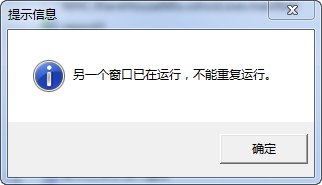
代码如下所示。
/// <summary>

        /// 应用程序的主入口点。

        /// </summary>

        [STAThread]

        private static void Main()

        {

            GlobalMutex();

            Application.EnableVisualStyles();

            Application.SetCompatibleTextRenderingDefault(false);

            //******启动代码**********

        }

        private static Mutex mutex = null;

        private static void GlobalMutex()

        {

            // 是否第一次创建mutex

            bool newMutexCreated = false;

            string mutexName = "Global\\" + "WareHouseMis";//系统名称,Global为全局,表示即使通过通过虚拟桌面连接过来,也只是允许运行一次

            try

            {

                mutex = new Mutex(false, mutexName, out newMutexCreated);

            }

            catch (Exception ex)

            {

                Console.Write(ex.Message);

                System.Threading.Thread.Sleep(1000);

                Environment.Exit(1);

            }

            // 第一次创建mutex

            if (newMutexCreated)

            {

                Console.WriteLine("程序已启动");

                //todo:此处为要执行的任务

            }

            else

            {

                MessageUtil.ShowTips("另一个窗口已在运行,不能重复运行。");

                System.Threading.Thread.Sleep(1000);

                Environment.Exit(1);//退出程序

            }

        }
3、使用NotifyWindow给用户提示信息
可以通过NotifyWindow类(最后附件中有),做一些信息的提示,方便用户了解一些重要信息的提示,界面较为友好,如下所示:
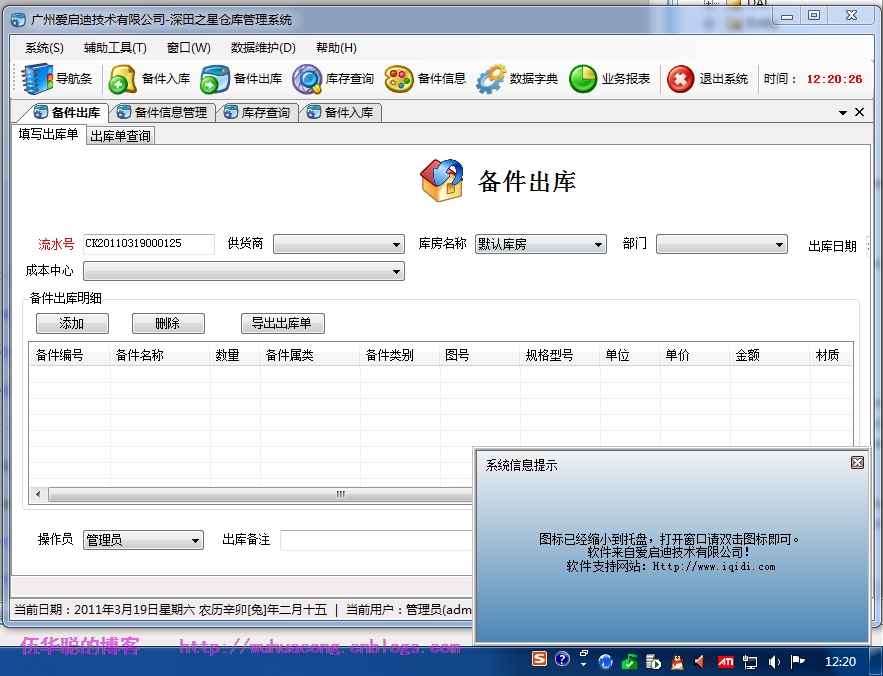
提示信息的代码使用如下:
/// <summary>

        /// 弹出提示消息窗口

        /// </summary>

        public void Notify(string caption, string content)

        {

            Notify(caption, content, 400, 200, 5000);

        }

        /// <summary>

        /// 弹出提示消息窗口

        /// </summary>

        public void Notify(string caption, string content, int width, int height, int waitTime)

        {

            NotifyWindow notifyWindow = new NotifyWindow(caption, content);

            notifyWindow.TitleClicked += new System.EventHandler(notifyWindowClick);

            notifyWindow.TextClicked += new EventHandler(notifyWindowClick);

            notifyWindow.SetDimensions(width, height);

            notifyWindow.WaitTime = waitTime;

            notifyWindow.Notify();

        }

        private void notifyWindowClick(object sender, EventArgs e)

        {

            //SystemMessageInfo info = BLLFactory<SystemMessage>.Instance.FindLast();

            //if (info != null)

            //{

            //    //FrmEditMessage dlg = new FrmEditMessage();

            //    //dlg.ID = info.ID;

            //    //dlg.ShowDialog();

            //}

        }
4、使用SearchCondion控件,简化查询条件的转化
不管在Winform或者在WebForm中,查询构造条件总是非常繁琐的事情,使用该控件能有效简化代码,提高操作的准确及方便行,这个控件我完成了几年了,一直伴随我处理各种查询操作。
private string GetConditionSql()

        {

            SearchCondition condition = new SearchCondition();

            condition.AddCondition("ItemName", this.txtName.Text, SqlOperator.Like)

                .AddCondition("ItemBigType", this.txtBigType.Text, SqlOperator.Like)

                .AddCondition("ItemType", this.txtItemType.Text, SqlOperator.Like)

                .AddCondition("Specification", this.cmbSpecNumber.Text, SqlOperator.Like)

                .AddCondition("MapNo", this.txtMapNo.Text, SqlOperator.Like)

                .AddCondition("Material", this.txtMaterial.Text, SqlOperator.Like)

                .AddCondition("Source", this.txtSource.Text, SqlOperator.Like)

                .AddCondition("Note", this.txtNote.Text, SqlOperator.Like)

                .AddCondition("Manufacture", this.txtManufacture.Text, SqlOperator.Like)

                .AddCondition("ItemNo", this.txtItemNo.Text, SqlOperator.LikeStartAt);

            string where = condition.BuildConditionSql().Replace("Where", "");

            return where;

        }
可以构造条件后,传入查询函数,实现数据的查询。
string where = GetConditionSql();

            List<ItemDetailInfo> list = BLLFactory<ItemDetail>.Instance.Find(where, this.winGridViewPager1.PagerInfo);

            this.winGridViewPager1.DataSource = new WHC.Pager.WinControl.SortableBindingList<ItemDetailInfo>(list);

            this.winGridViewPager1.PrintTitle = Portal.gc.gAppUnit + " -- " + "备件信息报表";
最后呈上代码用到的一些类库及控件:http://files.cnblogs.com/wuhuacong/WinformTips.rar
Winform开发几个常用的开发经验及知识积累(一)的更多相关文章
- WinForm开发,窗体显示和窗体传值相关知识总结
主窗体中代码: public partial class Form1 : Form { public Form1() { InitializeComponent(); } private void b ...
- 【Cocos2d-x游戏开发】细数Cocos2d-x开发中那些常用的C++11知识
自从Cocos2d-x3.0开始,Cocos2dx就正式的使用了C++11标准.C++11简洁方便的特性使程序的可拓展性和可维护性大大提高,也提高了代码的书写速度. 下面我们就来一起学习一下Cocos ...
- Winform开发常用控件之DataGridView的简单数据绑定——自动绑定
DataGridView控件可谓是Winform开发的重点控件,对于数据的呈现和操作非常方便,DataGridView可谓是既简单又复杂.简单在于其已经集成了很多方法,复杂在于可以使用其实现复杂的数据 ...
- Winform开发的快速、健壮、解耦的几点建议
在Winform开发领域开发过十多年的项目中,见证着形形色色的架构和官方技术的应用,从最早类似Winform模式的WebForm技术,到接着的JQuery+界面组件,再到Asp.net Core的技术 ...
- 在Winform开发中使用日程控件XtraScheduler(2)--深入理解数据的存储
在上篇随笔<在Winform开发中使用日程控件XtraScheduler>中介绍了DevExpress的XtraScheduler日程控件的各种使用知识点,对于我们来说,日程控件不陌生,如 ...
- Navi.Soft30.框架.WinForm.开发手册
阅读导航 Navi.Soft30.Core类库.开发手册 http://www.cnblogs.com/xiyang1011/p/5709489.html Navi.Soft30.框架.WinForm ...
- Winform开发的界面处理优化
在Winform开发中,客户体验是个很好的参考性指标,如果一个功能使用的时候感觉很流畅,说明我们的程序执行效率还不错,但是随着数据的真多,原先可能流程的地方可能会变得比较卡,这时候就需要追本索源,找到 ...
- C# WinForm开发系列 - 文章索引
该系列主要整理收集在使用C#开发WinForm应用文章及相关代码, 平时看到大家主要使用C#来开发Asp.Net应用,这方面的文章也特别多,而关于WinForm的文章相对少很多,而自己对WinForm ...
- Winform开发全套31个UI组件开源共享
一.前言 这套UI库是上一个公司(好几年前了)完成的.当时主要为开发公司内部ERP系统,重新设计实现了所有用到的Winform组建,包括Form窗体组建6个(支持换肤),基础控件25个.其中有很多参考 ...
随机推荐
- elasticsearch从mysql导入数据
详细:https://github.com/jprante/elasticsearch-jdbc(最下面有各数据库的导入方法说明) elasticsearch版本为1.5.2 1.下载 elastic ...
- Oracle corrupt block(坏块) 详解
转自:http://blog.csdn.net/tianlesoftware/article/details/5024966 一. 坏块说明 1.1 相关链接 在看坏块之前,先看几个相关的链接,在后面 ...
- X230上安装Yosemite/Win7-黑苹果之路
以前曾经在X230上安装了mavericks,但因为无线网卡问题最终作罢,现在换了SSD(128G).AR9285网卡,又冲刺了一把OSX,折腾了好几天,终于成了.特做记录如下: 首先,硬盘分区问题, ...
- 寻找最合适的view
*:first-child { margin-top: 0 !important; } body > *:last-child { margin-bottom: 0 !important; } ...
- UVA 10892 - LCM Cardinality
Problem F LCM Cardinality Input: Standard Input Output: Standard Output Time Limit: 2 Seconds A pair ...
- 转载 radio值获取
选择控件:select ,radio,checkbox之用jquery获取选中值的小结 博客分类: jQuery select下拉框radio单选按钮checkbox多选框jquery获取选中的值 ...
- IBM Appscan基本操作手册
一.操作前提 1.首先下载Appscan的安装包 2.安装Appscan 二.操作流程 1.双击图标,打开Appscan软件 2.打开软件后,页面显示如下: 3.选择“文件-新建”,弹出如下的窗口: ...
- 用github pages展示你的静态网页,多项目支持
我看到有分享用github pages来做博客的,不过我并不想挂博客在上面,我只是想将我的一些作品挂上去,然后链接到我的简历里,这样HR可以直接看到. 首先是最基本的操作,在github上创建一个新的 ...
- 单链表(c++)
#include "stdafx.h"#include <iostream>using namespace std;const int MaxSize = 100; c ...
- Centos安装arm-linux-gcc等交叉工具链
1.安装(仅以其中一个为例) 1.1 下载arm-linux-gcc (搜一下,很多的!) 1.2 解压:指定解压到根目录 tar xvzf arm-linux-gcc-4.4.3.tar.gz -C ...