
c#用EPPLUS操作excel
参考:
http://www.cnblogs.com/rumeng/p/3785748.html
http://www.cnblogs.com/libla/p/5824296.html#3818995
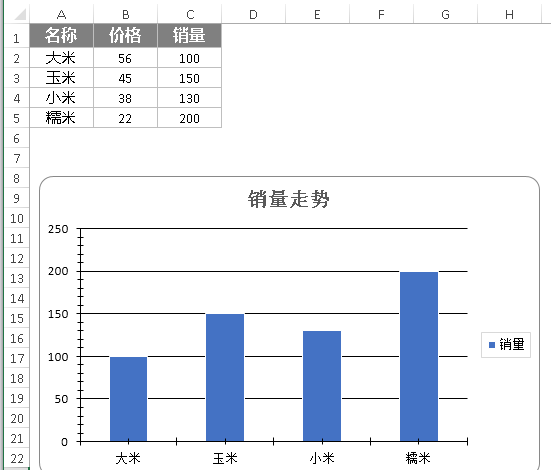
结果:
首先新建一个winform程序,然后加一个button,
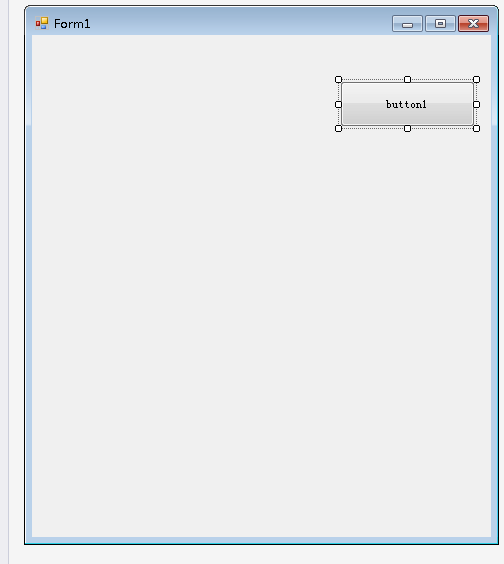
之后双击button1,进入代码区域,输入下面的代码:
 using OfficeOpenXml;

 using OfficeOpenXml.Drawing;

 using OfficeOpenXml.Drawing.Chart;

 using OfficeOpenXml.Style;

 using System;

 using System.Collections.Generic;

 using System.ComponentModel;

 using System.Data;

 using System.Drawing;

 using System.IO;

 using System.Linq;

 using System.Text;

 using System.Threading.Tasks;

 using System.Windows.Forms;

 namespace WindowsFormsApplication1epplus

 {

     public partial class Form1 : Form

     {

         public Form1()

         {

             InitializeComponent();

         }

         private void button1_Click(object sender, EventArgs e)

         {

             using (ExcelPackage package = new ExcelPackage(new FileStream(@"E:\test.xlsx", FileMode.Open)))

             {

                 for (int i = ; i <= package.Workbook.Worksheets.Count; ++i)//循环sheet

                 {

                     ExcelWorksheet sheet = package.Workbook.Worksheets[i];

                     for (int j = sheet.Dimension.Start.Column, k = sheet.Dimension.End.Column; j <= k; j++)

                     {

                         for (int m = sheet.Dimension.Start.Row, n = sheet.Dimension.End.Row; m <= n; m++)

                         {

                             string str = GetValue(sheet, m, j);

                             if (str != null)

                             {

                                 // do something

                             }

                         }

                     }

                 }

             }

             FileInfo newFile = new FileInfo(@"E:\test.xlsx");

             if (newFile.Exists)

             {

                 newFile.Delete();

                 newFile = new FileInfo(@"E:\test.xlsx");

             }

             using (ExcelPackage package = new ExcelPackage(newFile))

             {

                 ExcelWorksheet worksheet = package.Workbook.Worksheets.Add("test");

                 worksheet.Cells.Style.WrapText = true;

                 worksheet.View.ShowGridLines = false;//去掉sheet的网格线

                 worksheet.Cells[, ].Value = "名称";

                 worksheet.Cells[, ].Value = "价格";

                 worksheet.Cells[, ].Value = "销量";

                 worksheet.Cells[, ].Value = "大米";

                 worksheet.Cells[, ].Value = ;

                 worksheet.Cells[, ].Value = ;

                 worksheet.Cells[, ].Value = "玉米";

                 worksheet.Cells[, ].Value = ;

                 worksheet.Cells[, ].Value = ;

                 worksheet.Cells[, ].Value = "小米";

                 worksheet.Cells[, ].Value = ;

                 worksheet.Cells[, ].Value = ;

                 worksheet.Cells[, ].Value = "糯米";

                 worksheet.Cells[, ].Value = ;

                 worksheet.Cells[, ].Value = ;

                 using (ExcelRange range = worksheet.Cells[, , , ])

                 {

                     range.Style.HorizontalAlignment = ExcelHorizontalAlignment.Center;

                     range.Style.VerticalAlignment = ExcelVerticalAlignment.Center;

                 }

                 using (ExcelRange range = worksheet.Cells[, , , ])

                 {

                     range.Style.Font.Bold = true;

                     range.Style.Font.Color.SetColor(Color.White);

                     range.Style.Font.Name = "微软雅黑";

                     range.Style.Font.Size = ;

                     range.Style.Fill.PatternType = ExcelFillStyle.Solid;

                     range.Style.Fill.BackgroundColor.SetColor(Color.FromArgb(, , ));

                 }

                 worksheet.Cells[, ].Style.Border.BorderAround(ExcelBorderStyle.Thin, Color.FromArgb(, , ));

                 worksheet.Cells[, ].Style.Border.BorderAround(ExcelBorderStyle.Thin, Color.FromArgb(, , ));

                 worksheet.Cells[, ].Style.Border.BorderAround(ExcelBorderStyle.Thin, Color.FromArgb(, , ));

                 worksheet.Cells[, ].Style.Border.BorderAround(ExcelBorderStyle.Thin, Color.FromArgb(, , ));

                 worksheet.Cells[, ].Style.Border.BorderAround(ExcelBorderStyle.Thin, Color.FromArgb(, , ));

                 worksheet.Cells[, ].Style.Border.BorderAround(ExcelBorderStyle.Thin, Color.FromArgb(, , ));

                 worksheet.Cells[, ].Style.Border.BorderAround(ExcelBorderStyle.Thin, Color.FromArgb(, , ));

                 worksheet.Cells[, ].Style.Border.BorderAround(ExcelBorderStyle.Thin, Color.FromArgb(, , ));

                 worksheet.Cells[, ].Style.Border.BorderAround(ExcelBorderStyle.Thin, Color.FromArgb(, , ));

                 worksheet.Cells[, ].Style.Border.BorderAround(ExcelBorderStyle.Thin, Color.FromArgb(, , ));

                 worksheet.Cells[, ].Style.Border.BorderAround(ExcelBorderStyle.Thin, Color.FromArgb(, , ));

                 worksheet.Cells[, ].Style.Border.BorderAround(ExcelBorderStyle.Thin, Color.FromArgb(, , ));

                 worksheet.Cells[, ].Style.Border.BorderAround(ExcelBorderStyle.Thin, Color.FromArgb(, , ));

                 worksheet.Cells[, ].Style.Border.BorderAround(ExcelBorderStyle.Thin, Color.FromArgb(, , ));

                 worksheet.Cells[, ].Style.Border.BorderAround(ExcelBorderStyle.Thin, Color.FromArgb(, , ));

                 ExcelChart chart = worksheet.Drawings.AddChart("chart", eChartType.ColumnClustered);

                 ExcelChartSerie serie = chart.Series.Add(worksheet.Cells[, , , ], worksheet.Cells[, , , ]);

                 serie.HeaderAddress = worksheet.Cells[, ];

                 chart.SetPosition(, );

                 chart.SetSize(, );

                 chart.Title.Text = "销量走势";

                 chart.Title.Font.Color = Color.FromArgb(, , );

                 chart.Title.Font.Size = ;

                 chart.Title.Font.Bold = true;

                 chart.Style = eChartStyle.Style15;

                 chart.Legend.Border.LineStyle = eLineStyle.Solid;

                 chart.Legend.Border.Fill.Color = Color.FromArgb(, , );

                 package.Save();

             }

         }

     }

 }
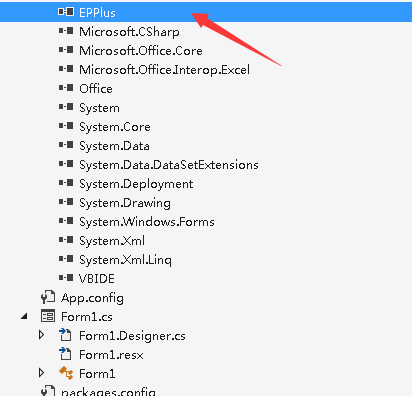
会提示错误, 注意要引用EPPlus,安装好效果如下:
方法是:
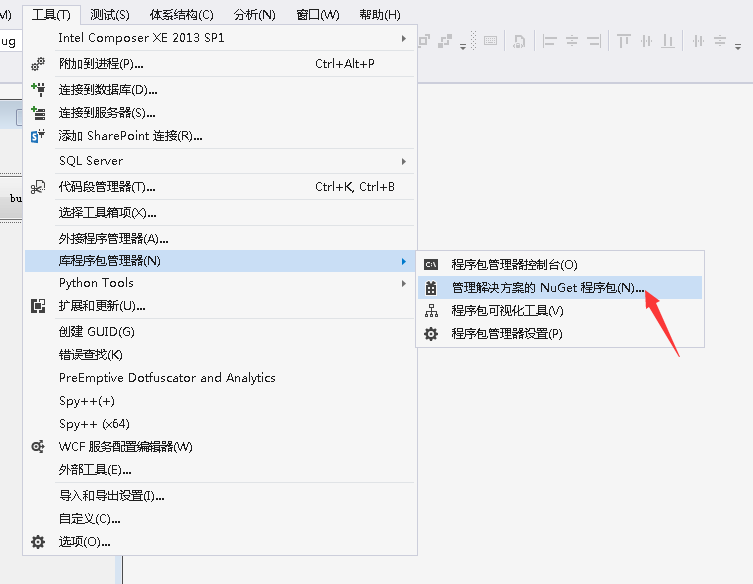
输入epplus,搜索,安装即可。
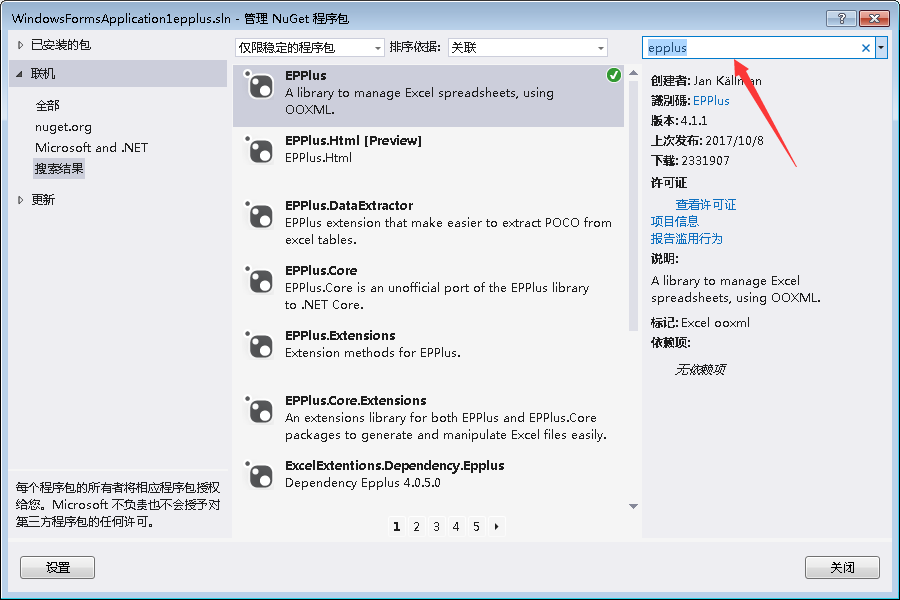
注意路径在E盘,没有E盘的肯定会出错。
c#用EPPLUS操作excel的更多相关文章
- 使用EPPLUS操作EXcel
使用EPPLUS操作EXcel 时间 2014-11-06 19:28:01 姜糖水 原文 http://www.cnphp6.com/archives/58648 主题 Excel 1 下载Ep ...
- C#使用第三方组件Epplus操作Excel表
Epplus操作Excel基础详解 1.什么是Epplus Epplus是一个使用Open Office XML文件格式,能读写Excel2007/2010文件的开源组件,在导出Excel的时候不需要 ...
- ASP.NET Core使用EPPlus操作Excel
1.前言 本篇文章通过ASP.NET Core的EPPlus包去操作Excel(导入导出),其使用原理与NPOI类似,导出Excel的时候不需要电脑上安装office,非常好用 2.使用 新建一个AS ...
- 使用LinqToExcel和EPPlus操作excel
1.使用LinqToExcel LinqToExcel是一个.net framework平台下开源项目,它主要实现了LINQ的语法查询Excel电子表格.类型之前的LINQToXXX如果你是LINQ语 ...
- [Solution] NPOI操作Excel
NPOI 是 POI 项目的 .NET 版本.POI是一个开源的Java读写Excel.WORD等微软OLE2组件文档的项目.使用 NPOI 你就可以在没有安装 Office 或者相应环境的机器上对 ...
- .net 操作excel
.net 操作excel的常用组件:EPPlus,NPOI 1.NPOI,即POI的.NET版本(POI是一套用Java写成的库,能够帮助开发者在没有安装微软Office的情况下读写Office文件, ...
- 【代码沉淀】 - EPPlus - 操作xlsx表格文件
EPPlus - Create advanced Excel spreadsheets on the server.web: http://epplus.codeplex.com/nuget: Ins ...
- C# 操作 Excel(.xls和.xlsx)文件
C#创建Excel(.xls和.xlsx)文件的三种方法 .NET 使用NPOI导入导出标准Excel C# 使用NPOI 实现Excel的简单导入导出 NET使用NPOI组件将数据导出Excel-通 ...
- [Asp.net] C# 操作Excel的几种方式 优缺点比较
在项目中我们常常需要将数据库中的数据导出成Excel文件 有一次工作中我的目的就是读取Excel到内存中,整理成指定格式 整理后再导出到Excel. 因为我要处理的每个Excel表格文件很大.一个表格 ...
随机推荐
- 超强、超详细Redis入门教程【转】
这篇文章主要介绍了超强.超详细Redis入门教程,本文详细介绍了Redis数据库各个方面的知识,需要的朋友可以参考下 [本教程目录] 1.redis是什么2.redis的作者何许人也3.谁在使用red ...
- ajax中的contendType和dataType知识点梳理
在ajax中有2个参数比较重要,之前一直没有搞清楚,下面我们开始梳理一下 1.contentType字段:这个字段的意思,ajax发送给后端的数据是什么类型 如果在ajax中不指定这个属性,则默认是u ...
- eclipse打war包编译文件不更新
如题.多次打包都不更新,各种clean都试了都不行.重启eclipse也不行.最后重启电脑可以了. 另外eclipse导出war包似乎存在bug,时间比系统时间超前,如下图所示.我17:19导出的包, ...
- dev-server.js浅析
// 检查NodeJS和npm的版本 require('./check-versions')() // 获取配置 var config = require('../config') // 如果Node ...
- Win10以管理员身份启动cmd.exe
PowerShell -windowstyle hidden -Command "Start-Process cmd.exe -ArgumentList '/s,/k, pushd' -Ve ...
- threejs指定对象旋转中心
指定对象旋转中心 默认情况下,对象的旋转中心都是自身的中心.对于组对象而言,也是如此.因此,可以利用这个特点,实现对象绕任何点旋转,也就是指定旋转中心.比如我们想要下图的对象绕A点旋转 我们可以添加 ...
- JavaScript 字符串用于存储和处理文本
JavaScript 字符串用于存储和处理文本 var string_value='dasfsdfsd'; 注意:字符串利用索引精确定位取值 var character=string_value[7] ...
- springMvc入门--初识springMvc
springMvc是什么 springmvc是表现层的框架,是一个spring的表现层组件.是整个spring框架的一部分,但是也可以不使用springmvc.跟struts2框架功能类似.其中的mv ...
- BZOJ1093或洛谷2272 [ZJOI2007]最大半连通子图
BZOJ原题链接 洛谷原题链接 和 Going from u to v or from v to u?(题解)这道题类似,只不过是求最大子图的大小和个数而已. 一样用\(tarjan\)求强连通分量, ...
- Expressions入门示例
学习表达式的入门例子,前提是要对委托有一定的了解,泛型明白一些.using System; using System.Linq; using System.Linq.Expressions; usin ...