
[iOS微博项目 - 4.6] - 微博配图
- 显示原创微博、转发微博的缩略图
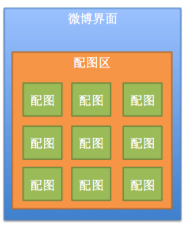
- 4张图使用2x2布局,其他使用3x3布局,最多9张
- 点击小图放大图片,下载中等图片并显示,使用动画转换
- 如果是gif文件,在缩略图上加上"gif"标识

- 开始就在微博正文下方创建一个配图区view,创建好9个配图子view
- 使用一个黑色背景的view来充当大图背景遮盖
- 使用点击手势唤出大图、缩回大图
 //

 //  HVWPic.h

 //  HVWWeibo

 //

 //  Created by hellovoidworld on 15/2/5.

 //  Copyright (c) 2015年 hellovoidworld. All rights reserved.

 //

 #import <Foundation/Foundation.h>

 @interface HVWPic : NSObject

 /** 缩略图片地址,没有时不返回此字段 */

 @property(nonatomic, copy) NSString *thumbnail_pic;

 /** 中等图片 */

 @property(nonatomic, copy) NSString *bmiddle_pic;

 @end
 //

 //  HVWPic.m

 //  HVWWeibo

 //

 //  Created by hellovoidworld on 15/2/5.

 //  Copyright (c) 2015年 hellovoidworld. All rights reserved.

 //

 #import "HVWPic.h"

 @implementation HVWPic

 /** 设置缩略图的同时,配置中等图片url */

 - (void)setThumbnail_pic:(NSString *)thumbnail_pic {

     _thumbnail_pic = [thumbnail_pic copy]; // 待会要修改此url,所以使用copy

     // 修改路径地址

     _bmiddle_pic = [thumbnail_pic stringByReplacingOccurrencesOfString:@"thumbnail" withString:@"bmiddle"];

 }

 @end
 //

 //  HVWStatusPhotoView.h

 //  HVWWeibo

 //

 //  Created by hellovoidworld on 15/2/28.

 //  Copyright (c) 2015年 hellovoidworld. All rights reserved.

 //

 #import <UIKit/UIKit.h>

 #import "HVWPic.h"

 @interface HVWStatusPhotoView : UIImageView

 /** 图片 */

 @property(nonatomic, strong) HVWPic *pic;

 @end
 //

 //  HVWStatusPhotoView.m

 //  HVWWeibo

 //

 //  Created by hellovoidworld on 15/2/28.

 //  Copyright (c) 2015年 hellovoidworld. All rights reserved.

 //

 #import "HVWStatusPhotoView.h"

 #import "UIImageView+WebCache.h"

 @interface HVWStatusPhotoView()

 /** gif logo */

 @property(nonatomic, weak) UIImageView *gifLogo;

 @end

 @implementation HVWStatusPhotoView

 - (instancetype)initWithFrame:(CGRect)frame {

     self = [super initWithFrame:frame];

     if (self) {

         // 填充方式显示

         self.contentMode = UIViewContentModeScaleAspectFill;

         // 剪除框外图形

         self.clipsToBounds = YES;

         // 允许用户交互

         self.userInteractionEnabled = YES;

         // gif logo

         UIImageView *gifLogo = [[UIImageView alloc] initWithImage:[UIImage imageWithNamed:@"timeline_image_gif"]];

         [self addSubview:gifLogo];

         self.gifLogo = gifLogo;

     }

     return self;

 }

 - (void)setPic:(HVWPic *)pic {

     _pic = pic;

     // 显示配图到view上

     [self setImageWithURL:[NSURL URLWithString:pic.thumbnail_pic] placeholderImage:[UIImage imageWithNamed:@"timeline_image_placeholder"]];

     // 如果是gif文件,需要加上标识

     if ([pic.thumbnail_pic.pathExtension.lowercaseString isEqualToString:@"gif"]) {

         self.gifLogo.hidden = NO;

     } else {

         self.gifLogo.hidden = YES;

     }

 }

 - (void)layoutSubviews {

     [super layoutSubviews];

     if (self.gifLogo && self.gifLogo.hidden==NO) {

         self.gifLogo.x = self.width - self.gifLogo.width;

         self.gifLogo.y = self.height - self.gifLogo.height;

     }

 }

 @end
 //

 //  HVWStatusPhotosView.h

 //  HVWWeibo

 //

 //  Created by hellovoidworld on 15/2/28.

 //  Copyright (c) 2015年 hellovoidworld. All rights reserved.

 //

 #import <UIKit/UIKit.h>

 @interface HVWStatusPhotosView : UIView

 /** 配图数组,里面装载的时HVWPic模型 */

 @property(nonatomic, strong) NSArray *photos;

 /** 根据配图数量计算相册尺寸 */

 + (CGSize) photosViewSizeWithCount:(int)count;

 @end
 //

 //  HVWStatusPhotosView.m

 //  HVWWeibo

 //

 //  Created by hellovoidworld on 15/2/28.

 //  Copyright (c) 2015年 hellovoidworld. All rights reserved.

 //

 #import "HVWStatusPhotosView.h"

 #import "HVWStatusPhotoView.h"

 #import "UIImageView+WebCache.h"

 #import "HVWPhotoBrowser.h"

 #define HVWStatusPhotosTotalCount 9

 #define HVWStatusPhotosMaxCol(count) ((count==4)?2:3);

 #define HVWStatusPhotoWidth 70

 #define HVWStatusPhotoHeight HVWStatusPhotoWidth

 #define HVWStatusPhotoMargin 10

 @interface HVWStatusPhotosView()

 /** 相册内的配图view数组 */

 @property(nonatomic, strong) NSMutableArray *photoViews;

 /** 大图 */

 @property(nonatomic, weak) UIImageView *bigPhotoView;

 /** 被点击的小图frame */

 @property(nonatomic, assign) CGRect clickedSmallPhotoFrame;

 @end

 @implementation HVWStatusPhotosView

 - (NSMutableArray *)photoViews {

     if (nil == _photoViews) {

         _photoViews = [NSMutableArray array];

     }

     return _photoViews;

 }

 /** 使用代码初始化调用 */

 - (instancetype)initWithFrame:(CGRect)frame {

     self = [super initWithFrame:frame];

     if (self) {

         self.userInteractionEnabled = YES;

         // 先创建好n个配图view

         for (int i=; i<HVWStatusPhotosTotalCount; i++) {

             HVWStatusPhotoView *photoView = [[HVWStatusPhotoView alloc] init];

             [self addSubview:photoView];

             [self.photoViews addObject:photoView];

             // 配置点击手势

             UITapGestureRecognizer *rec = [[UITapGestureRecognizer alloc] initWithTarget:self action:@selector(tapSamllPhoto:)];

             [photoView addGestureRecognizer:rec];

         }

     }

     return self;

 }

 /** 设置配图 */

 - (void)setPhotos:(NSArray *)photoUrls {

     _photos = photoUrls;

     // 配置所有配图子view

     for (int i=; i<self.photoViews.count; i++) {

         HVWStatusPhotoView *photoView = self.photoViews[i];

         if (i < photoUrls.count) {

             photoView.pic =  photoUrls[i];

             photoView.tag = i;

             photoView.hidden = NO;

         } else {

             photoView.hidden = YES;

         }

     }

 }

 /** 布局子控件 */

 - (void)layoutSubviews {

     [super layoutSubviews];

     int photosCount = self.photos.count;

     // 布局所有配图

     for (int i=; i<photosCount; i++) {

         HVWStatusPhotoView *photoView = self.photoViews[i];

         int row = i / HVWStatusPhotosMaxCol(photosCount); // 配图所在行数

         int col = i % HVWStatusPhotosMaxCol(photosCount); // 配图所在列数

         CGFloat photoX = col * (HVWStatusPhotoWidth + HVWStatusPhotoMargin);

         CGFloat photoY = row * (HVWStatusPhotoHeight + HVWStatusPhotoMargin);

         photoView.frame = CGRectMake(photoX, photoY, HVWStatusPhotoWidth, HVWStatusPhotoHeight);

     }

 }

 /** 根据配图数量计算相册尺寸 */

 + (CGSize) photosViewSizeWithCount:(int)count {

     int maxCount = HVWStatusPhotosMaxCol(count);

     // 总列数

     int totalCol = count > maxCount? maxCount : count;

     // 总行数

     int totalRow = (count + maxCount - ) / maxCount;

     CGFloat width = totalCol * (HVWStatusPhotoWidth + HVWStatusPhotoMargin) - HVWStatusPhotoMargin;

     CGFloat height = totalRow * (HVWStatusPhotoHeight + HVWStatusPhotoMargin) - HVWStatusPhotoMargin;

     return CGSizeMake(width, height);

 }

 /** 点击小图手势事件 */

 - (void) tapSamllPhoto:(UITapGestureRecognizer *) rec {

     // 创建一个全屏遮盖背景

     UIView *bigPhotoCover = [[UIView alloc] init];

     bigPhotoCover.frame = [UIScreen mainScreen].bounds;

     bigPhotoCover.backgroundColor = [UIColor blackColor];

     // 添加点击遮盖手势

     UITapGestureRecognizer *tapCoverRec = [[UITapGestureRecognizer alloc] initWithTarget:self action:@selector(tapPhotoCover:)];

     [bigPhotoCover addGestureRecognizer:tapCoverRec];

     // 添加到主窗口上

     [[[UIApplication sharedApplication] keyWindow] addSubview:bigPhotoCover];

     // 被点击的小图

     HVWStatusPhotoView *photoView = (HVWStatusPhotoView *)rec.view;

     // 创建一个要放大的图片,使用中等尺寸的配图

     HVWPic *pic = self.photos[photoView.tag];

     UIImageView *bigPhotoView = [[UIImageView alloc] init];

     self.bigPhotoView = bigPhotoView;

     bigPhotoView.contentMode = UIViewContentModeScaleAspectFill;

     bigPhotoView.clipsToBounds = YES;

     // 下载图片

     [bigPhotoView setImageWithURL:[NSURL URLWithString:pic.bmiddle_pic] placeholderImage:[UIImage imageWithNamed:@"timeline_image_placeholder"]];

     // 转换大图的frame坐标,从photosView坐标转换到遮盖view坐标

     bigPhotoView.frame = [bigPhotoCover convertRect:photoView.frame fromView:self];

     self.clickedSmallPhotoFrame = bigPhotoView.frame;

     // 添加到遮盖上

     [bigPhotoCover addSubview:bigPhotoView];

     // 放大图片

     [UIView animateWithDuration:0.5 animations:^{

         bigPhotoView.contentMode = UIViewContentModeScaleAspectFit;

         bigPhotoView.clipsToBounds = NO;

         CGFloat bigPhotoWidth = bigPhotoCover.width;

         CGFloat bigPhotoHeight = bigPhotoView.height * (bigPhotoWidth / bigPhotoView.width);

         CGFloat bigPhotoX = ;

         CGFloat bigPhotoY = bigPhotoHeight>=HVWScreenHeight?  : (HVWScreenHeight - bigPhotoHeight) * 0.5;

         bigPhotoView.frame = CGRectMake(bigPhotoX, bigPhotoY, bigPhotoWidth, bigPhotoHeight);

     }];

 }

 /** 点击大图展示遮盖手势事件 */

 - (void) tapPhotoCover:(UITapGestureRecognizer *) rec {

     [UIView animateWithDuration:0.5 animations:^{

         // 缩回图片

         self.bigPhotoView.frame = self.clickedSmallPhotoFrame;

     } completion:^(BOOL finished) {

         // 消除遮盖

         [rec.view removeFromSuperview];

     }];

 }

 @end
- 封装出一个大图浏览器,能够滚动浏览大图
- 显示页码

- 使用一个UIView,内部封装一个UIScrollView
- 传入所有配图(中等图片)地址
- 传入所有配图缩略图frame给浏览器,用作图片放大、缩回动画操作
- 传入当前打开图片索引
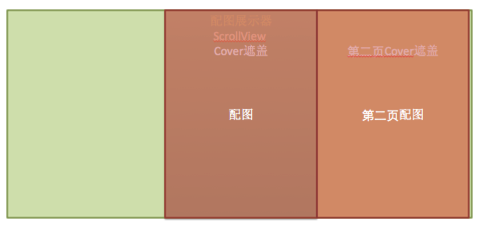
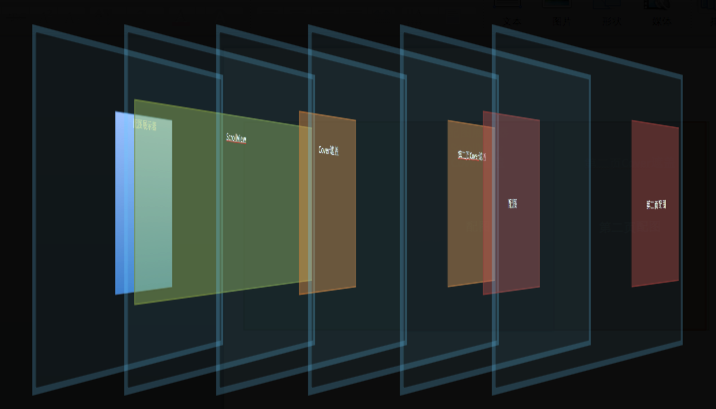
- 使用一个Scrollview装载作为滚动浏览容器
- 使用两个自定义UIView作为遮盖cover
- cover配有一个UIImageView成员,用来加载图片
- 一个cover用于当前显示,另一个cover用于当滚动时(左边或右边)显示上一张或下一张配图
 //

 //  HVWPhotoBrowser.h

 //  HVWWeibo

 //

 //  Created by hellovoidworld on 15/3/1.

 //  Copyright (c) 2015年 hellovoidworld. All rights reserved.

 //

 #import <UIKit/UIKit.h>

 @interface HVWPhotoBrowser : UIView

 /** 配图地址数组 */

 @property(nonatomic, strong) NSMutableArray *photoUrls;

 /** 当前配图序号 */

 @property(nonatomic, assign) int currentPhotoIndex;

 /** 配图组原始frame数组 */

 @property(nonatomic, strong) NSArray *photoOriginalFrames;

 @end
 //

 //  HVWPhotoBrowser.m

 //  HVWWeibo

 //

 //  Created by hellovoidworld on 15/3/1.

 //  Copyright (c) 2015年 hellovoidworld. All rights reserved.

 //

 #import "HVWPhotoBrowser.h"

 #import "UIImageView+WebCache.h"

 #import "SDWebImageManager.h"

 #import "HVWPhotoCover.h"

 #import "HVWPhotoPageLabel.h"

 @interface HVWPhotoBrowser() <UIScrollViewDelegate>

 /** 当前背景 */

 @property(nonatomic, weak) HVWPhotoCover *cover;

 /** 替换用背景 */

 @property(nonatomic, weak) HVWPhotoCover *backupCover;

 /** 滚动配图展示view */

 @property(nonatomic, weak) UIScrollView *photoScrollView;

 /** 上次滚动x位置 */

 @property(nonatomic, assign) CGFloat lastOffsetX;

 /** 是否正在滚动 */

 @property(nonatomic, assign, getter=isScrolling) BOOL scrolling;

 /** 是否已经运行了开场动画(放大) */

 @property(nonatomic, assign, getter=isDidRunAnimation) BOOL didRunAnimation;

 /** 页码 */

 @property(nonatomic, weak) HVWPhotoPageLabel *pageLabel;

 @end

 @implementation HVWPhotoBrowser

 /** 使用代码创建调用的初始化方法 */

 - (instancetype)initWithFrame:(CGRect)frame {

     self = [super initWithFrame:frame];

     if (self) {

         // 隐藏状态栏

         [UIApplication sharedApplication].statusBarHidden = YES;

         self.backgroundColor = [UIColor blackColor];

         // 滚动配图展示

         UIScrollView *photoScrollView = [[UIScrollView alloc] init];

         [self addSubview:photoScrollView];

         self.photoScrollView = photoScrollView;

         photoScrollView.delegate = self;

         photoScrollView.scrollEnabled = YES;

         photoScrollView.userInteractionEnabled = YES;

         photoScrollView.pagingEnabled = YES;

         photoScrollView.showsHorizontalScrollIndicator = NO;

         photoScrollView.showsVerticalScrollIndicator = YES;

         // 配图背景

         HVWPhotoCover *cover = [[HVWPhotoCover alloc] init];

         self.cover = cover;

         [photoScrollView addSubview:cover];

         HVWPhotoCover *backupCover = [[HVWPhotoCover alloc] init];

         self.backupCover = backupCover;

         [photoScrollView addSubview:backupCover];

         // 添加点击遮盖手势

         UITapGestureRecognizer *tapCoverRec = [[UITapGestureRecognizer alloc] initWithTarget:self action:@selector(tapPhotoCover:)];

         [self addGestureRecognizer:tapCoverRec];

         // 页码

         HVWPhotoPageLabel *pageLabel = [[HVWPhotoPageLabel alloc] init];

         [self addSubview: pageLabel];

         self.pageLabel = pageLabel;

     }

     return self;

 }

 - (void)layoutSubviews {

     [super layoutSubviews];

     // 图片滚动浏览器

     self.photoScrollView.frame = [UIScreen mainScreen].bounds;

     // 页码

     self.pageLabel.frame = (CGRect){{, }, {self.width, }};

 }

 /**  配置当前配图 */

 - (void)setCurrentPhotoIndex:(int)currentPhotoIndex {

     _currentPhotoIndex = currentPhotoIndex;

     // 由于滚动结束触发此方法,不需要重新加载图片

     if (!self.isDidRunAnimation) {

         // 加载图片

         [self loadImage:self.cover withPhotoIndex:currentPhotoIndex];

     }

     // 页码

     [self.pageLabel changePageLabel:currentPhotoIndex];

 }

 /** 点击大图展示遮盖手势事件 */

 - (void) tapPhotoCover:(UITapGestureRecognizer *) rec {

     [UIView animateWithDuration:0.5 animations:^{

         // 缩回图片

         UIImageView *photoView = self.cover.photoView;

         photoView.frame = [self currentPhotoOriginalFrame];

         // 恢复状态栏显示

         [UIApplication sharedApplication].statusBarHidden = NO;

     } completion:^(BOOL finished) {

         // 消除遮盖

         [rec.view removeFromSuperview];

     }];

 }

 /** 所有配图 */

 - (void)setPhotoUrls:(NSMutableArray *)photoUrls {

     _photoUrls = photoUrls;

     // 配置scrollView

     self.photoScrollView.contentSize = CGSizeMake(HVWScreenWidth * photoUrls.count, );

     // 配置cover

     self.pageLabel.totalPageCount = photoUrls.count;

 }

 #pragma mark - UIScrollViewDelegate

 /** 拖曳中 */

 - (void)scrollViewDidScroll:(UIScrollView *)scrollView {

     CGFloat offsetX = scrollView.contentOffset.x;

     if (!self.isScrolling) { // 是否正在滚动,仅需在滚动开始的一刻加载图片

         if (offsetX > self.lastOffsetX) {

             [self loadImage:self.backupCover withPhotoIndex:self.currentPhotoIndex + ];

             // 设置滚动标识

             self.scrolling = YES;

         } else if (offsetX < self.lastOffsetX) {

             [self loadImage:self.backupCover withPhotoIndex:self.currentPhotoIndex - ];

             // 设置滚动标识

             self.scrolling = YES;

         }

     }

     // 设置页码

     int pageIndex =  (offsetX + self.photoScrollView.width * 0.5) / self.photoScrollView.width;

     [self.pageLabel changePageLabel:pageIndex];

 }

 /** 滚动完全停止 */

 - (void)scrollViewDidEndDecelerating:(UIScrollView *)scrollView {

     // 更新滚动位置

     self.lastOffsetX = scrollView.contentOffset.x;

     // 当前页码

     int currentPhotoIndex = self.lastOffsetX / HVWScreenWidth;

     // 如果进行了换页

     if (currentPhotoIndex != self.currentPhotoIndex) {

         // 更新当前图片和替换图片

         HVWPhotoCover *tempCover = self.backupCover;

         self.backupCover = self.cover;

         self.cover = tempCover;

         // 更新当前图片索引

         self.currentPhotoIndex = currentPhotoIndex;

     }

     // 重置滚动标识

     self.scrolling = NO;

 }

 /** 当前图片缩略图frame */

 - (CGRect)currentPhotoOriginalFrame {

     return [self.photoOriginalFrames[self.currentPhotoIndex] CGRectValue];

 }

 /** 当前cover的frame */

 - (CGRect)currentPhotoCoverFrame:(int)photoIndex {

     return CGRectMake(photoIndex * HVWScreenWidth, , HVWScreenWidth, HVWScreenHeight);

 }

 /** 加载配图 */

 - (void) loadImage:(HVWPhotoCover *)cover withPhotoIndex:(int)photoIndex{

     if (photoIndex <  || photoIndex >= self.photoUrls.count) return;

     // 取得配图地址

     NSString *currentPhotoUrlStr = self.photoUrls[photoIndex];

     // 加入到显示区

     cover.frame = [self currentPhotoCoverFrame:photoIndex];

     UIImageView *photoView = cover.photoView;

     photoView.frame = [self currentPhotoOriginalFrame];

     // 当前scrollView的offsetX

     self.lastOffsetX = photoIndex * HVWScreenWidth;

     // 先设置一张占位图

     [photoView setImage:[UIImage imageWithNamed:@"timeline_image_placeholder"]];

     // 放大图片

     if (!self.isDidRunAnimation) { // 非滚动切换来的图片,需要进行放大动画

         // 滚动到相应位置

         [self.photoScrollView setContentOffset:CGPointMake(photoIndex * HVWScreenWidth, )];

         __weak UIImageView *tempPhotoView = photoView;

         [UIView animateWithDuration:0.5 animations:^{

             CGFloat placeHolderWidth = self.width;

             CGFloat placeHolderHeight = placeHolderWidth;

             CGFloat placeHolderX = ;

             CGFloat placeHolderY = (HVWScreenHeight - placeHolderHeight) * 0.5;

             tempPhotoView.frame = CGRectMake(placeHolderX, placeHolderY, placeHolderWidth, placeHolderHeight);

         } completion:^(BOOL finished) {

             self.didRunAnimation = YES;

             [self setupPhotoView:photoView withUrl:currentPhotoUrlStr];

         }];

     } else { // 滚动切换图片,直接加载

         UIImageView *backupPhotoView = self.backupCover.photoView;

         [backupPhotoView setImage:[UIImage imageWithNamed:@"timeline_image_placeholder"]];

         CGFloat placeHolderWidth = self.width;

         CGFloat placeHolderHeight = placeHolderWidth;

         CGFloat placeHolderX = ;

         CGFloat placeHolderY = (HVWScreenHeight - placeHolderHeight) * 0.5;

         backupPhotoView.frame = CGRectMake(placeHolderX, placeHolderY, placeHolderWidth, placeHolderHeight);

         [self setupPhotoView:photoView withUrl:currentPhotoUrlStr];

     }

 }

 /** 下载并设置图片 */

 - (void) setupPhotoView:(UIImageView *)photoView withUrl:(NSString *)currentPhotoUrlStr {

     // 下载图片

     __weak UIImageView *tempPhotoView = photoView;

     [photoView setImageWithURL:[NSURL URLWithString:currentPhotoUrlStr] placeholderImage:[UIImage imageWithNamed:@"timeline_image_placeholder"] completed:^(UIImage *image, NSError *error, SDImageCacheType cacheType) {

         // 下载完毕,重新根据图片实际大小计算尺寸、位置

         tempPhotoView.height = image.size.height * (tempPhotoView.width / image.size.width);

         tempPhotoView.y = tempPhotoView.height>=HVWScreenHeight?  : (HVWScreenHeight - tempPhotoView.height) * 0.5;

     }];

 }

 @end
 //

 //  HVWPhotoCover.h

 //  HVWWeibo

 //

 //  Created by hellovoidworld on 15/3/2.

 //  Copyright (c) 2015年 hellovoidworld. All rights reserved.

 //

 #import <UIKit/UIKit.h>

 @interface HVWPhotoCover : UIView

 /** 配图 */

 @property(nonatomic, weak) UIImageView *photoView;

 @end
 //

 //  HVWPhotoCover.m

 //  HVWWeibo

 //

 //  Created by hellovoidworld on 15/3/2.

 //  Copyright (c) 2015年 hellovoidworld. All rights reserved.

 //

 #import "HVWPhotoCover.h"

 @interface HVWPhotoCover()

 /** 页码 */

 @property(nonatomic, weak) UILabel *pageLabel;

 @end

 @implementation HVWPhotoCover

 - (instancetype)initWithFrame:(CGRect)frame {

     self = [super initWithFrame:frame];

     if (self) {

         // 配图

         UIImageView *photoView = [[UIImageView alloc] init];

         photoView.contentMode = UIViewContentModeScaleAspectFill; // 填充图片

         photoView.clipsToBounds = YES; // 剪除多余部分

         self.photoView = photoView;

         [self addSubview:photoView];

     }

     return self;

 }

 @end
 //

 //  HVWPhotoPageLabel.h

 //  HVWWeibo

 //

 //  Created by hellovoidworld on 15/3/3.

 //  Copyright (c) 2015年 hellovoidworld. All rights reserved.

 //

 #import <UIKit/UIKit.h>

 @interface HVWPhotoPageLabel : UILabel

 /** 总页数 */

 @property(nonatomic, assign) int totalPageCount;

 /** 改变页码 */

 - (void)changePageLabel:(int)pageIndex;

 @end
 //

 //  HVWPhotoPageLabel.m

 //  HVWWeibo

 //

 //  Created by hellovoidworld on 15/3/3.

 //  Copyright (c) 2015年 hellovoidworld. All rights reserved.

 //

 #import "HVWPhotoPageLabel.h"

 @implementation HVWPhotoPageLabel

 - (instancetype)initWithFrame:(CGRect)frame {

     self = [super initWithFrame:frame];

     if (self) {

         self.font = [UIFont systemFontOfSize:];

         self.textAlignment = NSTextAlignmentCenter;

         self.textColor = [UIColor whiteColor];

     }

     return self;

 }

 /** 改变页码 */

 - (void)changePageLabel:(int)pageIndex {

     self.text = [NSString stringWithFormat:@"%d/%d", pageIndex + , self.totalPageCount];

 }

 @end
 //

 //  HVWStatusPhotosView.m

 //  HVWWeibo

 //

 //  Created by hellovoidworld on 15/2/28.

 //  Copyright (c) 2015年 hellovoidworld. All rights reserved.

 //

 #import "HVWStatusPhotosView.h"

 #import "HVWStatusPhotoView.h"

 #import "UIImageView+WebCache.h"

 #import "HVWPhotoBrowser.h"

 #define HVWStatusPhotosTotalCount 9

 #define HVWStatusPhotosMaxCol(count) ((count==4)?2:3);

 #define HVWStatusPhotoWidth 70

 #define HVWStatusPhotoHeight HVWStatusPhotoWidth

 #define HVWStatusPhotoMargin 10

 @interface HVWStatusPhotosView()

 /** 相册内的配图view数组 */

 @property(nonatomic, strong) NSMutableArray *photoViews;

 /** 大图 */

 @property(nonatomic, weak) UIImageView *bigPhotoView;

 /** 被点击的小图frame */

 @property(nonatomic, assign) CGRect clickedSmallPhotoFrame;

 @end

 @implementation HVWStatusPhotosView

 - (NSMutableArray *)photoViews {

     if (nil == _photoViews) {

         _photoViews = [NSMutableArray array];

     }

     return _photoViews;

 }

 /** 使用代码初始化调用 */

 - (instancetype)initWithFrame:(CGRect)frame {

     self = [super initWithFrame:frame];

     if (self) {

         self.userInteractionEnabled = YES;

         // 先创建好n个配图view

         for (int i=; i<HVWStatusPhotosTotalCount; i++) {

             HVWStatusPhotoView *photoView = [[HVWStatusPhotoView alloc] init];

             [self addSubview:photoView];

             [self.photoViews addObject:photoView];

             // 配置点击手势

             UITapGestureRecognizer *rec = [[UITapGestureRecognizer alloc] initWithTarget:self action:@selector(tapSamllPhoto:)];

             [photoView addGestureRecognizer:rec];

         }

     }

     return self;

 }

 /** 设置配图 */

 - (void)setPhotos:(NSArray *)photoUrls {

     _photos = photoUrls;

     // 配置所有配图子view

     for (int i=; i<self.photoViews.count; i++) {

         HVWStatusPhotoView *photoView = self.photoViews[i];

         if (i < photoUrls.count) {

             photoView.pic =  photoUrls[i];

             photoView.tag = i;

             photoView.hidden = NO;

         } else {

             photoView.hidden = YES;

         }

     }

 }

 /** 布局子控件 */

 - (void)layoutSubviews {

     [super layoutSubviews];

     int photosCount = self.photos.count;

     // 布局所有配图

     for (int i=; i<photosCount; i++) {

         HVWStatusPhotoView *photoView = self.photoViews[i];

         photoView.contentMode = UIViewContentModeScaleAspectFill;

         photoView.clipsToBounds = YES;

         int row = i / HVWStatusPhotosMaxCol(photosCount); // 配图所在行数

         int col = i % HVWStatusPhotosMaxCol(photosCount); // 配图所在列数

         CGFloat photoX = col * (HVWStatusPhotoWidth + HVWStatusPhotoMargin);

         CGFloat photoY = row * (HVWStatusPhotoHeight + HVWStatusPhotoMargin);

         photoView.frame = CGRectMake(photoX, photoY, HVWStatusPhotoWidth, HVWStatusPhotoHeight);

     }

 }

 /** 根据配图数量计算相册尺寸 */

 + (CGSize) photosViewSizeWithCount:(int)count {

     int maxCount = HVWStatusPhotosMaxCol(count);

     // 总列数

     int totalCol = count > maxCount? maxCount : count;

     // 总行数

     int totalRow = (count + maxCount - ) / maxCount;

     CGFloat width = totalCol * (HVWStatusPhotoWidth + HVWStatusPhotoMargin) - HVWStatusPhotoMargin;

     CGFloat height = totalRow * (HVWStatusPhotoHeight + HVWStatusPhotoMargin) - HVWStatusPhotoMargin;

     return CGSizeMake(width, height);

 }

 /** 点击小图手势事件 */

 - (void) tapSamllPhoto:(UITapGestureRecognizer *) rec {

     // 创建一个全屏遮盖背景

     HVWPhotoBrowser *photoBrowser = [[HVWPhotoBrowser alloc] init];

     photoBrowser.frame = [UIScreen mainScreen].bounds;

     // 添加到主窗口上

     // 一定要先添加到主窗口上,再进行坐标转换!!!否则会得到增大一倍的frame!!!

     [[[UIApplication sharedApplication] keyWindow] addSubview:photoBrowser];

     // 输入点击图片坐标

     HVWStatusPhotoView *smallPhotoView = (HVWStatusPhotoView *)rec.view;

     photoBrowser.photoOriginalFrames = [self photoOriginalFramesInView:photoBrowser];

     // 配置配图url

     NSMutableArray *photoUrls = [NSMutableArray array];

     for(HVWPic *pic in self.photos) {

         [photoUrls addObject:pic.bmiddle_pic];

     }

     photoBrowser.photoUrls = photoUrls;

     photoBrowser.currentPhotoIndex = smallPhotoView.tag;

 }

 /** 所有缩略图的frame */

 - (NSArray *) photoOriginalFramesInView:(UIView *)view {

     NSMutableArray *photoOriginalFrames = [NSMutableArray array];

     for (HVWStatusPhotoView *photoView in self.photoViews) {

         CGRect convertFrame = [view convertRect:photoView.frame fromView:self];

         [photoOriginalFrames addObject:[NSValue valueWithCGRect:convertFrame]];

     }

     return photoOriginalFrames;

 }

 @end
[iOS微博项目 - 4.6] - 微博配图的更多相关文章
- AJ学IOS 之微博项目实战(1)微博主框架-子控制器的添加
AJ分享,必须精品 一:简单介绍 这是新浪微博的iOS端项目,来自于黑马的一个实战项目. 主要分成五大模块,本次全部运用纯代码实现,其中会用到很多前面学过得内容,如果有的地方有重复的知识点,说明这个知 ...
- 猫猫学iOS 之微博项目实战(2)微博主框架-自己定义导航控制器NavigationController
猫猫分享,必须精品 原创文章,欢迎转载.转载请注明:翟乃玉的博客 地址:http://blog.csdn.net/u013357243?viewmode=contents 一:加入导航控制器 上一篇博 ...
- AJ学IOS 之微博项目实战(2)微博主框架-自定义导航控制器NavigationController
AJ分享,必须精品 一:添加导航控制器 上一篇博客完成了对底部的TabBar的设置,这一章我们完成自定义导航控制器(NYNavigationController). 为啥要做自定义呢,因为为了更好地封 ...
- 猫猫学iOS 之微博项目实战(5)微博自己定义搜索框searchBar
猫猫分享.必须精品 原创文章.欢迎转载. 转载请注明:翟乃玉的博客 地址:http://blog.csdn.net/u013357243 一:效果 用UITextField简单定义一个搜索框 二:调用 ...
- AJ学IOS 之微博项目实战(5)微博自定义搜索框searchBar
AJ分享,必须精品 一:效果 用UITextField简单定义一个搜索框 二:调用: 调用的代码,很简单,直接init就可以,以后加功能自己添加就行了. - (void)viewDidLoad { [ ...
- AJ学IOS 之微博项目实战(10)微博cell中图片的显示以及各种填充模式简介
AJ分享,必须精品 :一效果 如果直接设置会有拉伸等等的状况,这里主要介绍图片显示的一些细节 二:代码 代码实现其实很简单,微博当中用了一个photos来存放九宫格这些图片,然后用了一个photo类来 ...
- AJ学IOS 之微博项目实战(9)微博模型之时间相关重要操作,判断刚刚,昨天,今年等等
AJ分享,必须精品 一:效果 二:实现代码 /** 1.今年 1> 今天 * 1分内: 刚刚 * 1分~59分内:xx分钟前 * 大于60分钟:xx小时前 2> 昨天 * 昨天 xx:xx ...
- AJ学IOS 之微博项目实战(4)微博自定义tabBar中间的添加按钮
AJ分享,必须精品 一:效果图 自定义tabBar实现最下面中间的添加按钮 二:思路 首先在自己的tabBarController中把系统的tabBar设置成自己的tabBar(NYTabBar),这 ...
- AJ学IOS 之微博项目实战(3)微博主框架-UIImage防止iOS7之后自动渲染_定义分类
AJ分享,必须精品 一:效果对比 当我们设置tabBarController的tabBarItem.image的时候,默认情况下会出现图片变成蓝色的效果,这是因为ios7之后会对图片自动渲染成蓝色 代 ...
随机推荐
- Python内置函数property()使用实例
class Shuxing(): def __init__(self, size = 10): self.size = size def getSize(self): print('getSize') ...
- js基本知识3
1. 函数 function 函数的声明 函数的 调用 函数的传参 2. 函数返回值 Return 返回结果 返回给函数 Id 函数 function $id(id) { return documen ...
- [转]__cdecl与__stdcall
来自Programming Windows 5th Edition The WinMain function is given a type of WINAPI (as is every Window ...
- Unix系统编程()信号处理器简介
信号处理器简介 信号处理器程序(也称为信号捕捉器)是当指定信号传递给进程时将会调用的一个函数.这里会学习信号处理器的基本原理,后面将继续学习. 调用信号处理器程序,可能会随时打断主程序流程:内核代表进 ...
- 应用DataAdapter对象填充DataSet数据集
private void Form1_Load(object sender, EventArgs e) { string strCon = "Server=localhost;User Id ...
- cacati的安装
一.安装rrdtool软件包 yum install -y cairo-devel libxml2-devel pango-devel pango libpng-devel freetype free ...
- Android多媒体系列2:利用MediaRecorder实现录音
- easyui datagrid 列拖动
实现代码-code <script type="text/javascript"> $.extend($.fn.datagrid.methods, { columnMo ...
- 【BZOJ】1029: [JSOI2007]建筑抢修(贪心)
http://www.lydsy.com/JudgeOnline/problem.php?id=1029 按右端点排序后依次加入,并且每一次看是否能被修筑,如果能就修:否则查找原来修过的,如果原来修过 ...
- c# windows service(服务)
//安装%SystemRoot%\Microsoft.NET\Framework\v4.0.30319\installutil.exe WindowsServiceTest.exe //卸载%Syst ...