
Ubuntu中安装部署Intel CS WebRTC
1环境要求
| 组件 | 版本要求 |
|---|---|
| OS | CentOS* 7.4, Ubuntu 14.04/16.04 LTS |
| Node | 8.11.* (推荐8.11.1) |
| MongoDB | 2.4.9 |
| Boost | 1.65.1 |
- 安装部署测试环境在Ubuntu 18.04,操作系统和MongoDB兼容,满足要求;
- Node和Boost需单独安装指定的版本;
2安装Node
2.1 安装过程
node版本使用推荐8.11.1,相关命令如下:
# 下载

# wget https://nodejs.org/download/release/v8.11.1/node-v8.11.1-linux-x64.tar.gz

# 解压

# tar -zxvf node-v8.11.1-linux-x64.tar.gz

# 移动到/opt目录

# mv node-v8.11.1-linux-x64 /opt/

# 设置软连接

# ln -s /opt/node-v8.11.1-linux-x64/bin/node /usr/local/bin/node

# ln -s /opt/node-v8.11.1-linux-x64/lib/node_modules/npm/bin/npm-cli.js /usr/local/bin/npm
2.2 验证安装
使用下面的命令查看NodeJS和NPM的版本,若正确安装的话都可以看到相关的版本号信息。
# sudo node -v

# sudo npm -v
3、安装Boost
boost版本需要使用1.65.1版本,不然会提示找不到依赖库,编译安装时间较长。
相关命令如下:
# 安装依赖组件

# apt-get install p7zip p7zip-full clang gcc

# 下载

# wget https://dl.bintray.com/boostorg/release/1.65.1/source/boost_1_65_1.7z

# 解压

# 7z x boost_1_65_1.7z

# 切换目录

# cd boost_1_65_1/

# 设置参数

# ./bootstrap.sh --with-toolset=clang

# 编译安装(编译安装时间较长,请耐心等待)

# ./b2 install

# 将库添加到系统环境变量(重要)

# ldconfig /usr/local/lib
4、安装Intel CS WebRTC
4.1 下载
下载Intel_CS_WebRTC.v4.2.zip:
# wget http://registrationcenter-download.intel.com/akdlm/irc_nas/15414/Intel_CS_WebRTC.v4.2.zip
4.2 解压
# tar -zxvf Intel_CS_WebRTC.v4..zip
解压后,Intel_CS_WebRTC.v4.2目录包含如下文件
CS_WebRTC_Client_SDK_Android.v4..zip

CS_WebRTC_Client_SDK_iOS.v4..zip

CS_WebRTC_Client_SDK_JavaScript.v4..zip

CS_WebRTC_Client_SDK_Windows.v4..zip

CS_WebRTC_Conference_Server_MCU.v4..CentOS.tgz

CS_WebRTC_Conference_Server_MCU.v4..Ubuntu.tgz

CS_WebRTC_Conference_Server_Peer.v4..tgz

License.pdf

ReleaseNotes.pdf
本文在Ubuntu上安装MCU,因此使用Ubuntu 版本MCU,解压ubuntu安装包:
# cd Intel_CS_WebRTC.v4.

# tar -zxvf CS_WebRTC_Conference_Server_MCU.v4..Ubuntu.tgz
解压后,会生成一个Release-v4.2的目录,即我们要安装的intel cs server。
4.3 安装部署
4.3.1 安装依赖
相关命令如下:
# cd Release-v4./

# 需要外网,下载可能会很慢

# bin/init-all.sh --deps
过程中会有安装选择,相关的问题及选择可以参考下面的说明,最后一步一定要选no,即不更新RabbitMQ或MongoDB账号
......

# 这一步一定要选择yes,即继续安装

Do you want to continue? [Y/n] y

......

......

# 这一步选择no,即不创建MongoDB账号

Create MongoDB Account? [Yes/no]no

......

......

# 这一步选择no,即不禁用RabbitMQ账号并创建新账号

Diable Default RabbitMQ Account and Create a New One? [Yes/no]no

......

......

# 这一步很重要,一定要选择no,即不更新Mongodb或RabbitMQ账号信息

# 若选择yes的话可能导致更新后连接不上Mongodb或RabbitMQ

Update RabbitMQ/MongoDB Account? [No/yes]no

......
安装过程中会提示生成两组key,在比较靠前的位置
......

# 管理员账号

superServiceId: 5ce4c00b7b0da14e1377914f

superServiceKey: 8ACp9tpz6nWebF4x4HECxP0UvXLJChzEJPqNmW7rRrJyRPKOw+LGiUVQbF4ed/0v6yHAUL6CmrgKMxWAU4PIvjGY2HUfvlbcwkC4iN6niE4ApllW3stRaT6jQPqAmPVAAK5/74A39MR9VoyIR6B01GWvBcPv79BZTyNdWek/f3w=

# 普通账号

sampleServiceId: 5ce4c00b7b0da14e13779150

sampleServiceKey: 5bc8AIklK8fsdRLBJmfecF6PMwx/k7IVKz7nd8a2CHLsEh8MM3nSBL9aMURBs/HSJXFV7vJg9lDcyYrlxBFJOJmnaq5R5cK+AJT8djgyvdc1dePTpMdWSb54H+cv9IKkNgTqvQW+H4eSoA1uq9hNhpMYriwYCqw/ARXC2+pAk7I=

......
4.3.2 修改配置(虚拟机安装需配置)
修改下面的相关文件的IP地址
./video_agent/agent.toml

./recording_agent/agent.toml

./sip_agent/agent.toml

./streaming_agent/agent.toml

./analytics_agent/agent.toml

./webrtc_agent/agent.toml

./audio_agent/agent.toml

./portal/portal.toml
将配置文件中ip_address修改为相应的ip地,如:172.16.85.136。
......

ip_address = "172.16.85.136"

......
此外,./webrtc_agent/agent.toml文件中还需配置如下:
# vim webrtc_agent/agent.toml

# network_interfaces = []

修改为:

network_interfaces = [{name = "eth0", replaced_ip_address = "172.16.85.136"}]
4.3.3 启动/停止服务
1、启动服务
# 启动服务

# ./bin/start-all.sh
# ./bin/start-all.sh

starting management-api, stdout -> /home/starnight/Intel_CS_WebRTC.v4./Release-v4./logs/management-api.stdout

starting cluster-manager, stdout -> /home/starnight/Intel_CS_WebRTC.v4./Release-v4./logs/cluster-manager.stdout

-- ::09.004  - INFO: AmqpClient - Connecting to rabbitMQ server OK, options: { host: 'localhost', port:  }

-- ::09.037  - INFO: Main - Cluster manager up! id:

-- ::09.038  - INFO: ClusterManager - Run as candidate.

-- ::09.246  - INFO: ClusterManager - Run as master.

-- ::09.252  - INFO: ClusterManager - Cluster manager is in service as master!

starting recording-agent, stdout -> /home/starnight/Intel_CS_WebRTC.v4./Release-v4./logs/recording-agent.stdout

-- ::10.256  - INFO: AmqpClient - Connecting to rabbitMQ server OK, options: { host: 'localhost', port:  }

-- ::10.270  - INFO: WorkingAgent - recording agent join cluster ok.

-- ::10.287  - INFO: ClusterWorker - Join cluster owt-cluster OK.

-- ::10.298  - INFO: WorkingAgent - as rpc server ok.

-- ::10.299  - INFO: WorkingAgent - as monitoring target ok.

starting webrtc-agent, stdout -> /home/starnight/Intel_CS_WebRTC.v4./Release-v4./logs/webrtc-agent.stdout

-- ::11.325  - INFO: AmqpClient - Connecting to rabbitMQ server OK, options: { host: 'localhost', port:  }

-- ::11.338  - INFO: WorkingAgent - webrtc agent join cluster ok.

-- ::11.353  - INFO: ClusterWorker - Join cluster owt-cluster OK.

-- ::11.380  - INFO: WorkingAgent - as rpc server ok.

-- ::11.381  - INFO: WorkingAgent - as monitoring target ok.

starting conference-agent, stdout -> /home/starnight/Intel_CS_WebRTC.v4./Release-v4./logs/conference-agent.stdout

-- ::12.303  - INFO: AmqpClient - Connecting to rabbitMQ server OK, options: { host: 'localhost', port:  }

-- ::12.339  - INFO: WorkingAgent - conference agent join cluster ok.

-- ::12.364  - INFO: ClusterWorker - Join cluster owt-cluster OK.

-- ::12.371  - INFO: WorkingAgent - as rpc server ok.

-- ::12.373  - INFO: WorkingAgent - as monitoring target ok.

starting analytics-agent, stdout -> /home/starnight/Intel_CS_WebRTC.v4./Release-v4./logs/analytics-agent.stdout

-- ::14.025  - INFO: AmqpClient - Connecting to rabbitMQ server OK, options: { host: 'localhost', port:  }

-- ::14.028  - DEBUG: WorkingAgent - Initializing RPC facilities, purpose: analytics

-- ::14.075  - INFO: WorkingAgent - analytics agent join cluster ok.

-- ::14.128  - INFO: ClusterWorker - Join cluster owt-cluster OK.

starting sip-agent, stdout -> /home/starnight/Intel_CS_WebRTC.v4./Release-v4./logs/sip-agent.stdout

-- ::15.073  - INFO: AmqpClient - Connecting to rabbitMQ server OK, options: { host: 'localhost', port:  }

-- ::15.104  - INFO: WorkingAgent - sip agent join cluster ok.

-- ::15.126  - INFO: ClusterWorker - Join cluster owt-cluster OK.

-- ::15.136  - INFO: WorkingAgent - as rpc server ok.

-- ::15.137  - INFO: WorkingAgent - as monitoring target ok.

starting streaming-agent, stdout -> /home/starnight/Intel_CS_WebRTC.v4./Release-v4./logs/streaming-agent.stdout

-- ::15.904  - INFO: AmqpClient - Connecting to rabbitMQ server OK, options: { host: 'localhost', port:  }

-- ::15.917  - INFO: WorkingAgent - streaming agent join cluster ok.

-- ::15.945  - INFO: ClusterWorker - Join cluster owt-cluster OK.

-- ::15.959  - INFO: WorkingAgent - as rpc server ok.

-- ::15.960  - INFO: WorkingAgent - as monitoring target ok.

starting audio-agent, stdout -> /home/starnight/Intel_CS_WebRTC.v4./Release-v4./logs/audio-agent.stdout

-- ::17.077  - INFO: AmqpClient - Connecting to rabbitMQ server OK, options: { host: 'localhost', port:  }

-- ::17.109  - INFO: WorkingAgent - audio agent join cluster ok.

-- ::17.134  - INFO: ClusterWorker - Join cluster owt-cluster OK.

-- ::17.149  - INFO: WorkingAgent - as rpc server ok.

-- ::17.155  - INFO: WorkingAgent - as monitoring target ok.

starting video-agent, stdout -> /home/starnight/Intel_CS_WebRTC.v4./Release-v4./logs/video-agent.stdout

-- ::18.936  - INFO: AmqpClient - Connecting to rabbitMQ server OK, options: { host: 'localhost', port:  }

-- ::19.005  - INFO: WorkingAgent - video agent join cluster ok.

-- ::19.021  - INFO: ClusterWorker - Join cluster owt-cluster OK.

-- ::19.036  - INFO: WorkingAgent - as rpc server ok.

-- ::19.037  - INFO: WorkingAgent - as monitoring target ok.

starting management-console, stdout -> /home/starnight/Intel_CS_WebRTC.v4./Release-v4./logs/management-console.stdout

Start management-console HTTPS server

starting sip-portal, stdout -> /home/starnight/Intel_CS_WebRTC.v4./Release-v4./logs/sip-portal.stdout

-- ::20.985  - INFO: AmqpClient - Connecting to rabbitMQ server OK, options: { host: 'localhost', port:  }

-- ::21.002  - INFO: SipPortal - sip-portal up!

-- ::21.007  - INFO: SipPortal - initSipRooms ok

starting portal, stdout -> /home/starnight/Intel_CS_WebRTC.v4./Release-v4./logs/portal.stdout

-- ::21.828  - INFO: AmqpClient - Connecting to rabbitMQ server OK, options: { host: 'localhost', port:  }

-- ::21.836  - INFO: Main - portal initializing as rpc client ok

-- ::21.864  - INFO: Main - portal join cluster ok, with rpcID: portal-d7749f06a941b7dac50b@172.16.85.136

-- ::21.865  - INFO: ClusterWorker - Join cluster owt-cluster OK.

-- ::21.869  - INFO: Main - portal initializing as rpc server ok

-- ::21.872  - INFO: Main - portal-d7749f06a941b7dac50b@172.16.85.136 as monitor ready

-- ::22.481  - INFO: Main - start socket.io server ok.

starting app, stdout -> /home/starnight/Intel_CS_WebRTC.v4./Release-v4./logs/app.stdout

 rooms in this service.

sampleRoom Id: 5ce4c0685dccf74eb12d1892
最后没有提示1 rooms xxx 也没得关系。
2、停止服务
# ./bin/stop-all.sh

stopping management-api.

stopping cluster-manager.

stopping recording-agent.

stopping webrtc-agent.

stopping conference-agent.

stopping analytics-agent.

stopping sip-agent.

stopping streaming-agent.

stopping audio-agent.

stopping video-agent.

stopping management-console.

stopping sip-portal.

stopping portal.

stopping app.
4.3.4 测试运行
4.3.4.1控制台界面
浏览器访问https://172.16.85.136:3300/console/ ,会提示输入账号的id和key。
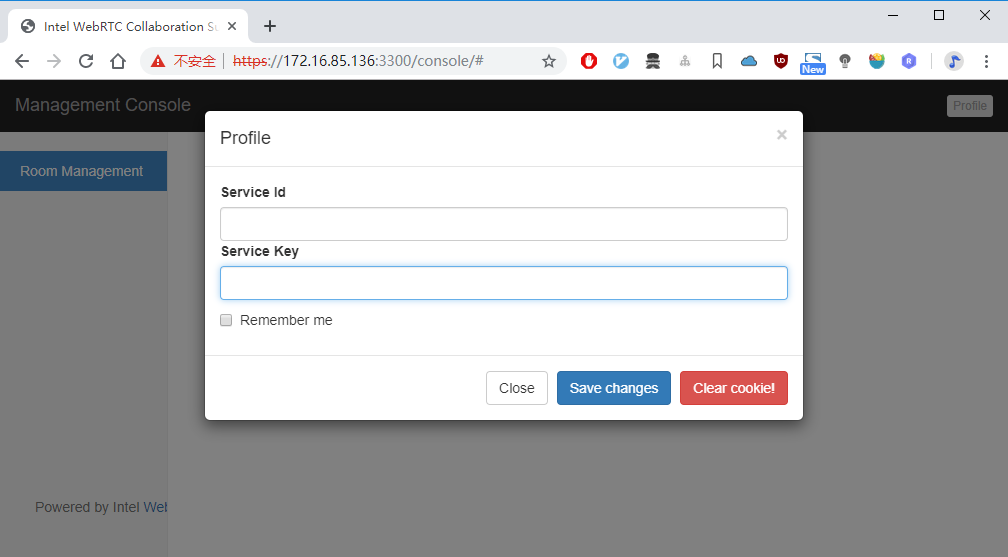
输入管理员id、key,进入管理员界面:

输入普通账户id、key,进入普通账号界面:

4.3.4.2 访问
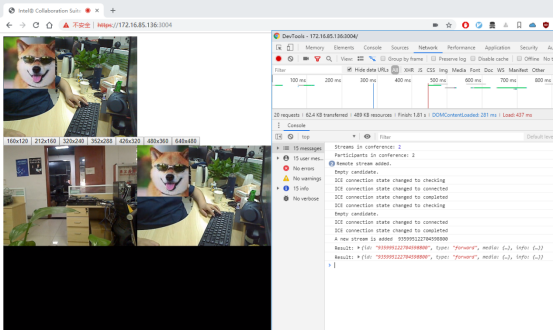
浏览器访问 https://172.16.85.136:3004/
5、安装问题
可能在安装过程中还是会碰上一些问题,或是由于环境原因,或是有一些遗漏的地方。
所以只能给点提示:要善用谷歌浏览器F12、Firefox F12和安装目录下logs日志文件,相信凭您的智慧是可以解决这些问题的。
6、参考资料
- Intel® Collaboration Suite for WebRTC (Intel® CS for WebRTC):
https://software.intel.com/en-us/articles/intel-collaboration-suite-for-webrtc
- 如何使用Intel CS for WebRTC 快速搭建实时音视频通讯系统
https://blog.csdn.net/wutong_login/article/details/81128620
- OWT Server 快速入门
https://blog.piasy.com/2019/04/14/OWT-Server-Quick-Start/index.html
- Boost install on Ubuntu
http://www.voidcn.com/article/p-kxdmnrla-bpm.html
Ubuntu中安装部署Intel CS WebRTC的更多相关文章
- Ubuntu中安装配置 JDK与apache
一,前期准备: 1.下载apach网址:https://tomcat.apache.org/download-90.cgi 3.下载:jdk网址:http://www.oracle.com/techn ...
- 在Ubuntu中安装Docker和docker的使用
1.在Ubuntu中安装Docker 更新ubuntu的apt源索引 sudo apt-get update 安装包允许apt通过HTTPS使用仓库 sudo apt-get install \ ap ...
- 在ubuntu中安装maven
安装环境 操作系统:ubuntu 14.04.1 server amd64 安装jdk 在安装maven之前,必须确保已经安装过jdk. 安装jdk的方法请参考文章<在ubuntu中安装jdk& ...
- 在Ubuntu中安装Redis
原文地址:http://blog.fens.me/linux-redis-install/ 在Ubuntu中安装Redis R利剑NoSQL系列文章,主要介绍通过R语言连接使用nosql数据库.涉及的 ...
- ubuntu中安装Docker
系统要求: 必须时64位的系统,内核最低要求是3.10 查看系统内核: $ uname -r 3.11.0-15-generic 获取最新版本打Docker: $ wget -qO- https:// ...
- 如何在ubuntu中安装php
如何在ubuntu中安装php 情衅 | 浏览 692 次 发布于2016-05-07 12:36 最佳答案 关于Ubuntu下的LAMP配置步骤: 首先要安装LAMP 就是Apache,PH ...
- 在 ubuntu 中安装 python3.5、 tornado、 pymysql
一.在 ubuntu 中安装 python3.5 1.首先,在系统中是自带python2.7的.不要卸载,因为一些系统的东西是需要这个的.python2.7和python3.5是可以共存的. 命令如下 ...
- 解决在ubuntu中安装或升级时出现“11:资源暂时不可用”错误
解决在ubuntu中安装或升级时出现“11:资源暂时不可用”错误 解决在ubuntu中安装或升级时出现“11:资源暂时不可用”错误. 下图为具体情况: 出现问题: termial下在执行sudo ap ...
- 如何在ubuntu中安装中文输入法?
如何在ubuntu中安装中文输入法 在桌面右上角设置图标中找到“System Setting”,双击打开. 在打开的窗口里找到“Language Support”,双击打开. 可能打开会说没有安装 ...
随机推荐
- jsp页面应用简记
1.记录总数据条数 <div class="" > <span class="">共有数据:<strong>${fn:len ...
- webpack3 + vue 添加 serviceWorker
新的vue脚手架已经可以自带pwa了,本文主要针对旧版的webpack. 先装三个插件: $npm i register-service-worker sw-precache-webpack-plug ...
- Python的/整除
在python3和python2里,正整数的/结果是一样的,但是负数的整除却有区别 比如python3中,-1/2是等于0的,c/c++的结果也是这样, 但在python2中,-1/2确是-1,想要得 ...
- Django加载静态文件失败,已解决
1.css文件以及js文件要放在static目录下,static和templates属于同级目录 2.在Django项目的同名项目文件的setting.py中,最后添加静态文件夹static目录路径 ...
- HDU 5115 (2014ACM/ICPC亚洲区北京站) D题(Dire Wolf)
题目传送门 设dp[i][j]为杀掉区间i到j之间的狼需要付出的最小代价,那么dp[i][j]=min{dp[i][k-1]+dp[k+1][j]+a[k]+b[i-1]+b[j+1]} Java代码 ...
- MVC 中如果js,css文件放到视图文件夹无法访问的解决办法
在视图配置文件web.config 中添加如下节点,注意:此web.config 是视图文件夹中的,在你的views视图中可以找到<system.webServer>开头的<hand ...
- Netty学习总结(4)——图解Netty之Pipeline、channel、Context之间的数据流向
以下所绘制图形均基于Netty4.0.28版本. 一.connect(outbound类型事件) 当用户调用channel的connect时,会发起一个outbound类型的事件,该事件将在pipel ...
- noip模拟赛 水管工的难题
[问题描述]你是一名优秀的水管工. 一天你遇到了一个棘手的难题. 你需要在一个长方体状的房间内连接一条贯穿房间内部的水管.房间的长为 X,宽为 Y,高为 Z, 整个房间可以看成是 X×Y×Z个小立方体 ...
- 魔法猪学院(codevs 1835)
题目描述 Description iPig在假期来到了传说中的魔法猪学院,开始为期两个月的魔法猪训练.经过了一周理论知识和一周基本魔法的学习之后,iPig对猪世界的世界本原有了很多的了解:众所周知,世 ...
- 【待续】海思Hi3520A学习笔记
/********************************************************************* * By : ...