
(3)FluidMoveBehavior 之模仿 Windows Phone 开始菜单的 Tile 长按后排序
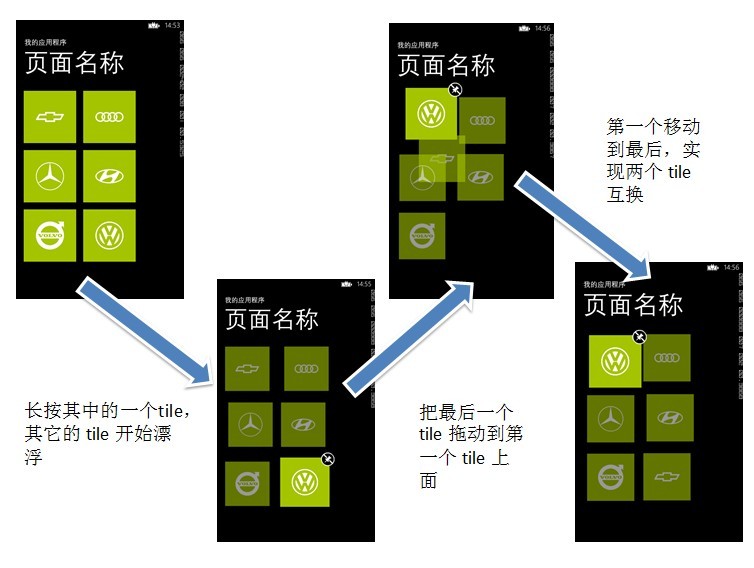
这个工程和上一篇 (2)中介绍的排序大同小异,只是比上一篇交换复杂一点,不是通过单击进行交换,
而是拖动一个 Tile 到另一个 Tile 上时,判断两个 Tile 的中心距离是否符合条件来判断是否进行交换两个 Tile。
归根结底还是利用 FluidMoveBehavior 行为来使 Silverlight 的元素在重新定位时,产生动画效果。毕竟在
实际开发中,用户体验还是很重要的,生动的交互比生硬的交互会更让用户感到亲切。
当然项目中也用到了视觉状态管理相关的技术,因为不是重点,这里不会过多的介绍。
效果交互图:
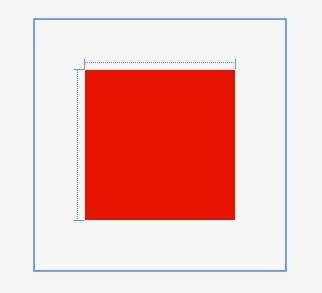
第一步:首先定义一个 UserControl 类,作为一个 Tile 控件,并且在 CodeBehind 页面中注册一个
依赖属性 TileBackgroundProperty,用来设置 Tile 不同的背景,效果:
给该 Tile 控件添加 3 种不同的视觉状态:NormalVisualState、CheckedVisualState、FloatVisualState,即
当长按选中时,为 CheckedVisualState 状态,并显示右上角的图片 “图钉”;其它 tile 状态为 FloatVisualState,
为了让不同的 tile 漂浮的方向和方式不同,提供 4 个 FloatVisualState 。
相应的 xaml :
    <Grid x:Name="LayoutRoot" Margin="10" Width="150" Height="150">

        <VisualStateManager.VisualStateGroups>

            <VisualStateGroup x:Name="VisualStateGroup">

                <VisualState x:Name="NormalVisualState"/>

                <VisualState x:Name="CheckedVisualState">

                    <Storyboard>

                        <ObjectAnimationUsingKeyFrames Storyboard.TargetProperty="(UIElement.Visibility)" Storyboard.TargetName="Assets_thumb_png">

                            <DiscreteObjectKeyFrame KeyTime="0">

                                <DiscreteObjectKeyFrame.Value>

                                    <Visibility>Visible</Visibility>

                                </DiscreteObjectKeyFrame.Value>

                            </DiscreteObjectKeyFrame>

                        </ObjectAnimationUsingKeyFrames></Storyboard>

                </VisualState>

                <VisualState x:Name="FloatVisualState1">

                    <Storyboard RepeatBehavior="Forever" AutoReverse="True">

                        <DoubleAnimationUsingKeyFrames Storyboard.TargetProperty="(UIElement.RenderTransform).(CompositeTransform.ScaleX)" Storyboard.TargetName="grid">

                            <EasingDoubleKeyFrame KeyTime="0" Value="0.9"/>

                            <EasingDoubleKeyFrame KeyTime="0:0:1.5" Value="0.9"/>

                            <EasingDoubleKeyFrame KeyTime="0:0:3" Value="0.9"/>

                            <EasingDoubleKeyFrame KeyTime="0:0:4.5" Value="0.9"/>

                            <EasingDoubleKeyFrame KeyTime="0:0:6" Value="0.9"/>

                        </DoubleAnimationUsingKeyFrames>

                        <DoubleAnimationUsingKeyFrames Storyboard.TargetProperty="(UIElement.RenderTransform).(CompositeTransform.ScaleY)" Storyboard.TargetName="grid">

                            <EasingDoubleKeyFrame KeyTime="0" Value="0.9"/>

                            <EasingDoubleKeyFrame KeyTime="0:0:1.5" Value="0.9"/>

                            <EasingDoubleKeyFrame KeyTime="0:0:3" Value="0.9"/>

                            <EasingDoubleKeyFrame KeyTime="0:0:4.5" Value="0.9"/>

                            <EasingDoubleKeyFrame KeyTime="0:0:6" Value="0.9"/>

                        </DoubleAnimationUsingKeyFrames>

                        <DoubleAnimationUsingKeyFrames Storyboard.TargetProperty="(UIElement.RenderTransform).(CompositeTransform.TranslateX)" Storyboard.TargetName="grid">

                            <EasingDoubleKeyFrame KeyTime="0" Value="0"/>

                            <EasingDoubleKeyFrame KeyTime="0:0:1.5" Value="5"/>

                            <EasingDoubleKeyFrame KeyTime="0:0:3" Value="-5"/>

                            <EasingDoubleKeyFrame KeyTime="0:0:4.5" Value="-5"/>

                            <EasingDoubleKeyFrame KeyTime="0:0:6" Value="5"/>

                        </DoubleAnimationUsingKeyFrames>

                        <DoubleAnimationUsingKeyFrames Storyboard.TargetProperty="(UIElement.RenderTransform).(CompositeTransform.TranslateY)" Storyboard.TargetName="grid">

                            <EasingDoubleKeyFrame KeyTime="0" Value="0"/>

                            <EasingDoubleKeyFrame KeyTime="0:0:1.5" Value="5"/>

                            <EasingDoubleKeyFrame KeyTime="0:0:3" Value="-5"/>

                            <EasingDoubleKeyFrame KeyTime="0:0:4.5" Value="5"/>

                            <EasingDoubleKeyFrame KeyTime="0:0:6" Value="-5"/>

                        </DoubleAnimationUsingKeyFrames>

                        <DoubleAnimationUsingKeyFrames Storyboard.TargetProperty="(UIElement.Opacity)" Storyboard.TargetName="grid">

                            <EasingDoubleKeyFrame KeyTime="0" Value="0.6"/>

                            <EasingDoubleKeyFrame KeyTime="0:0:1.5" Value="0.6"/>

                            <EasingDoubleKeyFrame KeyTime="0:0:3" Value="0.6"/>

                            <EasingDoubleKeyFrame KeyTime="0:0:4.5" Value="0.6"/>

                        </DoubleAnimationUsingKeyFrames>

                    </Storyboard>

                </VisualState>

                <VisualState x:Name="FloatVisualState2">

                    <Storyboard RepeatBehavior="Forever" AutoReverse="True">

                        <DoubleAnimationUsingKeyFrames Storyboard.TargetProperty="(UIElement.RenderTransform).(CompositeTransform.ScaleX)" Storyboard.TargetName="grid">

                            <EasingDoubleKeyFrame KeyTime="0" Value="0.9"/>

                            <EasingDoubleKeyFrame KeyTime="0:0:1.5" Value="0.9"/>

                            <EasingDoubleKeyFrame KeyTime="0:0:3" Value="0.9"/>

                            <EasingDoubleKeyFrame KeyTime="0:0:4.5" Value="0.9"/>

                            <EasingDoubleKeyFrame KeyTime="0:0:6" Value="0.9"/>

                        </DoubleAnimationUsingKeyFrames>

                        <DoubleAnimationUsingKeyFrames Storyboard.TargetProperty="(UIElement.RenderTransform).(CompositeTransform.ScaleY)" Storyboard.TargetName="grid">

                            <EasingDoubleKeyFrame KeyTime="0" Value="0.9"/>

                            <EasingDoubleKeyFrame KeyTime="0:0:1.5" Value="0.9"/>

                            <EasingDoubleKeyFrame KeyTime="0:0:3" Value="0.9"/>

                            <EasingDoubleKeyFrame KeyTime="0:0:4.5" Value="0.9"/>

                            <EasingDoubleKeyFrame KeyTime="0:0:6" Value="0.9"/>

                        </DoubleAnimationUsingKeyFrames>

                        <DoubleAnimationUsingKeyFrames Storyboard.TargetProperty="(UIElement.RenderTransform).(CompositeTransform.TranslateX)" Storyboard.TargetName="grid">

                            <EasingDoubleKeyFrame KeyTime="0" Value="-5"/>

                            <EasingDoubleKeyFrame KeyTime="0:0:1.5" Value="5"/>

                            <EasingDoubleKeyFrame KeyTime="0:0:3" Value="-5"/>

                            <EasingDoubleKeyFrame KeyTime="0:0:4.5" Value="5"/>

                            <EasingDoubleKeyFrame KeyTime="0:0:6" Value="5"/>

                        </DoubleAnimationUsingKeyFrames>

                        <DoubleAnimationUsingKeyFrames Storyboard.TargetProperty="(UIElement.RenderTransform).(CompositeTransform.TranslateY)" Storyboard.TargetName="grid">

                            <EasingDoubleKeyFrame KeyTime="0" Value="-5"/>

                            <EasingDoubleKeyFrame KeyTime="0:0:1.5" Value="5"/>

                            <EasingDoubleKeyFrame KeyTime="0:0:3" Value="5"/>

                            <EasingDoubleKeyFrame KeyTime="0:0:4.5" Value="-5"/>

                            <EasingDoubleKeyFrame KeyTime="0:0:6" Value="5"/>

                        </DoubleAnimationUsingKeyFrames>

                        <DoubleAnimationUsingKeyFrames Storyboard.TargetProperty="(UIElement.Opacity)" Storyboard.TargetName="grid">

                            <EasingDoubleKeyFrame KeyTime="0" Value="0.6"/>

                            <EasingDoubleKeyFrame KeyTime="0:0:1.5" Value="0.6"/>

                            <EasingDoubleKeyFrame KeyTime="0:0:3" Value="0.6"/>

                            <EasingDoubleKeyFrame KeyTime="0:0:4.5" Value="0.6"/>

                        </DoubleAnimationUsingKeyFrames>

                    </Storyboard>

                </VisualState>

                <VisualState x:Name="FloatVisualState3">

                    <Storyboard RepeatBehavior="Forever" AutoReverse="True">

                        <DoubleAnimationUsingKeyFrames Storyboard.TargetProperty="(UIElement.RenderTransform).(CompositeTransform.ScaleX)" Storyboard.TargetName="grid">

                            <EasingDoubleKeyFrame KeyTime="0" Value="0.9"/>

                            <EasingDoubleKeyFrame KeyTime="0:0:1.5" Value="0.9"/>

                            <EasingDoubleKeyFrame KeyTime="0:0:3" Value="0.9"/>

                            <EasingDoubleKeyFrame KeyTime="0:0:4.5" Value="0.9"/>

                            <EasingDoubleKeyFrame KeyTime="0:0:6" Value="0.9"/>

                        </DoubleAnimationUsingKeyFrames>

                        <DoubleAnimationUsingKeyFrames Storyboard.TargetProperty="(UIElement.RenderTransform).(CompositeTransform.ScaleY)" Storyboard.TargetName="grid">

                            <EasingDoubleKeyFrame KeyTime="0" Value="0.9"/>

                            <EasingDoubleKeyFrame KeyTime="0:0:1.5" Value="0.9"/>

                            <EasingDoubleKeyFrame KeyTime="0:0:3" Value="0.9"/>

                            <EasingDoubleKeyFrame KeyTime="0:0:4.5" Value="0.9"/>

                            <EasingDoubleKeyFrame KeyTime="0:0:6" Value="0.9"/>

                        </DoubleAnimationUsingKeyFrames>

                        <DoubleAnimationUsingKeyFrames Storyboard.TargetProperty="(UIElement.RenderTransform).(CompositeTransform.TranslateX)" Storyboard.TargetName="grid">

                            <EasingDoubleKeyFrame KeyTime="0" Value="5"/>

                            <EasingDoubleKeyFrame KeyTime="0:0:1.5" Value="-5"/>

                            <EasingDoubleKeyFrame KeyTime="0:0:3" Value="5"/>

                            <EasingDoubleKeyFrame KeyTime="0:0:4.5" Value="5"/>

                            <EasingDoubleKeyFrame KeyTime="0:0:6" Value="-5"/>

                        </DoubleAnimationUsingKeyFrames>

                        <DoubleAnimationUsingKeyFrames Storyboard.TargetProperty="(UIElement.RenderTransform).(CompositeTransform.TranslateY)" Storyboard.TargetName="grid">

                            <EasingDoubleKeyFrame KeyTime="0" Value="5"/>

                            <EasingDoubleKeyFrame KeyTime="0:0:1.5" Value="-5"/>

                            <EasingDoubleKeyFrame KeyTime="0:0:3" Value="-5"/>

                            <EasingDoubleKeyFrame KeyTime="0:0:4.5" Value="5"/>

                            <EasingDoubleKeyFrame KeyTime="0:0:6" Value="-5"/>

                        </DoubleAnimationUsingKeyFrames>

                        <DoubleAnimationUsingKeyFrames Storyboard.TargetProperty="(UIElement.Opacity)" Storyboard.TargetName="grid">

                            <EasingDoubleKeyFrame KeyTime="0" Value="0.6"/>

                            <EasingDoubleKeyFrame KeyTime="0:0:1.5" Value="0.6"/>

                            <EasingDoubleKeyFrame KeyTime="0:0:3" Value="0.6"/>

                            <EasingDoubleKeyFrame KeyTime="0:0:4.5" Value="0.6"/>

                        </DoubleAnimationUsingKeyFrames>

                    </Storyboard>

                </VisualState>

                <VisualState x:Name="FloatVisualState4">

                    <Storyboard RepeatBehavior="Forever" AutoReverse="True">

                        <DoubleAnimationUsingKeyFrames Storyboard.TargetProperty="(UIElement.RenderTransform).(CompositeTransform.ScaleX)" Storyboard.TargetName="grid">

                            <EasingDoubleKeyFrame KeyTime="0" Value="0.9"/>

                            <EasingDoubleKeyFrame KeyTime="0:0:1.5" Value="0.9"/>

                            <EasingDoubleKeyFrame KeyTime="0:0:3" Value="0.9"/>

                            <EasingDoubleKeyFrame KeyTime="0:0:4.5" Value="0.9"/>

                            <EasingDoubleKeyFrame KeyTime="0:0:6" Value="0.9"/>

                        </DoubleAnimationUsingKeyFrames>

                        <DoubleAnimationUsingKeyFrames Storyboard.TargetProperty="(UIElement.RenderTransform).(CompositeTransform.ScaleY)" Storyboard.TargetName="grid">

                            <EasingDoubleKeyFrame KeyTime="0" Value="0.9"/>

                            <EasingDoubleKeyFrame KeyTime="0:0:1.5" Value="0.9"/>

                            <EasingDoubleKeyFrame KeyTime="0:0:3" Value="0.9"/>

                            <EasingDoubleKeyFrame KeyTime="0:0:4.5" Value="0.9"/>

                            <EasingDoubleKeyFrame KeyTime="0:0:6" Value="0.9"/>

                        </DoubleAnimationUsingKeyFrames>

                        <DoubleAnimationUsingKeyFrames Storyboard.TargetProperty="(UIElement.RenderTransform).(CompositeTransform.TranslateX)" Storyboard.TargetName="grid">

                            <EasingDoubleKeyFrame KeyTime="0" Value="-5"/>

                            <EasingDoubleKeyFrame KeyTime="0:0:1.5" Value="-5"/>

                            <EasingDoubleKeyFrame KeyTime="0:0:3" Value="-5"/>

                            <EasingDoubleKeyFrame KeyTime="0:0:4.5" Value="5"/>

                            <EasingDoubleKeyFrame KeyTime="0:0:6" Value="-5"/>

                        </DoubleAnimationUsingKeyFrames>

                        <DoubleAnimationUsingKeyFrames Storyboard.TargetProperty="(UIElement.RenderTransform).(CompositeTransform.TranslateY)" Storyboard.TargetName="grid">

                            <EasingDoubleKeyFrame KeyTime="0" Value="5"/>

                            <EasingDoubleKeyFrame KeyTime="0:0:1.5" Value="5"/>

                            <EasingDoubleKeyFrame KeyTime="0:0:3" Value="-5"/>

                            <EasingDoubleKeyFrame KeyTime="0:0:4.5" Value="-5"/>

                            <EasingDoubleKeyFrame KeyTime="0:0:6" Value="5"/>

                        </DoubleAnimationUsingKeyFrames>

                        <DoubleAnimationUsingKeyFrames Storyboard.TargetProperty="(UIElement.Opacity)" Storyboard.TargetName="grid">

                            <EasingDoubleKeyFrame KeyTime="0" Value="0.6"/>

                            <EasingDoubleKeyFrame KeyTime="0:0:1.5" Value="0.6"/>

                            <EasingDoubleKeyFrame KeyTime="0:0:3" Value="0.6"/>

                            <EasingDoubleKeyFrame KeyTime="0:0:4.5" Value="0.6"/>

                        </DoubleAnimationUsingKeyFrames>

                    </Storyboard>

                </VisualState>

            </VisualStateGroup>

        </VisualStateManager.VisualStateGroups>

        <Grid x:Name="grid" Background="{StaticResource PhoneAccentBrush}" RenderTransformOrigin="0.5,0.5">

            <Grid.RenderTransform>

                <CompositeTransform/>

            </Grid.RenderTransform>

            <Image Source="{Binding TileBackground}" Stretch="Fill"/>

            <Image x:Name="Assets_thumb_png" Visibility="Collapsed" Margin="124,-16,-15,124" Source="Assets/thumb.png" Stretch="Fill"/>

        </Grid>

    </Grid>
该自定义控件相应的 C#:
    public partial class TileControl : UserControl

    {

        public TileControl()

        {

            InitializeComponent();

            this.DataContext = this;

        }

        #region TileBackground (依赖属性)

        /// <summary>

        /// Tile 的背景图片

        /// </summary>

        public string TileBackground

        {

            get

            {

                return (string)GetValue(TileBackgroundProperty);

            }

            set

            {

                SetValue(TileBackgroundProperty, value);

            }

        }

        public static readonly DependencyProperty TileBackgroundProperty =

            DependencyProperty.Register("TileBackground", typeof(string), typeof(TileControl),

              new PropertyMetadata("/Assets/Tiles/FlipCycleTileMedium.png"));

        #endregion

        // 漂浮

        static Random rand = new Random();

        public void Float()

        {

            // 使 tile 进入不同的漂浮状态

            switch (rand.Next())

            {

                case :

                    VisualStateManager.GoToState(this, "FloatVisualState1", false);

                    break;

                case :

                    VisualStateManager.GoToState(this, "FloatVisualState2", false);

                    break;

                case :

                    VisualStateManager.GoToState(this, "FloatVisualState3", false);

                    break;

                case :

                    VisualStateManager.GoToState(this, "FloatVisualState4", false);

                    break;

                default: VisualStateManager.GoToState(this, "FloatVisualState3", false);

                    break;

            }

        }

        // 选中

        public void Checked()

        {

            VisualStateManager.GoToState(this, "CheckedVisualState", false);

        }

        // 恢复

        public void Reset()

        {

            VisualStateManager.GoToState(this, "NormalVisualState", false);

        }

    }
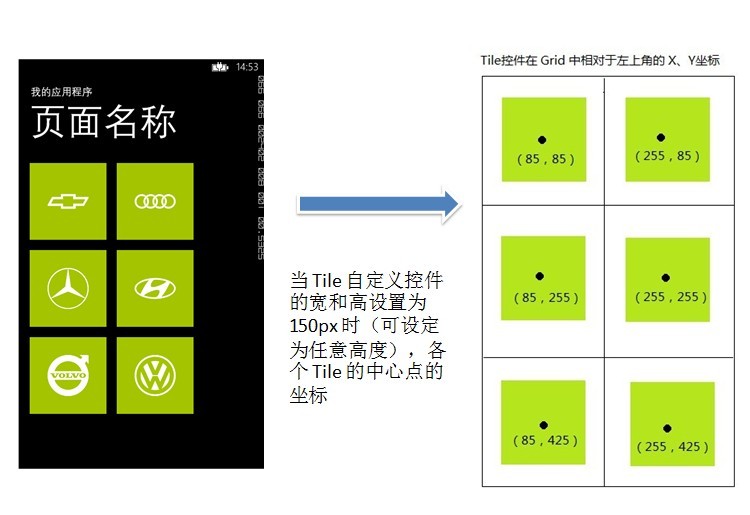
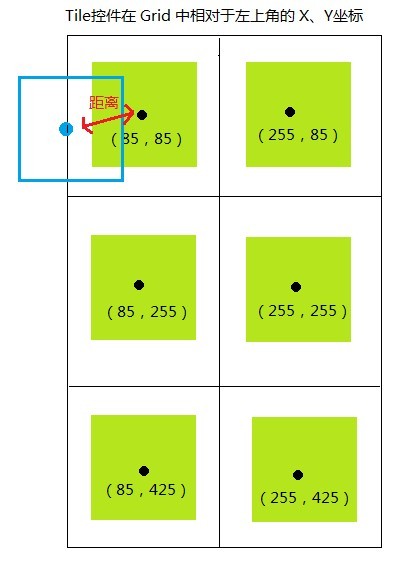
第二步:定义不同的 Tile 在重叠时,判断中心点的距离,是否小于 40px,如果是,则交换两个 Tile。
如果 Tile 控件的 宽和 高设置为 150px,则各个控件的坐标为:
当拖动一个 Tile 到其它 Tile 上时,判断两个 Tile 的中心点坐标的距离:
第三步:在 MainPage 页面中,添加一个 Grid,分别放置各个自定义控件,并且每个自定义控件放在一个 Boder 里面,
并且分别注册 Border 的长按事件 Hold 统一为 Border_Hold:
       <Grid x:Name="ContentPanel" Grid.Row="1" Margin="12,0,12,0">

            <Grid.Resources>

                <Style TargetType="Border">

                    <Setter Property="Background" Value="Transparent"/>

                </Style>

            </Grid.Resources>

            <Grid.RowDefinitions>

                <RowDefinition Height="Auto"/>

                <RowDefinition Height="Auto"/>

                <RowDefinition Height="Auto"/>

                <RowDefinition Height="Auto"/>

            </Grid.RowDefinitions>

            <Grid.ColumnDefinitions>

                <ColumnDefinition Width="Auto"/>

                <ColumnDefinition Width="Auto"/>

            </Grid.ColumnDefinitions>

            <i:Interaction.Behaviors>

                <el:FluidMoveBehavior x:Name="fluidBehavior" AppliesTo="Children" Duration="00:00:01">

                    <el:FluidMoveBehavior.EaseY>

                        <QuinticEase EasingMode="EaseOut"/>

                    </el:FluidMoveBehavior.EaseY>

                    <el:FluidMoveBehavior.EaseX>

                        <QuinticEase EasingMode="EaseOut"/>

                    </el:FluidMoveBehavior.EaseX>

                </el:FluidMoveBehavior>

            </i:Interaction.Behaviors>

            <Border Hold="Border_Hold">

                <local:TileControl TileBackground="/Assets/Tiles/01.png"/>

            </Border>

            <Border Grid.Column="1" Hold="Border_Hold">

                <local:TileControl TileBackground="/Assets/Tiles/02.png"/>

            </Border>

            <Border  Grid.Row="1"  Hold="Border_Hold">

                <local:TileControl TileBackground="/Assets/Tiles/03.png"/>

            </Border>

            <Border Grid.Row="1" Grid.Column="1"  Hold="Border_Hold">

                <local:TileControl TileBackground="/Assets/Tiles/04.png"/>

            </Border>

            <Border Grid.Row="2"  Hold="Border_Hold">

                <local:TileControl TileBackground="/Assets/Tiles/05.png"/>

            </Border>

            <Border  Grid.Row="2" Grid.Column="1" Hold="Border_Hold">

                <local:TileControl TileBackground="/Assets/Tiles/06.png"/>

            </Border>

        </Grid>
第四步:在 MainPage 页面的 CodeBehind 中,定义一个类型为 Dictionary<Point, Border> 的泛型字典 dic,
当页面加载完成时,初始化该字典:
       public MainPage()

        {

            InitializeComponent();

            this.Loaded += MainPage_Loaded;

        }

        void MainPage_Loaded(object sender, RoutedEventArgs e)

        {

            InitDic();

        }

        // Size : 资源素距离父元素左上角的距离

        Dictionary<Point, Border> dic = new Dictionary<Point, Border>();

        int childWidth;

        // 初始化一个字典集合,Key:border 元素的中心点坐标,value:border 自己

        void InitDic()

        {

            dic.Clear();

            foreach (var item in ContentPanel.Children)

            {

                childWidth = (int)item.DesiredSize.Width;

                Border border = item as Border;

                int row = Grid.GetRow(border);

                int col = Grid.GetColumn(border);

                Point position = new Point(col * childWidth + childWidth / , row * childWidth + childWidth / );

                border.Tag = position;

                dic.Add(position, border);

                Debug.WriteLine("point-  x:" + (col * childWidth + childWidth / ) + "  y:" + (row * childWidth + childWidth / ));

            }

        }
在 Border 的 Border_Hold 方法中,添加逻辑,用来处理各个 Tile 的视图状态,并且注册 ManipulationDelta 和 MouseLeftButtonUp 事件:
       Border borderTemp;

        CompositeTransform transformTemp;

        private void Border_Hold(object sender, System.Windows.Input.GestureEventArgs e)

        {

            e.Handled = true;

            borderTemp = sender as Border;

            // 注册 tile 右上角“图钉”图片的单击事件

            (borderTemp.Child as TileControl).Assets_thumb_png.Tap += Assets_thumb_png_Tap;

            transformTemp = new CompositeTransform();

            transformTemp.TranslateX = x;

            transformTemp.TranslateY = y;

            borderTemp.RenderTransform = transformTemp;

            // 拖动 border 时,改变它的坐标

            borderTemp.ManipulationDelta += borderTemp_ManipulationDelta;

            // 当手指离开 border 时,判断各个 tile 中心点的距离

            borderTemp.MouseLeftButtonUp += borderTemp_MouseLeftButtonUp;

            if (borderTemp.Child != null)

            {

                foreach (var item in ContentPanel.Children)

                {

                    Border border = item as Border;

                    if (border.Child != null)

                    {

                        TileControl tile = border.Child as TileControl;

                        // 被选中的 tile 进入 CheckedVisualState 视图状态,其余的进入 FloatVisualState 视图状态

                        if (tile == (borderTemp.Child as TileControl))

                        {

                            tile.Checked();

                            border.IsHitTestVisible = true;

                        }

                        else

                        {

                            tile.Float();

                            // 当处于漂浮状态时,不再接收“单击”等屏幕事件

                            border.IsHitTestVisible = false;

                        }

                    }

                }

            }

        }
当手指离开选择的 Tile 时,判断各个 Tile 的中心点的距离,从而判断是否具备交换两个 Tile 的条件:
        void borderTemp_MouseLeftButtonUp(object sender, System.Windows.Input.MouseButtonEventArgs e)

        {

            e.Handled = true;

            DateTime timeStart = DateTime.Now;

            Debug.WriteLine("Translation.X: " + transformTemp.TranslateX);

            Debug.WriteLine("Translation.Y: " + transformTemp.TranslateY);

            Point pointSource = (Point)borderTemp.Tag;

            Point point = new Point(transformTemp.TranslateX + pointSource.X, transformTemp.TranslateY + pointSource.Y);

            bool IsSwaped = false;

            // 当手指离开屏幕时,判断选中的 tile 的中心点和其它中心点的直线距离,

            // 如果距离小于 40px,则两个 tile 互换 //换

            foreach (Point position in dic.Keys)

            {

                Border border2 = dic[position];

                if (borderTemp != border2)

                {

                    x = (int)(point.X - position.X);

                    y = (int)(point.Y - position.Y);

                   // 计算两个 Tile 中心点的直线距离
                   int distance = (int)Math.Sqrt(x * x + y * y);

                    if (distance < )

                    {

                        // 交换两个 tile 的位置

                        SwapBorder(borderTemp, border2);

                        IsSwaped = true;

                        break;

                    }

                }

            }

            Debug.WriteLine(DateTime.Now - timeStart);

            if (!IsSwaped)

            {

                transformTemp.TranslateX = ;

                transformTemp.TranslateY = ;

            }

        }
重要代码粘贴到上面了,具体代码可以下载工程。至此有关 FluidMoveBehavior 行为的三篇文章暂时写完了。
这个demo 运行的交互很简单,但是算法上还是颇费周折,想了几种实现方式,最终采用了上面的方式,重点时间
都花费在了数学计算上了。不过 demo 的代码还是比较粗糙,性能也没有优化,只是实现了大概的交互。
(3)FluidMoveBehavior 之模仿 Windows Phone 开始菜单的 Tile 长按后排序的更多相关文章
- 如何定制Windows系统右键菜单
今天心血来潮把几个自己常用的工具定制到了系统的右键菜单.包括notepad++,7zip,还有复制文件全路径和文件夹路径.下面简单介绍一下步骤. 1. Windows系统右键菜单对应的注册表位置 Wi ...
- 如何清理多余的Windows桌面右键菜单
删除多余的发送到选项 Win7使用一段时间后,我们可能会装很多软件,这时候右键菜单可能会变得很长,特别是“发送到(Send to)”里面的选项,有时候我们卸载软件之后在右键发送到菜单里还会有残存的选项 ...
- css模仿微信弹出菜单
css模仿微信弹出菜单 效果图: html: <div class="action-sheet-backdrop"> <div class="act ...
- 新版本MenuDemo——使用Duilib模拟Windows本机菜单
相信玩Duilib朋友已经开始期待一个很长的文章.由于我的文章在一周前公布--"无焦点窗体的实现"里面提到了无焦点窗体在菜单里面的应用,并承诺大家,写一个关于Menu实现的Demo ...
- windows 开机自动登录,或者说是开机后自动进入桌面
这篇文章,对于XP以及XP以上版本有效,包括Windows Server服务器操作系统. 1.原理 --Windows自动登录的原理是,开始后,自动输入登录所使用的账号的用户名和密码,并且自动进入桌面 ...
- 背水一战 Windows 10 (111) - 通知(Tile): secondary tile 模板之图片, secondary tile 模板之分组
[源码下载] 背水一战 Windows 10 (111) - 通知(Tile): secondary tile 模板之图片, secondary tile 模板之分组 作者:webabcd 介绍背水一 ...
- 背水一战 Windows 10 (110) - 通知(Tile): secondary tile 模板之基础, secondary tile 模板之文本
[源码下载] 背水一战 Windows 10 (110) - 通知(Tile): secondary tile 模板之基础, secondary tile 模板之文本 作者:webabcd 介绍背水一 ...
- 背水一战 Windows 10 (109) - 通知(Tile): 按计划显示 tile 通知, 轮询服务端以更新 tile 通知
[源码下载] 背水一战 Windows 10 (109) - 通知(Tile): 按计划显示 tile 通知, 轮询服务端以更新 tile 通知 作者:webabcd 介绍背水一战 Windows 1 ...
- 背水一战 Windows 10 (108) - 通知(Tile): application tile 基础, secondary tile 基础
[源码下载] 背水一战 Windows 10 (108) - 通知(Tile): application tile 基础, secondary tile 基础 作者:webabcd 介绍背水一战 Wi ...
随机推荐
- GameObjectPool——Unity中的对象池
这里介绍一种对象池的写法.它的优点在于无论取出还是插入游戏物体都是常数量时间. using UnityEngine; using System.Collections; using System.Co ...
- drawable和values的加载规则
Google搞了一大套hdpi.xhdpi之类的这些东西,简单说来,就是为了让我们轻松实现"与设备密度无关的视觉大小一致性",注意这里的"视觉大小一致性",就是 ...
- java垃圾回收机制--可达性算法
先说一些题外话,Java虚拟机在执行Java程序的过程中会把它所管理的内存划分为若干个不同的数据区,这些区分为线程私有区和线程共享区 1.线程私有区 a.程序计数器 记录正在执行的虚拟机字节码指令地址 ...
- html input type=date 赋值问题 必须yyyy-mm-dd格式
type=date ,日期类型默认格式是yyyy-mm-dd 因此必须给该控件赋值yyyy-mm-dd格式的数据 错误的赋值 <input type="date" id=&q ...
- 如何快速访问MSDN某一个类或方法的帮助文档
如何快速访问MSDN某一个类或方法的帮助文档? 我一般都是在Google上搜索的如"string msdn",而不是在Msdn上直接查找(你不可能知道所有的类或方法的完整命名空间) ...
- 词向量( Distributed Representation)工作原理是什么
原文:http://www.zhihu.com/question/21714667 4 个回答 83赞同反对,不会显示你的姓名 皮果提 刘鑫.莫教授要养猫.Starling Niohuru 等人赞同 ...
- easyui datagrid 分页保持checkbox选中状态
刚开始我一直迷迷糊糊的写了很久,发现其实很简单 先给大家看看我的笨办法 var checkedItems = []; function ischeckItem() { for (var i = 0; ...
- C语言 域名通配符实现
本例实现通配符 * 的功能,不支持*在字符串的末尾, 仅提供思路,函数仅做简单单元测试. 如有使用,还请自己进行修改 // str1: 待匹配字符串 // str2: 带通配符字串 int wildc ...
- UML 之 用例图
用例图是指由参与者(Actor).用例(Use Case)以及它们之间的关系构成的用于描述系统功能的静态视图.用例图(User Case)是被称为参与者的外部用户所能观察到的系统功能的模型图,呈现了一 ...
- 算法笔记_028:字符串转换成整数(Java)
1 问题描述 输入一个由数字组成的字符串,请把它转换成整数并输出.例如,输入字符串“123”,输出整数123. 请写出一个函数实现该功能,不能使用库函数. 2 解决方案 解答本问题的基本思路:从左至右 ...