
[UWP]实现一个轻量级的应用内消息通知控件
在UWP应用开发中,我们常常有向用户发送一些提示性消息的需求。这种时候我们一般会选择MessageDialog、ContentDialog或者ToastNotification来完成功能。
但是,我们大多数时候仅仅是需要在应用内向用户显示一条提示消息(例如“登录成功!”),不需要用户对这条消息做出处理,在这种情况下这几种方法都不算是很好的解决方式,它们不够轻量,也不够优雅,甚至会阻断用户的当前操作,这是我们所不期望的。
如果有安卓平台开发经验的开发者,可能会想到Toast组件。对,为什么UWP平台没有类似Toast的轻量级应用内消息提示组件呢?
现在,让我们来实现一个UWP可用的Toast组件。
先放一张效果图:
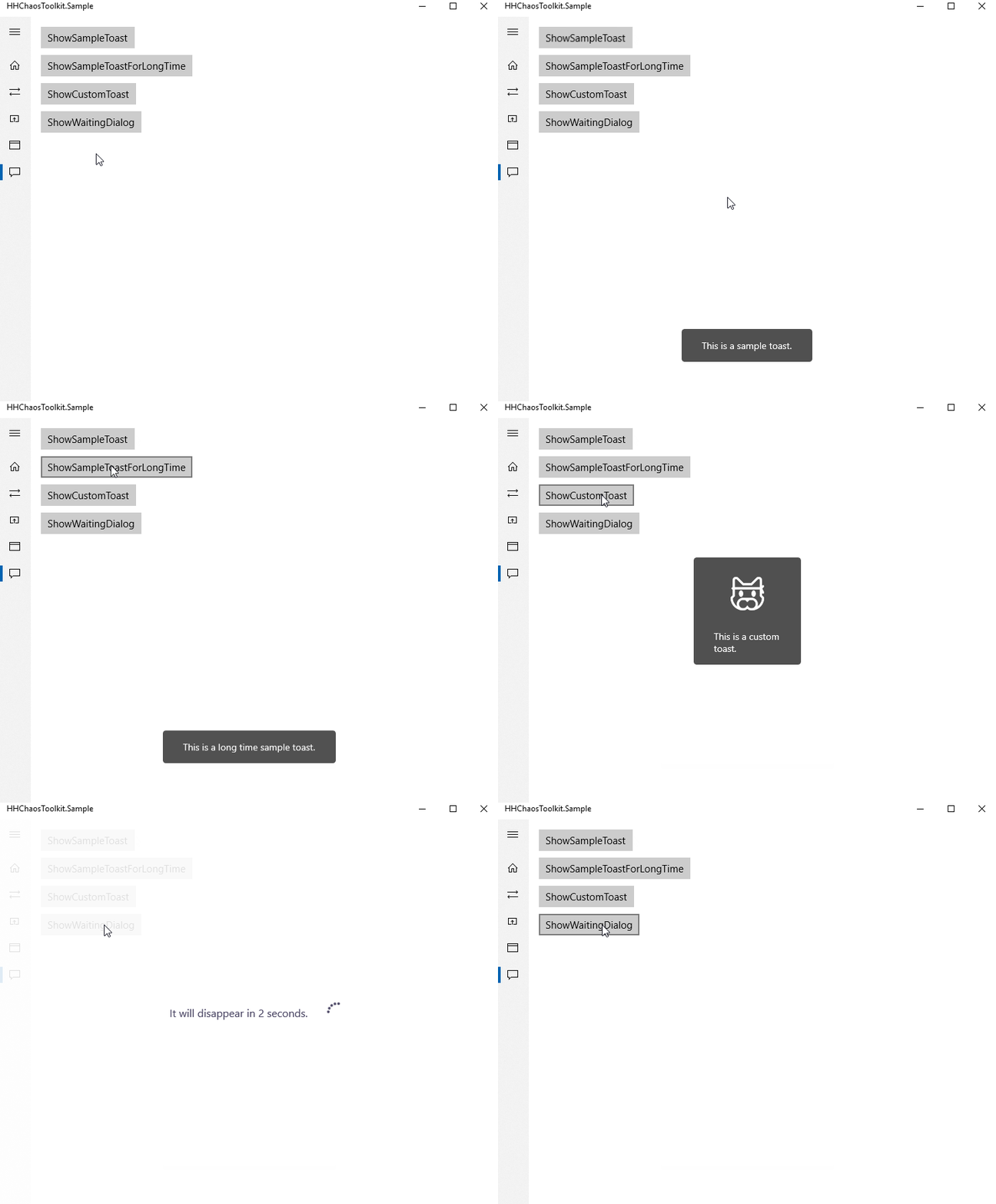
如何实现
在之前《[UWP]使用Popup构建UWP Picker》中我们讲了Picker的实现过程,其中利用到的主要呈现手段就是Popup。而我们在这里想要构建一个代码中调用的消息通知组件,也可以采用同样的方式来实现。
Toast的主要功能是呈现通知,所以我定义了下面几个依赖属性来控制:
- Content:类型为
string,设置要向用户呈现的消息内容; - Duration:类型为
TimeSpan,设置Toast控件在屏幕上的呈现时长。
在呈现逻辑上使用一个Popup作为加载Toast的容器。这里的逻辑非常简单,我直接贴出代码来,大家一看就能懂。
核心代码如下:
public class Toast : Control

{

    // Using a DependencyProperty as the backing store for Content.  This enables animation, styling, binding, etc...

    public static readonly DependencyProperty ContentProperty =

        DependencyProperty.Register("Content", typeof(string), typeof(Toast), new PropertyMetadata(0));

    // Using a DependencyProperty as the backing store for Duration.  This enables animation, styling, binding, etc...

    public static readonly DependencyProperty DurationProperty =

        DependencyProperty.Register("Duration", typeof(TimeSpan), typeof(Toast),

            new PropertyMetadata(TimeSpan.FromSeconds(2.0)));

    public Toast(string content)

    {

        DefaultStyleKey = typeof(Toast);

        Content = content;

        Width = Window.Current.Bounds.Width;

        Height = Window.Current.Bounds.Height;

        Transitions = new TransitionCollection

        {

            new EntranceThemeTransition()

        };

        Window.Current.SizeChanged += Current_SizeChanged;

    }

    public TimeSpan Duration

    {

        get => (TimeSpan) GetValue(DurationProperty);

        set => SetValue(DurationProperty, value);

    }

    public string Content

    {

        get => (string) GetValue(ContentProperty);

        set => SetValue(ContentProperty, value);

    }

    private void Current_SizeChanged(object sender, WindowSizeChangedEventArgs e)

    {

        Width = Window.Current.Bounds.Width;

        Height = Window.Current.Bounds.Height;

    }

    public async void Show()

    {

        var popup = new Popup

        {

            IsOpen = true,

            Child = this

        };

        await Task.Delay(Duration);

        popup.Child = null;

        popup.IsOpen = false;

        Window.Current.SizeChanged -= Current_SizeChanged;

    }

}
上面代码中,我在构造函数里为Toast控件添加了一个默认的隐式动画EntranceThemeTransition,使它呈现出来的时候不会显得太生硬。
Toast控件的默认样式:
<ResourceDictionary

    xmlns="http://schemas.microsoft.com/winfx/2006/xaml/presentation"

    xmlns:x="http://schemas.microsoft.com/winfx/2006/xaml"

    xmlns:local="using:HHChaosToolkit.UWP.Controls">

    <Style TargetType="local:Toast">

        <Setter Property="Template">

            <Setter.Value>

                <ControlTemplate TargetType="local:Toast">

                    <Border

                        Margin="0,0,0,60"

                        HorizontalAlignment="Center"

                        VerticalAlignment="Bottom"

                        Background="#af000000"

                        CornerRadius="4">

                        <TextBlock

                            Margin="30,15"

                            FontSize="14"

                            Foreground="White"

                            Text="{TemplateBinding Content}" />

                    </Border>

                </ControlTemplate>

            </Setter.Value>

        </Setter>

    </Style>

</ResourceDictionary>
如何调用
我们参考下安卓中Toast的使用方法:
Toast.makeText(getApplicationContext(), "This is a sample toast.",Toast.LENGTH_SHORT).show();
看起来挺长的一句代码,其实就是通过Toast.makeText()静态方法创建了一个新的Toast,然后调用其show()方法让它出现在手机屏幕上。
在这里,我们也可以直接创建一个Toast,调用其Show()方法呈现。
或者也可以创建一个ToastHelper静态类来更方便的使用Toast组件:
public static class ToastHelper

{

    public static void SendToast(string content, TimeSpan? duration = null)

    {

        var toast = new Toast(content);

        if (duration.HasValue)

        {

            toast.Duration = duration.Value;

        }

        toast.Show();

    }

}
自定义样式
我们可以在自己的应用里为Toast组件新建一个资源字典,然后将自定义的样式添加在其中,例如:
<ResourceDictionary
xmlns="http://schemas.microsoft.com/winfx/2006/xaml/presentation"
xmlns:x="http://schemas.microsoft.com/winfx/2006/xaml"
xmlns:controls="using:HHChaosToolkit.UWP.Controls">
<Style x:Key="CustomToastStyle" TargetType="controls:Toast">
<Setter Property="Template">
<Setter.Value>
<ControlTemplate TargetType="controls:Toast">
<Border
Width="160"
Height="160"
HorizontalAlignment="Center"
VerticalAlignment="Center"
Background="#af000000"
CornerRadius="4">
<Grid>
<Grid.RowDefinitions>
<RowDefinition />
<RowDefinition Height="Auto" />
</Grid.RowDefinitions>
<FontIcon
FontFamily="Segoe MDL2 Assets"
FontSize="50"
Foreground="White"
Glyph="" />
<TextBlock
Grid.Row="1"
Margin="30,0,30,15"
FontSize="14"
Foreground="White"
TextWrapping="Wrap"
Text="{TemplateBinding Content}" />
</Grid>
</Border>
</ControlTemplate>
</Setter.Value>
</Setter>
</Style>
</ResourceDictionary>
然后在App.xaml中引入我们编写好的资源字典。
<Application

    x:Class="HHChaosToolkit.Sample.App"

    xmlns="http://schemas.microsoft.com/winfx/2006/xaml/presentation"

    xmlns:x="http://schemas.microsoft.com/winfx/2006/xaml"

    xmlns:local="using:HHChaosToolkit.Sample"

    xmlns:viewModels="using:HHChaosToolkit.Sample.ViewModels">

    <Application.Resources>

        <ResourceDictionary>

            <viewModels:ViewModelLocator x:Name="Locator" />

            <ResourceDictionary.MergedDictionaries>

                <ResourceDictionary Source="Themes/Toast.xaml" />

            </ResourceDictionary.MergedDictionaries>

        </ResourceDictionary>

    </Application.Resources>

</Application>
使用时,我们只需要为Toast控件设置预定义的样式即可,或者在我们上面写的ToastHelper类中增加调用自定义样式Toast的静态方法:
        public static void SendCustomToast(string content, TimeSpan? duration = null)

        {

            var toast = new Toast(content);

            toast.Style = App.Current.Resources["CustomToastStyle"] as Style;

            if (duration.HasValue)

            {

                toast.Duration = duration.Value;

            }

            toast.Show();

        }
结尾
Toast组件是我的开源项目HHChaosToolkit项目中的一部分,其中还有一个与Toast原理差不多的组件WaitingDialog,原理是一样的,之后不会再单独写博文赘述了。
完整的示例代码在这里(GitHub),欢迎大家随意吐槽&提意见!
这篇博文到此结束,谢谢大家阅读!
[UWP]实现一个轻量级的应用内消息通知控件的更多相关文章
- 在FooterTemplate内显示DropDownList控件
如果想在Gridview控件FooterTemplate内显示DropDownList控件供用户添加数据时所应用.有两种方法可以实现,一种是在GridView控件的OnRowDataBound事件中写 ...
- QT 创建一个具有复选功能的下拉列表控件
最近研究了好多东西,前两天突然想做一个具有复选功能的下拉列表框.然后在网上"学习"了很久之后,终于发现了一个可以用的,特地发出来记录一下. 一.第一步肯定是先创建一个PROJECT ...
- AE内置Command控件使用
樱木 原文 AE内置Command控件使用 直接使用AE内置的Command控件来完成功能 1.拉框放大 /// <summary> /// 放大 /// </summary> ...
- 一个Demo让你掌握Android所有控件
原文:一个Demo让你掌握Android所有控件 本文是转载收藏,侵删,出处:"安卓巴士" 下面给出实现各个组件的源代码: 1.下拉框实现--Spinner packag ...
- UWP入门(八)--几个简单的控件
原文:UWP入门(八)--几个简单的控件 每天看几个,要不聊几天我就可以看完啦,加油! 看效果 1. CheckBox <TextBlock Grid.Row="0" Tex ...
- js 调用IE内置打印控件
转自学网(http://www.xue5.com/itedu/200802/102909.html) WebBrowser是IE内置的浏览器控件,无需用户下载. 一.WebBrowser控件 < ...
- ExtJs内的datefield控件选择日期过后的事件监听select
[摘要]: 选择时间过后我们为什么需要监听事件?一般有这样一种情况,那就是用于比较两个时间大小或者需要判断在哪个时间点上需要做什么样的操作.基于这样的种种情况,我们很有必要琢磨一下datefield控 ...
- 推荐内置android控件的开源项目alcinoe
开源地址:https://github.com/Zeus64/alcinoe 该控件包,含以下几个控件: 1.基于OpenGL实现的视频播放器 ALVideoPlayer. ALVideoPlayer ...
- 假设写一个android桌面滑动切换屏幕的控件(一)
首先这个控件应该是继承ViewGroup: 初始化: public class MyGroup extends ViewGroup{ private Scroller mScroller; priva ...
随机推荐
- PHP获取手机型号
<?php $user_agent = $_SERVER['HTTP_USER_AGENT']; if (stripos($user_agent, "iPhone") ...
- sass的基本使用
使用sass的前提是安装Ruby,如果是Mac系统,那么免去安装,Windows系统需要自行安装https://www.sass.hk/install/.当安装好以后,直接执行安装sass命令:gem ...
- JavaScript倒计时实现
/** * 倒计时函数 * @param {String}} endTime 终止时间戳 */ const countDown = (endTime, callback) => { const ...
- 《DOM Scripting》学习笔记-——第三章 DOM
<Dom Scripting>学习笔记 第三章 DOM 本章内容: 1.节点的概念. 2.四个DOM方法:getElementById, getElementsByTagName, get ...
- selenium-java,selenium安装配置
准备材料 1.java jdk http://www.oracle.com/technetwork/java/javase/downloads/index.html 2.开发工具 https://ww ...
- scrapy+redis去重实现增量抓取
class ProjectnameDownloaderMiddleware(object): # Not all methods need to be defined. If a method is ...
- Gson的入门使用
Java对象和Json之间的互转,一般用的比较多的两个类库是Jackson和Gson,下面记录一下Gson的学习使用. 基础概念: Serialization:序列化,使Java对象到Json字符串 ...
- BigDecimal用法总结
BigDecimal用法总结 BigDecimal常用于金额的计算,下面总结下这次项目中BigDecimal的用法. 1.加减乘除 2.设置精度 3.取反 加减乘除分别调用函数 [java] view ...
- java_23 File类
1.File类定义: 文件和目录路径的抽象表达形式,java中将路径或者文件封装成File对象. 2.File类的静态成员变量(pathSeparator 分隔符,字符串 separat ...
- 带标签的循环语句、switch
今天继续更新,控制流程的剩余部分内容,带标签的循环语句中的continue/break 的使用方法,以及switch关键字的使用方法.例1:带标签的continue/break.package com ...