
[WPF] UserControl vs CustomControl
介绍
WPF中有两种控件:UserControl和CustomControl,但是这两者有什么区别呢?这篇博客中将介绍两者之间的区别,这样可以在项目中合理的使用它们。
UserControl
- 将多个WPF控件(例如:TextBox,TextBlock,Button)进行组合成一个可复用的控件组;
- 由XAML和Code Behind代码组成;
- 不支持样式/模板重写;
- 继承自UserControl;
下面创建的一个RGBControl由3个TextBlock,3个TextBox,1个Rectangle组成。我们可以在WPF的任意窗体/Page上面复用该UserControl。
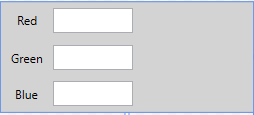
XAML Code:
<Grid Background="LightGray">

    <Grid.RowDefinitions>

        <RowDefinition />

        <RowDefinition />

        <RowDefinition />

    </Grid.RowDefinitions>

    <Grid.ColumnDefinitions>

        <ColumnDefinition Width="*" />

        <ColumnDefinition Width="*" />

        <ColumnDefinition Width="2*" />

    </Grid.ColumnDefinitions>

    <TextBlock Text="Red" />

    <TextBlock Text="Green" Grid.Row="1" />

    <TextBlock Text="Blue" Grid.Row="2" />

    <TextBox Text="{Binding Red, UpdateSourceTrigger=PropertyChanged}"

             VerticalContentAlignment="Center" Grid.Column="1" Height="25" Width="80" Margin="0,5" />

    <TextBox Text="{Binding Green, UpdateSourceTrigger=PropertyChanged}"

             VerticalContentAlignment="Center" Grid.Row="1" Grid.Column="1" Height="25" Width="80" Margin="0,5" />

    <TextBox Text="{Binding Blue, UpdateSourceTrigger=PropertyChanged}"

             VerticalContentAlignment="Center" Grid.Row="2" Grid.Column="1" Height="25" Width="80" Margin="0,5" />

    <Rectangle Fill="{Binding Color, Converter={StaticResource ColorToSolidBrushConverter}}"

               Grid.Column="2" Grid.RowSpan="3" Margin="10, 5" Width="100" Height="100"/>

</Grid>
C# Code
public partial class RGBControl : UserControl

{

    public RGBControl()

    {

        InitializeComponent();

        this.DataContext = new RGBViewModel();

    }

}

public class RGBViewModel : ObservableObject

{

    private byte _red = ;

    public byte Red

    {

        get

        {

            return _red;

        }

        set

        {

            if(_red != value)

            {

                _red = value;

                RaisePropertyChanged("Red");

                RaiseColorChanged();

            }

        }

    }

    private byte _green = ;

    public byte Green

    {

        get

        {

            return _green;

        }

        set

        {

            if(_green != value)

            {

                _green = value;

                RaisePropertyChanged("Green");

                RaiseColorChanged();

            }

        }

    }

    private byte _blue = ;

    public byte Blue

    {

        get

        {

            return _blue;

        }

        set

        {

            if(_blue != value)

            {

                _blue = value;

                RaisePropertyChanged("Blue");

                RaiseColorChanged();

            }

        }

    }

    private Color _color;

    public Color Color

    {

        get

        {

            return _color;

        }

        set

        {

            RaiseColorChanged();

        }

    }

    private void RaiseColorChanged()

    {

        _color = Color.FromRgb(Red, Green, Blue);

        RaisePropertyChanged("Color");

    }

}

public class ObservableObject : INotifyPropertyChanged

{

    public event PropertyChangedEventHandler PropertyChanged;

    protected virtual void RaisePropertyChanged(string propertyName)

    {

        PropertyChanged?.Invoke(this, new PropertyChangedEventArgs(propertyName));

    }

}

public class ColorToSolidBrushConverter : IValueConverter

{

    public object Convert(object value, Type targetType, object parameter, CultureInfo culture)

    {

        Color color = (Color)value;

        return new SolidColorBrush(color);

    }

    public object ConvertBack(object value, Type targetType, object parameter, CultureInfo culture)

    {

        return null;

    }

}
使用RGBControl:
<Grid>

    <local:RGBControl Width="320" Height="120"/>

</Grid>
CustomControl
- 自定义控件,扩展自一个已经存在的控件,并添加新的功能/特性;
- 由C#/VB.NET Code和样式文件组成(Themes/Generic.xaml);
- 支持样式/模板重写;
- 如果项目中自定义控件较多,建议创建一个WPF自定义控件库(WPF Control Library)
怎样创建一个WPF CustomControl呢?
选择合适的控件基类,或者说选择合适的控件进行功能扩展
UIElement 最轻量级的基类,支持Layout, Input, Focus, Event
FrameworkElement 继承自UIElement,支持styling,tooltips,context menus,data binding,resouce look up
Control 最基础的控件,支持template, 并增加了一些额外属性,例如Foreground, Background, FontSize等
ContentControl 在Control的基础上增加了Content属性,常见的控件有,布局控件,Button等
HeaderedContentControl 在ContentControl基础增加了一个Header属性,常见的控件有:Expander,TabControl,GroupBox等
ItemsControl 一个具有Items集合的控件,用来展示数据,但是不包含 Selection 特性
Selector 是一个ItemsControl,增加了Indexed,Selected特性,典型的控件有: ListBox, ComboBox, ListView, TabControl等
RangeBase 典型的控件有Sliders, ProgressBars. 增加了Value,Minimum和Maximum属性
WPF的控件行为和表现是分离的。行为在Code中定义,Template在XAML中定义。
重写Default Style
static NumericTextBox()

{

    DefaultStyleKeyProperty.OverrideMetadata(typeof(NumericTextBox),

        new FrameworkPropertyMetadata(typeof(NumericTextBox)));

}
重写默认样式文件
<Style TargetType="{x:Type local:NumericTextBox}">

    <Setter Property="Template">

        <Setter.Value>

            <ControlTemplate TargetType="{x:Type local:NumericTextBox}">

                ...

            </ControlTemplate>

        </Setter.Value>

    </Setter>

</Style>
以一个Numeric up/down控件为例:控件如下:
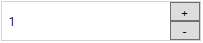
很直观的可以看到,Numeric up/down TextBox可以通过扩展WPF的TextBox控件实现,在WPF TextBox的基础上添加两个Button,然后重写这个自定义控件样式。
C# Code:
[TemplatePart(Name = UpButtonKey, Type = typeof(Button))]

[TemplatePart(Name = DownButtonKey, Type = typeof(Button))]

public class NumericTextBox : TextBox

{

    private const string UpButtonKey = "PART_UpButton";

    private const string DownButtonKey = "PART_DownButton";

    private Button _btnUp = null;

    private Button _btnDown = null;

    static NumericTextBox()

    {

        DefaultStyleKeyProperty.OverrideMetadata(typeof(NumericTextBox),

            new FrameworkPropertyMetadata(typeof(NumericTextBox)));

    }

    public override void OnApplyTemplate()

    {

        base.OnApplyTemplate();

        _btnUp = Template.FindName(UpButtonKey, this) as Button;

        _btnDown = Template.FindName(DownButtonKey, this) as Button;

        _btnUp.Click += delegate { Operate("+"); };

        _btnDown.Click += delegate { Operate("-"); };

    }

    private void Operate(string operation)

    {

        int input = ;

        if(int.TryParse(this.Text, out input))

        {

            if (operation == "+")

            {

                this.Text = (input + ).ToString();

            }

            else

            {

                this.Text = (input - ).ToString();

            }

        }

    }

}
Style Code:
<Style TargetType="{x:Type local:NumericTextBox}">

    <Setter Property="SnapsToDevicePixels" Value="True" />

    <Setter Property="FontSize" Value="12" />

    <Setter Property="Height" Value="40" />

    <Setter Property="Template">

        <Setter.Value>

            <ControlTemplate TargetType="{x:Type local:NumericTextBox}">

                <Border x:Name="OuterBorder" BorderBrush="LightGray" BorderThickness="1">

                    <Grid>

                        <Grid.RowDefinitions>

                            <RowDefinition />

                            <RowDefinition />

                        </Grid.RowDefinitions>

                        <Grid.ColumnDefinitions>

                            <ColumnDefinition Width="*" />

                            <ColumnDefinition Width="30" />

                        </Grid.ColumnDefinitions>

                        <Border Grid.ColumnSpan="2" Grid.RowSpan="2" Background="White">

                            <ScrollViewer x:Name="PART_ContentHost" Margin="5,0" VerticalAlignment="Center" FontSize="12" />

                        </Border>

                        <Button x:Name="PART_UpButton" Grid.Column="1" Content="+" VerticalContentAlignment="Center" />

                        <Button x:Name="PART_DownButton" Grid.Row="1" Grid.Column="1" Content="-" VerticalContentAlignment="Center" />

                    </Grid>

                </Border>

            </ControlTemplate>

        </Setter.Value>

    </Setter>

</Style>
使用:
<StackPanel>

    <custom:NumericTextBox Width="200" Text="1" />

</StackPanel>
感谢您的阅读~
参考文章:
https://wpftutorial.net/CustomVsUserControl.html
https://wpftutorial.net/HowToCreateACustomControl.html
[WPF] UserControl vs CustomControl的更多相关文章
- UserControl和CustomControl基础【PluraSight】
UserControl UserControl实际上就是ContentControl,xaml里<UserControl></UserControl>tag之间包含的实际就是后 ...
- WPF UserControl响应窗体的PreviewKeyDown事件
目的 在UserControl页面实现通过快捷键打开新建窗口 实现过程 监听Window窗体的PreviewKeyDown 其实,使用KeyDown事件也是可以的 页面代码 <Window x: ...
- WPF UserControl 的绑定事件、属性、附加属性
原文:WPF UserControl 的绑定事件.属性.附加属性 版权声明:本文为博主原创文章,未经博主允许不得转载. https://blog.csdn.net/Vblegend_2013/arti ...
- WPF之路——用户控件对比自定义控件UserControl VS CustomControl)
将多个现有的控件组合成一个可重用的“组”. 由一个XAML文件和一个后台代码文件. 不能使用样式和模板. 继承自UserControl类. 自定义控件(扩展) 在现有的控件上进行扩展,增加一些新的属性 ...
- WPF中用户控件对比自定义控件(UserControl VS CustomControl)
接着这篇文章(http://www.cnblogs.com/shiyue/archive/2013/02/02/2889907.html)写: 用户控件(组合) 用于在一个项目中使用多次 自定义控件( ...
- UserControl和CustomControl两者区别
UserControl 将多个WPF控件(例如:TextBox,TextBlock,Button)进行组合成一个可复用的控件组: 由XAML和Code Behind代码组成: 不支持样式/模板重写: ...
- Wpf usercontrol dispose
窗口关闭时组件"析构": public UserControl() { InitializeComponent(); ...
- [WPF]UserControl的MouseWheel事件触发
用户控件: <UserControl> <Grid> <TextBox x:Name="textBlock" HorizontalAlignment= ...
- WPF usercontrol 自定义依赖属性
1.依赖属性不同意一般属性,一般属性主要定义在对象中,而依赖属性是存在一个特殊的依赖属性表中.2.当我们触发改变值时,需要通过SetValue这种方式进行触发. UserControl1.xaml: ...
随机推荐
- 【Mysql】Mysql关键字
ADD ALL ALTER ANALYZE AND AS ASC ASENSITIVE BEFORE BETWEEN BIGINT BINARY BLOB BOTH BY CALL CASCADE C ...
- VMware workstation批量创建虚拟机和自动化安装操作系统(一)
一. 简述 作为从事IT行业运维工作的Linuxer,大多情况下需要在测试环境中部署业务系统并进行测试,在没有足够的计算存储网络条件下,使用虚拟机进行虚拟集群的创建和使用,是一种不错的学习和实践方式. ...
- 内核对象kobject和sysfs(1)——概述
内核对象kobject和sysfs(1)--概述 问题: 在走读驱动代码时,经常看见kref,kobj,sysfs这些结构,这些结构到底有什么作用?如何理解并使用这些结构呢?这将在接下来的这一系列文章 ...
- Java IO(一):IO和File
一.IO 大多数的应用程序都要与外部设备进行数据交换,最常见的外部设备包含磁盘和网络.IO就是指应用程序对这些设备的数据输入与输出,Java语言定义了许多类专门负责各种方式的输入.输出,这些类都被放在 ...
- 人工智能(AI)库TensorFlow 踩坑日记之二
上次 踩坑日志之一 遗留的问题终于解决了,所以作者(也就是我)终于有脸出来写第二篇了. 首先还是贴上 卷积算法的示例代码地址 :https://github.com/tensorflow/models ...
- 根据百度,gps坐标获取天气
楼主用的是阿里天气免费版,限制1000次,可以重复购买 下面放代码 var orgWindow = new OrganizeWindowProxy(WorkContext); var orgInfo ...
- 【原创】09. easyui-tabs 配合 iframe 使用,请求两次等问题
描述 需要把已经做好的几个设备管理页面.转为子菜单管理:直接使用 easyui-tabs 配合 iframe 是最省时省力的. 存在问题 当点击 "设备管理" 会出现子页面多次加载 ...
- LoadRunner性能测试-loadrunner工具破解
Loadrunner11破解 破解工具下载:http://pan.baidu.com/disk/home?errno=0&errmsg=Auth%20Login%20Sucess&&a ...
- Round #427 A. Key races(Div.2)
time limit per test 1 second memory limit per test 256 megabytes input standard input output stand ...
- Protocol Buffers与FlatBuffers效率对比
Protocol Buffers是Google跨语言.跨平台的通用序列化库.FlatBuffers同样出自Google,而且也跨语言跨平台,但更强调效率,专门为游戏开发打造.在游戏界混了几年,各种各样 ...