
C# Redis安装 使用教程
前言:lz自打工作以来第一次遇到电脑问题需要重装系统,全盘格式化。打击是沉痛的。特别伤。 然后需要重新在本地部署 redis。这是写这篇博客的原因。希望对大家有所帮助,安装资源和引用DLL可以引用 只用于学习 ( windows环境安装 )
一:安装Redis
首先我们需要在本地或是服务器安装Redis。安装包可以去redis官网下载,去Gethub上down 我这里直接给我的百度云
链接:https://pan.baidu.com/s/1WJ48XMaHOmgb1J0KaQkdEw 密码:xjf4 下载后解压

本地的话 你可以直接打开 redis-server.exe这个应用程序。也可以打开cmd命令 然后把路径换成你redis文件的路径 我的是放在 c:\redis 可以跟我的来,方便搬运代码 切换文件路径 cd
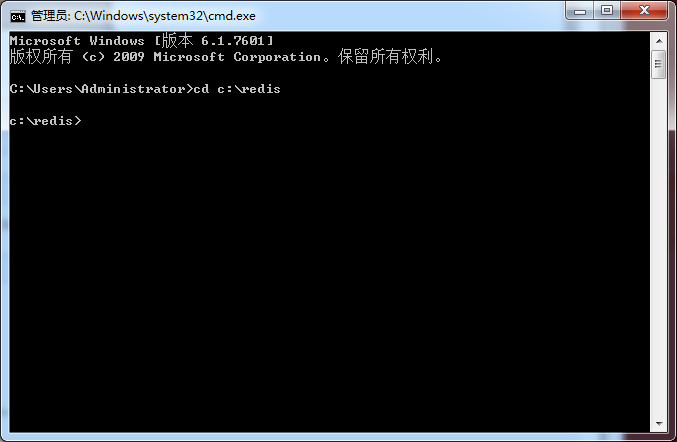
然后我们启动redis服务,运行 redis-server.exe redis.windows.conf
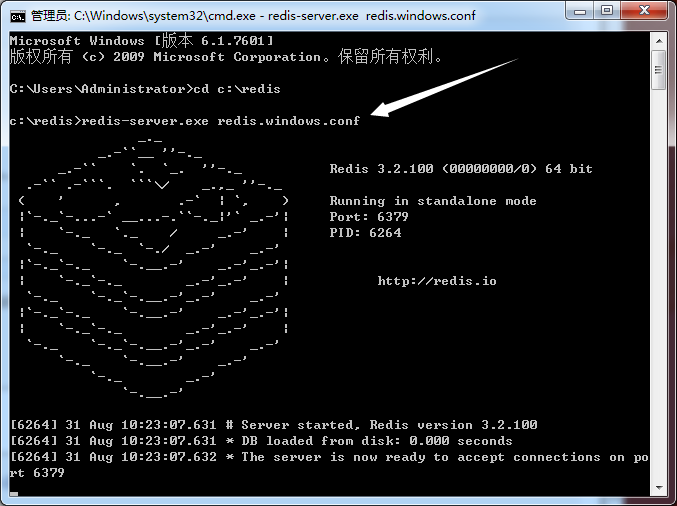
出现这个界面说明OK了,这个窗口别关 如果关闭了 重新来一遍
继续,再打开一个cmd窗口,切换到redis目录下面
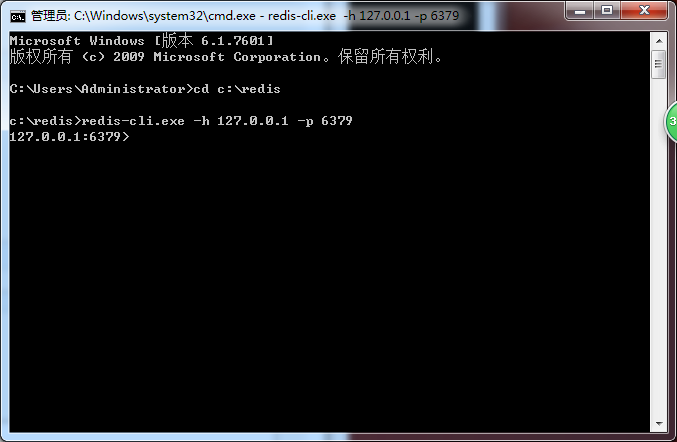
这里解释一下这个 127.0.0.1 是本地访问,相当于localhost 6379是redis默认的端口
继续,redis是存储键值对的所以我们测试一下
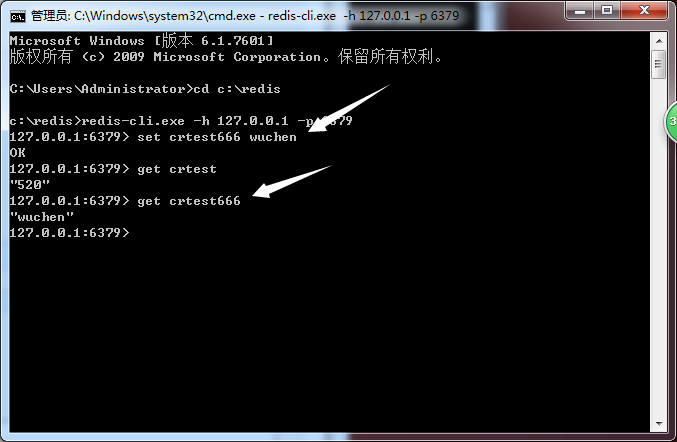
set一个 key value
get 一个key
机制就是把数据set 到 redis的数据库里,就是我们说的缓存 用的时候在get取值
接下来我们下载一个redis可视化工具,作用是相当于我们平时使用的数据库 可以去官网上下载,可以我直接上资源,方便 链接:https://pan.baidu.com/s/1K7QtxSVV_15kxP8zkEvIng 密码:k4f8
解压文件,安装成功 打开

字面意思,很简单吧
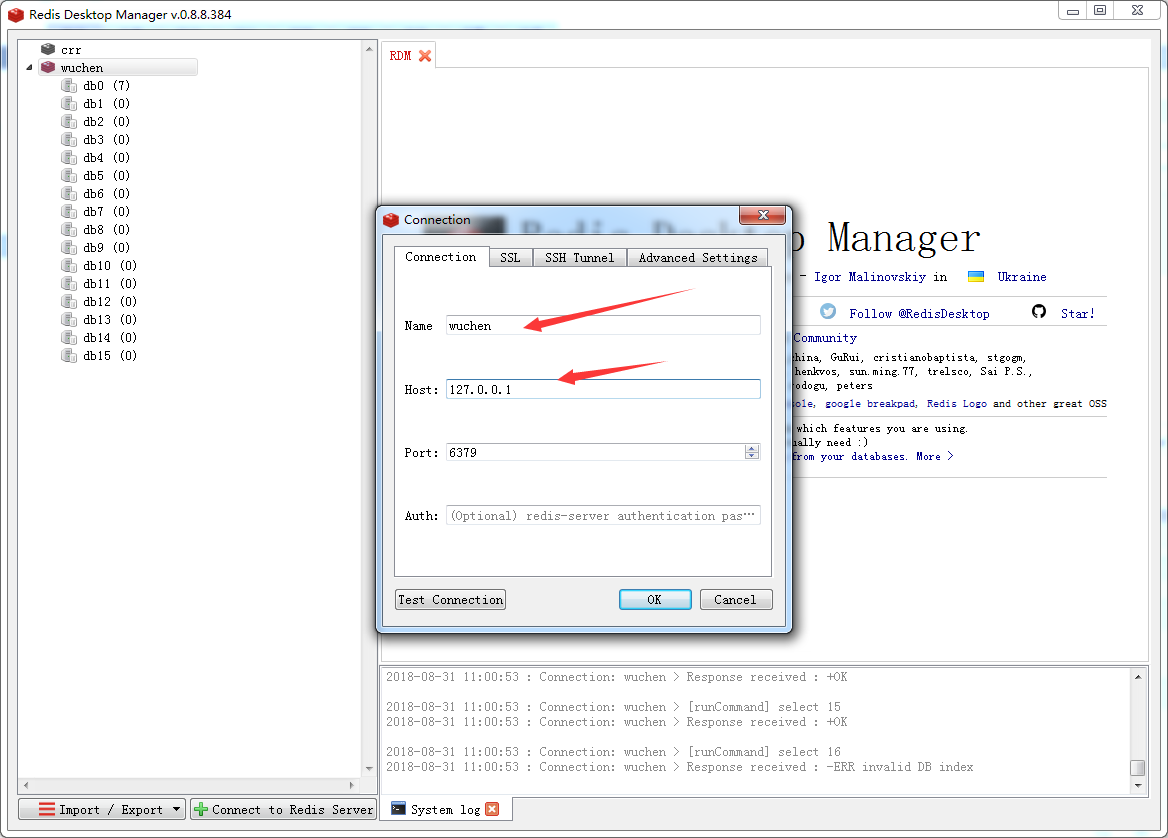
name 测试阶段随便写 HOST呢 就是主机IP地址 链接上之后 打开我们的DB

crtest666 wuchen 这个键值队是成功添加了的 (关于redis key是名字无所谓 value可以是列表,集合,自由使用,今天先不讲这个)
二:C# 中使用redis(查找,增加,删除的使用)
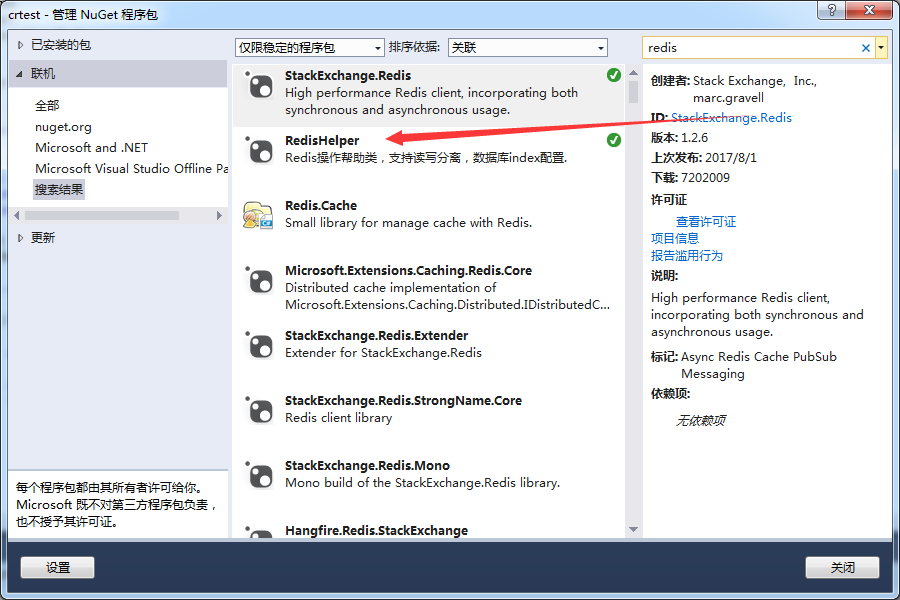
首先我们需要添加redis的引用。nuget包 搜索redis第一个就是。--StackExchange.Redis
根据运行的环境不同。还需要以下dll
1.ServiceStack.Common.dll
2.ServiceStack.Interfaces.dll
3.ServiceStack.Text.dll
可以去Gethub上去down, https://github.com/ServiceStack/ServiceStack.Redis 真的慢
博主百度云资源: 链接:https://pan.baidu.com/s/1gQLJlIcHhZtPikIgFHnHxA 密码:scqt
Lg:本博一直用win10,按理说只需要这些DLL的 现在装成win7,发现不行了 后来我在Nuget包中添加 RedisHelper,(现在好像直接叫做Redis了,看下备注说明确认一下)
这里举个很简单的使用redis的例子
添加一个控制台应用程序
然后在主程序类 program.cs 代码
using System;

using System.Collections.Generic;

using System.Linq;

using System.Text;

using System.Threading.Tasks;

namespace crtest

{

    class Program

    {

        /// <summary>

        /// 基无尘 18-8-31

        /// </summary>

        /// <param name="args"></param>

        static void Main(string[] args)

        {

            Console.WriteLine("Redis写入缓存:wuchengtest"); //添加

            RedisCacheHelper.Add("wuchen", "jiwuchen", DateTime.Now.AddDays());

            Console.WriteLine("Redis获取缓存:crtest666");//查找

            string str3 = RedisCacheHelper.Get<string>("crtest666");

            Console.WriteLine(str3);

            RedisCacheHelper.Remove("hellow");//删除

            string str = RedisCacheHelper.Get<string>("hellow");//查看是否删除成功

            Console.WriteLine(str == null ? "未找到" : str);

            Console.ReadKey();

        }

    }

}
然后添加一个帮助类 作用类似于我们常用的DbHelper
using ServiceStack.Redis;

using System;

using System.Collections.Generic;

using System.Linq;

using System.Text;

using System.Threading.Tasks;

namespace crtest

{

   public  class RedisCacheHelper

    {

        private static readonly PooledRedisClientManager pool = null;

        private static readonly string[] redisHosts = null;

        public static int RedisMaxReadPool = ;

        public static int RedisMaxWritePool = ;

        static RedisCacheHelper()

        {

            var redisHostStr = "127.0.0.1:6379";

            if (!string.IsNullOrEmpty(redisHostStr))

            {

                redisHosts = redisHostStr.Split(',');

                if (redisHosts.Length > )

                {

                    pool = new PooledRedisClientManager(redisHosts, redisHosts,

                        new RedisClientManagerConfig()

                        {

                            MaxWritePoolSize = RedisMaxWritePool,

                            MaxReadPoolSize = RedisMaxReadPool,

                            AutoStart = true

                        });

                }

            }

        }

        #region Add

        public static void Add<T>(string key, T value, DateTime expiry)

        {

            if (value == null)

            {

                return;

            }

            if (expiry <= DateTime.Now)

            {

                Remove(key);

                return;

            }

            try

            {

                if (pool != null)

                {

                    using (var r = pool.GetClient())

                    {

                        if (r != null)

                        {

                            r.SendTimeout = ;

                            r.Set(key, value, expiry - DateTime.Now);

                        }

                    }

                }

            }

            catch (Exception ex)

            {

                string msg = string.Format("{0}:{1}发生异常!{2}", "cache", "存储", key);

            }

        }

        public static void Add<T>(string key, T value, TimeSpan slidingExpiration)

        {

            if (value == null)

            {

                return;

            }

            if (slidingExpiration.TotalSeconds <= )

            {

                Remove(key);

                return;

            }

            try

            {

                if (pool != null)

                {

                    using (var r = pool.GetClient())

                    {

                        if (r != null)

                        {

                            r.SendTimeout = ;

                            r.Set(key, value, slidingExpiration);

                        }

                    }

                }

            }

            catch (Exception ex)

            {

                string msg = string.Format("{0}:{1}发生异常!{2}", "cache", "存储", key);

            }

        }

        public static T Get<T>(string key)

        {

            if (string.IsNullOrEmpty(key))

            {

                return default(T);

            }

            T obj = default(T);

            try

            {

                if (pool != null)

                {

                    using (var r = pool.GetClient())

                    {

                        if (r != null)

                        {

                            r.SendTimeout = ;

                            obj = r.Get<T>(key);

                        }

                    }

                }

            }

            catch (Exception ex)

            {

                string msg = string.Format("{0}:{1}发生异常!{2}", "cache", "获取", key);

            }

            return obj;

        }

        #endregion

        public static void Remove(string key)

        {

            try

            {

                if (pool != null)

                {

                    using (var r = pool.GetClient())

                    {

                        if (r != null)

                        {

                            r.SendTimeout = ;

                            r.Remove(key);

                        }

                    }

                }

            }

            catch (Exception ex)

            {

                string msg = string.Format("{0}:{1}发生异常!{2}", "cache", "删除", key);

            }

        }

        public static bool Exists(string key)

        {

            try

            {

                if (pool != null)

                {

                    using (var r = pool.GetClient())

                    {

                        if (r != null)

                        {

                            r.SendTimeout = ;

                            return r.ContainsKey(key);

                        }

                    }

                }

            }

            catch (Exception ex)

            {

                string msg = string.Format("{0}:{1}发生异常!{2}", "cache", "是否存在", key);

            }

            return false;

        }

    }

}
OK,生成一下 然后运行看看效果

OK,我们去redis-server上看看效果,也可以用上面的控制台来get 看看效果(cmd命令窗口自始至终都是开着的)
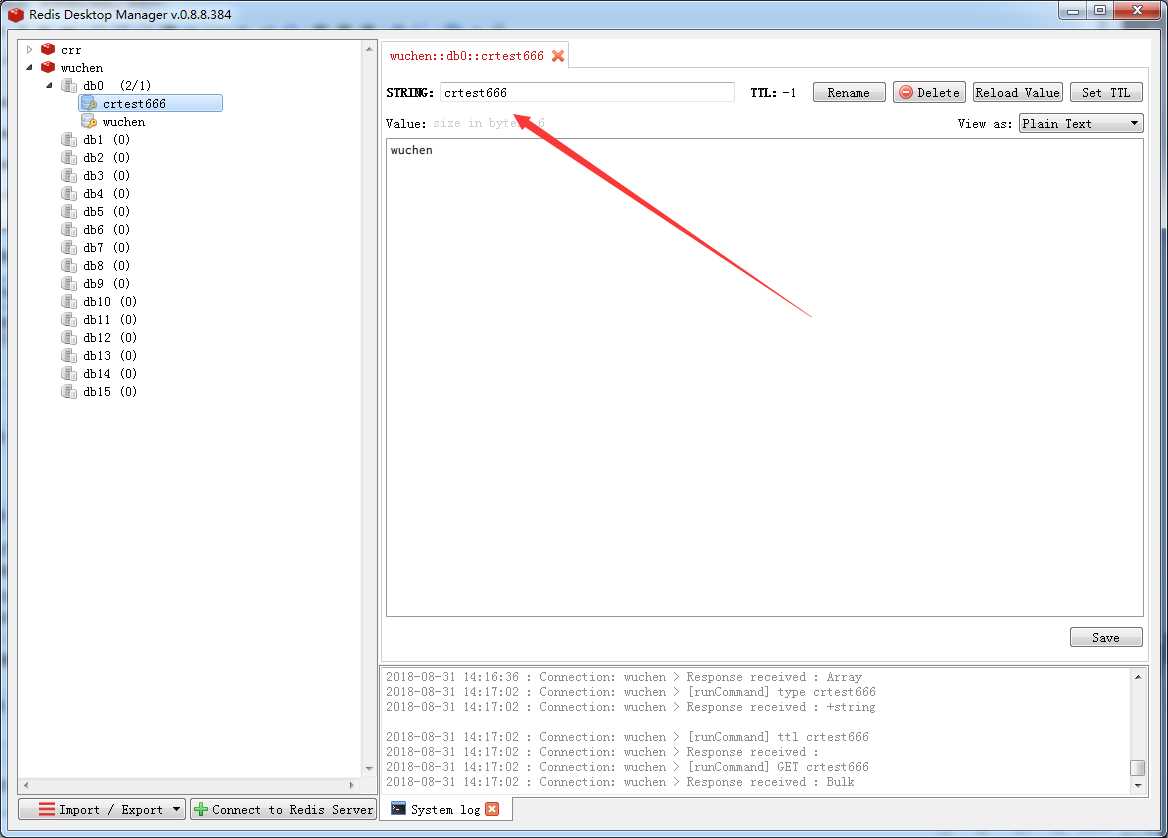
可以看到是成功添加的。好啦
通过简单的两句代码,慢慢发现编程的乐趣
C# Redis安装 使用教程的更多相关文章
- Redis安装部署教程
1)下载 redis-3.2.9.tar.gz 2)用ssh工具连接目录主机,在命令窗口输入:mkdir -p /opt/redis创建redis文件夹 3)通过WinSCP工具将redis-3.2. ...
- linux下redis安装运行教程——redis系列
天没降大任于我,照样苦我心智,劳我筋骨. 安装运行的过程 由于官网太慢,csdn里的资源又要钱,所以呢,只能使用我自己本地以前下载的陈年..哦不,3.xredis安装包 资源已经放到百度云,需要的可以 ...
- Linux下Redis安装使用教程
https://redis.io/download 第一步:安装redis需要在有c语言的编译环境下,执行命令安装c语言环境: yum install gcc-c++ https://blog.csd ...
- redis安装使用教程
一:安装redis 1.下载redis并安装 $wget http://redis.googlecode.com/files/redis-2.2.10.tar.gz $tar zvxf redis-2 ...
- 【Docker】Redis 安装使用教程
1.安装 1.1 拉取镜像 docker pull redis redis:4.0 1.2 创建redis容器名"redistest1",并开启持久化 docker run -d ...
- linux +redis 安装 +mongo 安装
Linux 下redis安装 本教程使用的最新文档版本为 2.8.17,下载并安装: $ wget http://download.redis.io/releases/redis-2.8.17.tar ...
- Redis安装教程
1. Linux下Redis安装教程 (1)安装 #tar xf redis-2.6.14.tar.gz #cd redis-2.6.14 #make #make install (2)配置 修改re ...
- Redis安装教程及可视化工具RedisDesktopManager下载安装
Redis安装教程: 1. Windows下安装教程: 下载:https://github.com/MSOpenTech/redis/releases Redis 支持 32 位和 64 位.这个需要 ...
- [ecmagent][redis学习][1初识redis] redis安装+redis快速教程+python操作redis
# redis安装 # redis安装教程 -- 服务器(ubuntu)安装redis服务 sudo apt-get install redis-server -- 源码安装 -- $ wget ht ...
随机推荐
- rails应用的部署
简单部署 RAILS_ENV=production rake secret /etc/profile export SECRET_KEY_BASE=刚才生成的密钥 source /etc/profil ...
- WordPress数据结构分析
WordPress仅仅用了10 个表:wp_comments, wp_links, wp_options, wp_postmeta, wp_posts, wp_term_relationships, ...
- 逆向基本使用:IDA
如何导出IDA数据中数组的内容进行编程? 如这种: .data:00427A54 ; char byte_427A54[] .data:00427A54 byte_427A54 db 0FEh ; D ...
- 01 of lenrning python
我也打算开始写博客啦!记录一下自己的学习过程~ 01密文登陆 这个在vscode中不显示密文 在cmd中看不到密码 # -*- coding: utf-8 -*- import getpass nam ...
- 使用Spring+MySql实现读写分离(一)关于windows下安装mysql5.6
前面讲过关于mysql的优化,主要是建表时对于大量数据的表添加索引机制,提高查询效率,以及一些sql语句的简单优化,毕竟我也不是专业的数据库管理员,大牛勿喷. 今天写两章关于javaweb项目中,对于 ...
- [转]Examining Open vSwitch Traffic Patterns
In this post, I want to provide some additional insight on how the use of Open vSwitch (OVS) affects ...
- Asp.Net WebApi核心对象解析(二)
在接着写Asp.Net WebApi核心对象解析(下篇)之前,还是一如既往的扯扯淡,元旦刚过,整个人还是处于晕的状态,一大早就来处理系统BUG,简直是坑爹(好在没让我元旦赶过来该BUG),队友挖的坑, ...
- 从github上克隆hibernate项目
开发的项目用到了hibernate进行对象的持久化,最近项目上不忙,打算通过官方文档和源码来进行深度学习.第一步将hibernate部署到本地就折腾了好久,打算记录一下. 关于github的注册说一句 ...
- 在 React、Vue项目中使用 SVG
在一些现代的扁平化设计网站,特别是移动端网站,经常会包含许多简单而清晰的小图标,例如网站图标.用户的默认头像.移动端网页首页底部固定的切换栏等,这些小图标一般都是由美工做好,可能会放到精灵图上,前端再 ...
- 在C语言中不使用任何中间变量如何将a、b的值进行交换(三种方法)——来自一小萌新工程师的复习
今天面试嵌入式,突然遇到这么一道题目,虽然简单,但鉴于我答得不是很好,所以还是分析一下为好. 第一种方法: 通过加减法. #include"stdio.h" int main(vo ...