<template>
<div class="dsj">
<div id="Container">
<div id="header" style="font-size:3.5vw; color: PowderBlue; text-align: center; padding-top:2vw;">中珠牧业生产实时测试系统
<img src="../../assets/bb.png" alt="" style="position:absolute;left:2vw;top:0.5vw">
</div>
<div id="cc" style="font-size:1.7vw; color:#CDB38B; text-align: center;padding-top:1.5vw"><span>{{ now | dateformat('YYYY-MM-DD') }}</span><br>
<span style="font-size:1.5vw; color: #CDB38B; text-align: center;">{{ now | dateformat('HH:mm:ss') }}</span>
</div>
<div style="width:100%;height:28vw;">
<!-- 左边 -->
<div style="width:30%;height:100%;float:left">
<div style="width:24vw;height:10vw;margin:1vw auto 0">
<table style="width:461px;height:193px" class="define-table">
<tr>
<td style="font-size:1vw; color: PowderBlue;">今日入场 :<span style="font-size:1.5vw; color: PowderBlue;">1000</span></td>
<td style="font-size:1vw; color: PowderBlue;">已交易数 :<span style="font-size:1.5vw; color: PowderBlue;">1000</span></td>
</tr>
<tr>
<td style="font-size:1vw; color: PowderBlue;">交易单次 :<span style="font-size:1.5vw; color: PowderBlue;">1000</span></td>
<td style="font-size:1vw; color: PowderBlue;">冷 链 车 :<span style="font-size:1.5vw; color: PowderBlue;">1000</span></td>
</tr>
<tr>
<td style="font-size:1vw; color: PowderBlue;">已 缴 费 :<span style="font-size:1.5vw; color: PowderBlue;">1000</span></td>
<td style="font-size:1vw; color: PowderBlue;">今日交易额 :<span style="font-size:1.5vw; color: PowderBlue;">1000</span></td>
</tr>
</table>
</div>
<div style="width:28vw;height:15vw;margin:1vw auto 0">
<x-chart :id="test4" :option="option4" ></x-chart>
</div>
</div>
<!-- 中间 -->
<div style="width:40%;height:100%;float:left">
<!-- 中上 -->
<div style="width:30vw; height:3vw; margin:1vw auto 0; font-size:1.5vw;text-align:center; color: PowderBlue; ">今日交易金额(元):<span style="font-size:2.5vw; ">10000</span></div>
<!-- 中下 -->
<div style="width:39vw;height:22.5vw;margin:1vw auto 0">
<div id="highmaps" class="container"></div>
</div>
</div>
<!-- 右边 -->
<div style="width:30%;height:100%;float:left">
<div style="width:26vw;height:30vw;margin:1vw auto 0">
<div style="margin:1vw auto 0; font-size:1.2vw;text-align:center; color: PowderBlue;">实时交易数</div>
<ul style="list-style-type:none">
<div style="width:24vw;height:10vw;margin:1vw auto 0">
<table style="width:461px;height:193px" class="define-table">
<tr>
<td style="font-size:1vw; color: PowderBlue;">批发商 :<span style="font-size:1.5vw; color: PowderBlue;">1000</span></td>
<td style="font-size:1vw; color: PowderBlue;">经销商 :<span style="font-size:1.5vw; color: PowderBlue;">1000</span></td>
</tr>
<tr>
<td style="font-size:1vw; color: PowderBlue;">头 数 :<span style="font-size:1.5vw; color: PowderBlue;">1000</span></td>
<td style="font-size:1vw; color: PowderBlue;">金 额 :<span style="font-size:1.5vw; color: PowderBlue;">1000</span></td>
</tr>
</table>
</div>
</ul>
<div>
<x-chart :id="test1" ref="option1" :option="option1" ></x-chart>
</div>
</div>
<!-- <div style="width:28vw;height:15vw;margin:1vw auto 0"> -->
<!-- <div style="margin-left:7vw;">
<el-progress title="这是紫色" type="circle" :percentage="data1" color="rgba(142, 113, 199, 0.7)"></el-progress>
<el-progress type="circle" :percentage="data2" color="rgba(140, 1001, 51, 0.7)"></el-progress>
</div> -->
<div style="margin-left:7vw;margin-top:1.5vw">
<el-progress type="circle" :percentage="data4" color="rgba(43, 113, 19, 155)"></el-progress>
<el-progress type="circle" :percentage="data5" color="rgba(142, 11, 33, 0.7)"></el-progress>
</div>
<div></div>
</div>
</div>
</div>
<div style="height:15vw;margin-top:1vw;">>
<x-chart :id="test5" :option="option5" class="ff"></x-chart>
</div>
</div>
</template>
<script>
// 导入chart组件
import XChart from './chart.vue'
import HighCharts from 'highcharts'
import img_404 from '@/assets/bg.jpg'
import Highcharts from 'highcharts/highstock'
import HighchartsMore from 'highcharts/highcharts-more'
import HighchartsDrilldown from 'highcharts/modules/drilldown'
import Highcharts3D from 'highcharts/highcharts-3d'
import Highmaps from 'highcharts/modules/map'
import $ from 'jquery'
import HighchartsComponent from './HighchartsComponent.vue'
HighchartsMore(Highcharts)
HighchartsDrilldown(Highcharts)
Highcharts3D(Highcharts)
Highmaps(Highcharts)
// 导入chart组件模拟数据
import { option1, option2, option3, option4, option5, option6, option7, option8 } from '@/chart-options/options'
import { pay } from '@/api/car'
import moment from 'moment'
export default {
name: 'app',
data() {
return {
chart: null,
img_404,
test1: 'test1',
test2: 'test2',
test3: 'test3',
test4: 'test4',
test5: 'test5',
test6: 'test6',
test7: 'test7',
option1: option1.bar,
option2: option2.bar,
option3: option3,
option4: option4,
option5: option5,
option6: option6,
option7: option7,
now: moment(),
data1: 0,
data2: 0,
data3: 0,
data4: 0,
data5: 0,
data6: 0,
data7: 0,
payMoney: null
}
},
components: {
XChart,
HighchartsComponent
},
filters: {
dateformat(dataStr, pattern = 'YYYY-MM-DD HH:mm:ss') {
return moment(dataStr).format(pattern)
}
},
created() {
this.option1.series[0].data[0]
console.log(this.$refs.option1)
new HighCharts.Map('map', option8)
},
mounted() {
this.createChart()
this.highmaps()
setInterval(() => {
this.now = moment()
}, 100)
setInterval(() => {
if (this.data1 === 100) {
this.data1 = 0
}
if (this.data2 === 100) {
this.data2 = 0
}
if (this.data3 === 100) {
this.data3 = 0
}
if (this.data4 === 100) {
this.data4 = 0
}
if (this.data5 === 100) {
this.data5 = 0
}
if (this.option5 === 100) {
this.option5 = 0
}
this.data1 = Math.floor(Math.random() * 100)
this.data2 = Math.floor(Math.random() * 100)
this.data3 = Math.floor(Math.random() * 100)
this.data4 = Math.floor(Math.random() * 100)
this.data5 = Math.floor(Math.random() * 100)
this.option5 = Math.floor(Math.random() * 100)
pay().then((res) => {
this.payMoney = res.data
})
}, 1000)
},
methods: {
createChart() {
Highcharts.setOptions({
lang: {
rangeSelectorZoom: ''
}
})
},
highmaps() {
Highcharts.setOptions({
lang: {
drillUpText: '< 返回 "{series.name}"'
}
})
var map = null
var geochina = 'https://data.jianshukeji.com/jsonp?filename=geochina/'
$.getJSON(geochina + 'china.json&callback=?', function(mapdata) {
var data = []
// 随机数据
Highcharts.each(mapdata.features, function(md, index) {
var tmp = {
name: md.properties.name,
value: Math.floor((Math.random() * 100) + 1) // 生成 1 ~ 100 随机值
}
if (md.properties.drilldown) {
tmp.drilldown = md.properties.drilldown
}
data.push(tmp)
})
map = new Highcharts.Map('highmaps', {
chart: {
backgroundColor: 'black',
marginBottom: -0,
// borderWidth: 50,
plotBorderWidth: -0,
height: 430,
width: 800,
marginTop: 0,
// width: 1000,
// borderWidth: 1,
events: {
drilldown: function(e) {
console.log(e)
// 异步下钻
// if (e.point.drilldown) {
// var pointName = e.point.properties.fullname
// // 获取二级行政地区数据并更新图表
// $.getJSON(geochina + e.point.drilldown + '.json&callback=?', function(data) {
// data = Highcharts.geojson(data)
// Highcharts.each(data, function(d) {
// if (d.properties.drilldown) {
// d.drilldown = d.properties.drilldown
// }
// d.value = Math.floor((Math.random() * 100) + 1) // 生成 1 ~ 100 随机值
// })
// map.hideLoading()
// map.addSeriesAsDrilldown(e.point, {
// name: e.point.name,
// data: data,
// dataLabels: {
// enabled: true,
// format: '{point.name}'
// }
// })
// map.setTitle({
// text: pointName
// })
// })
// }
},
drillup: function() {
map.setTitle({
text: '中国'
})
}
}
},
title: {
text: null
},
legend: {
// layout: 'vertical',
// align: 'right',
// verticalAlign: 'top',
// y: 50,
padding: 5
// itemMarginTop: 5,
// itemMarginBottom: 50,
// itemStyle: {
// lineHeight: '14px'
// }
},
credits: {
enabled: false
},
mapNavigation: {
// enabled: true,
buttonOptions: {
// 显示地图放大的标签+与-
// verticalAlign: 'bottom'
}
},
tooltip: {
useHTML: true,
headerFormat: '<table><tr><td>{point.name}</td></tr>',
pointFormat: '<tr><td>全称</td><td>{point.properties.fullname}</td></tr>' +
'<tr><td>行政编号</td><td>{point.properties.areacode}</td></tr>' +
'<tr><td>父级</td><td>{point.properties.parent}</td></tr>' +
'<tr><td>经纬度</td><td>{point.properties.longitude},{point.properties.latitude}</td></tr>',
footerFormat: '</table>'
},
// 这里时让地图更多的颜色也显示导航栏
// colorAxis: {
// min: 0,
// minColor: '#fff',
// maxColor: '#006cee',
// labels: {
// style: {
// 'color': 'red', 'fontWeight': 'bold'
// }
// }
// },
series: [{
data: data,
mapData: mapdata,
joinBy: 'name',
name: '中国地图',
states: {
hover: {
color: '#a4edba'
}
}
}]
})
})
}
}
}
</script>
<style>
.dsj{
width:100%;
height:100%;
background-color:#000000;
}
/*顶部面板样式*/
#header {
width:100%;
height:8vw;
}
/* 上中间右上边的DIV */
#cc{
width:16vw;
float:right;
margin: -7vw 1vw 0 0;
}
svg{
height:100% !important;
width:100% !important;
}
.define-table{
border-collapse:collapse;
border-spacing:0;
border-left:1px solid #888;
border-top:1px solid #888;
}
.define-table th,.define-table td{
border-right:1px solid #888;
border-bottom:1px solid #888;
padding:5px 15px;
}
.define-table th{
font-weight:bold;background:#ccc;
}
</style>
3.创建一个 chart.vue
代码为:
<template>
<div class="x-bar">
<div :id="id" :option="option"></div>
</div>
</template>
<script>
import HighCharts from 'highcharts'
export default {
// 验证类型
props: {
id: {
type: String
},
option: {
type: Object
}
},
data() {
return {
chart: null
}
},
mounted() {
this.chart = HighCharts.chart(this.id, this.option)
}
}
</script>
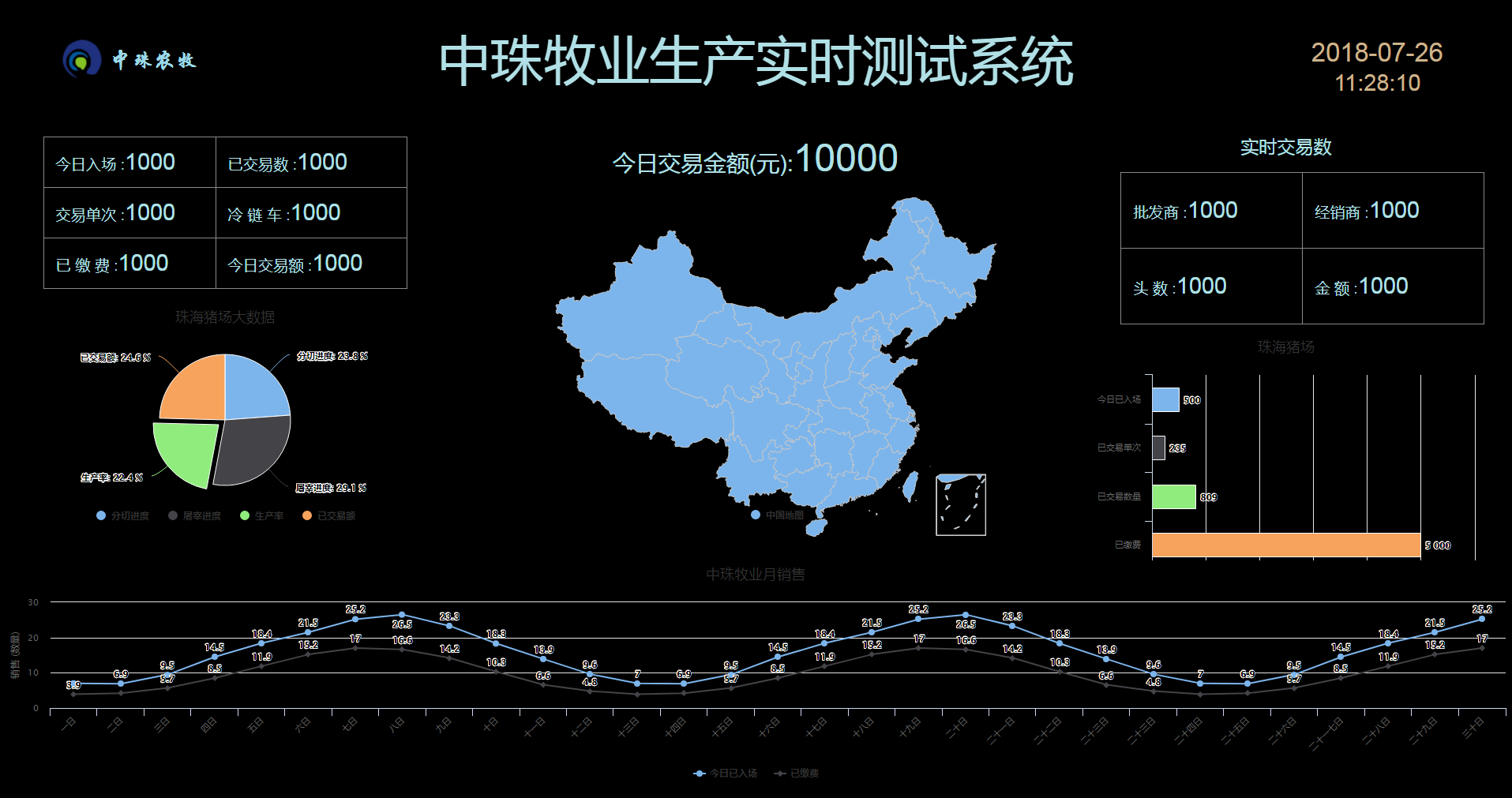
实现的效果为下: