
关于 eclipse startexplorer插件 快速打开文件夹
转自:http://basti1302.github.io/startexplorer/
Just drag-and-drop the button to the Eclipse menu bar to install the plug-in:
| Eclipse-Update-URL: | http://basti1302.github.com/startexplorer/update/ |
| GitHub: | https://github.com/basti1302/startexplorer |
| Plug-in documentation: | Exported Eclipse help files |
| License: | WTFPL 2 |
| Plug-in author: | Bastian Krol |
This plug-in offers tight integration of system file manager (Windows Explorer, Gnome Nautilus, KDE Konqueror, Mac Finder, ...) and shell (cmd.exe, Linux/Mac terminal) in Eclipse.
Every now and then when working with Eclipse you'd like to examine a file or a folder inside the Eclipse workspace with your file manager or open a shell/cmd.exe in this location. Or you edit a file in Eclipse and would like to open the parent folder of this file in the file manager or shell. Or the file you are editing contains a string which references another file in the filesystem and you would like to do some of the things mentioned above with that referenced file. This plug-in gives you a convenient way to do all this by adding a few entries to Eclipse's context menus. Furthermore, it offers a different, more convenient way to issue any shell/dos command you like through customizable menu commands. Last but not the least this plug-in offers a tighter integration of the clip board, so copying a file's/folder's path to the clip board is only two mouse clicks (instead of opening the Properties dialog and selecting the path manually).
This plug-in is inherently not platform-independent. Currently, the following operating systems/desktop environments are supported out of the box:
- Windows
- Mac OS
- Linux with Gnome
- Linux with KDE
- Linux with Xfce
- Linux with LXDE
However, even if your system is not listed there, you can still easily configure StartExplorer to work correctly on your system.
Top
Description
Context Menu Options for Resource Views
In resource views like the Navigator or Package Explorer you can select files and folders. StartExplorer offers the following options here:
- Show in file manager
- Start shell here
- Open files with default application
- Copy resource path to clipboard
- Custom Commands
All options work with a single selected resource as well as with multiple resources. If multiple resources are selected and an option only works for files (or only for folders) all resources of the wrong type are ignored and the command is executed for the resources it is applicable for.
Show in file manager: (Works for files and folders) Starts a file manager (depending on your system, this might be the Windows Explorer, Finder on Mac OS, Nautilus on Gnome, Konqueror on KDE, Thunar on Xfce or PCMan File Manager on LXDE) for the selected resource. If it is a folder, the file manager is opened for this folder. If it is a file, the file manager is opened for the parent folder of this file. On some systems (currently on Windows and Mac OS) the file is also selected/highlighted in the file manager. If multiple resources are selected, a separate file manager instance is opened for each resource.
Start shell here: (Works for files and folders) Opens a shell/terminal/command line prompt with the selected folder as its starting directory. If multiple resources are selected, separate shells are opened for each of them. If a file is selected, a shell for its parent directory will be opened.
Open files with default application: (Works for files only) Opens the selected file in the application that is registered for this file type in your system. If multiple resources are selected then for each resource the default application will be started separately.
Copy resource path to clipboard: (Works for files and folders) Copies the absolute path of the selected resource to the clipboard. If multiple resources are selected, all resource paths are copied to the clipboard, separated by a Unix linebreak. The separator can be configured in the preference page for this plug-in.
Custom Commands: You can configure any command you like here.
Top
Context Menu Options for Resources Opened In Editors and Selected Text Regions in Editors
In editors (Java editor, text editor, ...) you also can execute StartExplorer actions, either on an empty text selection (that is, just right click anywhere in the editor window without selecting text first) or for a selected text region. StartExplorer offers the following options here:
- Start file manager in this path
- Start shell in this path
- Open in default application
- Copy resource path to clipboard
- Custom Commands
These are the same options as for resource views like Navigator, Package Explorer or Project Explorer.
The difference to the commands for resource is that these commands work based either on the file that is currently opened in the editor or based on the selected text region in the editor.
- If no text is selected, the operation is executed on the file currently opened in the editor. This basically works the same way as if the file in the editor would have been selected in a resource view like Package Explorer.
- If some text is selected, the plug-in behaves quite differently and it is important to understand how StartExplorer works with selected text regions, otherwise you might get unexpected results: When text is selected, the plug-in interprets the selected text region as a file system path, denoting either a folder or a file. If this path is a folder, the plug-in can open a file manager or a shell for this folder. If the aforementioned path refers to a file rather than a directory, the plug-in can start the default system application for it.
Actually, StartExplorer is a bit smarter when handling selected text regions than the last paragraph may give the impression. If you try to open a file manager for your selection it doesn't matter whether you selected a path denoting a folder or a file. If the selected text region points to a file, the parent directory of that file is shown in the file manager and the file is selected, just as you would expect. Furthermore, if the path ends with an incomplete path segment, the last segment is discarded. Example: In your text file (or XML file or whatever) you have the path C:\path\to\some\directory\file.xyz. Now you select just C:\path\to\some\dire and start a file manager for that path. The plug-in recognizes that C:\path\to\some\dire is not a valid path and tries the parent directory C:\path\to\some. If this is a valid, existing directory, a file manager window pops up showing C:\path\to\some. If you select "Start shell in this path" for C:\path\to\some\directory\file.xyz then the directory C:\path\to\some\directorywill be shown.
Of course, the option "Copy resource path to clipboard" does not make a lot of sense with a text selection because it more or less only copies the selected text to the clipboard (with the difference that it might be reduced to a valid file system path, see above). But it still makes sense with empty text selections because in that case it copies the path of the file that is currently opened in the editor to the clipboard.
The custom commands are completely configurable through the preference page, just as for the resource-based commands.
Top
Screenshots
Remark: These screenshots are extremely, utterly outdated. Somehow I've been always too lazy to create new ones. They may give an impression of the functionality nevertheless. Click the thumbnails for larger versions.
 |
 |
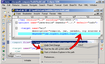 |
| Screenshot 1: Open a Windows Explorer from Java Package Explorer | Screenshot 2: Open a Windows Explorer from a selected text region in an editor view | Screenshot 3: Start the default windows application from a selected text region in an editor view |
Download and Installation
Requirements
- Eclipse 3.3 (may work with earlier versions, I have not tested these)
- JRE 1.5 or better (you'll have that covered if you're running Eclipse 3.3 or above)
Via Eclipse Update Manager
From within Eclipse:
- Help
- Install New Software
- Add...
- Name: StartExplorer
- Location: http://basti1302.github.com/startexplorer/update/
- OK
- Tick the StartExplorer Feature checkbox
- Click Next and follow the instructions...
Help
The plug-in provides comprehensive help documentation in the standard Eclipse way. Go to Help - Help Contents and choose the category StartExplorer Help. This help is also available online.
Top
Support/Bugs/Feature Requests
If you have some thoughts about StartExplorer, be it a bug report a feature request or whatever, use issues section of the project's GitHub page. If the plug-in does not work properly in your environment or if you have an idea for a nice feature that would be suitable for this plug-in, just go ahead and tell me. If you want to get in direct contact with me, you might also use the GitHub facilities to send me a message.
Top
Information for Developers
If you would like to mess around with the source code or modify it or extend it or whatever, go ahead and fork it! :-)
Alternatives
There is always more than one way to skin a cat. Or to open a file manager window. It seems many people miss this functionality in Eclipse and some of them (like me) wrote plug-ins to ease their pain. I'll list all I know of here. If you know another open-file-manager-plug-in, let me know. I also list some pros and cons, which, of course, are completely subjective.
- EasyShell
- (+) Mostly comparable in features with StartExplorer, minor differences
- (+) cross platform
- (+) still maintained
- OpenExplorer
- (+) cross platform
- (+) still maintained
- (-) slightly less features than StartExplorer (no custom commands)
- eExplorer
- (+) smooth integration (embedded explorer view)
- (+) actively maintained
- (-) only file manager (no shell etc.)
- (-) win32 only
- ExploreFS
- (+) cross platform
- (-) only file manager (no shell etc.)
- easyexplore
- (-) outdated, not maintained anymore
- Eclipse Explorer - seemed to exist once, can't find it anymore
- Launch Explorer via external tools (http://www.eclipsezone.com/eclipse/forums/t77655.html)
- (-) Cumbersome approach (for my taste)
关于 eclipse startexplorer插件 快速打开文件夹的更多相关文章
- Eclipse 批量创建多级文件夹
Eclipse 批量创建多级文件夹 CreateTime--2018年3月8日08:23:24 Author:Marydon 1.选中要建立文件夹的父级目录-->右键-->New--& ...
- 在Eclipse 中打开当前文件夹
最近试过好多次,安装插件来 在Eclipse 中打开当前文件所在文件夹,结果总是不甚如意. 烦躁了,决定还是不要使用插件了!!! 1.打开Eclipse,点击菜单栏上的Run--External To ...
- 关于修改Eclipse工作空间对应的文件夹名称之后的处理.
把文件夹名字从"xhkong"变成"xhkong(maintenance5.6)"之后打开这个工作空间. 导入git仓库我发现了一个之前没有发现的小技巧. 导入 ...
- eclipse中的classes文件夹同步问题
问题: 在同步项目时,由于误操作将classes文件夹加入到了同步版本中,这样会导致每次更新程序编译后,会有很多class文件显示在同步清单中. 解决方案: 将classes文件不设置为同步. 1. ...
- Eclipse Android 解决Gen文件夹为空的问题
通常这个问题的表现为Eclipse报错:R cannot be resolved to a variable 原因是因为Eclipse没有帮我们自动生成固定资源的索引.导致Gen文件夹下为空. 网上的 ...
- Eclipse编译去除svn文件夹
使用Eclipse编译文件后,classes文件中总是有.svn的文件夹,这些文件没有什么用,而且影响build的速度 "Project->Properties->Java Bu ...
- eclipse项目中将普通文件夹转化成资源文件夹
1.点选该文件夹 2.右键属性Properties 3.选择属性:Build Path 4.点选属性:Use as Source Folder ......等待变成资源文件夹 参考更详细的: ecl ...
- Eclipse改动Project的文件夹位置
Eclipse打开时会要求指定一个workspace, 在这个workspace中能够创建多个相关的或无关的Project, 这些Project的文件夹位置信息存储在: <path to wor ...
- 转帖---把eclipse默认的编译文件夹build改为web-inf/classess文件夹
1.在web-info下新奸classess文件夹 2.右键项目 3.选择java build path ————————————
随机推荐
- Flash Player离线安装包下载指南
在机房里装软件,没网是正常现象,有些老师要装Firefox/Chrome浏览器要有Flash,网上搜来搜去都是在线安装包一日在V2EX闲逛时发现了一位大神给出了Flash的离线安装包下载方式,在此立个 ...
- C#:String.Format数字格式化输出 {0:N2} {0:D2} {0:C2}...
int a = 12345678; //格式为sring输出// Label1.Text = string.Format("asdfadsf{0}adsfasdf",a);// ...
- 如何高效使用Google
摘自http://simplyy.space/ 核心思想 1.首先,想好你想要寻找什么. 哪些词能够最好地描述你要寻找的信息或者概念? 哪些词是你能够用来替换的? 有没有那些词是可以不必包括在你想要搜 ...
- SharePoint 网站管理-PowerShell
1. 显示场中所有可用的网站集 Get-SPSite 2. 显示某一Web应用程序下可用的网站集 Get-SPSite –WebApplication "SharePoint – 80&qu ...
- 关于Behold the Kickmen (球员登场)
音乐:『Boring,Boring——』作者浑厚的男中音响起,伴随着劲爆的动感音乐 非同正式却又无伤大雅的规则:足球场是圆形的,而且四周有反弹围墙 加强操作的一些设定: 踢踢人射门蓄力时,时间会静止, ...
- Final阶段第1周/共1周 Scrum立会报告+燃尽图 03
作业要求[https://edu.cnblogs.com/campus/nenu/2018fall/homework/2482] 版本控制:https://git.coding.net/liuyy08 ...
- Android 获取联系人和电话号码
获取联系人和电话号码 private void queryContactPhoneNumber() { String[] cols = {ContactsContract.PhoneLookup.DI ...
- SWIFT显示底部的工具条
有以下页面显示我的讯息,用户可以点击右上角的编辑按钮进入删除状态.点击编辑按钮后,按钮文字改为“取消”,左上角的按钮变为“全选”,同时显示底部工具条带有“删除”按钮 实现起来挺简单的,在正常状态下点击 ...
- C语言基础:内存 分类: iOS学习 c语言基础 2015-06-10 21:59 23人阅读 评论(0) 收藏
全局变量:定义在函数之外.(不安全) 局部变量;定义在函数之内. 内存的划分:1栈区 2堆区 3静态区(全局区) 4常量区 5代码区 栈区..静态区.常量区.代码区的数据都是由系统分配和释放 ...
- file.replace
一.简介 salt file.replace 文件内容处理函数,类似于ansible的lineinfile模块 二.参数介绍 name 被编辑文件的绝对路径,支持软链接 pattern 常规表达式,使 ...