
C#WinFrom导出Excel
采用的是以DataGridView的形式导出,使用NPOI.dll
1.由于使用的是DataGridView,所以类需要创建在From的Project下,DLL导入NPOI
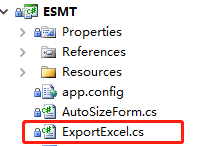

2.代码如下
using System;

using System.Collections.Generic;

using System.Linq;

using System.Text;

using System.Windows.Forms;

using NPOI.SS.UserModel;        //NPOI

using NPOI.HSSF.Util;           //NPOI

using NPOI.HSSF.UserModel;      //NPOI

using NPOI.XSSF.UserModel;      //NPOI

using System.IO;

namespace ESMT

{

    public class ExportExcel

    {

        /// <summary>

        ///

        /// </summary>

        /// <param name="grdview">数据表</param>

        /// <param name="sheetName">工作簿名字</param>

        /// <param name="FilePath">文件路径</param>

        /// <param name="columnTitle">列头</param>

        public void ExportToExcel(DataGridView grdview, string sheetName, string FilePath, string[] columnTitle)

        {

            //不允许dataGridView显示添加行,负责导出时会报最后一行未实例化错误

            grdview.AllowUserToAddRows = false;

            HSSFWorkbook workbook = new HSSFWorkbook();

            ISheet sheet = workbook.CreateSheet(sheetName);//创建工作簿

            //设置表头

            IRow headerRow = sheet.CreateRow();//创建第一行

            headerRow.HeightInPoints = ;

            headerRow.CreateCell().SetCellValue("出库表单");//单元格赋值

            ICellStyle headStyle = workbook.CreateCellStyle();

            headStyle.Alignment = NPOI.SS.UserModel.HorizontalAlignment.Center;//格式居中

            IFont font = workbook.CreateFont();

            font.Boldweight = ;

            font.FontHeightInPoints = ;

            headStyle.SetFont(font);

            headerRow.GetCell().CellStyle = headStyle;

            sheet.AddMergedRegion(new NPOI.SS.Util.CellRangeAddress(, , , grdview.ColumnCount - ));//单元格合并 最后个参数是合并个数

            IRow headerRow2 = sheet.CreateRow();//创建第二行列头

            ICellStyle headStyle2 = workbook.CreateCellStyle();

            headStyle2.Alignment = NPOI.SS.UserModel.HorizontalAlignment.Center;

            IFont font2 = workbook.CreateFont();

            font2.FontHeightInPoints = ;

            font2.Boldweight = ;

            headStyle2.SetFont(font2);

            for (int l = ; l < grdview.ColumnCount - ; l++) //列头填值

            {

                headerRow2.CreateCell(l).SetCellValue(columnTitle[l]);

                headerRow2.GetCell(l).CellStyle = headStyle2;

            }

            //设置列宽

            for (int l = ; l < grdview.Columns.Count; l++)

            {

                sheet.DefaultColumnWidth = ;

            }

            //填写内容

            for (int i = ; i < grdview.Rows.Count; i++)

            {

                IRow row = sheet.CreateRow(i + );

                for (int j = ; j < grdview.Columns.Count; j++)

                {

                    row.CreateCell(j - , CellType.String).SetCellValue(grdview.Rows[i].Cells[j].Value.ToString());//j-1表示哪个单元格

                }

            }

            using (FileStream stream = File.OpenWrite(FilePath))//创建Excel并写入数据

            {

                workbook.Write(stream);

                stream.Close();

            }

            GC.Collect();

        }

    }

}
ExportExcel
PS:openwtrie 打开或者创建新的文件写入
using System;

using System.Collections.Generic;

using System.Linq;

using System.Text;

using System.Windows.Forms;

using NPOI.SS.UserModel;        //NPOI

using NPOI.HSSF.Util;           //NPOI

using NPOI.HSSF.UserModel;      //NPOI

using NPOI.XSSF.UserModel;      //NPOI

using System.IO;

namespace ESMT

{

    public class ExportExcel

    {

        /// <summary>

        /// ExportToExcel

        /// </summary>

        /// <param name="grdview">数据表</param>

        /// <param name="sheetName">工作簿名字</param>

        /// <param name="FilePath">文件路径</param>

        /// <param name="columnTitle">列头</param>

        public bool ExportToExcel(DataGridView grdview, string sheetName, string FilePath, string[] columnTitle, bool ischeckbox)

        {

            try

            {

                //不允许dataGridView显示添加行,负责导出时会报最后一行未实例化错误

                grdview.AllowUserToAddRows = false;

                HSSFWorkbook workbook = new HSSFWorkbook();

                ISheet sheet = workbook.CreateSheet(sheetName);//创建工作簿

                //设置表头

                IRow headerRow = sheet.CreateRow();//创建第一行

                headerRow.HeightInPoints = ;

                headerRow.CreateCell().SetCellValue("出库表单");//单元格赋值

                ICellStyle headStyle = workbook.CreateCellStyle();//

                headStyle.Alignment = NPOI.SS.UserModel.HorizontalAlignment.Center;//格式居中

                headStyle.VerticalAlignment = NPOI.SS.UserModel.VerticalAlignment.Center;//格式居中

                IFont font = workbook.CreateFont();

                font.Boldweight = ;

                font.FontHeightInPoints = ;

                headStyle.SetFont(font);//设置了第一行样式的字体

                headerRow.GetCell().CellStyle = headStyle;

                sheet.AddMergedRegion(new NPOI.SS.Util.CellRangeAddress(, , , grdview.ColumnCount - ));//单元格合并 最后个参数是合并个数

                IRow headerRow2 = sheet.CreateRow();//创建第二行列头

                ICellStyle headStyle2 = workbook.CreateCellStyle();//设置第二行的样式

                headStyle2.Alignment = NPOI.SS.UserModel.HorizontalAlignment.Center;

                IFont font2 = workbook.CreateFont();

                font2.FontHeightInPoints = ;

                font2.Boldweight = ;

                headStyle2.SetFont(font2);

                ICellStyle headStyle3 = workbook.CreateCellStyle();//内容的样式

                headStyle3.Alignment = NPOI.SS.UserModel.HorizontalAlignment.Center;//格式居中

                headStyle3.VerticalAlignment = NPOI.SS.UserModel.VerticalAlignment.Center;//格式居中

                for (int l = ; l < grdview.ColumnCount - ; l++) //列头填值

                {

                    headerRow2.CreateCell(l).SetCellValue(columnTitle[l]);

                    headerRow2.GetCell(l).CellStyle = headStyle2;

                }

                //设置默认列宽

                //sheet.DefaultColumnWidth = 15;

                //设置列宽

                AutoColumnWidth(sheet, grdview.ColumnCount);

                //填写内容

                for (int i = ; i < grdview.Rows.Count; i++)

                {

                    IRow row = sheet.CreateRow(i + );

                    for (int j = ; j < grdview.Columns.Count; j++)

                    {

                        if (ischeckbox)

                        {//带checkbox的DataGrid

                            row.CreateCell(j - , CellType.String).SetCellValue(grdview.Rows[i].Cells[j].Value.ToString());

                            row.GetCell(j - ).CellStyle = headStyle3;

                        }//j-1表示哪个单元格

                        else

                        {

                            row.CreateCell(j - , CellType.String).SetCellValue(grdview.Rows[i].Cells[j - ].Value.ToString());//j-1表示哪个单元格

                            row.GetCell(j - ).CellStyle = headStyle3;

                        }

                    }

                }

                using (FileStream stream = File.OpenWrite(FilePath))//创建Excel并写入数据

                {

                    workbook.Write(stream);

                    stream.Close();

                }

                GC.Collect();

                return true;//导出成功

            }

            catch (Exception)

            {

                return false;//导出失败

            }

        }

        /// <summary>

        /// 自适应列宽

        /// </summary>

        /// <param name="sheet"></param>

        /// <param name="cols"></param>

        public void AutoColumnWidth(ISheet sheet, int cols)

        {

            for (int col = ; col < cols - ; col++)//个数和列头个数统一

            {

                sheet.AutoSizeColumn(col);//自适应宽度,但是其实还是比实际文本要宽

                int columnWidth = sheet.GetColumnWidth(col) / ;//获取当前列宽度

                for (int rowIndex = ; rowIndex <= sheet.LastRowNum; rowIndex++)

                {

                    IRow row = sheet.GetRow(rowIndex);

                    ICell cell = row.GetCell(col);

                    int contextLength = Encoding.UTF8.GetBytes(cell.ToString()).Length;//获取当前单元格的内容宽度

                    columnWidth = columnWidth < contextLength ? contextLength : columnWidth;

                }

                sheet.SetColumnWidth(col, columnWidth * );//设置列宽

            }

        }

    }

}
改善版1.0
3.From窗口点击导出按钮
 string[] columnTitle = { "序号", "仓位", "Facility", "供应商料号", "料号", "料卷ID", "料卷数量", "储位号", "Date Code/Lot", "生产日期", "供应商编码", "入仓时间" };

            string localFilePath = "";// fileNameExt, newFileName, FilePath;

            SaveFileDialog sfd = new SaveFileDialog();//保存文件窗口

            //设置文件类型

            sfd.Filter = "Excel(97-2003)|*.xls";//保存类型为EXCEL

            //保存对话框是否记忆上次打开的目录

            sfd.RestoreDirectory = true;

            //点了保存按钮进入

            if (sfd.ShowDialog() == DialogResult.OK)

            {

                localFilePath = sfd.FileName.ToString(); //获得文件路径

                ex.ExportToExcel(grdData, "出库表单", localFilePath, columnTitle);

            }
导出按钮
通过以上三步,完成点击导出按钮,后选择保存位置并命名,调用EportExcel方法完成导出Excel。
PS:使用DataTable的操作是一样,只是赋值的时候取DataTable的值。GC 是自动垃圾收集 如果没有Checkbox的时候可以加入一个判断标记为 传参的时候加入,根据标记为来改变赋值情况。
C#WinFrom导出Excel的更多相关文章
- winfrom 使用NPOI导入导出Excel(xls/xlsx)数据到DataTable中
1.通过NUGET管理器下载nopi,在引入命令空间 using System; using System.Collections.Generic; using System.Text; using ...
- Mvc 拼接Html 导出 Excel(服务器不用安装呦!支持2007以上版本)
新公司,新接触,老方法,更实用. 之前接触过Webform,winfrom 的导出Excel方法 ,优点:省事.缺点:服务器必须安装Office 这几天做项目 和 大牛学习了一下 新的方法,自己加以总 ...
- asp.net 导出excel文件
之前做过winfrom程序的导出excel文件的功能,感觉非常简单.现在试着做asp.net中导出excel的功能,之前用的是Microsoft.Office.Interop.Excel这个对象来实现 ...
- Mvc 导出 Excel
Mvc 导出 Excel 之前接触过Webform,winfrom 的导出Excel方法 ,优点:省事.缺点:服务器必须安装Office 这几天做项目 和 大牛学习了一下 新的方法,自己加以总结.希望 ...
- C#使用Aspose.Cells导出Excel简单实现
首先,需要添加引用Aspose.Cells.dll,官网下载地址:http://downloads.aspose.com/cells/net 将DataTable导出Xlsx格式的文件下载(网页输出) ...
- 利用poi导出Excel
import java.lang.reflect.Field;import java.lang.reflect.InvocationTargetException;import java.lang.r ...
- [django]数据导出excel升级强化版(很强大!)
不多说了,原理采用xlwt导出excel文件,所谓的强化版指的是实现在网页上选择一定条件导出对应的数据 之前我的博文出过这类文章,但只是实现导出数据,这次左思右想,再加上网上的搜索,终于找出方法实现条 ...
- NPOI导出Excel
using System;using System.Collections.Generic;using System.Linq;using System.Text;#region NPOIusing ...
- ASP.NET Core 导入导出Excel xlsx 文件
ASP.NET Core 使用EPPlus.Core导入导出Excel xlsx 文件,EPPlus.Core支持Excel 2007/2010 xlsx文件导入导出,可以运行在Windows, Li ...
随机推荐
- Socket上自定义协议总结
TCP只是一个可靠传输的通信管道,上层协议要你自己定的,通俗来说就是发送方和接收方的约定 自定义协议的核心有两个:1. 控制码2. 流程控制 用Socket进行通信,发送的数据包一定是有结构的,类似于 ...
- Spring Boot 中使用 WebSocket 实现一对多聊天及一对一聊天
为什么需要WebSocket? 我们已经有了http协议,为什么还需要另外一个协议?有什么好处? 比如我想得到价格变化,只能是客户端想服务端发起请求,服务器返回结果,HTTP协议做不到服务器主动向客户 ...
- Shell编程、part1
1.shell简介 2. shell分类 3. 查看shell 4. 第一个shell脚本 5. shell编程常用命令 5.1 grep 5.2 cut 5.3 sort 5.4 uniq 5.5 ...
- 微信小程序购物车实现
1,wxml <view class="miniCart-wrap {{isIpx?'is-ipx':''}}"> <view class="miniC ...
- MyBatis批量插入性能及问题
1.mybatis三种批量插入方式对比 2.Mybatis与JDBC批量插入MySQL数据库性能测试及解决方案 3.Mybatis批量插入引发的血案 4.Oracle批量插入数据SQL语句太长出错
- 单节点FastDFS安装
环境:centos7 1.什么是分布式文件系统 分布式文件系统(Distributed File System)是指文件系统管理的物理存储资源不一定直接连接在本地节点上,而是通过计算机网络与节点相连. ...
- 在linux下和Mac下如何实现快捷方式连接SSH远程服务器
其实特别简单 在本地命令执行目录/usr/local/bin 下新建一个shell脚本 比如 #vim ssh1 写入要执行的内容连接SSH #!/usr/bin/expect -f set user ...
- 中值滤波器(平滑空间滤波器)基本原理及Python实现
1. 基本原理 一种典型的非线性滤波器就是中值滤波器,它使用像素的一个领域内的灰度的中值来代替该像素的值.中值滤波器通常是处理椒盐噪声的一种有效的手段. 2. 测试结果 图源自skimage 3. 代 ...
- [Vue] vue的一些面试题3
1. vue 组件里的定时器要怎么销毁? 当生命周期销毁后,并没有将组件中的计时器销毁,虽然页面上看不出来,但是如果在控制台打印的话,会发现计时器还在运行,所以要销毁计时器,避免代码一直执行 cons ...
- c#服务端图片打包下载
一,设计多图片打包下载逻辑:1,如果是要拉取腾讯云等资源服务器的图片,2,我们先把远程图片拉取到本地的临时文件夹,3,然后压缩临时文件夹,4,压缩完删除临时文件夹,5,返回压缩完给用户,6,用户就去请 ...