
Android自定义View4——统计图View
1、介绍
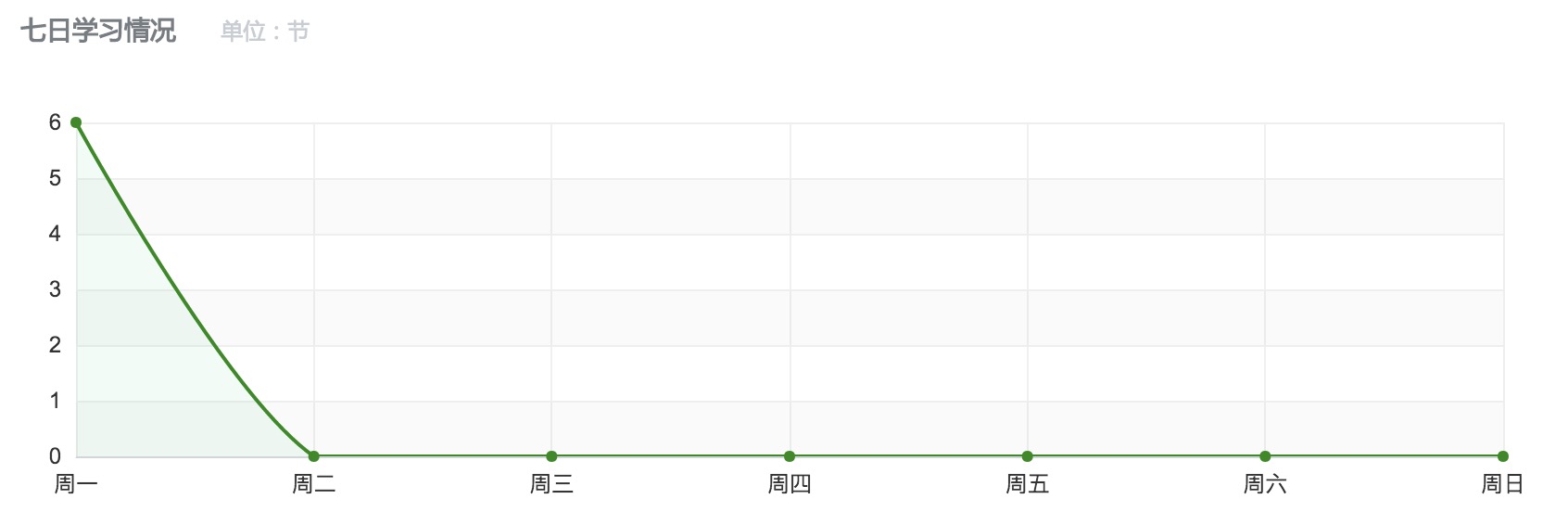
周末在逛慕课网的时候,看到了一张学习计划报告图,详细记录了自己一周的学习情况,天天都是0节课啊!正好在学习Android自定义View,于是就想着自己去写了一个,这里先给出一张慕课网的图,和自己的效果图。

yissan的博客,未经允许严禁转载 http://blog.csdn.net/yissan
2、实现分析
我们要实现这样一个折线统计图,必要的信息主要有下面几个
先看纵轴,纵轴需要的信息有最大值,还有用来确定每个间距代表的单位,比如最大值是100,我们还要有一个将值分为几份的数据。
接下来看横轴,因为横轴的信息一般是文字,不能像数字通过累加就可以得到,所以直接保存一个字符串数组变量。
然后就到了折线了,画折线只需要每个横轴单位的纵轴数据y坐标确定然后连接起来就ok了,这里只需要根据左边的单位的间距和每个单位的值就可以获取到y的具体坐标。
那么总结起来就需要:
1、纵轴最大值
2、纵轴分割数量
3、纵轴每个小单位的值 通过 最大值/分割数量计算
4、用来横轴显示的数组
5、横轴间距、纵轴间距
6、具体的数组(用来画折线)
有了上面的信息就可以去draw了,下面开始具体的自定义View步骤讲解
3、具体实现
在之前的文章,写过一篇介绍了自定义的步骤的文章——一起来学习Android自定义控件1,我们就按照这个步骤来讲解说明。
(1) 创建View
主要确定该继承View还是一些特定的View,定义和获取属性、添加设置属性方法。
定义属性
<?xml version="1.0" encoding="utf-8"?>

<resources>

    <declare-styleable name="StatisticsView">

        <attr name="maxValue" format="integer"></attr>

        <attr name="dividerCount" format="integer"></attr>

        <attr name="title" format="integer"></attr>

        <attr name="lineColor" format="color"></attr>

        <attr name="textColor" format="color"></attr>

        <attr name="pathColor" format="color"></attr>

    </declare-styleable>

</resources>
在构造方法中获取属性
public class StatisticsView extends View {

    //画横纵轴

    private Paint mBorderPaint;

    //画坐标点的圆心

    private Paint circlePaint;

    //画折线图

    private Paint mPathPaint;

    private Path mPath;

    //纵轴最大值

    private int maxValue = 100;

    //纵轴分割数量

    private int dividerCount = 10;

    private String title = "七日学习情况(单位节)";

    //纵轴每个单位值

    private int perValue = maxValue/dividerCount;

    //底部显示String

    private String[] bottomStr = {};

    //具体的值

    private float[] values = {};

    //底部横轴单位间距

    private float bottomGap;

    //左边纵轴间距

    private float leftGap;

    private TextPaint textPaint;

    public void setValues(float[] values) {

        this.values = values;

        invalidate();

    }

    public void setBottomStr(String[] bottomStr) {

        this.bottomStr = bottomStr;

        requestLayout();

    }

    public StatisticsView(Context context) {

        super(context);

    }

    public StatisticsView(Context context, AttributeSet attrs) {

        this(context, attrs,0);

    }

	public StatisticsView(Context context, AttributeSet attrs, int defStyleAttr) {

        super(context, attrs, defStyleAttr);

        TypedArray array = context.obtainStyledAttributes(attrs, R.styleable.StatisticsView);

        maxValue =array.getInt(R.styleable.StatisticsView_maxValue,100);

        dividerCount = array.getInt(R.styleable.StatisticsView_dividerCount,10);

        title = array.getString(R.styleable.StatisticsView_title);

        int lineColor = array.getColor(R.styleable.StatisticsView_lineColor,Color.BLACK);

        int textColor =array.getColor(R.styleable.StatisticsView_textColor,Color.BLACK);

        mBorderPaint = new Paint();

        circlePaint = new Paint();

        mPathPaint = new Paint();

        mBorderPaint.setAntiAlias(true);

        mBorderPaint.setColor(lineColor);

        mBorderPaint.setStrokeWidth(1);

        mBorderPaint.setStyle(Paint.Style.STROKE);

        mPathPaint.setAntiAlias(true);

        mPathPaint.setStyle(Paint.Style.STROKE);

        mPathPaint.setStrokeWidth(3);

        textPaint = new TextPaint();

        textPaint.setColor(textColor);

        textPaint.setTextSize(dip2px(getContext(),12));

        mPath = new Path();

        circlePaint.setStyle(Paint.Style.FILL);

        circlePaint.setAntiAlias(true);

        array.recycle();

    }

}
上面的代码简单的获取到了属性、初始化了一些信息。同时对外提供了设置values值的方法
(2)处理View的布局
处理布局首先考虑的是根据需要重写onMeasure方法。这里为了简单就直接让wrap_content的情况下直接宽高相等。当然你也可以有一个代表每个间距宽高的属性,然后去计算wrap_content下的宽高。
 @Override

    protected void onMeasure(int widthMeasureSpec, int heightMeasureSpec) {

        int widthMode = MeasureSpec.getMode(widthMeasureSpec);

        int widthSize = MeasureSpec.getSize(widthMeasureSpec);

        int heightMode = MeasureSpec.getMode(heightMeasureSpec);

        int heightSize = MeasureSpec.getSize(heightMeasureSpec);

        if (widthMode==MeasureSpec.EXACTLY&&heightMode==MeasureSpec.EXACTLY){

            setMeasuredDimension(widthSize,heightSize);

        }else if (widthMeasureSpec==MeasureSpec.EXACTLY){

            setMeasuredDimension(widthSize,widthSize);

        }else if (heightMeasureSpec==MeasureSpec.EXACTLY){

            setMeasuredDimension(heightSize,heightSize);

        }

    }
由于在draw的时候要确定横轴的单位间距,我们需要获取它,一般我们获取值可以在onSizeChange方法中获取,但是由于我们底部的gap需要根据要显示几个来确定。但是才开始的时候bottomStr[]的length为0,之后通过set方法为bottomStr设置不会再次调用onSizeChange。bottomGap就会是最开始的值,这样效果会出问题,所以就在onLayout方法中获取。
    @Override

    protected void onLayout(boolean changed, int left, int top, int right, int bottom) {

        bottomGap = getWidth()/(bottomStr.length+1);

        leftGap = getHeight()/(dividerCount+2);

        super.onLayout(changed, left, top, right, bottom);

    }
(3)、绘制View(Draw)
接下来就可以实现onDraw()来绘制View了
@Override

    protected void onDraw(Canvas canvas) {

        super.onDraw(canvas);

        if (bottomStr==null||bottomStr.length==0){

            return;

        }

        //画左边的线

        canvas.drawLine(bottomGap,getHeight()-leftGap,bottomGap,leftGap,mBorderPaint);

        float fontHeight =(textPaint.getFontMetrics().descent-textPaint.getFontMetrics().ascent);

        //画下边线

        canvas.drawLine(bottomGap,getHeight()-leftGap,getWidth()-bottomGap,getHeight()-leftGap,mBorderPaint);

        for (int i = 1;i<=bottomStr.length;i++){

            canvas.drawCircle(i*bottomGap,getHeight()-leftGap,6,circlePaint);

            canvas.drawText(bottomStr[i-1],i*bottomGap-(textPaint.measureText(bottomStr[i-1])/2),getHeight()-leftGap/2+fontHeight/2,textPaint);

        }

        canvas.drawText(title,bottomGap,leftGap/2,textPaint);

        for (int i = 1;i<=dividerCount+1;i++){

             //画左边的字

            canvas.drawText(perValue*(i-1)+"",bottomGap/2-(textPaint.measureText(perValue*(i-1)+"")/2),(((dividerCount+2-i)))*leftGap+fontHeight/2,textPaint);

            //画横线

            canvas.drawLine(bottomGap,getHeight()-((i)*leftGap),getWidth()-bottomGap,getHeight()-((i)*leftGap),mBorderPaint);

        }

        /**

         * 画轨迹

         * y的坐标点根据 y/leftGap = values[i]/perValue 计算

         *

         */

        for (int i = 0;i<values.length;i++){

            if (i==0){

                mPath.moveTo(bottomGap,(dividerCount+1)*leftGap-(values[i]*leftGap/perValue));

            }else{

                mPath.lineTo((i+1)*bottomGap,(dividerCount+1)*leftGap-(values[i]*leftGap/perValue));

            }

            /**

             * 画轨迹圆点

             */

            canvas.drawCircle((i+1)*bottomGap,(dividerCount+1)*leftGap-(values[i]*leftGap/perValue),6,circlePaint);

        }

        canvas.drawPath(mPath,mPathPaint);

    }

    public static int dip2px(Context context, float dpValue) {

        final float scale = context.getResources().getDisplayMetrics().density;

        return (int) (dpValue * scale + 0.5f);

    }
代码都加了注释,主要是一些计算,还有drawLine,drawPath,drawText,以及获取text宽高的一些知识。
yissan的博客,未经允许严禁转载 http://blog.csdn.net/yissan
4、使用
声明View,然后在Activity里获取View并且调用setBottomStr和setValues方法
<com.qiangyu.test.statisticsview.view.StatisticsView

        android:id="@+id/statisticsView"

        android:layout_width="match_parent"

        android:layout_height="300dp"

        app:viewTitle="七日学习情况(单位 节)"/>
 public void invalidate(View view) {

        this.view.setBottomStr(new String[]{"星期一","星期二","星期三","星期四","星期五","星期六","星期天"});

        this.view.setValues(new float[]{10f,90f,33f,66f,42f,99f,0f});

    }
再来一张效果图

5、总结
自定义View就是多练,看到一个喜欢的效果,想不想能不能自己的画一个,时间久了,相信我们都可以轻松的写出很好的自定义View
因为最近工作有点忙,所以很多地方不完善。在这里分享一下,希望大家喜欢。
Android自定义View4——统计图View的更多相关文章
- Android 自定义View及其在布局文件中的使用示例
前言: 尽管Android已经为我们提供了一套丰富的控件,如:Button,ImageView,TextView,EditText等众多控件,但是,有时候在项目开发过程中,还是需要开发者自定义一些需要 ...
- Android自定义View 画弧形,文字,并增加动画效果
一个简单的Android自定义View的demo,画弧形,文字,开启一个多线程更新ui界面,在子线程更新ui是不允许的,但是View提供了方法,让我们来了解下吧. 1.封装一个抽象的View类 B ...
- (转)[原] Android 自定义View 密码框 例子
遵从准则 暴露您view中所有影响可见外观的属性或者行为. 通过XML添加和设置样式 通过元素的属性来控制其外观和行为,支持和重要事件交流的事件监听器 详细步骤见:Android 自定义View步骤 ...
- Android 自定义View合集
自定义控件学习 https://github.com/GcsSloop/AndroidNote/tree/master/CustomView 小良自定义控件合集 https://github.com/ ...
- Android 自定义View (五)——实践
前言: 前面已经介绍了<Android 自定义 view(四)-- onMeasure 方法理解>,那么这次我们就来小实践下吧 任务: 公司现有两个任务需要我完成 (1)监测液化天然气液压 ...
- Android 自定义 view(四)—— onMeasure 方法理解
前言: 前面我们已经学过<Android 自定义 view(三)-- onDraw 方法理解>,那么接下我们还需要继续去理解自定义view里面的onMeasure 方法 推荐文章: htt ...
- Android 自定义 view(三)—— onDraw 方法理解
前言: 上一篇已经介绍了用自己定义的属性怎么简单定义一个view<Android 自定义view(二) -- attr 使用>,那么接下来我们继续深究自定义view,下一步将要去简单理解自 ...
- Android 自定义view(二) —— attr 使用
前言: attr 在前一篇文章<Android 自定义view -- attr理解>已经简单的进行了介绍和创建,那么这篇文章就来一步步说说attr的简单使用吧 自定义view简单实现步骤 ...
- Android 自定义View
Android 自定义View流程中的几个方法解析: onFinishInflate():从布局文件.xml加载完组件后回调 onMeasure() :调用该方法负责测量组件大小 onSizeChan ...
随机推荐
- 【原创】开源Math.NET基础数学类库使用(17)C#计算矩阵条件数
本博客所有文章分类的总目录:[总目录]本博客博文总目录-实时更新 开源Math.NET基础数学类库使用总目录:[目录]开源Math.NET基础数学类库使用总目录 上个月 ...
- 【商业源码】生日大放送-Newlife商业源码分享
今天是农历六月二十三,是@大石头的生日,记得每年生日都会有很劲爆的重量级源码送出,今天Newlife群和论坛又一次疯狂了,吃水不忘挖井人,好的东西肯定要拿到博客园分享.Newlife组件信息: 论坛: ...
- 通过setTimeout来取消因大量计算造成的网页卡顿
js是单线程的,所以有些大量计算的操作会占用线程资源,导致页面卡住. 今天遇到这样一个场景,选择一个下拉框之后,对数据进行筛选,这个过程中有大量计算,点了selecte的option之后,option ...
- 【记录】xUnit for vs2012/vs2013
关于 NUint 以及单元测试的相关内容,可以参考:[单元测试]NUint使用详解及Visual Studio配置. xUnit 是 NUint 的进化版本,使用方法和 NUint 类似,首先下载安装 ...
- 小菜学习编程-Winform系列(初学者)
前言 记得上次写<小菜的程序员道路(二)>,这篇文章的时候说过,要把工作以来整理的编程知识分享给大家,因为这半年来的工作实在是忙,现在也在忙着公司产品上线,但是答应的一定要实现,大家看我上 ...
- PHP类的原理
一.类的实现 类的内部存储结构: struct _zend_class_entry { char type; // 类型:ZEND_INTERNAL_CLASS / ZEND_USER_CLASS c ...
- JavaScript代码模块化的正规方法
RequireJS-CommonJS-AMD-ES6 Import/Export详解 为什么起了一个这个抽象的名字呢,一下子提了四个名词分别是:RequireJS,CommonJS,AMD,ES6,答 ...
- 从零开始学习jQuery (三) 管理jQuery包装集
本系列文章导航 从零开始学习jQuery (三) 管理jQuery包装集 一.摘要 在使用jQuery选择器获取到jQuery包装集后, 我们需要对其进行操作. 本章首先讲解如何动态的创建元素, 接着 ...
- cacert.pem
## ## Bundle of CA Root Certificates ## ## Certificate data from Mozilla as of: Wed Sep 14 03:12:05 ...
- 关系数据库SQL之基本数据查询:子查询、分组查询、模糊查询
前言 上一篇关系数据库常用SQL语句语法大全主要是关系型数据库大体结构,本文细说一下关系型数据库查询的SQL语法. 语法回顾 SELECT [ALL|DISTINCT] <目标列表达式>[ ...