
Managing IIS Log File Storage
Managing IIS Log File Storage
You can manage the amount of server disk space that Internet Information Services (IIS) log files consume by using compression, remote storage, scripted deletion, and an IIS Log Cleaner Tool.
Overview
The log files that IIS generates can, over time, consume a large amount of disk space. Logs can potentially fill up an entire hard drive. To mitigate this problem, many users turn off logging completely. Fortunately, there are alternatives to doing so, such as the following:
- Enable folder compression
- Move the log folder to a remote system
- Delete old log files by script.
- Delete old log files by the IIS Log File Cleaner.
The above mitigations are described in the sections below. You may also want to do the following to control disk usage:
- Limit log size by omitting unneeded property fields
- Create separate logs for Web sites and applications
- Preserve memory resources by using centralized binary logging.
For more information, see Configuring Logging in IIS.
Enable Folder Compression
IIS log files compress to about 2% of their original size. Enable compression of a log file as follows. You must be an administrator to perform this procedure.
- Click the File Manager icon in the icon bar.
- Move to the folder containing IIS log files (by default, %SystemDrive%\inetpub\logs\LogFiles).
- Right-click on the folder and click Properties.
- On the General tab of the Properties page, click Advanced.
- Click Compress contents to save disk space, and then click OK.
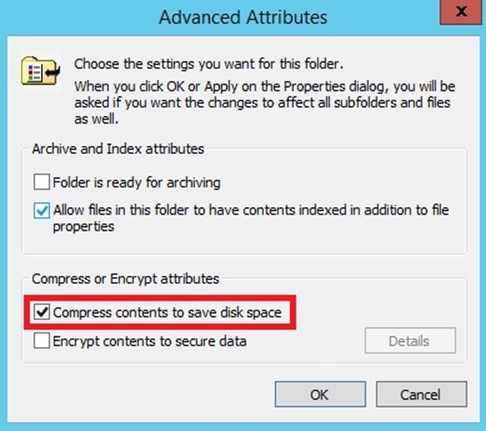
- Click Apply, and then select whether to compress the folder only, or the folder, its subfolders, and its files.
- Click OK. Verify that the folder contents are compressed. The name of the folder and the name of each file should be colored blue, and the size of a compression file should be smaller.
This is a simple way to lower disk usage. It is not a final solution, however, because disk usage still grows over time, and could eventually fill up the hard drive.
If the folder already contains a significant amount of data, it could take the computer a while to compress its contents. Also note that this one-time process could slow down the computer during the initial compression, so if this is a production server, perform this operation during off-peak hours to prevent service degradation.
Move the Log Folder to a Remote System
IIS log files are stored by default in the %SystemDrive%\inetpub\logs\LogFiles folder of your IIS server. The folder is configured in the Directory property on the Logging page for either the server or an individual site. To lessen the problem of log disk usage, you can move your IIS log files to a folder on another server that has more space. This server can either be in the same domain as the local IIS server, or a different domain. You can save log files remotely either for the entire server or for individual Web sites.
This solution can help the security of the system, because if a local hard drive crashes, the log data is still available on remote storage. In addition, the log files can be consumed by analysis systems.
Change the location of an IIS log file to a remote share as follows:
- Create a log-file directory on a remote server that is in the same domain as your local Web server running IIS.
- In the folder's Properties page, on the Sharing tab, click Share so that the directory is shared. On the Security tab, assign groups and users with the appropriate permissions. Ensure that the appropriate groups and users are able to read and write to the log files.
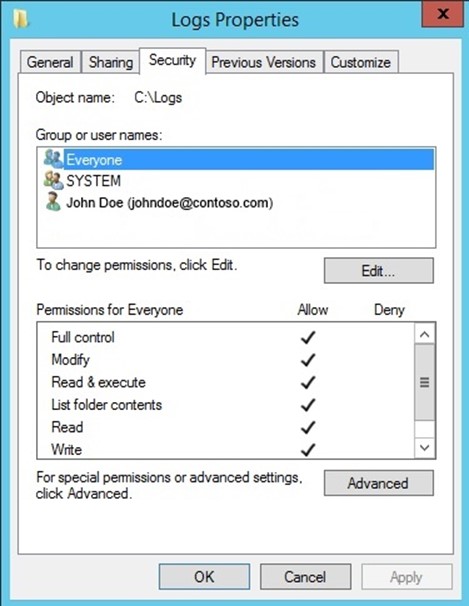
For more information, see Configuring Permissions for Remote Logging.
Note: If you want to write log files to a remote server in a different domain, see Setting Up a Null Session for Cross-Domain Logging.
- Open IIS Manager on your local Web server.
- In IIS Manager, in the Connections pane, click the server or a Web site.
- Double-click Logging.

- In the Directory text box, enter the full UNC path of the directory that you created on the remote server. For example, type \\servername\Logs, where "servername" represents the name of the remote server, and "Logs" represents the name of the share where the log files are stored.
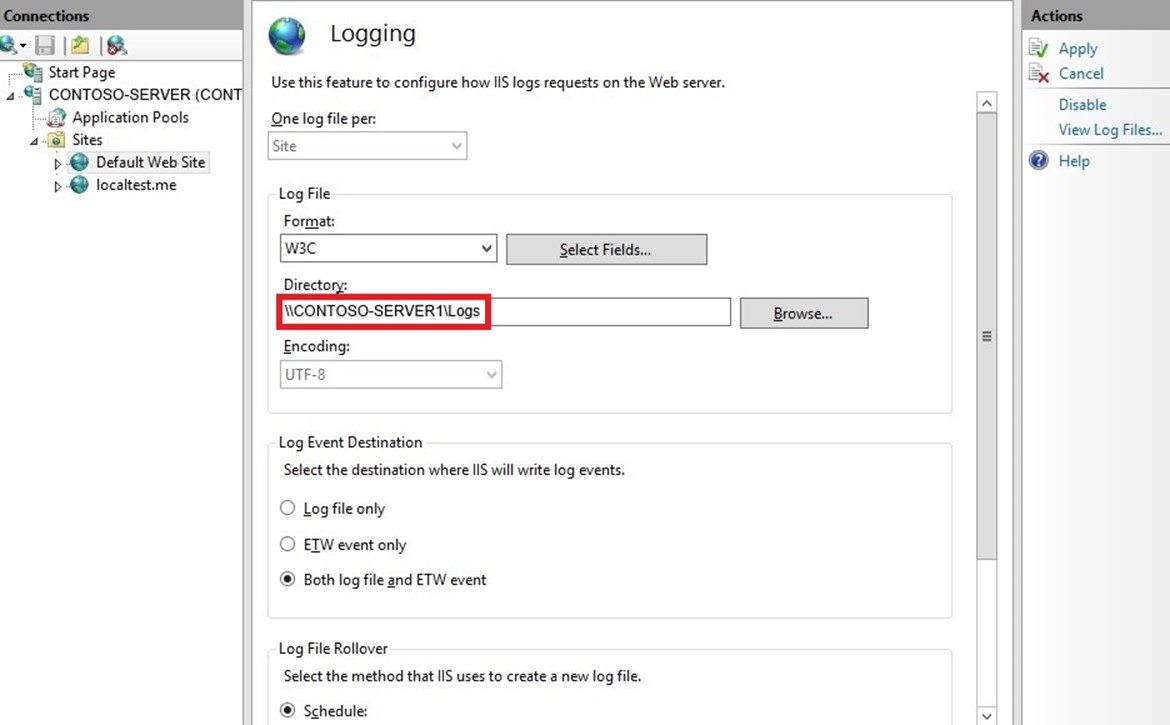
- In the Actions pane, click Apply, and then click OK. All Web sites within the directory should begin logging data to the remote share.
For more information, see Remote Logging.
Delete Old Log Files by Script
You can control disk usage of log files by running a script that automatically deletes log files that are older than a certain age. Running this script in a scheduled task will keep the problem of a disk filling up under control without constant maintenance.
The following VBScript will check the age of each log file in a folder and will delete any log file older than a specified age. To customize the script for your purposes, simply change the name and path of the folder in line 1 of the script, and change the maximum age to the desired value in days, in line 2.
sLogFolder = "c:\inetpub\logs\LogFiles"
iMaxAge = 30

							'in days
Set objFSO = CreateObject("Scripting.FileSystemObject")
set colFolder = objFSO.GetFolder(sLogFolder)
For

						Each colSubfolder in colFolder.SubFolders
Set objFolder = objFSO.GetFolder(colSubfolder.Path)
Set colFiles = objFolder.Files
					For

							Each objFile in colFiles
iFileAge = now-objFile.DateCreated
if iFileAge > (iMaxAge+1) then
objFSO.deletefile objFile, True
					end

							if
Next
Next
The script above will scan all subfolders, so it will process logs for ALL sites in and under the folder specified. If you want to limit the process to just a single site, change the path appropriately.
To run the script manually, execute the following script in an administrator command line:
cscript.exe c:\scripts\retentionscript.vbs
Using a script to delete log files is a long-term, reliable solution to the problem of log files consuming disk space. If you automate the process, as shown below, it doesn't require constant maintenance.
RUN THE SCRIPT AS A SCHEDULED TASK
You can automate the task of deleting log files by script by creating a Windows task schedule to run the script periodically. You can schedule the script to run at any time using the Windows Task Scheduler. How you configure the scheduled task should be coordinated with the configuration of the log file rollover options.
- Open Server Manager, click the Tools menu, and then click Task Scheduler.
- In the Actions pane of the Task Scheduler dialog box, click Create Task.

- On the General tab of the Create Task dialog box, enter a name for the task, such as "Delete Log Files". Set the security properties, selecting a user account with sufficient privileges to run the script.
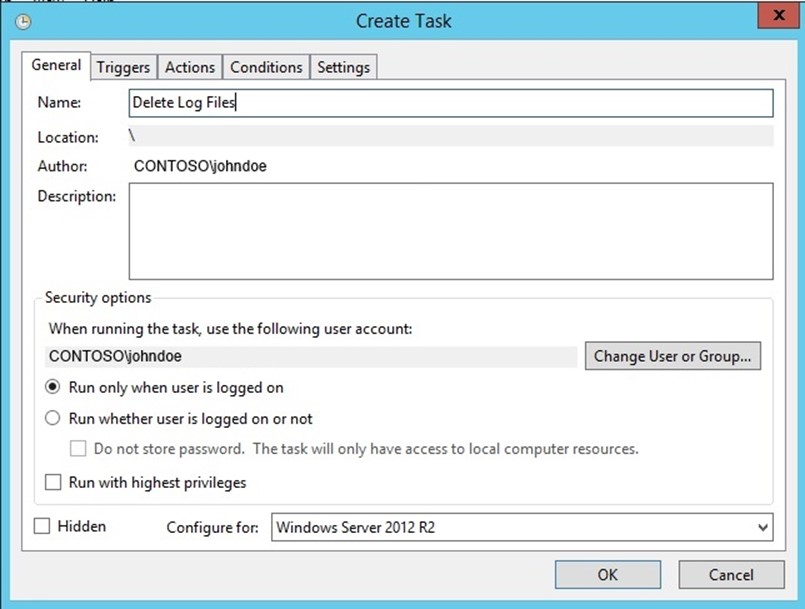
- Click the Triggers tab, and then click New. In the New Trigger dialog box, set Begin the task to On a schedule. Select the periodicity, for example, Daily. Enter the Start date, select more advanced settings, and ensure that Enabled is selected if you are ready to initiate the schedule. Click OK.

- Click the Actions tab, and then click New. In the New Action dialog box, select a value for Action, in this case, Start a program. In Program/script, enter cscript, and in Add arguments (optional), enter the path and name of the script file, for example, "C:\iis\Log_File_Deletion.vbs". Click OK.

- Click OK.
- Verify that the task has been added to the Active Tasks pane.
- Right-click on the new task, and select Run.
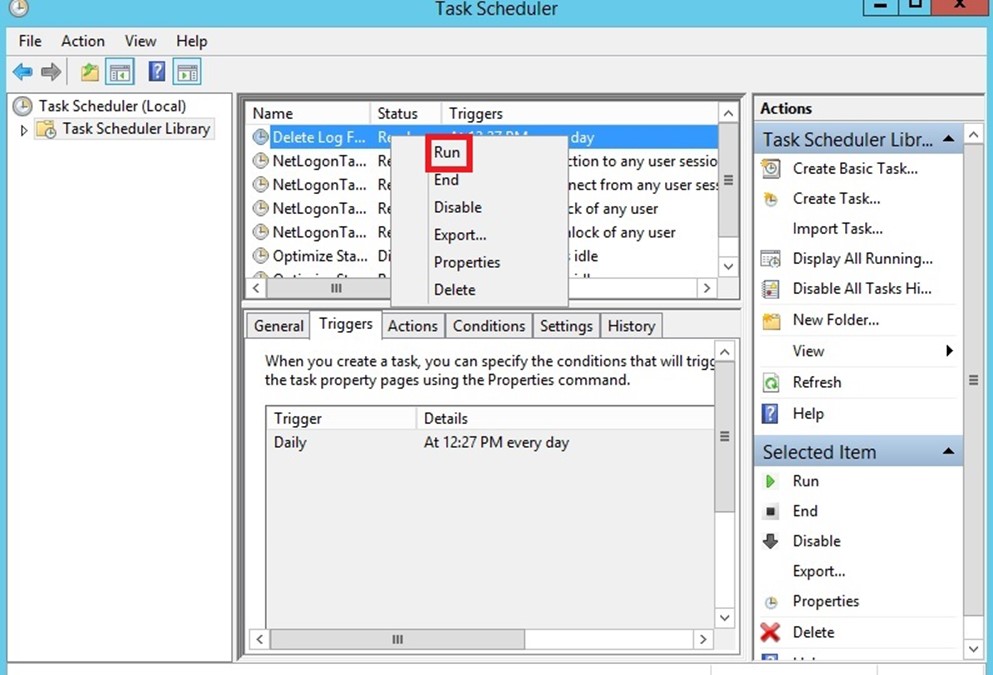
- Navigate to the folder that the script ran on, and verify that the appropriate log files were deleted.
- Navigate back to the Task Scheduler, right-click on the task, and click End so the status returns to Ready and the task is ready for scheduled runs.
Delete Old Log Files by the IIS Log Cleaner Tool
IIS Log Cleaner is a simple tool for enacting a log retention policy for IIS. The tool runs in the background (once every hour) and cleans up the IIS log folder automatically, deleting log files older than a maximum age that you set. The log files are moved to the Recycle bin to avoid potential data loss. You can also run the cleaning process manually, and you can pause the automated process.
This is a third-party tool that is not supported by Microsoft.
CLEANER TOOL FILES
The IIS Log Cleaner consists of the following:
- The IISLogCleaner.exe application that executes the log cleaning process. The application is stored in a local folder that you select when you download the tool.
- The settings.txt file that specifies the log file folder to be cleaned and the maximum age at which a log file is deleted. The default settings are the default IIS log folder (c:\inetpub\logs\LogFiles), and a maximum age (in days) of 30. These settings are configurable by either opening settings.txt in a text editor or by using a command in the notification area (see below). The settings.txt file is created automatically when IISLogCleaner.exe is first run. The settings.txt file is stored in the same folder as IISLogCleaner.exe.
- The IIS Log Cleaner icon in the notification area (labeled IIS). Right-clicking the IIS notification icon displays a list of action commands and status settings:
- Clean Now executes the cleaning process immediately instead of on a timed basis.
- Paused stops the automated cleaning process. If Paused is selected, you can click it to re-start the automated cleaning process.
- Settings enables you to configure the settings in settings.txt.
- Exit to exit the tool.
USE THE CLEANER TOOL
To download, configure, and run the IIS Log Cleaner tool, proceed as follows:
- Download the executable by executing http://www.erezbenari.com/IISLogCleaner.exe and saving the executable in a folder of your choice on the server (there is no installer).
- Click through the security popups.
- Execute IISLogCleaner.exe in the folder. This creates the settings.txt file in the same folder.
- To make changes to the settings.txt file, open the file with a text editor, or right-click the IIS icon in the notification area, and then click Settings.
- If you change the settings file, exit the tool by right-clicking the IIS notification icon and then clicking Exit, and then launch the tool again.
- Right-click the IIS icon in the notifications area, and then click Paused to un-pause the application.
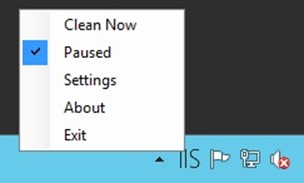
- The application will run once an hour and move log files older than the specified period to the recycle bin. To run the cleaning tool manually, right-click the IIS icon in the notifications area, and then click Clean Now.
- Optionally, adjust the recycle bin size to control how much log data is kept before being purged from the recycle bin by the operating system.
Usage notes:
- The application is set by default for the IIS root log folder, so it will scan the logs for all sites (all subfolders). If you want it to clean up only a specific site, point it at the site's folder.
- The application will only move files with the .LOG extension.
- The application is not a service, so the user must remain logged on to use it.
- The application requires that the logged-on user have write permissions to the log folder to work correctly.
- If the system is restarted, the application needs to be re-run. You can drag it to your Startup folder to make it run on boot.
From: https://www.iis.net/learn/manage/provisioning-and-managing-iis/managing-iis-log-file-storage
Managing IIS Log File Storage的更多相关文章
- 自动清理IIS log 日志脚本
系统环境:windows server 2012 r2 IIS 版本:IIS8 操作实现清理IIS log File 脚本如下: @echo off ::自动清理IIS Log file set lo ...
- Azure File Storage 基本用法 -- Azure Storage 之 File
Azure Storage 是微软 Azure 云提供的云端存储解决方案,当前支持的存储类型有 Blob.Queue.File 和 Table. 笔者在<Azure Blob Storage 基 ...
- InnoDB log file 设置多大合适?
简介: 数据库的东西,往往一个参数就牵涉N多知识点.所以简单的说一下.大家都知道innodb是支持事务的存储引擎.事务的四个特性ACID即原子性(atomicity),一致性(consistency) ...
- Azure 基础:File Storage
Azure Storage 是微软 Azure 云提供的云端存储解决方案,当前支持的存储类型有 Blob.Queue.File 和 Table. 笔者在前文中介绍了 Blob Storage 的基本用 ...
- InnoDB: Error: log file .\ib_logfile0 is of different size 0 10485760 bytes
启动WAMP Server的时候报例如以下的错误: 140618 23:12:32 [Note] Plugin 'FEDERATED' is disabled. 140618 23:12:32 Inn ...
- Step by Step Process of Migrating non-CDBs and PDBs Using ASM for File Storage (Doc ID 1576755.1)
Step by Step Process of Migrating non-CDBs and PDBs Using ASM for File Storage (Doc ID 1576755.1) AP ...
- 如何利用 WPS Office 进行 IIS Log 分析
找到 IIS Log 打开 Internet Information Service (IIS) Manager 点击左侧 Connections > Sites,在右侧 Sites 列表中定位 ...
- 由于Replication,DBCC Shrink不能收缩Log File
使用Backup创建测试环境之后,发现testdb的Log File过大,达到400GB,由于测试环境实际上不需要这么大的Log Space,占用400GB的Disk Space实在浪费Disk Re ...
- ORACLE等待事件: log file parallel write
log file parallel write概念介绍 log file parallel write 事件是LGWR进程专属的等待事件,发生在LGWR将日志缓冲区(log_buffer)中的重做日志 ...
随机推荐
- jsp添加背景音乐
在<head></head>间假如标签<embed src="文件地址" loop="11" autostar="tru ...
- android模拟器停在Waiting for HOME解决方案
直接打开Android SDK Manager然后再从Android SDK Manager里的tools打开Android AVD Manager,删除掉在Eclipse里创建的模拟器.并在新建一个 ...
- springmvc--json--返回json的日期格式问题
(一)输出json数据 springmvc中使用jackson-mapper-asl即可进行json输出,在配置上有几点: 1.使用mvc:annotation-driven 2.在依赖管理中添加ja ...
- 如何使用Chrome Timeline 工具(译)
[原文地址]https://developers.google.com/web/tools/chrome-devtools/profile/evaluate-performance/timeline- ...
- bug_ _ _常见的bug??
======= 7 Failure [INSTALL_FAILED_INVALID_APK] 执行 adb install -r test.apk.时出现错误 Failure [INSTAL ...
- 开发安卓应用之中兴手机与macbook pro 连接设定
目标: 把中兴手机和macbook pro 连接在一起,实现真机调试安卓应用. 工具: 手机型号:zte v956 mac os: OS X 10 Eclipse: Android Developer ...
- 每天一个 Linux 命令(19):find 命令概览
Linux下find命令在目录结构中搜索文件,并执行指定的操作.Linux下find命令提供了相当多的查找条件,功能很强大.由于find具有强大的功能,所以它的选项也很多,其中大部分选项都值得我们花时 ...
- FastDFS文件系统(二) fastdfs和其他文件系统区别
FastDFS文件系统(二) fastdfs和其他文件系统区别 一.概述 普通存储方案:Rsync.DAS(IDE/SATA/SAS/SCSI等块).NAS(NFS.CIFS.SAMBA等文件系统). ...
- Windows Update 时出现8024402C的错误
8024402C通常网络设置引起的问题. 你可以以管理员身份运行命令提示符,然后尝试以下操作: NETSH INT IP RESET NETSH WINHTTP RESET PROXY IPCONFI ...
- (原)android4.2以后获取应用程序和缓存大小的方法(源码有改变)
以前获取应用的大小是用 PackageManager mPackageManager= getPackageManager(); try {Method getPackageSizeInfoMetho ...