
Android实现图片一边的三角形边框
在每一个图片的某一侧都可以展示出一个三角形的边框视图,就是咱们的三角形标签视图。这个视图在电商类APP当中比较常用,使用过ebay的同学应该都还记得有些商品的左上角或者右上角都会显示一个三角形的边框,用于给人一个直观的商品正在促销,或者刚刚上线的直观感受。我们可以看看实现后的效果如下:
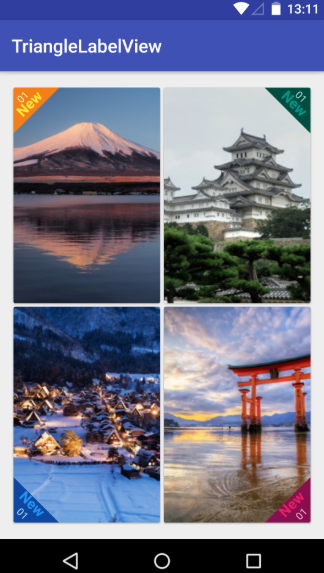
在真实的APP当中,我们还会加上一个SrcollView控件,这样子才可以进行不断地上下浏览。我们这里主要是为了让大家明白这个视图是该如何实现的,就不演示SrcollView控件下的做法了,直接在线性布局下做一个简单的说明。由于在线性布局上面一共具有四张图,因此咱们可以先单独编写每一个imageview的自定义view,然后<include>的语法将他们组合起来,这样可以提高UI开发的效率,进行协同工作与开发。首先咱们先实现左上角和右上角的triangle view.
在build.gradle文件当中相应地方添加如下代码,导入相应的maven库:
allprojects {

        repositories {

            ...

            maven { url "https://jitpack.io" }

        }

}
之后在另一个build.gradle文件当中添加库:
dependencies {

            implementation 'com.github.shts:TriangleLabelView:1.1.2'

    }
咱们的前期工作就这样做好啦,现在就开始正式编写咱们的每一个三角形边框视图啦,首先是第一个位于左上角的视图
一.card_left_top.xml:
<?xml version="1.0" encoding="utf-8"?>

<android.support.v7.widget.CardView xmlns:android="http://schemas.android.com/apk/res/android"

    xmlns:app="http://schemas.android.com/apk/res-auto"

    android:layout_width="match_parent"

    android:layout_height="match_parent">

    <RelativeLayout

        android:layout_width="match_parent"

        android:layout_height="match_parent">

        <ImageView

            android:id="@+id/image"

            android:scaleType="centerCrop"

            android:src="@drawable/s_image_2"

            android:layout_width="match_parent"

            android:layout_height="match_parent" />

        <jp.shts.android.library.TriangleLabelView

            android:layout_width="match_parent"

            android:layout_height="match_parent"

            android:layout_alignParentLeft="true"

            android:layout_alignParentTop="true"

            app:backgroundColor="@color/yellow_900"

            app:corner="leftTop"

            app:labelBottomPadding="5dp"

            app:labelCenterPadding="0dp"

            app:labelTopPadding="10dp"

            app:primaryText="New"

            app:primaryTextColor="@color/yellow_500"

            app:primaryTextSize="16sp"

            app:secondaryText="01"

            app:secondaryTextColor="@color/yellow_100"

            app:secondaryTextSize="11sp" />

    </RelativeLayout>

</android.support.v7.widget.CardView>
编写好后在preview当中显示如下:

下面是位于右上角的视图
二.card_right_top.xml:
<?xml version="1.0" encoding="utf-8"?>

<android.support.v7.widget.CardView xmlns:android="http://schemas.android.com/apk/res/android"

    xmlns:app="http://schemas.android.com/apk/res-auto"

    android:layout_width="match_parent"

    android:layout_height="match_parent">

    <RelativeLayout

        android:layout_width="match_parent"

        android:layout_height="match_parent">

        <ImageView

            android:id="@+id/image"

            android:scaleType="centerCrop"

            android:src="@drawable/s_image_4"

            android:layout_width="match_parent"

            android:layout_height="match_parent" />

        <jp.shts.android.library.TriangleLabelView

            android:layout_width="match_parent"

            android:layout_height="match_parent"

            android:layout_alignParentRight="true"

            android:layout_alignParentTop="true"

            app:backgroundColor="@color/teal_900"

            app:corner="rightTop"

            app:labelBottomPadding="5dp"

            app:labelCenterPadding="0dp"

            app:labelTopPadding="10dp"

            app:primaryText="New"

            app:primaryTextColor="@color/teal_500"

            app:primaryTextSize="16sp"

            app:secondaryText="01"

            app:secondaryTextColor="@color/teal_100"

            app:secondaryTextSize="11sp" />

    </RelativeLayout>

</android.support.v7.widget.CardView>
三.card_right_buttom.xml:
<?xml version="1.0" encoding="utf-8"?>

<android.support.v7.widget.CardView xmlns:android="http://schemas.android.com/apk/res/android"

    xmlns:app="http://schemas.android.com/apk/res-auto"

    android:layout_width="match_parent"

    android:layout_height="match_parent">

    <RelativeLayout

        android:layout_width="match_parent"

        android:layout_height="match_parent">

        <ImageView

            android:id="@+id/image"

            android:scaleType="centerCrop"

            android:src="@drawable/s_image_3"

            android:layout_width="match_parent"

            android:layout_height="match_parent" />

        <jp.shts.android.library.TriangleLabelView

            android:layout_width="match_parent"

            android:layout_height="match_parent"

            android:layout_alignParentRight="true"

            android:layout_alignParentBottom="true"

            app:backgroundColor="@color/pink_900"

            app:corner="rightBottom"

            app:labelTopPadding="10dp"

            app:labelCenterPadding="5dp"

            app:labelBottomPadding="0dp"

            app:primaryText="New"

            app:primaryTextColor="@color/pink_500"

            app:primaryTextSize="16sp"

            app:secondaryText="01"

            app:secondaryTextColor="@color/pink_100"

            app:secondaryTextSize="11sp" />

    </RelativeLayout>

</android.support.v7.widget.CardView>
四.card_left_buttom.xml:
<?xml version="1.0" encoding="utf-8"?>

<android.support.v7.widget.CardView xmlns:android="http://schemas.android.com/apk/res/android"

    xmlns:app="http://schemas.android.com/apk/res-auto"

    android:layout_width="match_parent"

    android:layout_height="match_parent">

    <RelativeLayout

        android:layout_width="match_parent"

        android:layout_height="match_parent">

        <ImageView

            android:id="@+id/image"

            android:src="@drawable/s_image_1"

            android:scaleType="centerCrop"

            android:layout_width="match_parent"

            android:layout_height="match_parent" />

        <jp.shts.android.library.TriangleLabelView

            android:layout_width="match_parent"

            android:layout_height="match_parent"

            android:layout_alignParentLeft="true"

            android:layout_alignParentBottom="true"

            app:backgroundColor="@color/blue_900"

            app:corner="leftBottom"

            app:labelTopPadding="10dp"

            app:labelCenterPadding="5dp"

            app:labelBottomPadding="0dp"

            app:primaryText="New"

            app:primaryTextColor="@color/blue_500"

            app:primaryTextSize="16sp"

            app:secondaryText="01"

            app:secondaryTextColor="@color/blue_100"

            app:secondaryTextSize="11sp" />

    </RelativeLayout>
最后咱们整合一下就OK啦!整合后的主活动的代码为:
五.activity_main.xml:
<?xml version="1.0" encoding="utf-8"?>

<LinearLayout xmlns:android="http://schemas.android.com/apk/res/android"

    xmlns:tools="http://schemas.android.com/tools"

    xmlns:app="http://schemas.android.com/apk/res-auto"

    android:layout_width="match_parent"

    android:layout_height="match_parent"

    android:orientation="vertical"

    tools:context=".Fragment2">

 <LinearLayout

        android:layout_width="match_parent"

        android:layout_height="0dp"

        android:layout_weight="1"

        android:orientation="horizontal">

        <include android:layout_width="0dp"

            android:layout_height="match_parent"

            android:layout_weight="1"

            android:layout_margin="2dp"

            android:id="@+id/left_top" layout="@layout/card_left_top" />

        <include android:layout_width="0dp"

            android:layout_height="match_parent"

            android:layout_weight="1"

            android:layout_margin="2dp"

            android:id="@+id/right_top" layout="@layout/card_right_top" />

    </LinearLayout>

    <LinearLayout

        android:layout_width="match_parent"

        android:layout_height="0dp"

        android:layout_weight="1"

        android:orientation="horizontal">

        <include android:layout_width="0dp"

            android:layout_height="match_parent"

            android:layout_weight="1"

            android:layout_margin="2dp"

            android:id="@+id/left_bottom" layout="@layout/card_left_bottom" />

        <include android:layout_width="0dp"

            android:layout_height="match_parent"

            android:layout_weight="1"

            android:layout_margin="2dp"

            android:id="@+id/right_bottom" layout="@layout/card_right_bottom" />

    </LinearLayout>

</LinearLayout>
完事儿!github源码可以在https://github.com/shts/TriangleLabelView处进行阅读!!!
帅照:
Android实现图片一边的三角形边框的更多相关文章
- Android 给图片 加边框
图片处理时,有时需要为图片加一些边框,下面介绍一种为图片添加简单边框的方法. 基本思路是:将边框图片裁剪成八张小图片(图片大小最好一致,不然后面处理会很麻烦),分别对应左上角,左边,左下角,下边,右下 ...
- Android 给图片加边框
图片处理时,有时需要为图片加一些边框,下面介绍一种为图片添加简单边框的方法. 基本思路是:将边框图片裁剪成八张小图片(图片大小最好一致,不然后面处理会很麻烦),分别对应左上角,左边,左下角,下边,右下 ...
- Android ImageView图片自适应 (转)
网络上下载下来的图片自适应:android:adjustViewBounds="true"(其详细解释在下面)<ImageView android:id=" ...
- Android ImageView图片自适应
网络上下载下来的图片自适应:android:adjustViewBounds="true"(其详细解释在下面) <ImageView android:id=" ...
- Android圆形图片自定义控件
Android圆形图片控件效果图如下: 代码如下: RoundImageView.java package com.dxd.roundimageview; import android.content ...
- Android Imageview 图片居左居右,自定义圆角
android:scaleType="fitStart" 图片靠左不变形显示, android:scaleType=”fitEnd” 图片靠右显示,不变形. 半透明andr ...
- Android圆形图片--自己定义控件
Android圆形图片控件效果图例如以下: 代码例如以下: RoundImageView.java package com.dxd.roundimageview; import android.con ...
- Android压缩图片到100K以下并保持不失真的高效方法
前言:目前一般手机的相机都能达到800万像素,像我的Galaxy Nexus才500万像素,拍摄的照片也有1.5M左右.这么大的照片上传到服务器,不仅浪费流量,同时还浪费时间. 在开发Android企 ...
- 仿优酷Android客户端图片左右滑动(自动滑动)
最终效果: 页面布局main.xml: <?xml version="1.0" encoding="utf-8"?> <LinearLayou ...
随机推荐
- 爬虫之selenium爬取京东商品信息
import json import time from selenium import webdriver """ 发送请求 1.1生成driver对象 2.1窗口最大 ...
- CSPS模拟 86
看见异或两个字就孩怕 T1 按位? T2 这道异或稍水啊233 貌似可以打表找找规律 emm七种转移,有重复刷表 优化一下? T3 skyh已经接了2杯水了(实际情况他已经ak了) cbx开始抬头傻笑 ...
- Hive数据仓库你了解了吗
在工作中我们经常使用的数据库,数据库一般存放的我们系统中常用的数据,一般为百万级别.如果数据量庞大,达到千万级.亿级又需要对他们进行关联运算,该怎么办呢? 前面我们已经介绍了HDFS和MapReduc ...
- 关于发送邮件,错误“命令顺序不正确。 服务器响应为:Error: need EHLO and AUTH first !”问题
最近做了一个小程序,通过QQ邮箱服务器发送邮件, 代码写完后,运行调试,出现“命令顺序不正确. 服务器响应为:Error: need EHLO and AUTH first !”的问题, 上网查询发现 ...
- Java性能分析神器--VisualVM Launcher[1]
Java性能分析神器1--VisualVM Launcher VisualVM 当你日复一日敲代码的时候,当你把各种各样的框架集成到一起的时候,看着大功告成成功运行的日志,有没有那么一丝丝迷茫和惆怅: ...
- html5不能播放视频的方法
html5不能播放视频的方法H5不能播放视频的方法 格式工厂转换成 AVC 注意音频流 采样率和比特率 设置低一点 不然播放会卡住 还有点击播放必须要click 不要用touchstart没效果的
- day1-python条件语句和基本数据类型
一.if 条件语句 1. if 条件语句 if 条件: 代码块 else: 代码块 2. if 支持嵌套 if 1 == 1: if 2 == 2: print("欢迎进入blog1&quo ...
- VS链接文件设置
右键点击文件夹,添加现有项,选中文件,添加为链接 ,点击确定,那么在修改源文件后这个目录的文件也会同步修改.如果更改源文件目录,就需要重新指定一次链接.
- opencv 6 图像轮廓与图像分割修复 1 查找并绘制轮廓 寻找物体的凸包
查找并绘制轮廓 寻找轮廓(findContours)函数 绘制轮廓(drawContours()函数) 基础实例程序:轮廓查找 #include <opencv2/opencv.hpp> ...
- HTTP 协议漫谈
转载出处:HTTP 协议漫谈 简介 网络上已经有不少介绍 HTTP 的好文章,对HTTP的一些细节介绍的比较好,所以本篇文章不会对 HTTP 的细节进行深究,而是从够高和更结构化的角度将 HTTP 协 ...