
class13and14and15_登录窗口
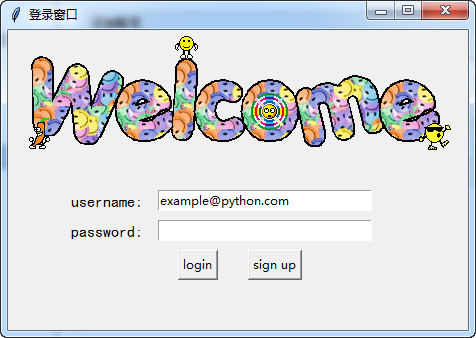
最终的运行效果图(程序见序号6.2):
#!/usr/bin/env python
# -*- coding:utf-8 -*-
# ------------------------------------------------------------
#
# 参考资料:
# 用 python 和 tkinter 做简单的窗口视窗 - 网易云课堂
# https://study.163.com/course/courseLearn.htm?courseId=1003216011#/learn/video?lessonId=1003649337&courseId=1003216011
#
#
# ------------------------------------------------------------
# ******************** class13and14and15_登录窗口 *******************
# ******************** class13and14and15_登录窗口 *******************
# =====>>>>>>内容概览
# =====>>>>>>内容概览# class13and14and15_登录窗口
'''
# ------------------------------------------------------------
# # 1、生成对应窗口,并加载图片
# ------------------------------------------------------------# ------------------------------------------------------------
# # 2、放置登录的标签
# # # 已经实现功能:1、生成对应窗口,并加载图片
# ------------------------------------------------------------# ------------------------------------------------------------
# # 3、放置登录输入信息栏
# # # 已经实现功能:
# # # 1、生成对应窗口,并加载图片
# # # 2、放置登录的标签
# ------------------------------------------------------------# ------------------------------------------------------------
# # 4、放置登录按钮
# # # 已经实现功能:
# # # 1、生成对应窗口,并加载图片
# # # 2、放置登录的标签
# # # 3、放置登录输入信息栏
# ------------------------------------------------------------# ------------------------------------------------------------
# # 5、绑定login 按钮的相关功能
# # # 已经实现功能:
# # # 1、生成对应窗口,并加载图片
# # # 2、放置登录的标签
# # # 3、放置登录输入信息栏
# # # 4、放置登录按钮
# ------------------------------------------------------------# ------------------------------------------------------------
# # 6、绑定sign up 按钮的功能
# # # 已经实现功能:
# # # 1、生成对应窗口,并加载图片
# # # 2、放置登录的标签
# # # 3、放置登录输入信息栏
# # # 4、放置登录按钮
# # # 5、绑定login 按钮的相关功能
# ------------------------------------------------------------# ------------------------------------------------------------
# # 6.1、绑定sign up 按钮的功能, 建立新的sign up窗口
# # # 已经实现功能:
# # # 1、生成对应窗口,并加载图片
# # # 2、放置登录的标签
# # # 3、放置登录输入信息栏
# # # 4、放置登录按钮
# # # 5、绑定login 按钮的相关功能
# # # 6、绑定sign up 按钮的功能
# ------------------------------------------------------------# ------------------------------------------------------------
# # 6.2、完成登录窗口设计
# # # 已经实现功能:
# # # 1、生成对应窗口,并加载图片
# # # 2、放置登录的标签
# # # 3、放置登录输入信息栏
# # # 4、放置登录按钮
# # # 5、绑定login 按钮的相关功能
# # # 6、绑定sign up 按钮的功能
# # # 6.1、绑定sign up 按钮的功能, 建立新的sign up窗口
# ------------------------------------------------------------'''
# ------------------------------------------------分割线-------------------------------------------------
# ------------------------------------------------分割线-------------------------------------------------
# ------------------------------------------------分割线-------------------------------------------------
# ------------------------------------------------分割线-------------------------------------------------

'''

# ------------------------------------------------------------

# # 1、生成对应窗口,并加载图片

# ------------------------------------------------------------

'''

#

# import tkinter as tk

#

# window = tk.Tk()

# window.title("登录窗口")

# window.maxsize(460, 300)

# window.minsize(460, 300)

# # welcom image

# canvas = tk.Canvas(window, width=500, height=200)

# image_file = tk.PhotoImage(file='welcome.gif')

# # 10, 0 表示锚点的横,纵位置;     anchor='nw'表示锚点的位置是左上角

# image = canvas.create_image(10, 0, anchor='nw', image=image_file)

# canvas.pack(side='top')

#

# window.mainloop()

# ------------------------------------------------分割线-------------------------------------------------

'''

# ------------------------------------------------------------

# # 2、放置登录的标签

# # # 已经实现功能:1、生成对应窗口,并加载图片

# ------------------------------------------------------------

'''

# import tkinter as tk

#

# window = tk.Tk()

# window.title("登录窗口")

# window.maxsize(460, 300)

# window.minsize(460, 300)

# # welcom image

# canvas = tk.Canvas(window, width=500, height=200)

# image_file = tk.PhotoImage(file='welcome.gif')

# # 10, 0 表示锚点的横,纵位置;     anchor='nw'表示锚点的位置是左上角

# image = canvas.create_image(10, 0, anchor='nw', image=image_file)

# canvas.pack(side='top')

#

# tk.Label(window, text='username', font=('黑体', 12)).place(x=60, y=160, anchor='nw')

# tk.Label(window, text='password', font=('黑体', 12)).place(x=60, y=190, anchor='nw')

#

# window.mainloop()

#

# ------------------------------------------------分割线-------------------------------------------------

'''

# ------------------------------------------------------------

# # 3、放置登录输入信息栏

# # # 已经实现功能:

# # # 1、生成对应窗口,并加载图片

# # # 2、放置登录的标签

# ------------------------------------------------------------

'''

# import tkinter as tk

#

# window = tk.Tk()

# window.title("登录窗口")

# window.maxsize(460, 300)

# window.minsize(460, 300)

# # welcom image

# canvas = tk.Canvas(window, width=500, height=200)

# image_file = tk.PhotoImage(file='welcome.gif')

# # 10, 0 表示锚点的横,纵位置;     anchor='nw'表示锚点的位置是左上角

# image = canvas.create_image(10, 0, anchor='nw', image=image_file)

# canvas.pack(side='top')

#

# tk.Label(window, text='username', font=('黑体', 12)).place(x=60, y=160, anchor='nw')

# tk.Label(window, text='password', font=('黑体', 12)).place(x=60, y=190, anchor='nw')

#

# # 设置存储的变量

# username = tk.StringVar()

# password = tk.StringVar()

# # 设置登录的输入框,并获取信息

# entry_username = tk.Entry(window, textvariable=username, width=30).place(x=150, y=160, anchor='nw')

# entry_password = tk.Entry(window, textvariable=password, width=30, show='*').place(x=150, y=190, anchor='nw')

# # 初始化 username 的信息

# username.set('example@python.com')

#

# window.mainloop()

#

#

# ------------------------------------------------分割线-------------------------------------------------

'''

# ------------------------------------------------------------

# # 4、放置登录按钮

# # # 已经实现功能:

# # # 1、生成对应窗口,并加载图片

# # # 2、放置登录的标签

# # # 3、放置登录输入信息栏

# ------------------------------------------------------------

'''

# import tkinter as tk

#

# window = tk.Tk()

# window.title("登录窗口")

# window.maxsize(460, 300)

# window.minsize(460, 300)

# # welcom image

# canvas = tk.Canvas(window, width=500, height=200)

# image_file = tk.PhotoImage(file='welcome.gif')

# # 10, 0 表示锚点的横,纵位置;     anchor='nw'表示锚点的位置是左上角

# image = canvas.create_image(10, 0, anchor='nw', image=image_file)

# canvas.pack(side='top')

#

# tk.Label(window, text='username', font=('黑体', 12)).place(x=60, y=160, anchor='nw')

# tk.Label(window, text='password', font=('黑体', 12)).place(x=60, y=190, anchor='nw')

#

# # 设置存储的变量

# username = tk.StringVar()

# password = tk.StringVar()

# # 设置登录的输入框,并获取信息

# entry_username = tk.Entry(window, textvariable=username, width=30).place(x=150, y=160, anchor='nw')

# entry_password = tk.Entry(window, textvariable=password, width=30, show='*').place(x=150, y=190, anchor='nw')

# # 初始化 username 的信息

# username.set('example@python.com')

#

# tk.Button(text='login').place(x=170, y=220, anchor='nw')

# tk.Button(text='sign up').place(x=240, y=220, anchor='nw')

#

# window.mainloop()

# ------------------------------------------------分割线-------------------------------------------------

'''

# ------------------------------------------------------------

# # 5、绑定login 按钮的相关功能

# # # 已经实现功能:

# # # 1、生成对应窗口,并加载图片

# # # 2、放置登录的标签

# # # 3、放置登录输入信息栏

# # # 4、放置登录按钮

# ------------------------------------------------------------

'''

# import tkinter as tk

# from tkinter import messagebox

# import pickle

#

# window = tk.Tk()

# window.title("登录窗口")

# window.maxsize(460, 300)

# window.minsize(460, 300)

# # welcom image

# canvas = tk.Canvas(window, width=500, height=200)

# image_file = tk.PhotoImage(file='welcome.gif')

# # 10, 0 表示锚点的横,纵位置;     anchor='nw'表示锚点的位置是左上角

# image = canvas.create_image(10, 0, anchor='nw', image=image_file)

# canvas.pack(side='top')

#

# tk.Label(window, text='username', font=('黑体', 12)).place(x=60, y=160, anchor='nw')

# tk.Label(window, text='password', font=('黑体', 12)).place(x=60, y=190, anchor='nw')

#

# # 设置存储的变量

# username = tk.StringVar()

# password = tk.StringVar()

# # 设置登录的输入框,并获取信息

# entry_username = tk.Entry(window, textvariable=username, width=30).place(x=150, y=160, anchor='nw')

# entry_password = tk.Entry(window, textvariable=password, width=30, show='*').place(x=150, y=190, anchor='nw')

# # 初始化 username 的信息

# username.set('example@python.com')

#

# def usr_login():

#     usr_name = username.get()

#     usr_password = password.get()

#     try:

#         with open('usrs_info.pickle', 'rb') as usr_file:

#             usrs_info = pickle.load(usr_file)

#     except FileNotFoundError:

#         usrs_info = {'admin': 'admin'}

#         pickle.dump(usrs_info, usr_file)

#

#     if usr_name in usrs_info:

#         if usr_password == usrs_info[usr_name]:

#             messagebox.showinfo(title='Welcom', message='Welcome to log in! \n'+ usr_name)

#         else:

#             messagebox.showerror(title='Error', message='Password Error!\nTry again!!')

#     else:

#         is_sign_up = messagebox.askyesno(title='Ask', message='You have not sign up yet.\nSign up now?')

#         if is_sign_up is True:

#             usr_sign_up()

#

#

# def usr_sign_up():

#     pass

#

# tk.Button(text='login', command=usr_login).place(x=170, y=220, anchor='nw')

# tk.Button(text='sign up', command=usr_sign_up).place(x=240, y=220, anchor='nw')

#

# window.mainloop()

# ------------------------------------------------分割线-------------------------------------------------

'''

# ------------------------------------------------------------

# # 6、绑定sign up 按钮的功能

# # # 已经实现功能:

# # # 1、生成对应窗口,并加载图片

# # # 2、放置登录的标签

# # # 3、放置登录输入信息栏

# # # 4、放置登录按钮

# # # 5、绑定login 按钮的相关功能

# ------------------------------------------------------------

'''

# import tkinter as tk

# from tkinter import messagebox

# import pickle

#

# window = tk.Tk()

# window.title("登录窗口")

# window.maxsize(460, 300)

# window.minsize(460, 300)

# # welcom image

# canvas = tk.Canvas(window, width=500, height=200)

# image_file = tk.PhotoImage(file='welcome.gif')

# # 10, 0 表示锚点的横,纵位置;     anchor='nw'表示锚点的位置是左上角

# image = canvas.create_image(10, 0, anchor='nw', image=image_file)

# canvas.pack(side='top')

#

# tk.Label(window, text='username', font=('黑体', 12)).place(x=60, y=160, anchor='nw')

# tk.Label(window, text='password', font=('黑体', 12)).place(x=60, y=190, anchor='nw')

#

# # 设置存储的变量

# username = tk.StringVar()

# password = tk.StringVar()

# # 设置登录的输入框,并获取信息

# entry_username = tk.Entry(window, textvariable=username, width=30).place(x=150, y=160, anchor='nw')

# entry_password = tk.Entry(window, textvariable=password, width=30, show='*').place(x=150, y=190, anchor='nw')

# # 初始化 username 的信息

# username.set('example@python.com')

#

# def usr_login():

#     usr_name = username.get()

#     usr_password = password.get()

#     try:

#         with open('usrs_info.pickle', 'rb') as usr_file:

#             usrs_info = pickle.load(usr_file)

#     except FileNotFoundError:

#         usrs_info = {'admin': 'admin'}

#         pickle.dump(usrs_info, usr_file)

#

#     if usr_name in usrs_info:

#         if usr_password == usrs_info[usr_name]:

#             messagebox.showinfo(title='Welcom', message='Welcome to log in! \n'+ usr_name)

#         else:

#             messagebox.showerror(title='Error', message='Password Error!\nTry again!!')

#     else:

#         is_sign_up = messagebox.askyesno(title='Ask', message='You have not sign up yet.\nSign up now?')

#         if is_sign_up is True:

#             usr_sign_up()

#

#

# def usr_sign_up():

#     window_sign_up = tk.Toplevel(window)

#     window_sign_up.title('Sign up window')

#     window_sign_up.maxsize(460, 300)

#     window_sign_up.minsize(460, 300)

#

#

#

#

# tk.Button(text='login', command=usr_login).place(x=170, y=220, anchor='nw')

# tk.Button(text='sign up', command=usr_sign_up).place(x=240, y=220, anchor='nw')

#

# window.mainloop()

# ------------------------------------------------分割线-------------------------------------------------

'''

# ------------------------------------------------------------

# # 6.1、绑定sign up 按钮的功能, 建立新的sign up窗口

# # # 已经实现功能:

# # # 1、生成对应窗口,并加载图片

# # # 2、放置登录的标签

# # # 3、放置登录输入信息栏

# # # 4、放置登录按钮

# # # 5、绑定login 按钮的相关功能

# # # 6、绑定sign up 按钮的功能

# ------------------------------------------------------------

'''

# import tkinter as tk

# from tkinter import messagebox

# import pickle

#

# window = tk.Tk()

# window.title("登录窗口")

# window.maxsize(460, 300)

# window.minsize(460, 300)

# # welcom image

# canvas = tk.Canvas(window, width=500, height=200)

# image_file = tk.PhotoImage(file='welcome.gif')

# # 10, 0 表示锚点的横,纵位置;     anchor='nw'表示锚点的位置是左上角

# image = canvas.create_image(10, 0, anchor='nw', image=image_file)

# canvas.pack(side='top')

#

# tk.Label(window, text='username:', font=('黑体', 12)).place(x=60, y=160, anchor='nw')

# tk.Label(window, text='password:', font=('黑体', 12)).place(x=60, y=190, anchor='nw')

#

# # 设置存储的变量

# username = tk.StringVar()

# password = tk.StringVar()

# # 设置登录的输入框,并获取信息

# entry_username = tk.Entry(window, textvariable=username, width=30).place(x=150, y=160, anchor='nw')

# entry_password = tk.Entry(window, textvariable=password, width=30, show='*').place(x=150, y=190, anchor='nw')

# # 初始化 username 的信息

# username.set('example@python.com')

#

# def usr_login():

#     usr_name = username.get()

#     usr_password = password.get()

#     try:

#         with open('usrs_info.pickle', 'rb') as usr_file:

#             usrs_info = pickle.load(usr_file)

#     except FileNotFoundError:

#         usrs_info = {'admin': 'admin'}

#         pickle.dump(usrs_info, usr_file)

#

#     if usr_name in usrs_info:

#         if usr_password == usrs_info[usr_name]:

#             messagebox.showinfo(title='Welcom', message='Welcome to log in! \n'+ usr_name)

#         else:

#             messagebox.showerror(title='Error', message='Password Error!\nTry again!!')

#     else:

#         is_sign_up = messagebox.askyesno(title='Ask', message='You have not sign up yet.\nSign up now?')

#         if is_sign_up is True:

#             usr_sign_up()

#

#

# def usr_sign_up():

#     # 设置窗口

#     window_sign_up = tk.Toplevel(window)

#     window_sign_up.title('Sign up window')

#     window_sign_up.maxsize(460, 150)

#     window_sign_up.minsize(460, 150)

#

#     # 设置标签

#     tk.Label(window_sign_up, text='username:', font=('黑体', 12)).place(x=30, y=30, anchor='nw')

#     tk.Label(window_sign_up, text='password:', font=('黑体', 12)).place(x=30, y=60, anchor='nw')

#     tk.Label(window_sign_up, text='confirm password:', font=('黑体', 12)).place(x=30, y=90, anchor='nw')

#

#     # 设置输入框

#     # 设置存储的变量

#     usr_username = tk.StringVar()

#     usr_password1 = tk.StringVar()

#     usr_password2 = tk.StringVar()

#     # 设置登录的输入框,并获取信息

#     entry_username = tk.Entry(window_sign_up, textvariable=usr_username, width=30).place(x=170, y=30, anchor='nw')

#     entry_password1 = tk.Entry(window_sign_up, textvariable=usr_password1, width=30, show='*').place(x=170, y=60, anchor='nw')

#     entry_password2 = tk.Entry(window_sign_up, textvariable=usr_password2, width=30, show='*').place(x=170, y=90, anchor='nw')

#     # 初始化 username 的信息

#     usr_username.set('example@python.com')

#

#

#

#

# tk.Button(text='login', command=usr_login).place(x=170, y=220, anchor='nw')

# tk.Button(text='sign up', command=usr_sign_up).place(x=240, y=220, anchor='nw')

#

# window.mainloop()

#

# ------------------------------------------------分割线-------------------------------------------------

'''

# ------------------------------------------------------------

# # 6.2、完成登录窗口设计

# # # 已经实现功能:

# # # 1、生成对应窗口,并加载图片

# # # 2、放置登录的标签

# # # 3、放置登录输入信息栏

# # # 4、放置登录按钮

# # # 5、绑定login 按钮的相关功能

# # # 6、绑定sign up 按钮的功能

# # # 6.1、绑定sign up 按钮的功能, 建立新的sign up窗口

# ------------------------------------------------------------

'''

import tkinter as tk

from tkinter import messagebox

import pickle

window = tk.Tk()

window.title("登录窗口")

window.maxsize(460, 300)

window.minsize(460, 300)

# welcom image

canvas = tk.Canvas(window, width=500, height=200)

image_file = tk.PhotoImage(file='welcome.gif')

# 10, 0 表示锚点的横,纵位置;     anchor='nw'表示锚点的位置是左上角

image = canvas.create_image(10, 0, anchor='nw', image=image_file)

canvas.pack(side='top')

tk.Label(window, text='username:', font=('黑体', 12)).place(x=60, y=160, anchor='nw')

tk.Label(window, text='password:', font=('黑体', 12)).place(x=60, y=190, anchor='nw')

# 设置存储的变量

username = tk.StringVar()

password = tk.StringVar()

# 设置登录的输入框,并获取信息

entry_username = tk.Entry(window, textvariable=username, width=30).place(x=150, y=160, anchor='nw')

entry_password = tk.Entry(window, textvariable=password, width=30, show='*').place(x=150, y=190, anchor='nw')

# 初始化 username 的信息

username.set('example@python.com')

def usr_login():

    usr_name = username.get()

    usr_password = password.get()

    try:

        with open('usrs_info.pickle', 'rb') as usr_file:

            usrs_info = pickle.load(usr_file)

    except FileNotFoundError:

        usrs_info = {'admin': 'admin'}

        pickle.dump(usrs_info, usr_file)

    if usr_name in usrs_info:

        if usr_password == usrs_info[usr_name]:

            messagebox.showinfo(title='Welcom', message='Welcome to log in! \n'+ usr_name)

        else:

            messagebox.showerror(title='Error', message='Password Error!\nTry again!!')

    else:

        is_sign_up = messagebox.askyesno(title='Ask', message='You have not sign up yet.\nSign up now?')

        if is_sign_up is True:

            usr_sign_up()

def usr_sign_up():

    # 设置窗口

    window_sign_up = tk.Toplevel(window)

    window_sign_up.title('Sign up window')

    window_sign_up.maxsize(460, 180)

    window_sign_up.minsize(460, 180)

    # 设置标签

    tk.Label(window_sign_up, text='username:', font=('黑体', 12)).place(x=30, y=30, anchor='nw')

    tk.Label(window_sign_up, text='password:', font=('黑体', 12)).place(x=30, y=60, anchor='nw')

    tk.Label(window_sign_up, text='confirm password:', font=('黑体', 12)).place(x=30, y=90, anchor='nw')

    # 设置输入框

    # 设置存储的变量

    usr_username = tk.StringVar()

    usr_password1 = tk.StringVar()

    usr_password2 = tk.StringVar()

    # 设置登录的输入框,并获取信息

    usr_entry_username = tk.Entry(window_sign_up, textvariable=usr_username, width=40).place(x=170, y=30, anchor='nw')

    usr_entry_password1 = tk.Entry(window_sign_up, textvariable=usr_password1, width=40, show='*').place(x=170, y=60, anchor='nw')

    usr_entry_password2 = tk.Entry(window_sign_up, textvariable=usr_password2, width=40, show='*').place(x=170, y=90, anchor='nw')

    # 初始化 username 的信息

    usr_username.set('example@python.com')

    def new_sign_up():

        new_name = usr_username.get()

        new_password = usr_password1.get()

        new_password_confirm = usr_password2.get()

        # 打开配置文件,查看注册的信息是否在文件中

        with open('usrs_info.pickle', 'rb') as usr_file:

            exist_usr_info = pickle.load(usr_file)

        # 对比用户名是否已经储存在文件中

        if new_name in exist_usr_info :

            messagebox.showerror(title='Error',message='The user has already signed up!')

        else:

            if new_password != new_password_confirm:

                messagebox.showerror(title='Error', message='Password and confirm password must be the same!')

            else:

                exist_usr_info[new_name] = new_password

                with open('usrs_info.pickle', 'wb') as usr_file:

                    # 写入到文件中

                    pickle.dump(exist_usr_info, usr_file)

                    messagebox.showinfo(title='Welcome', message='You have successfully signed up!')

                    window_sign_up.destroy()

    # 设置注册的按钮

    tk.Button(window_sign_up, text='sign up', command=new_sign_up).place(x=220, y=120, anchor='nw')

tk.Button(text='login', command=usr_login).place(x=170, y=220, anchor='nw')

tk.Button(text='sign up', command=usr_sign_up).place(x=240, y=220, anchor='nw')

window.mainloop()
最终的运行效果图(程序见序号6.2):
class13and14and15_登录窗口的更多相关文章
- project2_login(登录窗口)
该project是在网易云课堂上的公开课<用 python 和 tkinter 做简单的窗口视窗>课程当中学习的,是该课程中的一个结课小项目,项目中的知识点内容涉及该课程中所学习到的大多数 ...
- 【转】【WPF】WPF 登录窗口关闭时打开主窗口
在WPF中设计登录窗口关闭时打开主窗口,自动生成的App.xaml不能满足要求, 1.把App.xaml的属性窗口中的生成操作设定为 无 2.添加Program类 static class Progr ...
- SourceTree不出现用户登录窗口,提示错误fatal: unable to access'...'; error setting certificate verify locations
SourceTree不出现用户登录窗口,提示错误fatal: unable to access'...'; error setting certificate verify locations; .. ...
- QUI操作超时弹出登录窗口登录的处理方式
在使用QUI开发的业务系统中,如果长时间没操作,session过期后,再次操作系统超时会自动跳转到登陆页面,如果当前有一些操作没有保存,需要重新登录后再次填写信息,用户体验很不好! 为了避免超时后页面 ...
- C#实现登录窗口(不用隐藏)
C#登录窗口的实现,特点就是不用隐藏,感兴趣的朋友不要错过 (1).在程序入口处,打开登录窗口 复制代码代码如下: static void Main() { Application.EnableV ...
- 基于WebForm+EasyUI的业务管理系统形成之旅 -- 登录窗口(Ⅱ)
上篇<基于WebForm+EasyUI的业务管理系统形成之旅 -- 系统设置>,主要是介绍系统浏览器在线下载安装,这些前期准备是非常重要的. 最近忙于将工程管理系统中各个模块,用业务流程方 ...
- 高仿QQ即时聊天软件开发系列之三登录窗口用户选择下拉框
上一篇高仿QQ即时聊天软件开发系列之二登录窗口界面写了一个大概的布局和原理 这一篇详细说下拉框的实现原理 先上最终效果图 一开始其实只是想给下拉框加一个placeholder效果,让下拉框在未选择未输 ...
- 高仿QQ即时聊天软件开发系列之二登录窗口界面
继上一篇高仿QQ即时聊天软件开发系列之一开端之后,开始做登录窗口 废话不多说,先看效果,只有界面 可能还有一些细节地方没有做,例如那个LOGO嘛,不要在意这些细节 GIF虽短,可是这做起来真难,好吧因 ...
- C# WPF 建立无边框(标题栏)的登录窗口
前言:笔者最近用c#写WPF做了一个项目,此前未曾做过完整的WPF项目,算是一边学一边用,网上搜了不少资料,效率当然是不敢恭维的,有时会在一些很简单的问题上纠结很长时间,血与泪的教训可不少. 不过,正 ...
随机推荐
- RVIZ可视化平台
- AcWing ST算法(区间求最值)打卡
一,介绍 ST算法是一个用倍增来求区间最值的算法,倍增是一个与二分类似的思想的一个东西,倍增简而言之也就是区间长度按1,2,4,8..... 我们先用nlog(n)的复杂度打出一个最大值表,后面我们可 ...
- 转载-NX11.0二次开发新增Spreadsheet相关类的用法!
这几天搜NX对EXCAL读取写入相关的开发内容,发现唐工写了一篇关于NX11对EXCAL操作的文章.让我知道NX11新增了对EXCAL操作相关的类,以前NX里是没有的.我以前都是用OLE方式去做,没用 ...
- JAVA调用R脚本 windwos路径下
RConnection c = new RConnection();// REXP x = c.eval("source('D:\\\\jiaoben\\\\RJava_test.R',en ...
- 框架-.NET:Spring.Net
ylbtech-框架-Spring.Net:Spring.Net Spring.NET为建立企业级应用提供了一套轻量级的解决方案.通过Spring.NET,我们可以用统一且透明的方式来配置应用程序.S ...
- docker 镜像中心搭建
1.由于国外镜像很慢,所以用了网易蜂巢的镜像docker pull hub.c.163.com/library/registry:2.5.2本地的存储空间挂载到容器内部,持久保存镜像中心文件docke ...
- Retrofit全攻略——进阶篇
最近事比较多,距离上次写文章已经过去了一个月了.上一篇文章Retrofit全攻略——基础篇 介绍了Retrofit的基础用法,这篇文章介绍点进阶的用法. 打印网络日志 在开发阶段,为了方便调试,我们需 ...
- 基于Netty的RPC架构学习笔记(十二):借助spring实现业务分离、聊天室小项目、netty3和4、5的不同、业务线程池以及消息串行化
文章目录 借助spring实现业务分离(
- 1010 Radix (25 分)
Given a pair of positive integers, for example, 6 and 110, can this equation 6 = 110 be true? The an ...
- python中面向对象之装饰器
python面向对象内置装饰器property,staticmethod,classmethod的使用 @property 装饰器作用及使用 作用:面向对象中的方法伪装成属性 使用如下: class ...