
IOS开发学习笔记031-代码实现微博界面
微博界面如下

1、准备资源文件
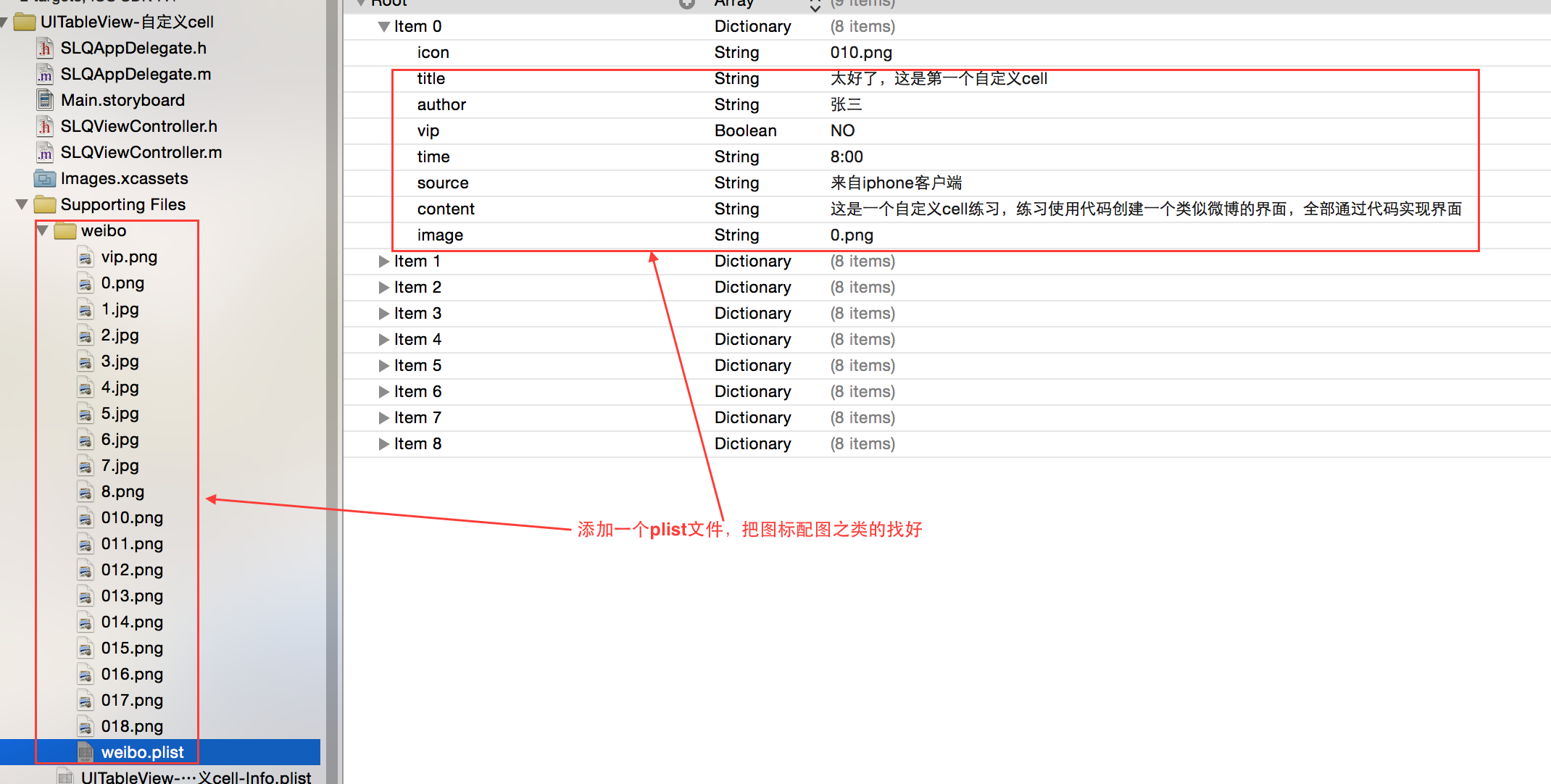
新建一个plist文件,添加条目,root类型是array,子类型是Dictionary
2、更改父类,实现代理方法
接下来得实现过程如上一篇文章,改变父类为UITableViewController,在main.storyboard中更换主界面为UITableViewControl
 // 行数

 - (NSInteger)tableView:(UITableView *)tableView numberOfRowsInSection:(NSInteger)section

 {

     return ;

 }

 // 设置行内容

 - (UITableViewCell *)tableView:(UITableView *)tableView cellForRowAtIndexPath:(NSIndexPath *)indexPath

 {

     UITableViewCell *cell = [[UITableViewCell alloc] initWithStyle:UITableViewCellStyleDefault reuseIdentifier:nil];

     return cell;

 }
3、新建一个模型:weiboCell,封装cell的实现
3.1 添加内部子控件到contentView中
 - (id)initWithStyle:(UITableViewCellStyle)style reuseIdentifier:(NSString *)reuseIdentifier

 {

     self = [super initWithStyle:style reuseIdentifier:reuseIdentifier];

     if (self) {

         // Initialization code

         // 读取plist文件都程序

         // 头像

         UIImageView *icon = [[UIImageView alloc] init];

         [self.contentView addSubview:icon];

         // 标题

         UILabel *title = [[UILabel alloc] init];

         [self.contentView addSubview:title];

         // 作者

         UILabel *author = [[UILabel alloc] init];

         [self.contentView addSubview:author];

         // vip

         UILabel *vip = [[UILabel alloc] init];

         [self.contentView addSubview:vip];

         // 时间

         UILabel *time = [[UILabel alloc] init];

         [self.contentView addSubview:time];

         // 来源

         UILabel *source = [[UILabel alloc] init];

         [self.contentView addSubview:source];

         // 正文

         UILabel *content = [[UILabel alloc] init];

         [self.contentView addSubview:content];

         // 配图

         UIImageView *image = [[UIImageView alloc] init];

         [self.contentView addSubview:image];

     }

     return self;

 }
4、新建一个类weibo,封装对数据的操作
4.1、添加与字典中对应的属性
 #import <UIKit/UIKit.h>

 @interface weibo : UITableViewCell

 @property (nonatomic,copy) NSString *icon; // 头像

 @property (nonatomic,copy) NSString *title; // 标题

 @property (nonatomic,copy) NSString *author; // 作者

 @property (nonatomic,assign) BOOL vip; // vip

 @property (nonatomic,copy) NSString *time; // 时间

 @property (nonatomic,copy) NSString *source; // 来源

 @property (nonatomic,copy) NSString *content; // 正文

 @property (nonatomic,copy) NSString *image; // 配图

 - (id)initWithDict:(NSDictionary *)dict;

 + (id)weiboWithDict:(NSDictionary *)dict;

 @end
4.2、自定义构造方法
 - (id)initWithDict:(NSDictionary *)dict

 {

     if (self = [self init])

     {

         self.icon = dict[@"icon"];

         self.title = dict[@"title"];

         self.author = dict[@"author"];

         self.vip = [dict[@"vip"] boolValue];

         self.time = dict[@"time"];

         self.source = dict[@"source"];

         self.content = dict[@"content"];

         self.image = dict[@"image"];

     }

     return self;

 }

 + (id)weiboWithDict:(NSDictionary *)dict

 {

     return [[weibo alloc] initWithDict:dict];

 }
4.3、通过类扩展的方式增加子控件为私有属性
 // 类扩展,增加私有属性

 @interface WeiboCell()

 {

     // 头像

     UIImageView *_icon;

     // 标题

     UILabel *_title;

     // 作者

     UILabel *_author;

     // vip

     UILabel *_vip;

     // 时间

     UILabel *_time;

     // 来源

     UILabel *_source;

     // 正文

     UILabel *_content;

     // 配图

     UIImageView *_image;

 }

 @end
4.4、重写set方法
 // 重写set方法

 - (void)setWeibo:(Weibo *)weibo

 {

     _weibo = weibo;

     // 1、设置微博数据

     [self settingData];

     // 2、设置微博子控件的frame

     [self settingFrame];

 }
4.5、设置微博数据
 // 设置微博数据

 - (void)settingData

 {

       // 头像

     _icon.image = [UIImage imageNamed:_weibo.icon];

     // 标题

     _title.text = _weibo.title;

     // 作者

     _author.text = _weibo.author;

     // vip,是否显示vip

     _vip.hidden = !_weibo.vip;

     // _vip.text = [NSString stringWithFormat:@"vip%d",weibo.vip];

     // 时间

     _time.text = _weibo.time;

     // 来源

     _source.text =_weibo.source;

     // 正文

     _content.text = _weibo.content;

     // 配图

     if (_image.image)

     {

     _image.hidden = NO;

        _image.image = [UIImage imageNamed:_weibo.image];;

     }

     else // 没有配图

     {

         _image.hidden = YES;

     }

 }
4.6、设置每个子控件的位置、尺寸
 // 设置微博子控件的frame

 - (void)settingFrame

 {

  // 头像

     CGFloat iconX = kBorder;

     CGFloat iconY = kBorder;

     CGRect iconF = CGRectMake(iconX, iconY, kIconWH, kIconWH);

     _icon.frame = iconF;

     // 标题

     CGFloat titleX = CGRectGetMaxX(iconF) + kBorder; // 获取头像的最大x值并加上间隔kBorder

     CGFloat titleY = iconY;

     CGRect titleF = CGRectMake(titleX, titleY, kTitleW, kTitleH);

     _title.frame = titleF;

     // 作者

     CGFloat authorX = CGRectGetMaxX(titleF) + kBorder;

     CGFloat authorY = kBorder;

     CGRect authorF = CGRectMake(authorX, authorY, kAuthorW, kAuthorH);

     _author.frame = authorF;

     // vip

     CGFloat vipX = CGRectGetMaxX(authorF) + kBorder;

     CGFloat vipY = kBorder;

     CGRect vipF = CGRectMake(vipX, vipY, kVipW,authorF.size.height);

     _vip.frame = vipF;

     // 时间

     CGFloat timeX = CGRectGetMinX(titleF);

     CGFloat timeY = CGRectGetMaxY(titleF) + kBorder;

     CGRect timeF = CGRectMake(timeX, timeY, ,);

     _time.frame = timeF;

     // 来源

     CGFloat sourceX = CGRectGetMaxX(timeF) + kBorder;

     CGFloat sourceY = CGRectGetMinY(timeF);

     CGRect sourceF = CGRectMake(sourceX, sourceY, ,);

     _source.frame = sourceF;

     // 正文

     CGFloat contentX = kBorder; // 获取头像的最大x值并加上间隔kBorder

     CGFloat contentY = MAX(CGRectGetMaxY(iconF), CGRectGetMaxY(timeF)) + kBorder;

     CGSize contentSize = [_content.text sizeWithAttributes:@{NSFontAttributeName:[UIFont systemFontOfSize:]}];

     CGRect contentF = CGRectMake(contentX, contentY, -  * kBorder , contentSize.height );

     _content.frame = contentF;

     // 配图\计算cell高度, 虽然这里计算了,但是现在这个高度无法传出去

     CGFloat cellHeight = ;

     if(_image)

     {

         CGFloat imageX = contentX;

         CGFloat imageY = CGRectGetMaxY(contentF) + kBorder;

         CGRect imageF = CGRectMake(imageX, imageY,kImageWH , kImageWH );

         _image.frame = imageF;

         cellHeight = CGRectGetMaxY(imageF) + kBorder;

     }else

     {

         cellHeight = CGRectGetMaxY(contentF) + kBorder;

     }

     //   NSLog(@"%@",_image);

 }
现在设置行高度位200,可以看到效果:cell高度还不能自适应

5、新建一个WeiboFrame类计算每个cell的高度
上面的方法可以计算但是获取高度却比较麻烦,因为heightForRowAtIndexPath方法的调用在cellForRowAtIndexPath方法之前,但是计算高度的过程却在cellForRowAtIndexPath中。
所以新建一个类用来保存所有子控件的frame属性。
5.1、每个控件对应一个属性,然后声明一个cell高度属性和一个weibo对象
 #import <Foundation/Foundation.h>

 @class Weibo;

 @interface WeiboFrame : NSObject

 @property (nonatomic,assign,readonly) CGRect iconF; // 头像frame

 @property (nonatomic,assign,readonly) CGRect titleF; // 标题frame

 @property (nonatomic,assign,readonly) CGRect authorF; // 作者frame

 @property (nonatomic,assign,readonly) CGRect vipF; // vip frame

 @property (nonatomic,assign,readonly) CGRect timeF; // 时间frame

 @property (nonatomic,assign,readonly) CGRect sourceF; // 来源frame

 @property (nonatomic,assign,readonly) CGRect contentF; // 正文frame

 @property (nonatomic,assign,readonly) CGRect imageF; // 配图frame

 @property (nonatomic,assign) CGFloat cellHeight; // cell高度

 @property (nonatomic,strong) Weibo *weibo; // weibo对象

 @end
5.2、重写setWeibo方法,在赋值时计算cell高度和子控件位置尺寸
 //

 //  WeiboFrame.m

 //  UITableView-自定义cell

 //

 //  Created by Christian on 15/5/22.

 //  Copyright (c) 2015年 slq. All rights reserved.

 //

 // 边框

 #define kBorder 10

 // 头像宽高

 #define kIconWH 40

 // 标题宽度

 #define kTitleW 100

 // 标题高度

 #define kTitleH 20

 // 作者宽度高度

 #define kAuthorW 80

 #define kAuthorH 20

 // vip 宽度和高度

 #define kVipW 20

 // 时间高度和宽度

 #define kTimeW 60

 #define kTimeH 20

 // 配图宽高

 #define kImageWH 100

 // 视图宽度

 #define kViewWidth 320

 #import "WeiboFrame.h"

 #import "Weibo.h"

 @implementation WeiboFrame

 // 重写setWeibo方法

 - (void)setWeibo:(Weibo *)weibo

 {

     _weibo = weibo;

     // 头像

     CGFloat iconX = kBorder;

     CGFloat iconY = kBorder;

     _iconF = CGRectMake(iconX, iconY, kIconWH, kIconWH);

     // 标题

     CGFloat titleX = CGRectGetMaxX(_iconF) + kBorder; // 获取头像的最大x值并加上间隔kBorder

     CGFloat titleY = iconY;

     _titleF = CGRectMake(titleX, titleY, kTitleW, kTitleH);

     // 作者

     CGFloat authorX = CGRectGetMaxX(_titleF) + kBorder;

     CGFloat authorY = kBorder;

     _authorF = CGRectMake(authorX, authorY, kAuthorW, kAuthorH);

     // vip

     CGFloat vipX = CGRectGetMaxX(_authorF) + kBorder;

     CGFloat vipY = kBorder;

     _vipF = CGRectMake(vipX, vipY, kVipW,_authorF.size.height);

     // 时间

     CGFloat timeX = CGRectGetMinX(_titleF);

     CGFloat timeY = CGRectGetMaxY(_titleF) + kBorder;

     _timeF = CGRectMake(timeX, timeY,kTimeW ,kTimeH);

     // 来源

     CGFloat sourceX = CGRectGetMaxX(_timeF) + kBorder;

     CGFloat sourceY = CGRectGetMinY(_timeF);

     _sourceF = CGRectMake(sourceX, sourceY,kViewWidth ,kTimeH);

     // 正文

     CGFloat contentX = kBorder; //

     CGFloat contentY = MAX(CGRectGetMaxY(_iconF), CGRectGetMaxY(_timeF)) + kBorder;

     CGSize contentSize = [_weibo.content sizeWithAttributes:@{NSFontAttributeName:[UIFont systemFontOfSize:]}];

     _contentF = CGRectMake(contentX, contentY,kViewWidth -  * kBorder , contentSize.height );

     // 配图\计算cell高度

     if(_weibo.image)

     {

         CGFloat imageX = contentX;

         CGFloat imageY = CGRectGetMaxY(_contentF) + kBorder;

         _imageF = CGRectMake(imageX, imageY,kImageWH , kImageWH );

         _cellHeight = CGRectGetMaxY(_imageF) + kBorder;

     }else

     {

         _cellHeight = CGRectGetMaxY(_contentF) + kBorder;

     }

 }

 @end
5.3、在weiboCell类中做如下修改
 #import <UIKit/UIKit.h>

 @class WeiboFrame;

 @interface WeiboCell : UITableViewCell

 @property (nonatomic,strong) WeiboFrame *weiboFrame;

 @end
主要修改和属性 weiboFrame相关的方法
 // 重写set方法

 - (void)setWeiboFrame:(WeiboFrame *)weiboFrame

 {

     _weiboFrame = weiboFrame;

     // 设置微博数据

     [self settingData];

     // 设置微博子控件的frame

     [self settingFrame];

 }

 // 设置微博数据

 - (void)settingData

 {

     Weibo *weibo = _weiboFrame.weibo;

       // 头像

     _icon.image = [UIImage imageNamed:weibo.icon];

     // 标题

     _title.text = weibo.title;

     _title.numberOfLines = ;

     // 作者

     if (weibo.vip)

     {

         _author.textColor = [UIColor redColor];

     }

     else

         _author.textColor = [UIColor blackColor];

     _author.text = weibo.author;

     // vip,是否显示vip

     // _vip.hidden = !_weibo.vip;

      _vip.text = weibo.vip ? @"vip":@"";

     // 时间

     _time.text = weibo.time;

     // 来源

     _source.text =weibo.source;

     // 正文

     _content.text = weibo.content;

     _content.numberOfLines = ;

     // 配图

     if (_image )

     {

         _image.hidden = NO;

        _image.image = [UIImage imageNamed:weibo.image];;

     }

     else // 没有配图

     {

         _image.hidden = YES;

     }

 }

 // 设置微博子控件的frame

 - (void)settingFrame

 {

     // 头像

     _icon.frame = _weiboFrame.iconF;

     // 标题

     _title.frame = _weiboFrame.titleF;

     _title.font = [UIFont systemFontOfSize:];

     // 作者

     _author.frame = _weiboFrame.authorF;

     _author.font = [UIFont systemFontOfSize:];

     // vip

     _vip.frame = _weiboFrame.vipF;

     _vip.font = [UIFont systemFontOfSize:];

     _vip.textColor = [UIColor redColor];

     // 时间

     _time.frame = _weiboFrame.timeF;

     _time.font = [UIFont systemFontOfSize:];

     // 来源

     _source.frame = _weiboFrame.sourceF;

     _source.font = [UIFont systemFontOfSize:];

     // 正文

     _content.frame = _weiboFrame.contentF;

     _content.font = [UIFont systemFontOfSize:];

     // 配图\计算cell高度

     if (_weiboFrame.weibo.image) {

         _image.frame = _weiboFrame.imageF;

     }

 }
5.4、在控制器中做如下修改
主要修改 WeiboFrame相关的方法
 // 设置行内容

 - (UITableViewCell *)tableView:(UITableView *)tableView cellForRowAtIndexPath:(NSIndexPath *)indexPath

 {

     // 1、去缓存池中去cell

     static NSString *ID = @"weibo";

     WeiboCell *cell = [tableView dequeueReusableCellWithIdentifier:ID];

     // 2、没有cell就创建

     if (cell == nil)

     {

         cell = [[WeiboCell alloc] initWithStyle:UITableViewCellStyleDefault reuseIdentifier:ID];

     }

     // 3、传递模型数据

     WeiboFrame *f = [[WeiboFrame alloc] init];

     f.weibo = _weibo[indexPath.row];

     cell.weiboFrame = f;

     return cell;

 }

 - (CGFloat)tableView:(UITableView *)tableView heightForRowAtIndexPath:(NSIndexPath *)indexPath

 {

     // 根据模型获取cell高度

     WeiboFrame *fam = [[WeiboFrame alloc] init];

     fam.weibo = _weibo[indexPath.row];

     return fam.cellHeight;

     //return 200;

 }
现在来看效果:有图片的显示图片,么有的不显示,并且把高度自动缩小。vip显示红色

源代码:http://pan.baidu.com/s/1ntCBukh
总算搞出来了,再接再厉啊
IOS开发学习笔记031-代码实现微博界面的更多相关文章
- IOS开发学习笔记039-autolayout 代码实现
本文转载至 http://www.cnblogs.com/songliquan/p/4548206.html 1.代码实现比较复杂 代码实现Autolayout的步骤 利用NSLayoutConstr ...
- IOS开发学习笔记030-xib实现淘宝界面
使用xib文件实现界面,然后通过模型更新数据. 1.使得控制器继承自UITableViewController 2.创建xib文件,实现界面如下:一个UIImageView,两个lable 3.新建一 ...
- iOS开发学习笔记:基础篇
iOS开发需要一台Mac电脑.Xcode以及iOS SDK.因为苹果设备都具有自己封闭的环境,所以iOS程序的开发必须在Mac设备上完成(当然,黑苹果应该也是可以的,但就需要花很多的精力去折腾基础环境 ...
- ios开发学习笔记(1)
objective-c基础总结 第一二章 1.application:didiFinishLauchingWithOptions:程序启动后立即执行 2.启动界面代码格式:self.window = ...
- IOS开发学习笔记042-UITableView总结2
一.自定义非等高的cell 如常见的微博界面,有的微博只有文字,有的有文字和图片.这些微博的高度不固定需要重新计算. 这里简单说一下几种方法.前面的步骤和设置等高的cell一样.现在来 ...
- IOS开发学习笔记037-九宫格代码实现
九宫格布局,用手机输入法时经常见到.先按3行3列写. 代码的实现主要是计算插入图片的位置. 每一张图片的位置和所在的行列密切相关.分析过程如下: 界面: 代码实现 1.把需要的图片资源添加进来 然后给 ...
- iOS开发学习笔记
1 常用的第三方工具 1.1 iPhone Simulator 测试程序需要模拟器iPhone Simulator 1.2 设计界面需要Interface Builder,Interface Buil ...
- ios开发学习笔记(这里一定有你想要的东西,全部免费)
1,Search Bar 怎样去掉背景的颜色(storyboard里只能设置background颜色,可是发现clear Color无法使用). 其实在代码里还是可以设置的,那就是删除背景view [ ...
- IOS开发学习笔记017-第一个IOS应用
第一个IOS应用程序,就从最简单的开始吧. 1.先了解一下开发环境,Xcode的相关组成 2.还有模拟器 3.运行与停止按钮 4.新建一个工程 5.看看main函数里都有啥 6.现在来添加一个控件 1 ...
随机推荐
- silverlight数据绑定模式TwoWay,OneWay,OneTime的研究
asp.net开发中,数据绑定是一个很简单的概念,控件与数据绑定后,控件可以自动把数据按一定的形式显示出来.(当然控件上的值改变后,可以通过提交页面表单,同时后台服务端代码接收新值更新数据) silv ...
- 跨平台移动开发phonegap/cordova 3.3全系列教程-app启动画面
1.app启动画面设计 用photoshop设计启动画面,图片分辨率为720*1280 保存的文件名为splash.png 将splash.png复制到res\drawable,如图 PS:要先添加闪 ...
- linux 下 `dirname $0`(转)
在命令行状态下单纯执行 $ cd `dirname $0` 是毫无意义的.因为他返回当前路径的".".这个命令写在脚本文件里才有作用,他返回这个脚本文件放置的目录,并可以根据这个目 ...
- 关于第三方dll,ocx开发的思考
A问题: 最近有个工作,要集成一套老的指纹考勤机器到现在考勤系统(web系统)中,问题出现时老的机器只有ocx可用,没有可用的dll:原本以为简单的第三方调用就ok了,可是ocx不能被承载,在实现上费 ...
- 如何在Java代码中使用SAP云平台CloudFoundry环境的环境变量
本文使用的例子源代码在我的github上. 在我的公众号文章在SAP云平台的CloudFoundry环境下消费ABAP On-Premise OData服务介绍了如何通过Cloud Connector ...
- World Wind Java开发之六——解析shape文件(转)
http://blog.csdn.net/giser_whu/article/details/41647117 最近一直忙于导师项目的事情了,几天没更新了,昨天和今天研究了下WWJ解析shp文件的源代 ...
- World Wind Java开发之五——读取本地shp文件(转)
http://blog.csdn.net/giser_whu/article/details/41484433 World Wind Java 使用IconLayer图层类表现点和多点数据,使用Ren ...
- RAC基本使用
@interface ViewController () @property (weak, nonatomic) IBOutlet lwRedView *redView; @property (wea ...
- HTML 5.1 的 14 个新特性(含使用案例)
HTML5 属于万维网联盟 (W3C), 这个组织为整个网络界提供了标准,如此形成的协议可在全世界通行.在 2016 年 11 月, W3C 对长期行使的 HTML 5 标准进行了更新,它是2年内的第 ...
- 魅族MX3 Flyme3.0找回手机功能支持远程拍照密码错两次自动拍照
进入Flyme页面(http://app.meizu.com/),选择“查找手机”即可进行查找自己登记的魅族系列手机. 如果您在一个账号下登记过N多魅族系列手机,那么都是可以进行查找的,参见下图 魅族 ...