
Android百分比布局方案
百分比布局让其中的控件在指定高度,宽度,margin时使用屏幕宽高的百分比,不使用dp,px。这样一套布局可以适应多个屏幕,方便适配。如:
app:layout_heightPercent="30%"
1.效果
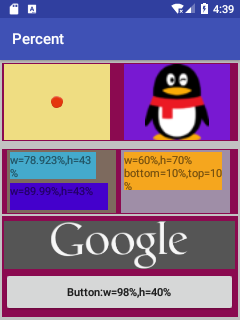
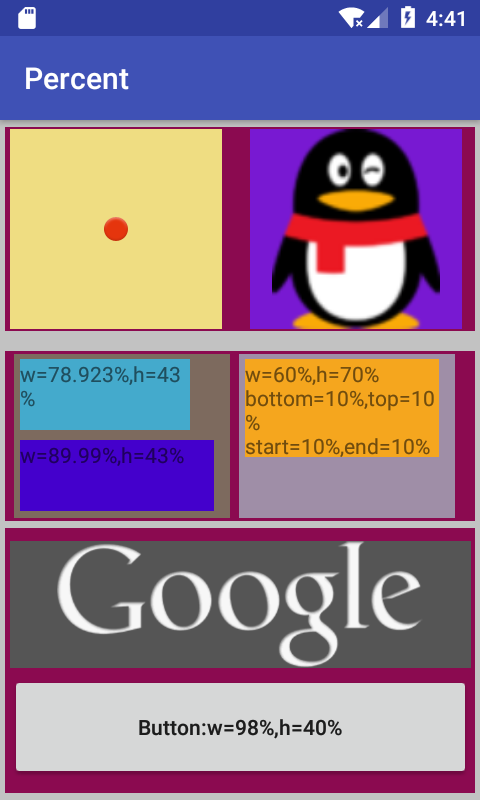
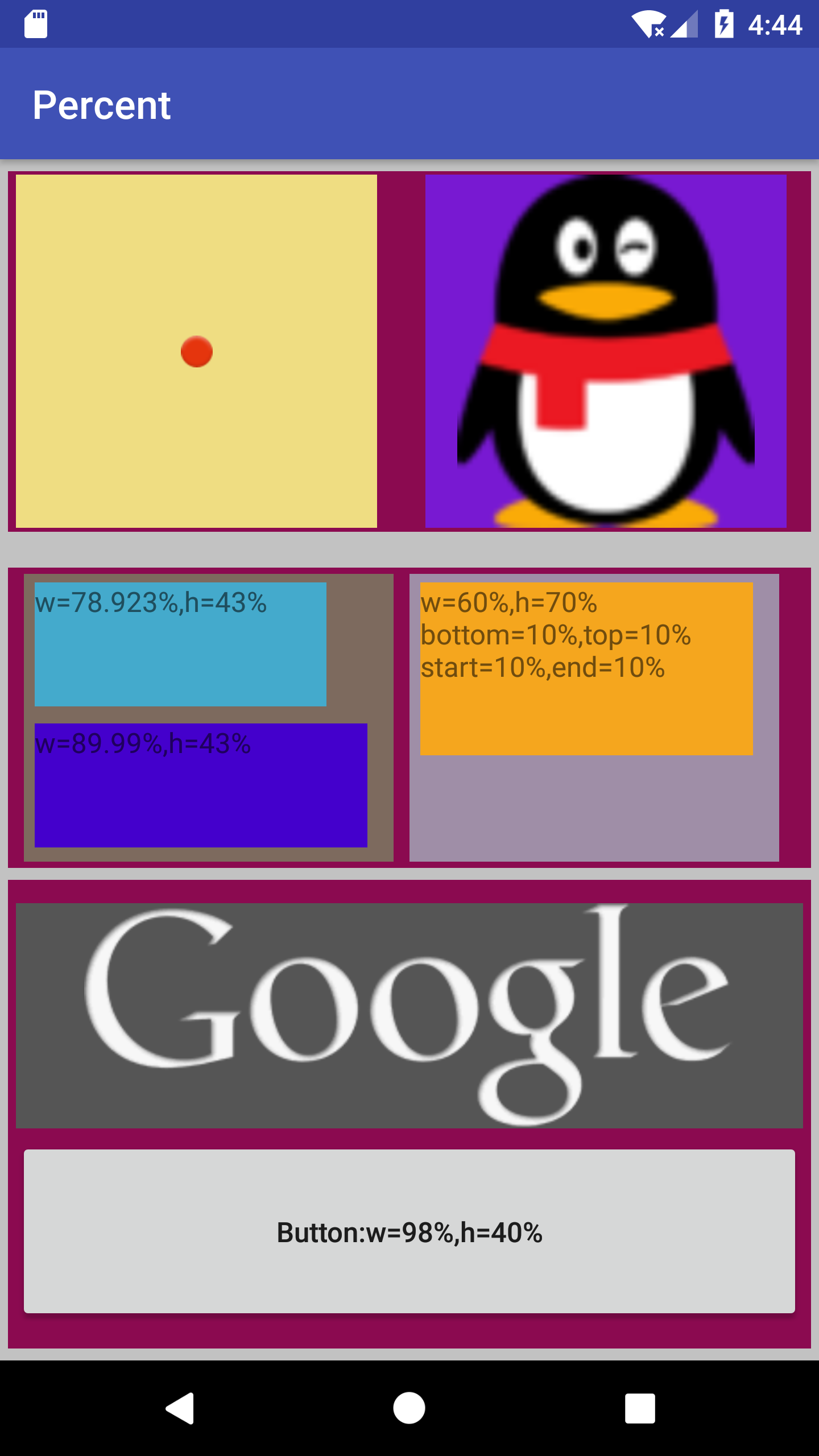
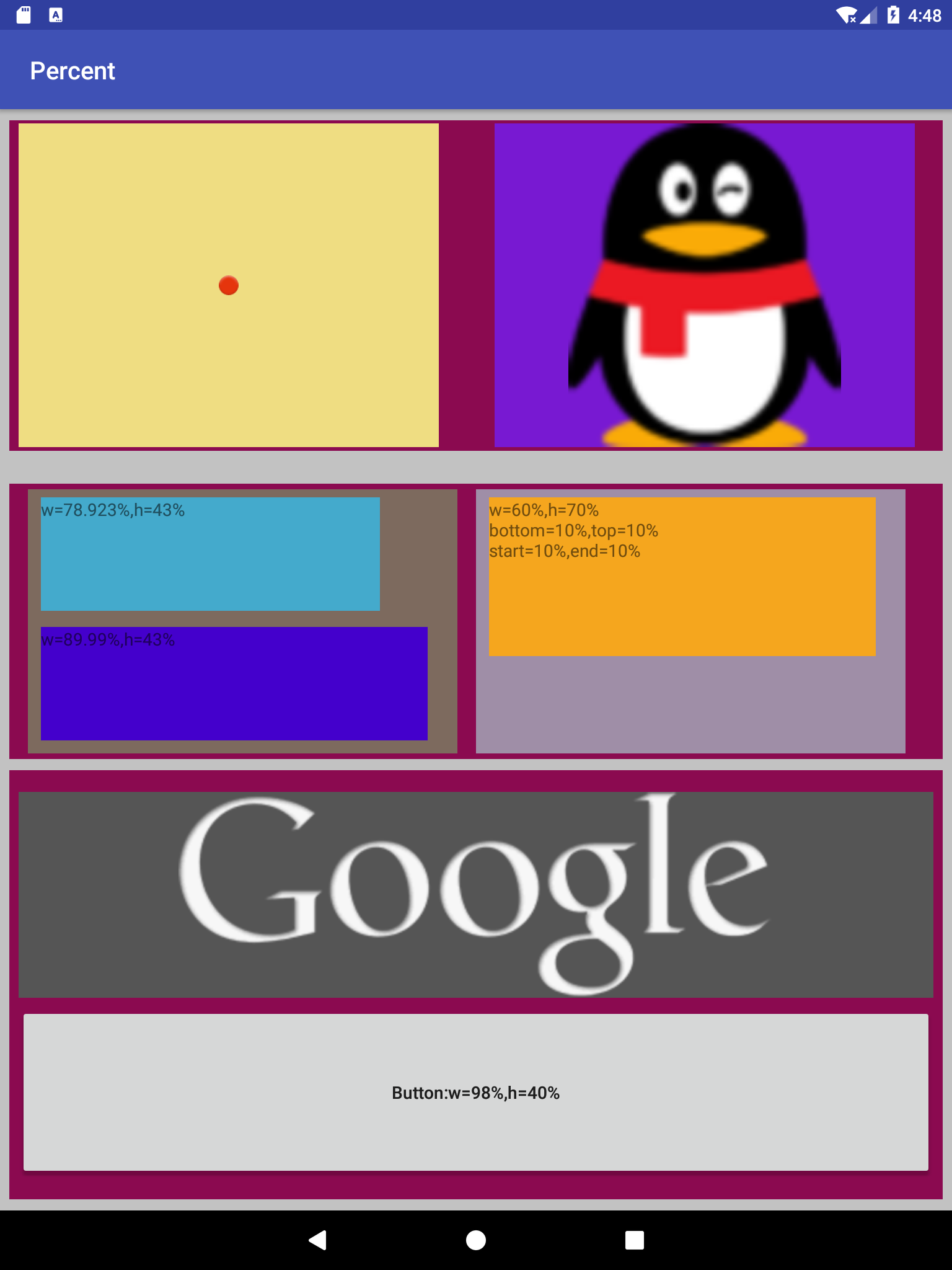
- 它们分别为 图1. 2.7''_240*320:ldpi 图2. 4.0''_480*800:hdpi 图3. 5.5''_1440*2560:560dpi 图4. 8.86''_2048*1536:xhdpi
- 点击可看原图
- 根百分比布局背景色 :#c2c2c2

- 其它百分比布局背景色:#8b0a50

2. Guideline实现百分比布局
PercentRelativeLayout等百分比布局与 ConstraintLayout 等不兼容, ConstraintLayout 支持的百分比类是 Guideline .
简单实用.
     <android.support.constraint.Guideline
         android:id="@+id/guideline"
         android:layout_width="wrap_content"
         android:layout_height="wrap_content"
         android:orientation="vertical"
         app:layout_constraintGuide_percent="0.3046875" />

     <TextView
         android:id="@+id/txt_args_minimumLatency"
         android:layout_width="0dp"
         android:layout_height="wrap_content"
         android:layout_marginEnd="8dp"
         android:layout_marginLeft="8dp"
         android:layout_marginRight="8dp"
         android:layout_marginStart="8dp"
         android:layout_marginTop="16dp"
         android:gravity="end|center_vertical"
         android:text="最小反应时间 : "
         app:layout_constraintEnd_toStartOf="@+id/guideline"
         app:layout_constraintStart_toStartOf="parent"
         app:layout_constraintTop_toBottomOf="@+id/txt_arg_connectivity" />
下面是原百分比布局示例,可以不用往下看了
3.引入库
在module的build.gradle的加入 compile 'com.android.support:percent:26.+'
 dependencies {
     //...
     compile 'com.android.support:percent:26.+'
 }
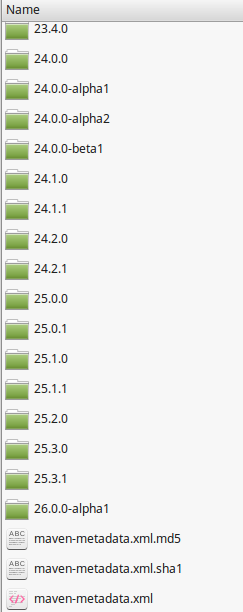
上方红底白字是percent支援包版本号,在sdk/extras/android/m2repository/com/android/support/percent/ 目录下有详细的版本。
可以使用 26.+ 也可以使用具体版本号如:26.0.0-alpha1 .
4.常用百分比布局
| PercentRelativeLayout | 相对百分比布局 |
| PercentFrameLayout | 相对层百分比布局 |
| PercentLinearLayout | 相对线性百分比布局,这个在com.android.support:percent中没有,本文提供代码。把它加到项目中就可以。 |
5.百分比布局属性
5.1 属性表
| 属性 | 作用 |
示例 |
| app:layout_widthPercent | 控件宽度百分比(相对屏幕宽度) |
app:layout_widthPercent="100%" |
| app:layout_heightPercent | 控件高度百分比(相对屏幕高度) |
app:layout_heightPercent="50%" |
|
app:layout_marginLeftPercent |
控件的左边距百分比(相对于屏幕宽度) |
app:layout_marginLeftPercent="1%" |
| app:layout_marginRightPercent |
控件的右边距百分比(相对于屏幕宽度) |
app:layout_marginRightPercent="1%" |
|
app:layout_marginStartPercent |
控件开始距离百分比(相对于屏幕宽度或高度) |
app:layout_marginStartPercent="1%" |
|
app:layout_marginEndPercent |
控件结尾距离百分比(相对于屏幕宽度或高度) |
app:layout_marginEndPercent="1%" |
|
app:layout_marginTopPercent |
上边距百分比(相对于屏幕高度) |
app:layout_marginTopPercent="1%" |
|
app:layout_marginBottomPercent |
下边距百分比(相对于屏幕高度) |
app:layout_marginBottomPercent="1%" |
|
app:marginPercent |
所有边距百分比(相对于屏幕高度和高度) |
app:marginPercent="1%" |
5.2 注意事项
- app:layout_marginStartPercent="10%"与 app:layout_marginEndPercent="10%" 成对出现指定最大宽度
- app:layout_marginLeftPercent="30%" 与 app:layout_marginRightPercent="30%"成对出现指定最大宽度
- 只要layout_marginStartPercent 这对中出现一个,则layout_marginLeftPercent 这对无效。
- app:layout_xxx与android:layout_xxx 在指定相同含义(如都指定左边距)时,取app:layout_xxx的值。
- 最好只使用百分比系列的属性,也可混合使用。
 app:layout_marginRightPercent="30%"
 android:layout_marginLeft="5dp"
6.相对百分比布局
 <?xml version="1.0" encoding="utf-8"?>
 <android.support.percent.PercentRelativeLayout
     xmlns:android="http://schemas.android.com/apk/res/android"
     xmlns:app="http://schemas.android.com/apk/res-auto"
     android:layout_width="match_parent"
     android:layout_height="match_parent">

     <ImageButton
         android:id="@+id/imageButton"

         app:layout_widthPercent="30%"
         app:layout_heightPercent="30%"

         app:layout_marginLeftPercent="20%"
         app:layout_marginRightPercent="20%"

         app:layout_marginStartPercent="10%"
         app:layout_marginEndPercent="10%"

         app:layout_marginTopPercent="10%"
         app:layout_marginBottomPercent="10%"

         app:srcCompat="@android:drawable/ic_notification_overlay" />

     <ImageView
         android:id="@+id/imageView"

         app:layout_widthPercent="30%"
         app:layout_heightPercent="30%"

         app:layout_marginLeftPercent="50%"
         app:layout_marginRightPercent="10%"

         app:layout_marginTopPercent="10%"
         app:layout_marginBottomPercent="10%"

         app:srcCompat="@drawable/qq" />

     <com.google.android.gms.maps.MapView
         android:id="@+id/mapView"
         android:background="#d3a16c"

         app:layout_widthPercent="100%"
         app:layout_heightPercent="50%"

         app:layout_marginLeftPercent="10%"
         app:layout_marginRightPercent="10%"

         app:layout_marginStartPercent="3%"
         app:layout_marginEndPercent="3%"

         app:layout_marginTopPercent="5%"
         app:layout_marginBottomPercent="5%"

         android:layout_alignParentBottom="true" />

 </android.support.percent.PercentRelativeLayout>
7.层百分比布局
 <?xml version="1.0" encoding="utf-8"?>
 <android.support.percent.PercentFrameLayout
     xmlns:android="http://schemas.android.com/apk/res/android"
     xmlns:app="http://schemas.android.com/apk/res-auto"
     android:layout_width="match_parent"
     android:layout_height="match_parent">
     <!-- ... XML CODE -->

     <TextView
         android:id="@+id/textView"

         android:text="hello"
         android:textAlignment="center"

         app:layout_widthPercent="60%"
         app:layout_heightPercent="60%"

         app:layout_marginStartPercent="20%"
         app:layout_marginEndPercent="20%"

         app:layout_marginTopPercent="10%"
         app:layout_marginBottomPercent="10%"

         android:background="#f5a61e"/>

 </android.support.percent.PercentFrameLayout>
8.线性百分比布局
把PercentLinearLayout.java加入到源码中:
 package com.example.tt.percent;

 import android.content.Context;
 import android.content.res.TypedArray;
 import android.support.percent.PercentLayoutHelper;
 import android.util.AttributeSet;
 import android.view.ViewGroup;
 import android.widget.LinearLayout;

 public class PercentLinearLayout extends LinearLayout
 {

     private PercentLayoutHelper mPercentLayoutHelper;

     public PercentLinearLayout(Context context, AttributeSet attrs)
     {
         super(context, attrs);

         mPercentLayoutHelper = new PercentLayoutHelper(this);
     }

     @Override
     protected void onMeasure(int widthMeasureSpec, int heightMeasureSpec)
     {
         mPercentLayoutHelper.adjustChildren(widthMeasureSpec, heightMeasureSpec);
         super.onMeasure(widthMeasureSpec, heightMeasureSpec);
         if (mPercentLayoutHelper.handleMeasuredStateTooSmall())
         {
             super.onMeasure(widthMeasureSpec, heightMeasureSpec);
         }
     }

     @Override
     protected void onLayout(boolean changed, int l, int t, int r, int b)
     {
         super.onLayout(changed, l, t, r, b);
         mPercentLayoutHelper.restoreOriginalParams();
     }

     @Override
     public LayoutParams generateLayoutParams(AttributeSet attrs)
     {
         return new LayoutParams(getContext(), attrs);
     }

     public static class LayoutParams extends LinearLayout.LayoutParams
             implements PercentLayoutHelper.PercentLayoutParams
     {
         private PercentLayoutHelper.PercentLayoutInfo mPercentLayoutInfo;

         public LayoutParams(Context c, AttributeSet attrs)
         {
             super(c, attrs);
             mPercentLayoutInfo = PercentLayoutHelper.getPercentLayoutInfo(c, attrs);
         }

         @Override
         public PercentLayoutHelper.PercentLayoutInfo getPercentLayoutInfo()
         {
             return mPercentLayoutInfo;
         }

         @Override
         protected void setBaseAttributes(TypedArray a, int widthAttr, int heightAttr)
         {
             PercentLayoutHelper.fetchWidthAndHeight(this, a, widthAttr, heightAttr);
         }

         public LayoutParams(int width, int height) {
             super(width, height);
         }

         public LayoutParams(ViewGroup.LayoutParams source) {
             super(source);
         }

         public LayoutParams(MarginLayoutParams source) {
             super(source);
         }

     }

 }
使用相对布局时注意:android:layout_width和height要为0dp。光指定 app:layout_heightPercent 不行。
 <?xml version="1.0" encoding="utf-8"?>
 <com.example.tt.percent.PercentLinearLayout
     xmlns:android="http://schemas.android.com/apk/res/android"
     xmlns:app="http://schemas.android.com/apk/res-auto"
     android:layout_width="match_parent"
     android:layout_height="match_parent"
     android:orientation="vertical">
     <View
         android:layout_width="0dp"
         android:layout_height="0dp"
         android:background="#ff44aacc"
         app:layout_heightPercent="10%"
         app:layout_widthPercent="60%"/>

     <View
         android:layout_width="0dp"
         android:layout_height="0dp"
         android:background="#ff4400cc"
         app:layout_heightPercent="10%"
         app:layout_widthPercent="70%"/>

 </com.example.tt.percent.PercentLinearLayout>
9.复合使用百分比布局
 <?xml version="1.0" encoding="utf-8"?>

 <android.support.percent.PercentRelativeLayout
     xmlns:android="http://schemas.android.com/apk/res/android"
     xmlns:app="http://schemas.android.com/apk/res-auto"
     android:layout_width="match_parent"
     android:layout_height="match_parent"
     android:background="@color/colorParentLayout">

     <com.example.tt.percent.PercentLinearLayout
         android:orientation="horizontal"
         android:id="@+id/percentLinearLayout"
         app:layout_widthPercent="98%"
         app:layout_heightPercent="30%"
         app:layout_marginStartPercent="1%"
         app:layout_marginEndPercent="1%"
         app:layout_marginTopPercent="1%"
         app:layout_marginBottomPercent="1%"
         android:background="@color/colorChildLayout"
         >

         <ImageButton
             android:id="@+id/imageButton"
             android:layout_width="0dp"
             android:layout_height="0dp"
             android:contentDescription="w=45%,h=94%"
             app:layout_widthPercent="45%"
             app:layout_heightPercent="94%"
             app:layout_marginStartPercent="2%"
             app:layout_marginEndPercent="2%"
             app:layout_marginTopPercent="3%"
             app:layout_marginBottomPercent="3%"
             android:background="#efdd82"
             app:srcCompat="@android:drawable/ic_notification_overlay" />

         <ImageView
             android:id="@+id/imageView"
             android:layout_width="0dp"
             android:layout_height="0dp"
             android:background="#7819d2"
             app:layout_widthPercent="45%"
             app:layout_heightPercent="94%"
             app:layout_marginStartPercent="2%"
             app:layout_marginEndPercent="2%"
             app:layout_marginTopPercent="3%"
             app:layout_marginBottomPercent="3%"
             android:contentDescription="w=45%,h=94%"

             app:srcCompat="@drawable/qq" />

     </com.example.tt.percent.PercentLinearLayout>

     <android.support.percent.PercentRelativeLayout
         android:layout_below="@+id/percentLinearLayout"
         app:layout_widthPercent="98%"
         app:layout_heightPercent="25%"
         android:background="@color/colorChildLayout"
         app:layout_marginStartPercent="1%"
         app:layout_marginEndPercent="1%"
         app:layout_marginTopPercent="1%"
         app:layout_marginBottomPercent="1%"
         >

         <com.example.tt.percent.PercentLinearLayout
             android:id="@+id/lineLayout"
             app:layout_widthPercent="46%"
             app:layout_heightPercent="100%"
             app:layout_marginStartPercent="2%"
             app:layout_marginTopPercent="3%"
             app:layout_marginBottomPercent="3%"
             android:background="#7d6a5e"
             android:orientation="vertical">

             <TextView
                 android:layout_width="0dp"
                 android:layout_height="0dp"
                 android:background="#ff44aacc"
                 android:text="w=78.923%,h=43%"
                 app:layout_heightPercent="43%"
                 app:layout_widthPercent="78.923%"
                 app:layout_marginStartPercent="3%"
                 app:layout_marginTopPercent="3%"
                 app:layout_marginBottomPercent="3%"/>

             <TextView
                 android:layout_width="0dp"
                 android:layout_height="0dp"
                 android:background="#ff4400cc"
                 android:text="w=89.99%,h=43%"
                 app:layout_heightPercent="43%"
                 app:layout_widthPercent="89.99%"
                 app:layout_marginStartPercent="3%"
                 app:layout_marginTopPercent="3%"
                 app:layout_marginBottomPercent="3%"/>

         </com.example.tt.percent.PercentLinearLayout>

         <android.support.percent.PercentFrameLayout
             android:layout_toRightOf="@+id/lineLayout"
             app:layout_widthPercent="46%"
             app:layout_heightPercent="100%"
             android:background="#9f8ea7"
             app:layout_marginStartPercent="2%"
             app:layout_marginTopPercent="3%"
             app:layout_marginBottomPercent="3%"

             android:id="@+id/percentFrameLayout">

             <TextView
                 android:id="@+id/textView"
                 android:background="#f5a61e"
                 android:text="w=90%,h=60%\nbottom=3%,top=3%\nstart=3%,end=3%"
                 app:layout_heightPercent="60%"
                 app:layout_widthPercent="90%"
                 app:layout_marginStartPercent="3%"
                 app:layout_marginEndPercent="3%"
                 app:layout_marginTopPercent="3%"
                 app:layout_marginBottomPercent="3%"
                 />

         </android.support.percent.PercentFrameLayout>
     </android.support.percent.PercentRelativeLayout>

     <android.support.percent.PercentFrameLayout
         app:layout_widthPercent="100%"
         app:layout_heightPercent="40%"
         app:layout_marginStartPercent="1%"
         app:layout_marginEndPercent="1%"

         app:layout_marginTopPercent="60%"
         app:layout_marginBottomPercent="1%"
         android:background="@color/colorChildLayout"
         >

         <ImageView
             android:id="@+id/mapView"

             android:contentDescription="w=48%,h=98%"
             android:background="#555555"
             android:layout_alignParentBottom="true"

             app:layout_widthPercent="98%"
             app:layout_heightPercent="48%"

             app:layout_marginStartPercent="1%"
             app:layout_marginEndPercent="1%"

             app:layout_marginTopPercent="5%"
             app:layout_marginBottomPercent="1%"

             app:srcCompat="@drawable/google" />

         <Button
             android:id="@+id/btn_bottom"
             app:layout_widthPercent="98%"
             app:layout_heightPercent="40%"

             app:layout_marginStartPercent="1%"
             app:layout_marginEndPercent="1%"

             app:layout_marginTopPercent="55%"
             app:layout_marginBottomPercent="1%"
             android:textAlignment="center"
             android:textAllCaps="false"
             android:text="Button:w=98%,h=40%" />

     </android.support.percent.PercentFrameLayout>

 </android.support.percent.PercentRelativeLayout>
10.下载示例
https://git.oschina.net/xi/PercentLayout.git
Android百分比布局方案的更多相关文章
- Android 百分比布局库(percent-support-lib) 解析与扩展
转载请标明出处: http://blog.csdn.net/lmj623565791/article/details/46695347: 本文出自:[张鸿洋的博客] 一.概述 周末游戏打得过猛,于是周 ...
- Android百分比布局支持库介绍——com.android.support:percent(转)
转载自http://www.apkbus.com/forum.php?mod=viewthread&tid=244752&extra=&_dsign=0b699c42 在此之前 ...
- Android百分比布局成功导入及简单使用
最近学习第一行代码第二版这本书,里面有介绍百分比布局的使用,经过一番摸索,终于是成功导入了百分比布局 就是这样,appcompat是25.3.1,那么百分比布局percent也是25.3.1 这样便是 ...
- Android百分比布局支持库(android-percent-support)
Android中提供了五种布局,其中用的最多的就是:LinearLayout, RelativeLayout 和 FrameLayout这三种布局,在对某一界面进行布局时最先想到也是通过这三种来布局的 ...
- Android 屏幕适配(二)增强版百分比布局库(percent-support-lib)
转载请标明出处: http://blog.csdn.net/lmj623565791/article/details/46767825: 本文出自:[张鸿洋的博客] 一 概述 上周一我们发布了Andr ...
- Android 增强版百分比布局库 为了适配而扩展
转载请标明出处: http://blog.csdn.net/lmj623565791/article/details/46767825: 本文出自:[张鸿洋的博客] 一 概述 上周一我们发布了Andr ...
- Android 屏幕适配方案(转载)
3.百分比的引入 1.引入 其实我们的解决方案,就是在项目中针对你所需要适配的手机屏幕的分辨率各自简历一个文件夹. 如下图: 然后我们根据一个基准,为基准的意思就是: 比如480*320的分辨率为基准 ...
- Android 屏幕适配(一)百分比布局库(percent-support-lib) 解析与扩展
转载请标明出处: http://blog.csdn.net/lmj623565791/article/details/46695347: 本文出自:[张鸿洋的博客] 一.概述 周末游戏打得过猛,于是周 ...
- (转)Android Support Percent百分比布局
一.概述 周末游戏打得过猛,于是周天熬夜码代码,周一早上浑浑噩噩的发现 android-percent-support-lib-sample(https://github.com/JulienGeno ...
随机推荐
- hdu 1905 Pseudoprime numbers
#include<stdio.h> #include<math.h> #define ll long long ll mod; bool Judge(int x) { ;i&l ...
- 桥梁(Bridge)模式
桥梁(Bridge)模式:桥梁模式是一个非常有用的模式,也是比较复杂的一个模式.熟悉这个模式对于理解面向对象的设计原则,包括"开-闭"原则(OCP)以及组合/聚合复用原则(CARP ...
- 模板方法(Template Method)模式
/* * 抽象模版(AbstractClass)角色有如下的责任: 定义了一个或多个抽象操作,以便让子类实现.这些抽象操作叫做基本操作,它们是一个顶级逻辑的组成步骤. 定义并实现了一个模版方法.这个模 ...
- 使用Oracle(SQL Plus)
error: connection as sys should be as SYSDBA or SYSOPER 用户名 :sys 密码: 自己设定的database:ORCLconnect as : ...
- js作用域解析原理
当代码进入到<script>标签或者在调用一个方法,那么就会进入作用域,在解析代码的时候就会做以下两件事情: ①去找var 和function关键字进行js预解析如果有var把值全部定义成 ...
- 类型转换构造函数 及使用explicit避免类型自动转换------新标准c++程序设计
类型转换构造函数: 除复制构造函数外,只有一个参数的构造函数一般可以称作类型转换构造函数,因为这样的构造函数能起到类型自动转换的作用.例如下面的程序: #include<iostream> ...
- 在一个java类里,private int a; 什么时候要使用integer
private Integer index; if(index == null) index = 0; else this.index = index; Integer有一个明显的好处,就是它能比in ...
- HTML5新增的表单元素有哪些?
表单控:color , calendar , date , datetime, datetime-local, time, mouth , week, email, url , search ...
- js面对对象的几种方式
1.对象的字面量 var obj = {} 2.创建实例对象 var obj = new Object(); 3.构造函数模式 function fn(){}, new fn(); ...
- win8.1 开启企业模式
1,Win+R Gpedit.msc 2, 3, 4,F12 多了一项企业模式