
王颖奇 20171010129《面向对象程序设计(java)》第十三周学习总结
实验十三 图形界面事件处理技术
实验时间 2018-11-22
1、实验目的与要求
(1) 掌握事件处理的基本原理,理解其用途;
(2) 掌握AWT事件模型的工作机制;
(3) 掌握事件处理的基本编程模型;
(4) 了解GUI界面组件观感设置方法;
(5) 掌握WindowAdapter类、AbstractAction类的用法;
(6) 掌握GUI程序中鼠标事件处理技术。
本周理论知识在最后
2、实验内容和步骤
实验1: 导入第11章示例程序,测试程序并进行代码注释。
测试程序1:
l 在elipse IDE中调试运行教材443页-444页程序11-1,结合程序运行结果理解程序;
l 在事件处理相关代码处添加注释;
l 用lambda表达式简化程序;
l 掌握JButton组件的基本API;
l 掌握Java中事件处理的基本编程模型。
代码:
package button;

import java.awt.*;

import javax.swing.*;

/**

 * @version 1.34 2015-06-12

 * @author Cay Horstmann

 */

public class ButtonTest

{

   public static void main(String[] args)

   {

       //lambda表达式

      EventQueue.invokeLater(() -> {

         JFrame frame = new ButtonFrame();

         frame.setTitle("ButtonTest");

         frame.setDefaultCloseOperation(JFrame.EXIT_ON_CLOSE);

         frame.setVisible(true);

      });

   }

}
ButtonTest
package button;

import java.awt.*;

import java.awt.event.*;

import javax.swing.*;

/**

 * A frame with a button panel

 */

public class ButtonFrame extends JFrame

{

   private JPanel buttonPanel;

   private static final int DEFAULT_WIDTH = 300;

   private static final int DEFAULT_HEIGHT = 200;

   public ButtonFrame()

   {

      setSize(DEFAULT_WIDTH, DEFAULT_HEIGHT);

      // 创建一个带文本的按钮

      JButton yellowButton = new JButton("Yellow");

      JButton blueButton = new JButton("Blue");

      JButton redButton = new JButton("Red");

      buttonPanel = new JPanel();

      // 添加按钮到JPanel中

      buttonPanel.add(yellowButton);

      buttonPanel.add(blueButton);

      buttonPanel.add(redButton);

      // 添加JPanel到框架中

      add(buttonPanel);

      // 创建按钮操作

      ColorAction yellowAction = new ColorAction(Color.YELLOW);

      ColorAction blueAction = new ColorAction(Color.BLUE);

      ColorAction redAction = new ColorAction(Color.RED);

      // 把操作关联至按钮上

      yellowButton.addActionListener(yellowAction);

      blueButton.addActionListener(blueAction);

      redButton.addActionListener(redAction);

   }

   /**

    * An action listener that sets the panel's background color.

    */

   private class ColorAction implements ActionListener

   //添加事件监听器

   {

      //设置私有属性backgroundColor

      private Color backgroundColor;

      public ColorAction(Color c)

      {

         backgroundColor = c;

      }

      public void actionPerformed(ActionEvent event)

      //在事件发生时,调用actionPerformed方法

      {

         buttonPanel.setBackground(backgroundColor);

      }

   }

}
ButtonFrame
运行结果:
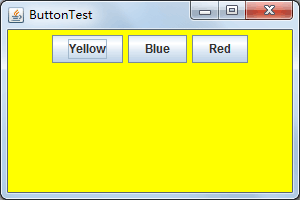
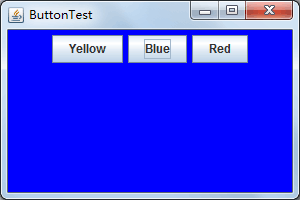
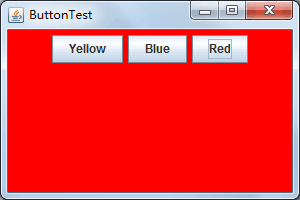
略微简化后的ButtonFrame:
package button;

import java.awt.*;

import java.awt.event.*;

import javax.swing.*;

/**

 * A frame with a button panel

 */

public class ButtonFrame extends JFrame

{

   private JPanel buttonPanel;

   private static final int DEFAULT_WIDTH = 300;

   private static final int DEFAULT_HEIGHT = 200;

   public ButtonFrame()

   {

      setSize(DEFAULT_WIDTH, DEFAULT_HEIGHT);

      buttonPanel = new JPanel();

      // add buttons to panel

      /*buttonPanel.add(yellowButton);

      buttonPanel.add(blueButton);

      buttonPanel.add(redButton);*/

      // add panel to frame

      add(buttonPanel);

      // create button actions

      /*ColorAction yellowAction = new ColorAction(Color.YELLOW);

      ColorAction blueAction = new ColorAction(Color.BLUE);

      ColorAction redAction = new ColorAction(Color.RED);*/

      // associate actions with buttons

      /*yellowButton.addActionListener(yellowAction);

      blueButton.addActionListener(blueAction);

      redButton.addActionListener(redAction);*/

      makeButton("Yellow",Color.YELLOW);

      makeButton("Blue",Color.BLUE);

      makeButton("Red",Color.RED);

   }

   public void makeButton(String name , Color backgroundColor)

   {

   JButton button=new JButton(name);

   buttonPanel.add(button);

   ColorAction action=new ColorAction(backgroundColor);

   button.addActionListener(action);

   }

   /**

    * An action listener that sets the panel's background color.

    */

   private class ColorAction implements ActionListener

   {

      private Color backgroundColor;

      public ColorAction(Color c)

      {

         backgroundColor = c;

      }

      public void actionPerformed(ActionEvent event)

      {

         buttonPanel.setBackground(backgroundColor);

      }

   }

}
ButtonFrame
lambda表达式简化后的ButtonFrame:
package demo;

import java.awt.*;

import java.awt.event.*;

import javax.swing.*;

/**

 * A frame with a button panel

 */

public class ButtonFrame extends JFrame {

    private JPanel buttonPanel;

    private static final int DEFAULT_WIDTH = 300*2;

    private static final int DEFAULT_HEIGHT = 200*2;

    public ButtonFrame() {

        setSize(DEFAULT_WIDTH, DEFAULT_HEIGHT);

        buttonPanel = new JPanel();

        makeButton("黄色", Color.yellow);

        makeButton("蓝色", Color.blue);

        makeButton("红色", Color.red);

        makeButton("绿色",Color.green);

        add(buttonPanel);

    }

    protected void makeButton(String name,Color backgound) {

        // create buttons

        JButton button = new JButton(name);

        // add buttons to panel

        buttonPanel.add(button);

        // create button actions

        //方法一:通过内部类方式实现

        /*ColorAction action = new ColorAction(backgound);

        // associate actions with buttons

        button.addActionListener(action);*/

        //方法二:匿名内部类方式实现

        /*button.addActionListener(new ActionListener() {

            public void actionPerformed(ActionEvent e) {

                buttonPanel.setBackground(background);

            }

        });*/

        //方法三通过lambda表达式实现

        button.addActionListener((e)->{

            buttonPanel.setBackground(backgound);

        });

    }

    /**

     * An action listener that sets the panel's background color.

     */

    //这是实现了 ActionListener接口的内部类

    /*private class ColorAction implements ActionListener {

        private Color backgroundColor;

        public ColorAction(Color c) {

            backgroundColor = c;

        }

        public void actionPerformed(ActionEvent event) {

            buttonPanel.setBackground(backgroundColor);

        }

    }*/

}
ButtonFrame
测试程序2:
l 在elipse IDE中调试运行教材449页程序11-2,结合程序运行结果理解程序;
l 在组件观感设置代码处添加注释;
l 了解GUI程序中观感的设置方法。
代码:
package plaf;

import java.awt.*;

import javax.swing.*;

/**

 * @version 1.32 2015-06-12

 * @author Cay Horstmann

 */

public class PlafTest

{

   public static void main(String[] args)

   {

      EventQueue.invokeLater(() -> {

         JFrame frame = new PlafFrame();

         frame.setTitle("PlafTest");

         frame.setDefaultCloseOperation(JFrame.EXIT_ON_CLOSE);

         frame.setVisible(true);

      });

   }

}
PlafTes
package plaf;

import javax.swing.JButton;

import javax.swing.JFrame;

import javax.swing.JPanel;

import javax.swing.SwingUtilities;

import javax.swing.UIManager;

/**

 * A frame with a button panel for changing look-and-feel

 */

public class PlafFrame extends JFrame

{

   private JPanel buttonPanel;

   public PlafFrame()

   {

      buttonPanel = new JPanel();

      //UIManager管理组件观感

      UIManager.LookAndFeelInfo[] infos = UIManager.getInstalledLookAndFeels();

      for (UIManager.LookAndFeelInfo info : infos)

         makeButton(info.getName(), info.getClassName());

      add(buttonPanel);

      pack();

   }

   /**

    * Makes a button to change the pluggable look-and-feel.

    * @param name the button name

    * @param className the name of the look-and-feel class

    */

   private void makeButton(String name, String className)

   {

      // 添加按钮至Panel

      JButton button = new JButton(name);

      buttonPanel.add(button);

      // 建立按钮操作

      button.addActionListener(event -> {

         // 按钮操作: 选择一个新的外观

         try

         {

            UIManager.setLookAndFeel(className);

            SwingUtilities.updateComponentTreeUI(this);

            pack();

         }

         catch (Exception e)

         {

            e.printStackTrace();

         }

      });

   }

}
PlafFrame


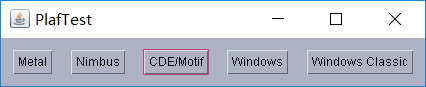


测试程序3:
l 在elipse IDE中调试运行教材457页-458页程序11-3,结合程序运行结果理解程序;
l 掌握AbstractAction类及其动作对象;
掌握GUI程序中按钮、键盘动作映射到动作对象的方法。
代码:
package action;

import java.awt.*;

import javax.swing.*;

/**

 * @version 1.34 2015-06-12

 * @author Cay Horstmann

 */

public class ActionTest

{

   public static void main(String[] args)

   {

      EventQueue.invokeLater(() -> {

         JFrame frame = new ActionFrame();

         frame.setTitle("ActionTest");

         frame.setDefaultCloseOperation(JFrame.EXIT_ON_CLOSE);

         frame.setVisible(true);

      });

   }

}
ActionTest
package action;

import java.awt.*;

import java.awt.event.*;

import javax.swing.*;

/**

 * A frame with a panel that demonstrates color change actions.

 */

public class ActionFrame extends JFrame

{

   private JPanel buttonPanel;

   private static final int DEFAULT_WIDTH = 300;

   private static final int DEFAULT_HEIGHT = 200;

   public ActionFrame()

   {

      setSize(DEFAULT_WIDTH, DEFAULT_HEIGHT);

      buttonPanel = new JPanel();

      // define actions

      Action yellowAction = new ColorAction("Yellow", new ImageIcon("yellow-ball.gif"),

            Color.YELLOW);

      Action blueAction = new ColorAction("Blue", new ImageIcon("blue-ball.gif"), Color.BLUE);

      Action redAction = new ColorAction("Red", new ImageIcon("red-ball.gif"), Color.RED);

      // add buttons for these actions

      buttonPanel.add(new JButton(yellowAction));

      buttonPanel.add(new JButton(blueAction));

      buttonPanel.add(new JButton(redAction));

      // add panel to frame

      add(buttonPanel);

      // associate the Y, B, and R keys with names

      InputMap imap = buttonPanel.getInputMap(JComponent.WHEN_ANCESTOR_OF_FOCUSED_COMPONENT);

      imap.put(KeyStroke.getKeyStroke("ctrl Y"), "panel.yellow");

      imap.put(KeyStroke.getKeyStroke("ctrl B"), "panel.blue");

      imap.put(KeyStroke.getKeyStroke("ctrl R"), "panel.red");

      // associate the names with actions

      ActionMap amap = buttonPanel.getActionMap();

      amap.put("panel.yellow", yellowAction);

      amap.put("panel.blue", blueAction);

      amap.put("panel.red", redAction);

   }

   public class ColorAction extends AbstractAction

   {

      /**

       * Constructs a color action.

       * @param name the name to show on the button

       * @param icon the icon to display on the button

       * @param c the background color

       */

      public ColorAction(String name, Icon icon, Color c)

      {

         putValue(Action.NAME, name);

         putValue(Action.SMALL_ICON, icon);

         putValue(Action.SHORT_DESCRIPTION, "Set panel color to " + name.toLowerCase());

         putValue("color", c);

      }

      public void actionPerformed(ActionEvent event)

      {

         Color c = (Color) getValue("color");

         buttonPanel.setBackground(c);

      }

   }

}
ActionFrame
运行结果:
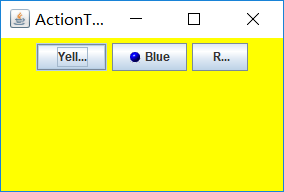
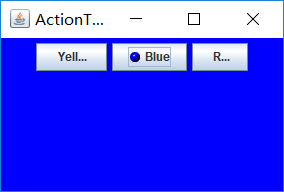
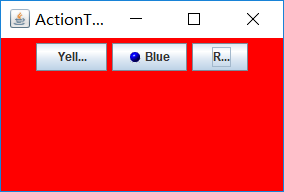
测试程序4:
l 在elipse IDE中调试运行教材462页程序11-4、11-5,结合程序运行结果理解程序;
l 掌握GUI程序中鼠标事件处理技术。
代码:
package mouse;

import java.awt.*;

import javax.swing.*;

/**

 * @version 1.34 2015-06-12

 * @author Cay Horstmann

 */

public class MouseTest

{

   public static void main(String[] args)

   {

      EventQueue.invokeLater(() -> {

         JFrame frame = new MouseFrame();

         frame.setTitle("MouseTest");

         frame.setDefaultCloseOperation(JFrame.EXIT_ON_CLOSE);

         frame.setVisible(true);

      });

   }

}
MouseTest
package mouse;

import javax.swing.*;

/**

 * A frame containing a panel for testing mouse operations

 */

public class MouseFrame extends JFrame

{

   public MouseFrame()

   {

      add(new MouseComponent());

      pack();

   }

}
MouseFrame
package mouse;

import java.awt.*;

import java.awt.event.*;

import java.awt.geom.*;

import java.util.*;

import javax.swing.*;

/**

 * A component with mouse operations for adding and removing squares.

 */

public class MouseComponent extends JComponent

{

   private static final int DEFAULT_WIDTH = 300;

   private static final int DEFAULT_HEIGHT = 200;

   private static final int SIDELENGTH = 10;

   private ArrayList<Rectangle2D> squares;

   private Rectangle2D current; // the square containing the mouse cursor

   public MouseComponent()

   {

      squares = new ArrayList<>();

      current = null;

      addMouseListener(new MouseHandler());

      addMouseMotionListener(new MouseMotionHandler());

   }

   public Dimension getPreferredSize() { return new Dimension(DEFAULT_WIDTH, DEFAULT_HEIGHT); }

   public void paintComponent(Graphics g)

   {

      Graphics2D g2 = (Graphics2D) g;

      // draw all squares

      for (Rectangle2D r : squares)

         g2.draw(r);

   }

   /**

    * Finds the first square containing a point.

    * @param p a point

    * @return the first square that contains p

    */

   public Rectangle2D find(Point2D p)

   {

      for (Rectangle2D r : squares)

      {

         if (r.contains(p)) return r;

      }

      return null;

   }

   /**

    * Adds a square to the collection.

    * @param p the center of the square

    */

   public void add(Point2D p)

   {

      double x = p.getX();

      double y = p.getY();

      current = new Rectangle2D.Double(x - SIDELENGTH / 2, y - SIDELENGTH / 2, SIDELENGTH,

            SIDELENGTH);

      squares.add(current);

      repaint();

   }

   /**

    * Removes a square from the collection.

    * @param s the square to remove

    */

   public void remove(Rectangle2D s)

   {

      if (s == null) return;

      if (s == current) current = null;

      squares.remove(s);

      repaint();

   }

   private class MouseHandler extends MouseAdapter

   {

      public void mousePressed(MouseEvent event)

      {

         // add a new square if the cursor isn't inside a square

         current = find(event.getPoint());

         if (current == null) add(event.getPoint());

      }

      public void mouseClicked(MouseEvent event)

      {

         // remove the current square if double clicked

         current = find(event.getPoint());

         if (current != null && event.getClickCount() >= 2) remove(current);

      }

   }

   private class MouseMotionHandler implements MouseMotionListener

   {

      public void mouseMoved(MouseEvent event)

      {

         // set the mouse cursor to cross hairs if it is inside

         // a rectangle

         if (find(event.getPoint()) == null) setCursor(Cursor.getDefaultCursor());

         else setCursor(Cursor.getPredefinedCursor(Cursor.CROSSHAIR_CURSOR));

      }

      public void mouseDragged(MouseEvent event)

      {

         if (current != null)

         {

            int x = event.getX();

            int y = event.getY();

            // drag the current rectangle to center it at (x, y)

            current.setFrame(x - SIDELENGTH / 2, y - SIDELENGTH / 2, SIDELENGTH, SIDELENGTH);

            repaint();

         }

      }

   }

}
MouseComponent
运行结果:

实验2:结对编程练习
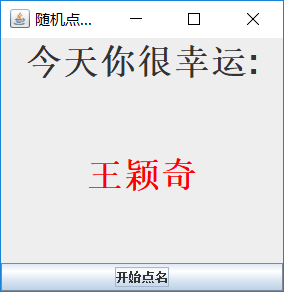
利用班级名单文件、文本框和按钮组件,设计一个有如下界面(图1)的点名器,要求用户点击开始按钮后在文本输入框随机显示2017级网络与信息安全班同学姓名,如图2所示,点击停止按钮后,文本输入框不再变换同学姓名,此同学则是被点到的同学姓名。

代码(本人编写,无法实现停止点名):
package demo;

import java.awt.*;

import javax.swing.*;

/**

 * @version 1.34 2015-06-12

 * @author Cay Horstmann

 */

public class ButtonTest {

    public static void main(String[] args) {

        EventQueue.invokeLater(() -> {

            JFrame frame = new ButtonFrame();

            frame.setTitle("随机点名器");

            frame.setDefaultCloseOperation(JFrame.EXIT_ON_CLOSE);

            frame.setVisible(true);

        });

    }

}
ButtonTest
package demo;

import java.awt.Color;

import java.awt.event.ActionEvent;

import java.awt.event.ActionListener;

import java.io.BufferedReader;

import java.io.InputStreamReader;

import java.io.File;

import java.io.FileInputStream;

import java.io.FileNotFoundException;

import java.io.IOException;

import java.util.ArrayList;

import java.util.Scanner;

import java.util.Timer;

import java.util.TimerTask;

import javax.swing.JButton;

import javax.swing.JFrame;

import javax.swing.JLabel;

import javax.swing.JPanel;

/**

 * A frame with a button panel

 *

 * @param <SheThread>

 */

public class ButtonFrame extends JFrame {

    private static ArrayList<String> studentlist;

    private JPanel buttonPanel;

    private static final int DEFAULT_WIDTH = 300;

    private static final int DEFAULT_HEIGHT = 200;

    private static volatile boolean flag = false;

    public ButtonFrame() {

        try {

            String temp = null;

            studentlist = new ArrayList<String>();

            File file = new File("C:\\Users\\ASUS\\Desktop\\studentnamelist.txt");

            FileInputStream fis = new FileInputStream(file);

            BufferedReader in = new BufferedReader(new InputStreamReader(fis));

            while ((temp = in.readLine()) != null) {

                Scanner linescanner = new Scanner(temp);

                linescanner.useDelimiter(" ");

                studentlist.add(temp);

            }

            String[] arr = (String[]) studentlist.toArray(new String[studentlist.size()]);

            setSize(DEFAULT_WIDTH, DEFAULT_HEIGHT);

            buttonPanel = new JPanel();

            buttonPanel.setLayout(null);

            JLabel jLabel = new JLabel("随机点名器");

            JButton jButton = new JButton("点名");

            JButton jbutton = new JButton("点名");

            jLabel.setBounds(130, 40, 200, 30);

            jButton.setBounds(110, 90, 60, 30);

            buttonPanel.setBackground(Color.GREEN);

            jButton.setBackground(Color.RED);

            jButton.addActionListener(new ActionListener() {

                public void actionPerformed(ActionEvent e) {

                    Timer timer = new Timer();

                    TimerTask timerTask = new TimerTask() {

                        public void run() {

                            String[] name = arr;

                            jLabel.setText(name[(int) Math.round(Math.random() * 42)]);

                        }

                    };

                    timer.schedule(timerTask, 0, 500);

                }

            });

            buttonPanel.add(jLabel);

            buttonPanel.add(jButton);

            add(buttonPanel);

        } catch (FileNotFoundException e) {

            System.out.println("学生信息文件找不到");

            e.printStackTrace();

        } catch (IOException e) {

            System.out.println("学生信息文件读取错误");

            e.printStackTrace();

        }

    }

}
ButtonFrame
运行结果:
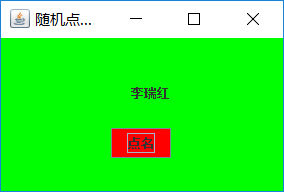
示例代码(学长提供):
package demo;

import java.util.*;

import java.awt.*;

import javax.swing.*;

import java.awt.event.*;

import java.io.File;

import java.io.FileNotFoundException;

import javax.swing.event.*;

public class NameFrame extends JFrame implements ActionListener{

    private JLabel jla;

    private JLabel jlb;

    private JButton jba;

    private static boolean flag = true;

    public NameFrame(){

        this.setLayout(null);

        jla = new JLabel("姓名");

        jlb = new JLabel("准备中");

        jba = new JButton("开始");

        this.add(jla);

        this.add(jlb);

        jla.setFont(new Font("Courier",Font.PLAIN,22));

        jla.setHorizontalAlignment(JLabel.CENTER);

         jla.setVerticalAlignment(JLabel.CENTER);

         jla.setBounds(20,100,180,30);

         jlb.setOpaque(true);

         jlb.setBackground(Color.cyan);

         jlb.setFont(new Font("Courier",Font.PLAIN,22));

        jlb.setHorizontalAlignment(JLabel.CENTER);

         jlb.setVerticalAlignment(JLabel.CENTER);

         jlb.setBounds(150,100,120,30);

         this.add(jba);

         jba.setBounds(150,150,80,26);

         jba.addActionListener(this);

         this.setTitle("点名器");

        this.setBounds(400,400,400,300);

        this.setVisible(true);

        this.setDefaultCloseOperation(DISPOSE_ON_CLOSE);

    }

    public void actionPerformed(ActionEvent e){

        int i=0;

        String names[]=new String[50];

        try {

            Scanner in=new Scanner(new File("C:\\Users\\ASUS\\Desktop\\studentnamelist.txt"));

            while(in.hasNextLine())

            {

                names[i]=in.nextLine();

                i++;

            }

        } catch (FileNotFoundException e1) {

            // TODO Auto-generated catch block

            e1.printStackTrace();

        }

        if(jba.getText()=="开始"){

            jlb.setBackground(Color.MAGENTA);

            flag = true;

            new Thread(){

                public void run(){

                    while(NameFrame.flag){

                    Random r = new Random();

                    int i= r.nextInt(47);

                    jlb.setText(names[i]);

                    }

                }

            }.start();

            jba.setText("停止");

            jba.setBackground(Color.YELLOW);

        }

        else if(jba.getText()=="停止"){

            flag = false;

            jba.setText("开始");

            jba.setBackground(Color.WHITE);

            jlb.setBackground(Color.gray);

        }

     }

    public static void main(String arguments []){

        new NameFrame();

    }

}
NameFrame
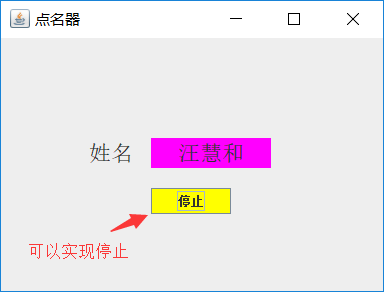
由于本人未学习有关JAVA多线程的知识,无法实现线程的停止。
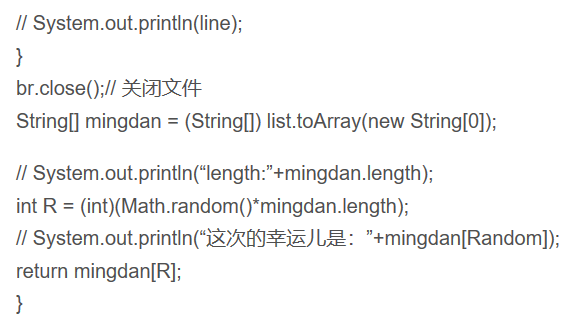
在查阅资料的过程中,本链接中的随机点名方法不太了解:
https://blog.csdn.net/qq_39694972/article/details/83243673
此部分:
运行结果:
学习总结:
11.1 事件处理基础
11.2 动作
11.3 鼠标事件
11.4 AWT事件继承层次
⚫ 事件源(event source):能够产生事件的对象都可
以成为事件源,如文本框、按钮等。一个事件源是一个能够注册监听器并向监听器发送事件对象的对象。
⚫ 事件监听器(event listener):事件监听器对象接收事件源发送的通告(事件对象),并对发生的事件作出响应。一个监听器对象就是一个实现了专门监听器接口的类实例,该类必须实现接口中的方法,这些方法当事件发生时,被自动执行。
⚫ 事件对象(event object):Java将事件的相关信息封装在一个事件对象中,所有的事件对象都最终派生于java.util.EventObject类。不同的事件源可以产生不同类别的事件。
AWT事件处理机制的概要:
⚫ 监听器对象:是一个实现了特定监听器接口(listener interface)的类实例。
⚫ 事件源:是一个能够注册监听器对象并发送事件对象的对象。
⚫ 当事件发生时,事件源将事件对象自动传递给所有注册的监听器。
⚫ 监听器对象利用事件对象中的信息决定如何对事件做出响应。
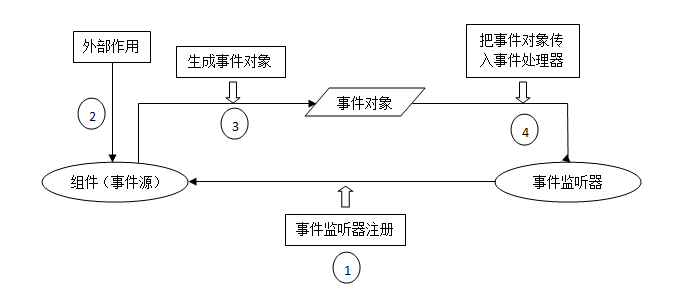
GUI设计中,程序员需要对组件的某种事件进行响应和处理时,必须完成两个步骤:
1) 定义实现某事件监听器接口的事件监听器类,并具体化接口中声明的事件处理抽象方法。
2) 为组件注册实现了规定接口的事件监听器对象;
动作事件(ActionEvent):当特定组件动作(点击按钮)发生时,该组件生成此动作事件。
⚫ 该 事 件 被 传 递 给 组 件 注 册 的 每 一 个ActionListener 对 象 , 并 调 用 监 听 器 对 象 的actionPerformed方法以接收这类事件对象。
⚫ 能够触发动作事件的动作,主要包括:
(1) 点击按钮
(2) 双击一个列表中的选项;
(3) 选择菜单项;
监听器类必须实现与事件源相对应的接口,即必须提供接口中方法的实现。
学习感受:
这个周的结对编程练习,由于未学习JAVA多线程的知识,无法完全实现编程题的内容(随机点名器不能停止),深感自己知识的不够。在我查阅资料的过程中,有些看不懂中断线程的两种方法:stop()和interrupt()方法。
王颖奇 20171010129《面向对象程序设计(java)》第十三周学习总结的更多相关文章
- 201771010134杨其菊《面向对象程序设计java》第九周学习总结
第九周学习总结 第一部分:理论知识 异常.断言和调试.日志 1.捕获 ...
- 201871010132-张潇潇《面向对象程序设计(java)》第一周学习总结
面向对象程序设计(Java) 博文正文开头 项目 内容 这个作业属于哪个课程 https://www.cnblogs.com/nwnu-daizh/ 这个作业的要求在哪里 https://www.cn ...
- 扎西平措 201571030332《面向对象程序设计 Java 》第一周学习总结
<面向对象程序设计(java)>第一周学习总结 正文开头: 项目 内容 这个作业属于哪个课程 https://www.cnblogs.com/nwnu-daizh/ 这个作业的要求在哪里 ...
- 杨其菊201771010134《面向对象程序设计Java》第二周学习总结
第三章 Java基本程序设计结构 第一部分:(理论知识部分) 本章主要学习:基本内容:数据类型:变量:运算符:类型转换,字符串,输入输出,控制流程,大数值以及数组. 1.基本概念: 1)标识符:由字母 ...
- 201871010124 王生涛《面向对象程序设计JAVA》第一周学习总结
项目 内容 这个作业属于哪个课程 https://www.cnblogs.com/nwnu-daizh/ 这个作业的要求在哪里 https://edu.cnblogs.com/campus/xbsf/ ...
- 201871010115——马北《面向对象程序设计JAVA》第二周学习总结
项目 内容 这个作业属于哪个课程 https://www.cnblogs.com/nwnu-daizh/ 这个作业的要求在哪里 https://www.cnblogs.com/nwnu-daizh/p ...
- 201777010217-金云馨《面向对象程序设计(Java)》第二周学习总结
项目 内容 这个作业属于哪个课程 https://www.cnblogs.com/nwnu-daizh/ 这个作业的要求在哪里 https://www.cnblogs.com/nwnu-daizh/p ...
- 201871010132——张潇潇《面向对象程序设计JAVA》第二周学习总结
项目 内容 这个作业属于哪个课程 https://www.cnblogs.com/nwnu-daizh/ 这个作业的要求在哪里 https://www.cnblogs.com/nwnu-daizh/p ...
- 201771010123汪慧和《面向对象程序设计Java》第二周学习总结
一.理论知识部分 1.标识符由字母.下划线.美元符号和数字组成, 且第一个符号不能为数字.标识符可用作: 类名.变量名.方法名.数组名.文件名等.第二部分:理论知识学习部分 2.关键字就是Java语言 ...
- 201521123061 《Java程序设计》第十三周学习总结
201521123061 <Java程序设计>第十三周学习总结 1. 本周学习总结 2. 书面作业 1. 网络基础 1.1 比较ping www.baidu.com与ping cec.jm ...
随机推荐
- Linux-设备
一.在Linux系统中,每个设备都被当成一个文件来对待. 在Linux系统中,几乎所有的硬件设备都在/dev这个目录内.
- Eureka源码分析
源码流程图 先上图,不太清晰,抱歉 一.Eureka Server源码分析 从@EnableEurekaServer注解为入口,它是一个标记注解,点进去看 注解内容如下 /** * 激活Eureka服 ...
- 22-Java-Hibernate框架(二)
Hibernate的了解.Hibernate的搭建.Hibernate的基本使用流程等内容请阅读21-Java-Hibernate(一) 五.Hibernate的Query查询接口(重中之重) 1.H ...
- webpack 中常用安装插件的一些命令
1:npm install html-webpack-plugin --save-dev //自动快速的帮我们生成HTML.2:npm install css-loader style-loader ...
- 详解 普通数组 —— Arrays类 与 浅克隆
我们在C语言中,编一些代码量规模比较大的程序,几乎都会用到 "数组" 或 "链表" ,但是,在本人之前的博文中,却对这两个知识点从未提到过,那么,本人将通过这篇 ...
- Java环境下 selenium webDriver + chrome浏览器搭建与调试
一.首先下载selenium webDriver jar包,下载地址如下: http://selenium-release.storage.googleapis.com/index.html 二.下载 ...
- SpringCloud(二)笔记之Eureka
Eureka包含两个组件:Eureka Server和Eureka Client Eureka Server:提供服务注册服务,各个节点启动后,会在Eureka Server中进行注册 Eureka ...
- Jquery中 $.Ajax() 参数详解
1.url:要求为String类型的参数,(默认为当前页地址)发送请求的地址. 2.type:要求为String类型的参数,请求方式(post或get)默认为get.注意其他http请求方法,例如pu ...
- tensorflow1.0 矩阵相乘
import tensorflow as tf matrix1 = tf.constant([[3,3]]) matrix2 = tf.constant([[2],[2]]) product = tf ...
- TensorFlow keras 迁移学习
数据的读取 import tensorflow as tf from tensorflow.python import keras from tensorflow.python.keras.prepr ...