
django中ckeditor富文本编辑器使用
1.安装模块
(pillow是python的一个图像处理库)
pip install django-ckeditor
pip install pillow
2.编辑seetings.py配置文件
INSTALLED_APPS = [

   'ckeditor',#富文本编辑器

    'ckeditor_uploader'#富文本编辑器上传图片模块

]

#媒体文件配置

MEDIA_URL = "/media/"

MEDIA_ROOT = os.path.join(BASE_DIR, "media")

CKEDITOR_UPLOAD_PATH = "images"  # 上传图片保存路径,如果没有图片存储或者使用自定义存储位置,那么则直接写  ' ' ,如果是使用django本身的存储方式,那么你就指名一个目录用来存储即可。

# 富文本编辑器ckeditor配置

CKEDITOR_CONFIGS = {

    #(1)默认配置

    # 'default': {

    #     'toolbar': 'full',  # 工具条功能

    #     'height': 300,  # 编辑器高度

    #     'width': 800,  # 编辑器宽

    # },

    #(3)自定义配置带代码块显示

    'default': {

        'toolbar': (

            ['div', 'Source', '-', 'Save', 'NewPage', 'Preview', '-', 'Templates'],

            ['Cut', 'Copy', 'Paste', 'PasteText', 'PasteFromWord', '-', 'Print', 'SpellChecker', 'Scayt'],

            ['Undo', 'Redo', '-', 'Find', 'Replace', '-', 'SelectAll', 'RemoveFormat'],

            ['Form', 'Checkbox', 'Radio', 'TextField', 'Textarea', 'Select', 'Button', 'ImageButton', 'HiddenField'],

            ['Bold', 'Italic', 'Underline', 'Strike', '-', 'Subscript', 'Superscript'],

            ['NumberedList', 'BulletedList', '-', 'Outdent', 'Indent', 'Blockquote'],

            ['JustifyLeft', 'JustifyCenter', 'JustifyRight', 'JustifyBlock'],

            ['Link', 'Unlink', 'Anchor'],

            ['Image', 'Flash', 'Table', 'HorizontalRule', 'Smiley', 'SpecialChar', 'PageBreak'],

            ['Styles', 'Format', 'Font', 'FontSize'],

            ['TextColor', 'BGColor'],

            ['Maximize', 'ShowBlocks', '-', 'About', 'pbckcode'],

            ['Blockquote', 'CodeSnippet'],

        ),

        'width': 'auto',

        # 添加按钮在这里

        'toolbar_Custom': [

            ['NumberedList', 'BulletedList'],

            ['Blockquote', 'CodeSnippet'],

        ],

        # 插件

        'extraPlugins': ','.join(['codesnippet', 'widget', 'lineutils', ]),

    },

}
seetings.py
3.编辑urls.py路由
from django.conf.urls import url, include

from django.contrib import admin

from django.conf.urls.static import static

from django.conf import settings

from editer import views

urlpatterns = [

                  url(r'^admin/', admin.site.urls),

                  url(r'^ckeditor/', include('ckeditor_uploader.urls')),

                  url(r'^index/', views.index),#测试获取后台编辑的内容用的

              ] + static(settings.MEDIA_URL, document_root=settings.MEDIA_ROOT)  ## 没有这一句无法显示上传的图片
urls.py
4.app应用的models.py中的应用
from django.db import models

from ckeditor.fields import RichTextField

from ckeditor_uploader.fields import RichTextUploadingField

class SPUModel(models.Model):

    '''这是spu表格'''

    name = models.CharField(max_length=32, verbose_name='商品名')

    sales = models.CharField(max_length=20, verbose_name='销售量')

    desc_pack = RichTextUploadingField(default='', verbose_name='商品详情')

    def __str__(self):

        return self.name

    class Meta:

        verbose_name = '商品表'

        db_table = verbose_name

        verbose_name_plural = verbose_name
models.py
5.数据库迁移指令
makemigrations
migrate
6.创建admin超级用户
createsuperuser
7.app应用的admin.py文件中注册表
from django.contrib import admin

from editer import models

# Register your models here.

admin.site.register(models.SPUModel)
admin.py
8.启动项目,进入admin后台管理编辑即可
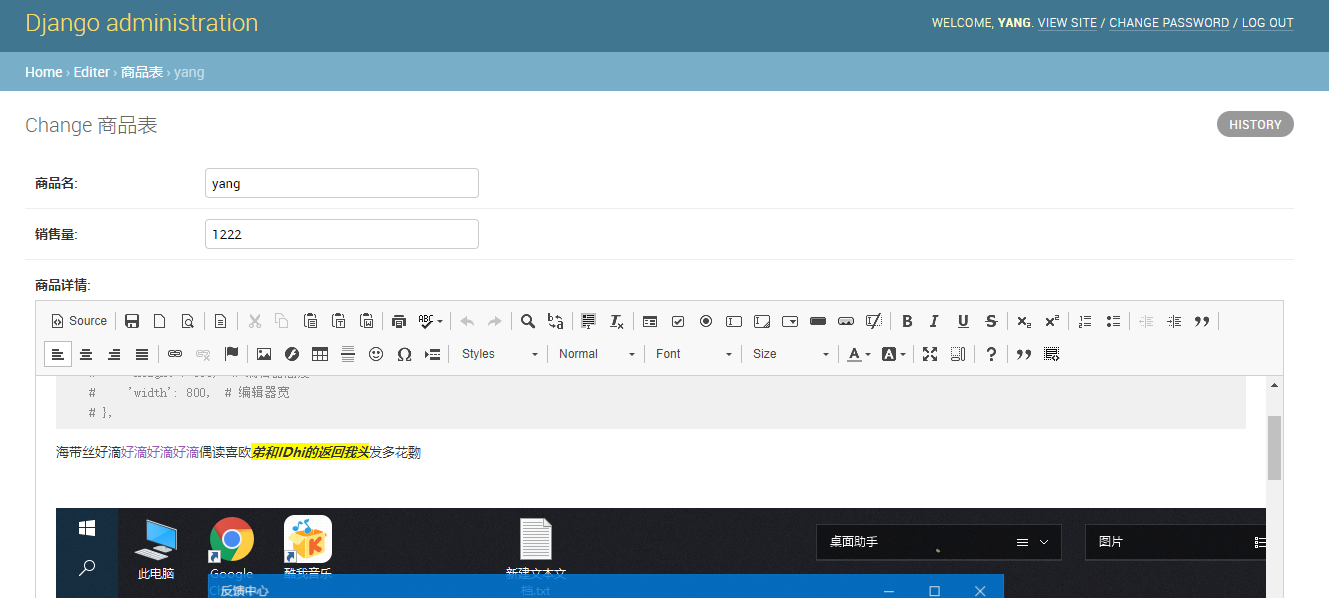
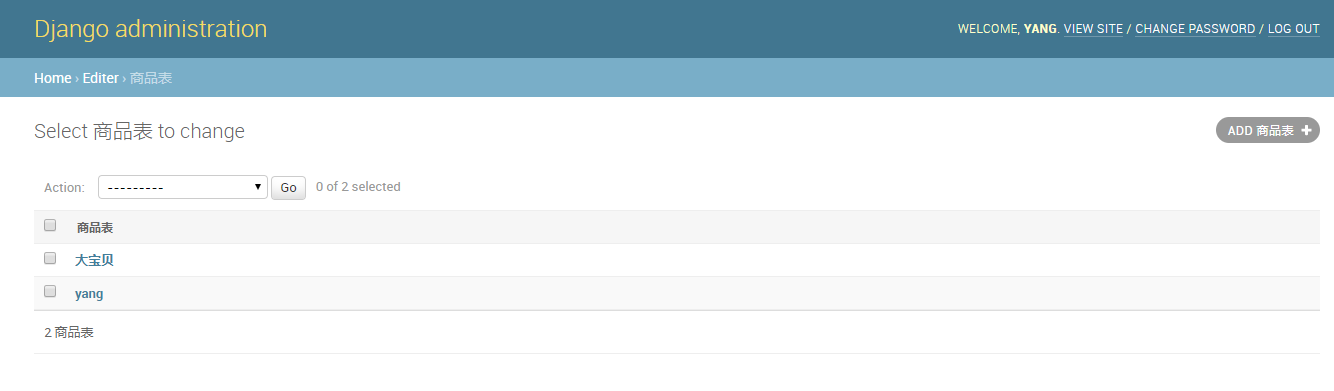
9.在templates文件夹中编写测试url返回页面index.html
<!DOCTYPE html>

<html lang="en">

<head>

    <meta charset="UTF-8">

    <title>CKEditorTest</title>

</head>

<body>

<div>

    {% for obj in all %}

        <hr>

        <h2>第{{ forloop.counter }}篇:</h2>

        <h2>标题:{{ obj.name }}</h2>

        <h3>销量:{{ obj.sales }}</h3>

        {{ obj.desc_pack | safe }}

    {% endfor %}

</div>

</body>

</html>
index.html
10.app应用的views.py文件中编写测试url对应的视图函数
from django.shortcuts import render

from editer import models

# Create your views here.

def index(request):

    all_obj = list(models.SPUModel.objects.all().all().values('name','sales','desc_pack'))

    return render(request, 'index.html', {'all': all_obj})
views.py
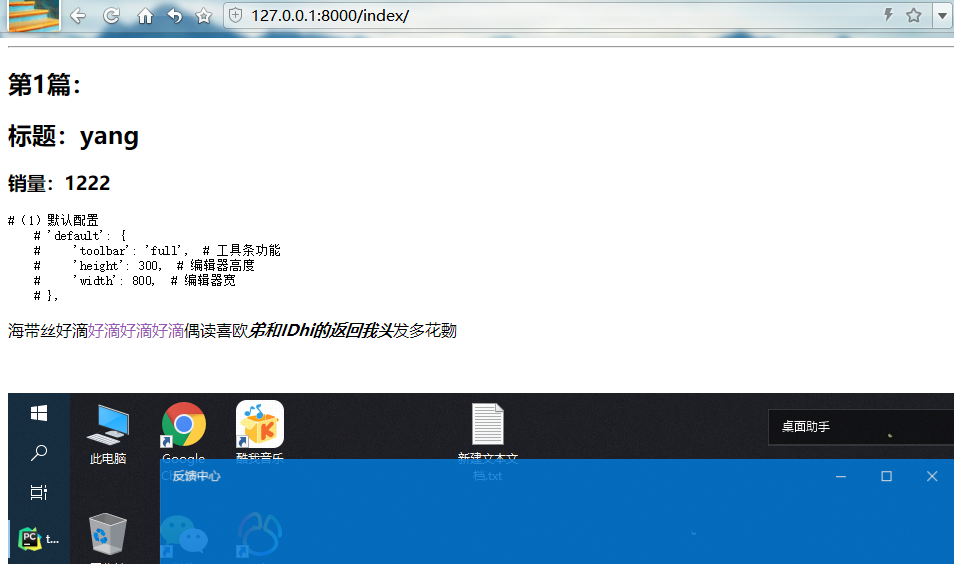
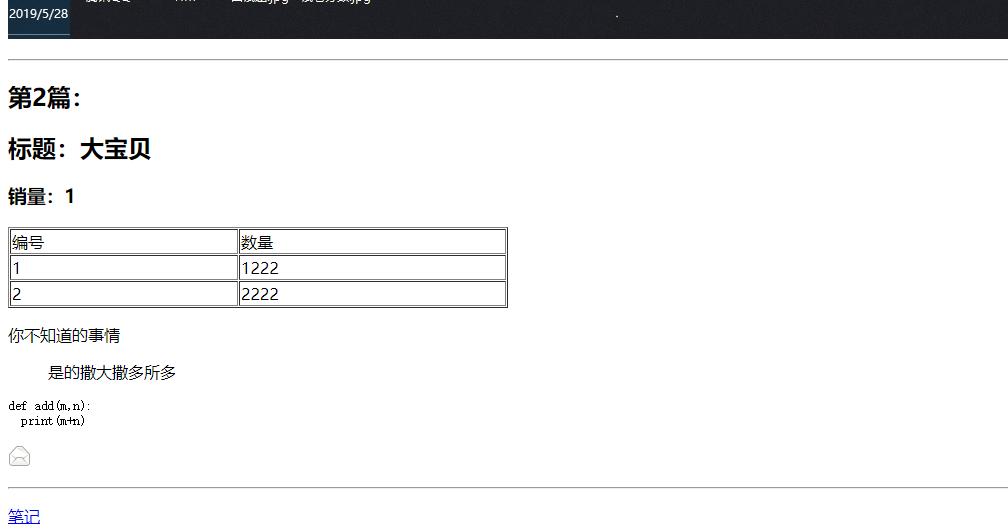
11.重启项目,浏览器测试http://127.0.0.1:8000/index/
参考博客:https://blog.csdn.net/weixin_43158056/article/details/93911844
django中ckeditor富文本编辑器使用的更多相关文章
- Django中CKEditor富文本编译器的使用
CKEditor富文本编辑器 1. 安装 pip install django-ckeditor 2. 添加应用 在INSTALLED_APPS中添加 INSTALLED_APPS = [ ... ' ...
- Django添加ckeditor富文本编辑器
源码 https://github.com/django-ckeditor/django-ckeditor 通过pip安装. pip3 install django-ckeditor pip3 ins ...
- Django中添加富文本编辑器
使用的是CKeditor这个模块 1.安装: pip install django-ckeditor 2.将ckeditor注册到settings.py文件中, 并添加ckeditor的url到你项目 ...
- Django项目中添加富文本编辑器django-ckeditor
django-ckeditor库的使用步骤: 1.在命令行下安装django-ckeditor这个库: 命令:pip install django-ckeditor 2.安装成功后,配置Django项 ...
- CKEditor富文本编辑器
CKEditor 富文本即具备丰富样式格式的文本.在运营后台,运营人员需要录入课程的相关描述,可以是包含了HTML语法格式的字符串.为了快速简单的让用户能够在页面中编辑带格式的文本,我们引入富文本编辑 ...
- day82:luffy:课程详情页面显示&章节和课时显示&视频播放组件&CKEditor富文本编辑器
目录 1.初始课程详情页面 2.视频播放组件 3.课程详情页面后端接口实现 4.课程详情页面-前端 5.CKEditor富文本编辑器 6.课程章节和课时显示-后端接口 7.课程章节和课时显示-前端 1 ...
- Django中使用富文本编辑器Uedit
Uedit是百度一款非常好用的富文本编辑器 一.安装及基本配置 官方GitHub(有详细的安装使用教程):https://github.com/zhangfisher/DjangoUeditor 1. ...
- 项目页面集成ckeditor富文本编辑器
步骤一.引入ckeditor.js (注:本实例以ThinkPHP3.2框架为载体,不熟悉ThinkPHP的朋友请自行补习,ckeditor文件代码内容也请去ckeditor官网自行下载) 作为程序员 ...
- web项目中nicedit富文本编辑器的使用
web项目中nicedit富文本编辑器的使用 一.为什么要用富文本编辑器? 先说什么是富文本编辑器吧,普通的html中input或textarea标签只能进行简单的输入,而做不到其他的文本调整功能,甚 ...
随机推荐
- php-fpm运行原理
来源:https://blog.csdn.net/sinat_38804294/article/details/94393621 一.php-fpm由来1.cgi (common gateway in ...
- thinkphp5--model数据操作的坑
最近用thinkphp5开发,经常用到model了来操作数据,但是操作多了,就发现他的坑了. 就好像如果你只是初始化一个model对象,但是你却用这个对象进行多次的数据操作,这时候他的数据就会发生混乱 ...
- http的长连接与端连接
长连接的定义: HTTP1.1规定了默认保持长连接(HTTP persistent connection ,也有翻译为持久连接),数据传输完成了保持TCP连接不断开(不发RST包.不四次握手),等待 ...
- REDHAT7进入单用户模式
Redhat7采用的是grub2,和Redhat6.x进入单用户的方法不同. 一.init方法 1.centos7的grub2界面会有两个入口,正常系统入口和救援模式: 2.修改grub2引导 在正常 ...
- Querying for Event Information
https://docs.microsoft.com/zh-cn/windows/desktop/EventLog/querying-for-event-source-messages #includ ...
- eclipse安装Axis2插件和简单的webservice发布
2019独角兽企业重金招聘Python工程师标准>>> Axis2与CXF是现在很主流的WebService开发框架(java6也已经支持了),项目上还都是基本上用前两种做开发,今天 ...
- $_server[]关于浏览器和服务器的参数获取
$_SERVER['USER'] www $_SERVER['HOME'] /home/www $_SERVER['HTTP_UPGRADE_INSECURE_REQUESTS'] 1 $_SERVE ...
- codeforce 270C Magical Boxes
C. Magical Boxes Emuskald is a well-known illusionist. One of his trademark tricks involves a set of ...
- 题目分享P
题意: 给出一棵n个节点的树,这棵树的每条边有一个权值,这个权值只可能是0或1. 在一局游戏开始时,会确定一个节点作为根.接下来从女生开始,双方轮流进行 操作.当一方操作时,他们需要先选择一个不为根的 ...
- 解决虚拟机中linux系统无法使用本机无线wifi联网的问题
VMware Workstation 在嵌入式开发中经常会遇到,但是显示大多数人使用开发环境是Win10 + 无线网卡,针对这种情况,需要配置虚拟机的上网环境使用的是NAT模式,将配置过程进行描述: ...