
selenium 总结篇,常见方法和页面元素的操作
今天,总结一下selenium怎么操作web页面常见的元素。
主要有:
- 上传
- alter dialog
- prompt dialog
- confirm dialog
- select list
- radio box
- input box
- checkBox
测试页面如下:
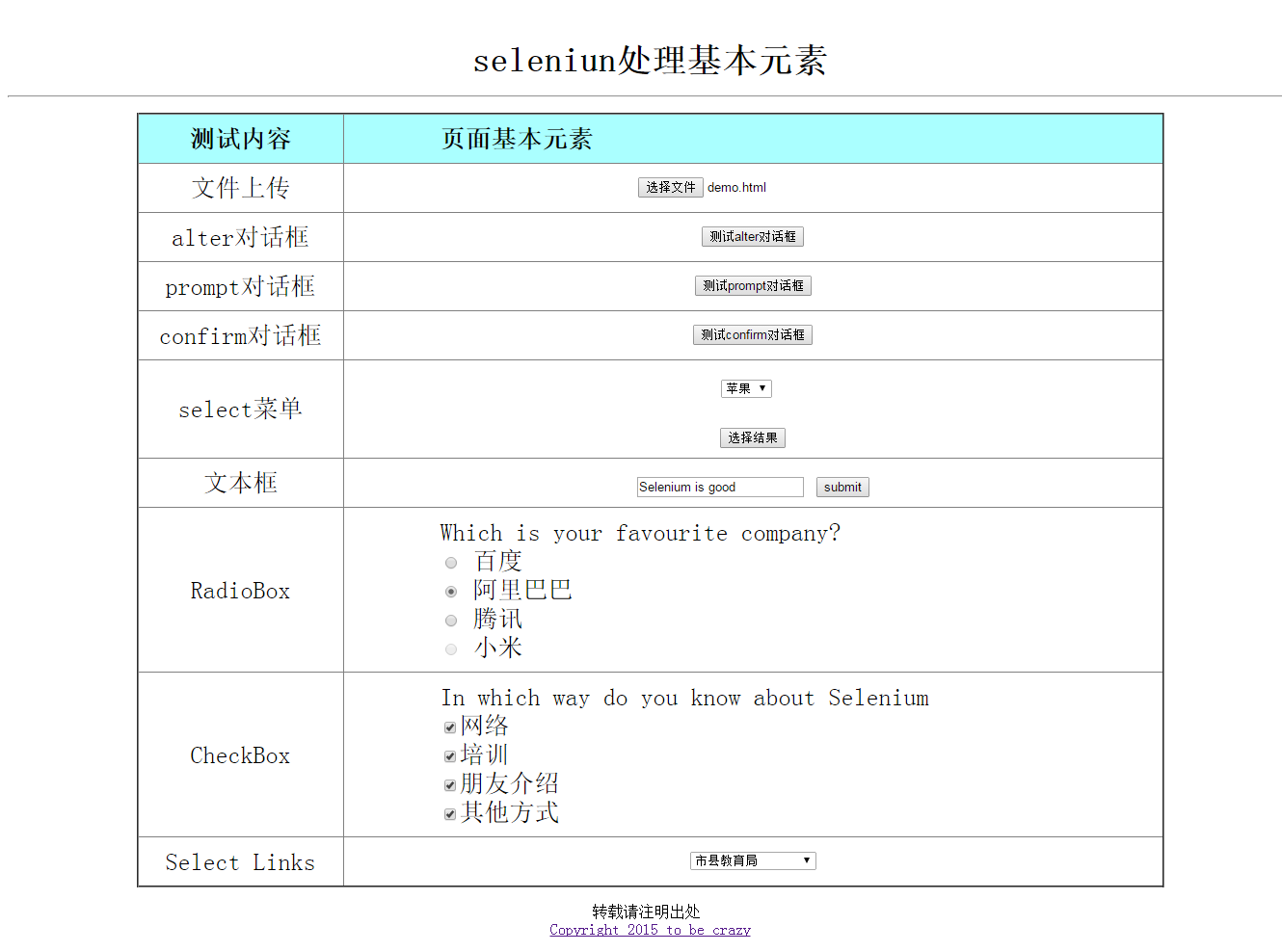
 <html>

   <head>

     <title>selenium处理基本页面元素</title>

 <style type="text/css">

     table{font-size:26;text-align:center;width:80%;border-collapse:collapse;margin:auto}

     table th{background: #aff}

     .display{color:red}

     .widgetStyle{text-align:left;padding-left:100px}

 </style>

      <script language= "javascript" type="text/javascript">

             function clickbutton(flag)

             {

                 if (flag == 1) alert("测试alert对话框");

                 if (flag == 2)

         {

             var name=prompt("测试prompt对话框","");

                   if (name!=null && name!="")

                     {

                         //document.write(name);

                     alert(name);

                     }

         }

                 if (flag == 3)

         {

                 var r=confirm('测试confirm对话框', '测试confirm对话框?',"测试结果:")

                   if (r==true)

                     {

                         //document.write("You pressed OK!")

                     alert("You pressed OK!");

                     }

                   else

                     {

                         //document.write("You pressed Cancel!")

                     alert("You pressed Cancel!");

                     }

         }

         if (flag == 4)

             alert(document.getElementById("edit").value);

                 }

         function getOptions()

           {

               var x=document.getElementById("Selector");

               var y=x.options[x.selectedIndex].text

               // document.write(y);

             alert(y);

           }

         </script>

     </head>

     <body>

         <center>

     </br>

     <div>

     <p>

     <div class="text" style="font-size:36;text-align:center"><b>seleniun处理基本元素</b></div>

     </p>

         <hr>

         </div>

     <p>

         <table cellpadding="10" cellspacing="0" border="2">

         <thead>

             <tr>

                 <th width=20% class="widgetleft">测试内容</th>

                 <th width=80% class="widgetStyle">页面基本元素</th>

             </tr>

         </thead>

             <tr>

                 <td>文件上传</td>

                 <td><input type="file" name="attach[]"  /></td>

             </tr>

             <tr>

                 <td>alter对话框</td>

                 <td>

                     <input type="button" name="alterbutton" value="测试alter对话框"  onclick = "clickbutton(1);" />

                 </td>

             </tr>

             <tr>

                 <td>prompt对话框</td>

                 <td>

                     <input type="button" name="promptbutton" value="测试prompt对话框"  onclick = "clickbutton(2);" />

                 </td>

             </tr>

             <tr>

                 <td>confirm对话框</td>

                 <td>

                     <input type="button" name="confirmbutton" value="测试confirm对话框"  onclick = "clickbutton(3);" />

                 </td>

             </tr>

             <tr>

                 <td>select菜单</td>

                 <td>

                 <select id="Selector">

                     <option value="apple" index="1" >苹果</option>

                     <option value="peach"  index="2" >桃子</option>

                     <option value="banana" index="3" >香蕉</option>

                     <option value="orange"  index="4">桔子</option>

                     <option value="grape"  index="5">葡萄</option>

                     <option value="mango"  index="6">芒果</option>

         </select>

             <br /><br />

             <input type="button" id="showSelectResult" name="showSelectResult" onclick="getOptions()" value="选择结果">

                 </td>

             </tr>

           <tr>

                 <td>文本框</td>

                 <td>

                     <input type="text" name="edit" id="edit" value="" />

             <input type="button" name="submit" value="submit"  onclick = "clickbutton(4);"/>

                 </td>

             </tr>

       <tr>

         <td>RadioBox</td>

         <td class="widgetStyle">

         <label>

         Which is your favourite company?

         </label>

         <div id='radio'  >

         <input type='radio' name="company" class='Baidu'/>

             <span class="pip"></span>

             <label>百度</label>

         </br>

         <input type='radio' name="company" class='AliBaBa'/>

             <span class="pip"></span>

             <label>阿里巴巴</label></br>

         <input type='radio' name="company" class='Tencent' checked/>

             <span class="pip"></span>

             <label>腾讯</label></br>

         <input type='radio' name="company" class='Mi' disabled="true"/>

             <span class="pip"></span>

             <label>小米</label>

          </td>

          </tr>

     <tr>

          <td>CheckBox</td>

         <td class="widgetStyle">

         <label>

         In which way do you know about Selenium

         <label>

         <div id='checkbox'>

         <input type="checkbox" name="checkbox1" id="web"/><label>网络</label></br>

         <input type="checkbox" name="checkbox2" id="training"/><label>培训</label></br>

         <input type="checkbox" name="checkbox3" id="friend"/><label>朋友介绍</label></br>

         <input type="checkbox" name="checkbox4" id="other" /><label>其他方式</label>

         </div>

         </td>

     </tr>

     <tr>

     <td>Select Links</td>

     <td>

     <div class="links">

                <select name="jumpMenu" id="jumpMenu" onchange="window.open(this.value)">

                 <option selected="selected">市县教育局</option>

                 <option value="http://www.zzjy.gov.cn/" >郑州市教育局</option>

                 <option value="http://www.kfedu.com.cn/" >开封教育网</option>

                 <option value="http://www.lyenet.org/" >洛阳市教育局</option>

                 <option value="http://www.pdsedu.gov.cn/" >平顶山教育网</option>

                 <option value="http://www.anyangedu.com/" >安阳教育信息网</option>

                 <option value="http://www.hnhbedu.net/" >鹤壁教育信息网</option>

                 <option value="http://www.xxjy.gov.cn/" >新乡市教育局</option>

                 <option value="http://www.jzedu.cn/" >焦作市教育局</option>

                 <option value="http://www.xcsjyw.com/" >许昌教育网</option>

                 <option value="http://www.lhjy.net/" >漯河教育网</option>

                 <option value="http://www.smxjy.cn/" >三门峡教育信息港</option>

                 <option value="http://www.sqedu.gov.cn/" >商丘市教育局</option>

                 <option value="http://www.zkedu.gov.cn/" >周口市教育局</option>

                 <option value="http://www.zmdedu.net/" >驻马店教育局 </option>

                 <option value="http://www.nyedu.net/" >南阳教育局</option>

                 <option value="http://www.xinyangedu.gov.cn/" >信阳市教育局</option>

                 <option value="http://www.jyedu.org/" >济源教育网</option>

               </select>

     </div>

     </td>

     </tr>

             </table>

        </p>

     <p>

         <label for="edit">转载请注明出处</label>

         </br>

         <a href="http://www.cnblogs.com/tobecrazy/" >Copyright 2015 to be crazy </a>

     </p>

         </center>

     </body>

 </html>
selenium 最核心的技巧是WebElement的识别和定位
selenium总共有八种定位方法
- By.id() 通过id定位
- By.name() 通过name 定位
- By.xpath() 通过xpath定位
- By.className() 通过className定位
- By.cssSelector() 通过CSS 定位
- By.linkText() 通过linkText
- By.tagName() 通过tagName
- By.partialLinkText() 通过匹到的部分linkText
目前,使用比较多的是cssSelector和xpath,因为一个页面中Id name className tagName LinkText等比较容易重复 不容易 确定唯一
接下来会有具体的例子来演示如何定位
上传文件
一般,上传页面如果是input,像这样的,可以使用sendkeys

首先,这里使用xpath定位到该元素,然后使用sendKeys即可,sendKeys send你要上传的文件的绝对路径
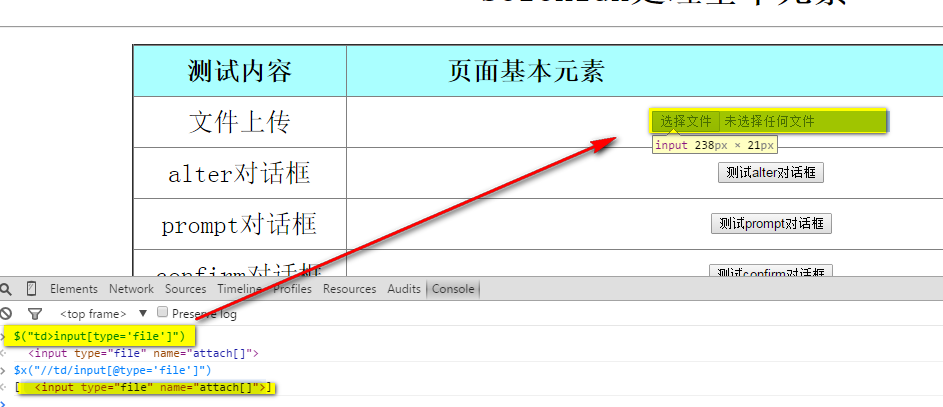
//td/input[@type='file']
也可以使用cssSelector,关于xpath和cssSelector更多知识,以后会做一些专题
td>input[type='file']
如何验证你写的xptah/cssSelector是正确的呢?
有以下几种方法:
- F12 ,使用浏览器的console ,xpath使用$x() function,css使用 $() function
- 使用第三方插件firebug
- 使用selenium IDE
alert对话框
细分三种,Alert,prompt,confirm
Selenium有以下方法:
Alert alert =driver.switchTo().alert();
1. driver.switchTo().alert(); 获取alert
2. alert.accept(); 点确定
3. alert.dismiss(); 点取消
4. alert.getText();获取alert的内容
select菜单
select也是比较常见的,selenium封装了以下方法
创建select
WebElement selector = driver.findElement(By.id("Selector"));

Select select = new Select(selector);
选择select的option有以下三种方法
- selectByIndex(int index) 通过index
- selectByVisibleText(String text) 通过匹配到的可见字符
- selectByValue(String value) 通过匹配到标签里的value
WebElement selector = driver.findElement(By.id("Selector"));

        Select select = new Select(selector);

        select.selectByIndex(3);

        select.selectByVisibleText("桃子");

        select.selectByValue("apple");
输入框
输入框就比较简单了,不再多说
sendKeys()输入内容
clear() 清空
单选框(RadioBox)
单选框可以有获取状态,是否被选中
radioBox.isSelected();
是否enable
radioBox.isEnabled()
使用click方法选中
复选框(checkBox)
复选框和单选框基本差不多,此处略
超链接
超链接比较常见,一般都是标签a
<a href="http://www.cnblogs.com/tobecrazy/" >Copyright 2015 to be crazy </a>
一般使用click方法
这里我们了解一下浏览器打开超链接时,如果是chrome,点超链接的同时按下Ctrl会打开新标签,按下shift会打开新窗口
这里单讲一下不同窗口切换.
selenium有两个关于获取窗口的方法:
1. driver.getWindowHandle(); 返回的是字符串,获取当前窗口的句柄
2. driver.getWindowHandles(); 返回的是 Set<String> ,获取所有窗口
如果你想在窗口之间切换
driver.switchTo().window(window);
小技巧: 如何滚动到你定位的元素
这里使用java script
// scroll to mylink

        JavascriptExecutor scroll = (JavascriptExecutor) driver;

        scroll.executeScript("arguments[0].scrollIntoView();", myLink);
接下来是所有测试代码:
package com.packt.webdriver.chapter1;

import java.util.List;

import java.util.Set;

import java.util.concurrent.TimeUnit;

import org.openqa.selenium.Alert;

import org.openqa.selenium.By;

import org.openqa.selenium.JavascriptExecutor;

import org.openqa.selenium.Keys;

import org.openqa.selenium.WebDriver;

import org.openqa.selenium.WebElement;

import org.openqa.selenium.interactions.Actions;

import org.openqa.selenium.support.ui.Select;

import org.testng.Assert;

import com.packt.webdriver.chapter3.DriverFactory;

/**

 * this method is for deal with base web elements

 *

 * @author Young

 *

 */

public class dealWithElements {

    public static void main(String[] args) throws Exception {

        String URL = "file://demo.html";

        String chromdriver="E:\\chromedriver.exe";

        System.setProperty("webdriver.chrome.driver", chromdriver);

        ChromeOptions options = new ChromeOptions();

//        options.addExtensions(new File(""));

        DesiredCapabilities capabilities = DesiredCapabilities.chrome();

        capabilities.setCapability("chrome.switches",

                Arrays.asList("--start-maximized"));

        options.addArguments("--test-type", "--start-maximized");

        WebDriver driver=new ChromeDriver(options);

        driver.get(URL);

        // max size the browser

        driver.manage().window().maximize();

        driver.manage().timeouts().pageLoadTimeout(10, TimeUnit.SECONDS);

        WebElement upload = driver.findElement(By

                .xpath("//td/input[@type='file']"));

        upload.sendKeys("C:/Users/Young/Desktop/demo.html");

        Assert.assertTrue(upload.getAttribute("value").contains("demo"));

        // for alert

        WebElement clickOnAlert = driver.findElement(By

                .xpath("//td/input[@name='alterbutton']"));

        clickOnAlert.click();

        delay(2);

        // get alert

        Alert alert = driver.switchTo().alert();

        Assert.assertTrue(alert.getText().contains("alert"));

        // click alert ok

        alert.accept();

        delay(2);

        // for prompt

        WebElement clickOnPrompt = driver.findElement(By

                .xpath("//td/input[@name='promptbutton']"));

        clickOnPrompt.click();

        delay(2);

        Alert prompt = driver.switchTo().alert();

        prompt.sendKeys("I love Selenium");

        prompt.accept();

        delay(5);

        Alert afterAccept = driver.switchTo().alert();

        Assert.assertTrue(afterAccept.getText().contains("I love Selenium"));

        // click alert ok

        afterAccept.accept();

        delay(2);

        // for confirm

        WebElement clickOnConfirm = driver.findElement(By

                .xpath("//td/input[@name='confirmbutton']"));

        clickOnConfirm.click();

        delay(2);

        Alert confirm = driver.switchTo().alert();

        confirm.dismiss();

        delay(2);

        Alert afterDismiss = driver.switchTo().alert();

        Assert.assertTrue(afterDismiss.getText().contains("You pressed Cancel"));

        delay(2);

        afterDismiss.accept();

        driver.manage().timeouts().implicitlyWait(60, TimeUnit.SECONDS);

        WebElement selector = driver.findElement(By.id("Selector"));

        Select select = new Select(selector);

        select.selectByIndex(3);

        select.selectByVisibleText("桃子");

        select.selectByValue("apple");

        System.out.println(select.getAllSelectedOptions().toString());

        delay(2);

        WebElement showSelectResult = driver.findElement(By

                .name("showSelectResult"));

        showSelectResult.click();

        delay(2);

        Alert yourSelect = driver.switchTo().alert();

        Assert.assertTrue(yourSelect.getText().contains("苹果"));

        delay(2);

        yourSelect.accept();

        // input box

        WebElement editBox = driver.findElement(By

                .xpath("//td/input[@id='edit']"));

        editBox.sendKeys("Selenium is good");

        WebElement submitButton = driver.findElement(By

                .xpath("//input[@type='button' and @name='submit']"));

        submitButton.click();

        delay(2);

        Alert submitAlert = driver.switchTo().alert();

        Assert.assertEquals(submitAlert.getText(), "Selenium is good");

        submitAlert.accept();

        delay(2);

        // for radio Box

        WebElement duRadioBox = driver.findElement(By

                .cssSelector("div#radio>input.Baidu"));

        WebElement aLiRadioBox = driver.findElement(By

                .cssSelector("div#radio>input.Alibaba"));

        WebElement TXRadioBox = driver.findElement(By

                .cssSelector("div#radio>input.Tencent"));

        WebElement MiRadioBox = driver.findElement(By

                .cssSelector("div#radio>input.Mi"));

        delay(2);

        Assert.assertTrue(TXRadioBox.isSelected());

        Assert.assertTrue(!MiRadioBox.isEnabled());

        delay(2);

        duRadioBox.click();

        Assert.assertTrue(duRadioBox.isSelected());

        delay(2);

        aLiRadioBox.click();

        Assert.assertTrue(aLiRadioBox.isSelected());

        delay(2);

        // for checkBox

        List<WebElement> webCheckBox = driver.findElements(By

                .xpath("//input[@type='checkbox']"));

        for (WebElement e : webCheckBox) {

            e.click();

            Assert.assertTrue(e.isSelected());

            delay(2);

        }

        // for links

        String defaultWindow = driver.getWindowHandle();

        WebElement myLink = driver.findElement(By

                .linkText("Copyright 2015 to be crazy"));

        delay(3);

        // scroll to mylink

        JavascriptExecutor scroll = (JavascriptExecutor) driver;

        scroll.executeScript("arguments[0].scrollIntoView();", myLink);

        // open link in a new windows press shift when you click

        delay(2);

        Actions actions = new Actions(driver);

        actions.keyDown(Keys.SHIFT).click(myLink).perform();

        delay(3);

        Set<String> currentWindows = driver.getWindowHandles();

        System.out.println(currentWindows.size());

        for (String window : currentWindows) {

            if (!window.endsWith(defaultWindow)) {

                driver = driver.switchTo().window(window);

                driver.manage().timeouts()

                        .pageLoadTimeout(60, TimeUnit.SECONDS);

                driver.manage().timeouts().implicitlyWait(60, TimeUnit.SECONDS);

                break;

            }

        }

        Assert.assertTrue(driver.getCurrentUrl().contains("tobecrazy"));

        delay(10);

        driver.quit();

    }

    /**

     * @author Young

     * @param seconds

     */

    public static void delay(int seconds) {

        try {

            Thread.sleep(seconds * 1000);

        } catch (InterruptedException e) {

            // TODO Auto-generated catch block

            e.printStackTrace();

        }

    }

}
selenium 总结篇,常见方法和页面元素的操作的更多相关文章
- selenium总结篇,常见方法和页面元素的操作【转】
原文:http://www.cnblogs.com/tobecrazy/p/4570494.html 今天,总结一下selenium怎么操作web页面常见的元素. 主要有: 上传 alter dial ...
- 爬虫 selenium+Xpath 爬取动态js页面元素内容
介绍 selenium最初是一个自动化测试工具,而爬虫中使用它主要是为了解决requests无法直接执行JavaScript代码的问题 selenium本质是通过驱动浏览器,完全模拟浏览器的操作,比如 ...
- Python3 Selenium自动化web测试 ==> 第二节 页面元素的定位方法 <上>
前置步骤: 上一篇的Python单元测试框架unittest,我认为相当于功能测试测试用例设计中的用例模板,在自动化用例的设计过程中,可以封装一个模板,在新建用例的时候,把需要测试的步骤添加上去即可: ...
- Python3 Selenium自动化web测试 ==> 第二节 页面元素的定位方法 -- iframe专题 <下>
学习目的: 掌握iframe矿建的定位,因为前端的iframe框架页面元素信息,大多时候都会带有动态ID,无法重复定位. 场景: 1. iframe切换 查看iframe 切换iframe 多个ifr ...
- Selenium(二十):expected_conditions判断页面元素
1. 判断元素(expected_conditons) 作为一个刚刚转到python开发的小朋友,在开发前只将前辈们封装的方法看了一遍,学了一边selenium基础.看到封装的方法有什么判断元素是否存 ...
- [Selenium]通过JavaScript来对隐藏的元素执行操作
对不可见元素进行操作时,如果通过普通的方式不可行,可以尝试用Javascript Scroll hidden element into view ((JavascriptExecutor) drive ...
- selenium采用xpath方法识别页面元素
有些HTML页面中的元素中属性较少,经常有找不到id.class.name等常用属性的时候,这个时候xpath.css就能很好的识别到我们的元素. Firefox和chrome浏览器中均有xpath. ...
- selenium采用find_element_by方法识别页面元素
主要是练习获取页面中的各元素,马克 # coding:utf-8 import time from selenium import webdriver import unittest from pyt ...
- Python+Selenium练习篇之17-断言页面标题
继续来介绍一个Selenium中页面title断言方法. 相关脚本代码如下: # coding=utf-8 import time from selenium import webdriver dri ...
随机推荐
- 谈谈我的windows服务器运维管理
我们开发的页游General War(http://gw.gamebox.com)上线运营也有半年多了,服务器的开发到运维基本都由我一手包办,在服务器上线之后我们又招了一个程序员接手后续功能的开发,而 ...
- AD_TLC549采集模拟信号
AD_TLC549采集模拟信号 实验原理 芯片介绍 TLC549是 TI公司生产的一种低价位.高性能的8位A/D转换器,它以8位开关电容逐次逼近的方法实现 A/D转换,其转换速度小于 17us,最大转 ...
- JavaScript模板引擎artTemplate.js——如何引入模板引擎?
artTeamplate.js在github上的地址:artTemplate性能卓越的js模板引擎 引入模板引擎,就是引入外部javascript啦,并且artTemplate.js不依赖其他第三方库 ...
- 通过form上传文件(php)
前段代码 <html> <head> <meta http-equiv="Content-Type" content="text/html; ...
- $.extend()的用法【转】
1.合并多个对象. 这里使用的就是$.extend()的嵌套多个对象的功能. 所谓嵌套多个对象,有点类似于数组的合并的操作. 但是这里是对象.举例说明. 代码如下: <span style=&q ...
- centos虚拟机网络桥接配置
1.虚拟机设置->网络适配器->选择桥接模式->重启虚拟机 2.使用命令进行配置IP地址 (引用别人的配置命令) 修改/etc/sysconfig/network-scripts 目 ...
- 小程序实现sql插入语句转换成Laravel迁移语句
sql的插入语句长这样: INSERT INTO `media` (`MediaID`, `type`, `filename`, `title`) VALUES (1, 'word', 'word1. ...
- svg格式嵌入html中方法之一
如下为html中主要代码,这里用img标签嵌入的. <div class="con-left-logo_svg"> <img src="images/l ...
- 【UOJ#228】基础数据结构练习题 线段树
#228. 基础数据结构练习题 题目链接:http://uoj.ac/problem/228 Solution 这题由于有区间+操作,所以和花神还是不一样的. 花神那道题,我们可以考虑每个数最多开根几 ...
- 网页中嵌入可以点击“运行代码”执行html/css/js代码
html代码 <textarea name="textarea" cols="60" rows="10" id="rn01& ...